> ## Documentation Index
> Fetch the complete documentation index at: https://www.carstoragesoftware.com/docs/llms.txt
> Use this file to discover all available pages before exploring further.
# Ask about billing, contracts, and alerts
> Use the AI Assistant to check invoices, quotes, contracts, and expiring items—then verify in the dashboard before you tell a customer.
## What you will accomplish
You will ask the AI Assistant about **money**, **agreements**, and **deadlines**—then open the right dashboard page to confirm before you quote a customer or take action.
This guide is for **lookups and summaries**. Final billing, voiding invoices, and sending contracts for signature still happen in [Payments](https://www.carstoragesoftware.com/dashboard/payments) and your normal contract workflow.
## When to use this guide
Use these questions when:
* A customer calls asking what they owe.
* You need to know if a storage agreement was signed.
* You want a quick list of expiring registrations, insurance, or contracts.
* You are preparing a follow-up and need a starting point—not the final legal or accounting answer.
**Always verify money and contracts**
Treat assistant answers about **dollar amounts**, **invoice status**, and **contract details** as **drafts**. Open the official record before you promise a customer or change anything.
## Before you start
* Your staff role includes the area you are asking about. Billing questions need **Payments** access; contract questions need **Contracts** access.
* You know the **customer name**, **vehicle**, or **invoice number** if possible.
* You started **New Chat** on the web or sent a clear message in your team iMessage group.
* You are ready to open [Payments > Invoices](https://www.carstoragesoftware.com/dashboard/payments/invoices) or the customer record to double-check.
## Ask about customer invoices and quotes
Go to [AI Assistant](https://www.carstoragesoftware.com/agent) or use your linked iMessage group. Click **New Chat** for each unrelated customer.
**Expected result:** You see the start screen with **Type a message...** at the bottom (or the microphone orb if you prefer voice).
Click in **Type a message...** and ask a clear question. Examples:
* Does Alex Morgan have any open invoices?
* Find open invoices for the 2017 Lamborghini Huracan.
* What quotes are waiting for Alex Morgan?
Press **Enter** to send.
**Why this matters:** Names and vehicles help the assistant search the same records you see under [Payments](https://www.carstoragesoftware.com/dashboard/payments).
You may see **Thinking...** for a few seconds while the assistant searches.
**Expected result:** A short summary appears in the chat—such as a list of open invoices, “no invoices on file,” or a note that you need **Payments** permission.
Note status words such as **Open**, **Paid**, **Draft**, or **Void**.
If the assistant shows a customer card with a name and email, confirm it is the person you meant before you quote anything to a caller.
Go to [Invoices](https://www.carstoragesoftware.com/dashboard/payments/invoices) or [Quotes](https://www.carstoragesoftware.com/dashboard/payments/quotes) and open the row.
**Why this matters:** The dashboard shows line items, taxes, and send history the chat may shorten.
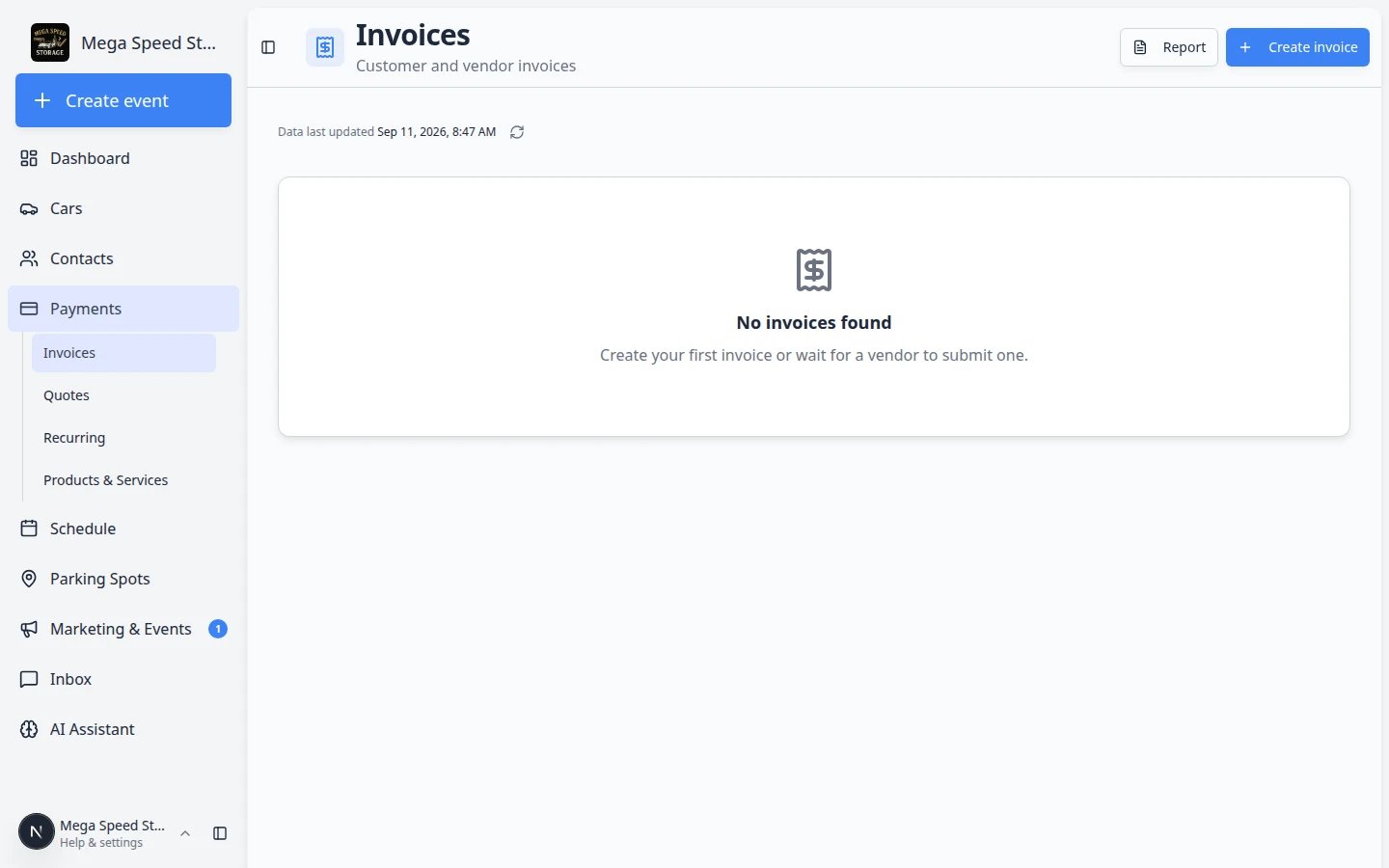 *Always open [Payments > Invoices](https://www.carstoragesoftware.com/dashboard/payments/invoices) before you quote a dollar amount on the phone. The list shows status badges such as **Open**, **Paid**, and **Draft** that the chat may shorten.*
Read [Review a customer invoice](/docs/payments/review-a-customer-invoice) for status meanings.
*Always open [Payments > Invoices](https://www.carstoragesoftware.com/dashboard/payments/invoices) before you quote a dollar amount on the phone. The list shows status badges such as **Open**, **Paid**, and **Draft** that the chat may shorten.*
Read [Review a customer invoice](/docs/payments/review-a-customer-invoice) for status meanings.
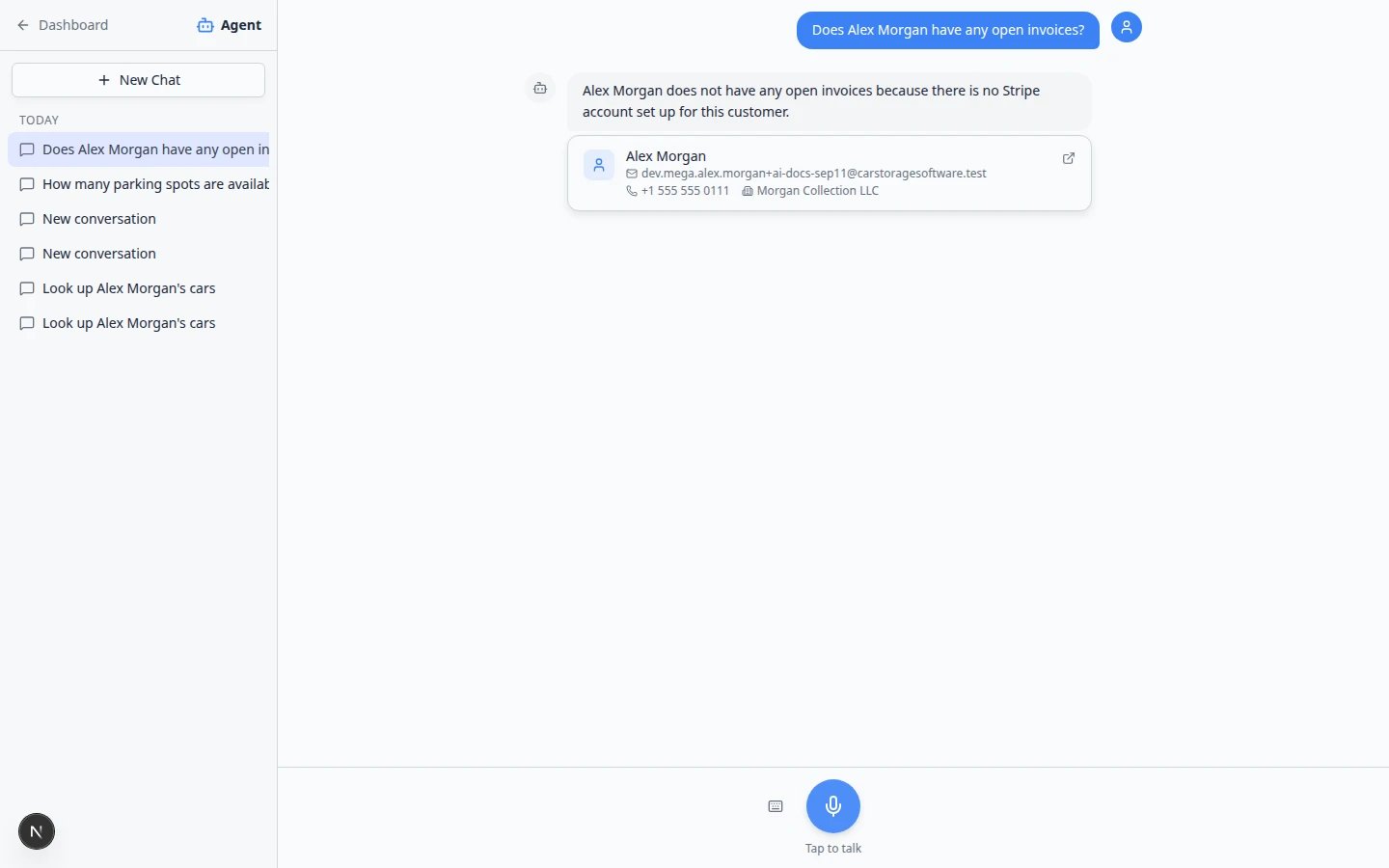 *The assistant summarizes invoice status in the chat. Even when the answer mentions setup or says there are no open invoices, open [Payments](https://www.carstoragesoftware.com/dashboard/payments/invoices) before you tell a customer what they owe.*
**Stripe or payment setup messages**
If the assistant says a **Stripe account is not set up** for a customer, your facility may still need to finish [Connect payment processing](/docs/settings/connect-payment-processing) or add that customer to payment processing on their [Contacts](https://www.carstoragesoftware.com/dashboard/contacts) record. The assistant is pointing you to a setup gap—not saying the customer definitely owes \$0.
**No invoices does not always mean \$0**
The assistant only sees invoices already created in your system. A customer might still owe storage under a recurring plan that has not generated an invoice yet. When money matters, open [Payments](https://www.carstoragesoftware.com/dashboard/payments) and the customer record—not just the chat reply.
## Ask about recurring storage or memberships
In [AI Assistant](https://www.carstoragesoftware.com/agent), click **New Chat**. Type a question such as:
* Does Alex Morgan have monthly storage billing?
* Which recurring plans are active for Sam Rivera?
Press **Enter** and wait for the reply to finish.
**Expected result:** Plan names and status summaries—such as **active**, **paused**, or **no recurring billing on file**.
Open [Payments > Recurring](https://www.carstoragesoftware.com/dashboard/payments/recurring) for exact dates, amounts, and the next invoice date.
**Why this matters:** The assistant summarizes what it finds. The **Recurring** page shows line items, billing cycles, and whether a plan is linked to a specific vehicle.
See [Manage recurring billing](/docs/payments/manage-recurring-billing).
If the assistant says there is no recurring billing but you expect storage fees, open the customer in [Contacts](https://www.carstoragesoftware.com/dashboard/contacts) and review the **Billing** area.
**Tip:** Recurring plans must be set up in [Payments](https://www.carstoragesoftware.com/dashboard/payments) before the assistant can report them.
*The assistant summarizes invoice status in the chat. Even when the answer mentions setup or says there are no open invoices, open [Payments](https://www.carstoragesoftware.com/dashboard/payments/invoices) before you tell a customer what they owe.*
**Stripe or payment setup messages**
If the assistant says a **Stripe account is not set up** for a customer, your facility may still need to finish [Connect payment processing](/docs/settings/connect-payment-processing) or add that customer to payment processing on their [Contacts](https://www.carstoragesoftware.com/dashboard/contacts) record. The assistant is pointing you to a setup gap—not saying the customer definitely owes \$0.
**No invoices does not always mean \$0**
The assistant only sees invoices already created in your system. A customer might still owe storage under a recurring plan that has not generated an invoice yet. When money matters, open [Payments](https://www.carstoragesoftware.com/dashboard/payments) and the customer record—not just the chat reply.
## Ask about recurring storage or memberships
In [AI Assistant](https://www.carstoragesoftware.com/agent), click **New Chat**. Type a question such as:
* Does Alex Morgan have monthly storage billing?
* Which recurring plans are active for Sam Rivera?
Press **Enter** and wait for the reply to finish.
**Expected result:** Plan names and status summaries—such as **active**, **paused**, or **no recurring billing on file**.
Open [Payments > Recurring](https://www.carstoragesoftware.com/dashboard/payments/recurring) for exact dates, amounts, and the next invoice date.
**Why this matters:** The assistant summarizes what it finds. The **Recurring** page shows line items, billing cycles, and whether a plan is linked to a specific vehicle.
See [Manage recurring billing](/docs/payments/manage-recurring-billing).
If the assistant says there is no recurring billing but you expect storage fees, open the customer in [Contacts](https://www.carstoragesoftware.com/dashboard/contacts) and review the **Billing** area.
**Tip:** Recurring plans must be set up in [Payments](https://www.carstoragesoftware.com/dashboard/payments) before the assistant can report them.
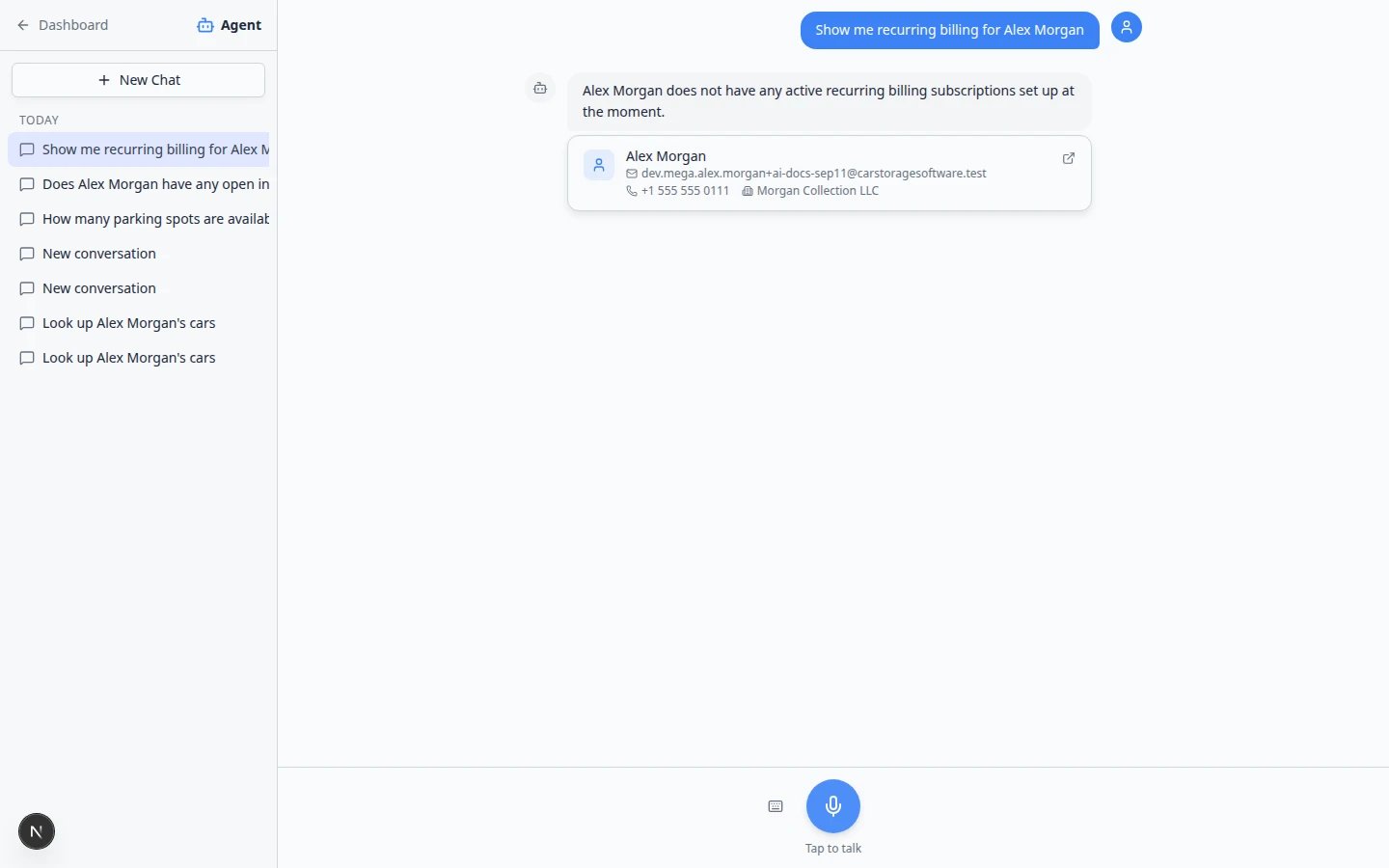 *Recurring plan questions return a short summary in the chat. Open [Payments > Recurring](https://www.carstoragesoftware.com/dashboard/payments/recurring) to see exact amounts, next bill dates, and which vehicle each plan covers.*
**Recurring billing is not the same as open invoices**
A customer can have an **active monthly storage plan** but **no open invoice** yet if the next bill has not been generated. Ask about both when a caller questions their balance: recurring plans **and** open invoices.
## Ask about contracts and documents
Open [AI Assistant](https://www.carstoragesoftware.com/agent) and click **New Chat** so contract questions are not mixed with invoice lookups from earlier.
Type a clear question. Examples:
* What contracts are waiting for Alex Morgan to sign?
* Show documents for the Porsche 911.
* Has Alex Morgan signed the storage agreement?
Press **Enter** and wait for the reply.
**Expected result:** Template names or status words such as **sent**, **viewed**, **signed**, or **not on file**.
If the assistant says a contract is **waiting for signature**, do not promise the customer it is complete until you open the file yourself.
**Why this matters:** A customer may have opened the email but not finished signing. The dashboard shows the official status.
Use [Contacts](https://www.carstoragesoftware.com/dashboard/contacts) or your [Contracts](/docs/contracts/overview) workflow to see the full PDF and signing history.
**Expected result:** You can resend, download, or follow your facility's normal signing process from the record page—not from the chat.
*Recurring plan questions return a short summary in the chat. Open [Payments > Recurring](https://www.carstoragesoftware.com/dashboard/payments/recurring) to see exact amounts, next bill dates, and which vehicle each plan covers.*
**Recurring billing is not the same as open invoices**
A customer can have an **active monthly storage plan** but **no open invoice** yet if the next bill has not been generated. Ask about both when a caller questions their balance: recurring plans **and** open invoices.
## Ask about contracts and documents
Open [AI Assistant](https://www.carstoragesoftware.com/agent) and click **New Chat** so contract questions are not mixed with invoice lookups from earlier.
Type a clear question. Examples:
* What contracts are waiting for Alex Morgan to sign?
* Show documents for the Porsche 911.
* Has Alex Morgan signed the storage agreement?
Press **Enter** and wait for the reply.
**Expected result:** Template names or status words such as **sent**, **viewed**, **signed**, or **not on file**.
If the assistant says a contract is **waiting for signature**, do not promise the customer it is complete until you open the file yourself.
**Why this matters:** A customer may have opened the email but not finished signing. The dashboard shows the official status.
Use [Contacts](https://www.carstoragesoftware.com/dashboard/contacts) or your [Contracts](/docs/contracts/overview) workflow to see the full PDF and signing history.
**Expected result:** You can resend, download, or follow your facility's normal signing process from the record page—not from the chat.
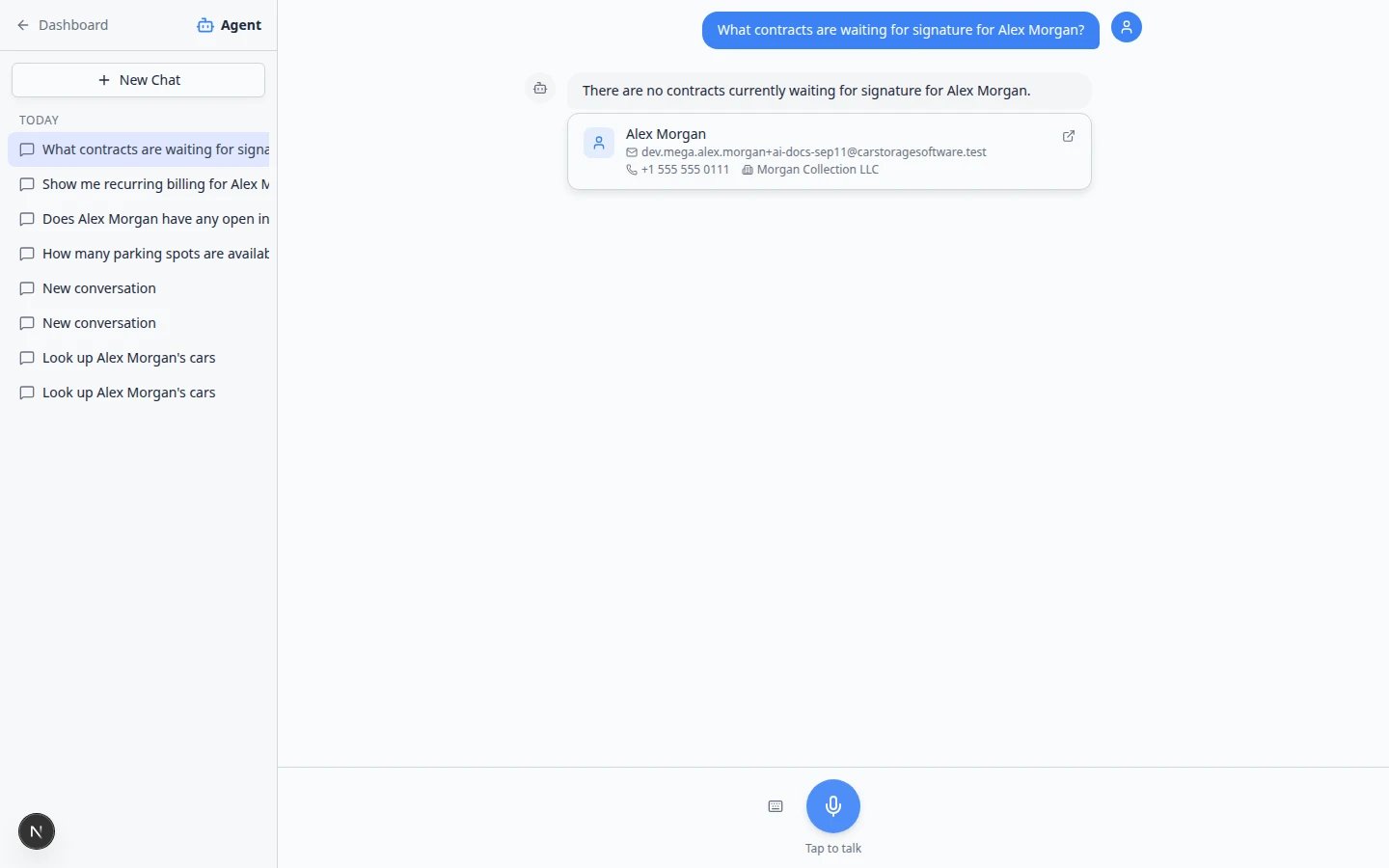 *Contract questions return template names and status words such as **sent**, **viewed**, or **signed**. Open the customer record or [Contracts](/docs/contracts/overview) workflow before you tell a caller their agreement is complete.*
**Sending for signature**
The assistant may offer to **send** a contract in some cases. Treat that like any sensitive action: confirm the customer, template, and email address in the dashboard before you agree.
## Ask about expiring items and dashboard alerts
Your dashboard **Alerts & Deadlines** area tracks items such as registration, insurance, and contract renewals. The assistant can summarize similar information when you ask.
Open [AI Assistant](https://www.carstoragesoftware.com/agent) and click **New Chat** so alert questions are not mixed with a customer lookup from earlier.
Type a question such as:
* What registrations are expiring this month?
* Any insurance or contracts expiring soon?
* What should I follow up on today?
Press **Enter** and wait for the reply.
You may briefly see **Using Get Dashboard Alerts...** or **Thinking...** while the assistant searches.
The assistant may show green **Nothing needs attention** boxes when no matching items fall in the date range—or a list of customers, cars, or documents that need follow-up.
**Expected result:** You know whether to call customers about renewals or move on to other work.
Click through to [Cars](https://www.carstoragesoftware.com/dashboard/cars), [Contacts](https://www.carstoragesoftware.com/dashboard/contacts), or the [Overview](https://www.carstoragesoftware.com/dashboard/v2) dashboard widgets to verify dates.
**Why this matters:** Expiration rules depend on the data your team entered. The record page is the source of truth.
*Contract questions return template names and status words such as **sent**, **viewed**, or **signed**. Open the customer record or [Contracts](/docs/contracts/overview) workflow before you tell a caller their agreement is complete.*
**Sending for signature**
The assistant may offer to **send** a contract in some cases. Treat that like any sensitive action: confirm the customer, template, and email address in the dashboard before you agree.
## Ask about expiring items and dashboard alerts
Your dashboard **Alerts & Deadlines** area tracks items such as registration, insurance, and contract renewals. The assistant can summarize similar information when you ask.
Open [AI Assistant](https://www.carstoragesoftware.com/agent) and click **New Chat** so alert questions are not mixed with a customer lookup from earlier.
Type a question such as:
* What registrations are expiring this month?
* Any insurance or contracts expiring soon?
* What should I follow up on today?
Press **Enter** and wait for the reply.
You may briefly see **Using Get Dashboard Alerts...** or **Thinking...** while the assistant searches.
The assistant may show green **Nothing needs attention** boxes when no matching items fall in the date range—or a list of customers, cars, or documents that need follow-up.
**Expected result:** You know whether to call customers about renewals or move on to other work.
Click through to [Cars](https://www.carstoragesoftware.com/dashboard/cars), [Contacts](https://www.carstoragesoftware.com/dashboard/contacts), or the [Overview](https://www.carstoragesoftware.com/dashboard/v2) dashboard widgets to verify dates.
**Why this matters:** Expiration rules depend on the data your team entered. The record page is the source of truth.
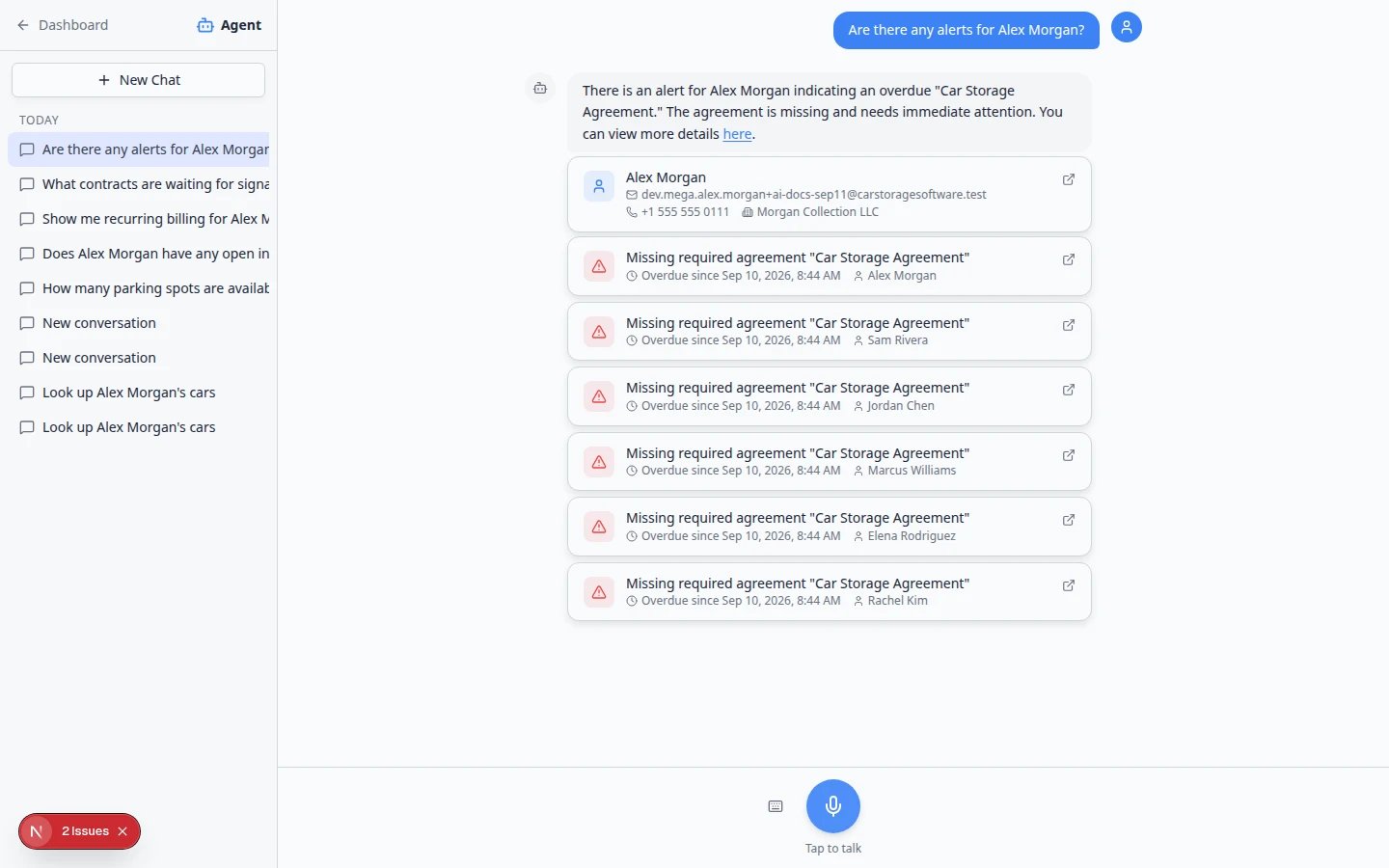 *Alert answers summarize registrations, insurance, and similar deadlines. When the list is empty, your team still benefits from knowing nothing is due in the next 90 days.*
**Alerts need data on the car record**
If the assistant always says nothing is expiring but you know a registration is due, open the vehicle in [Cars](https://www.carstoragesoftware.com/dashboard/cars) and confirm registration and insurance dates are filled in. Empty fields cannot trigger alerts.
## Ask about account balance or credits (when applicable)
Some facilities track customer account balances or credits.
* **Does Alex Morgan have account credit?**
* **What is the balance on Sam Rivera's account?**
**Expected result:** A number or summary. Open the customer billing area in [Contacts](https://www.carstoragesoftware.com/dashboard/contacts) or [Payments](https://www.carstoragesoftware.com/dashboard/payments) before applying a credit or quoting a balance.
If the assistant shows an **Issue account credit** proposal card on the web, follow [Review AI proposals](/docs/ai-assistant/review-ai-proposals) before confirming.
## Web assistant vs iMessage for billing questions
| Topic | Web [AI Assistant](https://www.carstoragesoftware.com/agent) | iMessage group chat |
| - | - | - |
| Open invoice totals | Summary + optional **Go now** link | Text summary only |
| Proposal to issue credit | May show a review card | Confirm in plain language—no card |
| Best for | Reading numbers beside the chat on a large screen | Quick phone call answer, then verify later |
## Common mistakes to avoid
* Quoting an invoice total from memory without opening [Payments](https://www.carstoragesoftware.com/dashboard/payments).
* Telling a customer a contract is signed because the assistant said so—open the document.
* Mixing two customers in one chat thread when asking about money.
* Asking about billing when your role does not include **Payments**—the assistant will say it lacks permission.
## Troubleshooting
### The assistant says it does not have permission
An admin must turn on **Payments** (and **Contracts** if needed) for your role in [Settings > Team](https://www.carstoragesoftware.com/dashboard/settings/team). See [Manage team permissions](/docs/settings/manage-team-permissions).
### Amounts do not match the invoice page
Use the dashboard total. Ask again with the invoice number or customer email if the assistant picked the wrong account.
### No alerts show but you expected some
Check that registration, insurance, and contract dates are entered on [Cars](https://www.carstoragesoftware.com/dashboard/cars) and customer records. Empty fields cannot trigger alerts.
## What to do next
* [Review a customer invoice](/docs/payments/review-a-customer-invoice) for status badges and follow-up steps.
* [Send and collect customer payments](/docs/payments/send-and-collect-customer-payments) after you confirm what is owed.
* [Contracts overview](/docs/contracts/overview) for sending and tracking agreements.
* [Ask about schedule, parking, and records](/docs/ai-assistant/ask-about-schedule-parking-and-records) for non-billing lookups.
This documentation is built and hosted on [Mintlify](https://mintlify.com), a developer documentation platform.
*Alert answers summarize registrations, insurance, and similar deadlines. When the list is empty, your team still benefits from knowing nothing is due in the next 90 days.*
**Alerts need data on the car record**
If the assistant always says nothing is expiring but you know a registration is due, open the vehicle in [Cars](https://www.carstoragesoftware.com/dashboard/cars) and confirm registration and insurance dates are filled in. Empty fields cannot trigger alerts.
## Ask about account balance or credits (when applicable)
Some facilities track customer account balances or credits.
* **Does Alex Morgan have account credit?**
* **What is the balance on Sam Rivera's account?**
**Expected result:** A number or summary. Open the customer billing area in [Contacts](https://www.carstoragesoftware.com/dashboard/contacts) or [Payments](https://www.carstoragesoftware.com/dashboard/payments) before applying a credit or quoting a balance.
If the assistant shows an **Issue account credit** proposal card on the web, follow [Review AI proposals](/docs/ai-assistant/review-ai-proposals) before confirming.
## Web assistant vs iMessage for billing questions
| Topic | Web [AI Assistant](https://www.carstoragesoftware.com/agent) | iMessage group chat |
| - | - | - |
| Open invoice totals | Summary + optional **Go now** link | Text summary only |
| Proposal to issue credit | May show a review card | Confirm in plain language—no card |
| Best for | Reading numbers beside the chat on a large screen | Quick phone call answer, then verify later |
## Common mistakes to avoid
* Quoting an invoice total from memory without opening [Payments](https://www.carstoragesoftware.com/dashboard/payments).
* Telling a customer a contract is signed because the assistant said so—open the document.
* Mixing two customers in one chat thread when asking about money.
* Asking about billing when your role does not include **Payments**—the assistant will say it lacks permission.
## Troubleshooting
### The assistant says it does not have permission
An admin must turn on **Payments** (and **Contracts** if needed) for your role in [Settings > Team](https://www.carstoragesoftware.com/dashboard/settings/team). See [Manage team permissions](/docs/settings/manage-team-permissions).
### Amounts do not match the invoice page
Use the dashboard total. Ask again with the invoice number or customer email if the assistant picked the wrong account.
### No alerts show but you expected some
Check that registration, insurance, and contract dates are entered on [Cars](https://www.carstoragesoftware.com/dashboard/cars) and customer records. Empty fields cannot trigger alerts.
## What to do next
* [Review a customer invoice](/docs/payments/review-a-customer-invoice) for status badges and follow-up steps.
* [Send and collect customer payments](/docs/payments/send-and-collect-customer-payments) after you confirm what is owed.
* [Contracts overview](/docs/contracts/overview) for sending and tracking agreements.
* [Ask about schedule, parking, and records](/docs/ai-assistant/ask-about-schedule-parking-and-records) for non-billing lookups.
This documentation is built and hosted on [Mintlify](https://mintlify.com), a developer documentation platform.