> ## Documentation Index
> Fetch the complete documentation index at: https://www.carstoragesoftware.com/docs/llms.txt
> Use this file to discover all available pages before exploring further.
# Connect iMessage to the AI Assistant
> Save the agent number, verify teammate phones, and link a staff group chat in Messages.
## What you will accomplish
You will connect your facility's **AI Assistant** to a **team iMessage group chat** so staff can ask questions by text—without opening the dashboard on a computer.
When setup is complete:
* Verified teammates can text the assistant from their own phone.
* Your group chat can look up customers, cars, schedule, and parking.
* Admins can pause, resume, or unlink the group from [Settings > AI Agent](https://www.carstoragesoftware.com/dashboard/settings/ai-agent).
This guide is for **facility owners and admins**. Front-desk staff who only need to *use* the group chat should read [Use the AI Assistant in iMessage](/docs/ai-assistant/use-the-ai-assistant-in-imessage) after an admin finishes setup.
**Web assistant vs iMessage**
The dashboard **[AI Assistant](https://www.carstoragesoftware.com/agent)** page and iMessage use the same brain, but they look different.
* **Web** shows proposal cards and **Confirm All** before saving new records.
* **iMessage** replies in short text messages. There are no on-screen cards to review.
Both respect your team's permissions and shared facts the assistant remembers over time.
## Before you start
* You can sign in as a facility **admin** (or someone with **AI Assistant** settings access).
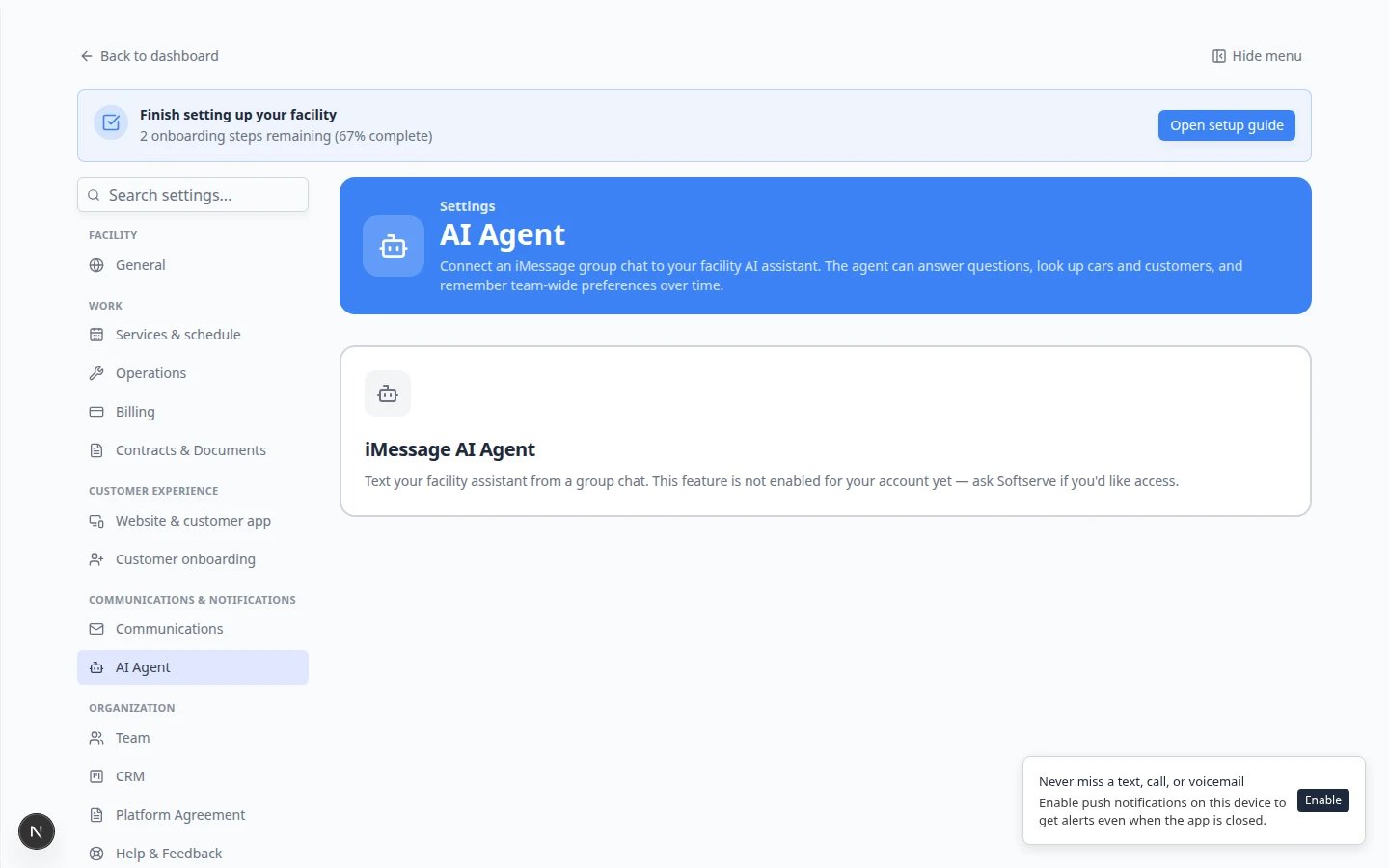
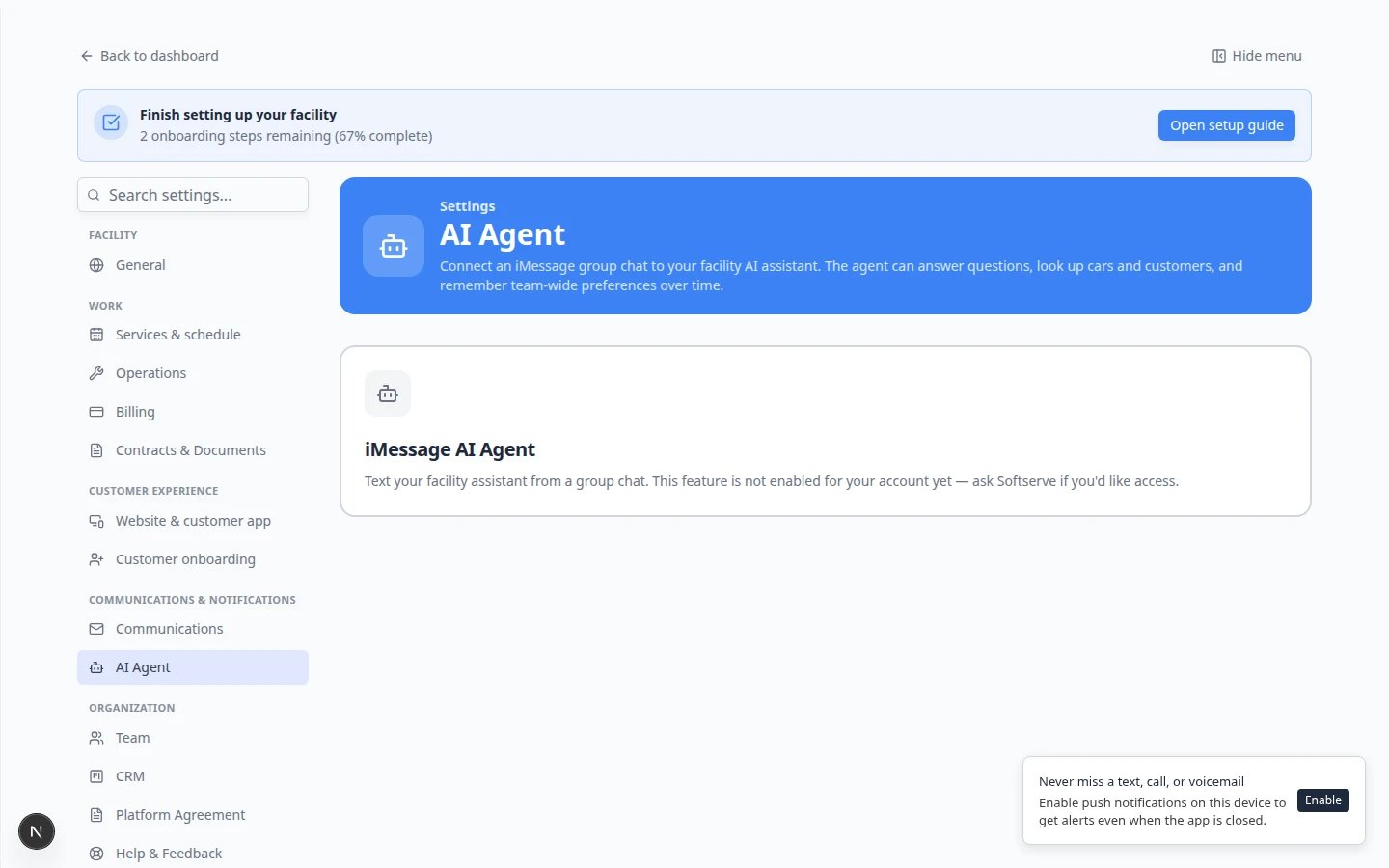
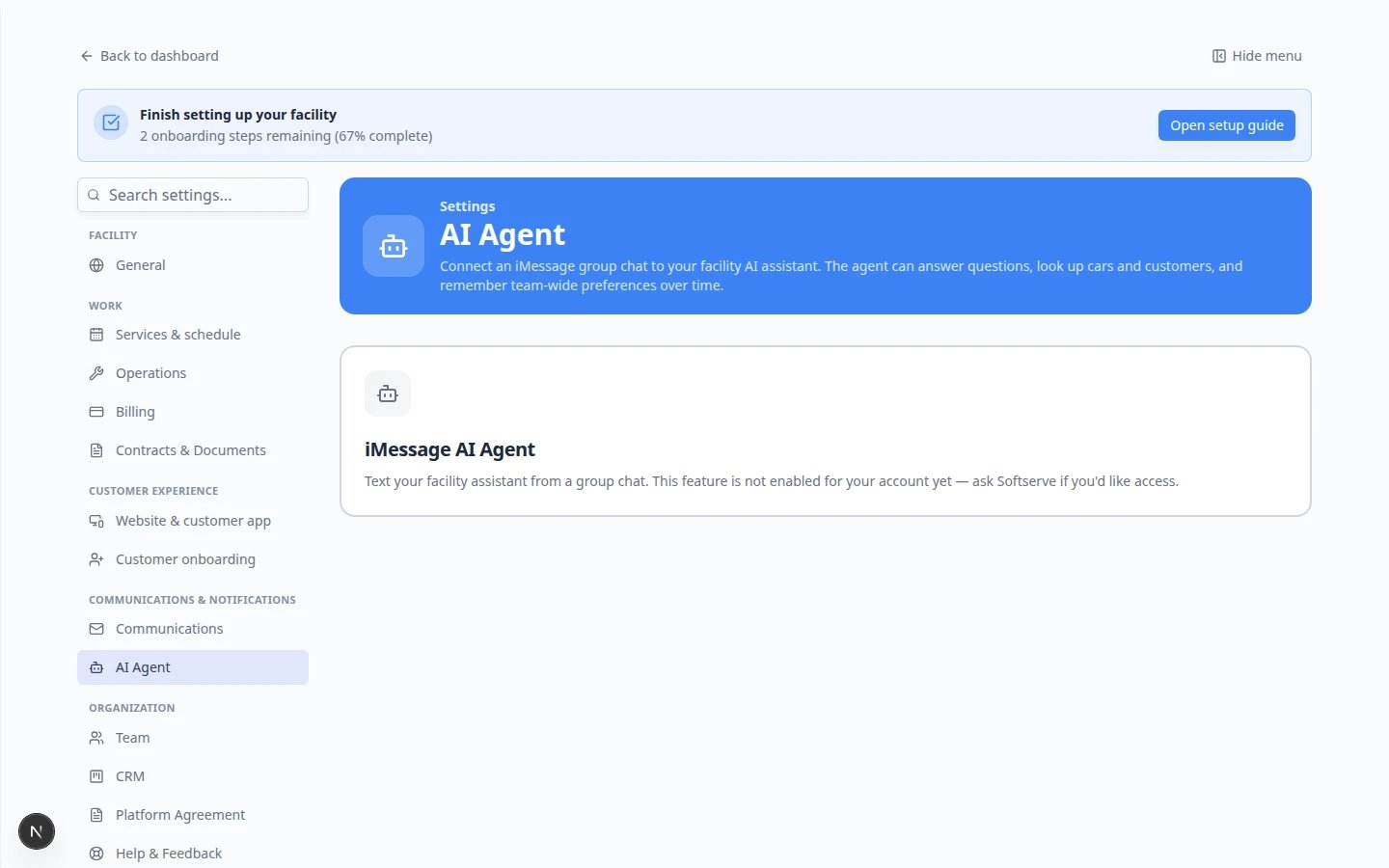
* Your facility has **iMessage AI Agent** turned on by Car Storage Software support. If [Settings > AI Agent](https://www.carstoragesoftware.com/dashboard/settings/ai-agent) says **This feature is not enabled for your account yet**, contact support before you follow the steps below—there is nothing to configure until it is turned on.
* Each teammate who will text the assistant has an **iPhone or Mac with Messages** and a mobile number saved on their user profile in [Settings > Team](https://www.carstoragesoftware.com/dashboard/settings/team).
* You have (or will create) a **group chat in Messages** for your operations team—not a chat with customers.
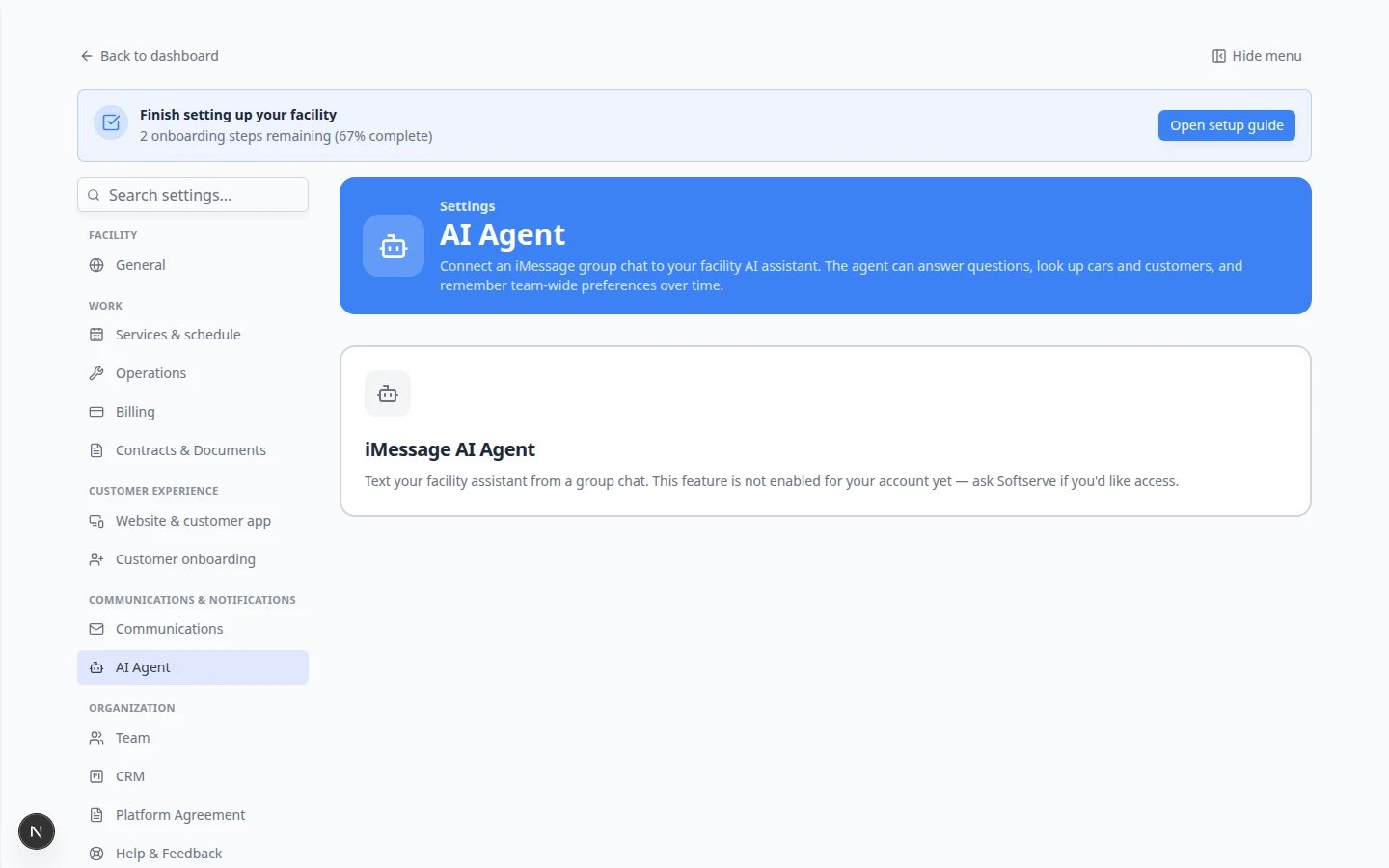 *Open [Settings > AI Agent](https://www.carstoragesoftware.com/dashboard/settings/ai-agent). Setup follows three numbered steps from top to bottom.*
## Step 1: Open AI Agent settings
In the dashboard sidebar, click **Settings**.
**Why this matters:** iMessage linking is a one-time facility setup. It lives with other admin tools—not on the daily AI Assistant chat page.
Open [Settings > AI Agent](https://www.carstoragesoftware.com/dashboard/settings/ai-agent).
**Expected result:** You see three numbered sections: **1 · Your agent's number**, **2 · Text the robot**, and **3 · Group chat**.
**If you see “not enabled for your account”**
That message means iMessage has not been activated for your facility yet. The web **[AI Assistant](https://www.carstoragesoftware.com/agent)** page may still work. Contact Car Storage Software support to enable iMessage for your team.
## Step 2: Save the agent phone number
Every teammate needs this number in their phone contacts before texting or starting a group chat.
Scroll to the first section on the page. You will see a large phone number labeled **AGENT CONTACT**.
**Expected result:** A blue **Copy number** button appears below the number.
Click **Copy number** and save the contact in your phone as something your team will recognize, such as **Mega Speed Assistant**.
**Why this matters:** Verification and group linking only work when texts come from phones that have messaged this exact number.
## Step 3: Verify teammate phones (Text the robot)
Each person who will use the group chat must verify their mobile number.
This section lists teammates who already have a phone number on their profile in [Settings > Team](https://www.carstoragesoftware.com/dashboard/settings/team).
**Expected result:** You see a card for each person. Cards may show **Invite**, **Pending**, or a green checkmark when **Verified**.
If a teammate appears under **hidden — no phone number on record**, click their row and enter their mobile number in the window that opens.
**Why this matters:** The assistant cannot verify a phone that is not on file.
For anyone who is not verified yet, click their card. The card shows **Invite**.
**Expected result:** They receive an email with instructions to text a verification code to the agent number from step 2.
After the teammate sends the text from their phone, refresh the page. Their card should show a green checkmark and say **Verified**.
**Why this matters:** Only **Verified** phones can be included in the group chat in step 4.
Tap each **Verified** card you want in the operations group. Selected cards turn green and say **included in the group chat below**.
**Expected result:** At least one verified teammate (usually yourself) is selected before you continue.
*Open [Settings > AI Agent](https://www.carstoragesoftware.com/dashboard/settings/ai-agent). Setup follows three numbered steps from top to bottom.*
## Step 1: Open AI Agent settings
In the dashboard sidebar, click **Settings**.
**Why this matters:** iMessage linking is a one-time facility setup. It lives with other admin tools—not on the daily AI Assistant chat page.
Open [Settings > AI Agent](https://www.carstoragesoftware.com/dashboard/settings/ai-agent).
**Expected result:** You see three numbered sections: **1 · Your agent's number**, **2 · Text the robot**, and **3 · Group chat**.
**If you see “not enabled for your account”**
That message means iMessage has not been activated for your facility yet. The web **[AI Assistant](https://www.carstoragesoftware.com/agent)** page may still work. Contact Car Storage Software support to enable iMessage for your team.
## Step 2: Save the agent phone number
Every teammate needs this number in their phone contacts before texting or starting a group chat.
Scroll to the first section on the page. You will see a large phone number labeled **AGENT CONTACT**.
**Expected result:** A blue **Copy number** button appears below the number.
Click **Copy number** and save the contact in your phone as something your team will recognize, such as **Mega Speed Assistant**.
**Why this matters:** Verification and group linking only work when texts come from phones that have messaged this exact number.
## Step 3: Verify teammate phones (Text the robot)
Each person who will use the group chat must verify their mobile number.
This section lists teammates who already have a phone number on their profile in [Settings > Team](https://www.carstoragesoftware.com/dashboard/settings/team).
**Expected result:** You see a card for each person. Cards may show **Invite**, **Pending**, or a green checkmark when **Verified**.
If a teammate appears under **hidden — no phone number on record**, click their row and enter their mobile number in the window that opens.
**Why this matters:** The assistant cannot verify a phone that is not on file.
For anyone who is not verified yet, click their card. The card shows **Invite**.
**Expected result:** They receive an email with instructions to text a verification code to the agent number from step 2.
After the teammate sends the text from their phone, refresh the page. Their card should show a green checkmark and say **Verified**.
**Why this matters:** Only **Verified** phones can be included in the group chat in step 4.
Tap each **Verified** card you want in the operations group. Selected cards turn green and say **included in the group chat below**.
**Expected result:** At least one verified teammate (usually yourself) is selected before you continue.
 *Step 2 lists teammates with phones on file. Tap a card to send an invite email, then wait for **Verified** before selecting them for the group chat.*
**Who can invite teammates?**
Only admins (or staff with **AI Assistant** write access in [Settings > Team](/docs/settings/manage-team-permissions)) can add phone numbers and send invites. Other staff can still use a linked group chat once it is connected.
## Step 4: Open the group chat in Messages
The software can open Messages for you with the right people and a link code ready to send.
Read the description: one tap opens Messages with your selected verified teammates, the agent number, and a link code.
**Expected result:** A card titled **Open in Messages** shows how many teammates you selected in step 2.
If you see orange text saying **Invite yourself in step 2**, complete verification for your own card before continuing.
**Why this matters:** The **Open group chat & send code** button stays disabled until at least one phone is verified—including yours if you are the admin setting this up.
Click the blue **Open group chat & send code** button.
**Expected result:** Messages opens on your phone or Mac with a pre-filled group including the selected teammates and the agent number, plus a **LINK** command ready to send.
On your phone, tap **Send** in the group chat.
**Why this matters:** The link code ties that specific group chat to your facility. Send it only in your trusted staff group.
Return to [Settings > AI Agent](https://www.carstoragesoftware.com/dashboard/settings/ai-agent) and refresh. Under **Linked chats** inside step 3, your group should appear with a green **active** badge.
**Expected result:** Your team can now ask questions in that group chat and receive replies from the assistant.
*Step 2 lists teammates with phones on file. Tap a card to send an invite email, then wait for **Verified** before selecting them for the group chat.*
**Who can invite teammates?**
Only admins (or staff with **AI Assistant** write access in [Settings > Team](/docs/settings/manage-team-permissions)) can add phone numbers and send invites. Other staff can still use a linked group chat once it is connected.
## Step 4: Open the group chat in Messages
The software can open Messages for you with the right people and a link code ready to send.
Read the description: one tap opens Messages with your selected verified teammates, the agent number, and a link code.
**Expected result:** A card titled **Open in Messages** shows how many teammates you selected in step 2.
If you see orange text saying **Invite yourself in step 2**, complete verification for your own card before continuing.
**Why this matters:** The **Open group chat & send code** button stays disabled until at least one phone is verified—including yours if you are the admin setting this up.
Click the blue **Open group chat & send code** button.
**Expected result:** Messages opens on your phone or Mac with a pre-filled group including the selected teammates and the agent number, plus a **LINK** command ready to send.
On your phone, tap **Send** in the group chat.
**Why this matters:** The link code ties that specific group chat to your facility. Send it only in your trusted staff group.
Return to [Settings > AI Agent](https://www.carstoragesoftware.com/dashboard/settings/ai-agent) and refresh. Under **Linked chats** inside step 3, your group should appear with a green **active** badge.
**Expected result:** Your team can now ask questions in that group chat and receive replies from the assistant.
 *Step 3 opens Messages with verified teammates and a link code. After you send the message, the group appears under **Linked chats** with an **active** badge.*
**Button is gray?**
Confirm at least one teammate is **Verified** and selected in step 2, and that you have verified your own phone if you are the person clicking the button.
## Pause, resume, or unlink a group
After a group is linked, admins see **Pause**, **Resume**, and **Unlink** buttons on each row under **Linked chats**.
| Button | What it does | When to use it |
| - | - | - |
| **Pause** | Stops the assistant from auto-replying | During a meeting, maintenance, or when you are testing something else |
| **Resume** | Turns auto-replies back on | After a pause |
| **Unlink** | Disconnects the group from your facility | When you retire an old group chat or linked the wrong chat by mistake |
**Expected result after Unlink:** The group no longer appears as active. You can link a different group by repeating step 4.
*Step 3 opens Messages with verified teammates and a link code. After you send the message, the group appears under **Linked chats** with an **active** badge.*
**Button is gray?**
Confirm at least one teammate is **Verified** and selected in step 2, and that you have verified your own phone if you are the person clicking the button.
## Pause, resume, or unlink a group
After a group is linked, admins see **Pause**, **Resume**, and **Unlink** buttons on each row under **Linked chats**.
| Button | What it does | When to use it |
| - | - | - |
| **Pause** | Stops the assistant from auto-replying | During a meeting, maintenance, or when you are testing something else |
| **Resume** | Turns auto-replies back on | After a pause |
| **Unlink** | Disconnects the group from your facility | When you retire an old group chat or linked the wrong chat by mistake |
**Expected result after Unlink:** The group no longer appears as active. You can link a different group by repeating step 4.
 *After linking, each group shows under **Linked chats** with **active** status and admin controls.*
**No Linked chats section yet?**
Before you send the link code, step 3 only shows **Open in Messages** with a **Not linked** badge. That is normal. Complete step 4 first—the **Linked chats** list appears after the agent joins your group.
## Troubleshooting
### Open group chat & send code is grayed out
Your phone is not **Verified** yet, or no verified teammate is selected in step 2. Complete the invite flow and select at least one green **Verified** card.
### The group never shows as linked
* Confirm you tapped **Send** in Messages after the app opened the group.
* Confirm the sender's phone is **Verified** in step 2.
* Click **Open group chat & send code** again if the previous link code expired.
### A teammate cannot get Verified
Check that their mobile number is correct in [Settings > Team](https://www.carstoragesoftware.com/dashboard/settings/team). They must text from the same phone listed on their profile.
### I linked the wrong group
Click **Unlink** on that row under **Linked chats**, then repeat step 4 with the correct group.
## What to do next
* [Use the AI Assistant in iMessage](/docs/ai-assistant/use-the-ai-assistant-in-imessage) — teach your team what to ask and how replies work.
* [Manage team memory for the AI Assistant](/docs/ai-assistant/manage-team-memory-for-the-ai-assistant) — help the assistant remember facility rules.
* [Manage team permissions](/docs/settings/manage-team-permissions) — turn on **AI Assistant** for staff who need the web page or settings.
* [AI Assistant overview](/docs/ai-assistant/overview) — compare web and iMessage workflows.
This documentation is built and hosted on [Mintlify](https://mintlify.com), a developer documentation platform.
*After linking, each group shows under **Linked chats** with **active** status and admin controls.*
**No Linked chats section yet?**
Before you send the link code, step 3 only shows **Open in Messages** with a **Not linked** badge. That is normal. Complete step 4 first—the **Linked chats** list appears after the agent joins your group.
## Troubleshooting
### Open group chat & send code is grayed out
Your phone is not **Verified** yet, or no verified teammate is selected in step 2. Complete the invite flow and select at least one green **Verified** card.
### The group never shows as linked
* Confirm you tapped **Send** in Messages after the app opened the group.
* Confirm the sender's phone is **Verified** in step 2.
* Click **Open group chat & send code** again if the previous link code expired.
### A teammate cannot get Verified
Check that their mobile number is correct in [Settings > Team](https://www.carstoragesoftware.com/dashboard/settings/team). They must text from the same phone listed on their profile.
### I linked the wrong group
Click **Unlink** on that row under **Linked chats**, then repeat step 4 with the correct group.
## What to do next
* [Use the AI Assistant in iMessage](/docs/ai-assistant/use-the-ai-assistant-in-imessage) — teach your team what to ask and how replies work.
* [Manage team memory for the AI Assistant](/docs/ai-assistant/manage-team-memory-for-the-ai-assistant) — help the assistant remember facility rules.
* [Manage team permissions](/docs/settings/manage-team-permissions) — turn on **AI Assistant** for staff who need the web page or settings.
* [AI Assistant overview](/docs/ai-assistant/overview) — compare web and iMessage workflows.
This documentation is built and hosted on [Mintlify](https://mintlify.com), a developer documentation platform.