> ## Documentation Index
> Fetch the complete documentation index at: https://www.carstoragesoftware.com/docs/llms.txt
> Use this file to discover all available pages before exploring further.
# Fix voice and microphone problems
> Solve common microphone and speech issues so staff can still use the AI Assistant with the keyboard.
## What you will accomplish
You will fix—or work around—microphone problems so your team can keep using the AI Assistant without frustration.
If voice does not work on a computer, the **Type a message...** box at the bottom of the screen is a full replacement. You do not need a working microphone to get value from the assistant.
## When to use this guide
Use this guide when:
* The browser shows **Speech recognition error: not-allowed** or a similar message.
* Staff tap the microphone button and nothing happens.
* Voice mishears customer names and creates wrong lookups.
* You are on a shared front-desk computer where the microphone is turned off for privacy.
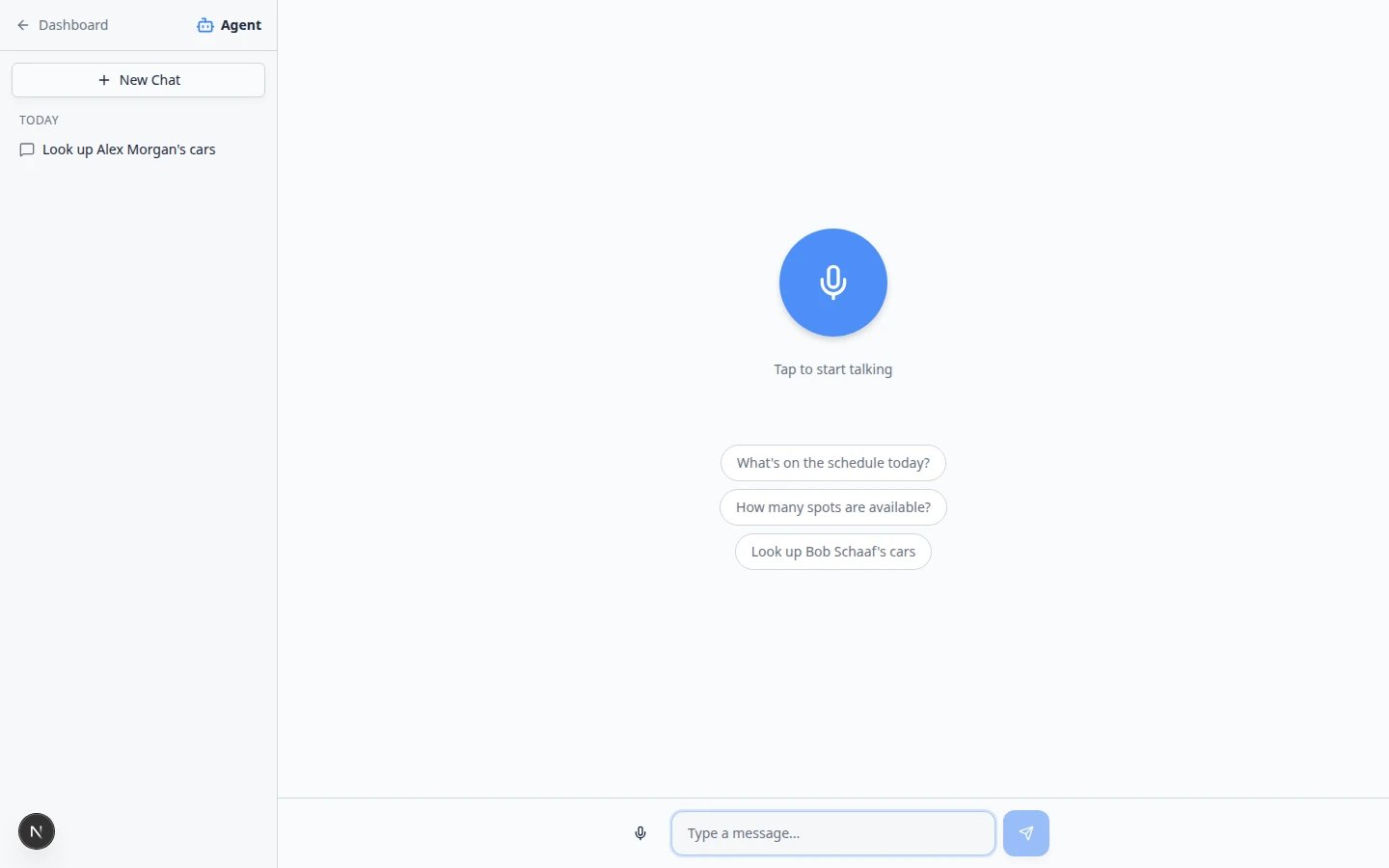 *On the start screen, type in **Type a message...** at the bottom—no microphone needed. Inside an active chat, click the **keyboard** icon (**Type instead**) when you are in voice mode.*
## Before you start
* Confirm you are signed in as staff at [AI Assistant](https://www.carstoragesoftware.com/agent).
* Know whether this computer is allowed to use a microphone (some facilities disable it on purpose).
* Have the keyboard ready—the **Type a message...** box works on every computer.
## Fastest fix: type your question
Click **AI Assistant** in the dashboard sidebar or open [AI Assistant](https://www.carstoragesoftware.com/agent).
**Expected result:** You see the start screen with a microphone orb, blue suggestion chips, and **Type a message...** at the bottom.
On the **start screen**, click **Type a message...** at the bottom of the page and type your question.
If you are already inside an **active chat** and see a large microphone instead of a text box, click the small **keyboard** icon. The tooltip says **Type instead**.
**Why this matters:** The start screen always has a text box. **Type instead** is only the keyboard icon you use to switch out of voice mode during a chat.
Press **Enter** or tap the send arrow.
**Expected result:** The assistant answers the same way it would for voice. Nothing is missing—you only changed how you sent the message.
**When typing is better than voice**
Use the keyboard for customer names, email addresses, license plates, and VINs. Voice is handy for quick questions like “What's on the schedule today?” when your device allows it.
## Allow the microphone in your browser
If your facility **wants** voice on this computer, try these steps in order.
Open [AI Assistant](https://www.carstoragesoftware.com/agent). On the start screen, click the large round microphone button once.
**Why this matters:** The browser only shows the permission popup after you try to use the mic—not before.
After you click the microphone, your browser may show a small icon near the web address at the top of the window (next to **https\://** or a lock icon).
Click that icon and choose **Allow** microphone access for this site. The wording may say **Always allow** or **Allow while visiting the site**.
**Expected result:** The blocked icon changes to allowed. You may need to click the microphone in the assistant one more time.
Press **F5** or click the browser refresh button.
Open [AI Assistant](https://www.carstoragesoftware.com/agent) again. Click the large microphone and speak a short test question such as **What's on the schedule today?**
**Expected result:** Your spoken words appear as text in the chat, then the assistant answers.
On Windows or Mac, open system **Privacy** or **Security** settings and confirm the browser is allowed to use the microphone.
**Why this matters:** Some computers block all apps from the microphone until an admin turns it on. Shared front-desk PCs are often set this way on purpose.
*On the start screen, type in **Type a message...** at the bottom—no microphone needed. Inside an active chat, click the **keyboard** icon (**Type instead**) when you are in voice mode.*
## Before you start
* Confirm you are signed in as staff at [AI Assistant](https://www.carstoragesoftware.com/agent).
* Know whether this computer is allowed to use a microphone (some facilities disable it on purpose).
* Have the keyboard ready—the **Type a message...** box works on every computer.
## Fastest fix: type your question
Click **AI Assistant** in the dashboard sidebar or open [AI Assistant](https://www.carstoragesoftware.com/agent).
**Expected result:** You see the start screen with a microphone orb, blue suggestion chips, and **Type a message...** at the bottom.
On the **start screen**, click **Type a message...** at the bottom of the page and type your question.
If you are already inside an **active chat** and see a large microphone instead of a text box, click the small **keyboard** icon. The tooltip says **Type instead**.
**Why this matters:** The start screen always has a text box. **Type instead** is only the keyboard icon you use to switch out of voice mode during a chat.
Press **Enter** or tap the send arrow.
**Expected result:** The assistant answers the same way it would for voice. Nothing is missing—you only changed how you sent the message.
**When typing is better than voice**
Use the keyboard for customer names, email addresses, license plates, and VINs. Voice is handy for quick questions like “What's on the schedule today?” when your device allows it.
## Allow the microphone in your browser
If your facility **wants** voice on this computer, try these steps in order.
Open [AI Assistant](https://www.carstoragesoftware.com/agent). On the start screen, click the large round microphone button once.
**Why this matters:** The browser only shows the permission popup after you try to use the mic—not before.
After you click the microphone, your browser may show a small icon near the web address at the top of the window (next to **https\://** or a lock icon).
Click that icon and choose **Allow** microphone access for this site. The wording may say **Always allow** or **Allow while visiting the site**.
**Expected result:** The blocked icon changes to allowed. You may need to click the microphone in the assistant one more time.
Press **F5** or click the browser refresh button.
Open [AI Assistant](https://www.carstoragesoftware.com/agent) again. Click the large microphone and speak a short test question such as **What's on the schedule today?**
**Expected result:** Your spoken words appear as text in the chat, then the assistant answers.
On Windows or Mac, open system **Privacy** or **Security** settings and confirm the browser is allowed to use the microphone.
**Why this matters:** Some computers block all apps from the microphone until an admin turns it on. Shared front-desk PCs are often set this way on purpose.
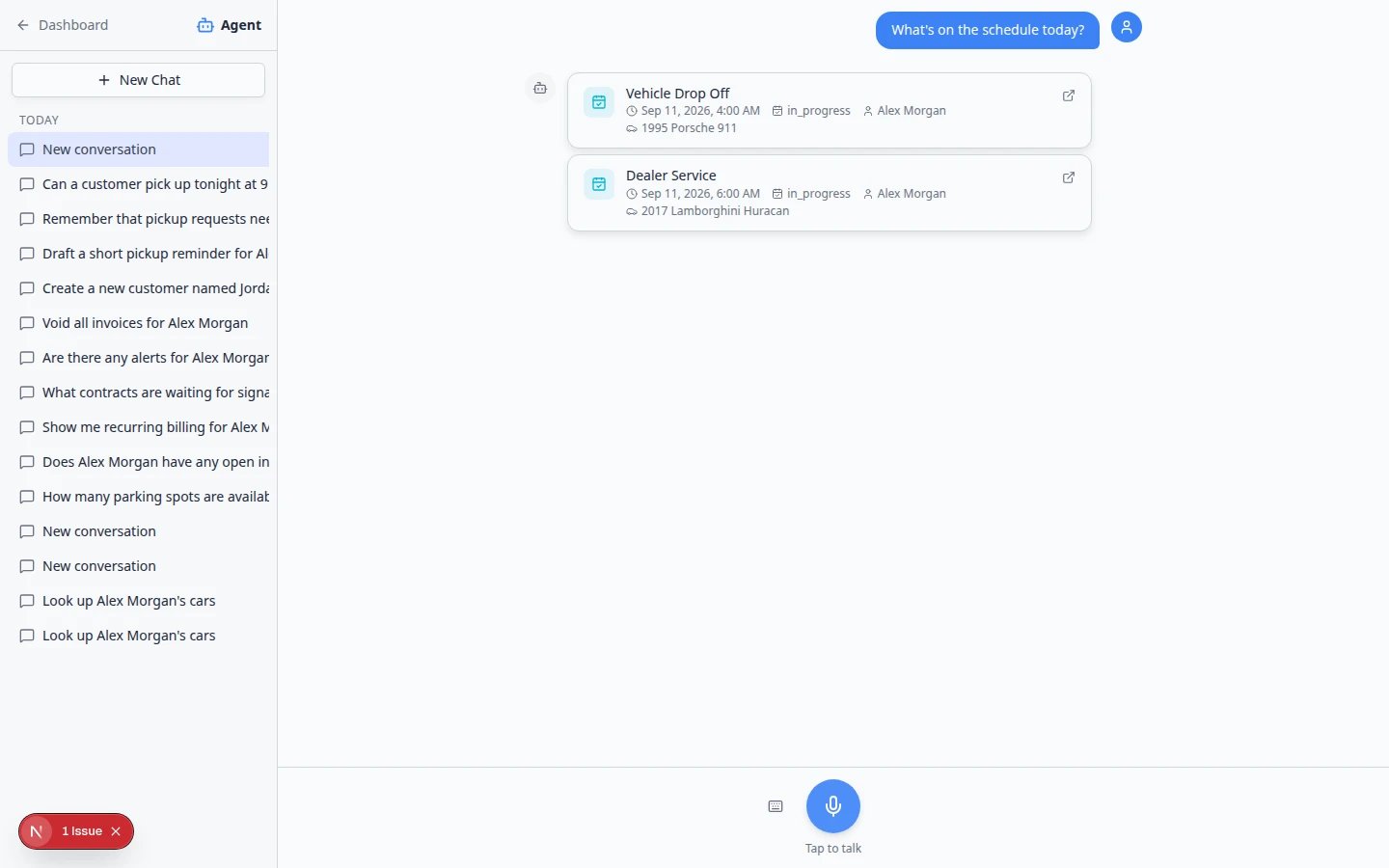 *Inside an active chat, click the small **keyboard** icon (**Type instead**) when voice is blocked or when you need exact spelling. On the start screen, type directly in **Type a message...** at the bottom.*
**Expected result:** The assistant listens, shows your spoken words as text, and answers. If not, continue with the keyboard—that is normal on many shared workstations.
## Fix “Speech recognition error: not-allowed”
This message means the browser blocked the microphone. It is **not** a problem with your Car Storage Software account.
**What to do right now**
1. Type in **Type a message...** on the start screen (or click the **keyboard** icon in an active chat).
2. Continue your work with the keyboard.
3. Ask your manager or IT person later if this computer should allow the microphone.
**Shared front-desk computers**
Many facilities intentionally block microphones on shared PCs to protect customer privacy. That is a good security choice. Train staff to type in **Type a message...** as the default on those machines.
## When voice hears the wrong words
Voice can mishear similar-sounding names.
Click the **keyboard** icon (**Type instead**) or edit the text before you send.
Example: **Look up Alex Morgan** — type the full name from [Contacts](https://www.carstoragesoftware.com/dashboard/contacts).
Compare the assistant's result to the customer record before you tell the caller anything important.
## Stop a wrong question while the assistant is thinking
After you send a message, the assistant may show **Thinking...** for a few seconds.
A small **stop** square icon may appear near the microphone area. Click it to cancel that answer.
Type your question with the correct spelling in **Type a message...**.
*Inside an active chat, click the small **keyboard** icon (**Type instead**) when voice is blocked or when you need exact spelling. On the start screen, type directly in **Type a message...** at the bottom.*
**Expected result:** The assistant listens, shows your spoken words as text, and answers. If not, continue with the keyboard—that is normal on many shared workstations.
## Fix “Speech recognition error: not-allowed”
This message means the browser blocked the microphone. It is **not** a problem with your Car Storage Software account.
**What to do right now**
1. Type in **Type a message...** on the start screen (or click the **keyboard** icon in an active chat).
2. Continue your work with the keyboard.
3. Ask your manager or IT person later if this computer should allow the microphone.
**Shared front-desk computers**
Many facilities intentionally block microphones on shared PCs to protect customer privacy. That is a good security choice. Train staff to type in **Type a message...** as the default on those machines.
## When voice hears the wrong words
Voice can mishear similar-sounding names.
Click the **keyboard** icon (**Type instead**) or edit the text before you send.
Example: **Look up Alex Morgan** — type the full name from [Contacts](https://www.carstoragesoftware.com/dashboard/contacts).
Compare the assistant's result to the customer record before you tell the caller anything important.
## Stop a wrong question while the assistant is thinking
After you send a message, the assistant may show **Thinking...** for a few seconds.
A small **stop** square icon may appear near the microphone area. Click it to cancel that answer.
Type your question with the correct spelling in **Type a message...**.
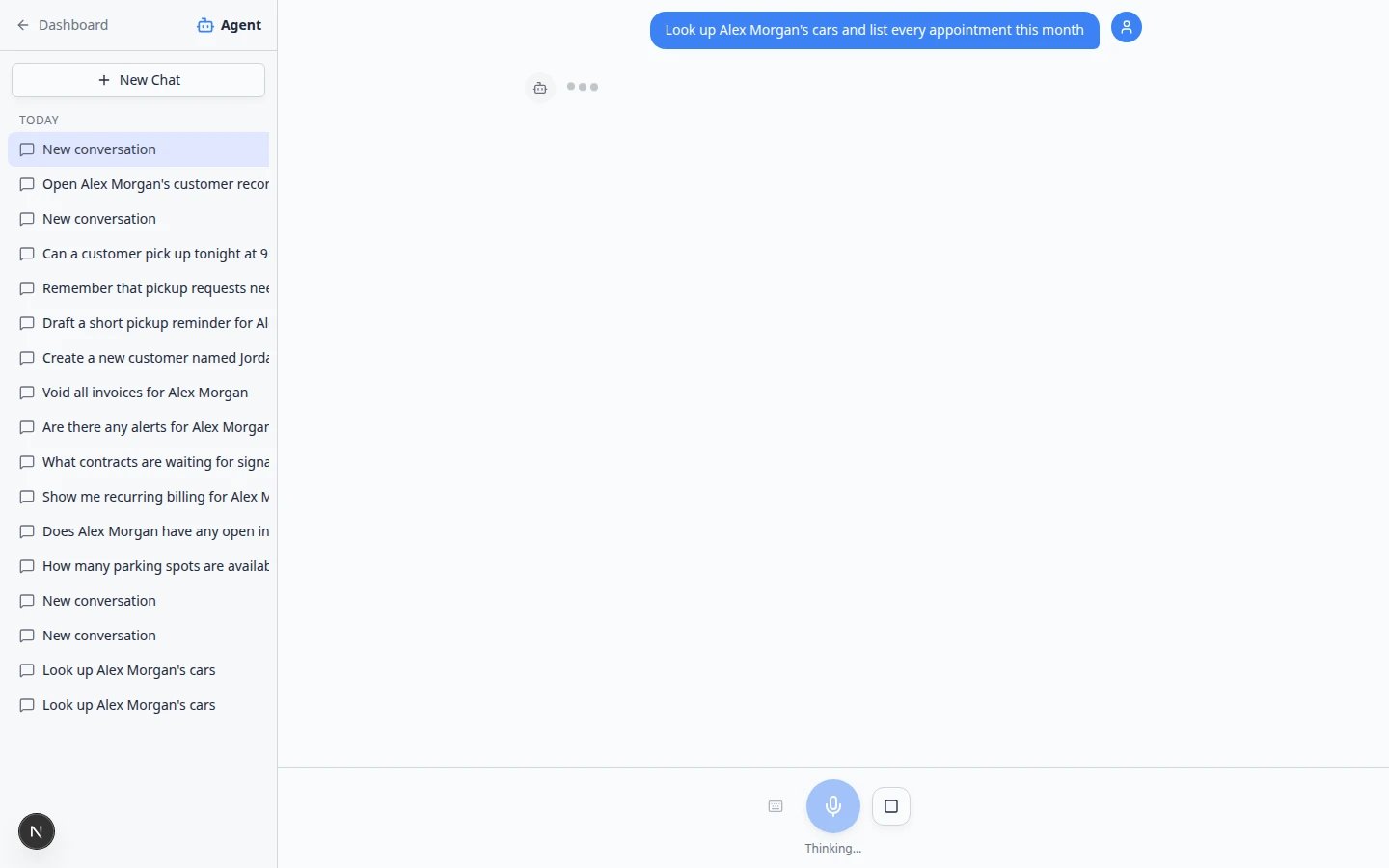 *Thinking... is normal. Use the stop button if you sent the wrong question, then type a clearer follow-up.*
## Troubleshooting checklist
| Problem | Likely cause | What to try |
| - | - | - |
| Microphone button does nothing | Browser blocked access | Type in **Type a message...**, then allow mic in the address bar |
| Error: not-allowed | Site or computer blocked mic | Type in **Type a message...** (no mic needed) |
| Wrong customer in the answer | Voice misheard a name | Type the full name; verify in [Contacts](https://www.carstoragesoftware.com/dashboard/contacts) |
| No microphone on this PC | Hardware or policy | Use keyboard only; no fix required |
| Assistant worked yesterday, not today | Browser update or policy change | Refresh page; sign out and in; type in **Type a message...** |
## What to do next
* [Use the AI Assistant](/docs/ai-assistant/use-the-ai-assistant) — everyday questions with voice or keyboard.
* [Use the assistant during a customer call](/docs/ai-assistant/use-the-assistant-during-a-customer-call) — recommended typing workflow while on the phone.
* [Who can use the AI Assistant](/docs/ai-assistant/who-can-use-the-ai-assistant) — if the whole feature seems missing from the sidebar.
This documentation is built and hosted on [Mintlify](https://mintlify.com), a developer documentation platform.
*Thinking... is normal. Use the stop button if you sent the wrong question, then type a clearer follow-up.*
## Troubleshooting checklist
| Problem | Likely cause | What to try |
| - | - | - |
| Microphone button does nothing | Browser blocked access | Type in **Type a message...**, then allow mic in the address bar |
| Error: not-allowed | Site or computer blocked mic | Type in **Type a message...** (no mic needed) |
| Wrong customer in the answer | Voice misheard a name | Type the full name; verify in [Contacts](https://www.carstoragesoftware.com/dashboard/contacts) |
| No microphone on this PC | Hardware or policy | Use keyboard only; no fix required |
| Assistant worked yesterday, not today | Browser update or policy change | Refresh page; sign out and in; type in **Type a message...** |
## What to do next
* [Use the AI Assistant](/docs/ai-assistant/use-the-ai-assistant) — everyday questions with voice or keyboard.
* [Use the assistant during a customer call](/docs/ai-assistant/use-the-assistant-during-a-customer-call) — recommended typing workflow while on the phone.
* [Who can use the AI Assistant](/docs/ai-assistant/who-can-use-the-ai-assistant) — if the whole feature seems missing from the sidebar.
This documentation is built and hosted on [Mintlify](https://mintlify.com), a developer documentation platform.