> ## Documentation Index
> Fetch the complete documentation index at: https://www.carstoragesoftware.com/docs/llms.txt
> Use this file to discover all available pages before exploring further.
# Use the assistant during a customer call
> Look up customers, cars, and appointments quickly while a customer is on the phone—without putting them on hold for long.
## What you will accomplish
You will use the AI Assistant during a live phone call to answer common questions—whose cars are stored, what is scheduled this week, where a vehicle is parked—while the customer stays on the line.
The goal is to **sound prepared** and **give accurate answers** without clicking through five dashboard pages while someone waits.
## When to use this guide
Use this guide when:
* A customer calls and asks, “Which of my cars do you have?” or “When is my detail appointment?”
* You need parking or schedule information before you promise a time on the phone.
* You want to confirm a name or vehicle spelling before you open a full record.
**What this guide is not for**
Do not void invoices, change contracts, or delete records during a call through the assistant. Open the normal [Payments](https://www.carstoragesoftware.com/dashboard/payments) or record pages for sensitive changes—or tell the customer you will call back after a manager reviews.
## Before you start
* Sign in to the staff dashboard on a computer near your phone (or use a second monitor).
* Confirm you have **AI Assistant**, **Contacts**, and **Cars** permissions. See [Who can use the AI Assistant](/docs/ai-assistant/who-can-use-the-ai-assistant).
* Click **+ New Chat** so this call does not mix with another customer's thread.
* Type in **Type a message...** for names and spellings—the customer can hear you typing, which is normal and accurate.
## Recommended call workflow
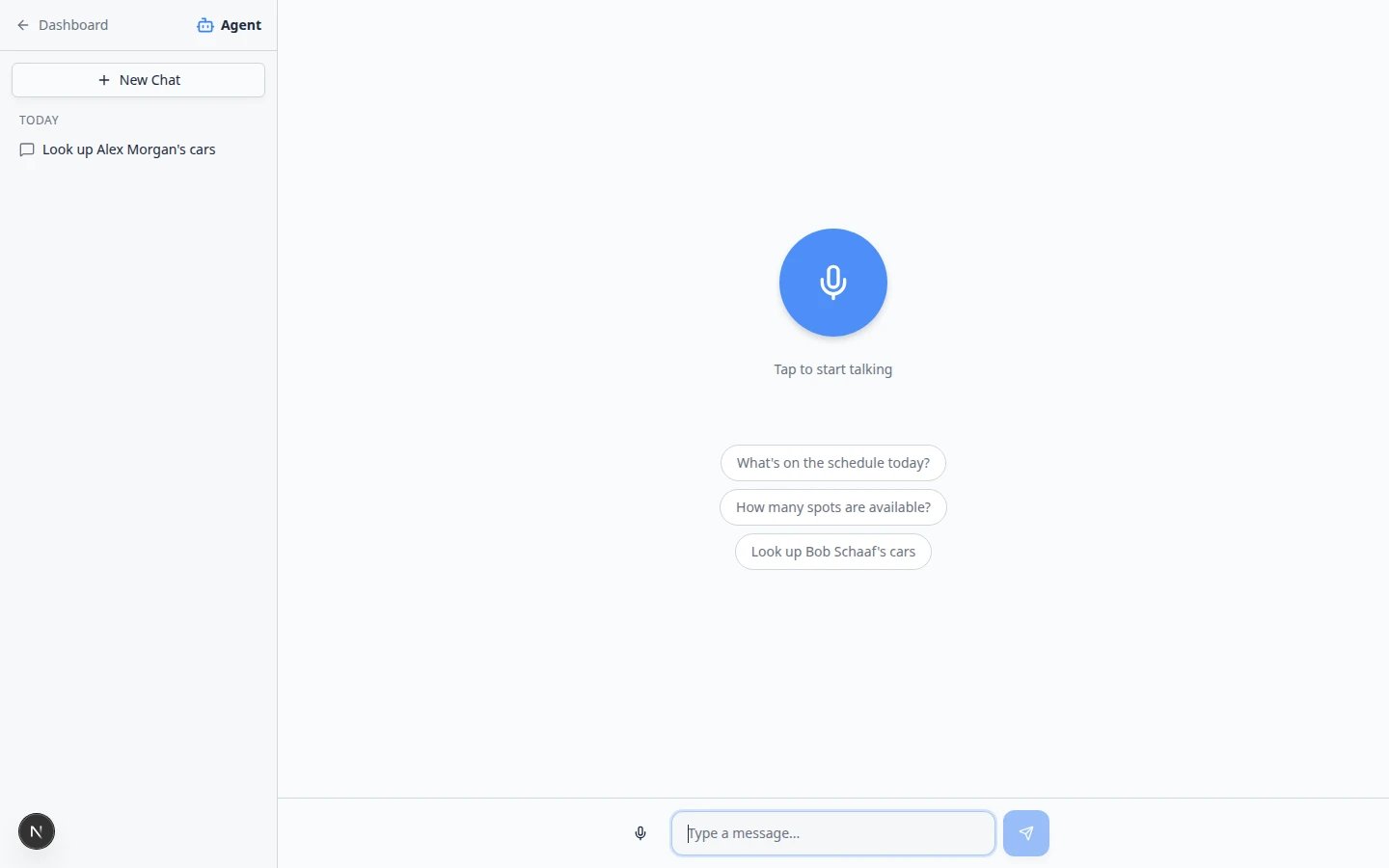 *Open [AI Assistant](https://www.carstoragesoftware.com/agent) and click **+ New Chat** in the left sidebar before each caller. The start screen also shows helpful chips such as **What's on the schedule today?**—but on a live call, type the customer's name in **Type a message...** for accuracy.*
Open [AI Assistant](https://www.carstoragesoftware.com/agent). Click **+ New Chat** in the left sidebar.
**Why this matters:** Each caller deserves a fresh thread. Mixing two customers in one chat causes wrong answers.
Type a clear question that names the customer and what you need.
**Example:** **I have Alex Morgan on the phone. What cars are in storage and is anything scheduled this week?**
Press **Enter** and wait for the answer to finish (you may see **Thinking...** briefly).
*Open [AI Assistant](https://www.carstoragesoftware.com/agent) and click **+ New Chat** in the left sidebar before each caller. The start screen also shows helpful chips such as **What's on the schedule today?**—but on a live call, type the customer's name in **Type a message...** for accuracy.*
Open [AI Assistant](https://www.carstoragesoftware.com/agent). Click **+ New Chat** in the left sidebar.
**Why this matters:** Each caller deserves a fresh thread. Mixing two customers in one chat causes wrong answers.
Type a clear question that names the customer and what you need.
**Example:** **I have Alex Morgan on the phone. What cars are in storage and is anything scheduled this week?**
Press **Enter** and wait for the answer to finish (you may see **Thinking...** briefly).
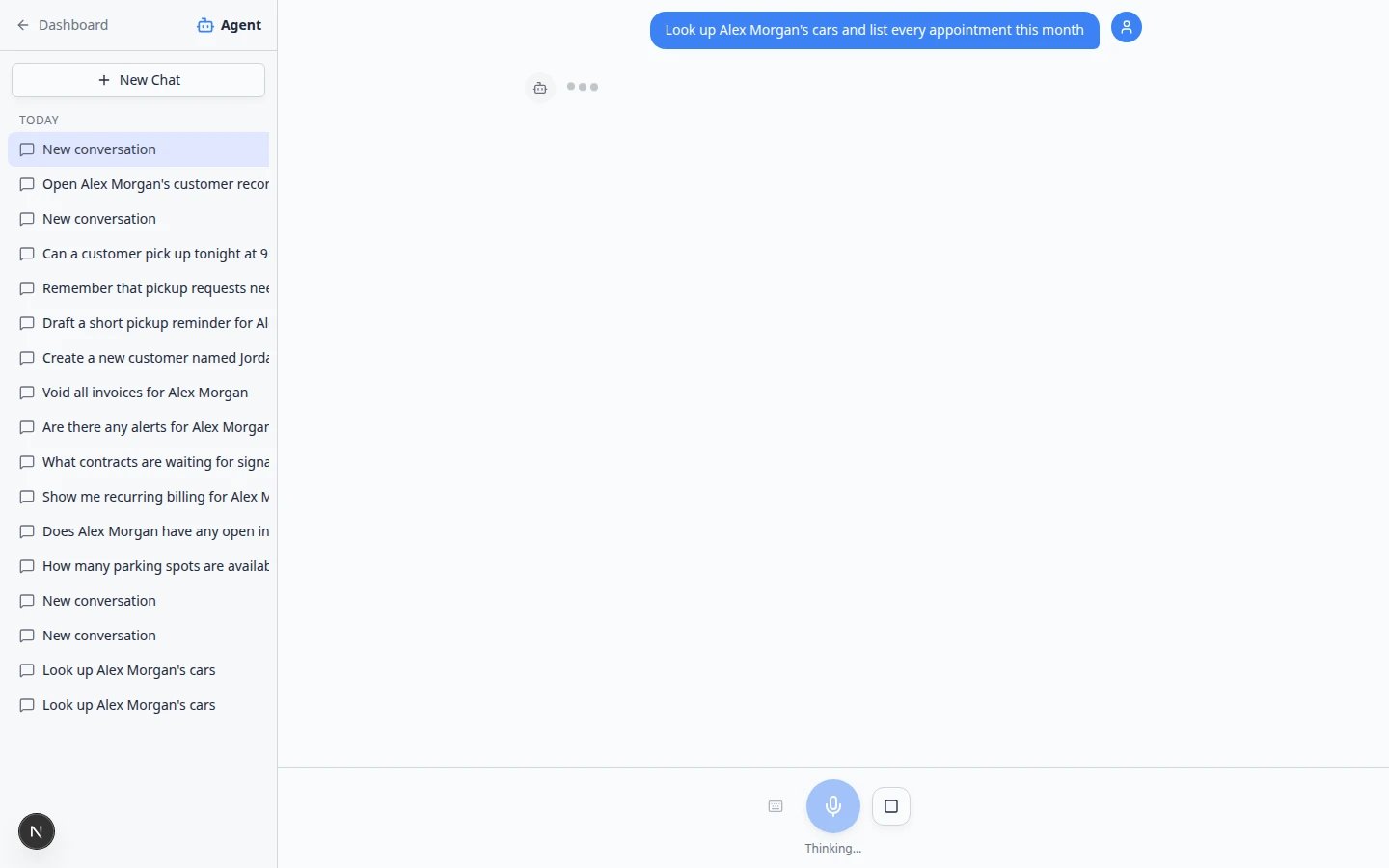 ***Thinking...** is normal on a live call. Read the full answer silently before you speak to the customer.*
Check customer name, vehicle list, dates, and times before you speak out loud.
**Expected result:** You can summarize accurately: “I see your 2017 Lamborghini and your Aston Martin on file, and you have dealer service scheduled Thursday at 10.”
If they want documents, billing, or photos, click **Go now** when the assistant offers a dashboard link—or open [Contacts](https://www.carstoragesoftware.com/dashboard/contacts) yourself.
***Thinking...** is normal on a live call. Read the full answer silently before you speak to the customer.*
Check customer name, vehicle list, dates, and times before you speak out loud.
**Expected result:** You can summarize accurately: “I see your 2017 Lamborghini and your Aston Martin on file, and you have dealer service scheduled Thursday at 10.”
If they want documents, billing, or photos, click **Go now** when the assistant offers a dashboard link—or open [Contacts](https://www.carstoragesoftware.com/dashboard/contacts) yourself.
 *When the assistant finds the right record, a **Go now** bar may appear at the bottom of the chat. Click it to open the full customer page—or click **Cancel** if you only needed a quick answer on the phone.*
**Why this matters:** The assistant speeds up the call; the official record page is still the source of truth.
When you hang up, click **New Chat** before helping the next person.
**Tip:** Your chat list groups today's conversations under **Today** so you can find this caller again later if needed. See [Manage your assistant chats](/docs/ai-assistant/manage-your-assistant-chats).
*When the assistant finds the right record, a **Go now** bar may appear at the bottom of the chat. Click it to open the full customer page—or click **Cancel** if you only needed a quick answer on the phone.*
**Why this matters:** The assistant speeds up the call; the official record page is still the source of truth.
When you hang up, click **New Chat** before helping the next person.
**Tip:** Your chat list groups today's conversations under **Today** so you can find this caller again later if needed. See [Manage your assistant chats](/docs/ai-assistant/manage-your-assistant-chats).
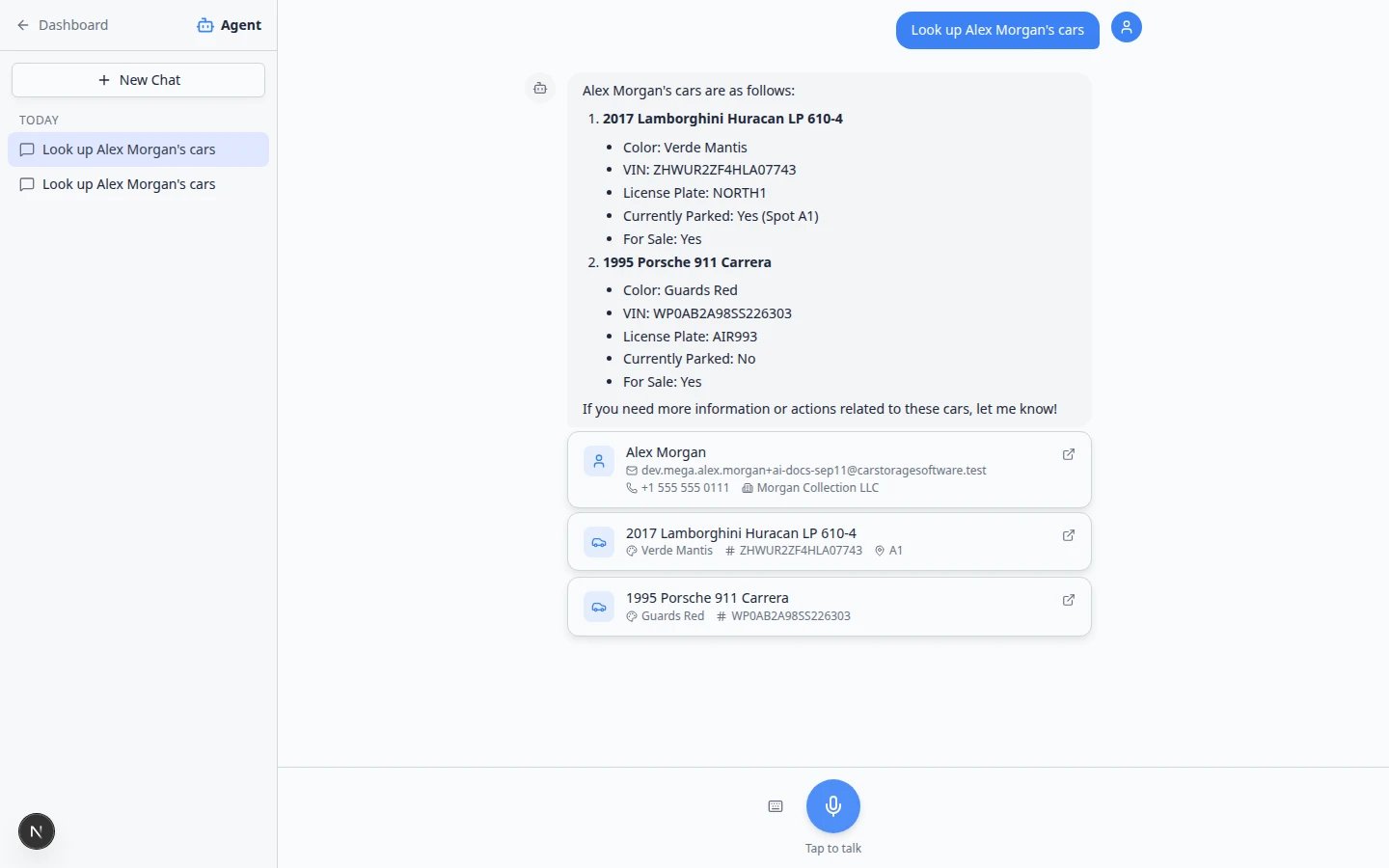 *One typed question can return the customer card, stored vehicles, and upcoming appointments. Read every card silently before you speak to the caller.*
## What you will see in a good lookup answer
After you ask about a customer on a call, the assistant often shows **cards** you can scan quickly:
| Card type | What to check before you speak |
| - | - |
| **Customer** | Name, phone, and email match the person on the line |
| **Vehicle** | Year, make, model, and storage location (for example **@ A1**) |
| **Appointment** | Date, time, event type, and status such as **scheduled** or **pending\_approval** |
Click the small **open in new window** icon on a card when you need the full [Contacts](https://www.carstoragesoftware.com/dashboard/contacts), [Cars](https://www.carstoragesoftware.com/dashboard/cars), or [Schedule](https://www.carstoragesoftware.com/dashboard/schedule) record.
**Type the customer name exactly**
Use **Type a message...** at the bottom of the screen—not voice—when you need the correct spelling. Say to the caller: "I'm looking that up in our system now."
## Example questions that work well on calls
Copy and adapt these patterns. Replace the name with your caller's real name from [Contacts](https://www.carstoragesoftware.com/dashboard/contacts).
**Stored vehicles**
* Look up Alex Morgan's cars.
* What vehicles do we have stored for Sam Rivera?
**Schedule**
* What appointments does Alex Morgan have this week?
* What's on the schedule today for pick-ups?
**Parking**
* Where is the 2017 Lamborghini Huracan parked?
* How many parking spots are available right now?
**While you clarify spelling**
* Look up customer Jordan Lee — email [jordan.lee@example.com](mailto:jordan.lee@example.com) — and list their cars.
## What to say to the customer while you search
You do not need to hide that you are looking up their record. Simple phrases keep the call calm:
* “Let me pull that up for you—one moment.”
* “I'm checking your vehicles in our system now.”
* “I want to confirm the exact date before I tell you.”
**Put them on hold only when needed**
The assistant is usually faster than opening Contacts, then Cars, then Schedule separately. Many calls never need hold music.
## If the answer looks wrong
Tell the customer: “Let me double-check that in your full record.”
Add email, phone, or VIN: **Look up Alex Morgan, phone 555-010-4421, and list stored cars.**
Search [Contacts](https://www.carstoragesoftware.com/dashboard/contacts) while they wait. Compare to the assistant answer.
## Parking and schedule questions during a call
Many callers ask where a car is parked or when their next appointment is. You can include those details in the same typed question as the customer lookup.
Examples:
* I have Alex Morgan on the phone. What cars are stored, where are they parked, and what is scheduled this week?
* Where is the 2017 Lamborghini Huracan parked right now?
Vehicle cards may show a storage location such as **@ A1**. Appointment cards show date, time, and status.
**Expected result:** You can answer parking and schedule questions without opening three separate dashboard pages.
If the caller wants to **book** a new time—not just hear an existing appointment—open [Schedule](https://www.carstoragesoftware.com/dashboard/schedule) before you guarantee an opening.
See [Ask about schedule, parking, and records](/docs/ai-assistant/ask-about-schedule-parking-and-records) for more example questions.
**Parking counts change quickly**
**How many spots are available?** is a great assistant question between calls. On a live call, still confirm on [Parking Spots](https://www.carstoragesoftware.com/dashboard/parking-spots) if the caller wants to reserve a specific spot today.
## Prepare follow-up work after the call
If the caller asked you to **schedule** something new—not just look it up—switch guides:
* [Prepare work with the AI Assistant](/docs/ai-assistant/prepare-work-with-the-ai-assistant) to draft a new appointment.
* [Review AI proposals](/docs/ai-assistant/review-ai-proposals) before you select **Confirm All**.
* [From AI draft to customer message](/docs/ai-assistant/from-ai-draft-to-customer-message) if you need to send a confirmation text or email.
## Common mistakes on phone calls
**Reading the assistant's first guess out loud**
Always read the answer silently once. Voice and quick typing can still produce the wrong person with a similar name.
**Staying in the same chat all day**
Click **New Chat** for every new caller. Yesterday's customer name can confuse today's answer.
**Promising a time before you check Schedule**
If the assistant mentions an opening, confirm on [Schedule](https://www.carstoragesoftware.com/dashboard/schedule) before you guarantee a slot—especially for same-day work.
## Troubleshooting
### The customer hears me typing
That is expected when you type in **Type a message...**. You can say, “I'm looking that up in our system.”
### The assistant is too slow for this call
Open [Contacts](https://www.carstoragesoftware.com/dashboard/contacts) directly and search by name. Use the assistant on the next call when you have a few extra seconds.
### I cannot find AI Assistant while on the phone
Ask a manager to confirm your permissions. See [Who can use the AI Assistant](/docs/ai-assistant/who-can-use-the-ai-assistant).
## What to do next
* [Ask about schedule, parking, and records](/docs/ai-assistant/ask-about-schedule-parking-and-records) — more example questions.
* [Fix voice and microphone problems](/docs/ai-assistant/fix-voice-and-microphone-problems) — if you prefer voice but the mic is blocked.
* [Respond to a conversation](/docs/inbox/respond-to-a-conversation) — when the follow-up moves to text or email in [Inbox](https://www.carstoragesoftware.com/dashboard/inbox).
This documentation is built and hosted on [Mintlify](https://mintlify.com), a developer documentation platform.
*One typed question can return the customer card, stored vehicles, and upcoming appointments. Read every card silently before you speak to the caller.*
## What you will see in a good lookup answer
After you ask about a customer on a call, the assistant often shows **cards** you can scan quickly:
| Card type | What to check before you speak |
| - | - |
| **Customer** | Name, phone, and email match the person on the line |
| **Vehicle** | Year, make, model, and storage location (for example **@ A1**) |
| **Appointment** | Date, time, event type, and status such as **scheduled** or **pending\_approval** |
Click the small **open in new window** icon on a card when you need the full [Contacts](https://www.carstoragesoftware.com/dashboard/contacts), [Cars](https://www.carstoragesoftware.com/dashboard/cars), or [Schedule](https://www.carstoragesoftware.com/dashboard/schedule) record.
**Type the customer name exactly**
Use **Type a message...** at the bottom of the screen—not voice—when you need the correct spelling. Say to the caller: "I'm looking that up in our system now."
## Example questions that work well on calls
Copy and adapt these patterns. Replace the name with your caller's real name from [Contacts](https://www.carstoragesoftware.com/dashboard/contacts).
**Stored vehicles**
* Look up Alex Morgan's cars.
* What vehicles do we have stored for Sam Rivera?
**Schedule**
* What appointments does Alex Morgan have this week?
* What's on the schedule today for pick-ups?
**Parking**
* Where is the 2017 Lamborghini Huracan parked?
* How many parking spots are available right now?
**While you clarify spelling**
* Look up customer Jordan Lee — email [jordan.lee@example.com](mailto:jordan.lee@example.com) — and list their cars.
## What to say to the customer while you search
You do not need to hide that you are looking up their record. Simple phrases keep the call calm:
* “Let me pull that up for you—one moment.”
* “I'm checking your vehicles in our system now.”
* “I want to confirm the exact date before I tell you.”
**Put them on hold only when needed**
The assistant is usually faster than opening Contacts, then Cars, then Schedule separately. Many calls never need hold music.
## If the answer looks wrong
Tell the customer: “Let me double-check that in your full record.”
Add email, phone, or VIN: **Look up Alex Morgan, phone 555-010-4421, and list stored cars.**
Search [Contacts](https://www.carstoragesoftware.com/dashboard/contacts) while they wait. Compare to the assistant answer.
## Parking and schedule questions during a call
Many callers ask where a car is parked or when their next appointment is. You can include those details in the same typed question as the customer lookup.
Examples:
* I have Alex Morgan on the phone. What cars are stored, where are they parked, and what is scheduled this week?
* Where is the 2017 Lamborghini Huracan parked right now?
Vehicle cards may show a storage location such as **@ A1**. Appointment cards show date, time, and status.
**Expected result:** You can answer parking and schedule questions without opening three separate dashboard pages.
If the caller wants to **book** a new time—not just hear an existing appointment—open [Schedule](https://www.carstoragesoftware.com/dashboard/schedule) before you guarantee an opening.
See [Ask about schedule, parking, and records](/docs/ai-assistant/ask-about-schedule-parking-and-records) for more example questions.
**Parking counts change quickly**
**How many spots are available?** is a great assistant question between calls. On a live call, still confirm on [Parking Spots](https://www.carstoragesoftware.com/dashboard/parking-spots) if the caller wants to reserve a specific spot today.
## Prepare follow-up work after the call
If the caller asked you to **schedule** something new—not just look it up—switch guides:
* [Prepare work with the AI Assistant](/docs/ai-assistant/prepare-work-with-the-ai-assistant) to draft a new appointment.
* [Review AI proposals](/docs/ai-assistant/review-ai-proposals) before you select **Confirm All**.
* [From AI draft to customer message](/docs/ai-assistant/from-ai-draft-to-customer-message) if you need to send a confirmation text or email.
## Common mistakes on phone calls
**Reading the assistant's first guess out loud**
Always read the answer silently once. Voice and quick typing can still produce the wrong person with a similar name.
**Staying in the same chat all day**
Click **New Chat** for every new caller. Yesterday's customer name can confuse today's answer.
**Promising a time before you check Schedule**
If the assistant mentions an opening, confirm on [Schedule](https://www.carstoragesoftware.com/dashboard/schedule) before you guarantee a slot—especially for same-day work.
## Troubleshooting
### The customer hears me typing
That is expected when you type in **Type a message...**. You can say, “I'm looking that up in our system.”
### The assistant is too slow for this call
Open [Contacts](https://www.carstoragesoftware.com/dashboard/contacts) directly and search by name. Use the assistant on the next call when you have a few extra seconds.
### I cannot find AI Assistant while on the phone
Ask a manager to confirm your permissions. See [Who can use the AI Assistant](/docs/ai-assistant/who-can-use-the-ai-assistant).
## What to do next
* [Ask about schedule, parking, and records](/docs/ai-assistant/ask-about-schedule-parking-and-records) — more example questions.
* [Fix voice and microphone problems](/docs/ai-assistant/fix-voice-and-microphone-problems) — if you prefer voice but the mic is blocked.
* [Respond to a conversation](/docs/inbox/respond-to-a-conversation) — when the follow-up moves to text or email in [Inbox](https://www.carstoragesoftware.com/dashboard/inbox).
This documentation is built and hosted on [Mintlify](https://mintlify.com), a developer documentation platform.