> ## Documentation Index
> Fetch the complete documentation index at: https://www.carstoragesoftware.com/docs/llms.txt
> Use this file to discover all available pages before exploring further.
# When the assistant cannot help
> Know what to do when the AI Assistant refuses a request, shows an error, or gives an answer you should not trust.
## What you will accomplish
You will recognize when the AI Assistant is **not** the right tool—and what to do next so the customer still gets accurate help.
The assistant is powerful for lookups and drafts. It is **not** allowed to make risky changes to money, contracts, or deleted records on its own.
## When to use this guide
Use this guide when:
* The assistant says it **cannot** complete your request.
* You asked about voiding invoices, refunds, or contract changes and got a cautious answer.
* The answer looks incomplete, wrong, or unlike your facility's policies.
* **AI Assistant** is missing from the sidebar entirely.
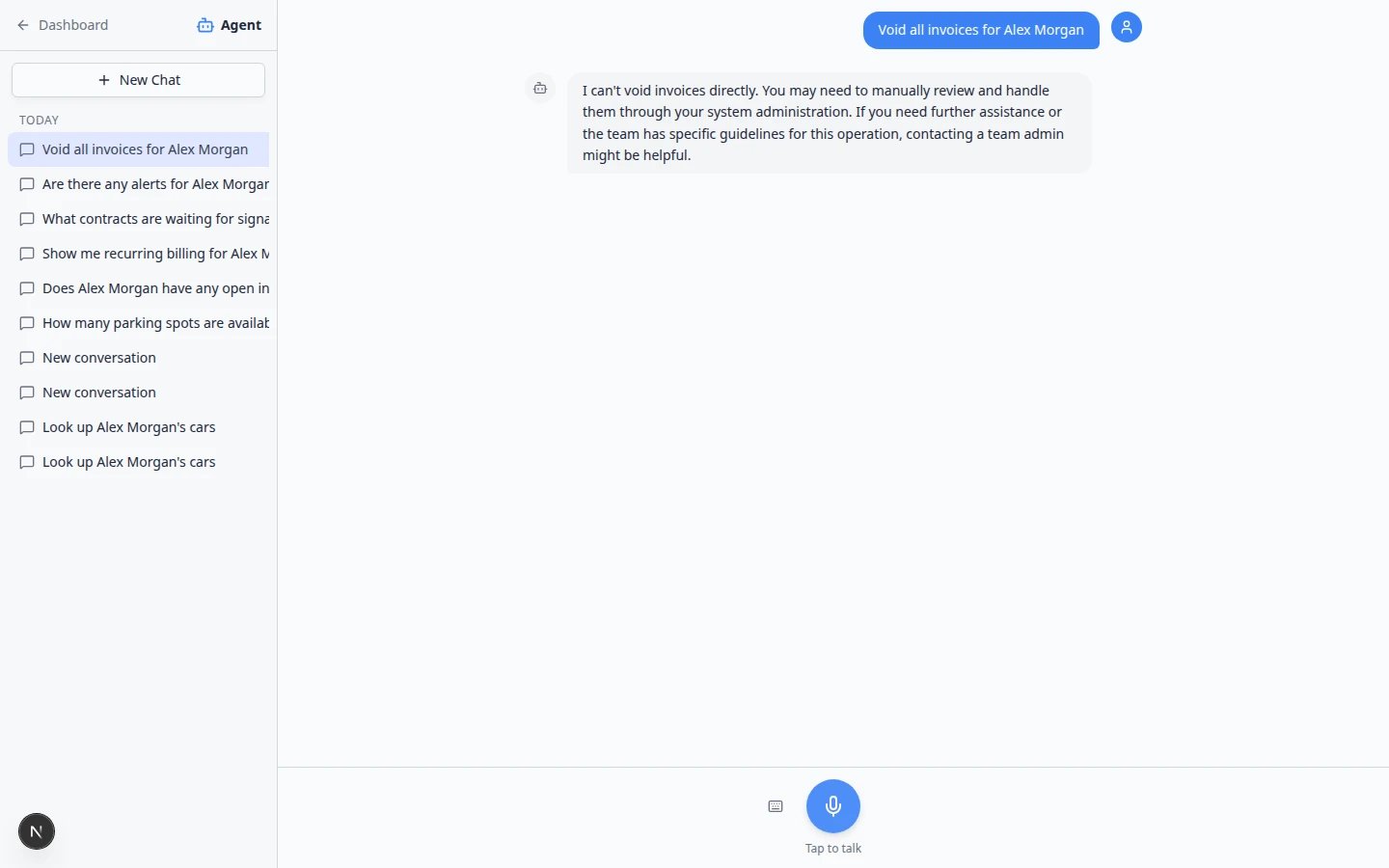 *For sensitive work—voids, refunds, contract changes—the assistant may explain why it cannot complete the action, or tell you there is nothing to change. Open [Payments](https://www.carstoragesoftware.com/dashboard/payments) or the record page to finish the job safely.*
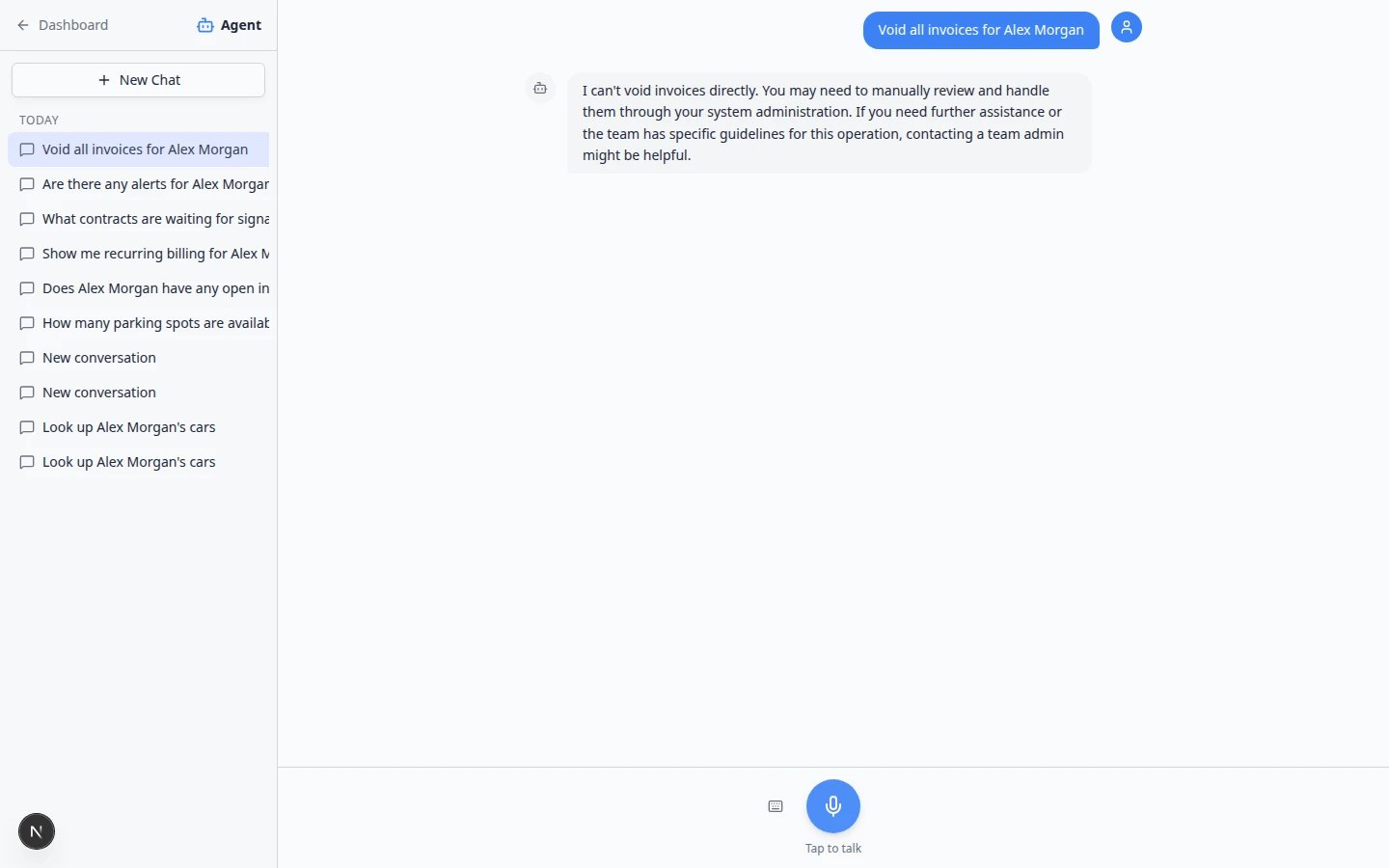 *When you ask for a sensitive billing action, the assistant may stop and explain why—such as **no open invoices** to void. That is a safety answer, not a broken feature. Open [Payments > Invoices](https://www.carstoragesoftware.com/dashboard/payments/invoices) yourself to finish the job.*
**No open invoices is not the same as permission denied**
If you ask to void invoices and the assistant says the customer has **no open invoices**, that is an answer—not a broken feature. Open [Payments > Invoices](https://www.carstoragesoftware.com/dashboard/payments/invoices) to confirm before you tell the caller.
## Jobs the assistant is not meant to do
Use the dashboard directly for these tasks:
| Task | Use this instead |
| - | - |
| Void or refund an invoice | [Payments](https://www.carstoragesoftware.com/dashboard/payments) — open the invoice and follow your facility's process |
| Change payment methods or run a card | [Payments](https://www.carstoragesoftware.com/dashboard/payments) or the customer's billing record |
| Delete a customer, car, or contract | The relevant record page—with manager approval |
| Sign or void a contract | [Contracts](/docs/contracts/overview) workflows |
| Send a message to a customer | [Inbox](https://www.carstoragesoftware.com/dashboard/inbox) — see [From AI draft to customer message](/docs/ai-assistant/from-ai-draft-to-customer-message) |
| Change team permissions | [Settings > Team](https://www.carstoragesoftware.com/dashboard/settings/team) |
**This is a safety feature**
When the assistant refuses sensitive work, it is protecting your facility from accidental billing or legal mistakes—not failing on purpose.
## What to do step by step
The assistant often explains **why** it stopped—for example, missing permission, no matching records, or a sensitive action.
**Expected result:** You understand whether this is a safety limit, a permissions issue, or simply nothing to change.
Go to [Contacts](https://www.carstoragesoftware.com/dashboard/contacts), [Cars](https://www.carstoragesoftware.com/dashboard/cars), [Schedule](https://www.carstoragesoftware.com/dashboard/schedule), or [Payments](https://www.carstoragesoftware.com/dashboard/payments) and complete the task the normal way.
**Why this matters:** The dashboard page is always the source of truth. The assistant points you there on purpose.
If the request involves money, legal language, or an angry customer, involve a manager before you promise anything.
Lookups usually work when destructive actions do not. Example: **Show me open invoices for Alex Morgan** (then open each invoice yourself)—not **Void all invoices for Alex Morgan**.
**Use the quick fallback map below**
When the assistant cannot finish a job, jump straight to the matching dashboard page. You do not need to keep chatting—the links below are faster.
## iMessage limits
If your facility uses a team group chat, remember:
* The assistant replies with **short text messages**—not proposal cards you can review before saving.
* Creating customers, cars, or appointments still happens on [AI Assistant](https://www.carstoragesoftware.com/agent) in the dashboard.
* If a group is **paused**, questions will not get replies until an admin clicks **Resume** on [Settings > AI Agent](https://www.carstoragesoftware.com/dashboard/settings/ai-agent).
## If the assistant cannot find a record
Type the full name, email, phone, VIN, or license plate.
Open [Contacts](https://www.carstoragesoftware.com/dashboard/contacts) or [Cars](https://www.carstoragesoftware.com/dashboard/cars) and use the search bar.
Your facility may have two similar names. See [Handle duplicate or merged customer records](/docs/contacts/handle-duplicate-or-merged-customer-records).
## If you see a permission error
The assistant names the area you cannot access—such as Payments or Schedule.
1. Try opening that page from the sidebar.
2. If the page is blocked, ask a manager to update your permissions. See [Who can use the AI Assistant](/docs/ai-assistant/who-can-use-the-ai-assistant).
3. Do not use someone else's login.
## If AI Assistant is missing from the sidebar
* Confirm you signed in with a **staff** account (not a customer portal login).
* Ask a manager to enable **AI Assistant** on your [Team](https://www.carstoragesoftware.com/dashboard/settings/team) permissions.
* Refresh the page or sign out and back in after permissions change.
## If the answer looks wrong but no error appeared
**Slow down.** Treat the answer as a hint, not a fact.
1. Open the record in the dashboard.
2. Compare names, dates, and amounts.
3. Start **New Chat** and ask again with more detail—or skip the assistant for this task.
**Money and contracts need extra care**
Never tell a customer an invoice total, contract status, or refund amount based only on the assistant. Open the official record every time.
## When the system seems slow or stuck
Complex questions can take longer. You may see **Thinking...** or bouncing dots below the assistant icon.
*When you ask for a sensitive billing action, the assistant may stop and explain why—such as **no open invoices** to void. That is a safety answer, not a broken feature. Open [Payments > Invoices](https://www.carstoragesoftware.com/dashboard/payments/invoices) yourself to finish the job.*
**No open invoices is not the same as permission denied**
If you ask to void invoices and the assistant says the customer has **no open invoices**, that is an answer—not a broken feature. Open [Payments > Invoices](https://www.carstoragesoftware.com/dashboard/payments/invoices) to confirm before you tell the caller.
## Jobs the assistant is not meant to do
Use the dashboard directly for these tasks:
| Task | Use this instead |
| - | - |
| Void or refund an invoice | [Payments](https://www.carstoragesoftware.com/dashboard/payments) — open the invoice and follow your facility's process |
| Change payment methods or run a card | [Payments](https://www.carstoragesoftware.com/dashboard/payments) or the customer's billing record |
| Delete a customer, car, or contract | The relevant record page—with manager approval |
| Sign or void a contract | [Contracts](/docs/contracts/overview) workflows |
| Send a message to a customer | [Inbox](https://www.carstoragesoftware.com/dashboard/inbox) — see [From AI draft to customer message](/docs/ai-assistant/from-ai-draft-to-customer-message) |
| Change team permissions | [Settings > Team](https://www.carstoragesoftware.com/dashboard/settings/team) |
**This is a safety feature**
When the assistant refuses sensitive work, it is protecting your facility from accidental billing or legal mistakes—not failing on purpose.
## What to do step by step
The assistant often explains **why** it stopped—for example, missing permission, no matching records, or a sensitive action.
**Expected result:** You understand whether this is a safety limit, a permissions issue, or simply nothing to change.
Go to [Contacts](https://www.carstoragesoftware.com/dashboard/contacts), [Cars](https://www.carstoragesoftware.com/dashboard/cars), [Schedule](https://www.carstoragesoftware.com/dashboard/schedule), or [Payments](https://www.carstoragesoftware.com/dashboard/payments) and complete the task the normal way.
**Why this matters:** The dashboard page is always the source of truth. The assistant points you there on purpose.
If the request involves money, legal language, or an angry customer, involve a manager before you promise anything.
Lookups usually work when destructive actions do not. Example: **Show me open invoices for Alex Morgan** (then open each invoice yourself)—not **Void all invoices for Alex Morgan**.
**Use the quick fallback map below**
When the assistant cannot finish a job, jump straight to the matching dashboard page. You do not need to keep chatting—the links below are faster.
## iMessage limits
If your facility uses a team group chat, remember:
* The assistant replies with **short text messages**—not proposal cards you can review before saving.
* Creating customers, cars, or appointments still happens on [AI Assistant](https://www.carstoragesoftware.com/agent) in the dashboard.
* If a group is **paused**, questions will not get replies until an admin clicks **Resume** on [Settings > AI Agent](https://www.carstoragesoftware.com/dashboard/settings/ai-agent).
## If the assistant cannot find a record
Type the full name, email, phone, VIN, or license plate.
Open [Contacts](https://www.carstoragesoftware.com/dashboard/contacts) or [Cars](https://www.carstoragesoftware.com/dashboard/cars) and use the search bar.
Your facility may have two similar names. See [Handle duplicate or merged customer records](/docs/contacts/handle-duplicate-or-merged-customer-records).
## If you see a permission error
The assistant names the area you cannot access—such as Payments or Schedule.
1. Try opening that page from the sidebar.
2. If the page is blocked, ask a manager to update your permissions. See [Who can use the AI Assistant](/docs/ai-assistant/who-can-use-the-ai-assistant).
3. Do not use someone else's login.
## If AI Assistant is missing from the sidebar
* Confirm you signed in with a **staff** account (not a customer portal login).
* Ask a manager to enable **AI Assistant** on your [Team](https://www.carstoragesoftware.com/dashboard/settings/team) permissions.
* Refresh the page or sign out and back in after permissions change.
## If the answer looks wrong but no error appeared
**Slow down.** Treat the answer as a hint, not a fact.
1. Open the record in the dashboard.
2. Compare names, dates, and amounts.
3. Start **New Chat** and ask again with more detail—or skip the assistant for this task.
**Money and contracts need extra care**
Never tell a customer an invoice total, contract status, or refund amount based only on the assistant. Open the official record every time.
## When the system seems slow or stuck
Complex questions can take longer. You may see **Thinking...** or bouncing dots below the assistant icon.
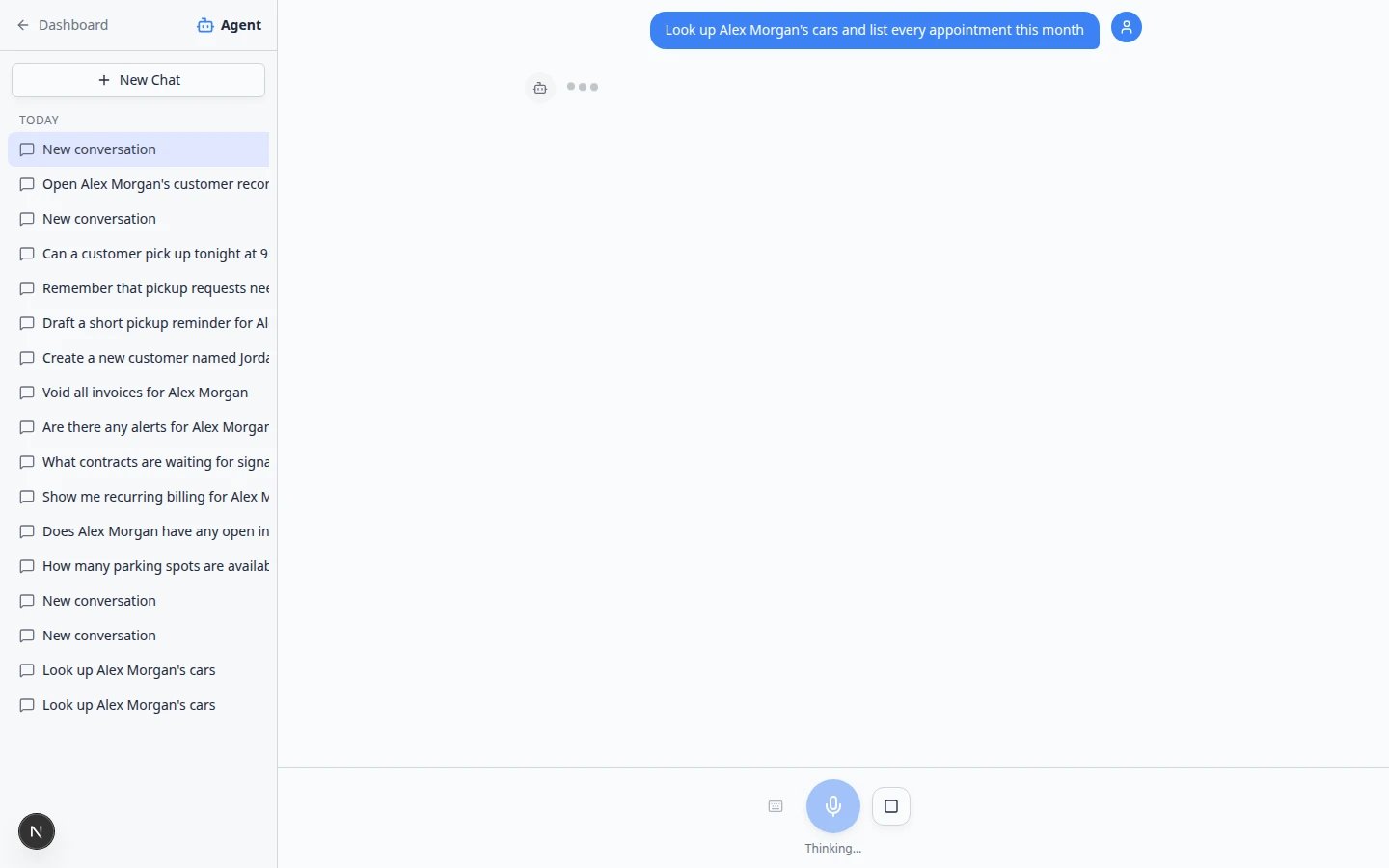 *While the assistant works, you may see **Thinking...** and a **stop** button. Wait a few seconds before you try again—especially during customer lookups.*
See [Fix voice and microphone problems](/docs/ai-assistant/fix-voice-and-microphone-problems) to use the stop button or switch to typing.
If the page froze, refresh the browser and open [AI Assistant](https://www.carstoragesoftware.com/agent) again. Your past chats should still appear in the sidebar.
You can always complete work manually. The assistant is optional.
## Open the official page when the assistant points you there
Sometimes the assistant summarizes an answer but tells you to finish on a dashboard page—for example, after a billing lookup.
On some answers, a **Go now** bar appears at the bottom of the chat. Click it to open the matching record.
See [Use the assistant during a customer call](/docs/ai-assistant/use-the-assistant-during-a-customer-call) for an example with customer cards.
Go to [Payments > Invoices](https://www.carstoragesoftware.com/dashboard/payments/invoices), [Contacts](https://www.carstoragesoftware.com/dashboard/contacts), or the area named in the assistant's message.
*While the assistant works, you may see **Thinking...** and a **stop** button. Wait a few seconds before you try again—especially during customer lookups.*
See [Fix voice and microphone problems](/docs/ai-assistant/fix-voice-and-microphone-problems) to use the stop button or switch to typing.
If the page froze, refresh the browser and open [AI Assistant](https://www.carstoragesoftware.com/agent) again. Your past chats should still appear in the sidebar.
You can always complete work manually. The assistant is optional.
## Open the official page when the assistant points you there
Sometimes the assistant summarizes an answer but tells you to finish on a dashboard page—for example, after a billing lookup.
On some answers, a **Go now** bar appears at the bottom of the chat. Click it to open the matching record.
See [Use the assistant during a customer call](/docs/ai-assistant/use-the-assistant-during-a-customer-call) for an example with customer cards.
Go to [Payments > Invoices](https://www.carstoragesoftware.com/dashboard/payments/invoices), [Contacts](https://www.carstoragesoftware.com/dashboard/contacts), or the area named in the assistant's message.
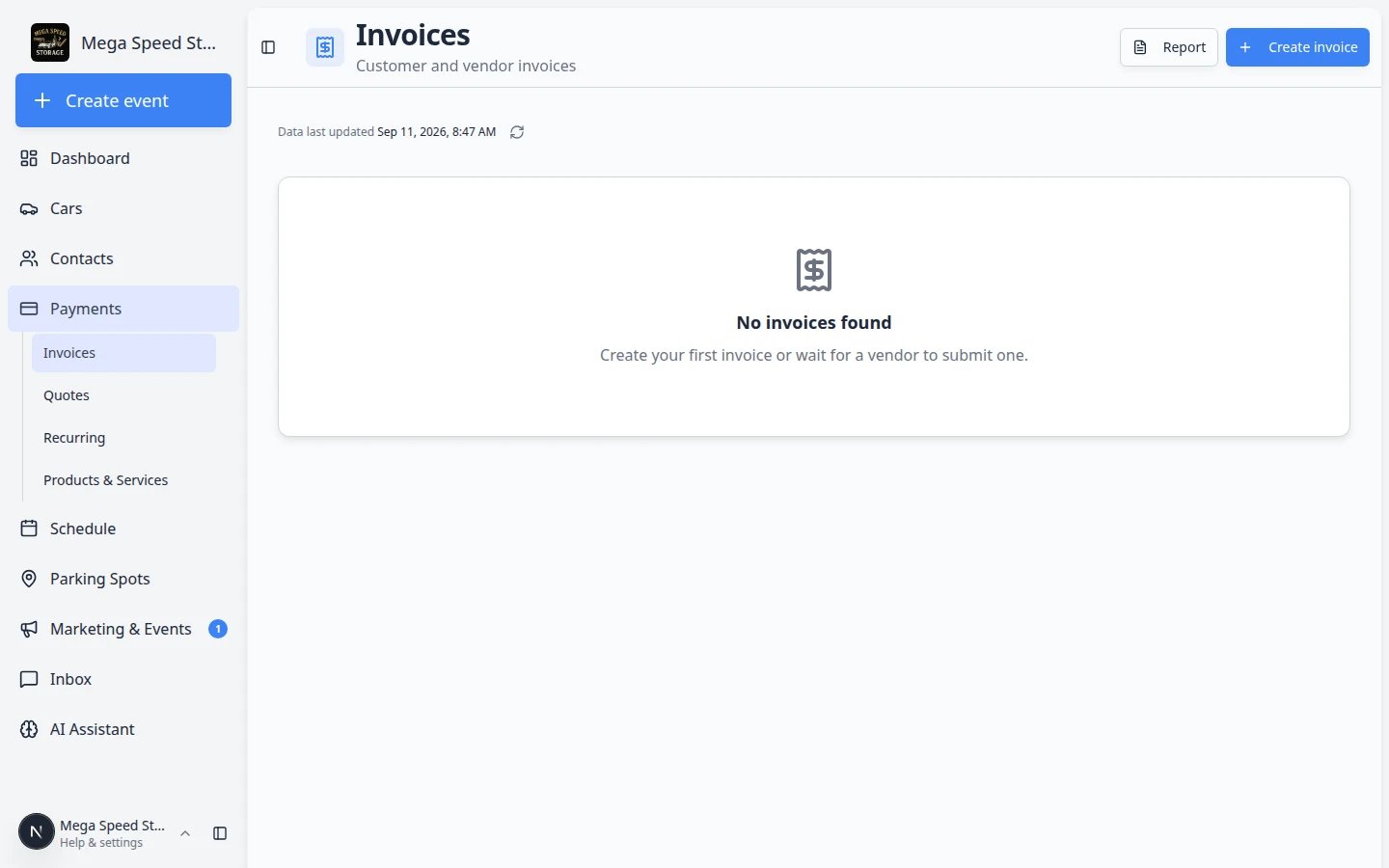 *For money questions, [Payments > Invoices](https://www.carstoragesoftware.com/dashboard/payments/invoices) is the source of truth. Compare totals, line items, and status badges here before you tell a customer what they owe.*
**Expected result:** You see the full invoice with taxes, send history, and the exact status—not just the chat summary.
## Quick fallback map
| I needed… | Go here instead |
| - | - |
| Customer phone or email | [Contacts](https://www.carstoragesoftware.com/dashboard/contacts) |
| Vehicle location or VIN | [Cars](https://www.carstoragesoftware.com/dashboard/cars) |
| Appointment time | [Schedule](https://www.carstoragesoftware.com/dashboard/schedule) |
| Open parking spots | [Parking Spots](https://www.carstoragesoftware.com/dashboard/parking-spots) |
| Send a text or email | [Inbox](https://www.carstoragesoftware.com/dashboard/inbox) |
| Invoice or payment | [Payments](https://www.carstoragesoftware.com/dashboard/payments) |
## What to do next
* [Who can use the AI Assistant](/docs/ai-assistant/who-can-use-the-ai-assistant) — fix missing access.
* [Use the AI Assistant](/docs/ai-assistant/use-the-ai-assistant) — return to everyday lookups when the issue is resolved.
* [Inbox overview](/docs/inbox/overview) — when the next step is customer communication.
This documentation is built and hosted on [Mintlify](https://mintlify.com), a developer documentation platform.
*For money questions, [Payments > Invoices](https://www.carstoragesoftware.com/dashboard/payments/invoices) is the source of truth. Compare totals, line items, and status badges here before you tell a customer what they owe.*
**Expected result:** You see the full invoice with taxes, send history, and the exact status—not just the chat summary.
## Quick fallback map
| I needed… | Go here instead |
| - | - |
| Customer phone or email | [Contacts](https://www.carstoragesoftware.com/dashboard/contacts) |
| Vehicle location or VIN | [Cars](https://www.carstoragesoftware.com/dashboard/cars) |
| Appointment time | [Schedule](https://www.carstoragesoftware.com/dashboard/schedule) |
| Open parking spots | [Parking Spots](https://www.carstoragesoftware.com/dashboard/parking-spots) |
| Send a text or email | [Inbox](https://www.carstoragesoftware.com/dashboard/inbox) |
| Invoice or payment | [Payments](https://www.carstoragesoftware.com/dashboard/payments) |
## What to do next
* [Who can use the AI Assistant](/docs/ai-assistant/who-can-use-the-ai-assistant) — fix missing access.
* [Use the AI Assistant](/docs/ai-assistant/use-the-ai-assistant) — return to everyday lookups when the issue is resolved.
* [Inbox overview](/docs/inbox/overview) — when the next step is customer communication.
This documentation is built and hosted on [Mintlify](https://mintlify.com), a developer documentation platform.