> ## Documentation Index
> Fetch the complete documentation index at: https://www.carstoragesoftware.com/docs/llms.txt
> Use this file to discover all available pages before exploring further.
# Who can use the AI Assistant
> Learn which staff members can open the AI Assistant, what they can look up, and how a manager grants access.
## What you will accomplish
You will know whether a staff member should see **AI Assistant** in the dashboard sidebar, what information they can ask about, and how a manager turns access on or off.
This guide is for **managers** setting up the team and for **front-desk staff** who wonder why the assistant is missing or says they do not have permission.
## When to use this guide
Use this guide when:
* A new employee cannot find **AI Assistant** in the sidebar.
* The assistant says it does not have permission to open **Payments**, **Schedule**, or another area.
* You want only certain roles to use the assistant (for example, managers but not every part-time helper).
## Important idea in plain English
The AI Assistant can only show information your staff member is already allowed to see in the dashboard.
If someone cannot open [Payments](https://www.carstoragesoftware.com/dashboard/payments), they also should not expect the assistant to look up invoices for them. Permissions protect customer data the same way in the assistant as on every other page.
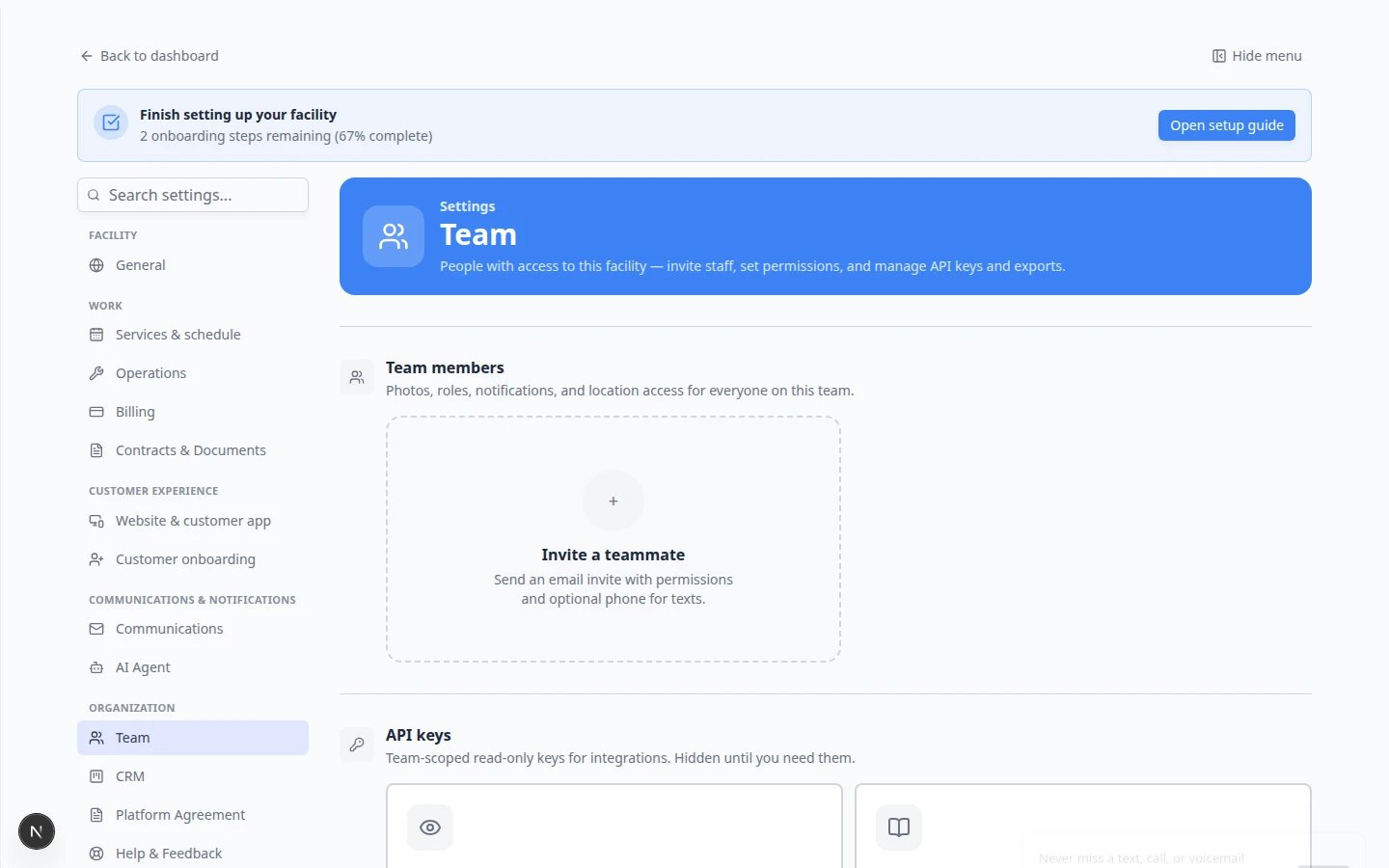 *Managers open [Settings > Team](https://www.carstoragesoftware.com/dashboard/settings/team) to choose which areas each person can use. **AI Assistant** is one of the permission options.*
## Who can open the AI Assistant
*Managers open [Settings > Team](https://www.carstoragesoftware.com/dashboard/settings/team) to choose which areas each person can use. **AI Assistant** is one of the permission options.*
## Who can open the AI Assistant
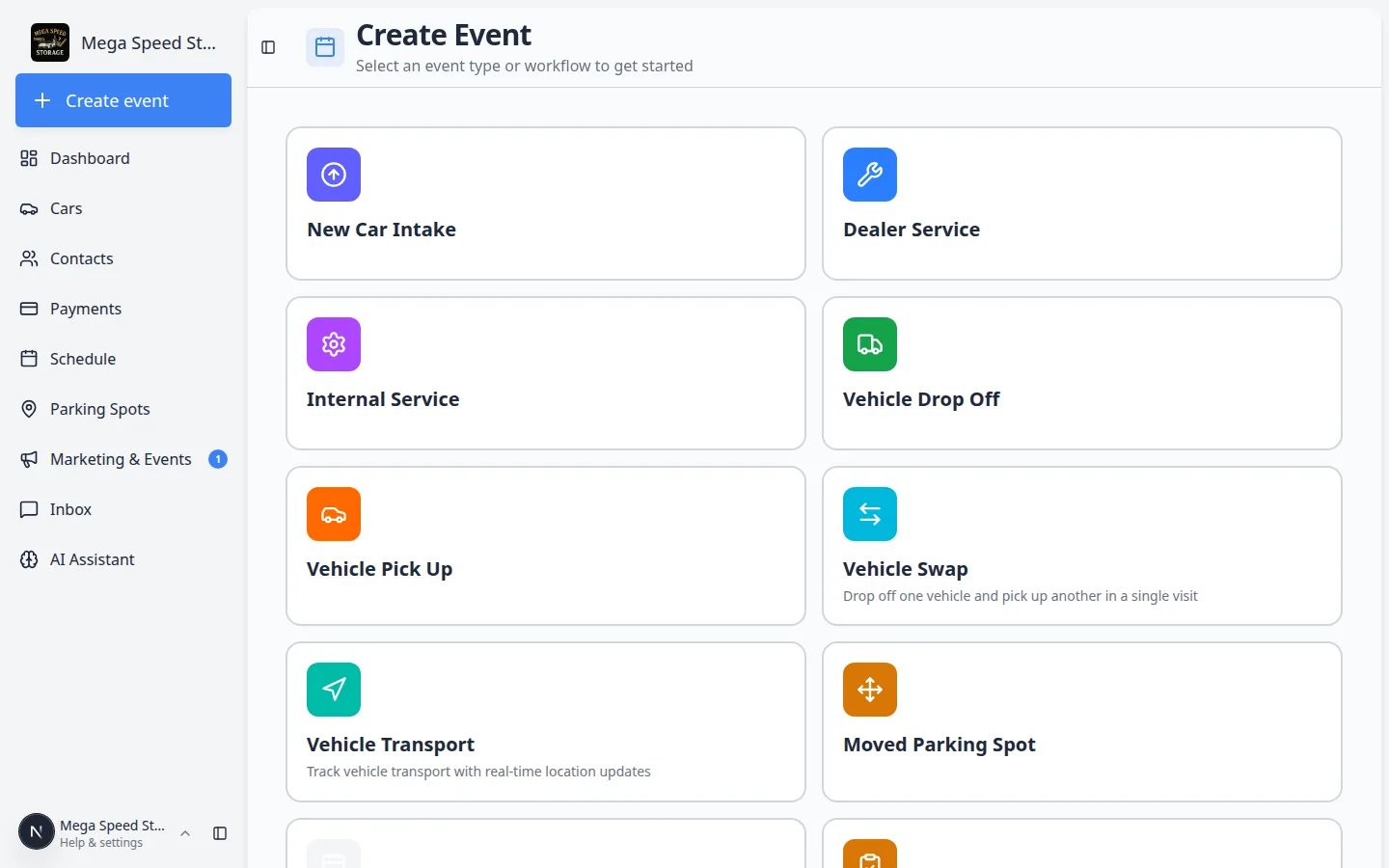 *Staff with access see **AI Assistant** in the left sidebar (brain icon). If the link is missing, your role may not include assistant access yet—see the steps below.*
* **Facility admins** (owners and managers listed as admins) can use every area, including the AI Assistant.
* **Staff with the AI Assistant permission** can open [AI Assistant](https://www.carstoragesoftware.com/agent) and ask questions about the other areas they are allowed to see.
* **Customer portal users** never see the AI Assistant. It is for your internal team only.
**The assistant is not a customer tool**
Customers sign in to their own portal. They do not have access to your staff dashboard or the AI Assistant.
**Claude is a separate sign-in**
Connecting **Claude** (or Cursor) is not the same as the sidebar **AI Assistant**. An **admin** turns on **AI agents (MCP)** in [Settings > Integrations](https://www.carstoragesoftware.com/dashboard/settings/integrations?integration=mcp). Each **staff** member then signs in when Claude asks—never a customer portal login. See [Connect Claude to your facility](/docs/ai-assistant/connect-claude-to-your-facility).
## What each permission controls
When a manager edits a team member, they see checkboxes for product areas. The assistant respects the same list.
| Permission name in Settings | What staff can do in the dashboard | What they can ask the assistant |
| - | - | - |
| **Dashboard** | Open the home dashboard and basic settings | General facility questions that do not need a restricted area |
| **Contacts** | Open [Contacts](https://www.carstoragesoftware.com/dashboard/contacts) | Look up customers, phone numbers, and linked cars |
| **Cars** | Open [Cars](https://www.carstoragesoftware.com/dashboard/cars) | Look up vehicles, VINs, parking location, and activity |
| **Schedule** | Open [Schedule](https://www.carstoragesoftware.com/dashboard/schedule) | Ask about today's appointments and upcoming work |
| **Parking Spots** | Open [Parking Spots](https://www.carstoragesoftware.com/dashboard/parking-spots) | Ask how many spots are open or where a car is parked |
| **Payments** | Open [Payments](https://www.carstoragesoftware.com/dashboard/payments) | Ask about invoices and quotes (still verify totals on the record page) |
| **Inbox** | Open [Inbox](https://www.carstoragesoftware.com/dashboard/inbox) | Ask about message threads when that data is available to them |
| **Marketing & Events** | Open marketing tools | Ask about campaigns or social events they can already see |
| **AI Assistant** | Open [AI Assistant](https://www.carstoragesoftware.com/agent) | Use voice or typing to search and prepare draft work |
**Why AI Assistant is its own checkbox**
Some facilities want a person to view cars but not use the assistant yet during training. A manager can grant **Cars** without **AI Assistant** until the employee is ready.
## Grant AI Assistant access to a team member
Managers and admins follow these steps. You can turn on **AI Assistant** when you **invite someone new** or when you **edit an existing teammate**.
Go to [Settings > Team](https://www.carstoragesoftware.com/dashboard/settings/team).
**Expected result:** You see the **Team members** table (or an **Invite a teammate** box if no one else is listed yet).
* **Existing teammate:** Find their row. Click **Permissions**.
* **New teammate:** Click **Invite a teammate** (or **Invite Team Member**).
**Why this matters:** Each person can have different access. Front desk might need Contacts, Cars, Schedule, Parking Spots, Inbox, and AI Assistant. A detail vendor might only need Schedule.
In the **Permissions for this team** checklist, check the box labeled **AI Assistant**.
Also check the areas they need for lookups—for example **Contacts** and **Cars** for phone calls about stored vehicles.
**Tip:** Use **All** or **None** at the top of the checklist only when you mean it for every box. Most staff need several areas on—not just AI Assistant alone.
* **Existing teammate:** Click **Save** on their permissions.
* **New teammate:** Fill in name and email, then click **Send Invite**.
**Expected result:** The staff member can refresh the dashboard and see **AI Assistant** in the left sidebar after they sign in (or after they accept the invite).
*Staff with access see **AI Assistant** in the left sidebar (brain icon). If the link is missing, your role may not include assistant access yet—see the steps below.*
* **Facility admins** (owners and managers listed as admins) can use every area, including the AI Assistant.
* **Staff with the AI Assistant permission** can open [AI Assistant](https://www.carstoragesoftware.com/agent) and ask questions about the other areas they are allowed to see.
* **Customer portal users** never see the AI Assistant. It is for your internal team only.
**The assistant is not a customer tool**
Customers sign in to their own portal. They do not have access to your staff dashboard or the AI Assistant.
**Claude is a separate sign-in**
Connecting **Claude** (or Cursor) is not the same as the sidebar **AI Assistant**. An **admin** turns on **AI agents (MCP)** in [Settings > Integrations](https://www.carstoragesoftware.com/dashboard/settings/integrations?integration=mcp). Each **staff** member then signs in when Claude asks—never a customer portal login. See [Connect Claude to your facility](/docs/ai-assistant/connect-claude-to-your-facility).
## What each permission controls
When a manager edits a team member, they see checkboxes for product areas. The assistant respects the same list.
| Permission name in Settings | What staff can do in the dashboard | What they can ask the assistant |
| - | - | - |
| **Dashboard** | Open the home dashboard and basic settings | General facility questions that do not need a restricted area |
| **Contacts** | Open [Contacts](https://www.carstoragesoftware.com/dashboard/contacts) | Look up customers, phone numbers, and linked cars |
| **Cars** | Open [Cars](https://www.carstoragesoftware.com/dashboard/cars) | Look up vehicles, VINs, parking location, and activity |
| **Schedule** | Open [Schedule](https://www.carstoragesoftware.com/dashboard/schedule) | Ask about today's appointments and upcoming work |
| **Parking Spots** | Open [Parking Spots](https://www.carstoragesoftware.com/dashboard/parking-spots) | Ask how many spots are open or where a car is parked |
| **Payments** | Open [Payments](https://www.carstoragesoftware.com/dashboard/payments) | Ask about invoices and quotes (still verify totals on the record page) |
| **Inbox** | Open [Inbox](https://www.carstoragesoftware.com/dashboard/inbox) | Ask about message threads when that data is available to them |
| **Marketing & Events** | Open marketing tools | Ask about campaigns or social events they can already see |
| **AI Assistant** | Open [AI Assistant](https://www.carstoragesoftware.com/agent) | Use voice or typing to search and prepare draft work |
**Why AI Assistant is its own checkbox**
Some facilities want a person to view cars but not use the assistant yet during training. A manager can grant **Cars** without **AI Assistant** until the employee is ready.
## Grant AI Assistant access to a team member
Managers and admins follow these steps. You can turn on **AI Assistant** when you **invite someone new** or when you **edit an existing teammate**.
Go to [Settings > Team](https://www.carstoragesoftware.com/dashboard/settings/team).
**Expected result:** You see the **Team members** table (or an **Invite a teammate** box if no one else is listed yet).
* **Existing teammate:** Find their row. Click **Permissions**.
* **New teammate:** Click **Invite a teammate** (or **Invite Team Member**).
**Why this matters:** Each person can have different access. Front desk might need Contacts, Cars, Schedule, Parking Spots, Inbox, and AI Assistant. A detail vendor might only need Schedule.
In the **Permissions for this team** checklist, check the box labeled **AI Assistant**.
Also check the areas they need for lookups—for example **Contacts** and **Cars** for phone calls about stored vehicles.
**Tip:** Use **All** or **None** at the top of the checklist only when you mean it for every box. Most staff need several areas on—not just AI Assistant alone.
* **Existing teammate:** Click **Save** on their permissions.
* **New teammate:** Fill in name and email, then click **Send Invite**.
**Expected result:** The staff member can refresh the dashboard and see **AI Assistant** in the left sidebar after they sign in (or after they accept the invite).
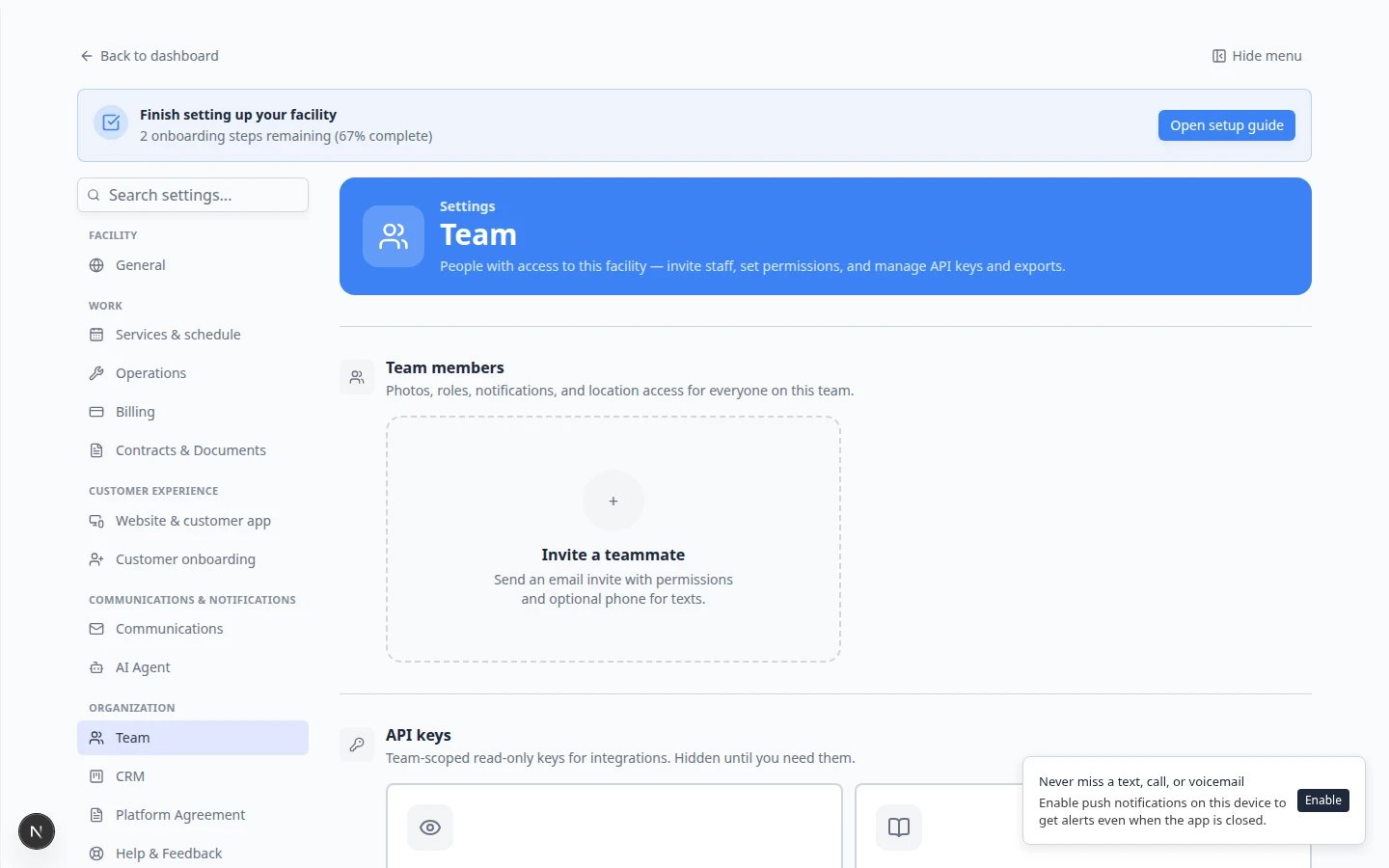 *When you invite or edit a teammate, look for **AI Assistant** in the **Permissions for this team** checklist. Turn on **Contacts**, **Cars**, and any other areas they need for daily lookups too. Use **All** only when someone needs every area—including managers and owners.*
**Your team list may show only you at first**
A brand-new facility often shows just the **Invite a teammate** box on [Settings > Team](https://www.carstoragesoftware.com/dashboard/settings/team). That is normal. Click **Invite a teammate**, turn on **AI Assistant** in the checklist above, and send the invite. The new person appears in the table after they accept.
## What the staff member should do next
After access is granted:
1. Sign out and sign back in if **AI Assistant** still does not appear.
2. Open [Manage your assistant chats](/docs/ai-assistant/manage-your-assistant-chats) to learn the chat list.
3. Practice one safe lookup in [Use the AI Assistant](/docs/ai-assistant/use-the-ai-assistant).
## When the assistant says it does not have permission
The assistant usually names the missing area, such as Payments or Schedule.
Open that page from the sidebar. If the page is blocked, the assistant is working correctly—you need a manager to update permissions.
A manager can add the missing permission in [Settings > Team](https://www.carstoragesoftware.com/dashboard/settings/team).
*When you invite or edit a teammate, look for **AI Assistant** in the **Permissions for this team** checklist. Turn on **Contacts**, **Cars**, and any other areas they need for daily lookups too. Use **All** only when someone needs every area—including managers and owners.*
**Your team list may show only you at first**
A brand-new facility often shows just the **Invite a teammate** box on [Settings > Team](https://www.carstoragesoftware.com/dashboard/settings/team). That is normal. Click **Invite a teammate**, turn on **AI Assistant** in the checklist above, and send the invite. The new person appears in the table after they accept.
## What the staff member should do next
After access is granted:
1. Sign out and sign back in if **AI Assistant** still does not appear.
2. Open [Manage your assistant chats](/docs/ai-assistant/manage-your-assistant-chats) to learn the chat list.
3. Practice one safe lookup in [Use the AI Assistant](/docs/ai-assistant/use-the-ai-assistant).
## When the assistant says it does not have permission
The assistant usually names the missing area, such as Payments or Schedule.
Open that page from the sidebar. If the page is blocked, the assistant is working correctly—you need a manager to update permissions.
A manager can add the missing permission in [Settings > Team](https://www.carstoragesoftware.com/dashboard/settings/team).
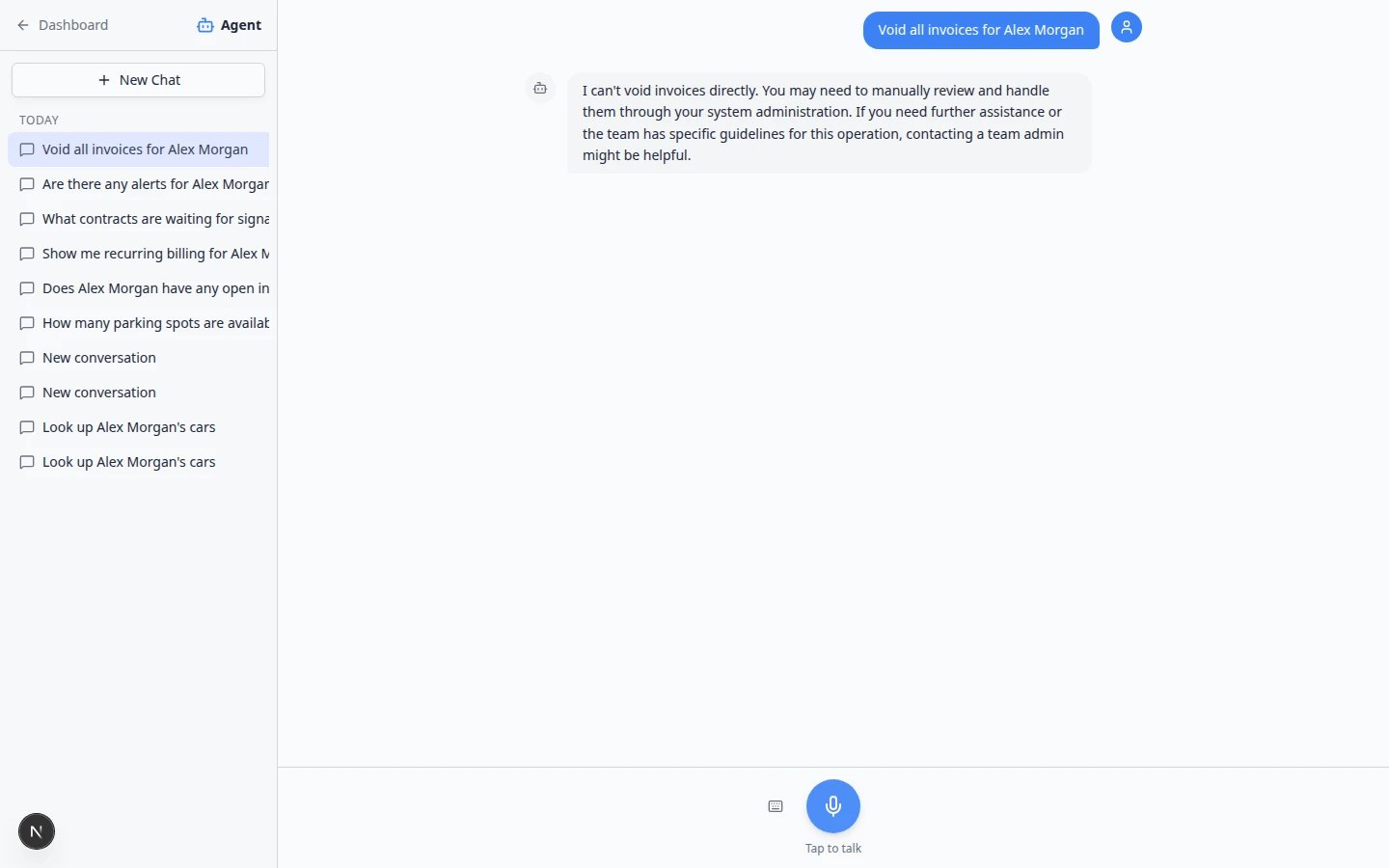 *When a staff member asks about invoices but does not have **Payments** access, the assistant explains the limit instead of showing private billing data. A manager fixes this on [Settings > Team](https://www.carstoragesoftware.com/dashboard/settings/team).*
**Do not share your login**
Staff should never share passwords so someone else can use the assistant. Each person should have their own account with the right permissions. Shared logins make it hard to know who confirmed a change.
## Common mistakes
**AI Assistant is on but Cars is off**
The sidebar may show **AI Assistant**, but car lookups fail if **Cars** is unchecked. Turn on every area the employee needs for daily work.
**Expecting payment changes from the assistant**
Even with **Payments** access, voiding invoices and issuing refunds should be done on the [Payments](https://www.carstoragesoftware.com/dashboard/payments) pages—not through the assistant. See [When the assistant cannot help](/docs/ai-assistant/when-the-assistant-cannot-help).
## Troubleshooting
### I am an admin but a teammate cannot see AI Assistant
Confirm they are signed in with a **staff** account, not a customer portal login. Then check their permissions on the Team page.
### The checkbox is on but the sidebar link is still missing
Ask them to refresh the browser or sign out and back in. Clear browser cache only if your IT person recommends it.
### We want to turn off the assistant for everyone temporarily
Remove the **AI Assistant** permission from each non-admin user. Admins will still have access unless you change admin membership.
## What to do next
* [Use the AI Assistant](/docs/ai-assistant/use-the-ai-assistant) — first practice session for staff who just received access.
* [Use the assistant during a customer call](/docs/ai-assistant/use-the-assistant-during-a-customer-call) — front-desk workflow while someone is on the phone.
* [Connect Claude to your facility](/docs/ai-assistant/connect-claude-to-your-facility) — if staff will look up records from Claude after an admin turns the card on.
* [Manage team permissions](/docs/settings/manage-team-permissions) — full settings guide for managers.
This documentation is built and hosted on [Mintlify](https://mintlify.com), a developer documentation platform.
*When a staff member asks about invoices but does not have **Payments** access, the assistant explains the limit instead of showing private billing data. A manager fixes this on [Settings > Team](https://www.carstoragesoftware.com/dashboard/settings/team).*
**Do not share your login**
Staff should never share passwords so someone else can use the assistant. Each person should have their own account with the right permissions. Shared logins make it hard to know who confirmed a change.
## Common mistakes
**AI Assistant is on but Cars is off**
The sidebar may show **AI Assistant**, but car lookups fail if **Cars** is unchecked. Turn on every area the employee needs for daily work.
**Expecting payment changes from the assistant**
Even with **Payments** access, voiding invoices and issuing refunds should be done on the [Payments](https://www.carstoragesoftware.com/dashboard/payments) pages—not through the assistant. See [When the assistant cannot help](/docs/ai-assistant/when-the-assistant-cannot-help).
## Troubleshooting
### I am an admin but a teammate cannot see AI Assistant
Confirm they are signed in with a **staff** account, not a customer portal login. Then check their permissions on the Team page.
### The checkbox is on but the sidebar link is still missing
Ask them to refresh the browser or sign out and back in. Clear browser cache only if your IT person recommends it.
### We want to turn off the assistant for everyone temporarily
Remove the **AI Assistant** permission from each non-admin user. Admins will still have access unless you change admin membership.
## What to do next
* [Use the AI Assistant](/docs/ai-assistant/use-the-ai-assistant) — first practice session for staff who just received access.
* [Use the assistant during a customer call](/docs/ai-assistant/use-the-assistant-during-a-customer-call) — front-desk workflow while someone is on the phone.
* [Connect Claude to your facility](/docs/ai-assistant/connect-claude-to-your-facility) — if staff will look up records from Claude after an admin turns the card on.
* [Manage team permissions](/docs/settings/manage-team-permissions) — full settings guide for managers.
This documentation is built and hosted on [Mintlify](https://mintlify.com), a developer documentation platform.