> ## Documentation Index
> Fetch the complete documentation index at: https://www.carstoragesoftware.com/docs/llms.txt
> Use this file to discover all available pages before exploring further.
# Install the mobile app
> Save Car Storage Software to an iPhone, iPad, or Android home screen from Safari or Chrome so staff and customers can open it full-screen like an app.
Use this guide when a team member or customer asks how to “get the app” on a phone or tablet, or when you are setting up a shared shop iPad for porters or front desk.
For your first day in the app, read [Getting started](/docs/getting-started) first — then return here when you are ready to save a home screen shortcut.
## What you will accomplish
You will save Car Storage Software to a device’s **home screen** so it opens full-screen — like a regular app — without typing the web address every time.
This works for:
* **Staff on iPhone** — native App Store app, or the same Home Screen web app
* **Customers** who check cars, events, and messages from the [customer portal](https://www.carstoragesoftware.com/customer/home)
The App Store staff app and the Home Screen web app both open the same secure dashboard full-screen. On iPad, either path supports landscape and an Apple keyboard.
## When to use this guide
* A team member wants faster access to **Create event** on a phone or tablet.
* You are setting up a **shared shop iPad** for porters or front desk.
* A customer asks how to “get the app” on their iPhone or Android phone.
* Your facility uses a **Mobile App Install** step in customer onboarding.
* You want a QR code at the front desk that opens the customer sign-in page (see [Share customer login links](/docs/facility-web-pages/share-customer-login-links)).
**Set the home screen name first**
Facility owners can set the short label under the icon in [Settings > Branding](https://www.carstoragesoftware.com/dashboard/settings/branding) under **App name (Home Screen)**. See [Set up facility branding](/docs/settings/set-up-facility-branding).
## Before you start
* You are on an iPhone, iPad, or Android device with a modern browser (Safari, Chrome, Samsung Internet, or similar).
* You are signed in to the page you want to save — [Create event](https://www.carstoragesoftware.com/dashboard) for staff or the [customer portal](https://www.carstoragesoftware.com/customer/home) for customers.
* On iPad, use **Safari** (not a link opened inside another app’s in-app browser).
**Sign in before you add the icon**
Add the home screen shortcut **after** you open the right page. The shortcut remembers the website address — not your password. Staff should save [Create event](https://www.carstoragesoftware.com/dashboard) or [Dashboard](https://www.carstoragesoftware.com/dashboard/v2). Customers should save the portal home after they sign in once.
## Staff vs customer — which page to save
**Staff dashboard** — Open [Create event](https://www.carstoragesoftware.com/dashboard) (or [Dashboard](https://www.carstoragesoftware.com/dashboard/v2) if that is your daily starting point). Sign in as staff, then follow the steps below.
**Customer portal** — Open your facility’s customer sign-in link, complete the email sign-in, and land on **Social Events** or **My Events**. Then follow the same **Add to Home Screen** steps.
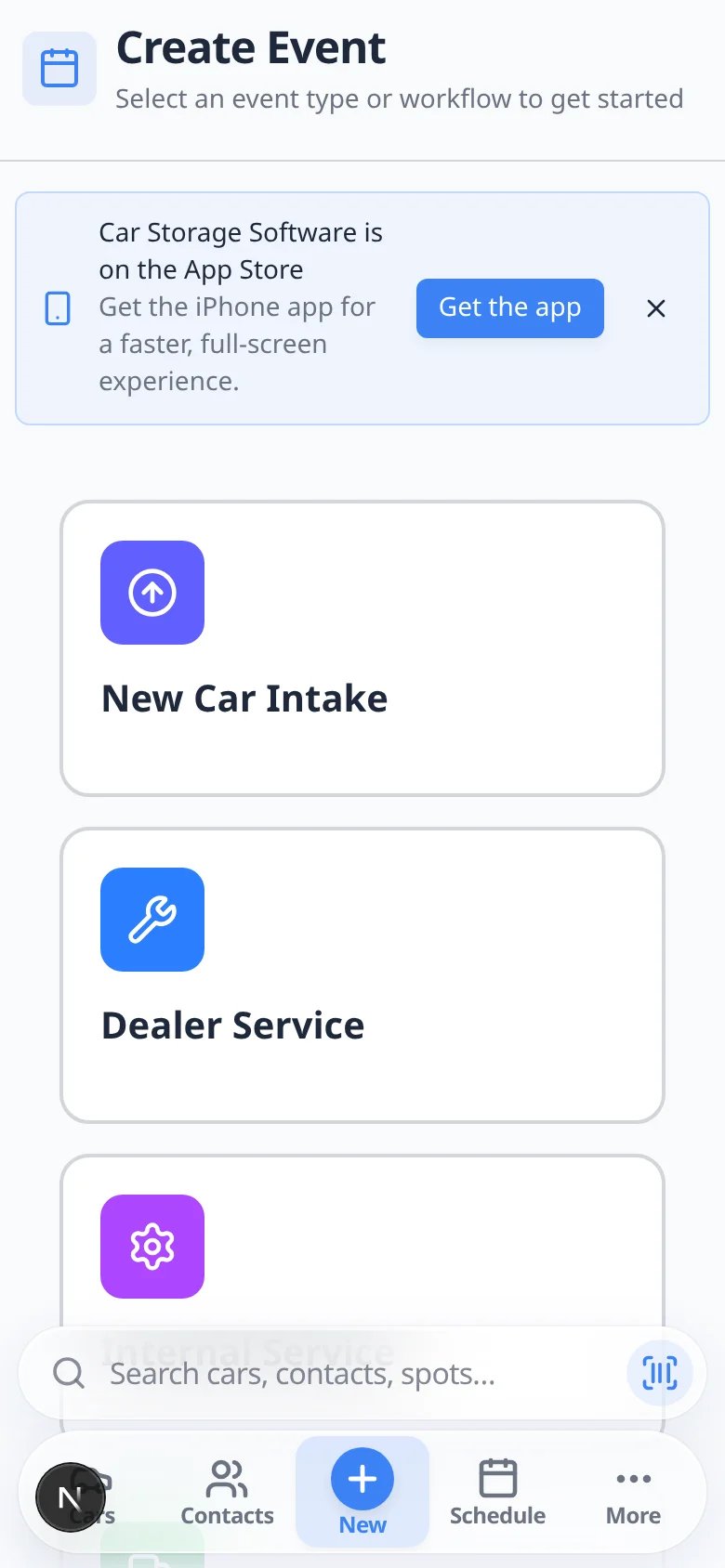 *Staff example: save **Create event** to the home screen so porters and front desk can tap one icon when a car arrives.*
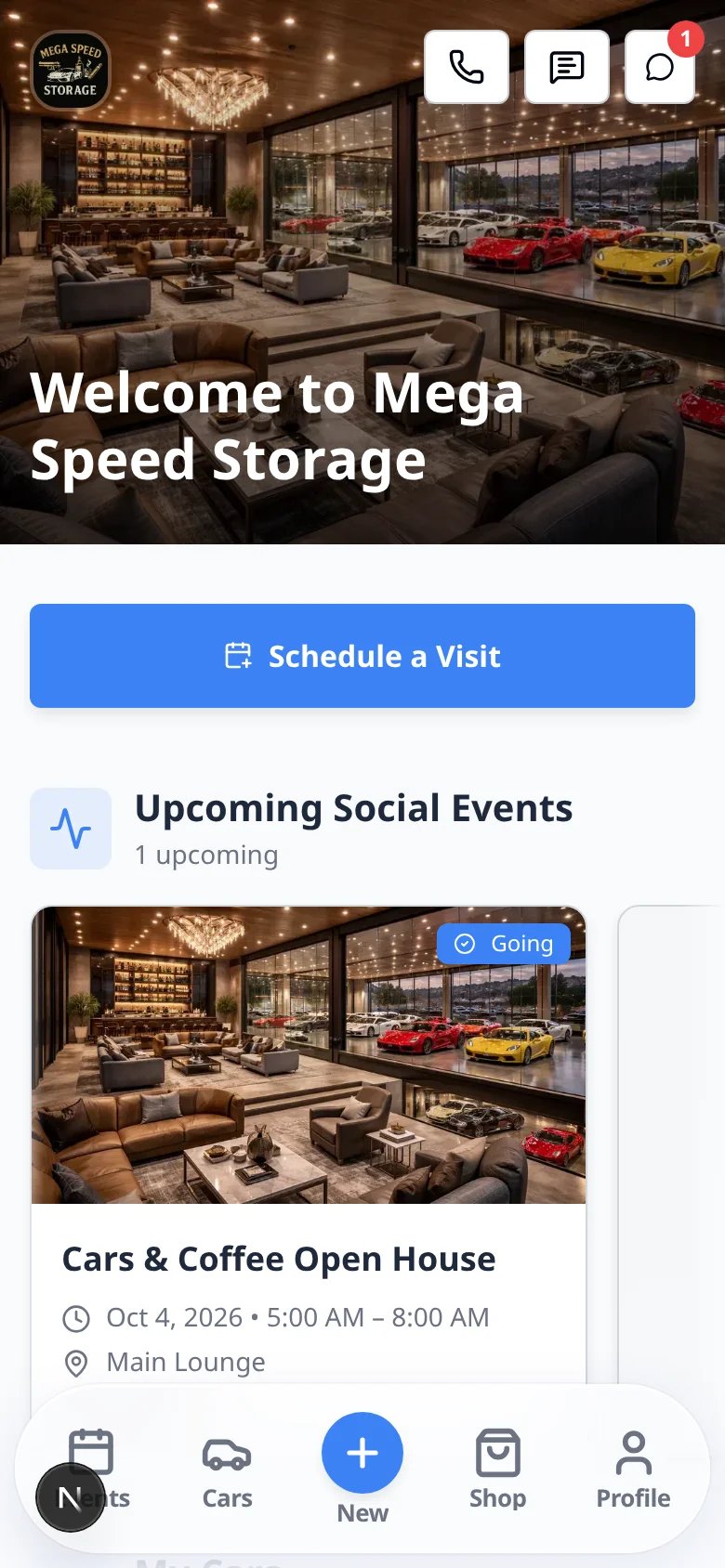 *Customer example: after sign-in, save the portal home so owners can open **My Events** and vehicle info from one icon.*
## Safari on iPad (shop tablets)
Staff can also install the native **App Store** app on iPad. Prefer that when you want push notifications and a standard App Store update path. Safari **Add to Home Screen** remains a solid option for shared shop tablets.
### 1. Open Safari and sign in
On the iPad, open **Safari**, go to your staff dashboard, and sign in.
### 2. Tap Share
Tap **Share** in Safari’s toolbar (square with an arrow pointing up). On many iPad layouts this sits near the address field — not at the bottom of the screen like iPhone Safari.
### 3. Tap Add to Home Screen
Scroll the share sheet if needed, then tap **Add to Home Screen**.
### 4. Tap Add
Review the name under the icon. Leave **Open as Web App** turned on if you see that toggle. Tap **Add**.
**Expected result:** A new icon appears on the Home Screen. Tap it to open full-screen with no Safari chrome. Rotate to landscape for the shop layout; you can lock orientation in Control Center if you want a fixed horizontal setup.
**App Store on iPad**
The staff app on the **App Store** supports **iPhone and iPad**. Search for Car Storage Software, or open the download link from the dashboard banner. Home Screen install is still useful for shared devices that should not use an Apple ID purchase/install flow.
## Safari on iPhone
In Safari, the browser menu is at the **bottom-right** of the screen. You open that menu first, then **Share**, then **Add to Home Screen**.
### 1. Open the Safari menu
Sign in to Car Storage Software in **Safari**. Look at the bottom browser bar and tap the **⋯** (three-dot) menu button in the **bottom-right** corner.
*Customer example: after sign-in, save the portal home so owners can open **My Events** and vehicle info from one icon.*
## Safari on iPad (shop tablets)
Staff can also install the native **App Store** app on iPad. Prefer that when you want push notifications and a standard App Store update path. Safari **Add to Home Screen** remains a solid option for shared shop tablets.
### 1. Open Safari and sign in
On the iPad, open **Safari**, go to your staff dashboard, and sign in.
### 2. Tap Share
Tap **Share** in Safari’s toolbar (square with an arrow pointing up). On many iPad layouts this sits near the address field — not at the bottom of the screen like iPhone Safari.
### 3. Tap Add to Home Screen
Scroll the share sheet if needed, then tap **Add to Home Screen**.
### 4. Tap Add
Review the name under the icon. Leave **Open as Web App** turned on if you see that toggle. Tap **Add**.
**Expected result:** A new icon appears on the Home Screen. Tap it to open full-screen with no Safari chrome. Rotate to landscape for the shop layout; you can lock orientation in Control Center if you want a fixed horizontal setup.
**App Store on iPad**
The staff app on the **App Store** supports **iPhone and iPad**. Search for Car Storage Software, or open the download link from the dashboard banner. Home Screen install is still useful for shared devices that should not use an Apple ID purchase/install flow.
## Safari on iPhone
In Safari, the browser menu is at the **bottom-right** of the screen. You open that menu first, then **Share**, then **Add to Home Screen**.
### 1. Open the Safari menu
Sign in to Car Storage Software in **Safari**. Look at the bottom browser bar and tap the **⋯** (three-dot) menu button in the **bottom-right** corner.
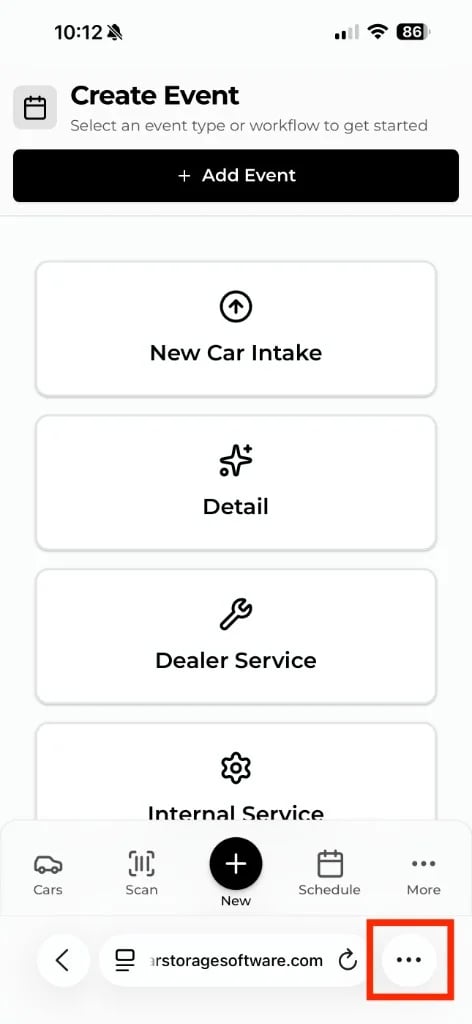 *Tap the **⋯** menu button in the bottom-right corner of Safari.*
**Expected result:** A menu slides up from the bottom of the screen.
### 2. Tap Share
In the menu that appears, tap **Share** — the option with the square-and-arrow icon at the top of the list.
*Tap the **⋯** menu button in the bottom-right corner of Safari.*
**Expected result:** A menu slides up from the bottom of the screen.
### 2. Tap Share
In the menu that appears, tap **Share** — the option with the square-and-arrow icon at the top of the list.
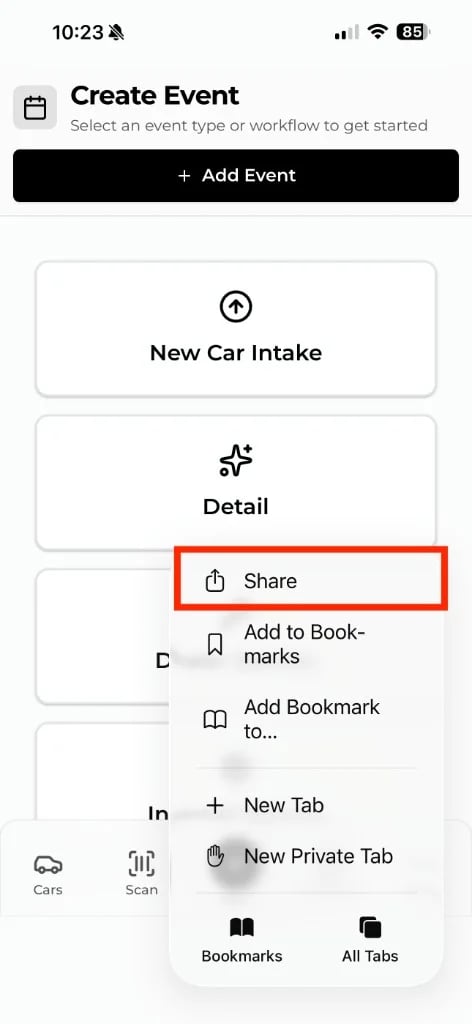 *Tap **Share** in the Safari menu.*
**Expected result:** The iOS share sheet opens with actions for this website.
### 3. Tap Add to Home Screen
Scroll the share sheet if needed, then tap **Add to Home Screen**.
*Tap **Share** in the Safari menu.*
**Expected result:** The iOS share sheet opens with actions for this website.
### 3. Tap Add to Home Screen
Scroll the share sheet if needed, then tap **Add to Home Screen**.
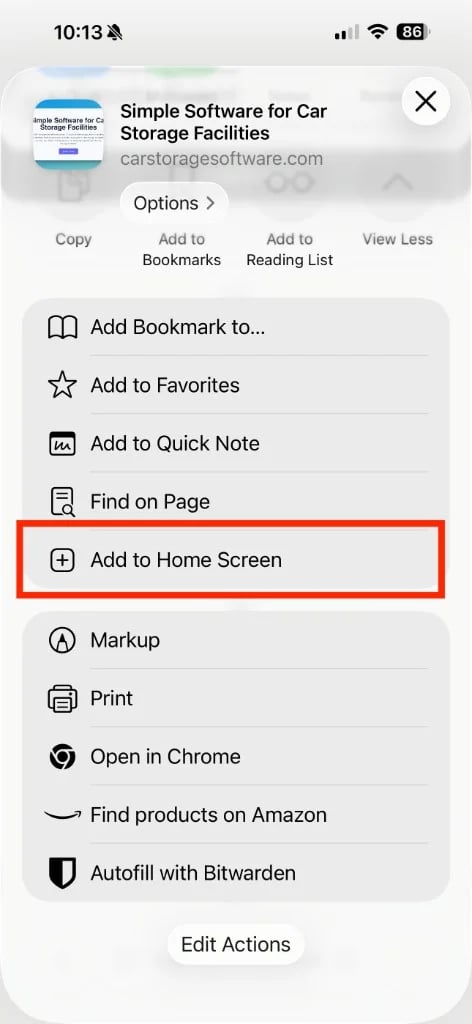 *Tap **Add to Home Screen** in the share sheet.*
**Expected result:** A confirmation screen appears where you can name the icon.
### 4. Tap Add
Review the name under the icon. Leave **Open as Web App** turned on if you see that toggle. Tap **Add** in the top-right corner.
*Tap **Add to Home Screen** in the share sheet.*
**Expected result:** A confirmation screen appears where you can name the icon.
### 4. Tap Add
Review the name under the icon. Leave **Open as Web App** turned on if you see that toggle. Tap **Add** in the top-right corner.
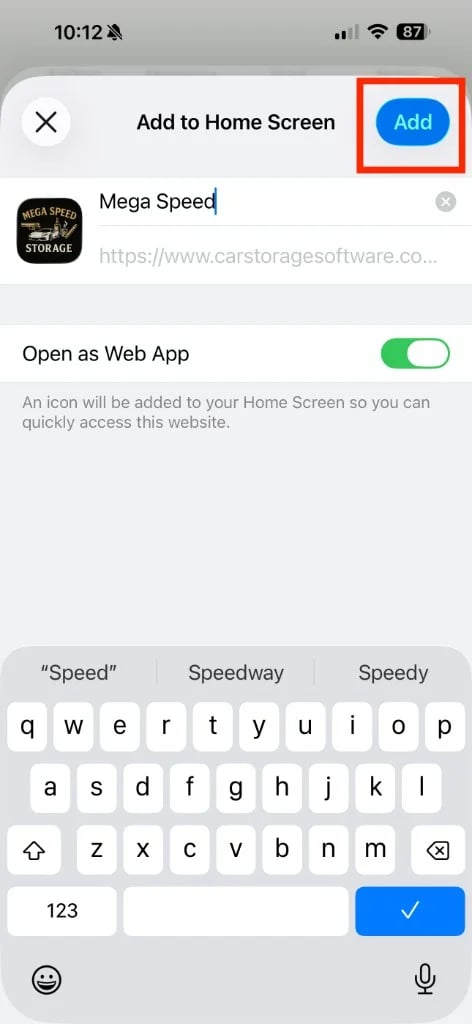 *Tap **Add** to place the icon on your home screen.*
**Expected result:** A new icon appears on your home screen. Tap it to open Car Storage Software full-screen without the browser address bar.
## Chrome on iPhone
In Chrome, the **Share** button is in the **top-right** corner of the address bar. Chrome skips the extra browser menu step that Safari uses — Share opens the share sheet directly.
### 1. Tap Share in the address bar
Sign in to Car Storage Software in **Chrome**. Look at the top of the screen and tap the **Share** button (square with an arrow pointing up) in the **top-right** corner of the address bar.
*Tap **Add** to place the icon on your home screen.*
**Expected result:** A new icon appears on your home screen. Tap it to open Car Storage Software full-screen without the browser address bar.
## Chrome on iPhone
In Chrome, the **Share** button is in the **top-right** corner of the address bar. Chrome skips the extra browser menu step that Safari uses — Share opens the share sheet directly.
### 1. Tap Share in the address bar
Sign in to Car Storage Software in **Chrome**. Look at the top of the screen and tap the **Share** button (square with an arrow pointing up) in the **top-right** corner of the address bar.
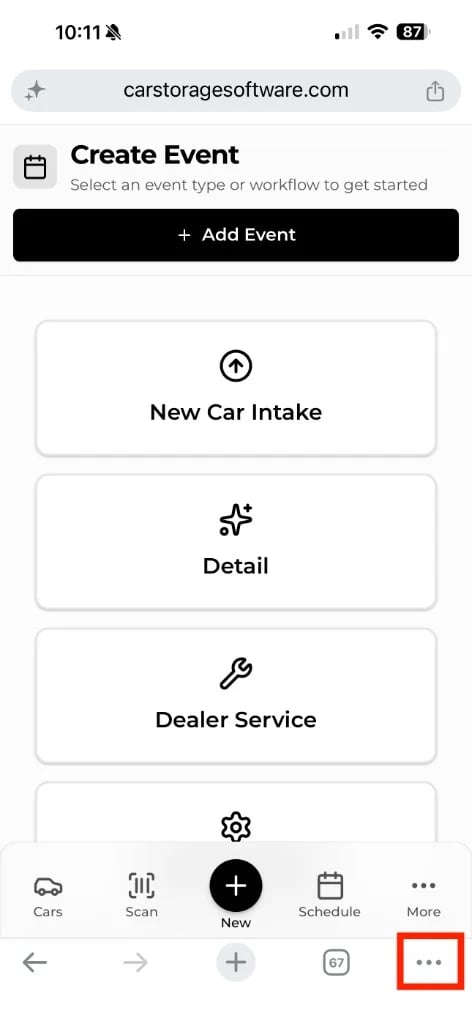 *Tap **Share** in the top-right corner of Chrome's address bar. If your Chrome version uses a **⋯** menu at the bottom instead, open that menu and tap **Share** — then continue with the next step.*
**Expected result:** The iOS share sheet opens.
### 2. Tap Add to Home Screen
Scroll the share sheet if needed, then tap **Add to Home Screen**.
*Tap **Share** in the top-right corner of Chrome's address bar. If your Chrome version uses a **⋯** menu at the bottom instead, open that menu and tap **Share** — then continue with the next step.*
**Expected result:** The iOS share sheet opens.
### 2. Tap Add to Home Screen
Scroll the share sheet if needed, then tap **Add to Home Screen**.
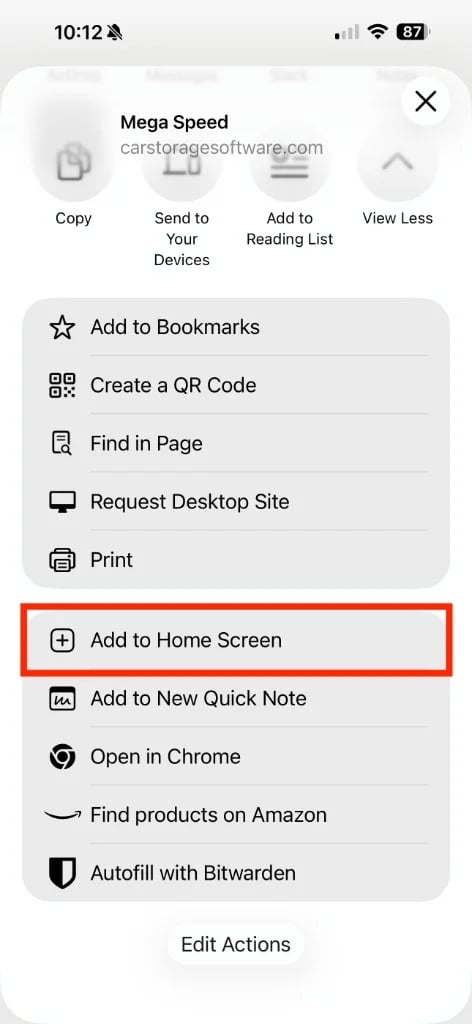 *Tap **Add to Home Screen** in the share sheet.*
**Expected result:** The confirmation screen appears.
### 3. Tap Add
Review the name, keep **Open as Web App** on if shown, and tap **Add** in the top-right corner.
*This confirmation screen is the same in Safari and Chrome. Tap **Add** to finish.*
**Expected result:** The home screen icon is added. Open it like any other app.
**Safari vs Chrome on iPhone**
The only difference on iPhone is how you reach the share sheet:
* **Safari:** bottom-right **⋯** menu → **Share** → **Add to Home Screen**
* **Chrome:** top-right **Share** → **Add to Home Screen**
The final **Add to Home Screen** confirmation is the same on both browsers.
## Android (Chrome and similar browsers)
Android phones use a different menu layout than iPhone, but the idea is the same: open the browser menu, then choose **Add to Home screen**, **Install app**, or **Add page to**.
*Tap **Add to Home Screen** in the share sheet.*
**Expected result:** The confirmation screen appears.
### 3. Tap Add
Review the name, keep **Open as Web App** on if shown, and tap **Add** in the top-right corner.
*This confirmation screen is the same in Safari and Chrome. Tap **Add** to finish.*
**Expected result:** The home screen icon is added. Open it like any other app.
**Safari vs Chrome on iPhone**
The only difference on iPhone is how you reach the share sheet:
* **Safari:** bottom-right **⋯** menu → **Share** → **Add to Home Screen**
* **Chrome:** top-right **Share** → **Add to Home Screen**
The final **Add to Home Screen** confirmation is the same on both browsers.
## Android (Chrome and similar browsers)
Android phones use a different menu layout than iPhone, but the idea is the same: open the browser menu, then choose **Add to Home screen**, **Install app**, or **Add page to**.
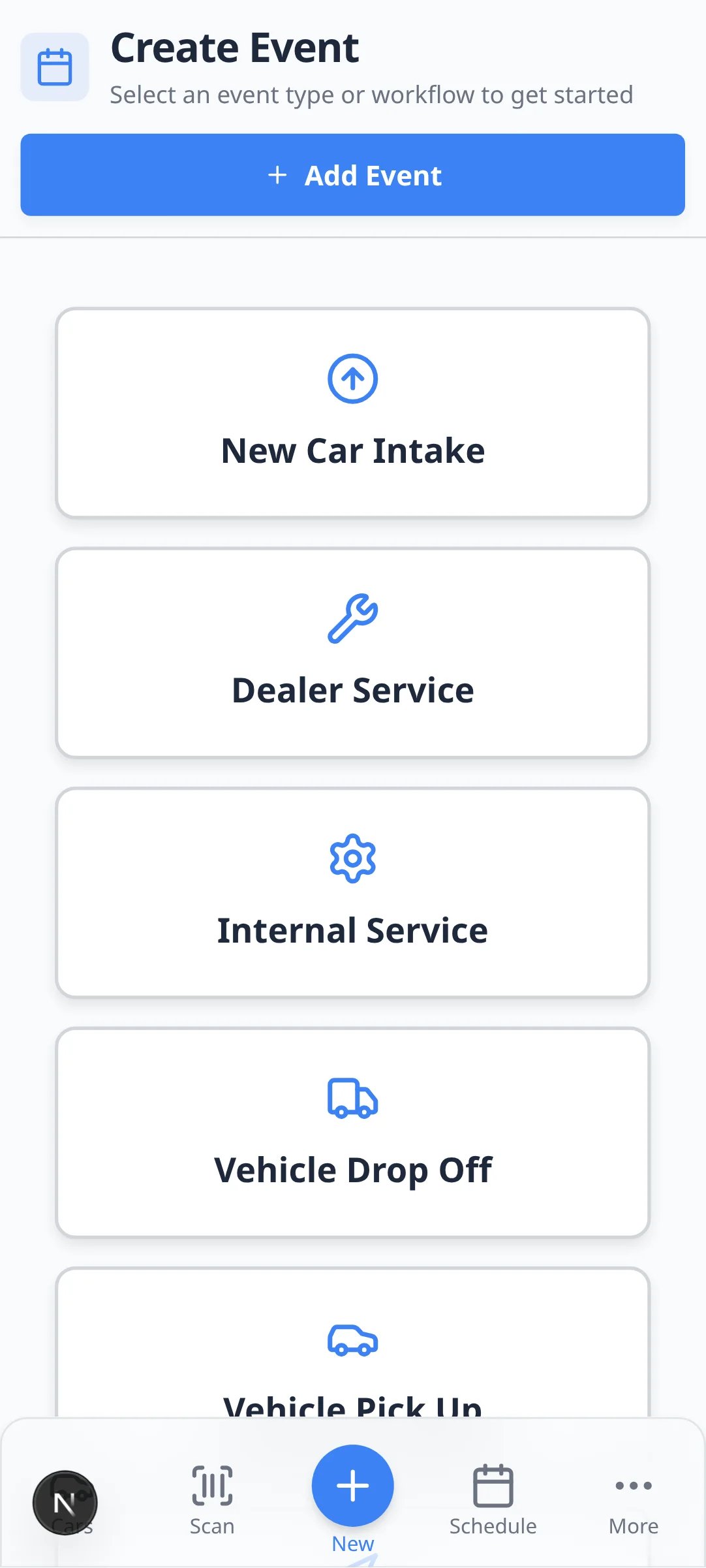 *On Android, sign in first — then open the browser menu (usually **⋮** in the top-right) to add the page to your home screen.*
Sign in to the staff dashboard or customer portal in **Chrome**, **Samsung Internet**, **Firefox**, or your phone's default browser.
**Expected result:** You see the same pages as on desktop — for example **Create event** cards for staff or **My Events** for customers.
* **Chrome on Android:** Tap the **⋮** (three-dot) menu in the top-right, then **Add to Home screen** or **Install app**.
* **Samsung Internet:** Tap the menu icon, then **Add page to** → **Home screen**.
* **Firefox on Android:** Tap the menu, then **Install** or **Add to Home screen** if shown.
**Why this matters:** The menu lives in the **browser** toolbar — not inside a button on the Car Storage Software page.
When prompted, confirm the name and tap **Add**, **Install**, or **Create shortcut**.
**Expected result:** An icon appears on your home screen or app drawer. Tap it to open Car Storage Software full-screen.
**Wording varies by browser**
Some Android browsers say **Install app** instead of **Add to Home screen**. Either option saves a home screen shortcut that opens the site full-screen.
## What happens after you install
Open the shortcut from your home screen like any other app.
**Expected result:** The page opens without the browser’s address bar at the top (when **Open as Web App** stayed on during install).
Staff and customers still use secure sign-in. The home screen icon does not store a password.
**Expected result:** Staff reach [Create event](https://www.carstoragesoftware.com/dashboard) or your saved page. Customers reach the portal after email sign-in.
Staff can start **Vehicle Drop Off** from the saved icon. Customers can open **My Events** and vehicle details. See [Use the Create event home page](/docs/basics/use-the-create-event-home) for staff workflows.
## Troubleshooting
**I do not see Add to Home Screen**
Make sure you are using the phone's browser share menu — not a menu inside the Car Storage Software page itself. On iPhone, you need Safari's **⋯** menu or Chrome's **Share** button in the browser chrome (the area around the web page).
**The icon shows a generic name**
Ask your facility owner to set **App name (Home Screen)** in [Settings > Branding](https://www.carstoragesoftware.com/dashboard/settings/branding). Delete the old home screen icon and add it again to pick up the new name.
**The shortcut opens the wrong page**
Delete the icon, open the correct page in the browser (staff **Create event** or customer portal home), sign in, and add to home screen again.
**Helping a customer install the portal**
If your facility uses customer onboarding with a **Mobile App Install** step, send customers this guide or walk them through it on a call. See [Guide a customer through the portal](/docs/contacts/guide-a-customer-through-the-portal) for the full customer setup path.
## What success looks like
* A home screen icon opens Car Storage Software full-screen without the browser address bar.
* The icon shows your facility name (or the short **App name** from branding settings).
* Staff can start work from **Create event** or customers can open **Events** and **Cars** from the saved icon.
* Your team knows the shortcut is not a separate app store download — it is the same secure website, faster to open.
## What to do next
* **Staff** — Practice starting a drop-off from the home screen icon. Read [Use the Create event home page](/docs/basics/use-the-create-event-home).
* **Customers** — Share the customer login link first, then help them install. See [Share customer login links](/docs/facility-web-pages/share-customer-login-links).
* **Managers** — Print a QR code for the front desk from [QR code generator](https://www.carstoragesoftware.com/dashboard/qr-code).
This documentation is built and hosted on [Mintlify](https://mintlify.com), a developer documentation platform.
*On Android, sign in first — then open the browser menu (usually **⋮** in the top-right) to add the page to your home screen.*
Sign in to the staff dashboard or customer portal in **Chrome**, **Samsung Internet**, **Firefox**, or your phone's default browser.
**Expected result:** You see the same pages as on desktop — for example **Create event** cards for staff or **My Events** for customers.
* **Chrome on Android:** Tap the **⋮** (three-dot) menu in the top-right, then **Add to Home screen** or **Install app**.
* **Samsung Internet:** Tap the menu icon, then **Add page to** → **Home screen**.
* **Firefox on Android:** Tap the menu, then **Install** or **Add to Home screen** if shown.
**Why this matters:** The menu lives in the **browser** toolbar — not inside a button on the Car Storage Software page.
When prompted, confirm the name and tap **Add**, **Install**, or **Create shortcut**.
**Expected result:** An icon appears on your home screen or app drawer. Tap it to open Car Storage Software full-screen.
**Wording varies by browser**
Some Android browsers say **Install app** instead of **Add to Home screen**. Either option saves a home screen shortcut that opens the site full-screen.
## What happens after you install
Open the shortcut from your home screen like any other app.
**Expected result:** The page opens without the browser’s address bar at the top (when **Open as Web App** stayed on during install).
Staff and customers still use secure sign-in. The home screen icon does not store a password.
**Expected result:** Staff reach [Create event](https://www.carstoragesoftware.com/dashboard) or your saved page. Customers reach the portal after email sign-in.
Staff can start **Vehicle Drop Off** from the saved icon. Customers can open **My Events** and vehicle details. See [Use the Create event home page](/docs/basics/use-the-create-event-home) for staff workflows.
## Troubleshooting
**I do not see Add to Home Screen**
Make sure you are using the phone's browser share menu — not a menu inside the Car Storage Software page itself. On iPhone, you need Safari's **⋯** menu or Chrome's **Share** button in the browser chrome (the area around the web page).
**The icon shows a generic name**
Ask your facility owner to set **App name (Home Screen)** in [Settings > Branding](https://www.carstoragesoftware.com/dashboard/settings/branding). Delete the old home screen icon and add it again to pick up the new name.
**The shortcut opens the wrong page**
Delete the icon, open the correct page in the browser (staff **Create event** or customer portal home), sign in, and add to home screen again.
**Helping a customer install the portal**
If your facility uses customer onboarding with a **Mobile App Install** step, send customers this guide or walk them through it on a call. See [Guide a customer through the portal](/docs/contacts/guide-a-customer-through-the-portal) for the full customer setup path.
## What success looks like
* A home screen icon opens Car Storage Software full-screen without the browser address bar.
* The icon shows your facility name (or the short **App name** from branding settings).
* Staff can start work from **Create event** or customers can open **Events** and **Cars** from the saved icon.
* Your team knows the shortcut is not a separate app store download — it is the same secure website, faster to open.
## What to do next
* **Staff** — Practice starting a drop-off from the home screen icon. Read [Use the Create event home page](/docs/basics/use-the-create-event-home).
* **Customers** — Share the customer login link first, then help them install. See [Share customer login links](/docs/facility-web-pages/share-customer-login-links).
* **Managers** — Print a QR code for the front desk from [QR code generator](https://www.carstoragesoftware.com/dashboard/qr-code).
This documentation is built and hosted on [Mintlify](https://mintlify.com), a developer documentation platform.