> ## Documentation Index
> Fetch the complete documentation index at: https://www.carstoragesoftware.com/docs/llms.txt
> Use this file to discover all available pages before exploring further.
# Organize vehicles with tags
> Label cars with short tags so your team can filter the Cars list and find groups of vehicles quickly.
## What you will accomplish
You will add **tags** to vehicle records and use those tags to filter the [Cars page](https://www.carstoragesoftware.com/dashboard/cars).
Tags are short labels your whole team understands—such as **VIP Storage**, **Consignment**, or **High Value**. They help you answer questions like “Show me every consignment car” without searching one record at a time.
**Expected outcome:** Each tagged car shows its labels on the record, and the Cars list can be narrowed to only vehicles with a chosen tag.
## When to use tags
* You group cars for marketing (for sale, consignment, show cars).
* You want a quick way to find VIP or high-value storage customers.
* Different staff members need the same shorthand when they talk about a set of vehicles.
* You already use tags on [Contacts](https://www.carstoragesoftware.com/dashboard/contacts) and want the same idea on cars.
Tags are for **your team inside the dashboard**. They are not the same as license plates, parking zones, or marketplace listings. Think of them as color-coded sticky notes everyone can search.
## Before you start
* Sign in to the dashboard and open [Cars](https://www.carstoragesoftware.com/dashboard/cars).
* Know which vehicle you want to tag, or have the [Cars list](https://www.carstoragesoftware.com/dashboard/cars) open to filter by tag later.
* Agree on a few standard tag names with your team so you do not end up with five versions of the same idea (for example, pick **VIP Storage** instead of both “VIP” and “vip storage”).
## Add a tag to one car
Go to [Cars](https://www.carstoragesoftware.com/dashboard/cars), find the vehicle, and click **View**.
**Expected result:** The car detail page opens with **Vehicle Details** on the left and **Activity Feed** on the right.
In **Vehicle Details**, scroll to the **Vehicle Overview** area. Look for the **Tags** row.
You may already see tag chips (small labeled buttons) if someone tagged this car earlier.
**Why this matters:** Tags live next to other quick facts about the car, so staff see them while reviewing the record.
Click **Add** next to **Tags**. A search box opens with tags your facility already uses.
**Expected result:** You can type to search or pick an existing tag from the list.
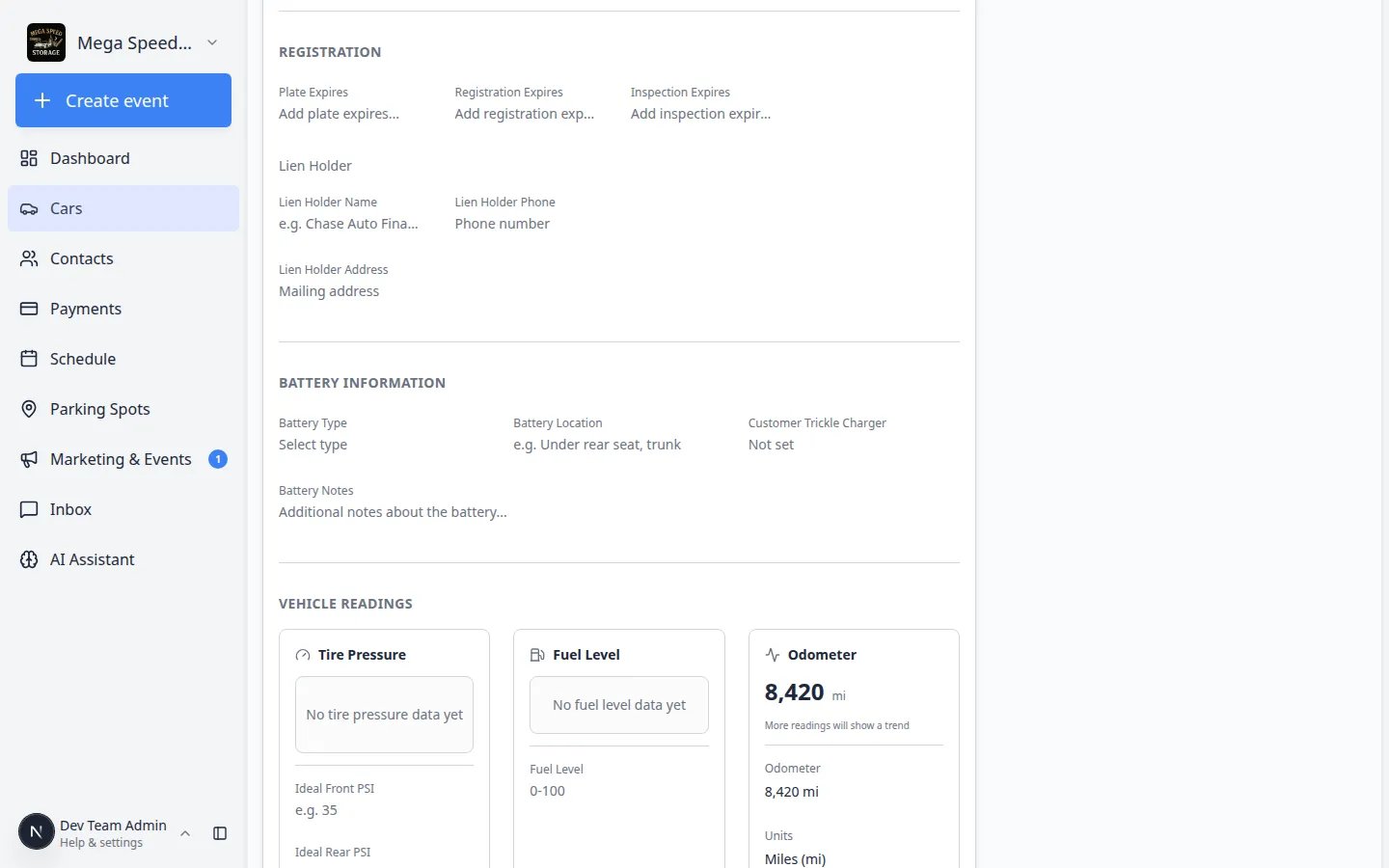 *After you click **Add**, type to search or pick a tag your team already uses. Choose **Create** when you need a new label the first time.*
Click an existing tag to attach it. If the tag does not exist yet, type the new name and select **Create** (or press Enter when the create option appears).
Use short, clear names:
* **VIP Storage**
* **Consignment**
* **High Value**
* **Show Car**
**Why this matters:** The first person who creates **VIP Storage** saves everyone else from retyping the same idea five different ways.
**Expected result:** The new tag appears as a chip on the car record right away.
Click the **X** on a tag chip to remove it from this car only. The tag still exists for other vehicles.
**Expected result:** The chip disappears from this record. Other cars that use the same tag are unchanged.
Click **Add** again and pick another label—for example **High Value** on a car that is also **VIP Storage**.
**Why this matters:** Multiple tags let you filter for overlapping groups, such as all VIP cars that are also listed for consignment.
*After you click **Add**, type to search or pick a tag your team already uses. Choose **Create** when you need a new label the first time.*
Click an existing tag to attach it. If the tag does not exist yet, type the new name and select **Create** (or press Enter when the create option appears).
Use short, clear names:
* **VIP Storage**
* **Consignment**
* **High Value**
* **Show Car**
**Why this matters:** The first person who creates **VIP Storage** saves everyone else from retyping the same idea five different ways.
**Expected result:** The new tag appears as a chip on the car record right away.
Click the **X** on a tag chip to remove it from this car only. The tag still exists for other vehicles.
**Expected result:** The chip disappears from this record. Other cars that use the same tag are unchanged.
Click **Add** again and pick another label—for example **High Value** on a car that is also **VIP Storage**.
**Why this matters:** Multiple tags let you filter for overlapping groups, such as all VIP cars that are also listed for consignment.
 *Tags appear as chips in **Vehicle Overview**. Click **Add** to attach an existing tag or create a new one.*
**Create tags your whole team will reuse**
The first time you type a new tag name, choose **Create** in the dropdown. After that, everyone on your team can pick the same tag from the list—no need to retype it on every car.
## Filter the Cars list by tag
After cars are tagged, use the list filters to see only the group you need.
**Try one tag first**
If you are new to tags, filter by a single tag such as **VIP Storage** before you combine multiple tags. That helps you confirm the right cars are labeled before you narrow further.
Go to [Cars](https://www.carstoragesoftware.com/dashboard/cars).
Click **Filters & settings** near the top-right of the list.
**Expected result:** A panel opens with filter fields for make, model, year, location, tags, and more.
Scroll to the **Tags** section. Check the tag or tags you want (for example **Consignment**).
The list updates as soon as you select a tag.
**Expected result:** Only cars with that tag remain in the table or card view.
*Tags appear as chips in **Vehicle Overview**. Click **Add** to attach an existing tag or create a new one.*
**Create tags your whole team will reuse**
The first time you type a new tag name, choose **Create** in the dropdown. After that, everyone on your team can pick the same tag from the list—no need to retype it on every car.
## Filter the Cars list by tag
After cars are tagged, use the list filters to see only the group you need.
**Try one tag first**
If you are new to tags, filter by a single tag such as **VIP Storage** before you combine multiple tags. That helps you confirm the right cars are labeled before you narrow further.
Go to [Cars](https://www.carstoragesoftware.com/dashboard/cars).
Click **Filters & settings** near the top-right of the list.
**Expected result:** A panel opens with filter fields for make, model, year, location, tags, and more.
Scroll to the **Tags** section. Check the tag or tags you want (for example **Consignment**).
The list updates as soon as you select a tag.
**Expected result:** Only cars with that tag remain in the table or card view.
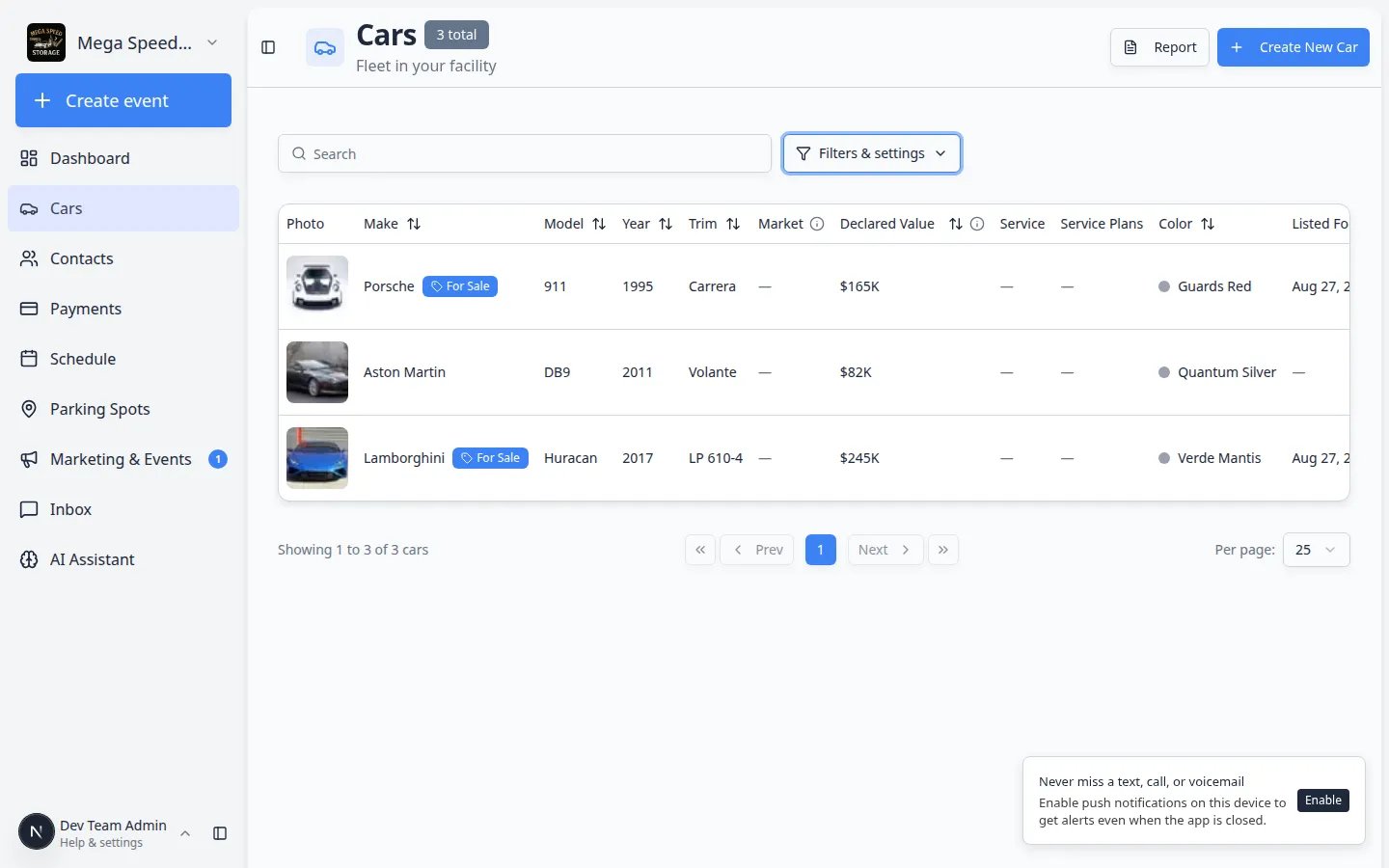 *After you check a tag, the [Cars list](https://www.carstoragesoftware.com/dashboard/cars) narrows immediately. You do not need to click **Apply**—the table updates on its own.*
You can also filter by **for sale** status, insurance status, service plan, or location at the same time.
Example: **VIP Storage** plus **For sale** → **For sale** shows tagged cars that are currently listed on your marketplace.
**Why this matters:** Tags become much more useful when you mix them with other filters your team already uses.
Open **Filters & settings** again and clear the tag checkboxes, or click any reset control your team uses, so the full vehicle list returns.
**Expected result:** Every car in your facility shows again.
*After you check a tag, the [Cars list](https://www.carstoragesoftware.com/dashboard/cars) narrows immediately. You do not need to click **Apply**—the table updates on its own.*
You can also filter by **for sale** status, insurance status, service plan, or location at the same time.
Example: **VIP Storage** plus **For sale** → **For sale** shows tagged cars that are currently listed on your marketplace.
**Why this matters:** Tags become much more useful when you mix them with other filters your team already uses.
Open **Filters & settings** again and clear the tag checkboxes, or click any reset control your team uses, so the full vehicle list returns.
**Expected result:** Every car in your facility shows again.
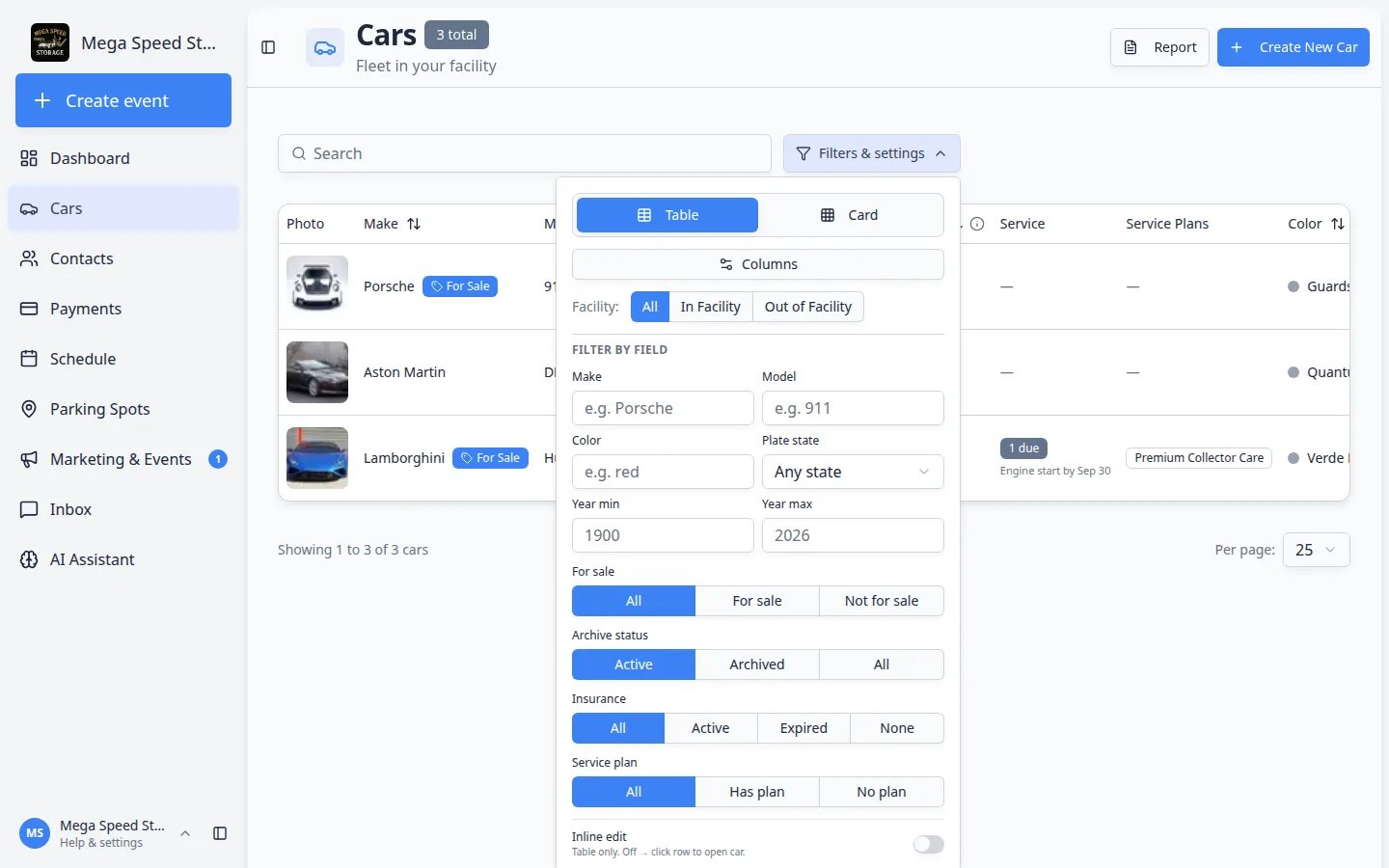 *Open **Filters & settings** on [Cars](https://www.carstoragesoftware.com/dashboard/cars). Scroll the panel to **Tags** if that row is below the Insurance and Service plan buttons.*
## Tips for tag names that work
**Keep names short and shared**
Pick tag names during a team meeting and write them on a sticky note near the desk. When everyone uses the same words, filters stay trustworthy.
**Tags are not a replacement for parking spots**
A tag might say **Outdoor Lot**, but the real parking location still belongs in the **Zone** or **Spot** button at the top of the car page. Use [Move a car](/docs/cars/move-a-car) when the vehicle physically moves.
## Troubleshooting
**I do not see Tags on the car record**
Scroll through **Vehicle Details**—tags sit in **Vehicle Overview**, not in Insurance or Registration. If your role is read-only, you may see tags but not **Add**. Ask a team admin to confirm your permissions in [Settings > Team](https://www.carstoragesoftware.com/dashboard/settings/team).
**The filter shows no cars**
Confirm the tag is attached on at least one car record. Clear other filters (location, year, for sale) that might be hiding results. See [Find and filter cars](/docs/cars/find-and-filter-cars).
## What to do next
* Filter faster with [Find and filter cars](/docs/cars/find-and-filter-cars).
* List tagged consignment inventory with [List a vehicle for sale on your marketplace](/docs/cars/list-a-vehicle-for-sale-on-your-marketplace).
* Return to the [Cars overview](/docs/cars/overview) for the full list of vehicle guides.
This documentation is built and hosted on [Mintlify](https://mintlify.com), a developer documentation platform.
*Open **Filters & settings** on [Cars](https://www.carstoragesoftware.com/dashboard/cars). Scroll the panel to **Tags** if that row is below the Insurance and Service plan buttons.*
## Tips for tag names that work
**Keep names short and shared**
Pick tag names during a team meeting and write them on a sticky note near the desk. When everyone uses the same words, filters stay trustworthy.
**Tags are not a replacement for parking spots**
A tag might say **Outdoor Lot**, but the real parking location still belongs in the **Zone** or **Spot** button at the top of the car page. Use [Move a car](/docs/cars/move-a-car) when the vehicle physically moves.
## Troubleshooting
**I do not see Tags on the car record**
Scroll through **Vehicle Details**—tags sit in **Vehicle Overview**, not in Insurance or Registration. If your role is read-only, you may see tags but not **Add**. Ask a team admin to confirm your permissions in [Settings > Team](https://www.carstoragesoftware.com/dashboard/settings/team).
**The filter shows no cars**
Confirm the tag is attached on at least one car record. Clear other filters (location, year, for sale) that might be hiding results. See [Find and filter cars](/docs/cars/find-and-filter-cars).
## What to do next
* Filter faster with [Find and filter cars](/docs/cars/find-and-filter-cars).
* List tagged consignment inventory with [List a vehicle for sale on your marketplace](/docs/cars/list-a-vehicle-for-sale-on-your-marketplace).
* Return to the [Cars overview](/docs/cars/overview) for the full list of vehicle guides.
This documentation is built and hosted on [Mintlify](https://mintlify.com), a developer documentation platform.