> ## Documentation Index
> Fetch the complete documentation index at: https://www.carstoragesoftware.com/docs/llms.txt
> Use this file to discover all available pages before exploring further.
# Review Classic.com market data on a vehicle
> See price trends for collector vehicles and keep the market chart matched to the right car.
When your facility enables Classic.com, each car record can show a **Market Data** chart with price trends for similar vehicles. This helps your team compare a customer's **Declared Value** to real market movement when discussing insurance, consignment, or sale price.
## What you will accomplish
You will open the **Market Data** section on a car, read the price charts, and—when needed—point the chart at the correct Classic.com market page for that exact year, make, model, and trim.
**Expected outcome:** The chart loads for the vehicle on screen, and your team can explain whether values are rising, falling, or holding steady.
## When to use market data
* A customer asks whether their stored car is gaining or losing value.
* You are listing a vehicle for sale and want context before setting a price.
* Insurance or declared value needs a sanity check against the broader market.
* The chart shows the wrong vehicle type and needs to be corrected.
**Not every facility has this feature**
If you do not see **Market Data** on car records, ask your manager whether Classic.com is enabled for your workspace.
## Before you start
* The car has a correct **year**, **make**, **model**, and **VIN** when possible.
* You can open the car record from [Cars](https://www.carstoragesoftware.com/dashboard/cars).
* If you need to fix the chart source, have the Classic.com market page URL ready (the page with the live chart for that sub-market).
## Step 1: Open Market Data on the car
Go to [Cars](https://www.carstoragesoftware.com/dashboard/cars) and click **View** on the vehicle.
Inside **Vehicle Details**, scroll to the **Market Data** heading.
**Expected result:** A chart loads, or you see a message that data is still loading or unavailable.
Use the tabs above the chart:
* **Price over time** — how average prices moved across months or years
* **Price distribution** — where recent sale prices cluster
* **Listings by quarter** — how many cars were listed over time
**Why this matters:** Each view answers a different customer question. Price over time is the most common starting point.
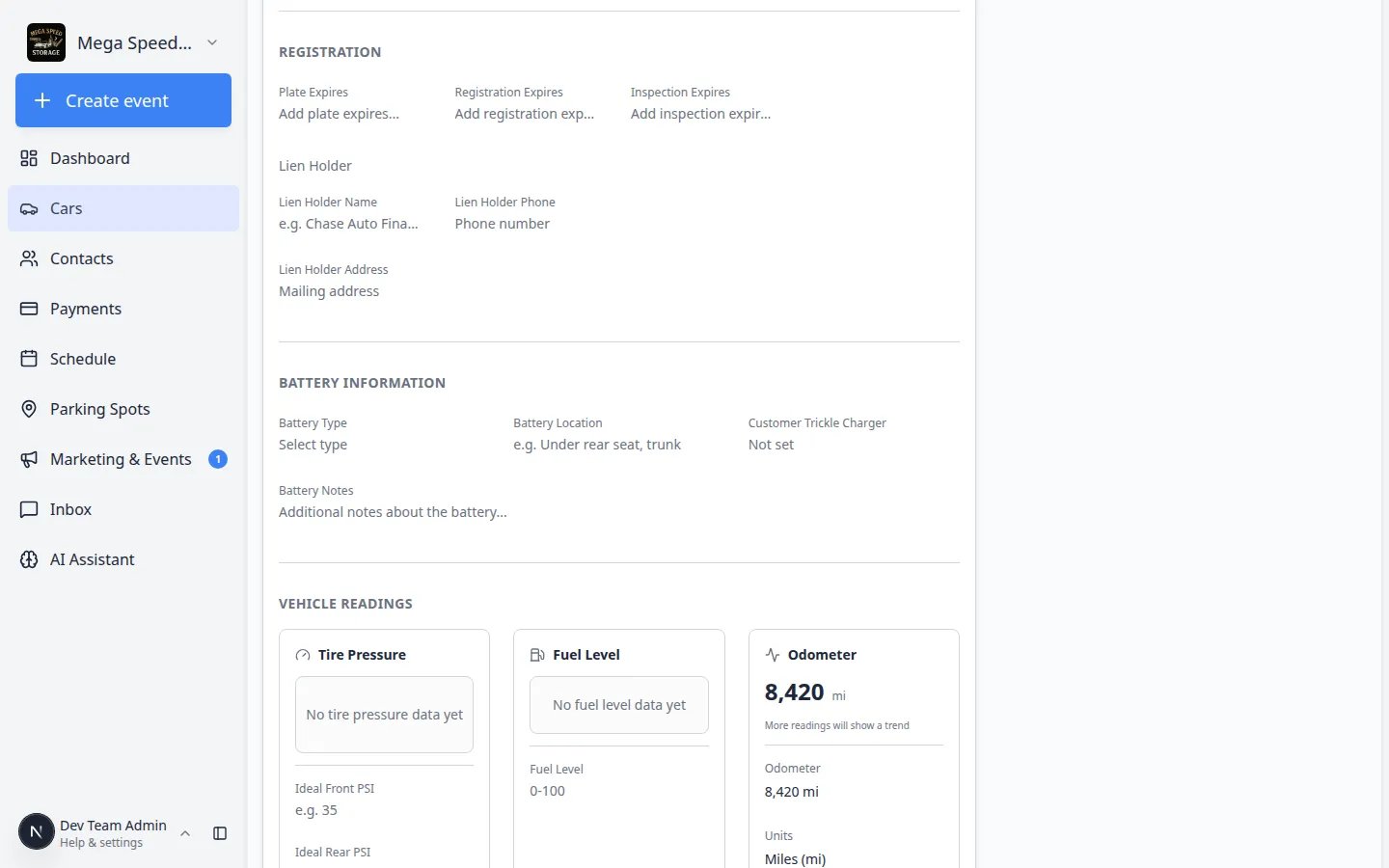 *Switch to **Price distribution** when a customer asks where most recent sales landed—not just whether the trend line went up or down.*
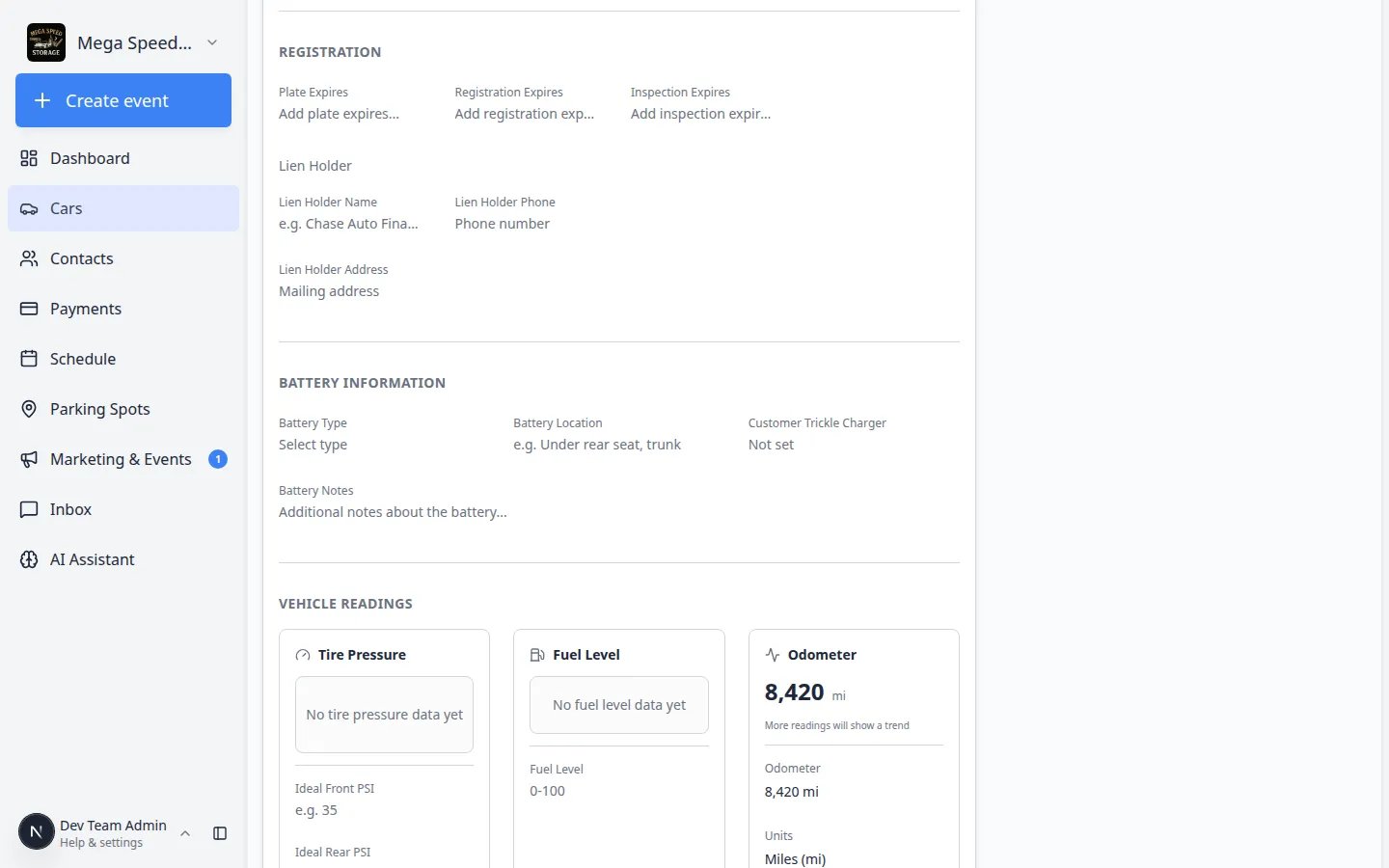 *Use the tabs above the chart to switch views. Start with **Price over time** when a customer asks whether values are rising or falling.*
## Step 2: Compare to declared value
Scroll to the **Insurance** section on the same page. **Declared Value** lives there.
**Expected result:** You can see the customer's insured or stated value next to the market chart.
If declared value is far above or below the chart, note it for the customer conversation. The chart is a market reference—not an appraisal of this exact car's condition.
**Tip:** Condition, mileage, and provenance still matter for one vehicle.
*Use the tabs above the chart to switch views. Start with **Price over time** when a customer asks whether values are rising or falling.*
## Step 2: Compare to declared value
Scroll to the **Insurance** section on the same page. **Declared Value** lives there.
**Expected result:** You can see the customer's insured or stated value next to the market chart.
If declared value is far above or below the chart, note it for the customer conversation. The chart is a market reference—not an appraisal of this exact car's condition.
**Tip:** Condition, mileage, and provenance still matter for one vehicle.
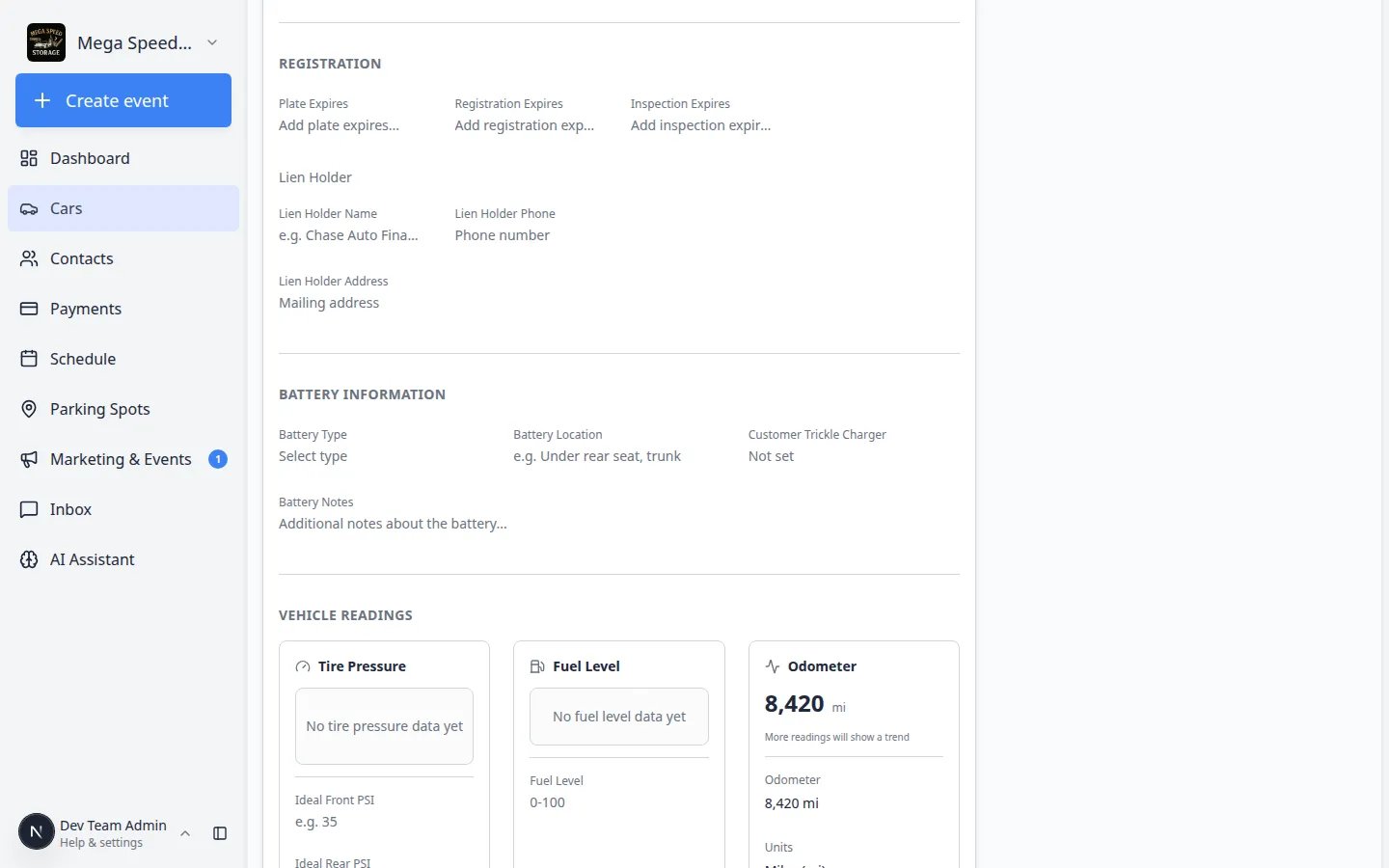 *Compare **Declared Value** in **Insurance** with the market chart in one scroll. That helps calm insurance renewal conversations without opening a second screen.*
## Step 3: Fix the market source (when the chart looks wrong)
If the chart shows the wrong generation or trim, you can point it at the correct Classic.com market page.
In **Market Data**, open the management action to edit the Classic market source (your team may see **Edit Classic market source** or a similar control on the chart).
**Expected result:** A dialog titled **Edit Classic market source** opens.
Copy the URL from Classic.com—the market page with the live chart for that exact sub-market (not a single listing). Paste it into **Classic market URL**.
Click **Load taxonomy from URL**. The system fills make, model, generation, and trim fields to match Classic.com labels.
**Why load taxonomy?**
Classic.com uses specific labels for generations and trims. Loading from the URL reduces guesswork and keeps your chart aligned with their data.
Review the filled fields. Change any that still look wrong, then click **Save + Refresh Market Data**.
**Expected result:** The chart reloads for the corrected market segment.
*Compare **Declared Value** in **Insurance** with the market chart in one scroll. That helps calm insurance renewal conversations without opening a second screen.*
## Step 3: Fix the market source (when the chart looks wrong)
If the chart shows the wrong generation or trim, you can point it at the correct Classic.com market page.
In **Market Data**, open the management action to edit the Classic market source (your team may see **Edit Classic market source** or a similar control on the chart).
**Expected result:** A dialog titled **Edit Classic market source** opens.
Copy the URL from Classic.com—the market page with the live chart for that exact sub-market (not a single listing). Paste it into **Classic market URL**.
Click **Load taxonomy from URL**. The system fills make, model, generation, and trim fields to match Classic.com labels.
**Why load taxonomy?**
Classic.com uses specific labels for generations and trims. Loading from the URL reduces guesswork and keeps your chart aligned with their data.
Review the filled fields. Change any that still look wrong, then click **Save + Refresh Market Data**.
**Expected result:** The chart reloads for the corrected market segment.
 *Use the Classic.com market page URL—not a single car listing URL—when you fix the chart source.*
## Step 4: Open Classic.com in a new tab (optional)
When a chart is linked, you may see a Classic.com logo link in the **Market Data** header. Click it to open the full market page on Classic.com in a new browser tab.
**Expected result:** You can share or review the same market data your customer sees on industry sites.
## Common mistakes to avoid
* Do not paste a URL to one listing. Use the **market** page for that model generation.
* Do not treat the chart as a formal appraisal—it is a market trend reference.
* Do not forget to fix year, make, and model on the car first when they are wrong—the chart depends on accurate vehicle identity.
## Troubleshooting
**Market Data never loads**
Check that the car has a valid year, make, and model. If the section stays empty, ask an admin whether Classic.com is enabled and whether the VIN is correct.
**Load taxonomy from URL failed**
Open the Classic.com page in your browser and confirm it is a market chart page. Copy the URL again without tracking parameters at the end.
## What to do next
* Update **Declared Value** in [View and edit vehicle details](/docs/cars/view-and-edit-vehicle-details) when insurance needs to match current market talk.
* If the customer is selling, continue with marketplace steps in your facility's for-sale workflow (see [Cars overview](/docs/cars/overview) quick links).
This documentation is built and hosted on [Mintlify](https://mintlify.com), a developer documentation platform.
*Use the Classic.com market page URL—not a single car listing URL—when you fix the chart source.*
## Step 4: Open Classic.com in a new tab (optional)
When a chart is linked, you may see a Classic.com logo link in the **Market Data** header. Click it to open the full market page on Classic.com in a new browser tab.
**Expected result:** You can share or review the same market data your customer sees on industry sites.
## Common mistakes to avoid
* Do not paste a URL to one listing. Use the **market** page for that model generation.
* Do not treat the chart as a formal appraisal—it is a market trend reference.
* Do not forget to fix year, make, and model on the car first when they are wrong—the chart depends on accurate vehicle identity.
## Troubleshooting
**Market Data never loads**
Check that the car has a valid year, make, and model. If the section stays empty, ask an admin whether Classic.com is enabled and whether the VIN is correct.
**Load taxonomy from URL failed**
Open the Classic.com page in your browser and confirm it is a market chart page. Copy the URL again without tracking parameters at the end.
## What to do next
* Update **Declared Value** in [View and edit vehicle details](/docs/cars/view-and-edit-vehicle-details) when insurance needs to match current market talk.
* If the customer is selling, continue with marketplace steps in your facility's for-sale workflow (see [Cars overview](/docs/cars/overview) quick links).
This documentation is built and hosted on [Mintlify](https://mintlify.com), a developer documentation platform.