> ## Documentation Index
> Fetch the complete documentation index at: https://www.carstoragesoftware.com/docs/llms.txt
> Use this file to discover all available pages before exploring further.
# Send a car to a vendor location
> Record when a vehicle leaves your building for outside body shop, detail, or storage partner work.
Sometimes a stored vehicle leaves your facility for work at a partner shop, an off-site detailer, or another storage location. Your team still needs the car record to show **where the vehicle is now**—even when it is not on your parking map.
Use this guide to mark a car **At vendor** so anyone opening the record knows the vehicle is away.
## What you will accomplish
You will open the parking location dialog, choose a **vendor** instead of a spot or zone, and save so the car header shows **At vendor:** with the partner name.
**Expected outcome:** Staff do not search your floor map for a car that is physically at an outside shop.
## When to send a car to a vendor
* A vehicle goes to a body shop, mechanic, detailer, or consignment partner you track in the system.
* The car left your building but is still under your customer's storage agreement.
* You need the record to match transport or pickup paperwork.
**Vendors are set up in Settings**
If no vendors appear in the location picker, an admin needs to add vendor partners in your facility settings. Ask a manager if the list is empty.
## Before you start
* The car record exists on [Cars](https://www.carstoragesoftware.com/dashboard/cars).
* You know which outside partner has the vehicle.
* You understand whether the car should stay linked to a customer and billing while away (usually yes).
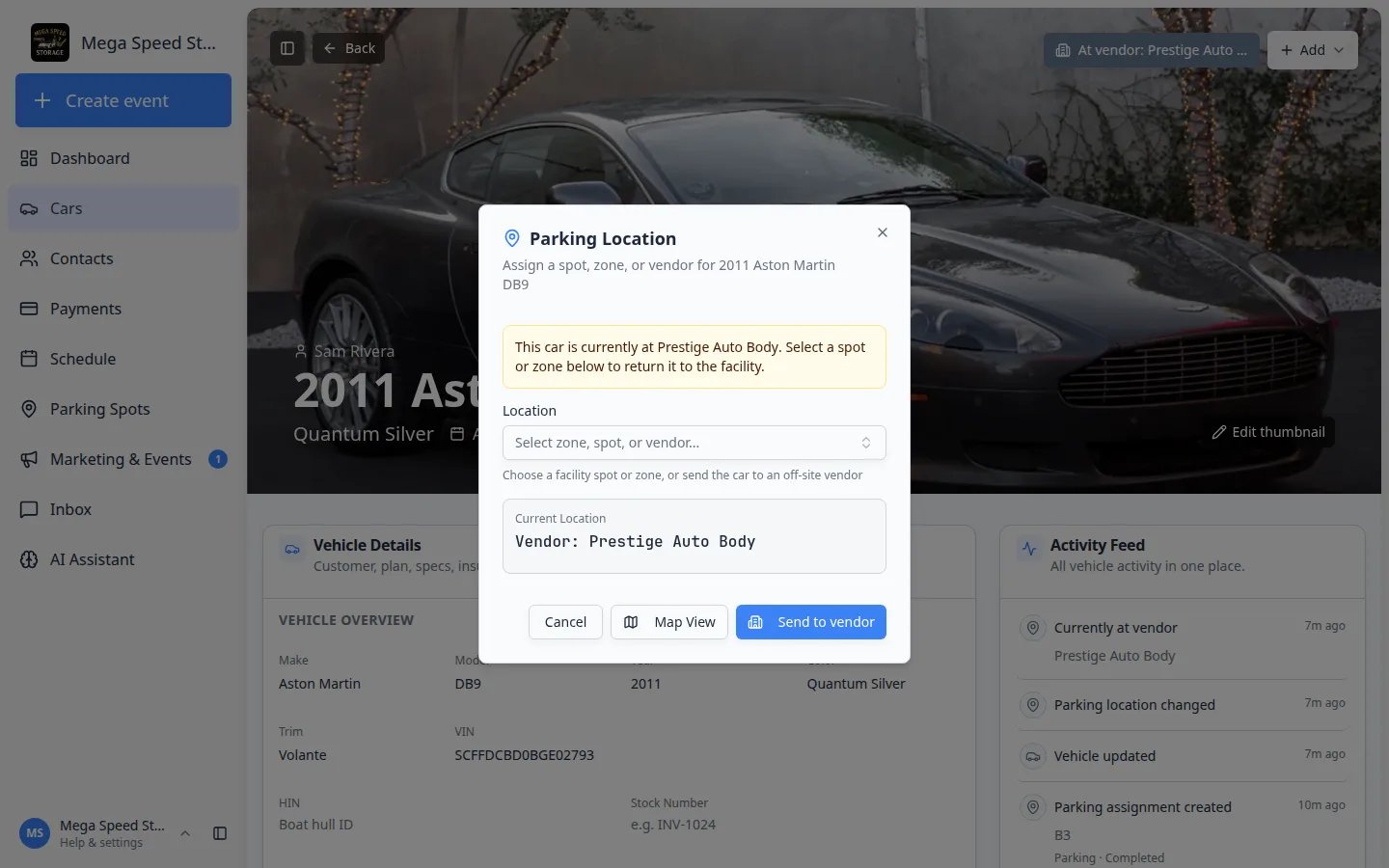 *The **Parking Location** window shows where the car is now. When a vendor is selected, the blue button reads **Send to vendor**.*
## Step 1: Open the parking location dialog
Go to [Cars](https://www.carstoragesoftware.com/dashboard/cars) and click **View** on the vehicle.
At the top of the page, click **Assign location**, **Zone:**, **Spot:**, or **At vendor:**—whichever appears today.
**Expected result:** The **Parking Location** dialog opens.
*The **Parking Location** window shows where the car is now. When a vendor is selected, the blue button reads **Send to vendor**.*
## Step 1: Open the parking location dialog
Go to [Cars](https://www.carstoragesoftware.com/dashboard/cars) and click **View** on the vehicle.
At the top of the page, click **Assign location**, **Zone:**, **Spot:**, or **At vendor:**—whichever appears today.
**Expected result:** The **Parking Location** dialog opens.
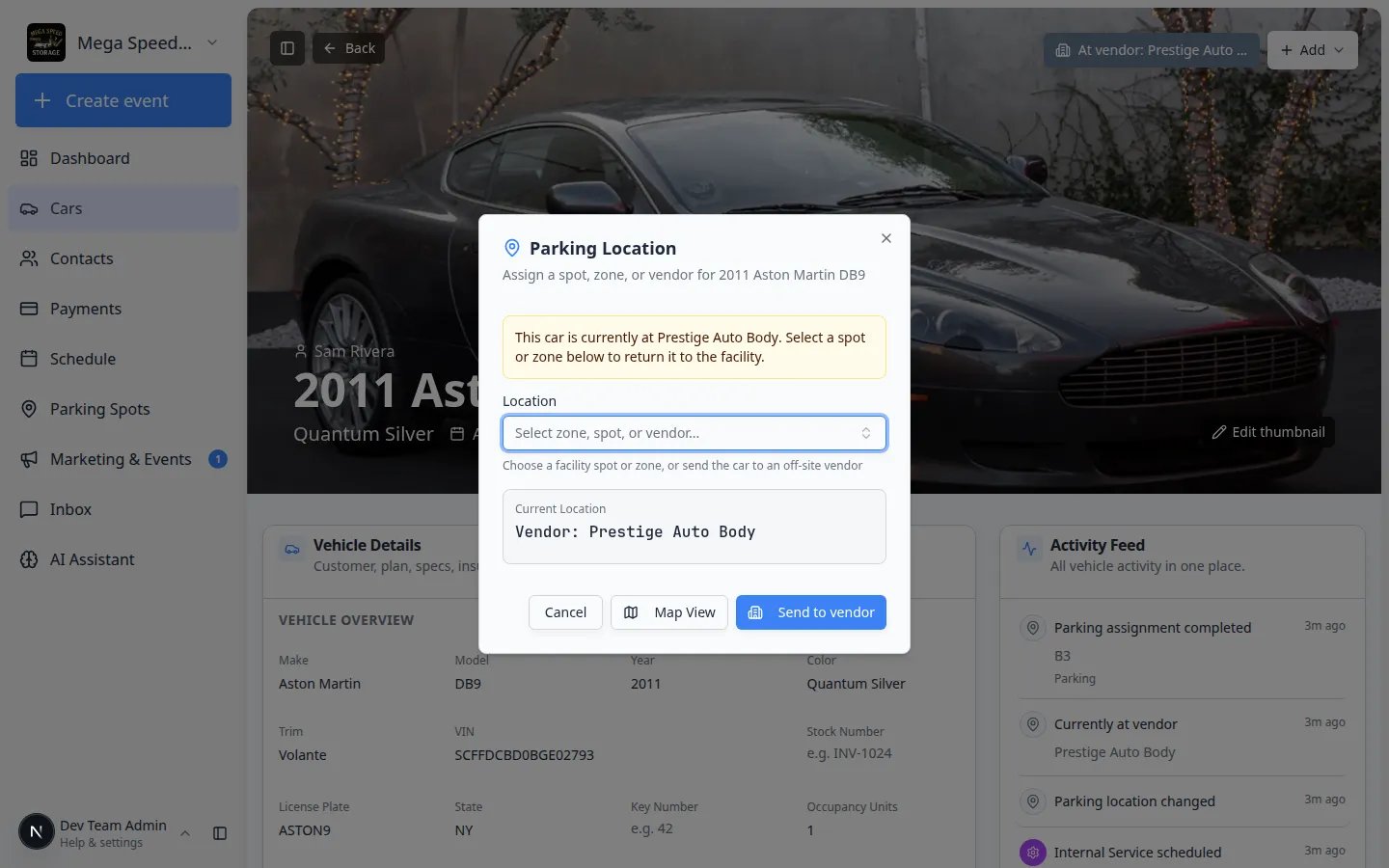 *The **Parking Location** dialog is the same window you use for everyday spot changes. Vendors appear in the **Location** search list alongside zones and numbered spots.*
## Step 2: Choose the vendor
Click **Location** (placeholder "Select zone, spot, or vendor...").
Scroll or search for the outside partner—not a numbered spot on your map. Vendor names usually include the shop or business name.
**Why this matters:** Picking a vendor instead of a spot tells the whole team the car is not in your building.
When a vendor is selected, the main button at the bottom reads **Send to vendor**. Click it.
**Expected result:** The dialog closes. The header button shows **At vendor:** with the partner name.
## Step 3: Confirm on the record
Look at the top of the car page for **At vendor:** and the vendor name.
**Expected result:** The location button no longer shows a zone or spot inside your building.
The move may appear in **Activity Feed** on the right so future staff see when the car left.
**Expected result:** Your team can answer "where is this car?" without walking the lot.
*The **Parking Location** dialog is the same window you use for everyday spot changes. Vendors appear in the **Location** search list alongside zones and numbered spots.*
## Step 2: Choose the vendor
Click **Location** (placeholder "Select zone, spot, or vendor...").
Scroll or search for the outside partner—not a numbered spot on your map. Vendor names usually include the shop or business name.
**Why this matters:** Picking a vendor instead of a spot tells the whole team the car is not in your building.
When a vendor is selected, the main button at the bottom reads **Send to vendor**. Click it.
**Expected result:** The dialog closes. The header button shows **At vendor:** with the partner name.
## Step 3: Confirm on the record
Look at the top of the car page for **At vendor:** and the vendor name.
**Expected result:** The location button no longer shows a zone or spot inside your building.
The move may appear in **Activity Feed** on the right so future staff see when the car left.
**Expected result:** Your team can answer "where is this car?" without walking the lot.
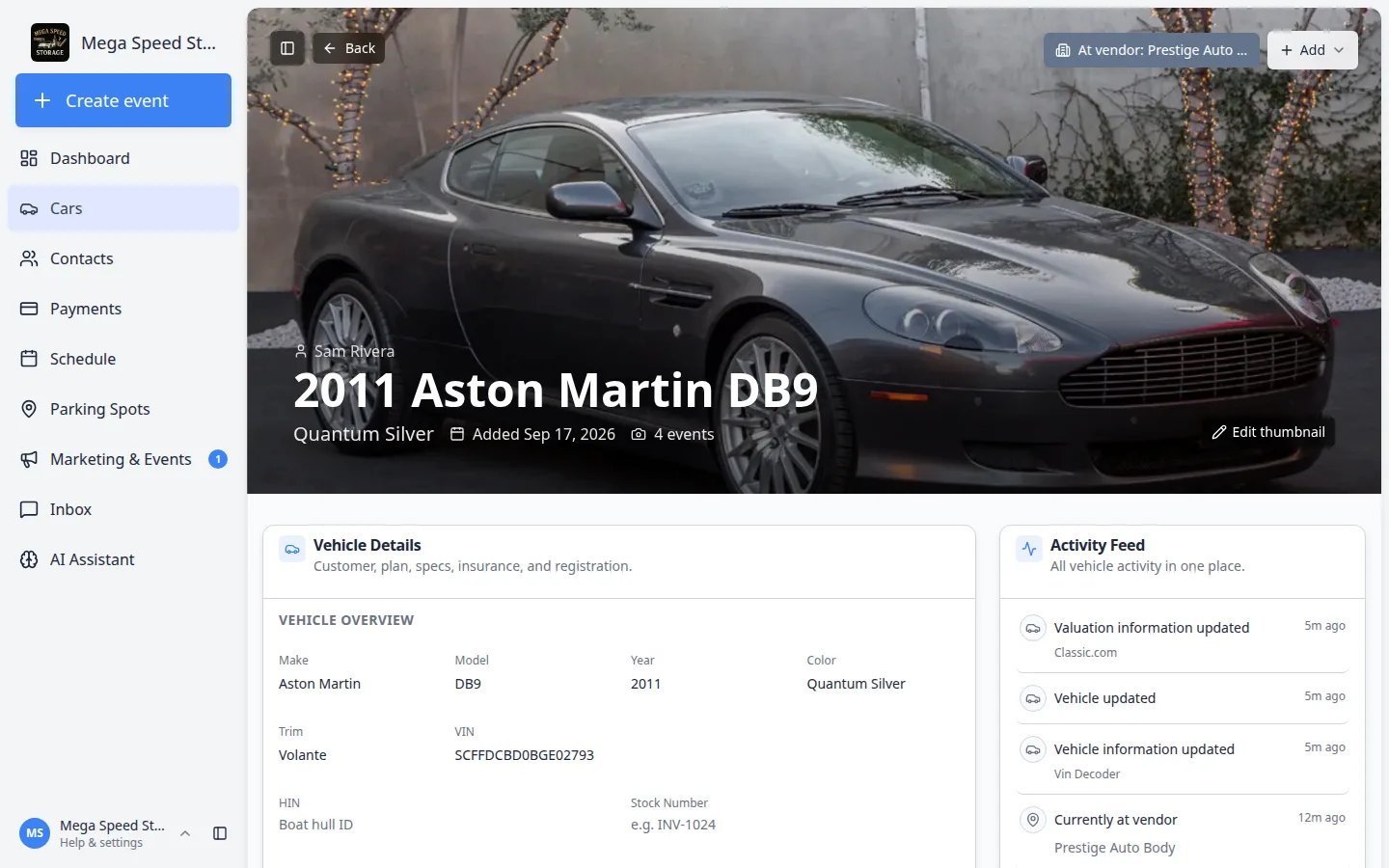 *After you save, the banner button shows **At vendor:** plus the shop name. The Activity Feed also notes that the car is at the vendor.*
## When the car returns to your facility
When the vehicle comes back from the shop, update the location the same day so your parking map and customer answers stay accurate.
Click **At vendor:** on the car header.
Select the real parking spot or zone inside your building.
Save. The button should now show **Zone:** or **Spot:** instead of **At vendor:**.
**Expected result:** [Parking Spots](https://www.carstoragesoftware.com/dashboard/parking-spots) and the car record agree on where the vehicle sits.
For everyday parking moves inside your building, use [Move a car](/docs/cars/move-a-car).
## Common mistakes to avoid
* Do not leave the car on a floor spot when it physically left—the map will mislead your team.
* Do not use **Remove** unless the vehicle left your care entirely. Vendor location keeps the record active while the car is away.
* Do not forget to update the location when the car returns from the shop.
## Troubleshooting
**I only see spots and zones, no vendors**
Ask an admin to add vendor locations in facility settings. Until then, add a note on the car record and use [Move a car](/docs/cars/move-a-car) documentation for spot-based tracking.
**Send to vendor is grayed out**
Make sure you selected a vendor in the **Location** field. An empty field cannot be saved.
## What to do next
* Schedule transport or pickup events with [Start a car session](/docs/cars/start-a-car-session) when you need a paper trail.
* Update the customer in [Inbox](/docs/inbox/overview) when the vendor reports progress.
* When the car is back, assign a real spot with [Move a car](/docs/cars/move-a-car).
This documentation is built and hosted on [Mintlify](https://mintlify.com), a developer documentation platform.
*After you save, the banner button shows **At vendor:** plus the shop name. The Activity Feed also notes that the car is at the vendor.*
## When the car returns to your facility
When the vehicle comes back from the shop, update the location the same day so your parking map and customer answers stay accurate.
Click **At vendor:** on the car header.
Select the real parking spot or zone inside your building.
Save. The button should now show **Zone:** or **Spot:** instead of **At vendor:**.
**Expected result:** [Parking Spots](https://www.carstoragesoftware.com/dashboard/parking-spots) and the car record agree on where the vehicle sits.
For everyday parking moves inside your building, use [Move a car](/docs/cars/move-a-car).
## Common mistakes to avoid
* Do not leave the car on a floor spot when it physically left—the map will mislead your team.
* Do not use **Remove** unless the vehicle left your care entirely. Vendor location keeps the record active while the car is away.
* Do not forget to update the location when the car returns from the shop.
## Troubleshooting
**I only see spots and zones, no vendors**
Ask an admin to add vendor locations in facility settings. Until then, add a note on the car record and use [Move a car](/docs/cars/move-a-car) documentation for spot-based tracking.
**Send to vendor is grayed out**
Make sure you selected a vendor in the **Location** field. An empty field cannot be saved.
## What to do next
* Schedule transport or pickup events with [Start a car session](/docs/cars/start-a-car-session) when you need a paper trail.
* Update the customer in [Inbox](/docs/inbox/overview) when the vendor reports progress.
* When the car is back, assign a real spot with [Move a car](/docs/cars/move-a-car).
This documentation is built and hosted on [Mintlify](https://mintlify.com), a developer documentation platform.