> ## Documentation Index
> Fetch the complete documentation index at: https://www.carstoragesoftware.com/docs/llms.txt
> Use this file to discover all available pages before exploring further.
# Use the Move Car page
> Reassign parking spots from a focused page when you are moving several vehicles or starting from a parking map link.
The **Move Car** page is a simple screen for one job: pick a vehicle, pick a new parking spot, and save.
Most moves happen from the car detail page (see [Move a car](/docs/cars/move-a-car)). Use this dedicated page when you already know you are updating locations and want fewer clicks—or when another page sends you here with a car pre-selected.
## What you will accomplish
You will change where one car is parked so the [Cars](https://www.carstoragesoftware.com/dashboard/cars) list, the car record, and the [Parking Spots](https://www.carstoragesoftware.com/dashboard/parking-spots) map all show the same spot.
**Expected outcome:** A green success message confirms the move, and the **Select car** area shows the vehicle in its new spot.
## When to use the Move Car page
* You are walking the lot and moving several cars in a row.
* Someone shared a link that opens Move Car with a car already chosen.
* You came from the parking map and want to finish the assignment on a focused form.
* You prefer searching for cars and spots on one screen instead of opening each car detail page.
**When to use the car detail page instead**
Use [Move a car](/docs/cars/move-a-car) from the vehicle record when you are already reviewing that car's history, photos, or customer details. Both paths update the same parking data.
## Before you start
* Know which **car** is moving.
* Know which **spot or zone** it is moving to. Check [Parking Spots](https://www.carstoragesoftware.com/dashboard/parking-spots) first if you are unsure what is open.
* Move the physical car before—or at the same time as—you update the record so the map stays trustworthy.
## Open the Move Car page
Open [Move Car](https://www.carstoragesoftware.com/dashboard/cars/move) from your browser. You can bookmark this page if your team uses it often during lot walks.
**Expected result:** You see the title **Move Car** with the subtitle **Select a car and update its parking spot location.**
Click **Back to Cars** at the top left anytime to return to the full [Cars list](https://www.carstoragesoftware.com/dashboard/cars).
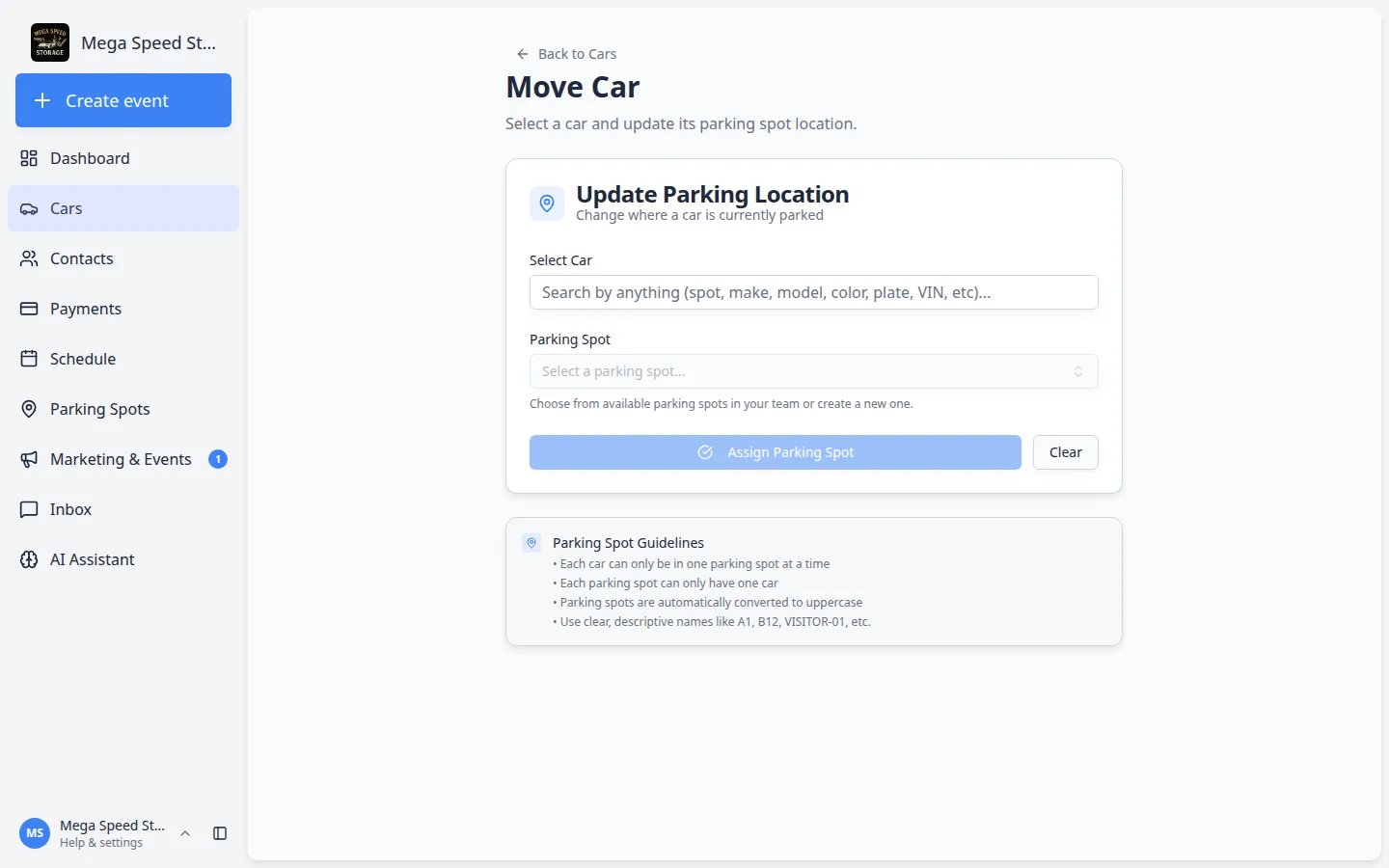 *Open [Move Car](https://www.carstoragesoftware.com/dashboard/cars/move). The card title is **Update Parking Location**. You pick the car and the spot on this one screen.*
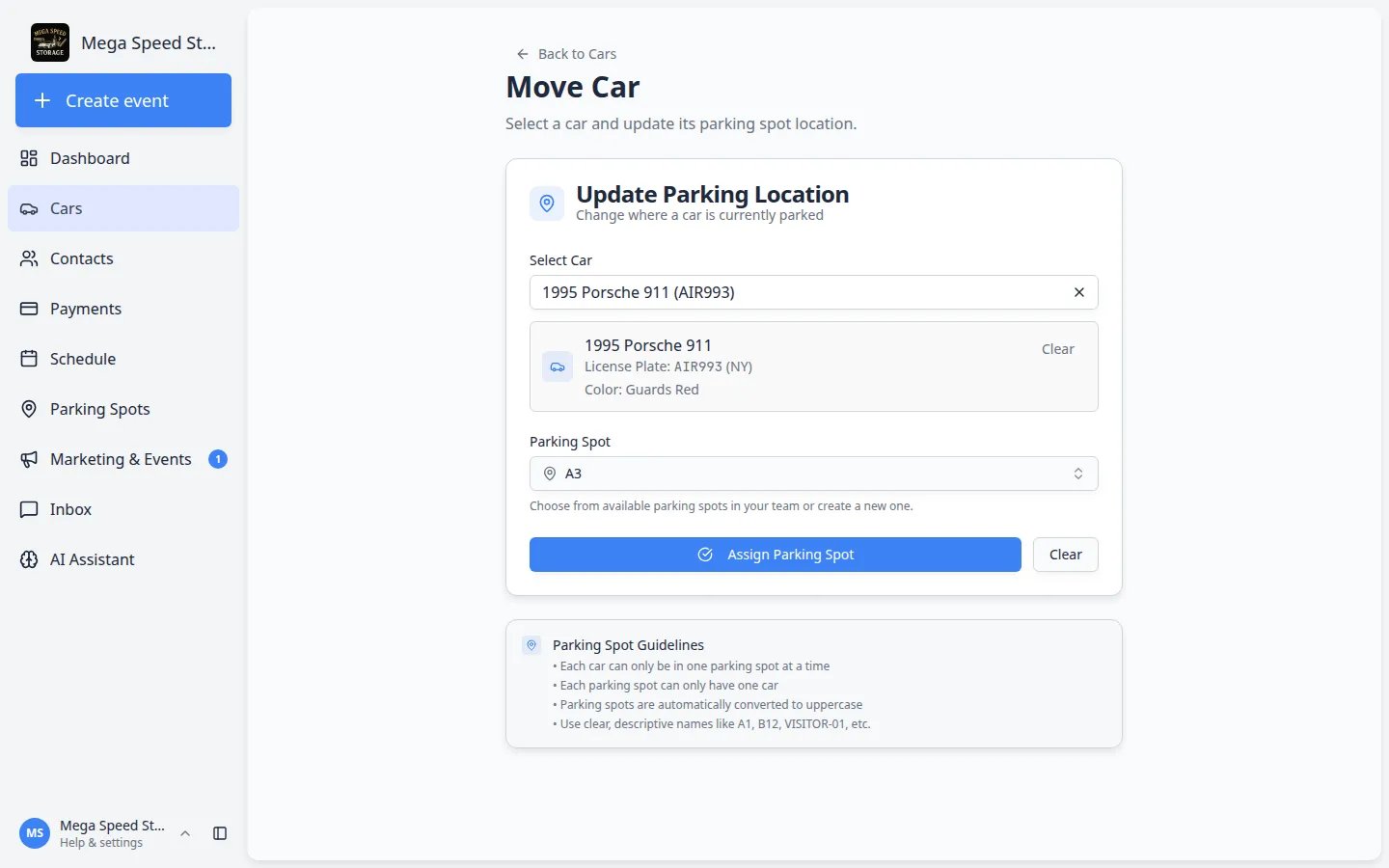 *Both **Select car** and **Parking Spot** must be filled in. If the car has no spot yet, the blue button says **Assign Parking Spot**. If it already has a spot, the button says **Move Car**.*
## Move a vehicle
In the **Select car** field, start typing anything you know—plate, spot, make, model, color, VIN, or customer name. Pick the correct vehicle from the list.
**Expected result:** A summary box appears below the search field showing the car's year, make, model, plate, and color.
In the **Parking Spot** field, search for the destination—for example **A3** or **Outdoor Lot**.
A dropdown list shows matching spots from your [Parking Spots](https://www.carstoragesoftware.com/dashboard/parking-spots) floor plan. Pick the row that matches the real bay where the car is parked.
*Both **Select car** and **Parking Spot** must be filled in. If the car has no spot yet, the blue button says **Assign Parking Spot**. If it already has a spot, the button says **Move Car**.*
## Move a vehicle
In the **Select car** field, start typing anything you know—plate, spot, make, model, color, VIN, or customer name. Pick the correct vehicle from the list.
**Expected result:** A summary box appears below the search field showing the car's year, make, model, plate, and color.
In the **Parking Spot** field, search for the destination—for example **A3** or **Outdoor Lot**.
A dropdown list shows matching spots from your [Parking Spots](https://www.carstoragesoftware.com/dashboard/parking-spots) floor plan. Pick the row that matches the real bay where the car is parked.
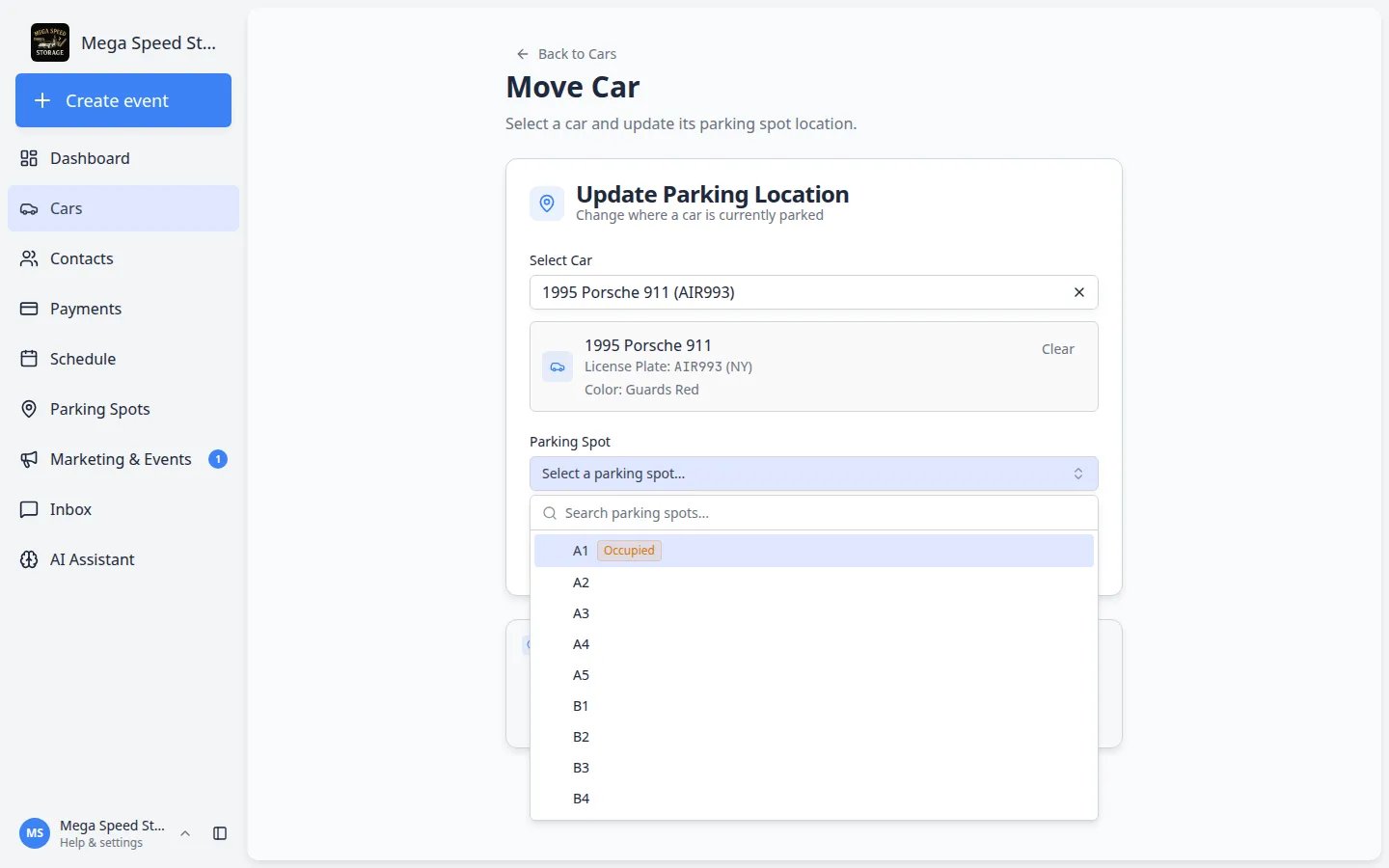 *Search by spot name. The list only shows locations your facility has set up on the [Parking Spots](https://www.carstoragesoftware.com/dashboard/parking-spots) map.*
**Why this matters:** Picking the real spot your team uses on the floor plan prevents two cars from showing in the same place on the map.
Click the blue button at the bottom of the card.
* **Assign Parking Spot** — the car did not have a spot yet
* **Move Car** — the car is leaving one spot for another
The button stays gray until both **Select car** and **Parking Spot** have values.
**Expected outcome:** A green confirmation message appears at the top of the card. The car's parking assignment updates on [Cars](https://www.carstoragesoftware.com/dashboard/cars), the car detail page, and the [Parking Spots](https://www.carstoragesoftware.com/dashboard/parking-spots) map.
Pause for one second and read the green message at the top of the card.
**Why this matters:** If the message mentions the wrong spot, fix it right away before the next teammate trusts the map.
To move another vehicle, click **Clear** (or change the **Select car** field) and repeat the steps.
**Expected result:** The form is ready for the next car without old spot data carrying over by mistake.
Open [Parking Spots](https://www.carstoragesoftware.com/dashboard/parking-spots) and search for the spot you just chose.
**Why this matters:** A five-second map check catches typos before the next teammate trusts the wrong location during a customer pickup.
## Open Move Car with a car already selected
Sometimes a link includes the car ID—for example when you tap **Move** from a parking map or an internal tool.
When the page loads, the **Select car** field may already show the vehicle name and plate.
Choose the destination in **Parking Spot**, then click **Assign Parking Spot** or **Move Car**.
**Expected outcome:** You skip searching for the car and finish the move in one step.
## Troubleshooting
**The blue button stays gray**
Make sure both **Select car** and **Parking Spot** have values. The button stays inactive until both are filled in.
**The spot I need is missing**
Your facility may need to create spots or zones first. See [Set up parking spots and zones](/docs/parking-spots/set-up-parking-spots-and-zones).
**I need to send a car to a vendor**
Vendor locations are set from the car detail page. Follow [Move a car](/docs/cars/move-a-car) and choose a vendor in the **Parking Location** window.
## What to do next
* Verify the spot on the [Parking Spots](https://www.carstoragesoftware.com/dashboard/parking-spots) map matches the real floor.
* If the move was part of intake or delivery, continue with [Start a car session](/docs/cars/start-a-car-session) or [Review car activity, notes, and photos](/docs/cars/review-car-activity-notes-and-photos).
This documentation is built and hosted on [Mintlify](https://mintlify.com), a developer documentation platform.
*Search by spot name. The list only shows locations your facility has set up on the [Parking Spots](https://www.carstoragesoftware.com/dashboard/parking-spots) map.*
**Why this matters:** Picking the real spot your team uses on the floor plan prevents two cars from showing in the same place on the map.
Click the blue button at the bottom of the card.
* **Assign Parking Spot** — the car did not have a spot yet
* **Move Car** — the car is leaving one spot for another
The button stays gray until both **Select car** and **Parking Spot** have values.
**Expected outcome:** A green confirmation message appears at the top of the card. The car's parking assignment updates on [Cars](https://www.carstoragesoftware.com/dashboard/cars), the car detail page, and the [Parking Spots](https://www.carstoragesoftware.com/dashboard/parking-spots) map.
Pause for one second and read the green message at the top of the card.
**Why this matters:** If the message mentions the wrong spot, fix it right away before the next teammate trusts the map.
To move another vehicle, click **Clear** (or change the **Select car** field) and repeat the steps.
**Expected result:** The form is ready for the next car without old spot data carrying over by mistake.
Open [Parking Spots](https://www.carstoragesoftware.com/dashboard/parking-spots) and search for the spot you just chose.
**Why this matters:** A five-second map check catches typos before the next teammate trusts the wrong location during a customer pickup.
## Open Move Car with a car already selected
Sometimes a link includes the car ID—for example when you tap **Move** from a parking map or an internal tool.
When the page loads, the **Select car** field may already show the vehicle name and plate.
Choose the destination in **Parking Spot**, then click **Assign Parking Spot** or **Move Car**.
**Expected outcome:** You skip searching for the car and finish the move in one step.
## Troubleshooting
**The blue button stays gray**
Make sure both **Select car** and **Parking Spot** have values. The button stays inactive until both are filled in.
**The spot I need is missing**
Your facility may need to create spots or zones first. See [Set up parking spots and zones](/docs/parking-spots/set-up-parking-spots-and-zones).
**I need to send a car to a vendor**
Vendor locations are set from the car detail page. Follow [Move a car](/docs/cars/move-a-car) and choose a vendor in the **Parking Location** window.
## What to do next
* Verify the spot on the [Parking Spots](https://www.carstoragesoftware.com/dashboard/parking-spots) map matches the real floor.
* If the move was part of intake or delivery, continue with [Start a car session](/docs/cars/start-a-car-session) or [Review car activity, notes, and photos](/docs/cars/review-car-activity-notes-and-photos).
This documentation is built and hosted on [Mintlify](https://mintlify.com), a developer documentation platform.