> ## Documentation Index
> Fetch the complete documentation index at: https://www.carstoragesoftware.com/docs/llms.txt
> Use this file to discover all available pages before exploring further.
# View full vehicle activity history
> Search and filter every event, parking move, note, and billing change for one car on a dedicated activity page.
The **Activity Feed** on a car detail page shows recent work at a glance. When you need the complete story—with search, filters, and a longer scrollable list—open the full **Vehicle activity** page.
Use this guide when a customer asks detailed questions about past service, when you are researching a dispute, or when the short feed on the car record is not enough.
## What you will accomplish
You will open a searchable history of everything that happened on one car: scheduled events, completed sessions, parking moves, listing changes, notes, and more.
**Expected outcome:** You can find a specific visit or change without opening each event one by one from the summary feed.
## When to use the full activity page
* A customer asks what happened on a specific date or during a past visit.
* The **Activity Feed** on the car detail page shows **View all** or **View more activity** because history is long.
* You need to search for a keyword, event type, or date range across all activity for this vehicle.
* A manager is reviewing the complete record before releasing a car or closing a billing issue.
## Before you start
* Open the correct car from [Cars](https://www.carstoragesoftware.com/dashboard/cars).
* Know roughly what you are looking for—a date, event name, or type of change—so search and filters save time.
## Open vehicle activity from the car record
Go to [Cars](https://www.carstoragesoftware.com/dashboard/cars) and click **View** on the vehicle.
**Expected result:** The car detail page loads with **Activity Feed** on the right (or below **Vehicle Details** on smaller screens).
On the **Activity Feed** card, click **View all** or **View more activity** at the bottom when you see it.
**Alternative:** Open the full page directly from the car record—click **View all** or **View more activity** at the bottom of the **Activity Feed** card.
**Expected outcome:** A page titled **Vehicle activity** opens with the car's year, make, and model under the title.
Click **Back to vehicle** in the top-right area to return to the main car detail page.
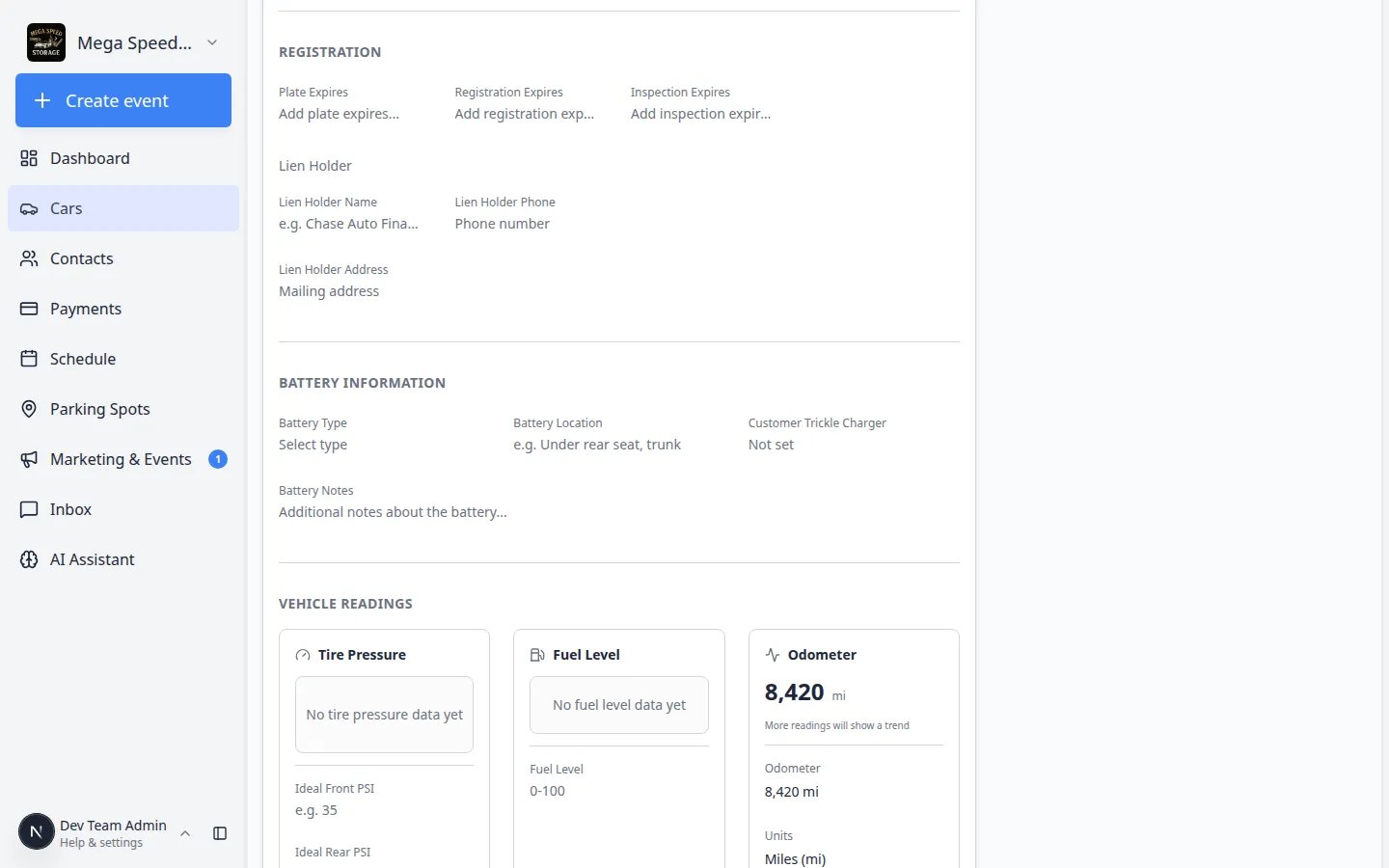 *When history is long, the **Activity Feed** shows a **View all** link. That opens the searchable full timeline for this car.*
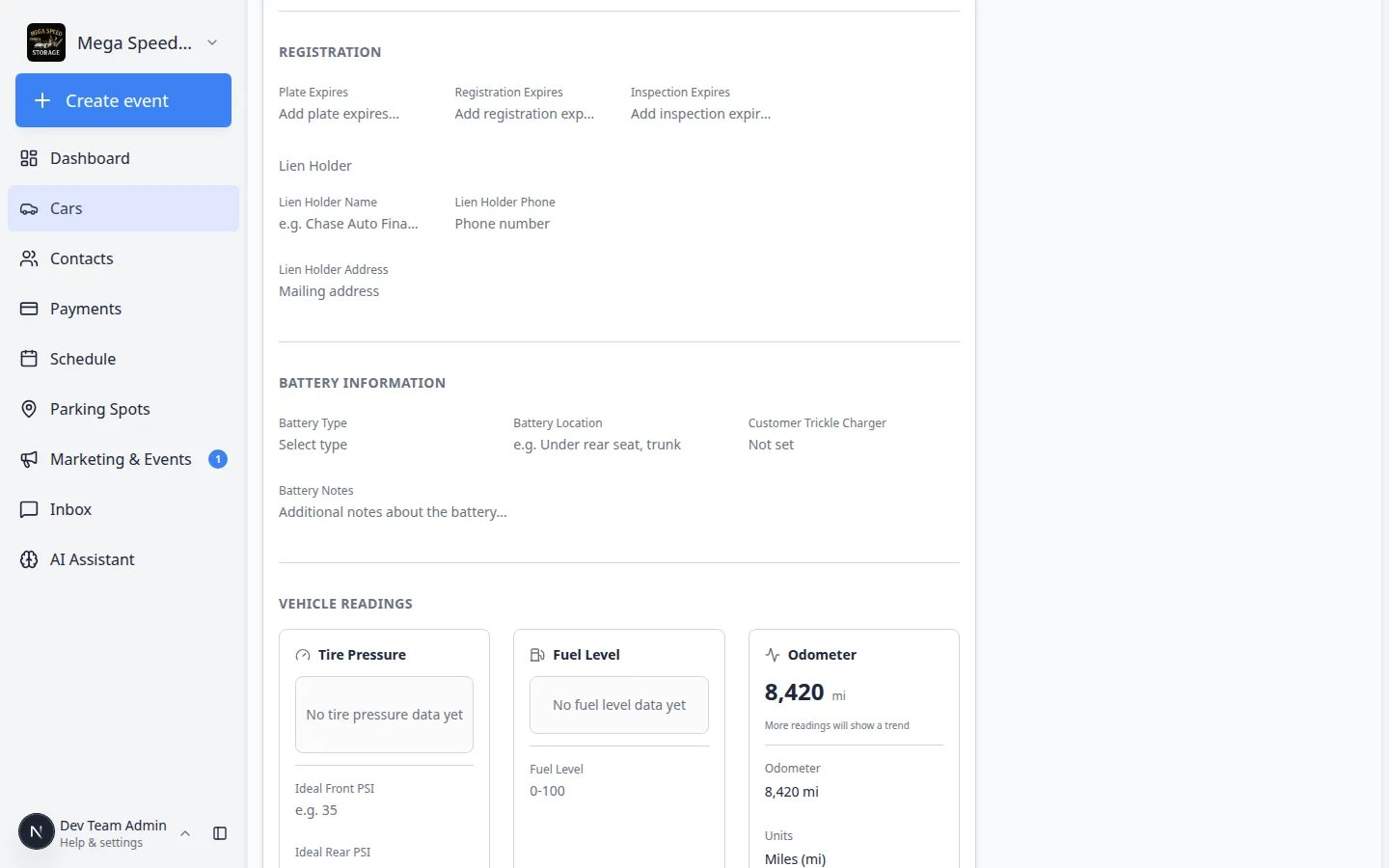 *The full activity page lists every change for this car. Use search when the timeline is long.*
## Read and search the timeline
The list is usually sorted with the most recent activity near the top—similar to the short feed on the car page.
**Why this matters:** Recent rows answer most customer questions about "what happened last."
Type in the search box if the page provides one. Try an event name, staff member, or note text.
**Expected result:** The list narrows to matching rows only.
*The full activity page lists every change for this car. Use search when the timeline is long.*
## Read and search the timeline
The list is usually sorted with the most recent activity near the top—similar to the short feed on the car page.
**Why this matters:** Recent rows answer most customer questions about "what happened last."
Type in the search box if the page provides one. Try an event name, staff member, or note text.
**Expected result:** The list narrows to matching rows only.
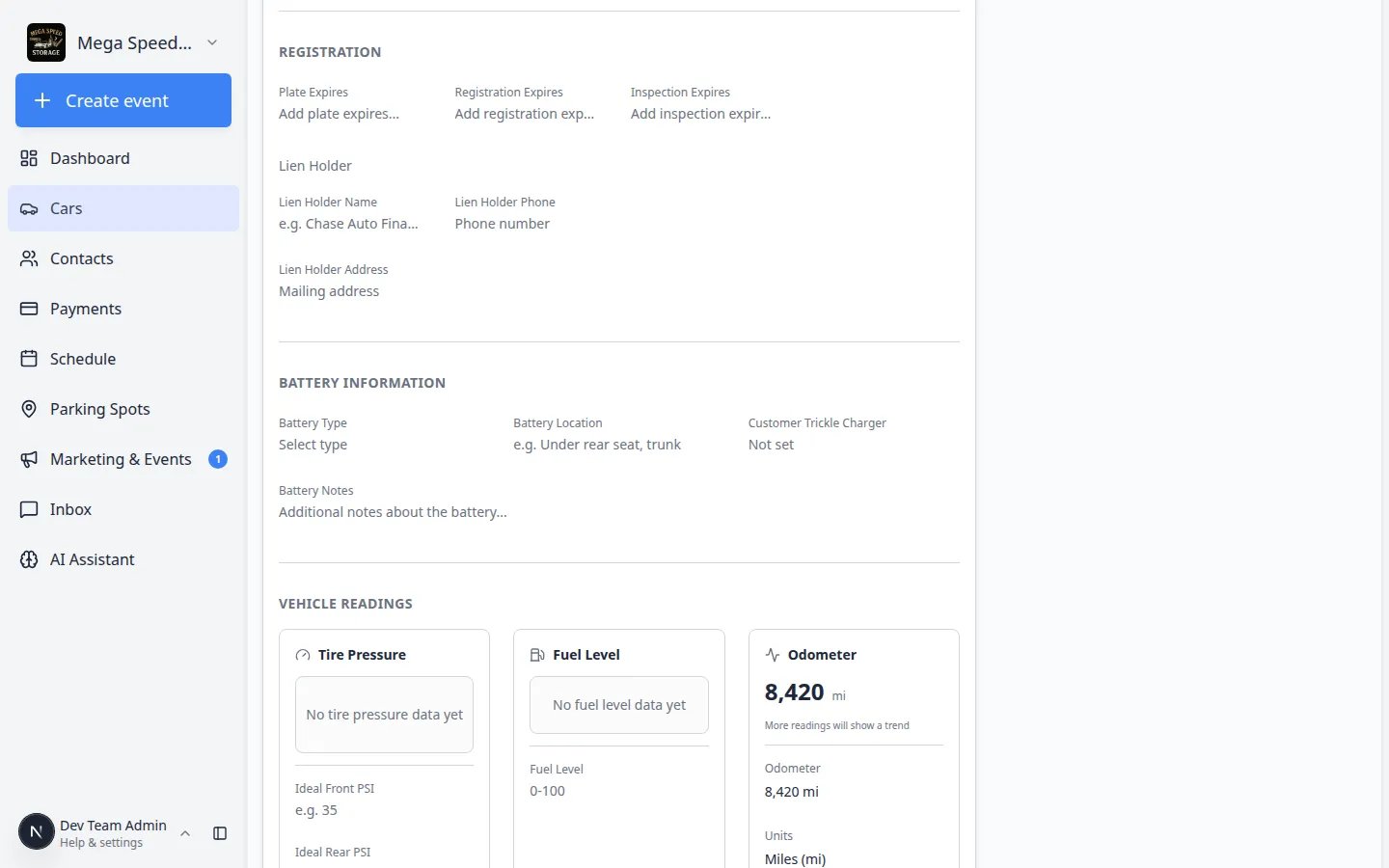 *Search works across event names and notes. Try a month, a service type, or a teammate's name when the full timeline is too long to scroll.*
Click any activity row to open the event or session detail—the same detail you would see from the car's **Activity Feed**.
**Expected outcome:** You see photos, readings, signatures, assignments, and status for that specific visit.
*Search works across event names and notes. Try a month, a service type, or a teammate's name when the full timeline is too long to scroll.*
Click any activity row to open the event or session detail—the same detail you would see from the car's **Activity Feed**.
**Expected outcome:** You see photos, readings, signatures, assignments, and status for that specific visit.
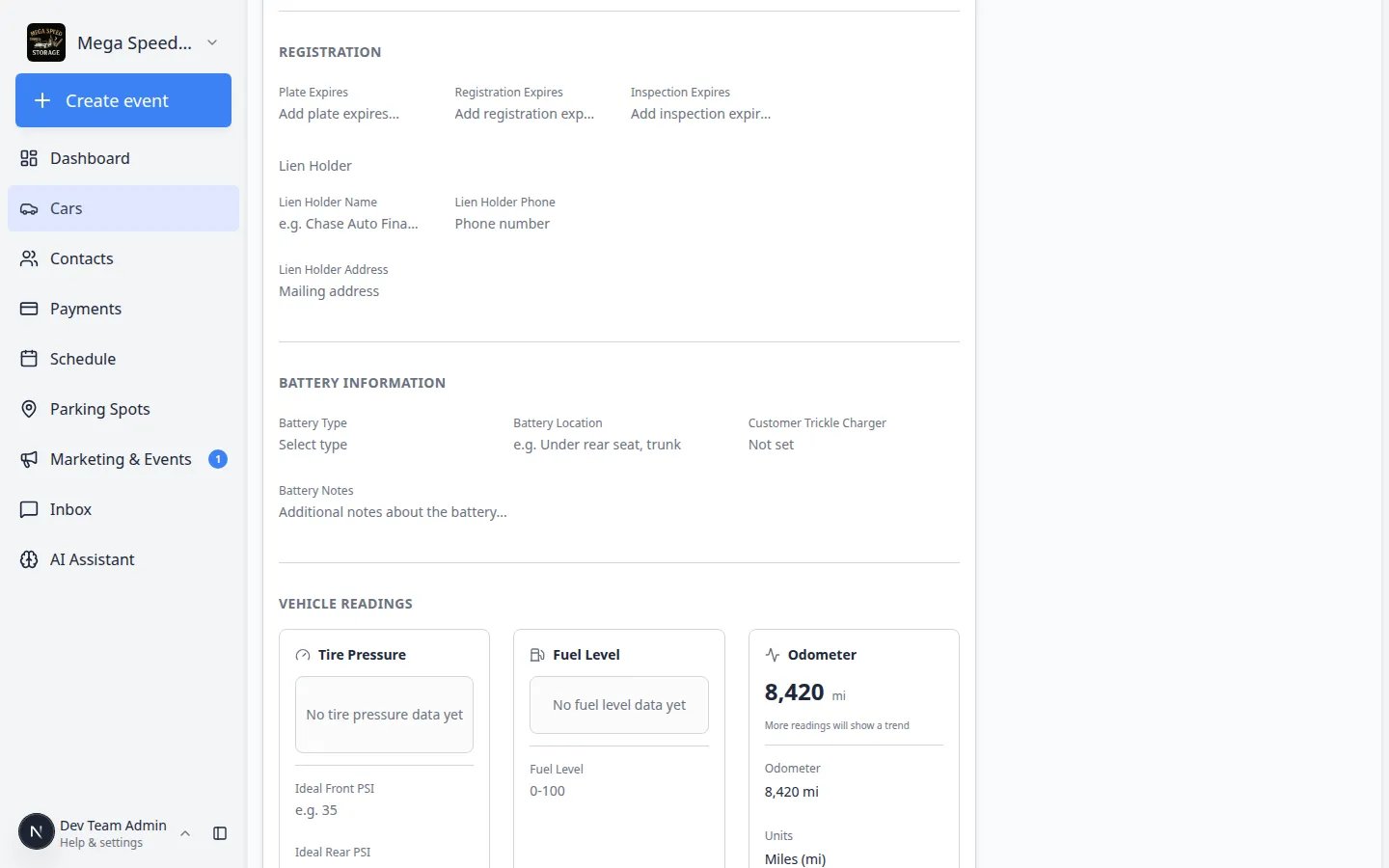 *Click a row to open full event detail. Use this when a customer asks what happened during a specific visit.*
Look for labels such as **Scheduled**, **In progress**, or **Completed** before you tell a customer work is finished.
**Why this matters:** The full page makes it easy to spot old scheduled items that were never completed.
**Activity page vs. Activity Feed**
The **Activity Feed** on the car detail page is for quick daily checks. The **Vehicle activity** page is for deep research. Both show the same underlying history.
## What appears in vehicle activity
Depending on how your facility uses the product, you may see:
* **Service and intake events** — inspections, detailing, transport, and custom event types
* **Parking moves** — when the car changed spots or zones
* **Marketplace changes** — when a vehicle was listed or sold on your public page
* **Notes and system updates** — internal context and automatic record changes
If a row type is unfamiliar, click it for detail or ask a manager before interpreting it for a customer.
## Troubleshooting
**The page says No vehicle activity yet**
This car may be new or no work has been logged yet. Schedule intake with [Start a car session](/docs/cars/start-a-car-session) or [Add a car](/docs/cars/add-a-car).
**I expected an event but do not see it**
Confirm you opened the correct car. Try the search box with the event name or date. If work was done on a different vehicle by mistake, a manager may need to move or recreate the event from [Schedule](https://www.carstoragesoftware.com/dashboard/schedule).
## What to do next
* For day-to-day replies, return to [Respond to a conversation](/docs/inbox/respond-to-a-conversation) or [Review car activity, notes, and photos](/docs/cars/review-car-activity-notes-and-photos).
* To schedule follow-up work, use [Start a car session](/docs/cars/start-a-car-session) or [Create an appointment](/docs/schedule/create-an-appointment).
This documentation is built and hosted on [Mintlify](https://mintlify.com), a developer documentation platform.
*Click a row to open full event detail. Use this when a customer asks what happened during a specific visit.*
Look for labels such as **Scheduled**, **In progress**, or **Completed** before you tell a customer work is finished.
**Why this matters:** The full page makes it easy to spot old scheduled items that were never completed.
**Activity page vs. Activity Feed**
The **Activity Feed** on the car detail page is for quick daily checks. The **Vehicle activity** page is for deep research. Both show the same underlying history.
## What appears in vehicle activity
Depending on how your facility uses the product, you may see:
* **Service and intake events** — inspections, detailing, transport, and custom event types
* **Parking moves** — when the car changed spots or zones
* **Marketplace changes** — when a vehicle was listed or sold on your public page
* **Notes and system updates** — internal context and automatic record changes
If a row type is unfamiliar, click it for detail or ask a manager before interpreting it for a customer.
## Troubleshooting
**The page says No vehicle activity yet**
This car may be new or no work has been logged yet. Schedule intake with [Start a car session](/docs/cars/start-a-car-session) or [Add a car](/docs/cars/add-a-car).
**I expected an event but do not see it**
Confirm you opened the correct car. Try the search box with the event name or date. If work was done on a different vehicle by mistake, a manager may need to move or recreate the event from [Schedule](https://www.carstoragesoftware.com/dashboard/schedule).
## What to do next
* For day-to-day replies, return to [Respond to a conversation](/docs/inbox/respond-to-a-conversation) or [Review car activity, notes, and photos](/docs/cars/review-car-activity-notes-and-photos).
* To schedule follow-up work, use [Start a car session](/docs/cars/start-a-car-session) or [Create an appointment](/docs/schedule/create-an-appointment).
This documentation is built and hosted on [Mintlify](https://mintlify.com), a developer documentation platform.