> ## Documentation Index
> Fetch the complete documentation index at: https://www.carstoragesoftware.com/docs/llms.txt
> Use this file to discover all available pages before exploring further.
# Manage billing on a customer record
> Connect a customer to payment processing, save payment methods, and review billing settings from their contact page.
## What you will accomplish
You will use the **Billing Setup** area on a customer's detail page to prepare them for invoices and recurring charges—without hunting through multiple settings screens.
Use this guide when you need to:
* Add a customer to payment processing so you can charge or save a card on file.
* See whether they already have a payment method saved.
* Review invoice and fee settings tied to that customer.
This guide is about **customers who pay your facility**. For outside providers you pay, use [Work with vendor contacts](/docs/contacts/work-with-vendor-contacts).
**Outcome you are working toward**
When billing is set up correctly, your team can send an invoice or start recurring storage—and the customer can pay online or keep a card on file. This guide gets the **customer record** ready for that moment.
## Before you start
* The customer exists in [Contacts](https://www.carstoragesoftware.com/dashboard/contacts/all).
* Payment processing is connected for your facility in [Settings > Billing](https://www.carstoragesoftware.com/dashboard/settings/billing) (an admin task).
* The customer's **email** is correct if they will add a payment method through the portal or a payment link.
**If billing is not set up for your facility**
You may see a message that billing is not set up yet, with a link to **Settings > Billing**. An admin must connect payment processing before customer-level billing tools appear. You can still create customer records and send manual invoices outside the app until then.
Until payment processing is connected, **Billing Setup** may show **Billing isn't set up yet** instead of **Add to Stripe**. The screenshot below shows a customer record when billing tools are available—your screen may look slightly different until an admin finishes setup.
## Open Billing Setup on the customer page
Go to [All Contacts](https://www.carstoragesoftware.com/dashboard/contacts/all), find the customer, and open their detail page.
**Expected result:** You see sections such as **Personal & Contact**, **Cars**, and **Activity Feed**.
Scroll to the **Billing Setup** section on the right side of the page (below **Activity Feed** on wide screens).
**Why this matters:** Keeping billing next to the customer record helps your team confirm "payment on file" while you are already talking to that person on the phone.
The top line in **Billing Setup** tells you whether this customer is ready for online payments. Look for phrases like **Customer not in Stripe**, a saved payment method, or **Billing isn't set up yet**.
**Expected result:** You know in one glance whether you can invoice this customer online today or need an admin to finish facility setup first.
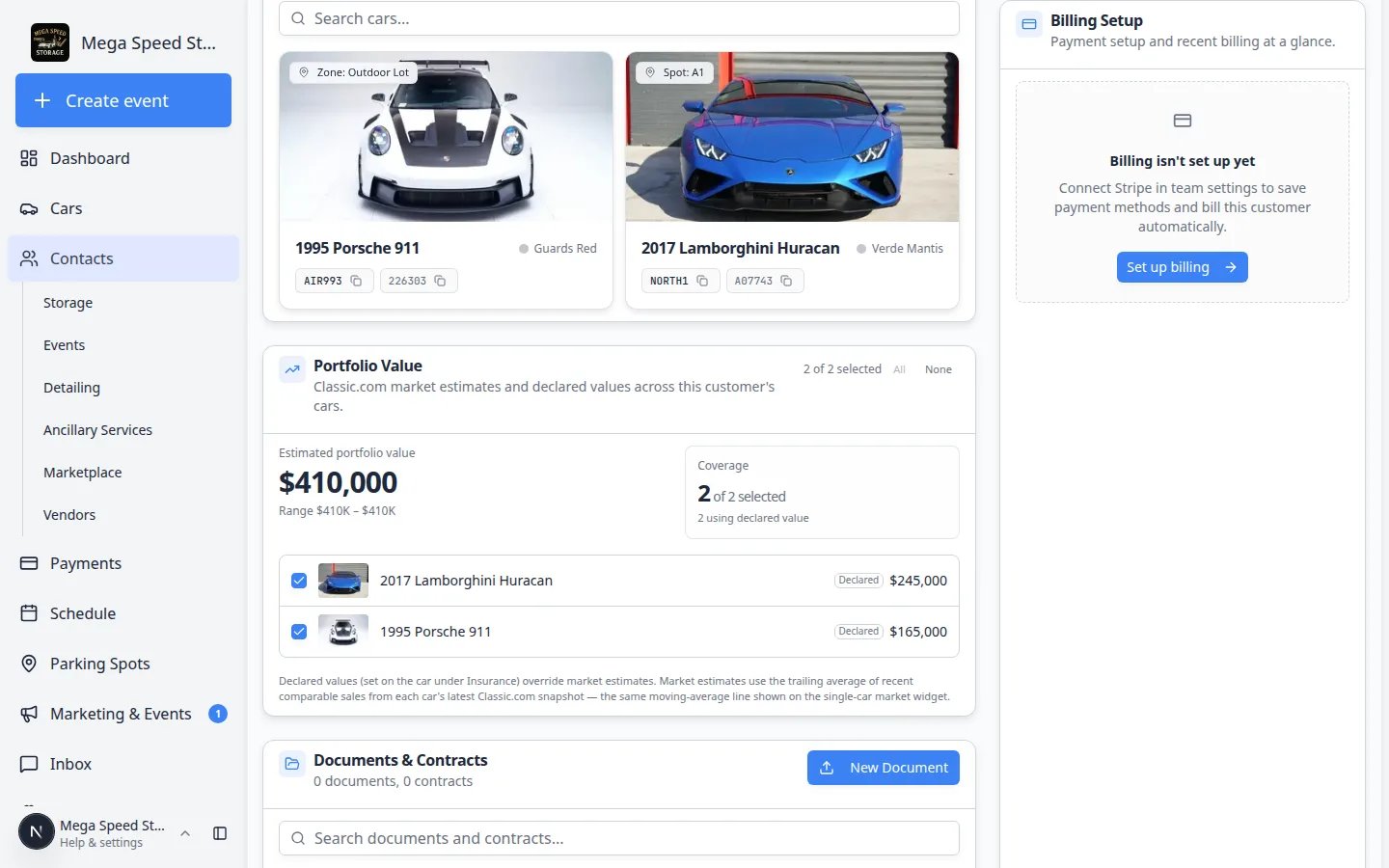 *When payment processing is not connected yet, **Billing Setup** says **Billing isn't set up yet** and shows **Set up billing**. Cars and **Portfolio Value** still work while an admin finishes billing.*
 *After your facility connects payments, the same section can show **Add to Stripe** or a saved payment method instead of the set-up prompt.*
## What you might see in Billing Setup
The section changes depending on your facility setup and this customer's status:
| What you see | What it means | What to do next |
| - | - | - |
| **Billing isn't set up yet** with a **Set up billing** button | Your facility has not connected payment processing | Ask an admin to complete [Connect payment processing](/docs/settings/connect-payment-processing) |
| **Customer not in Stripe** with **Add to Stripe** | Payments are enabled, but this customer is not linked yet | Click **Add to Stripe** (steps below) |
| Saved payment methods listed | Customer is linked and has a card or bank on file | You can create invoices or recurring charges |
| **Payments history** below the section | Past charges for this customer | Review receipts or confirm a payment went through |
**If your facility is still setting up payments**
Until an admin connects payment processing in [Settings > Billing](https://www.carstoragesoftware.com/dashboard/settings/billing), **Billing Setup** may show **Billing isn't set up yet** with a **Set up billing** link instead of **Add to Stripe**. You can still create customer records and prepare their email address—you will return here after facility setup is complete.
## Add the customer to payment processing
If the section says the customer is **not in Stripe** (or payment processing):
In **Billing Setup**, click **Add to Stripe**.
**Expected result:** The button may show **Adding...** for a few seconds while the system creates a billing profile for this customer.
After success, the section should show payment method tools instead of the empty state.
**Why this matters:** Invoices and recurring charges need this link before the customer can pay online or save a card on file.
You can also review customers from the [All Contacts](https://www.carstoragesoftware.com/dashboard/contacts/all) table when payments are enabled—look for **Add to Stripe** on a row. Both paths do the same thing.
*After your facility connects payments, the same section can show **Add to Stripe** or a saved payment method instead of the set-up prompt.*
## What you might see in Billing Setup
The section changes depending on your facility setup and this customer's status:
| What you see | What it means | What to do next |
| - | - | - |
| **Billing isn't set up yet** with a **Set up billing** button | Your facility has not connected payment processing | Ask an admin to complete [Connect payment processing](/docs/settings/connect-payment-processing) |
| **Customer not in Stripe** with **Add to Stripe** | Payments are enabled, but this customer is not linked yet | Click **Add to Stripe** (steps below) |
| Saved payment methods listed | Customer is linked and has a card or bank on file | You can create invoices or recurring charges |
| **Payments history** below the section | Past charges for this customer | Review receipts or confirm a payment went through |
**If your facility is still setting up payments**
Until an admin connects payment processing in [Settings > Billing](https://www.carstoragesoftware.com/dashboard/settings/billing), **Billing Setup** may show **Billing isn't set up yet** with a **Set up billing** link instead of **Add to Stripe**. You can still create customer records and prepare their email address—you will return here after facility setup is complete.
## Add the customer to payment processing
If the section says the customer is **not in Stripe** (or payment processing):
In **Billing Setup**, click **Add to Stripe**.
**Expected result:** The button may show **Adding...** for a few seconds while the system creates a billing profile for this customer.
After success, the section should show payment method tools instead of the empty state.
**Why this matters:** Invoices and recurring charges need this link before the customer can pay online or save a card on file.
You can also review customers from the [All Contacts](https://www.carstoragesoftware.com/dashboard/contacts/all) table when payments are enabled—look for **Add to Stripe** on a row. Both paths do the same thing.
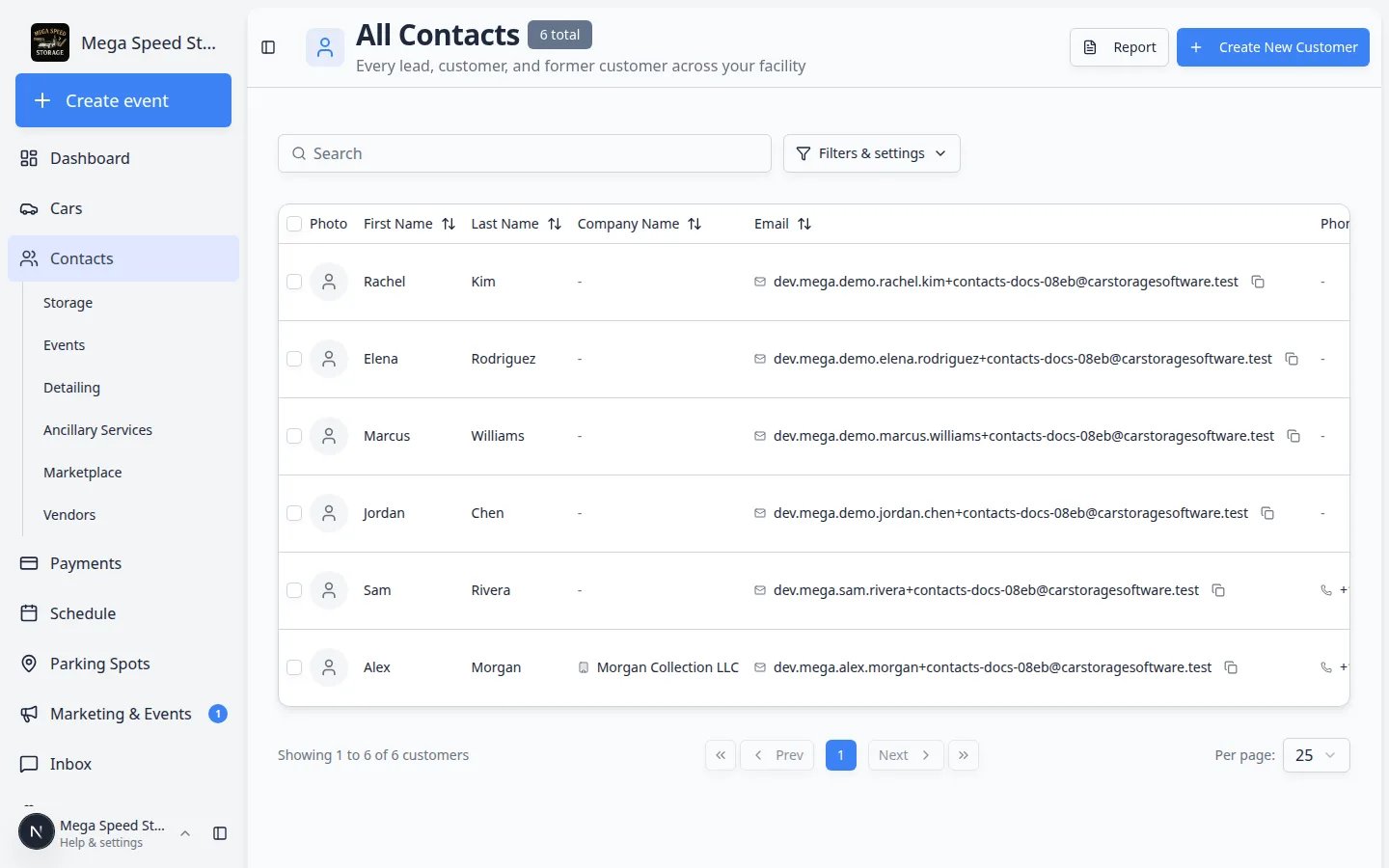 ***All Contacts** is helpful when your manager asks who still needs to be added to payment processing. Open a row to see **Billing Setup** on the detail page.*
**Expected result:** The row no longer shows **Add to Stripe** after the customer is linked.
**Same action, two places**
**Add to Stripe** on the contacts list is a shortcut when you are reviewing many customers. **Billing Setup** on the detail page is best when you are already editing that customer's record.
## How payment methods get saved
Once the customer is linked to payment processing, a payment method can be added in three common ways. Your facility may use one or all of them:
Invite the customer to the portal (see [Invite a customer to the portal](/docs/contacts/invite-a-customer-to-the-portal)). When billing is turned on for the customer app, they can add a card or bank account under **Billing** in the portal.
**Why this matters:** The customer enters their own payment details securely—you do not need to handle card numbers over the phone.
***All Contacts** is helpful when your manager asks who still needs to be added to payment processing. Open a row to see **Billing Setup** on the detail page.*
**Expected result:** The row no longer shows **Add to Stripe** after the customer is linked.
**Same action, two places**
**Add to Stripe** on the contacts list is a shortcut when you are reviewing many customers. **Billing Setup** on the detail page is best when you are already editing that customer's record.
## How payment methods get saved
Once the customer is linked to payment processing, a payment method can be added in three common ways. Your facility may use one or all of them:
Invite the customer to the portal (see [Invite a customer to the portal](/docs/contacts/invite-a-customer-to-the-portal)). When billing is turned on for the customer app, they can add a card or bank account under **Billing** in the portal.
**Why this matters:** The customer enters their own payment details securely—you do not need to handle card numbers over the phone.
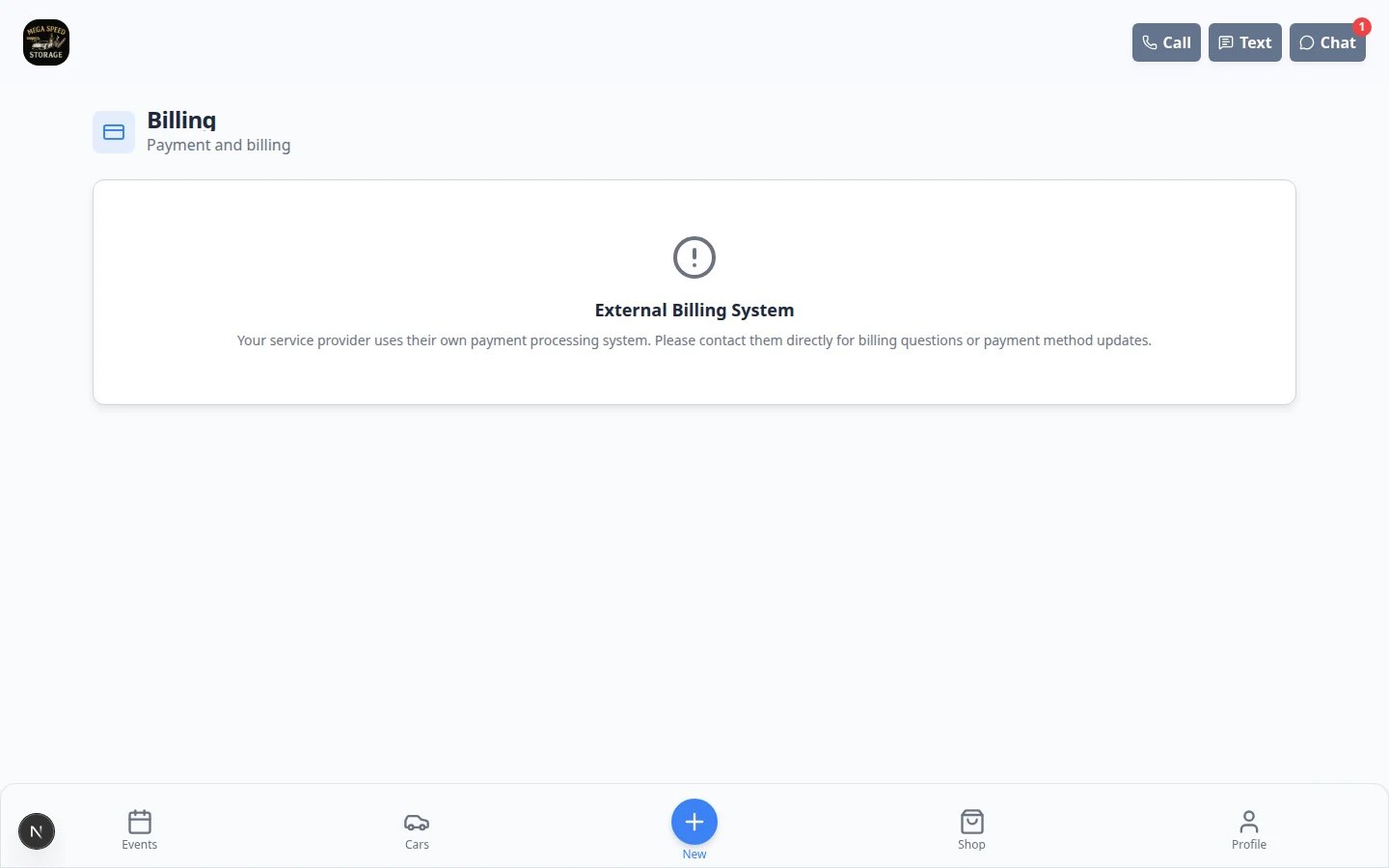 *When your facility enables billing in the customer app, customers can add a payment method themselves under Billing in the portal.*
When you send an invoice with [Send and collect customer payments](/docs/payments/send-and-collect-customer-payments), the customer can pay through the link. They may choose to save their payment method for next time.
**Expected result:** The payment appears in **Payments history** on the customer record and in [Payments](https://www.carstoragesoftware.com/dashboard/payments/invoices).
If your facility uses Tap to Pay or similar in-person tools, a team member with permission can save a payment method while the customer is on site.
**Expected result:** The saved method appears in **Billing Setup** on the customer page.
**Expected result:** Saved methods appear in **Billing Setup** and in the [Customer Report](/docs/contacts/export-and-use-the-customer-report) under **Payment Method** when that column is enabled.
**Where to look after a customer pays**
If a customer asks "Did my payment go through?" check **Payments history** on their customer page first, then open the invoice in [Payments > Invoices](https://www.carstoragesoftware.com/dashboard/payments/invoices). [Review customer activity and history](/docs/contacts/review-customer-activity-and-history) also shows recent billing events on the timeline.
## Invoice billing and fee settings
Below **Billing Setup**, you may see additional sections when payments are enabled for your facility:
| Section | Purpose |
| - | - |
| **Invoice billing settings** | Controls how this customer receives invoices (for example email delivery preferences tied to their record). |
| **Fee settings** | Per-customer fee overrides when your facility uses custom fee rules. |
| **Account balance** | Running balance when your facility tracks customer account credits or charges. |
| **Payments history** | Recent charges and receipts for this customer—useful when a customer asks "Did my payment go through?" |
**Creating the invoice itself**
This guide prepares the **customer** for billing. To build the invoice line items, open [Create an invoice](/docs/payments/create-an-invoice).
## Quick check before month-end billing
Use this short checklist when your manager asks who is ready to be charged:
* Customer has a correct **email** on their record.
* **Billing Setup** shows they are linked to payment processing (not "Customer not in Stripe").
* A **payment method** is saved, or you plan to send a payment link with the invoice.
* Cars and recurring charges are linked to the right customer—see [Manage recurring billing](/docs/payments/manage-recurring-billing).
For a facility-wide view, open the [Customer Report](/docs/contacts/export-and-use-the-customer-report) and enable the **In Stripe** and **Payment Method** columns.
## Troubleshooting
**Add to Stripe fails or spins forever**
Check that payment processing is connected in [Settings > Billing](https://www.carstoragesoftware.com/dashboard/settings/billing). Confirm the customer has a valid email. Try again after a minute; if it still fails, ask an admin to review the payment connection.
**I only see Set up billing, not Add to Stripe**
Your facility has not finished payment setup yet. An admin needs to connect payment processing first. You can still add customers and prepare their records while waiting.
**Customer paid but Billing Setup looks empty**
Refresh the page. If they paid through a one-time link without saving a method, you may see the payment in **Payments history** or [Payments](https://www.carstoragesoftware.com/dashboard/payments/invoices) instead of a saved card.
**Wrong person linked to charges**
Stop and open the correct customer record. Move cars and invoices to the right person before taking more payments. See [Link cars and documents to a customer](/docs/contacts/link-cars-and-documents) and [Handle duplicate or merged customer records](/docs/contacts/handle-duplicate-or-merged-customer-records).
## What to do next
* Create their first invoice: [Create an invoice](/docs/payments/create-an-invoice)
* Set up monthly storage: [Manage recurring billing](/docs/payments/manage-recurring-billing)
* Review who still needs payment on file: [Export and use the customer report](/docs/contacts/export-and-use-the-customer-report)
* Let the customer pay in the portal: [Invite a customer to the portal](/docs/contacts/invite-a-customer-to-the-portal)
* If **Billing Setup** is missing on the page, turn the block back on in [Customize the contact page](/docs/contacts/customize-the-contact-page).
This documentation is built and hosted on [Mintlify](https://mintlify.com), a developer documentation platform.
*When your facility enables billing in the customer app, customers can add a payment method themselves under Billing in the portal.*
When you send an invoice with [Send and collect customer payments](/docs/payments/send-and-collect-customer-payments), the customer can pay through the link. They may choose to save their payment method for next time.
**Expected result:** The payment appears in **Payments history** on the customer record and in [Payments](https://www.carstoragesoftware.com/dashboard/payments/invoices).
If your facility uses Tap to Pay or similar in-person tools, a team member with permission can save a payment method while the customer is on site.
**Expected result:** The saved method appears in **Billing Setup** on the customer page.
**Expected result:** Saved methods appear in **Billing Setup** and in the [Customer Report](/docs/contacts/export-and-use-the-customer-report) under **Payment Method** when that column is enabled.
**Where to look after a customer pays**
If a customer asks "Did my payment go through?" check **Payments history** on their customer page first, then open the invoice in [Payments > Invoices](https://www.carstoragesoftware.com/dashboard/payments/invoices). [Review customer activity and history](/docs/contacts/review-customer-activity-and-history) also shows recent billing events on the timeline.
## Invoice billing and fee settings
Below **Billing Setup**, you may see additional sections when payments are enabled for your facility:
| Section | Purpose |
| - | - |
| **Invoice billing settings** | Controls how this customer receives invoices (for example email delivery preferences tied to their record). |
| **Fee settings** | Per-customer fee overrides when your facility uses custom fee rules. |
| **Account balance** | Running balance when your facility tracks customer account credits or charges. |
| **Payments history** | Recent charges and receipts for this customer—useful when a customer asks "Did my payment go through?" |
**Creating the invoice itself**
This guide prepares the **customer** for billing. To build the invoice line items, open [Create an invoice](/docs/payments/create-an-invoice).
## Quick check before month-end billing
Use this short checklist when your manager asks who is ready to be charged:
* Customer has a correct **email** on their record.
* **Billing Setup** shows they are linked to payment processing (not "Customer not in Stripe").
* A **payment method** is saved, or you plan to send a payment link with the invoice.
* Cars and recurring charges are linked to the right customer—see [Manage recurring billing](/docs/payments/manage-recurring-billing).
For a facility-wide view, open the [Customer Report](/docs/contacts/export-and-use-the-customer-report) and enable the **In Stripe** and **Payment Method** columns.
## Troubleshooting
**Add to Stripe fails or spins forever**
Check that payment processing is connected in [Settings > Billing](https://www.carstoragesoftware.com/dashboard/settings/billing). Confirm the customer has a valid email. Try again after a minute; if it still fails, ask an admin to review the payment connection.
**I only see Set up billing, not Add to Stripe**
Your facility has not finished payment setup yet. An admin needs to connect payment processing first. You can still add customers and prepare their records while waiting.
**Customer paid but Billing Setup looks empty**
Refresh the page. If they paid through a one-time link without saving a method, you may see the payment in **Payments history** or [Payments](https://www.carstoragesoftware.com/dashboard/payments/invoices) instead of a saved card.
**Wrong person linked to charges**
Stop and open the correct customer record. Move cars and invoices to the right person before taking more payments. See [Link cars and documents to a customer](/docs/contacts/link-cars-and-documents) and [Handle duplicate or merged customer records](/docs/contacts/handle-duplicate-or-merged-customer-records).
## What to do next
* Create their first invoice: [Create an invoice](/docs/payments/create-an-invoice)
* Set up monthly storage: [Manage recurring billing](/docs/payments/manage-recurring-billing)
* Review who still needs payment on file: [Export and use the customer report](/docs/contacts/export-and-use-the-customer-report)
* Let the customer pay in the portal: [Invite a customer to the portal](/docs/contacts/invite-a-customer-to-the-portal)
* If **Billing Setup** is missing on the page, turn the block back on in [Customize the contact page](/docs/contacts/customize-the-contact-page).
This documentation is built and hosted on [Mintlify](https://mintlify.com), a developer documentation platform.