> ## Documentation Index
> Fetch the complete documentation index at: https://www.carstoragesoftware.com/docs/llms.txt
> Use this file to discover all available pages before exploring further.
# Track customer market interests
> Record what vehicles a customer wants to buy so your sales and sourcing team can match inventory to the right person.
Use this guide when a customer tells you what kind of vehicle they hope to buy—even if you do not have that car in stock today.
**Market interests** live on the customer record in [Contacts](https://www.carstoragesoftware.com/dashboard/contacts). They help your team remember year, make, model, budget, and notes when the right car appears.
## What you will accomplish
* Add a market interest on a customer record with year, make, model, and optional budget.
* Read the **Market Interests** table on the customer page.
* Understand status labels such as **active**, **paused**, and **fulfilled**.
* Know how market interests differ from tags, notes, and marketplace listings.
## When to use market interests
* A collector asks you to "keep an eye out" for a specific model or trim.
* A customer is shopping your [marketplace](/docs/facility-web-pages/publish-marketplace-listings) but has not found the right car yet.
* Your sales team needs a written wish list tied to the correct person—not a sticky note at the front desk.
* You want one place to see budget and vehicle details before calling the customer about a new arrival.
**Market interests are not inventory**
Adding a market interest does **not** list a car for sale. It records what a **customer wants to buy**. To publish a vehicle publicly, use [Publish marketplace listings](/docs/facility-web-pages/publish-marketplace-listings).
## Before you start
* The customer exists in [Contacts](https://www.carstoragesoftware.com/dashboard/contacts).
* You know the year, make, and model the customer described (approximate is fine to start).
* Ask for a budget range when it helps your team filter opportunities.
## Open Market Interests on the customer record
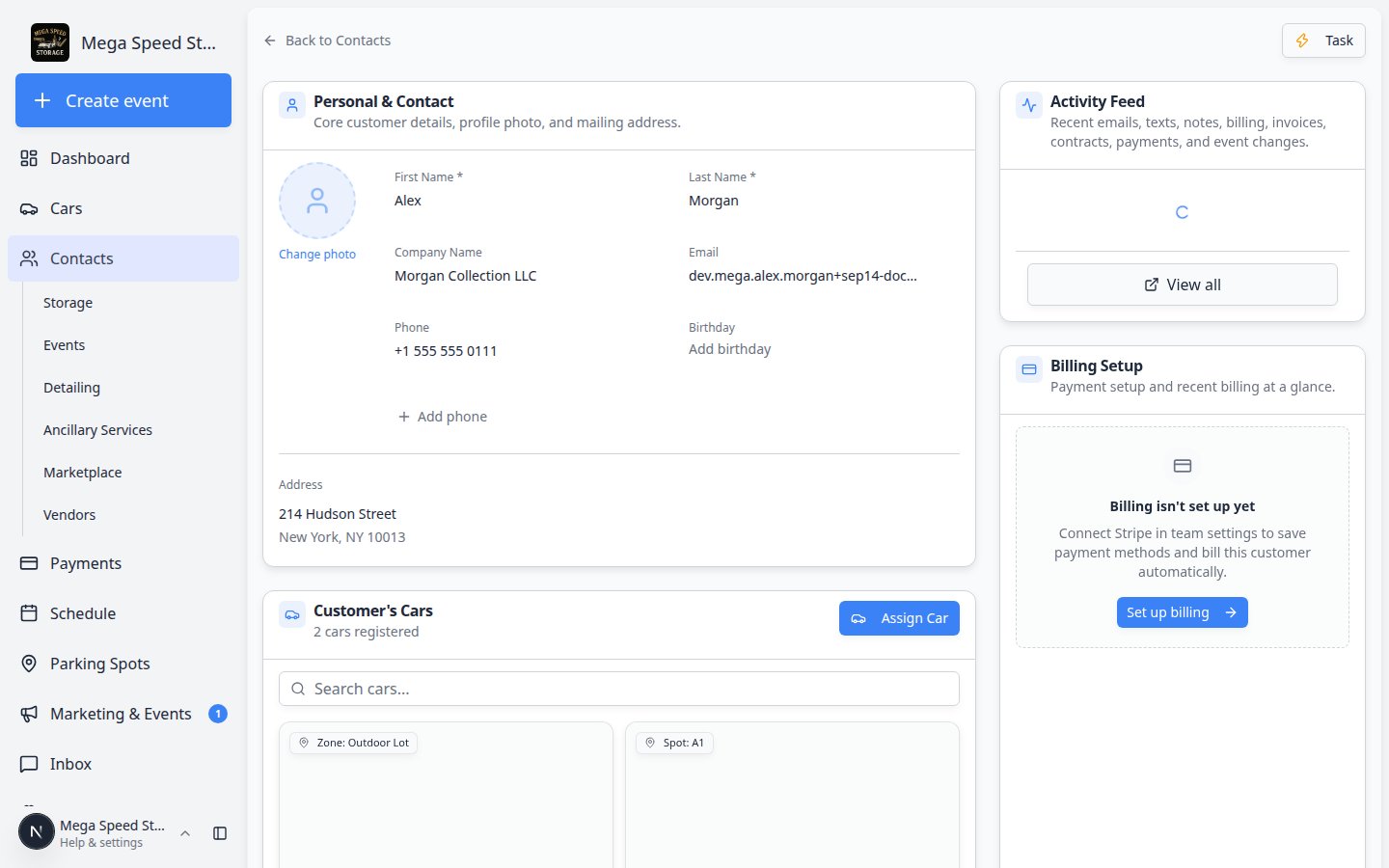
Click **Contacts** in the sidebar and open the customer—for example from [All Contacts](https://www.carstoragesoftware.com/dashboard/contacts/all).
Scroll down the customer page until you see the **Market Interests** section.
**Expected result:** You see a table with columns such as **Vehicle**, **Budget**, **Status**, **Notes**, and **Created**—or an empty state with **Add Interest**.
 *Each row is one vehicle the customer asked your team to source. The section header shows how many requests are on file (for example **2 requests on file**).*
## Add a market interest
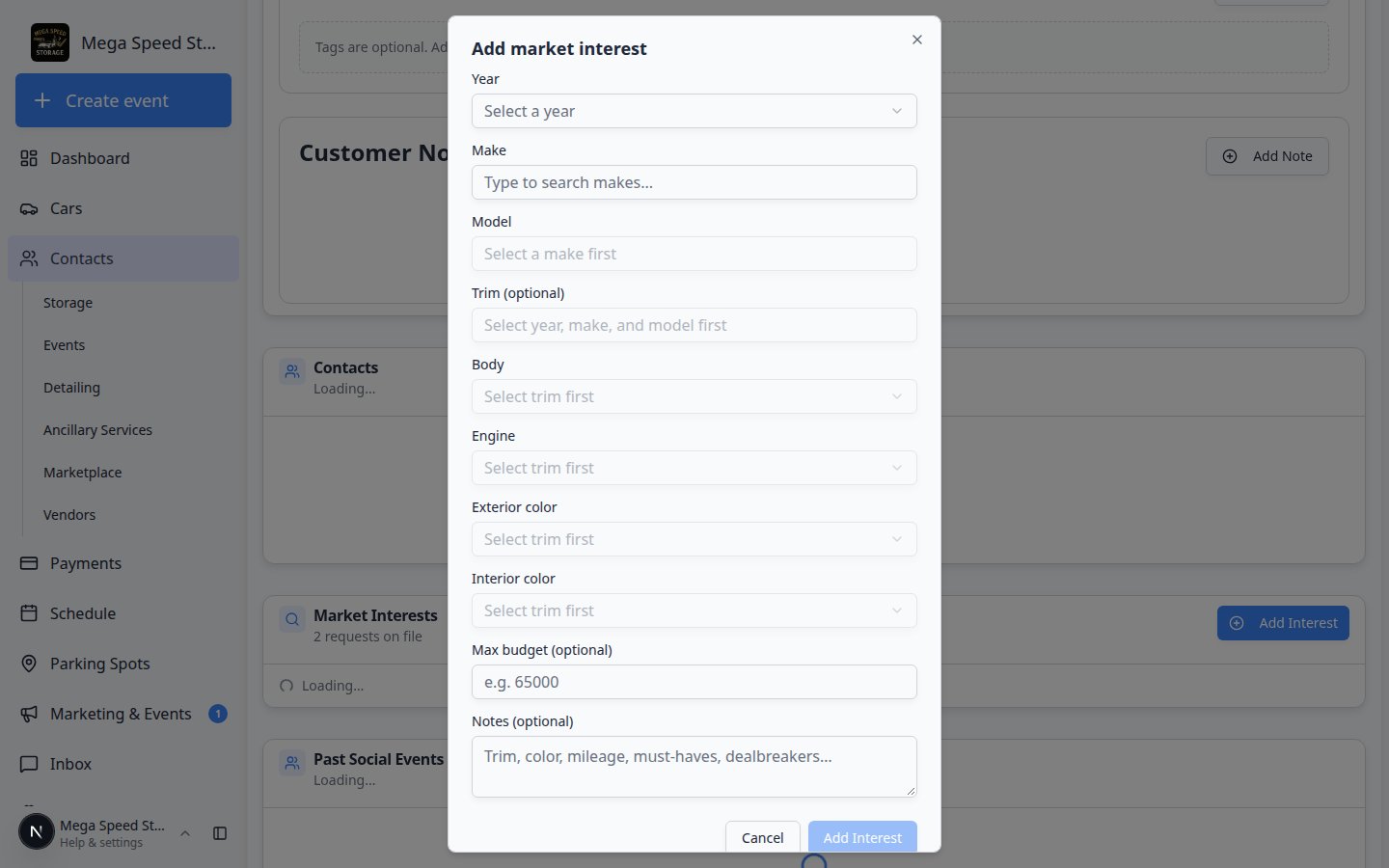
In the **Market Interests** section header, click **Add Interest**.
**Expected result:** A window titled **Add market interest** opens.
* **Year** — pick from the dropdown (for example **2020**).
* **Make** — type to search makes (for example **Porsche**).
* **Model** — type to search models (for example **911**).
**Why this matters:** Structured year/make/model fields help your team search and report consistently. Spelling counts—use the suggestions when they appear.
If the customer cares about a specific trim (for example **GT3 RS**), choose **Trim** when the field is available.
Skip trim when the customer is flexible.
Type the maximum budget the customer mentioned.
**Expected result:** The amount saves in your facility's currency. Leave blank if the customer did not share a number yet.
Use **Notes** for details that do not fit in the dropdowns.
Examples: "Manual transmission only", "Open to Spider variant", "Needs to fit in existing storage spot".
Click the save button at the bottom of the window (often **Add interest** or **Save**).
**Expected result:** A new row appears in the **Market Interests** table with status **active**.
*Each row is one vehicle the customer asked your team to source. The section header shows how many requests are on file (for example **2 requests on file**).*
## Add a market interest
In the **Market Interests** section header, click **Add Interest**.
**Expected result:** A window titled **Add market interest** opens.
* **Year** — pick from the dropdown (for example **2020**).
* **Make** — type to search makes (for example **Porsche**).
* **Model** — type to search models (for example **911**).
**Why this matters:** Structured year/make/model fields help your team search and report consistently. Spelling counts—use the suggestions when they appear.
If the customer cares about a specific trim (for example **GT3 RS**), choose **Trim** when the field is available.
Skip trim when the customer is flexible.
Type the maximum budget the customer mentioned.
**Expected result:** The amount saves in your facility's currency. Leave blank if the customer did not share a number yet.
Use **Notes** for details that do not fit in the dropdowns.
Examples: "Manual transmission only", "Open to Spider variant", "Needs to fit in existing storage spot".
Click the save button at the bottom of the window (often **Add interest** or **Save**).
**Expected result:** A new row appears in the **Market Interests** table with status **active**.
 *Fill in as much as the customer told you. You can add more interests later if they are shopping for multiple vehicles.*
## Understand status labels
Each interest has a **Status** badge in the table.
*Fill in as much as the customer told you. You can add more interests later if they are shopping for multiple vehicles.*
## Understand status labels
Each interest has a **Status** badge in the table.
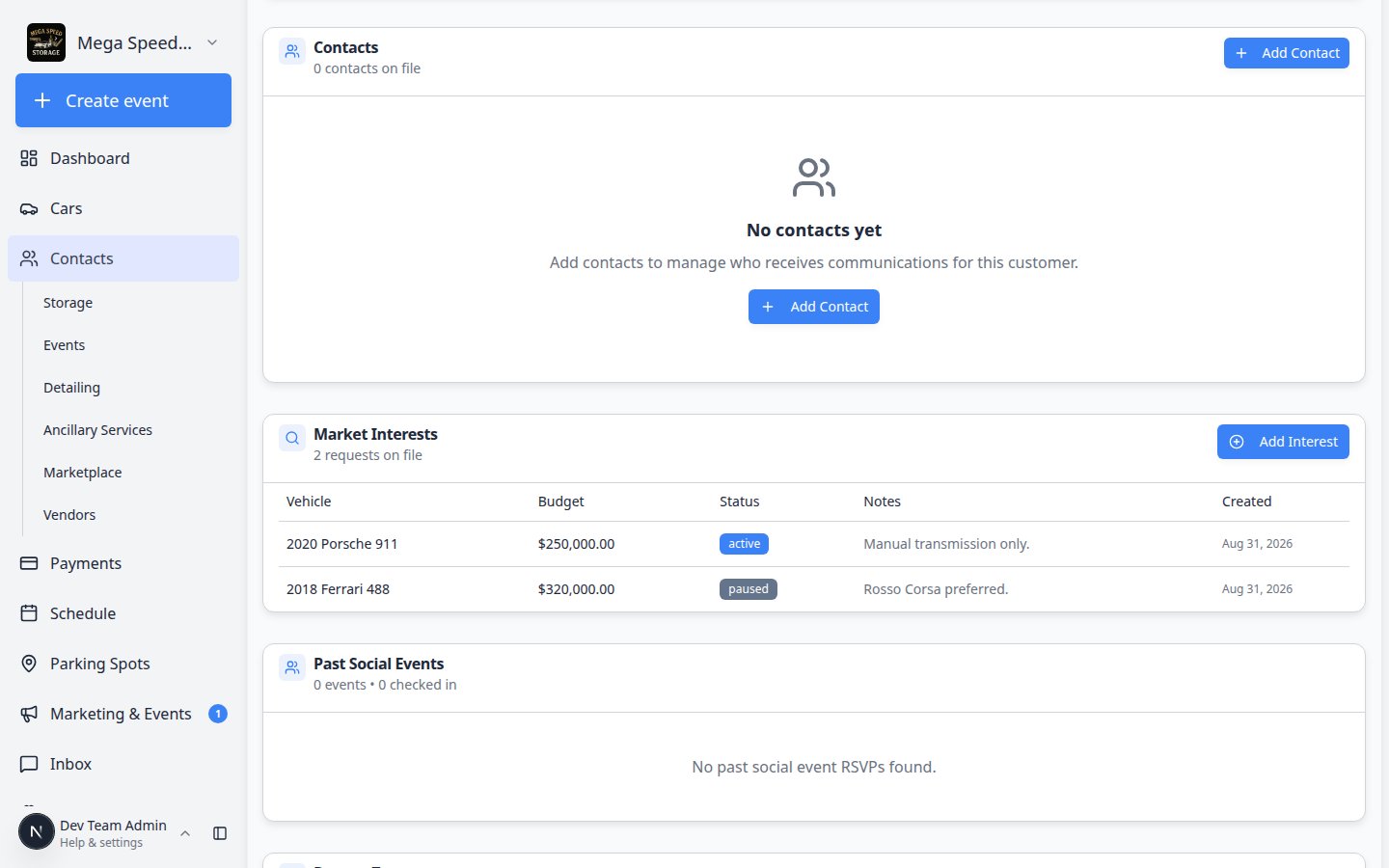 *Status badges help your team see at a glance who is still shopping, who asked to wait, and who already found a car.*
| Status | What it means |
| - | - |
| **active** | Your team is still looking for a match. |
| **paused** | The customer asked to wait—check back later. |
| **fulfilled** | You found a vehicle and the customer bought or accepted it. |
| **cancelled** | The customer is no longer looking for this vehicle. |
Update status when the customer's situation changes so your team does not call about a car they no longer want.
## Update or remove a market interest
When a customer changes their mind, you can update the row on their record without creating a new customer.
Go to [All Contacts](https://www.carstoragesoftware.com/dashboard/contacts/all), open the customer, and scroll to **Market Interests**.
**Expected result:** You see each vehicle wish list as its own row with **Vehicle**, **Budget**, **Status**, and **Notes** columns.
Click the row (or the edit action on that row) for the interest you want to update.
**Why this matters:** Keeping one row per vehicle prevents duplicate outreach when two teammates both think they should call about the same Porsche.
Pick the status that matches what the customer told you:
* **active** — still shopping
* **paused** — asked to wait; check back later
* **fulfilled** — they bought a matching car through your facility
* **cancelled** — no longer looking for this vehicle
**Expected result:** The badge in the **Status** column updates. Your sales team can scan the table and skip rows that are no longer active.
If the customer raised their budget or added trim requirements, edit those fields on the same row.
**Why this matters:** A stale budget causes your team to skip cars the customer would actually buy—or call about cars above their range.
Save your changes and stay on the customer record long enough to confirm the table looks right.
**Expected result:** The updated status appears in **Market Interests** and in the customer's **Activity** timeline.
**Fulfilled vs cancelled**
Use **fulfilled** when your facility helped them buy the car. Use **cancelled** when they bought elsewhere or stopped looking. Both stop future outreach—the label helps your team report sourcing wins later.
## What success looks like
* Every serious buyer has at least one market interest on their record—not only a verbal promise.
* Budget and trim notes match what the customer said on the phone or in person.
* When a matching car arrives, any teammate can open the customer and see the wish list immediately.
## Common mistakes to avoid
* Do not create a market interest on the wrong customer—always confirm the name at the top of the page.
* Do not use market interests for cars you are **selling** from inventory—use marketplace listings instead.
* Do not skip **Notes** when the customer gave important details (transmission, color, mileage limits).
## Troubleshooting
**Make or Model search shows no results**
Check spelling. Try a shorter search term. If the vehicle is very rare, pick the closest make/model and put exact details in **Notes**.
**I added an interest on the wrong customer**
Delete or cancel the incorrect row, then add the interest on the correct customer record. Double-check the customer name before saving.
**The customer found a car elsewhere**
Change the status to **fulfilled** or **cancelled** so your team stops outreach for that row.
## What to do next
* [Add and manage customer notes](/docs/contacts/add-and-manage-customer-notes) — capture communication preferences and follow-up promises.
* [Publish marketplace listings](/docs/facility-web-pages/publish-marketplace-listings) — when you have a car ready to sell publicly.
* [Respond to a conversation](/docs/inbox/respond-to-a-conversation) — tell the customer when you find a possible match.
This documentation is built and hosted on [Mintlify](https://mintlify.com), a developer documentation platform.
*Status badges help your team see at a glance who is still shopping, who asked to wait, and who already found a car.*
| Status | What it means |
| - | - |
| **active** | Your team is still looking for a match. |
| **paused** | The customer asked to wait—check back later. |
| **fulfilled** | You found a vehicle and the customer bought or accepted it. |
| **cancelled** | The customer is no longer looking for this vehicle. |
Update status when the customer's situation changes so your team does not call about a car they no longer want.
## Update or remove a market interest
When a customer changes their mind, you can update the row on their record without creating a new customer.
Go to [All Contacts](https://www.carstoragesoftware.com/dashboard/contacts/all), open the customer, and scroll to **Market Interests**.
**Expected result:** You see each vehicle wish list as its own row with **Vehicle**, **Budget**, **Status**, and **Notes** columns.
Click the row (or the edit action on that row) for the interest you want to update.
**Why this matters:** Keeping one row per vehicle prevents duplicate outreach when two teammates both think they should call about the same Porsche.
Pick the status that matches what the customer told you:
* **active** — still shopping
* **paused** — asked to wait; check back later
* **fulfilled** — they bought a matching car through your facility
* **cancelled** — no longer looking for this vehicle
**Expected result:** The badge in the **Status** column updates. Your sales team can scan the table and skip rows that are no longer active.
If the customer raised their budget or added trim requirements, edit those fields on the same row.
**Why this matters:** A stale budget causes your team to skip cars the customer would actually buy—or call about cars above their range.
Save your changes and stay on the customer record long enough to confirm the table looks right.
**Expected result:** The updated status appears in **Market Interests** and in the customer's **Activity** timeline.
**Fulfilled vs cancelled**
Use **fulfilled** when your facility helped them buy the car. Use **cancelled** when they bought elsewhere or stopped looking. Both stop future outreach—the label helps your team report sourcing wins later.
## What success looks like
* Every serious buyer has at least one market interest on their record—not only a verbal promise.
* Budget and trim notes match what the customer said on the phone or in person.
* When a matching car arrives, any teammate can open the customer and see the wish list immediately.
## Common mistakes to avoid
* Do not create a market interest on the wrong customer—always confirm the name at the top of the page.
* Do not use market interests for cars you are **selling** from inventory—use marketplace listings instead.
* Do not skip **Notes** when the customer gave important details (transmission, color, mileage limits).
## Troubleshooting
**Make or Model search shows no results**
Check spelling. Try a shorter search term. If the vehicle is very rare, pick the closest make/model and put exact details in **Notes**.
**I added an interest on the wrong customer**
Delete or cancel the incorrect row, then add the interest on the correct customer record. Double-check the customer name before saving.
**The customer found a car elsewhere**
Change the status to **fulfilled** or **cancelled** so your team stops outreach for that row.
## What to do next
* [Add and manage customer notes](/docs/contacts/add-and-manage-customer-notes) — capture communication preferences and follow-up promises.
* [Publish marketplace listings](/docs/facility-web-pages/publish-marketplace-listings) — when you have a car ready to sell publicly.
* [Respond to a conversation](/docs/inbox/respond-to-a-conversation) — tell the customer when you find a possible match.
This documentation is built and hosted on [Mintlify](https://mintlify.com), a developer documentation platform.