> ## Documentation Index
> Fetch the complete documentation index at: https://www.carstoragesoftware.com/docs/llms.txt
> Use this file to discover all available pages before exploring further.
# Understand portal access levels
> Learn the difference between Full and Ticket-only portal access, when each applies, and how to help customers sign in.
## What you will accomplish
You will understand what **Portal Access** means on your customer list, why some people have **Ticket-only** access, and what your team can (and cannot) change after a customer signs in.
This helps you set correct expectations when customers ask, "Why can't I see my cars?" or "I only see my event ticket."
## Before you start
* You can open [All Contacts](https://www.carstoragesoftware.com/dashboard/contacts/all) in the dashboard.
* You know the customer's name or email so you can find their row quickly.
* Optional: open the [Customer Report](/docs/contacts/export-and-use-the-customer-report) if you need to review many customers at once.
## Two portal access levels
Most storage and service customers should have **Full** portal access. They can use the main areas your team enabled—typically **Cars**, **Billing**, **Documents**, **Events**, and **Settings**—depending on [Settings > Website & customer app](https://www.carstoragesoftware.com/dashboard/settings/website).
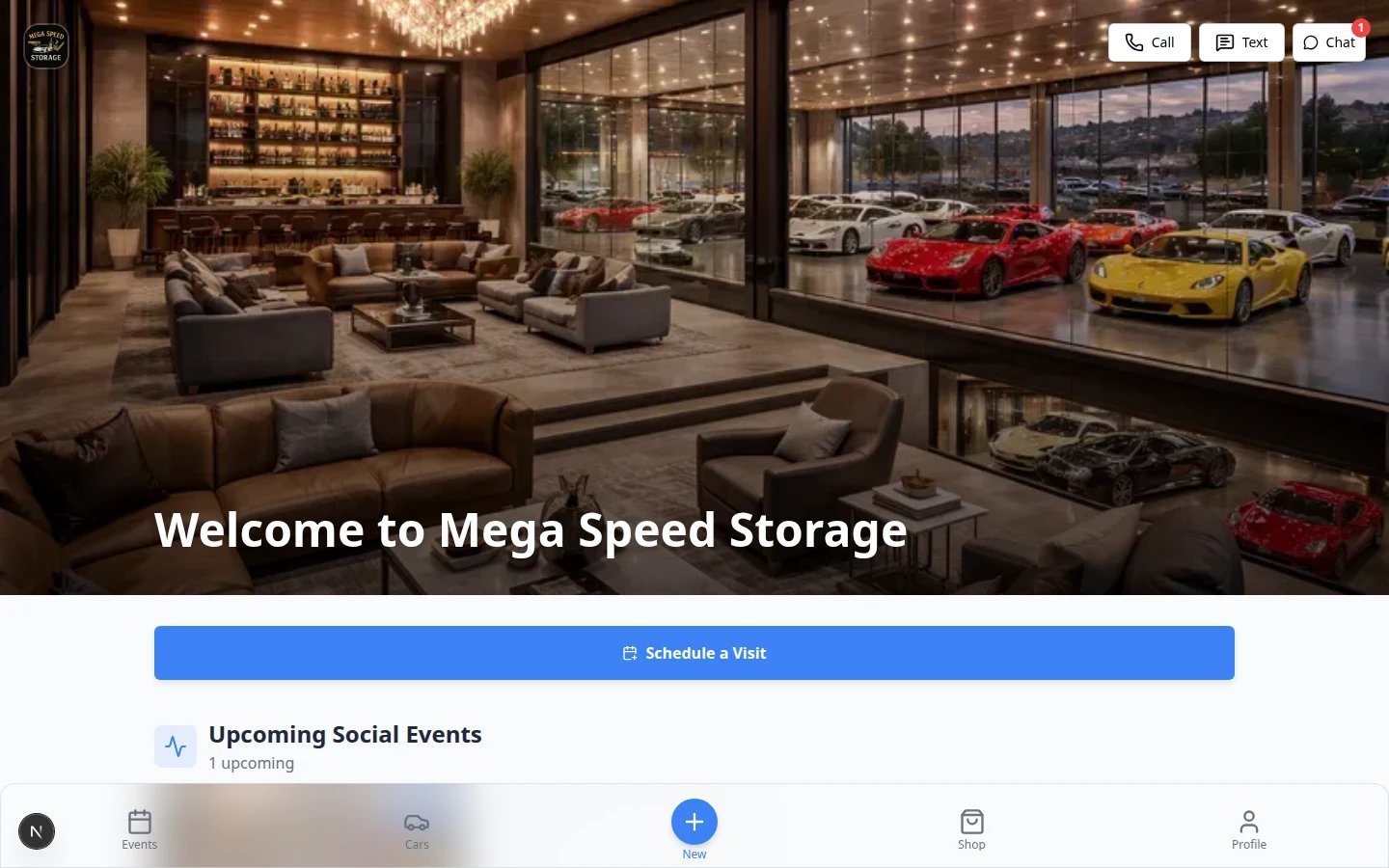 *Full portal customers see their linked cars, billing, documents, and events. Ticket-only customers see a narrower view.*
Some customers receive **Ticket-only** access automatically. They can use a limited portal experience tied to a specific event or marketplace flow—not the full storage customer dashboard.
*Full portal customers see their linked cars, billing, documents, and events. Ticket-only customers see a narrower view.*
Some customers receive **Ticket-only** access automatically. They can use a limited portal experience tied to a specific event or marketplace flow—not the full storage customer dashboard.
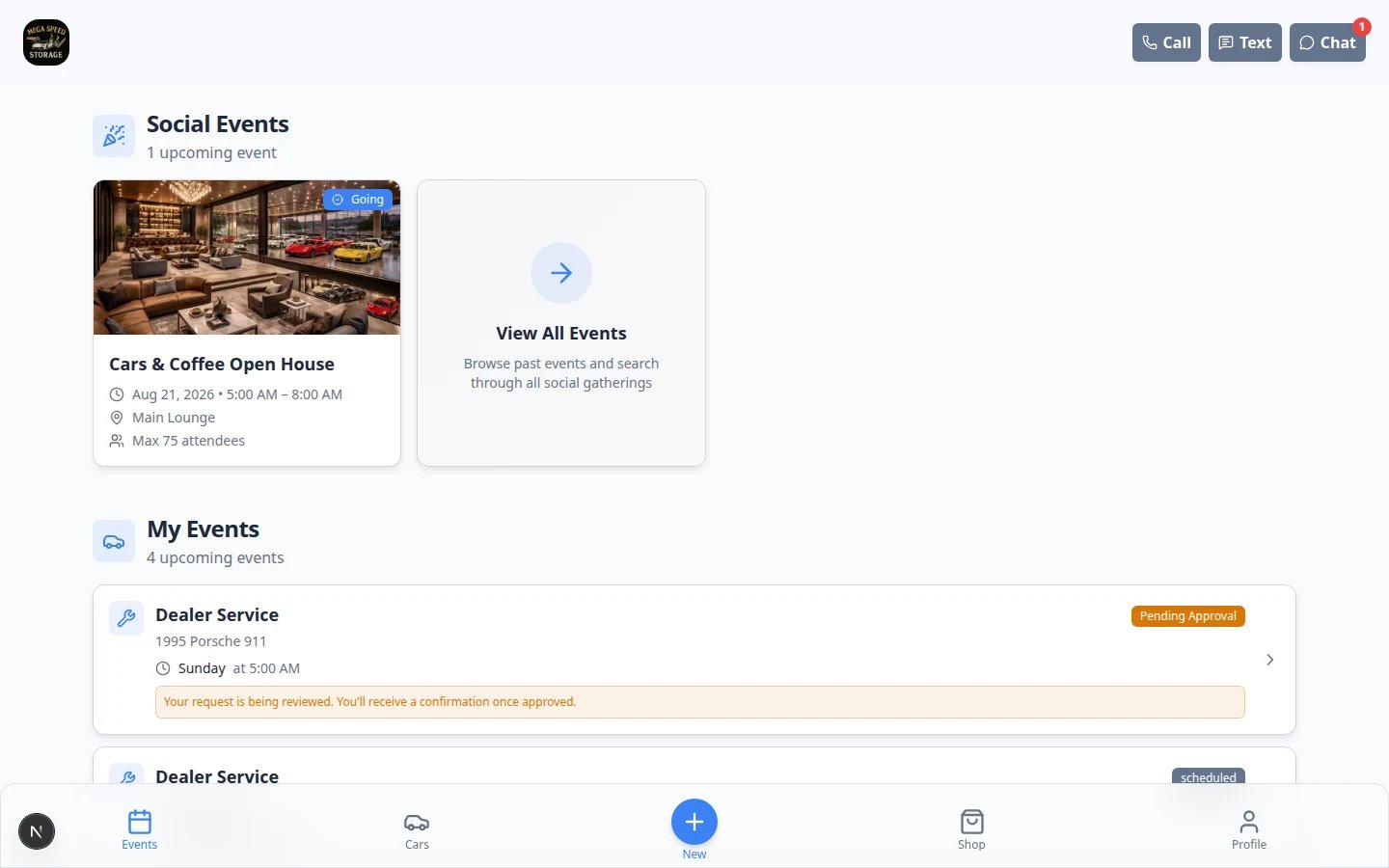 *Full portal customers may see Cars, Billing, and Documents. Ticket-only customers often land on Events or a narrower view first.*
| Level | What the customer usually sees | Common examples |
| - | - | - |
| **Full** | The normal customer portal your facility configured | Storage customers, detailing clients, long-term members |
| **Ticket-only** | A narrower experience (often event RSVP, ticket, or marketplace interest) | Social event guests, marketplace leads who are not full storage customers yet |
## Read Account Status and Portal Access together
Use **both** columns on [All Contacts](https://www.carstoragesoftware.com/dashboard/contacts/all) to diagnose portal questions:
| Account Status | Portal Access | What it usually means |
| - | - | - |
| Not signed in yet | Full | Ready for a portal invite—cars and documents should be linked first |
| Email Sent | Full | Invite went out—ask customer to check spam or use **Resend Invite** |
| Signed In | Full | Customer has used the portal—if something is missing, check what is linked to the record |
| Any status | Ticket-only | Limited access by design—set expectations before troubleshooting "missing cars" |
**You do not pick Ticket-only on the invite screen**
**Ticket-only** is set by the system when the customer enters through certain flows (for example RSVP or marketplace interest). It is not a checkbox on the main customer record. Your team prepares **Full** customers by linking cars and documents, then sending a portal invite.
## Where to see portal access in the dashboard
Go to [All Contacts](https://www.carstoragesoftware.com/dashboard/contacts/all).
**Expected result:** You see your customer table with a search bar near the top.
Open **Filters & settings**, make sure you are in **Table** view, and turn on the **Portal Access** column if it is hidden.
**Expected result:** Each row shows **Full** or **Ticket-only** in the **Portal Access** column.
*Full portal customers may see Cars, Billing, and Documents. Ticket-only customers often land on Events or a narrower view first.*
| Level | What the customer usually sees | Common examples |
| - | - | - |
| **Full** | The normal customer portal your facility configured | Storage customers, detailing clients, long-term members |
| **Ticket-only** | A narrower experience (often event RSVP, ticket, or marketplace interest) | Social event guests, marketplace leads who are not full storage customers yet |
## Read Account Status and Portal Access together
Use **both** columns on [All Contacts](https://www.carstoragesoftware.com/dashboard/contacts/all) to diagnose portal questions:
| Account Status | Portal Access | What it usually means |
| - | - | - |
| Not signed in yet | Full | Ready for a portal invite—cars and documents should be linked first |
| Email Sent | Full | Invite went out—ask customer to check spam or use **Resend Invite** |
| Signed In | Full | Customer has used the portal—if something is missing, check what is linked to the record |
| Any status | Ticket-only | Limited access by design—set expectations before troubleshooting "missing cars" |
**You do not pick Ticket-only on the invite screen**
**Ticket-only** is set by the system when the customer enters through certain flows (for example RSVP or marketplace interest). It is not a checkbox on the main customer record. Your team prepares **Full** customers by linking cars and documents, then sending a portal invite.
## Where to see portal access in the dashboard
Go to [All Contacts](https://www.carstoragesoftware.com/dashboard/contacts/all).
**Expected result:** You see your customer table with a search bar near the top.
Open **Filters & settings**, make sure you are in **Table** view, and turn on the **Portal Access** column if it is hidden.
**Expected result:** Each row shows **Full** or **Ticket-only** in the **Portal Access** column.
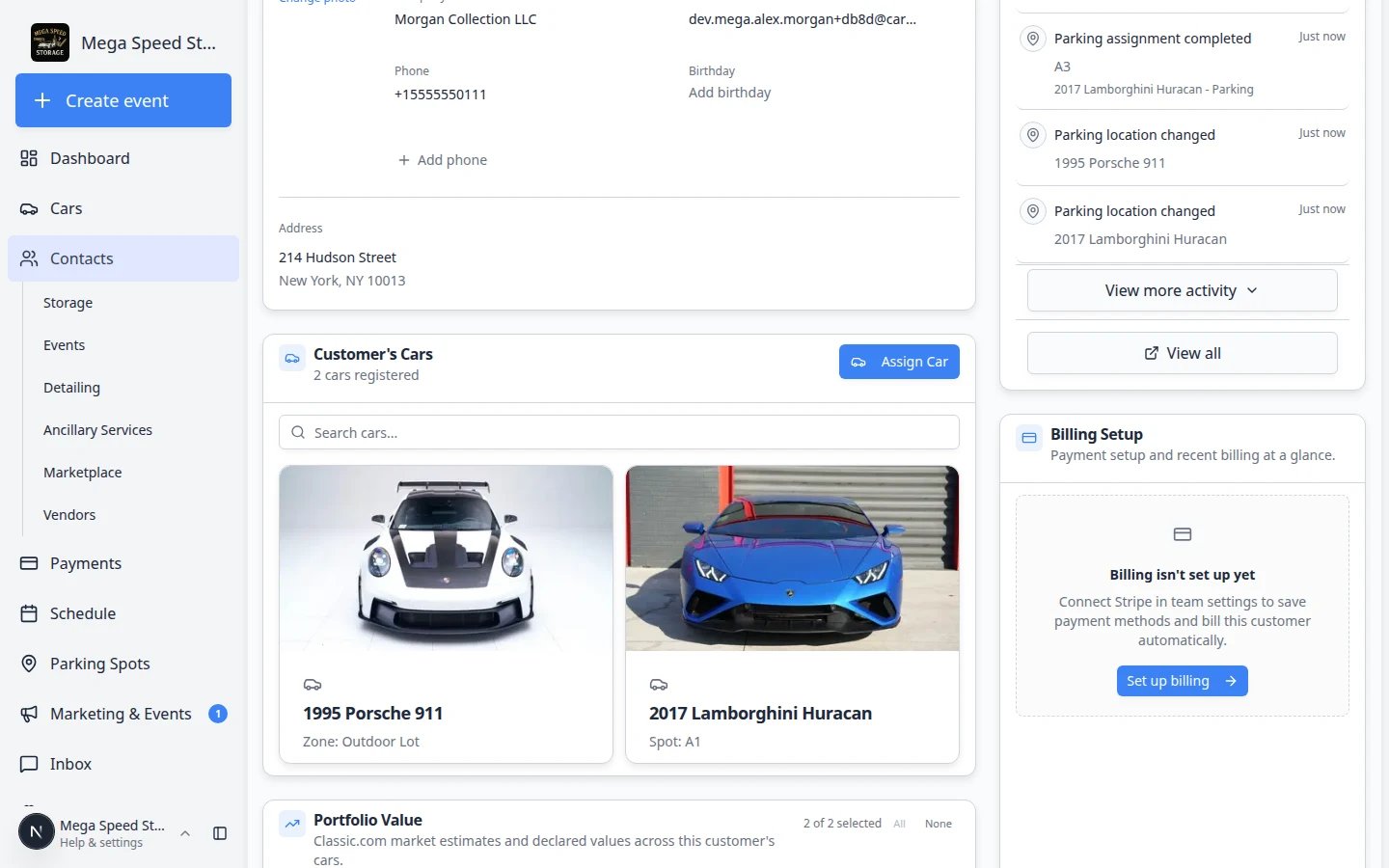 *Turn on the Portal Access column to compare Full storage customers and Ticket-only event guests on the same list.*
Use **Account Status** to see portal **sign-in** progress: **Not signed in yet**, **Email Sent**, or **Signed In**.
**Why this matters:** Access level tells you **what** they can use after sign-in. Account status tells you **whether** they have signed in yet. You need both to answer portal questions on the phone.
*Turn on the Portal Access column to compare Full storage customers and Ticket-only event guests on the same list.*
Use **Account Status** to see portal **sign-in** progress: **Not signed in yet**, **Email Sent**, or **Signed In**.
**Why this matters:** Access level tells you **what** they can use after sign-in. Account status tells you **whether** they have signed in yet. You need both to answer portal questions on the phone.
 *Use Account Status and Portal Access together on the same row to understand each customer's portal situation.*
For a facility-wide view, open the [Customer Report](/docs/contacts/export-and-use-the-customer-report) and enable the **Portal Access** and **Account Status** columns.
## Send Invite and Resend Invite from the list
On [All Contacts](https://www.carstoragesoftware.com/dashboard/contacts/all), **Send Invite** or **Resend Invite** appears on a row when the customer has an **email address** and has **not** completed first sign-in (**Signed In**).
**Expected result:** You can send or resend the magic-link email from the list in one click.
Once **Account Status** shows **Signed In**, the invite button on that row goes away. The customer can request a new sign-in link themselves from your facility login page by entering their email.
**Why this matters:** After first sign-in, resending from the staff list is usually not needed—the customer uses the same email on the public login page.
Walk them through [Guide a customer through the portal](/docs/contacts/guide-a-customer-through-the-portal) or confirm they are using the email on their customer record.
## Additional contacts (spouse, assistant)
People listed under **Contacts** on a customer detail page can have their own portal access.
Find the storage customer on [All Contacts](https://www.carstoragesoftware.com/dashboard/contacts/all) and open their detail page.
In the **Contacts** section, find the spouse, assistant, or other person who needs their own sign-in. Click **Edit** on their row.
**Expected result:** An **Edit Contact** window opens.
Enable **Can access customer portal (login with their email)** and save a valid email address that belongs to that person.
*Use Account Status and Portal Access together on the same row to understand each customer's portal situation.*
For a facility-wide view, open the [Customer Report](/docs/contacts/export-and-use-the-customer-report) and enable the **Portal Access** and **Account Status** columns.
## Send Invite and Resend Invite from the list
On [All Contacts](https://www.carstoragesoftware.com/dashboard/contacts/all), **Send Invite** or **Resend Invite** appears on a row when the customer has an **email address** and has **not** completed first sign-in (**Signed In**).
**Expected result:** You can send or resend the magic-link email from the list in one click.
Once **Account Status** shows **Signed In**, the invite button on that row goes away. The customer can request a new sign-in link themselves from your facility login page by entering their email.
**Why this matters:** After first sign-in, resending from the staff list is usually not needed—the customer uses the same email on the public login page.
Walk them through [Guide a customer through the portal](/docs/contacts/guide-a-customer-through-the-portal) or confirm they are using the email on their customer record.
## Additional contacts (spouse, assistant)
People listed under **Contacts** on a customer detail page can have their own portal access.
Find the storage customer on [All Contacts](https://www.carstoragesoftware.com/dashboard/contacts/all) and open their detail page.
In the **Contacts** section, find the spouse, assistant, or other person who needs their own sign-in. Click **Edit** on their row.
**Expected result:** An **Edit Contact** window opens.
Enable **Can access customer portal (login with their email)** and save a valid email address that belongs to that person.
 *Additional contacts need their own email and the portal access checkbox before they receive a separate invite.*
**Why this matters:** Each person signs in with **their own email** but sees the same cars and billing tied to the main account.
Use **Send Invite** on that contact's row. See [Manage additional contacts](/docs/contacts/manage-additional-contacts) for the full steps.
## What your team cannot do from the customer page
**No “turn off dashboard” switch on the main record**
There is **not** a staff toggle on the primary customer page to revoke **Full** portal access. **Ticket-only** customers are limited by how they entered your system. If someone should not use the portal, work with your manager on the right process (for example mark the customer **Inactive** in CRM Information, or remove portal access on an **additional contact** only).
To pause a relationship while keeping history, use the **Active / Inactive** switch in **CRM Information** on the customer detail page. See [Edit customer details](/docs/contacts/edit-customer-details).
## Phone support: diagnose portal problems in order
When a customer calls about the portal, walk through these steps in order. Stop when you find the answer:
Search [All Contacts](https://www.carstoragesoftware.com/dashboard/contacts/all) by email—the same email they are trying to sign in with.
**If no match:** They may be using a personal email that is not on the record. Update the email or add an [additional contact](/docs/contacts/manage-additional-contacts).
Read the **Portal Access** column.
* **Ticket-only:** Explain they have event or marketplace access today—not the full storage dashboard. Set expectations for what they can see.
* **Full:** Continue to the next step.
* **Not signed in yet** or **Email Sent:** Send or resend the invite from the row, or walk them through your facility login page.
* **Signed In:** They have signed in before—the issue is likely what is linked to their record, not the invite.
Open the customer detail page. Confirm **Cars**, **Documents**, and **Billing** are set up if the customer expects to see them.
**Why this matters:** A **Full** customer with nothing linked may sign in successfully but see empty sections.
## Troubleshooting
**Full customer sees Ticket-only (or the reverse)**
Confirm **Portal Access** on their row. Ticket-only guests may need a full customer record with cars linked before they see storage features. Marketplace or event-only records may stay Ticket-only by design—explain what they can access today and what your team will set up next.
**Signed in but missing cars or billing**
Portal access level is separate from **what you linked** to the record. Link cars and documents first: [Link cars and documents to a customer](/docs/contacts/link-cars-and-documents).
**Customer says the invite email never arrived**
Check **Account Status** for **Email Sent**. Ask them to search spam or promotions folders. Confirm the email on the record matches what they expect. Use **Resend Invite** while the button is still available, or direct them to your facility's public login page to request a new link.
**Spouse cannot sign in to see the cars**
The main customer and spouse are different people in the system. Add the spouse under **Contacts** on the customer record, turn on **Can access customer portal**, and send **their** invite. They sign in with the spouse's email—not the main customer's email.
## What to do next
* First-time portal setup: [Invite a customer to the portal](/docs/contacts/invite-a-customer-to-the-portal)
* Phone support script: [Guide a customer through the portal](/docs/contacts/guide-a-customer-through-the-portal)
* Export portal and sign-in status: [Export and use the customer report](/docs/contacts/export-and-use-the-customer-report)
This documentation is built and hosted on [Mintlify](https://mintlify.com), a developer documentation platform.
*Additional contacts need their own email and the portal access checkbox before they receive a separate invite.*
**Why this matters:** Each person signs in with **their own email** but sees the same cars and billing tied to the main account.
Use **Send Invite** on that contact's row. See [Manage additional contacts](/docs/contacts/manage-additional-contacts) for the full steps.
## What your team cannot do from the customer page
**No “turn off dashboard” switch on the main record**
There is **not** a staff toggle on the primary customer page to revoke **Full** portal access. **Ticket-only** customers are limited by how they entered your system. If someone should not use the portal, work with your manager on the right process (for example mark the customer **Inactive** in CRM Information, or remove portal access on an **additional contact** only).
To pause a relationship while keeping history, use the **Active / Inactive** switch in **CRM Information** on the customer detail page. See [Edit customer details](/docs/contacts/edit-customer-details).
## Phone support: diagnose portal problems in order
When a customer calls about the portal, walk through these steps in order. Stop when you find the answer:
Search [All Contacts](https://www.carstoragesoftware.com/dashboard/contacts/all) by email—the same email they are trying to sign in with.
**If no match:** They may be using a personal email that is not on the record. Update the email or add an [additional contact](/docs/contacts/manage-additional-contacts).
Read the **Portal Access** column.
* **Ticket-only:** Explain they have event or marketplace access today—not the full storage dashboard. Set expectations for what they can see.
* **Full:** Continue to the next step.
* **Not signed in yet** or **Email Sent:** Send or resend the invite from the row, or walk them through your facility login page.
* **Signed In:** They have signed in before—the issue is likely what is linked to their record, not the invite.
Open the customer detail page. Confirm **Cars**, **Documents**, and **Billing** are set up if the customer expects to see them.
**Why this matters:** A **Full** customer with nothing linked may sign in successfully but see empty sections.
## Troubleshooting
**Full customer sees Ticket-only (or the reverse)**
Confirm **Portal Access** on their row. Ticket-only guests may need a full customer record with cars linked before they see storage features. Marketplace or event-only records may stay Ticket-only by design—explain what they can access today and what your team will set up next.
**Signed in but missing cars or billing**
Portal access level is separate from **what you linked** to the record. Link cars and documents first: [Link cars and documents to a customer](/docs/contacts/link-cars-and-documents).
**Customer says the invite email never arrived**
Check **Account Status** for **Email Sent**. Ask them to search spam or promotions folders. Confirm the email on the record matches what they expect. Use **Resend Invite** while the button is still available, or direct them to your facility's public login page to request a new link.
**Spouse cannot sign in to see the cars**
The main customer and spouse are different people in the system. Add the spouse under **Contacts** on the customer record, turn on **Can access customer portal**, and send **their** invite. They sign in with the spouse's email—not the main customer's email.
## What to do next
* First-time portal setup: [Invite a customer to the portal](/docs/contacts/invite-a-customer-to-the-portal)
* Phone support script: [Guide a customer through the portal](/docs/contacts/guide-a-customer-through-the-portal)
* Export portal and sign-in status: [Export and use the customer report](/docs/contacts/export-and-use-the-customer-report)
This documentation is built and hosted on [Mintlify](https://mintlify.com), a developer documentation platform.