> ## Documentation Index
> Fetch the complete documentation index at: https://www.carstoragesoftware.com/docs/llms.txt
> Use this file to discover all available pages before exploring further.
# Work with customer type lists
> Use Storage, Detailing, Events, and other Contacts pages to focus on the right group of customers.
## What you will accomplish
You will open the right **customer type page** in Contacts—such as **Storage**, **Detailing**, or **Marketplace**—so your list shows only the customers your team works with today. You will also know how to fix a missing customer when they do not appear on a type page.
Customer type pages are **shortcuts**. They do not create separate accounts. Each customer still has one main record on [All Contacts](https://www.carstoragesoftware.com/dashboard/contacts/all).
## When to use a type page
* Your role focuses on one service line (for example storage coordinators use **Storage** every morning).
* You want a shorter list without scrolling past marketplace buyers or event-only contacts.
* You are following up with everyone in one group after a campaign or event.
Use [All Contacts](https://www.carstoragesoftware.com/dashboard/contacts/all) instead when you are not sure which group someone belongs to, or when you need to search **everyone** at once.
## Before you start
* You can open **Contacts** from the left sidebar.
* Your facility has already set up customer groups in [Configure CRM settings](/docs/settings/configure-crm-settings) (an admin task).
## Open a customer type page
In the left sidebar, click **Contacts**.
**Expected result:** The Contacts area opens. On desktop, you may see sub-links such as **All Contacts**, **Storage**, and **Vendors**.
If you only see one Contacts link, click the small arrow beside **Contacts** to expand the list.
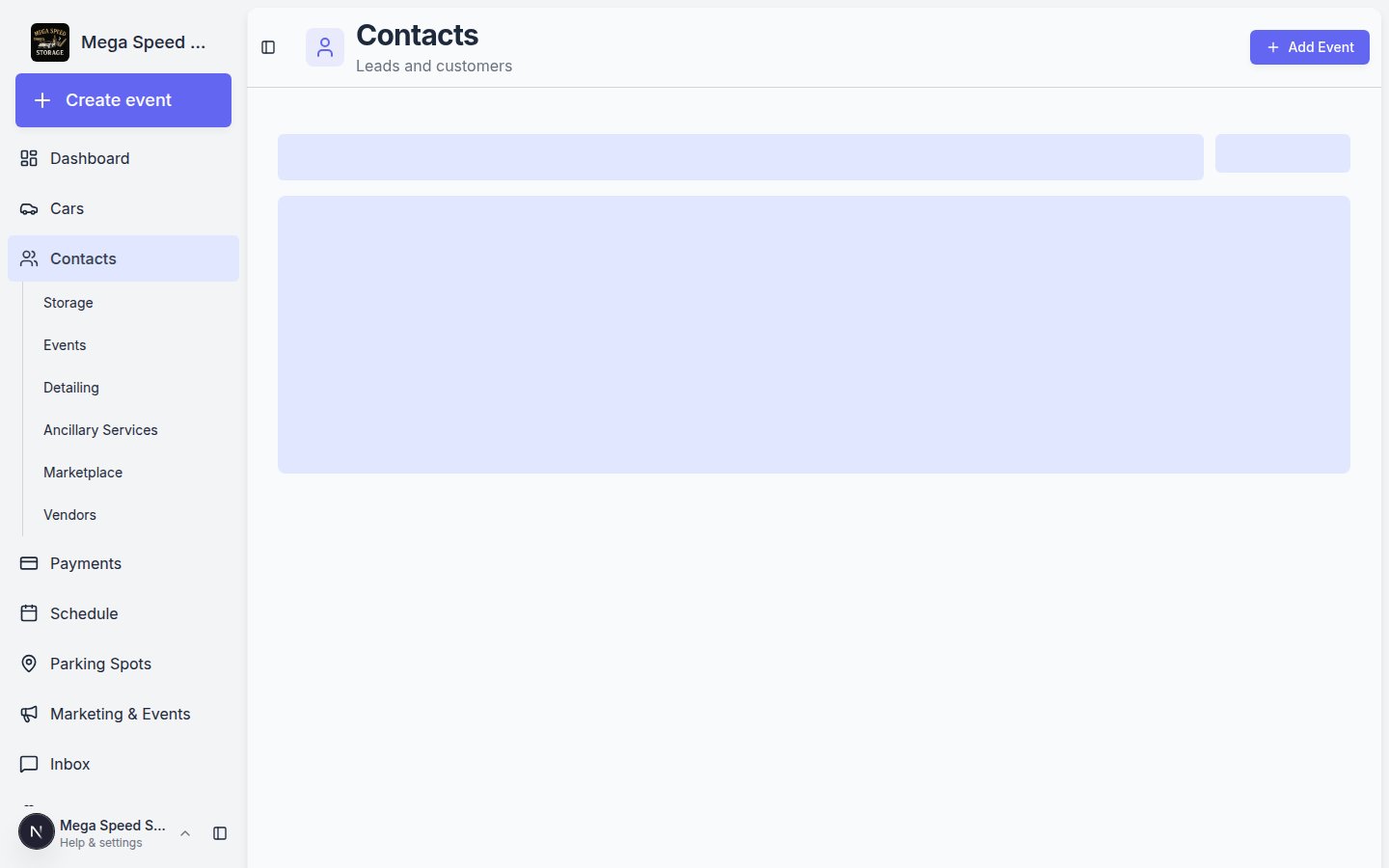 *Each link under Contacts opens customers who belong to that customer group.*
Choose the page that fits your task—for example **Storage** for vehicle storage customers.
You can also open links directly:
* [All Contacts](https://www.carstoragesoftware.com/dashboard/contacts/all)
* [Storage](https://www.carstoragesoftware.com/dashboard/contacts/storage)
* [Events](https://www.carstoragesoftware.com/dashboard/contacts/events)
* [Detailing](https://www.carstoragesoftware.com/dashboard/contacts/detailing)
* [Ancillary Services](https://www.carstoragesoftware.com/dashboard/contacts/ancillary_services)
* [Marketplace](https://www.carstoragesoftware.com/dashboard/contacts/marketplace)
* [Vendors](https://www.carstoragesoftware.com/dashboard/contacts/vendors) (outside providers—not customers)
**Expected result:** The page title at the top matches the type you chose (for example **Storage**).
*Each link under Contacts opens customers who belong to that customer group.*
Choose the page that fits your task—for example **Storage** for vehicle storage customers.
You can also open links directly:
* [All Contacts](https://www.carstoragesoftware.com/dashboard/contacts/all)
* [Storage](https://www.carstoragesoftware.com/dashboard/contacts/storage)
* [Events](https://www.carstoragesoftware.com/dashboard/contacts/events)
* [Detailing](https://www.carstoragesoftware.com/dashboard/contacts/detailing)
* [Ancillary Services](https://www.carstoragesoftware.com/dashboard/contacts/ancillary_services)
* [Marketplace](https://www.carstoragesoftware.com/dashboard/contacts/marketplace)
* [Vendors](https://www.carstoragesoftware.com/dashboard/contacts/vendors) (outside providers—not customers)
**Expected result:** The page title at the top matches the type you chose (for example **Storage**).
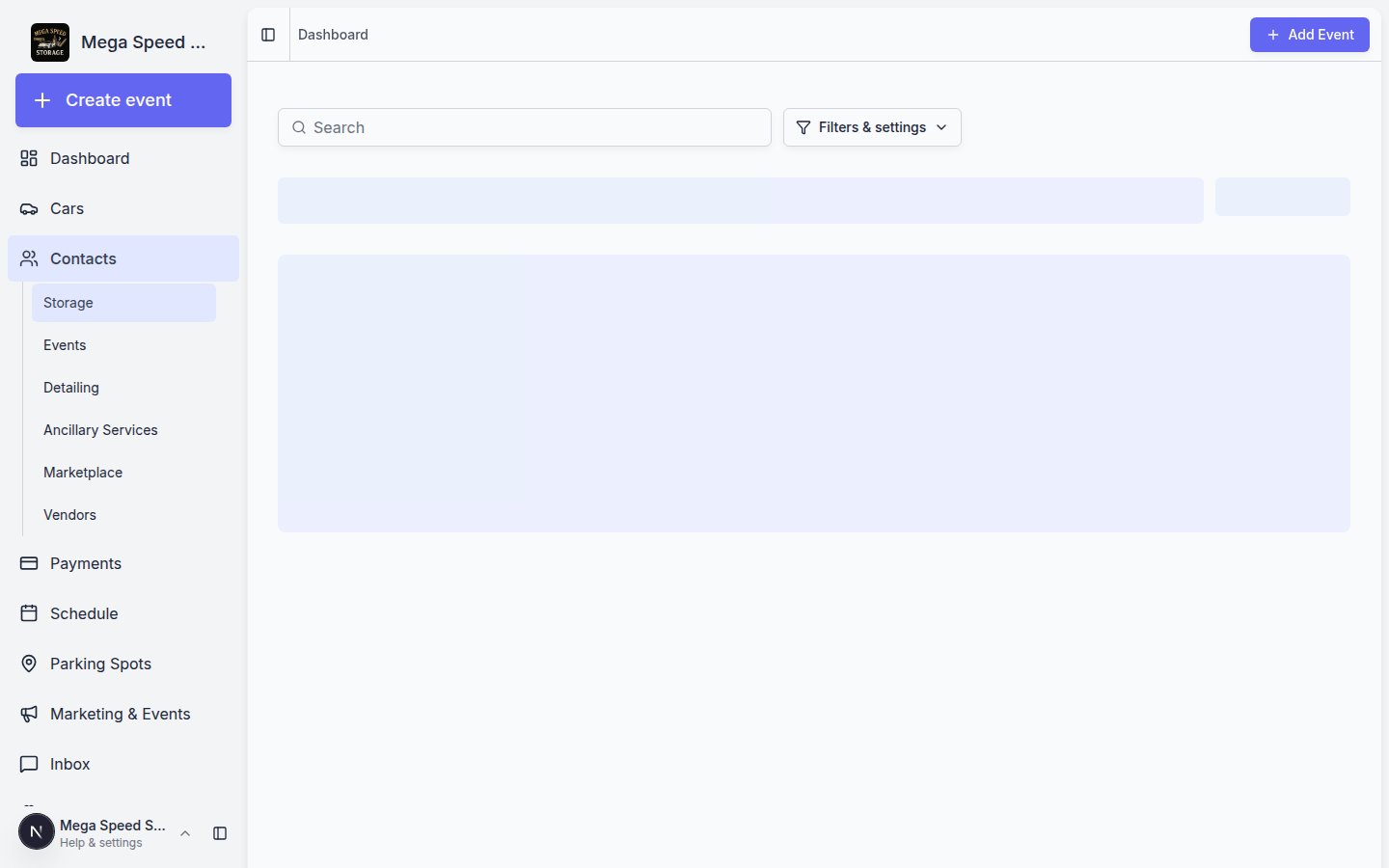 *A type page shows only customers tagged with that customer group on their record.*
## Read the page header and count
Each customer-type page shows a title and a total count near the top—for example **Storage Contacts** with **6 total**.
* The title tells you which group you are viewing.
* The **total** count helps you spot when a list looks too short (for example zero storage customers right after onboarding).
* The subtitle under the title explains what belongs on that page (for example "Vehicle storage and membership").
**Why this matters:** If you expect dozens of storage customers but the count says **0 total**, the customers probably need a **Storage** tag on their record—not a new import.
## What changes on a type page
| Tool | Same as All Contacts? | Notes |
| - | - | - |
| **Search** | Yes | Searches within this type only |
| **Filters & settings** | Yes | Table, Card, and Board views work the same |
| **Create New Customer** | Yes | Remember to add the right **Customer Groups** on the new record |
| **Report** | Yes | Opens the full [Customer Report](https://www.carstoragesoftware.com/dashboard/contacts/report) |
| **Who appears in the list** | No | Only customers with this type on their record |
**Why this matters:** A customer can belong to **more than one** group. Someone might appear on both **Storage** and **Detailing** if your team tagged them that way.
## Everyday examples by type page
| Page | When your team opens it | Example |
| - | - | - |
| **Storage** | Morning roll call of cars in the building | "Who are our active storage members?" |
| **Detailing** | Booking detail appointments this week | "Which detail clients need a follow-up text?" |
| **Events** | After a Cars & Coffee or track day | "Who RSVPed but is not a storage member yet?" |
| **Marketplace** | Sales and sourcing follow-up | "Who expressed interest in a listed car?" |
| **Ancillary Services** | Transport, mechanical, or concierge work | "Who booked enclosed transport last month?" |
| **Vendors** | Paying outside partners | See [Work with vendor contacts](/docs/contacts/work-with-vendor-contacts) |
## Add or change a customer's type
If a customer is missing from a type page, their record probably needs the right **Customer Groups** tag.
Go to [All Contacts](https://www.carstoragesoftware.com/dashboard/contacts/all) and open the customer record.
**Why this matters:** You can edit groups from any page, but **All Contacts** is the safest place to start when you are not sure where someone belongs.
Find **CRM Information** on the customer detail page.
Under **Customer Groups**, add or remove types (for example **Storage**, **Detailing**).
*A type page shows only customers tagged with that customer group on their record.*
## Read the page header and count
Each customer-type page shows a title and a total count near the top—for example **Storage Contacts** with **6 total**.
* The title tells you which group you are viewing.
* The **total** count helps you spot when a list looks too short (for example zero storage customers right after onboarding).
* The subtitle under the title explains what belongs on that page (for example "Vehicle storage and membership").
**Why this matters:** If you expect dozens of storage customers but the count says **0 total**, the customers probably need a **Storage** tag on their record—not a new import.
## What changes on a type page
| Tool | Same as All Contacts? | Notes |
| - | - | - |
| **Search** | Yes | Searches within this type only |
| **Filters & settings** | Yes | Table, Card, and Board views work the same |
| **Create New Customer** | Yes | Remember to add the right **Customer Groups** on the new record |
| **Report** | Yes | Opens the full [Customer Report](https://www.carstoragesoftware.com/dashboard/contacts/report) |
| **Who appears in the list** | No | Only customers with this type on their record |
**Why this matters:** A customer can belong to **more than one** group. Someone might appear on both **Storage** and **Detailing** if your team tagged them that way.
## Everyday examples by type page
| Page | When your team opens it | Example |
| - | - | - |
| **Storage** | Morning roll call of cars in the building | "Who are our active storage members?" |
| **Detailing** | Booking detail appointments this week | "Which detail clients need a follow-up text?" |
| **Events** | After a Cars & Coffee or track day | "Who RSVPed but is not a storage member yet?" |
| **Marketplace** | Sales and sourcing follow-up | "Who expressed interest in a listed car?" |
| **Ancillary Services** | Transport, mechanical, or concierge work | "Who booked enclosed transport last month?" |
| **Vendors** | Paying outside partners | See [Work with vendor contacts](/docs/contacts/work-with-vendor-contacts) |
## Add or change a customer's type
If a customer is missing from a type page, their record probably needs the right **Customer Groups** tag.
Go to [All Contacts](https://www.carstoragesoftware.com/dashboard/contacts/all) and open the customer record.
**Why this matters:** You can edit groups from any page, but **All Contacts** is the safest place to start when you are not sure where someone belongs.
Find **CRM Information** on the customer detail page.
Under **Customer Groups**, add or remove types (for example **Storage**, **Detailing**).
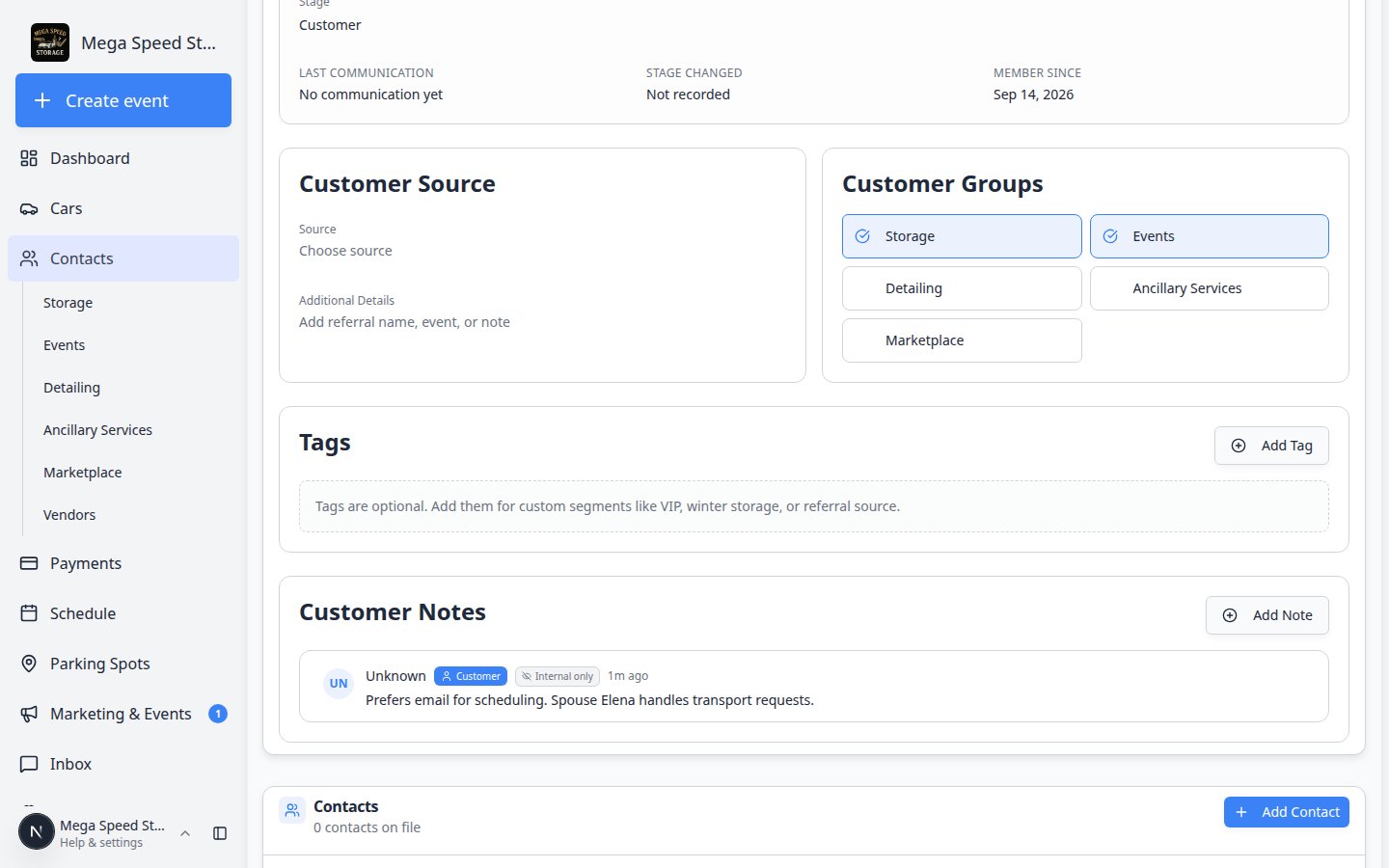 *Customer Groups control which type pages show this customer. Add every group that applies—someone can appear on both Storage and Detailing.*
**Expected result:** After you save, the customer appears on each matching type page. Refresh the **Storage** (or other) list to confirm.
See [Manage contact tags and CRM fields](/docs/contacts/manage-contact-tags) for more on stages, sources, and tags.
## Vendors are different
**Vendors** appears under Contacts in the sidebar, but vendors are **outside companies your facility pays**—not storage customers.
Use [Work with vendor contacts](/docs/contacts/work-with-vendor-contacts) for detailers, transport companies, and similar partners. Use customer type pages for people who **store cars or buy services from you**.
## Troubleshooting
**Customer missing from Storage (or another type)**
Open their record on [All Contacts](https://www.carstoragesoftware.com/dashboard/contacts/all). Under **CRM Information** → **Customer Groups**, add the missing type. If they should not be in that group, search on **All Contacts** instead of the type page.
**List looks empty**
Confirm **Filters & settings** → **Status** is not hiding customers (for example **Inactive** only). New facilities may have few customers until you [add](/docs/contacts/add-a-customer) or [import](/docs/contacts/import-customers-and-cars) records.
**I need everyone, not one type**
Always use [All Contacts](https://www.carstoragesoftware.com/dashboard/contacts/all) or [Find and filter contacts](/docs/contacts/find-and-filter-contacts) for phone lookups and duplicate checks.
## What to do next
* Learn search and Board view: [Find and filter contacts](/docs/contacts/find-and-filter-contacts)
* Add a new customer with the right groups: [Add a customer](/docs/contacts/add-a-customer)
* Manage outside providers: [Work with vendor contacts](/docs/contacts/work-with-vendor-contacts)
This documentation is built and hosted on [Mintlify](https://mintlify.com), a developer documentation platform.
*Customer Groups control which type pages show this customer. Add every group that applies—someone can appear on both Storage and Detailing.*
**Expected result:** After you save, the customer appears on each matching type page. Refresh the **Storage** (or other) list to confirm.
See [Manage contact tags and CRM fields](/docs/contacts/manage-contact-tags) for more on stages, sources, and tags.
## Vendors are different
**Vendors** appears under Contacts in the sidebar, but vendors are **outside companies your facility pays**—not storage customers.
Use [Work with vendor contacts](/docs/contacts/work-with-vendor-contacts) for detailers, transport companies, and similar partners. Use customer type pages for people who **store cars or buy services from you**.
## Troubleshooting
**Customer missing from Storage (or another type)**
Open their record on [All Contacts](https://www.carstoragesoftware.com/dashboard/contacts/all). Under **CRM Information** → **Customer Groups**, add the missing type. If they should not be in that group, search on **All Contacts** instead of the type page.
**List looks empty**
Confirm **Filters & settings** → **Status** is not hiding customers (for example **Inactive** only). New facilities may have few customers until you [add](/docs/contacts/add-a-customer) or [import](/docs/contacts/import-customers-and-cars) records.
**I need everyone, not one type**
Always use [All Contacts](https://www.carstoragesoftware.com/dashboard/contacts/all) or [Find and filter contacts](/docs/contacts/find-and-filter-contacts) for phone lookups and duplicate checks.
## What to do next
* Learn search and Board view: [Find and filter contacts](/docs/contacts/find-and-filter-contacts)
* Add a new customer with the right groups: [Add a customer](/docs/contacts/add-a-customer)
* Manage outside providers: [Work with vendor contacts](/docs/contacts/work-with-vendor-contacts)
This documentation is built and hosted on [Mintlify](https://mintlify.com), a developer documentation platform.