> ## Documentation Index
> Fetch the complete documentation index at: https://www.carstoragesoftware.com/docs/llms.txt
> Use this file to discover all available pages before exploring further.
# Work with vendor contacts
> Add and manage outside companies you pay—detailers, transporters, mechanics, and contractors—from Contacts > Vendors.
Use this guide when your facility works with **outside companies** you pay for services—detail shops, enclosed transport, mechanics, photographers, and similar partners.
Vendor records live under **[Contacts > Vendors](https://www.carstoragesoftware.com/dashboard/contacts/vendors)** in the sidebar. They are separate from **customer** records—the people who store cars with you.
## What you will accomplish
* Open the **Vendors** list from the Contacts area.
* Add a new vendor with company name, contact person, email, and phone.
* Search and filter the vendor list when you need to find a partner quickly.
* Know where vendor **invoices** are reviewed after a vendor sends your facility a bill.
## Vendors vs customers
| | **Customers** | **Vendors** |
| - | - | - |
| **Who they are** | People or companies who store cars **with you** | Outside companies **you pay** for work |
| **Where they live** | [All Contacts](https://www.carstoragesoftware.com/dashboard/contacts/all) and customer-type pages | [Contacts > Vendors](https://www.carstoragesoftware.com/dashboard/contacts/vendors) |
| **Money direction** | Customers pay **your facility** | Your facility pays **vendors** |
| **Example** | Alex Morgan stores a Huracan | Elite Auto Detailing details a vehicle for you |
**Vendor bills are reviewed in Payments**
This guide covers **vendor contact records**. When a vendor emails or uploads a bill, review it on [Payments > Invoices](https://www.carstoragesoftware.com/dashboard/payments/invoices) under the **Vendor** tab. See [Review and pay vendor invoices](/docs/payments/review-and-pay-vendor-invoices).
## Before you start
* Know the vendor **company name** and a contact person's **first name**, **last name**, and **email**.
* Have a business phone number when your team will call or text the vendor.
* Decide the vendor **type** (for example detailing or transport) if your facility uses vendor types in [Settings > CRM](https://www.carstoragesoftware.com/dashboard/settings/crm).
## Open the Vendors page
Click **Contacts** in the left sidebar to expand the list.
Click **Vendors**, or go directly to [Contacts > Vendors](https://www.carstoragesoftware.com/dashboard/contacts/vendors).
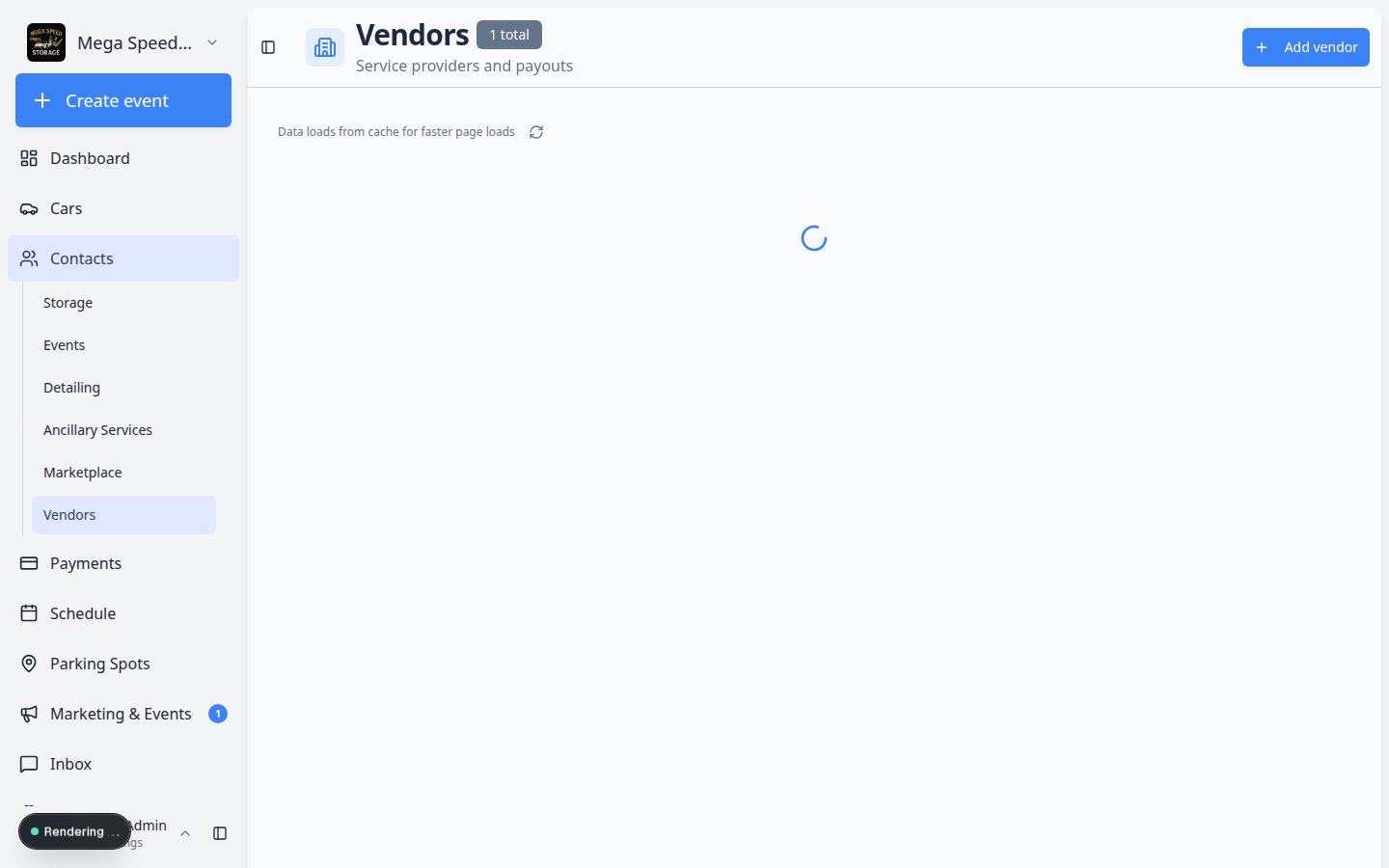
**Expected result:** The page title says **Vendors** and you see a table of outside companies—or an empty list if you are just getting started.
 *The Vendors page lists every outside company your team pays. Use **Search** when the list grows long.*
## Add a vendor
In the top-right area of the **Vendors** page, click **Add vendor**.
Type the business name customers and staff will recognize.
Example: **Elite Auto Detailing** or **Prestige Transport Co**.
**Why this matters:** A clear company name prevents duplicate vendor records when two people add the same shop.
Fill in **First name**, **Last name**, **Email**, and **Phone** for the person you work with at that company.
**Expected result:** Your team can email or call the right person when work is due.
Select one or more types such as **Detailing** or **Transport** when your facility uses vendor categories.
**Why this matters:** Types help you filter the list later when you only need transport partners.
Use **Notes** for helpful context—"Primary detail partner for exotics" or "Enclosed transport only".
Keep notes short and useful for the whole team.
Click **Create vendor** (or **Save**) at the bottom of the window.
**Expected result:** The vendor appears in the table. You can open the row later to send a portal invite or update details.
*The Vendors page lists every outside company your team pays. Use **Search** when the list grows long.*
## Add a vendor
In the top-right area of the **Vendors** page, click **Add vendor**.
Type the business name customers and staff will recognize.
Example: **Elite Auto Detailing** or **Prestige Transport Co**.
**Why this matters:** A clear company name prevents duplicate vendor records when two people add the same shop.
Fill in **First name**, **Last name**, **Email**, and **Phone** for the person you work with at that company.
**Expected result:** Your team can email or call the right person when work is due.
Select one or more types such as **Detailing** or **Transport** when your facility uses vendor categories.
**Why this matters:** Types help you filter the list later when you only need transport partners.
Use **Notes** for helpful context—"Primary detail partner for exotics" or "Enclosed transport only".
Keep notes short and useful for the whole team.
Click **Create vendor** (or **Save**) at the bottom of the window.
**Expected result:** The vendor appears in the table. You can open the row later to send a portal invite or update details.
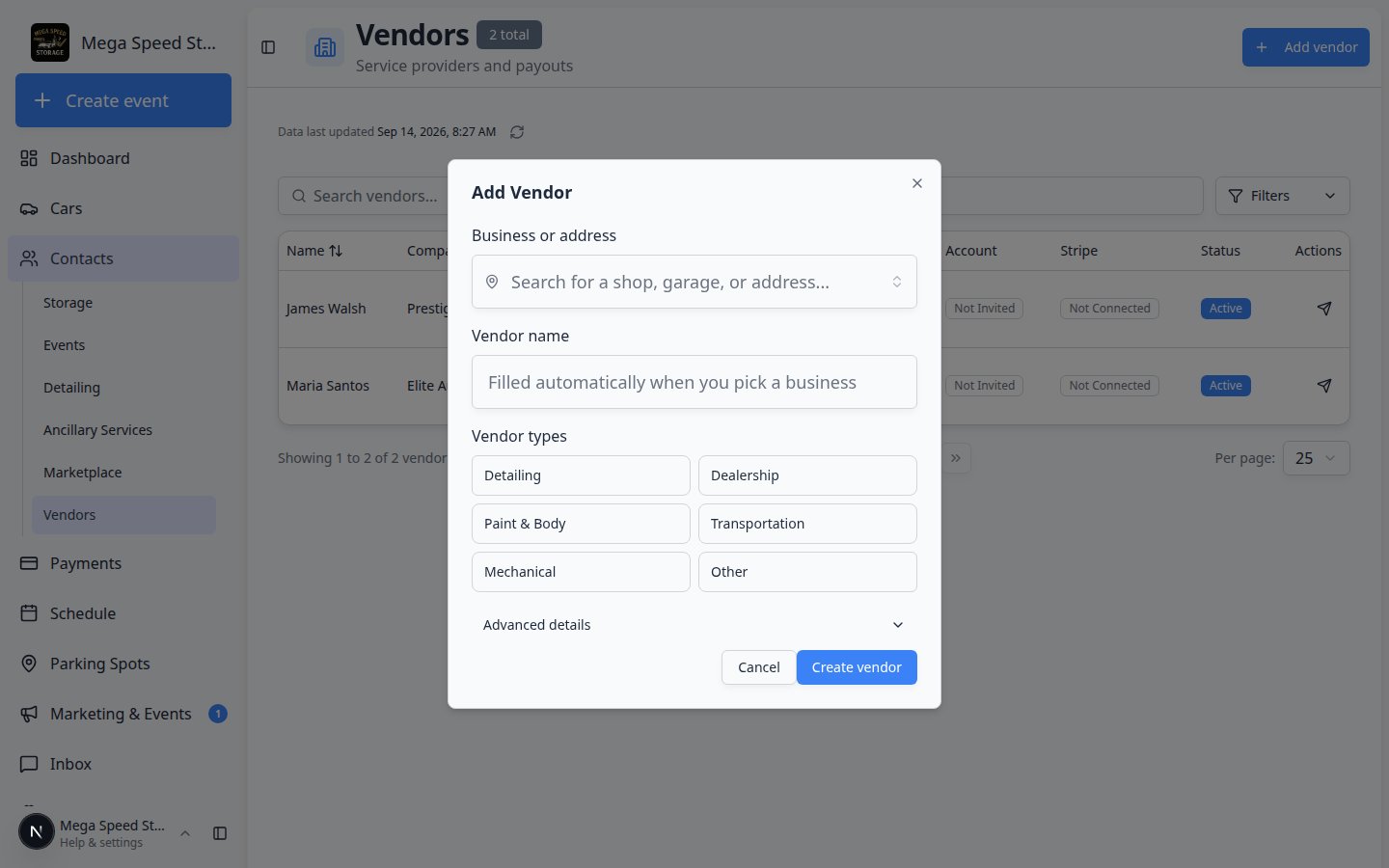 *Search the vendor list before you add a new record—duplicate vendors make invoice tracking harder.*
## Find a vendor in the list
Type part of the company name, contact name, email, or phone in the **Search vendors…** box at the top of the page.
**Expected result:** The table shows only matching rows. This is the fastest way to find **Elite Auto Detailing** or **Prestige Transport** when your list grows.
Confirm the company name and contact email match who you expect before you open the record.
*Search the vendor list before you add a new record—duplicate vendors make invoice tracking harder.*
## Find a vendor in the list
Type part of the company name, contact name, email, or phone in the **Search vendors…** box at the top of the page.
**Expected result:** The table shows only matching rows. This is the fastest way to find **Elite Auto Detailing** or **Prestige Transport** when your list grows.
Confirm the company name and contact email match who you expect before you open the record.
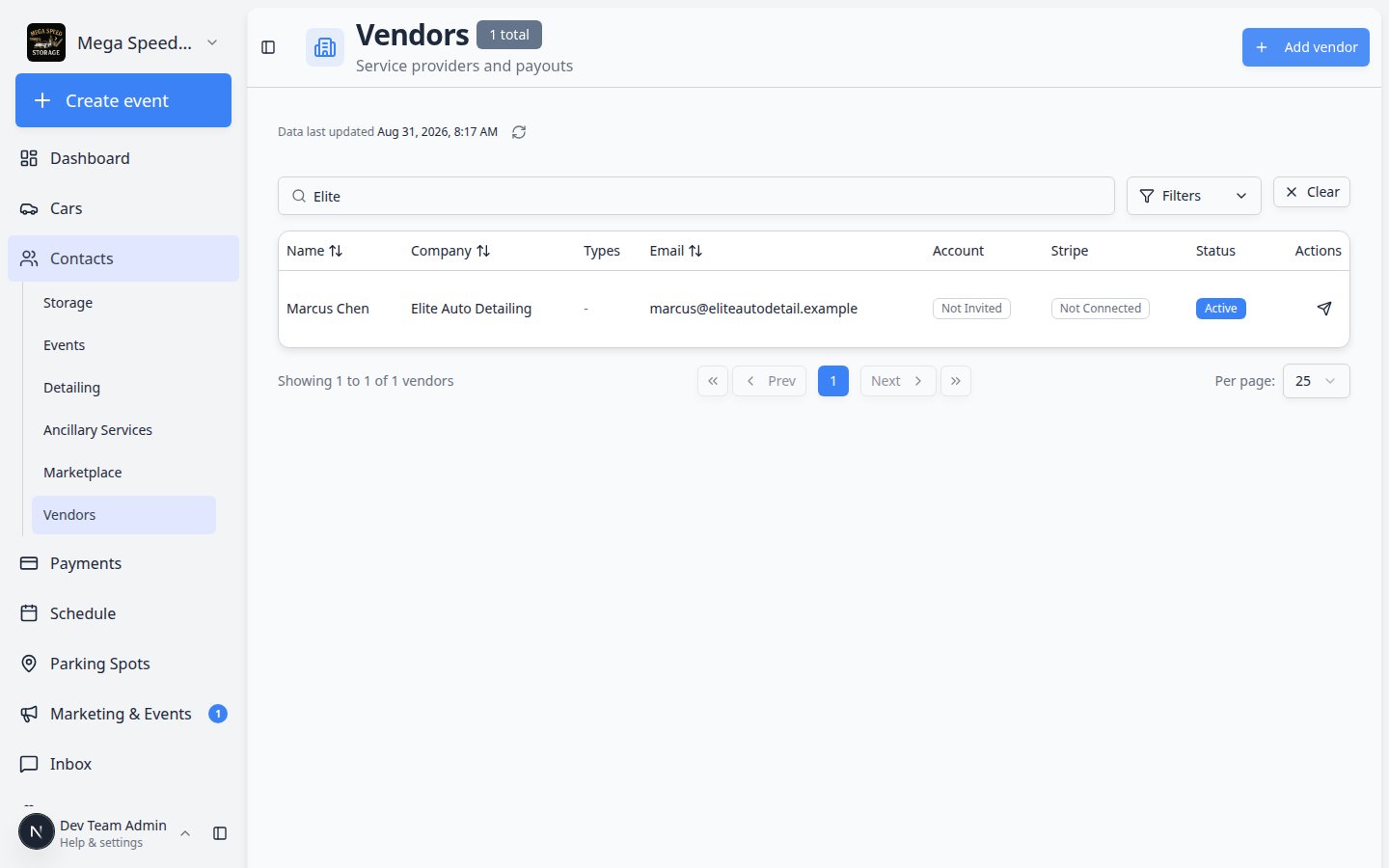 *Search before you add a new vendor—duplicate records make invoice tracking harder later.*
**Expected result:** Only vendors matching your search text remain in the table.
Open **Filters & settings** when you need **Active** vendors only or a specific **Type** (for example **Detailing** or **Transport**).
*Search before you add a new vendor—duplicate records make invoice tracking harder later.*
**Expected result:** Only vendors matching your search text remain in the table.
Open **Filters & settings** when you need **Active** vendors only or a specific **Type** (for example **Detailing** or **Transport**).
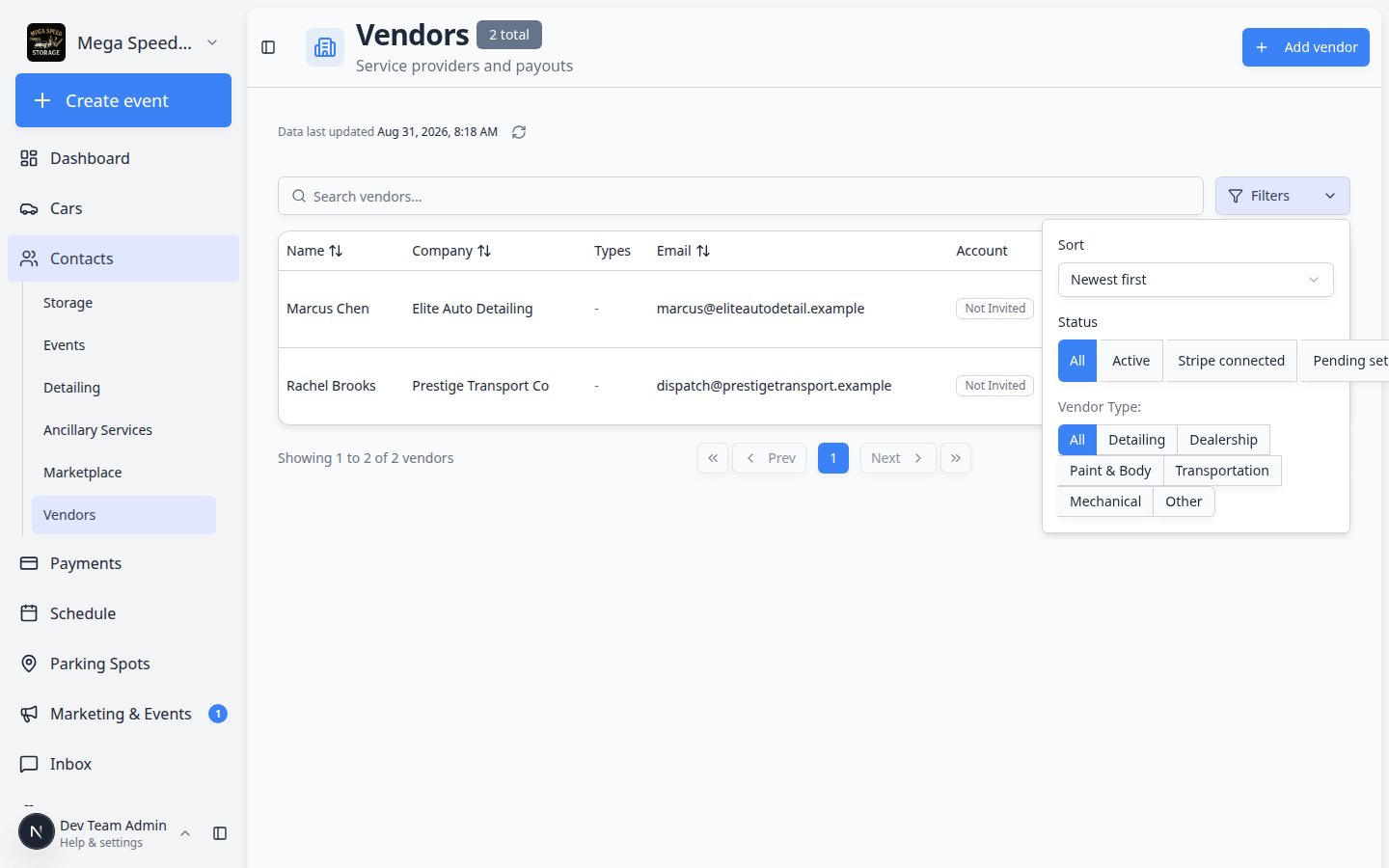 *Use filters when your vendor list is long. Showing only **Detailing** partners is helpful on a busy Saturday.*
**Why this matters:** Long vendor lists are easier to scan when you hide inactive partners or show only transport companies for a pickup day.
Click a row to open the vendor detail page.
**Expected result:** You see full contact information, notes, and actions such as **Send invite** when your facility uses the vendor portal.
*Use filters when your vendor list is long. Showing only **Detailing** partners is helpful on a busy Saturday.*
**Why this matters:** Long vendor lists are easier to scan when you hide inactive partners or show only transport companies for a pickup day.
Click a row to open the vendor detail page.
**Expected result:** You see full contact information, notes, and actions such as **Send invite** when your facility uses the vendor portal.
 *The vendor detail page is where you confirm contact details, read internal notes, and send a portal invite when needed.*
## Understand vendor list columns
Your facility may show slightly different columns, but most teams see:
| Column | What it tells you |
| - | - |
| **Company** | The business name on invoices and work orders |
| **Contact** | The person your team calls or emails |
| **Email / Phone** | How to reach them for scheduling or payment questions |
| **Type** | Categories such as **Detailing** or **Transport** (set when the vendor was created) |
| **Status** | Whether the vendor is **Active** and ready for new work |
**Vendors are not in customer-type pages**
**Storage**, **Detailing**, and other customer-type links under **Contacts** show people who **pay your facility**. **Vendors** is a separate page for companies **you pay**.
## Send a vendor portal invite (optional)
Some facilities let vendors upload invoices through a **vendor portal** instead of emailing PDFs.
Click the vendor in the table.
When available, click **Send invite** so the vendor receives an email with sign-in instructions.
**Expected result:** The vendor can submit invoices through your public vendor link. See [Set up the vendor invoice portal](/docs/facility-web-pages/set-up-vendor-invoice-portal).
## What success looks like
* Every outside partner your team pays regularly has one vendor record—not several duplicates.
* Front-desk staff can find the right detailer or transporter from **Vendors** without asking a manager.
* Vendor bills are tied to the correct company when reviewed on [Payments > Invoices](https://www.carstoragesoftware.com/dashboard/payments/invoices).
## Troubleshooting
**I cannot find Add vendor**
Your account may need permission to manage vendors. Ask a facility owner to review your role in [Settings > Team](https://www.carstoragesoftware.com/dashboard/settings/team).
**The same vendor appears twice**
Search before adding a new record. Pick one record to keep, move any invoice history if needed, and deactivate the duplicate. See [Manage vendors](/docs/payments/manage-vendors) for payment-focused vendor help.
**I added a customer by mistake**
Customers belong on [All Contacts](https://www.carstoragesoftware.com/dashboard/contacts/all), not **Vendors**. Create a customer record separately if the person stores cars with your facility.
## What to do next
* [Review and pay vendor invoices](/docs/payments/review-and-pay-vendor-invoices) — process bills vendors send your facility.
* [Set up the vendor invoice portal](/docs/facility-web-pages/set-up-vendor-invoice-portal) — give vendors a link to upload invoices.
* [Manage vendors](/docs/payments/manage-vendors) — payment setup, Stripe status, and vendor billing details.
This documentation is built and hosted on [Mintlify](https://mintlify.com), a developer documentation platform.
*The vendor detail page is where you confirm contact details, read internal notes, and send a portal invite when needed.*
## Understand vendor list columns
Your facility may show slightly different columns, but most teams see:
| Column | What it tells you |
| - | - |
| **Company** | The business name on invoices and work orders |
| **Contact** | The person your team calls or emails |
| **Email / Phone** | How to reach them for scheduling or payment questions |
| **Type** | Categories such as **Detailing** or **Transport** (set when the vendor was created) |
| **Status** | Whether the vendor is **Active** and ready for new work |
**Vendors are not in customer-type pages**
**Storage**, **Detailing**, and other customer-type links under **Contacts** show people who **pay your facility**. **Vendors** is a separate page for companies **you pay**.
## Send a vendor portal invite (optional)
Some facilities let vendors upload invoices through a **vendor portal** instead of emailing PDFs.
Click the vendor in the table.
When available, click **Send invite** so the vendor receives an email with sign-in instructions.
**Expected result:** The vendor can submit invoices through your public vendor link. See [Set up the vendor invoice portal](/docs/facility-web-pages/set-up-vendor-invoice-portal).
## What success looks like
* Every outside partner your team pays regularly has one vendor record—not several duplicates.
* Front-desk staff can find the right detailer or transporter from **Vendors** without asking a manager.
* Vendor bills are tied to the correct company when reviewed on [Payments > Invoices](https://www.carstoragesoftware.com/dashboard/payments/invoices).
## Troubleshooting
**I cannot find Add vendor**
Your account may need permission to manage vendors. Ask a facility owner to review your role in [Settings > Team](https://www.carstoragesoftware.com/dashboard/settings/team).
**The same vendor appears twice**
Search before adding a new record. Pick one record to keep, move any invoice history if needed, and deactivate the duplicate. See [Manage vendors](/docs/payments/manage-vendors) for payment-focused vendor help.
**I added a customer by mistake**
Customers belong on [All Contacts](https://www.carstoragesoftware.com/dashboard/contacts/all), not **Vendors**. Create a customer record separately if the person stores cars with your facility.
## What to do next
* [Review and pay vendor invoices](/docs/payments/review-and-pay-vendor-invoices) — process bills vendors send your facility.
* [Set up the vendor invoice portal](/docs/facility-web-pages/set-up-vendor-invoice-portal) — give vendors a link to upload invoices.
* [Manage vendors](/docs/payments/manage-vendors) — payment setup, Stripe status, and vendor billing details.
This documentation is built and hosted on [Mintlify](https://mintlify.com), a developer documentation platform.