> ## Documentation Index
> Fetch the complete documentation index at: https://www.carstoragesoftware.com/docs/llms.txt
> Use this file to discover all available pages before exploring further.
# Amend a signed contract
> Update allowed fields on a completed agreement, keep version history, and download the latest signed PDF.
## What you will accomplish
When a **signed** agreement needs a small correction—such as an updated monthly rate, corrected vehicle detail, or amended clause your template allows—you can **amend** the contract instead of sending a brand-new agreement from scratch.
The app keeps **version history** so your team can see what changed and download the latest signed PDF.
## When to use amendments
* The contract status is **Signed** or **Completed**.
* Your template marks certain sections as **amendable** (set up in the template editor).
* The change is allowed by your facility policy—not a completely different agreement.
**When to send a new contract instead**
For a wrong vehicle, wrong customer, or a brand-new agreement type, cancel or void the old request (if still unsigned) or send a **new** contract. Amendments are for controlled updates on templates designed for them—not for replacing the entire legal document.
## Before you start
* You can open the customer's record in [Contacts](https://www.carstoragesoftware.com/dashboard/contacts).
* You know which fields may change (your manager or template settings define this).
* You have permission to edit customer agreements.
## Step 1: Open the signed contract
Go to [Contacts](https://www.carstoragesoftware.com/dashboard/contacts) and open the correct customer.
Scroll to **Documents & Contracts**. Click the **Completed** (or **Signed**) contract card.
**Expected result:** The contract page opens with the PDF preview, status, and tools on the side—not a small pop-up window.
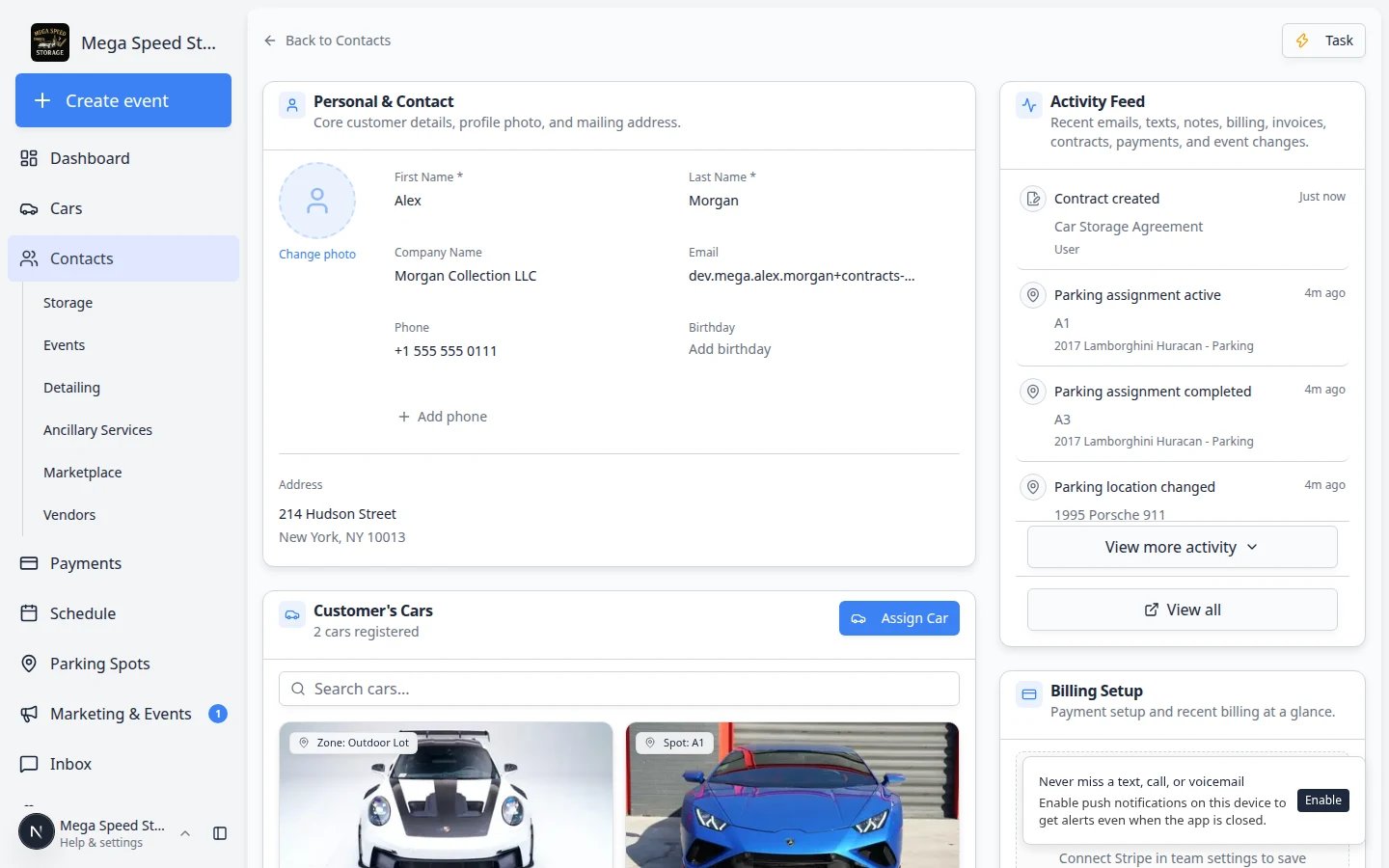 *Start from the customer record. Click a **Completed** contract card to open the manage page where amendments and version history live.*
## Step 2: Open amend tools
On a completed contract, the manage page shows the PDF preview and a side panel with tools for allowed changes.
In the right panel (or below the PDF on a phone), find sections such as **Manage contract**, **Amend fields**, **Vehicles**, or **Contacts**.
If you do not see amend tools, this template may not allow changes after signing.
The app lists fields or sections your template allows you to update—fees, dates, vehicle schedule rows, or other amendable areas.
Click the item you need to edit, or click directly on an amendable field in the PDF preview when highlighted.
*Start from the customer record. Click a **Completed** contract card to open the manage page where amendments and version history live.*
## Step 2: Open amend tools
On a completed contract, the manage page shows the PDF preview and a side panel with tools for allowed changes.
In the right panel (or below the PDF on a phone), find sections such as **Manage contract**, **Amend fields**, **Vehicles**, or **Contacts**.
If you do not see amend tools, this template may not allow changes after signing.
The app lists fields or sections your template allows you to update—fees, dates, vehicle schedule rows, or other amendable areas.
Click the item you need to edit, or click directly on an amendable field in the PDF preview when highlighted.
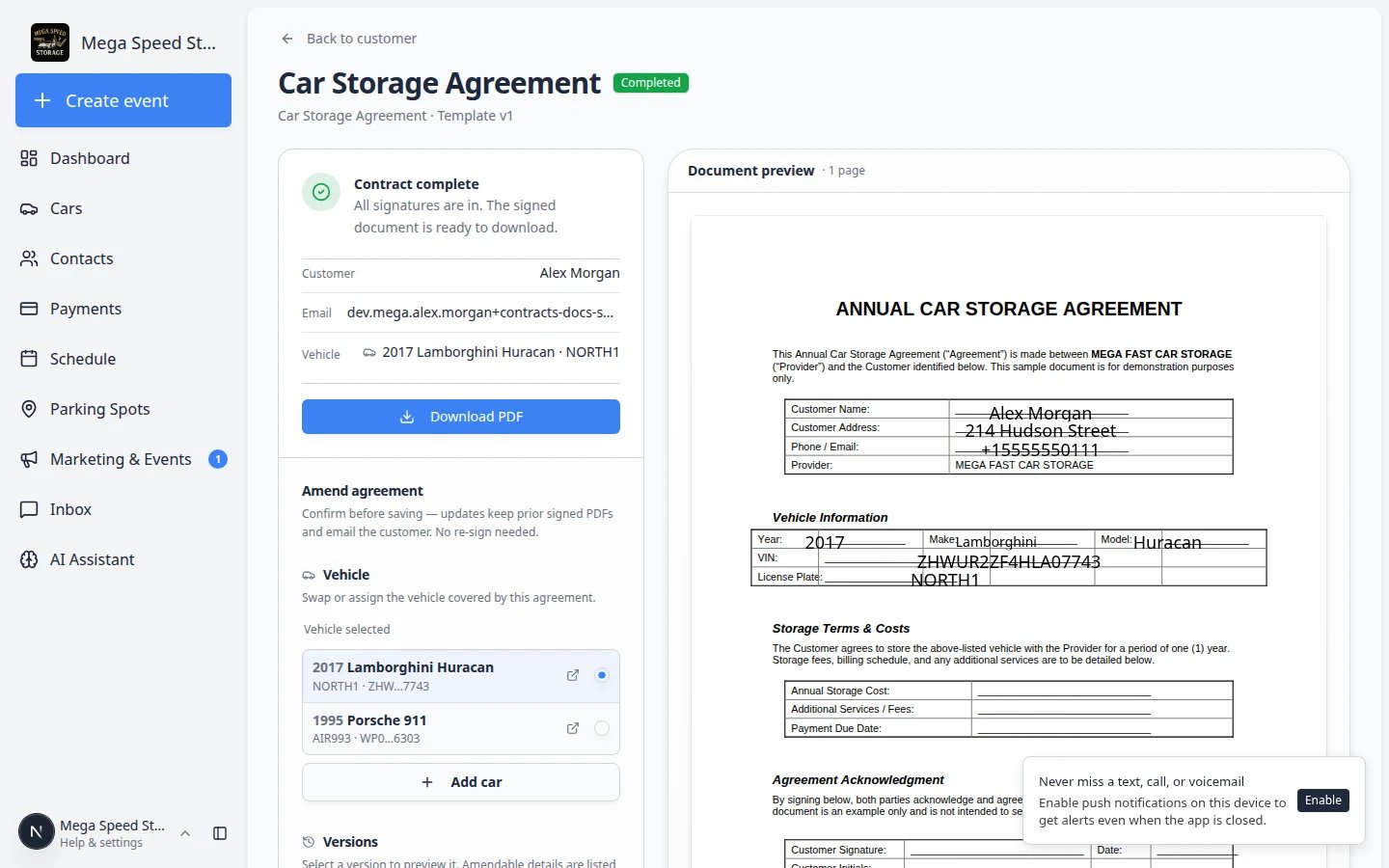 *On a **Completed** contract, the manage page shows the signed PDF and amend tools in the side panel. Only fields your template allows can be changed here.*
**Why some contracts have no Amend section**
Amend tools appear only when the template includes **amendable sections** configured in [Settings > Contracts & Documents](https://www.carstoragesoftware.com/dashboard/settings/contracts-and-documents). Ask an admin to review the template if your facility needs post-signing edits.
## Step 3: Enter the correction
Enter the corrected amount, date, or text. Use the same clear wording customers expect on the original agreement.
**Why this matters:** Amendments become part of the official record. Avoid informal notes in place of real field values.
Check the PDF preview if shown. Confirm the change appears where customers and auditors will look.
Click **Save** or **Apply amendment**. Read any confirmation message.
**Expected result:** A new version is recorded. The status stays **Completed** when no further signatures are required.
**Customer may need to sign again**
Some templates require the customer to re-sign after certain amendments. If the app asks you to send the contract again, follow the on-screen steps and tell the customer to check email.
## Step 4: Review version history
Every amendment creates a new version. Older copies stay available for audits.
On the same contract page, look in the **right sidebar** for **Versions** (clock icon). Staff viewing the signed agreement can click a version row to preview that copy.
**Expected result:** You see a list of versions with dates—the original signing plus each amendment.
Click a version row to preview that copy of the agreement. The current (latest) version is selected by default.
Choose the latest version and click **Download PDF**.
Store the file wherever your facility keeps signed agreements.
*On a **Completed** contract, the manage page shows the signed PDF and amend tools in the side panel. Only fields your template allows can be changed here.*
**Why some contracts have no Amend section**
Amend tools appear only when the template includes **amendable sections** configured in [Settings > Contracts & Documents](https://www.carstoragesoftware.com/dashboard/settings/contracts-and-documents). Ask an admin to review the template if your facility needs post-signing edits.
## Step 3: Enter the correction
Enter the corrected amount, date, or text. Use the same clear wording customers expect on the original agreement.
**Why this matters:** Amendments become part of the official record. Avoid informal notes in place of real field values.
Check the PDF preview if shown. Confirm the change appears where customers and auditors will look.
Click **Save** or **Apply amendment**. Read any confirmation message.
**Expected result:** A new version is recorded. The status stays **Completed** when no further signatures are required.
**Customer may need to sign again**
Some templates require the customer to re-sign after certain amendments. If the app asks you to send the contract again, follow the on-screen steps and tell the customer to check email.
## Step 4: Review version history
Every amendment creates a new version. Older copies stay available for audits.
On the same contract page, look in the **right sidebar** for **Versions** (clock icon). Staff viewing the signed agreement can click a version row to preview that copy.
**Expected result:** You see a list of versions with dates—the original signing plus each amendment.
Click a version row to preview that copy of the agreement. The current (latest) version is selected by default.
Choose the latest version and click **Download PDF**.
Store the file wherever your facility keeps signed agreements.
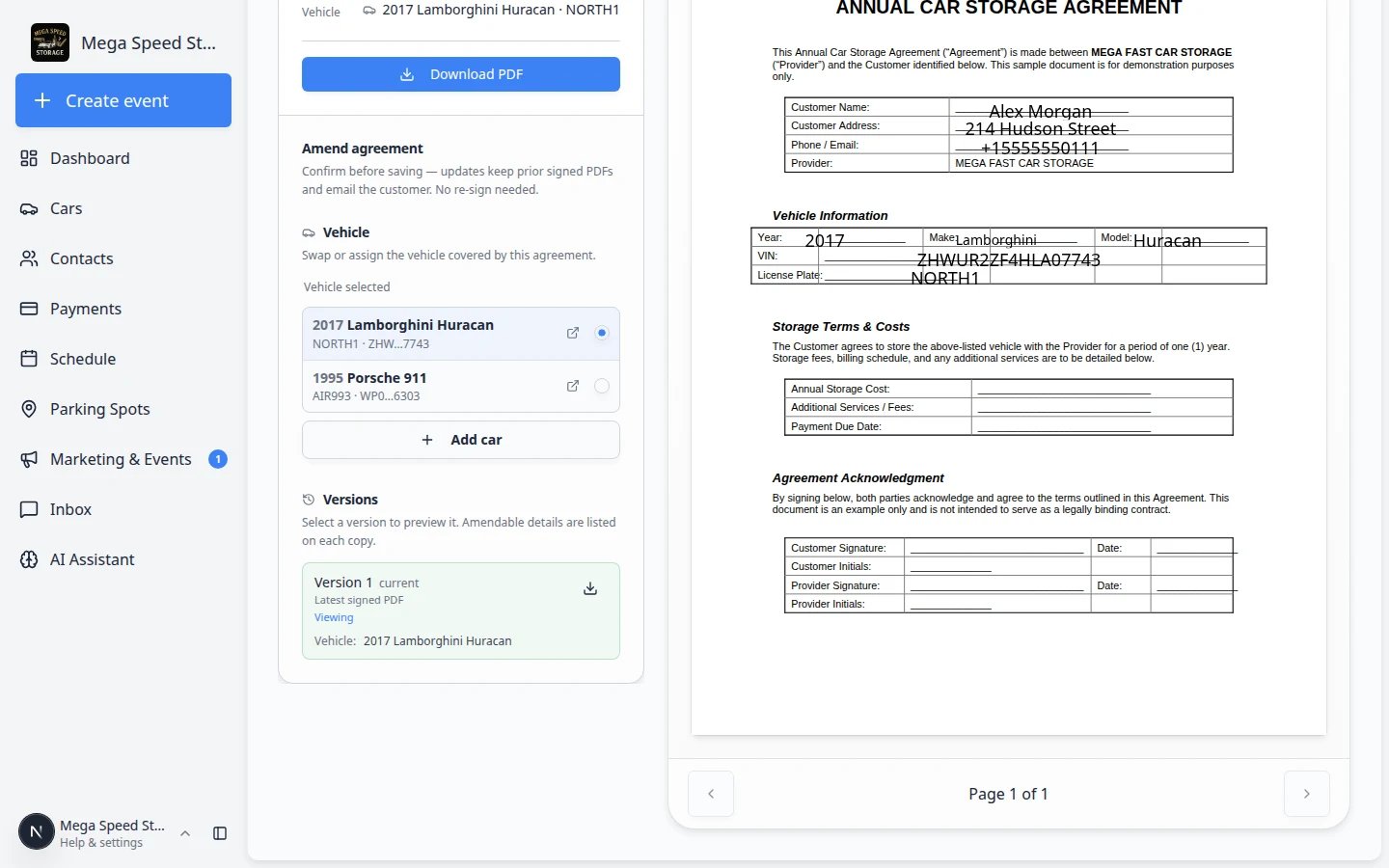 *The **Versions** panel lists every saved copy of the agreement. Download from the latest version when you need the current signed PDF.*
## What success looks like
* The corrected value appears on the current contract PDF.
* Older versions remain available for audit.
* Staff can explain what changed and when.
## Troubleshooting
**I do not see Amend tools**
The template may not include amendable sections. Ask an admin to review the template in [Settings > Contracts & Documents](https://www.carstoragesoftware.com/dashboard/settings/contracts-and-documents), or send a new contract if policy allows.
**The customer says the PDF still shows the old amount**
Download from the **latest** version in version history. Clear browser cache if they view an old email link.
**I need to change something not on the amend list**
If the field is not amendable, staff can void the agreement and send a new one. Voiding does not cancel linked events or change payments or plans, so handle those separately. See [Cancel (void) a signed contract](/docs/contracts/review-signed-contracts-and-documents#cancel-void-a-signed-contract).
## What to do next
Train staff on [Review signed contracts and document history](/docs/contracts/review-signed-contracts-and-documents) so everyone downloads from the correct version.
When building templates, work with your admin on which fields should be amendable—see [Create a contract template](/docs/contracts/create-a-contract-template).
## When cars change
Taking in a new car, assigning an existing car to a customer, marking one sold, or deleting one does **not** change a signed agreement by itself. When the customer has a current **required** agreement with vehicle slots or a vehicle schedule, staff are asked whether to update it:
* **New car intake or assign a car** — “This customer has a current required agreement with vehicle fields. Add this vehicle?” Confirming adds the car to an open slot and saves a new contract version. This includes Create Car, assigning a car on a contact, linking a customer from an event invite, VIN/photo walkthrough intake, and assistant-created cars.
* **No open vehicle slots** — If every vehicle field on that required agreement is already filled, staff are told there isn’t a place for the new car. They can remove a listed vehicle to free a slot, or send a new contract.
* **Archive, sell, or permanently delete a car that is on a contract** — “This vehicle is listed on a signed contract. Remove it?” Confirming amends the agreement so the car no longer appears. For delete, the prompt runs before the car is removed so the agreement can be updated first.
Choose **Not now** to leave the signed PDF as it is. You can still amend later from the contract page.
This documentation is built and hosted on [Mintlify](https://mintlify.com), a developer documentation platform.
*The **Versions** panel lists every saved copy of the agreement. Download from the latest version when you need the current signed PDF.*
## What success looks like
* The corrected value appears on the current contract PDF.
* Older versions remain available for audit.
* Staff can explain what changed and when.
## Troubleshooting
**I do not see Amend tools**
The template may not include amendable sections. Ask an admin to review the template in [Settings > Contracts & Documents](https://www.carstoragesoftware.com/dashboard/settings/contracts-and-documents), or send a new contract if policy allows.
**The customer says the PDF still shows the old amount**
Download from the **latest** version in version history. Clear browser cache if they view an old email link.
**I need to change something not on the amend list**
If the field is not amendable, staff can void the agreement and send a new one. Voiding does not cancel linked events or change payments or plans, so handle those separately. See [Cancel (void) a signed contract](/docs/contracts/review-signed-contracts-and-documents#cancel-void-a-signed-contract).
## What to do next
Train staff on [Review signed contracts and document history](/docs/contracts/review-signed-contracts-and-documents) so everyone downloads from the correct version.
When building templates, work with your admin on which fields should be amendable—see [Create a contract template](/docs/contracts/create-a-contract-template).
## When cars change
Taking in a new car, assigning an existing car to a customer, marking one sold, or deleting one does **not** change a signed agreement by itself. When the customer has a current **required** agreement with vehicle slots or a vehicle schedule, staff are asked whether to update it:
* **New car intake or assign a car** — “This customer has a current required agreement with vehicle fields. Add this vehicle?” Confirming adds the car to an open slot and saves a new contract version. This includes Create Car, assigning a car on a contact, linking a customer from an event invite, VIN/photo walkthrough intake, and assistant-created cars.
* **No open vehicle slots** — If every vehicle field on that required agreement is already filled, staff are told there isn’t a place for the new car. They can remove a listed vehicle to free a slot, or send a new contract.
* **Archive, sell, or permanently delete a car that is on a contract** — “This vehicle is listed on a signed contract. Remove it?” Confirming amends the agreement so the car no longer appears. For delete, the prompt runs before the car is removed so the agreement can be updated first.
Choose **Not now** to leave the signed PDF as it is. You can still amend later from the contract page.
This documentation is built and hosted on [Mintlify](https://mintlify.com), a developer documentation platform.