> ## Documentation Index
> Fetch the complete documentation index at: https://www.carstoragesoftware.com/docs/llms.txt
> Use this file to discover all available pages before exploring further.
# Send contracts to many customers at once
> Email the same agreement to several contacts from the Contacts list, then watch, pause, or retry the send job without duplicating emails.
## What you will accomplish
You will send the **same contract template** to **several customers at once** from [Contacts](https://www.carstoragesoftware.com/dashboard/contacts). Each ready contact receives their own signing email. You watch progress on a **send job** page where you can pause, resume, or retry contacts that failed—without emailing someone twice by accident.
This guide is for **office staff and managers** who need annual agreement updates, move-in batches, or any wave of similar contracts. You do not need technical skills.
## When to use bulk send vs other guides
**Use this guide when…**
* You need the **same template** for **many different customers** (not one customer with many cars).
* You are working from the [Contacts](https://www.carstoragesoftware.com/dashboard/contacts) list with checkboxes and **Actions**.
**Use a different guide when…**
* **One customer, one agreement today** → [Send a contract for signature](/docs/contracts/send-a-contract-for-signature).
* **One customer, several vehicles during portal onboarding** → [Send multiple contracts in one signing link](/docs/contracts/send-multiple-contracts-in-one-signing-link).
* **Every new customer at portal setup** → [Attach contracts to customer workflows](/docs/contracts/attach-contracts-to-workflows).
**Templates that cannot bulk send**
Some templates are not supported for bulk send—for example agreements that use a **contact schedule** layout. The wizard shows a clear message if the template cannot be used here. Send those agreements one customer at a time with [Send a contract for signature](/docs/contracts/send-a-contract-for-signature).
## Before you start
* The contract template exists and is **Active** in [Settings > Contracts & Documents](https://www.carstoragesoftware.com/dashboard/settings/contracts-and-documents).
* Each selected contact has a correct **email** on their record (signing links go there).
* If the template uses vehicle fields, each contact has the right **car** on their record—or you can pick a car during the wizard.
* If the template requires a **facility signature first**, be ready to sign once in the wizard; that signature applies to every contract in the batch.
* You selected **no more than 100 contacts** (the app limit per send job).
## Step 1: Select customers on Contacts
Bulk send starts from the customer list—not from one customer record.
In the sidebar, click **Contacts**, or go to [Contacts](https://www.carstoragesoftware.com/dashboard/contacts).
Use **All Contacts** or a filtered view (for example **Storage** customers) depending on who needs this agreement.
On the left of each customer row, click the **checkbox** for everyone who should receive this agreement.
**Why this matters:** Only checked rows are included. Uncheck anyone who already signed or should not receive this template.
When at least one row is checked, the **Actions** button on the toolbar becomes solid (not grayed out). A small number badge shows how many contacts you selected—for example **Actions** with **2** next to it.
**Expected result:** You can open **Actions** and see **Send contract** in the menu.
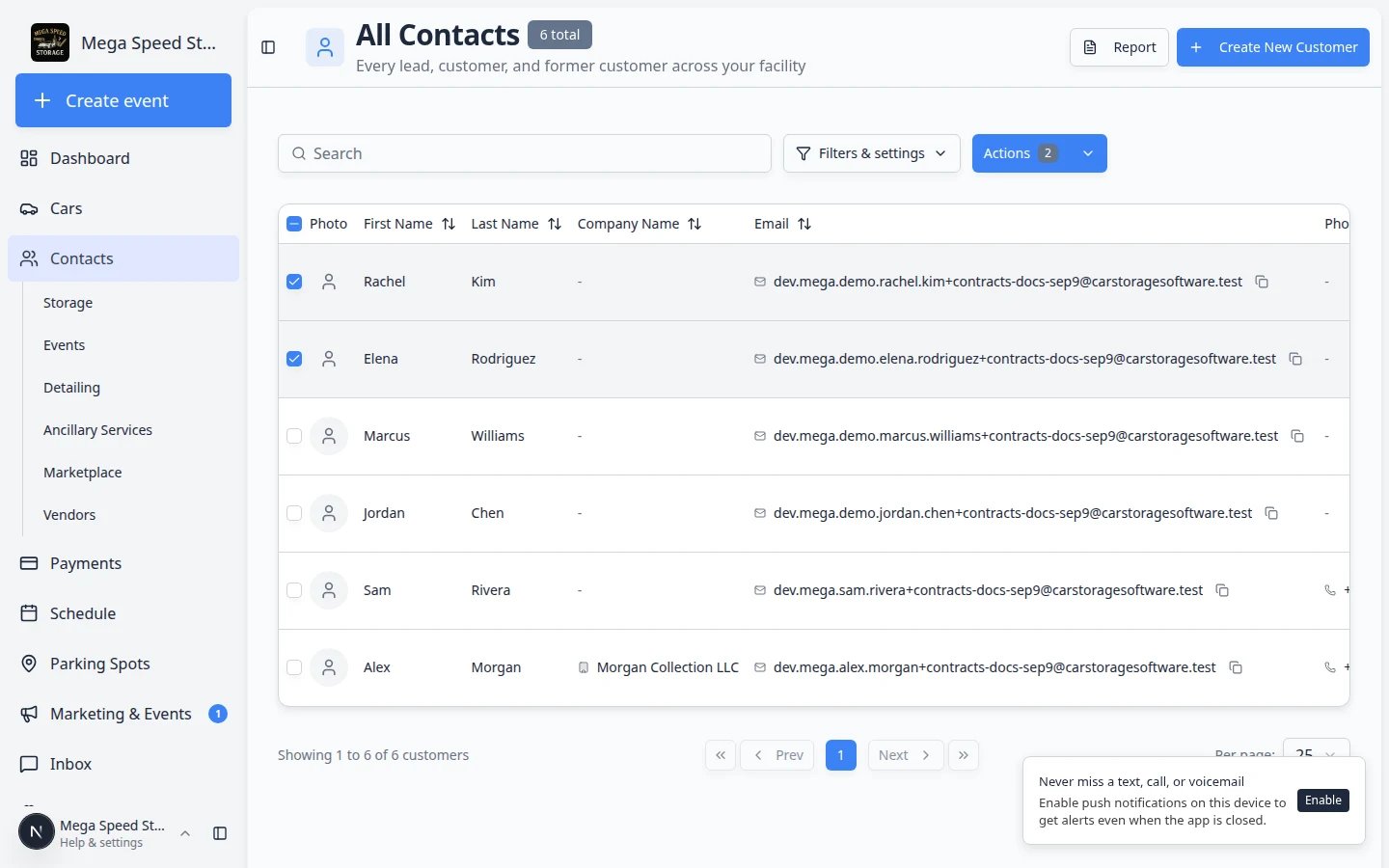
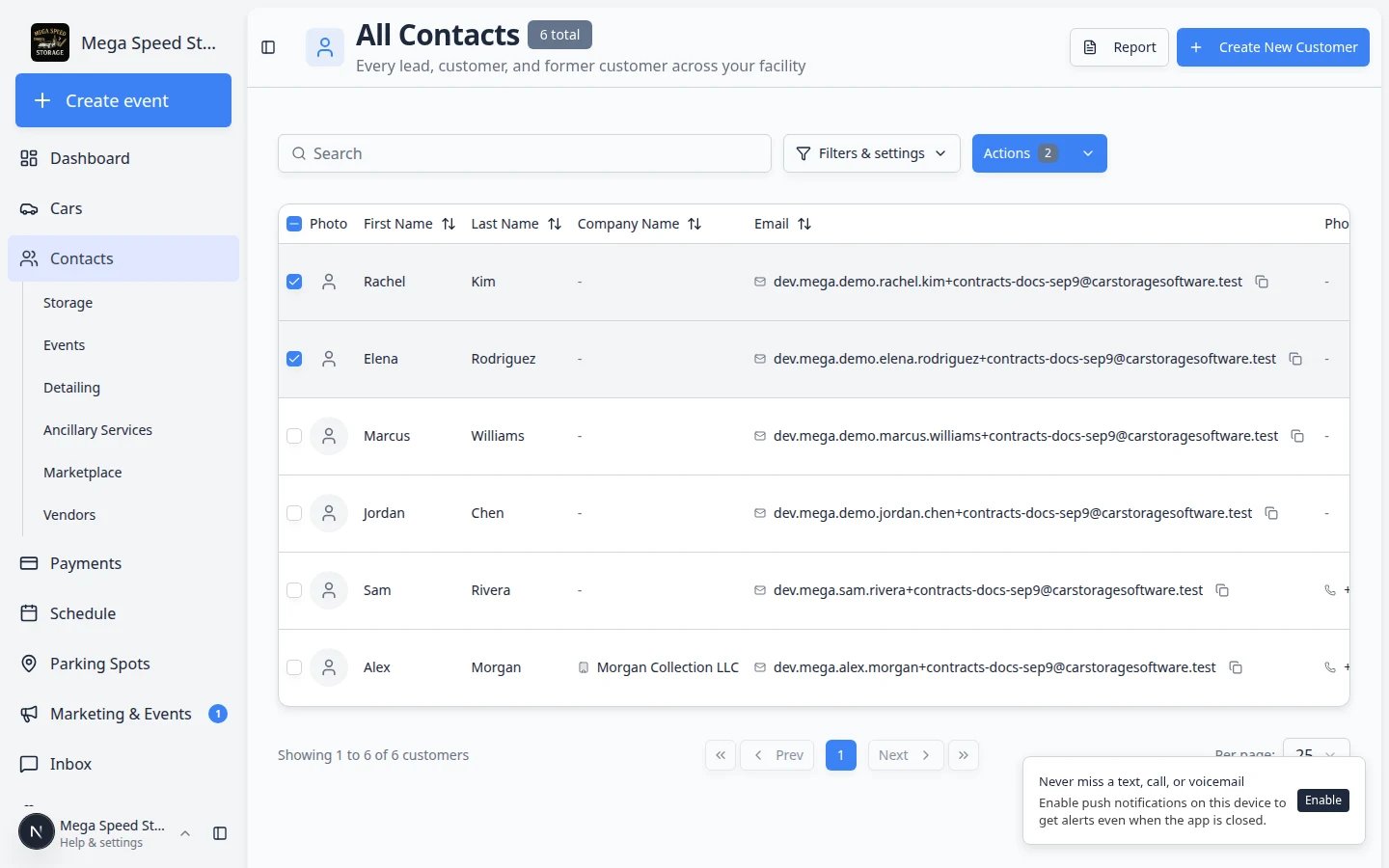
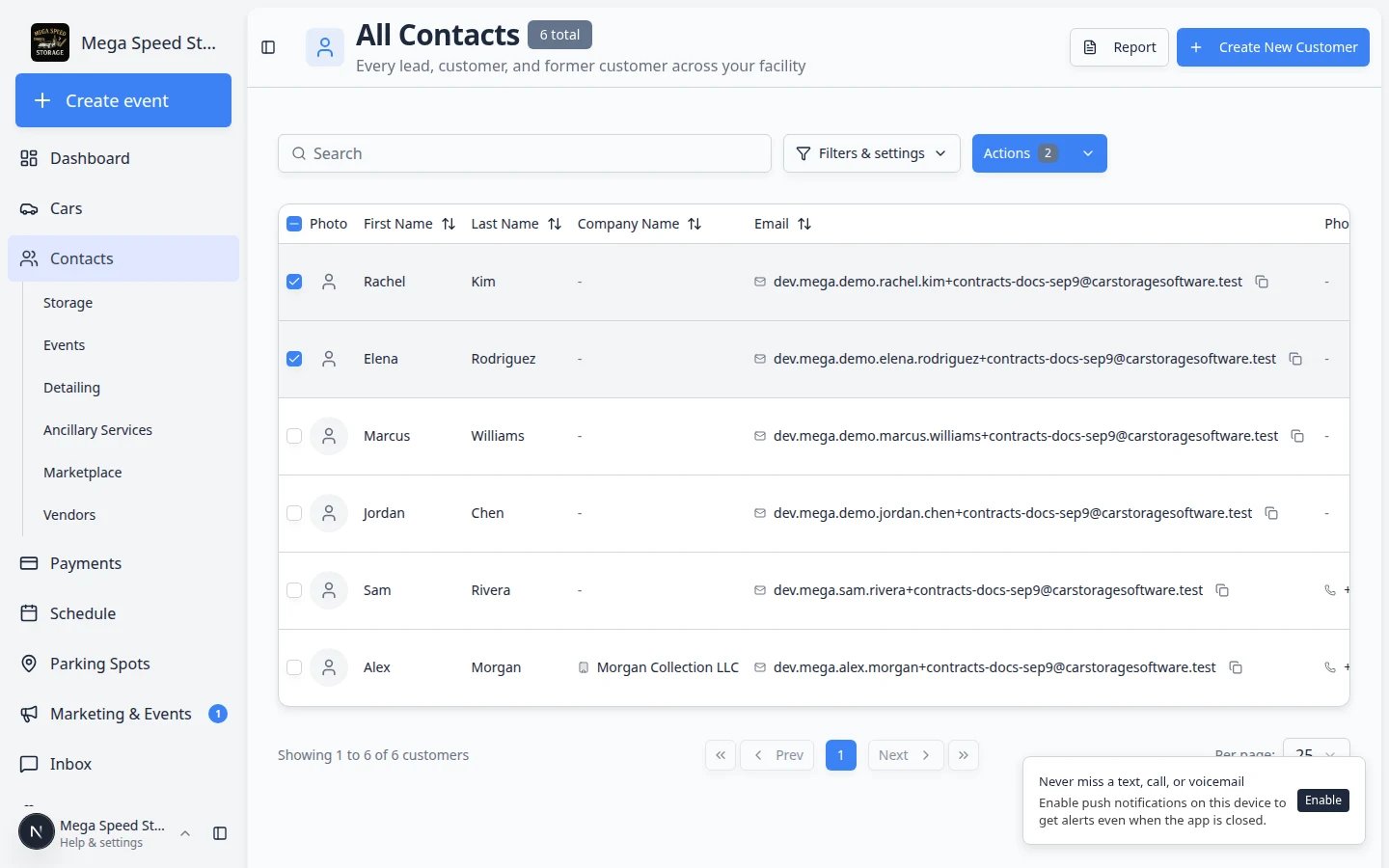
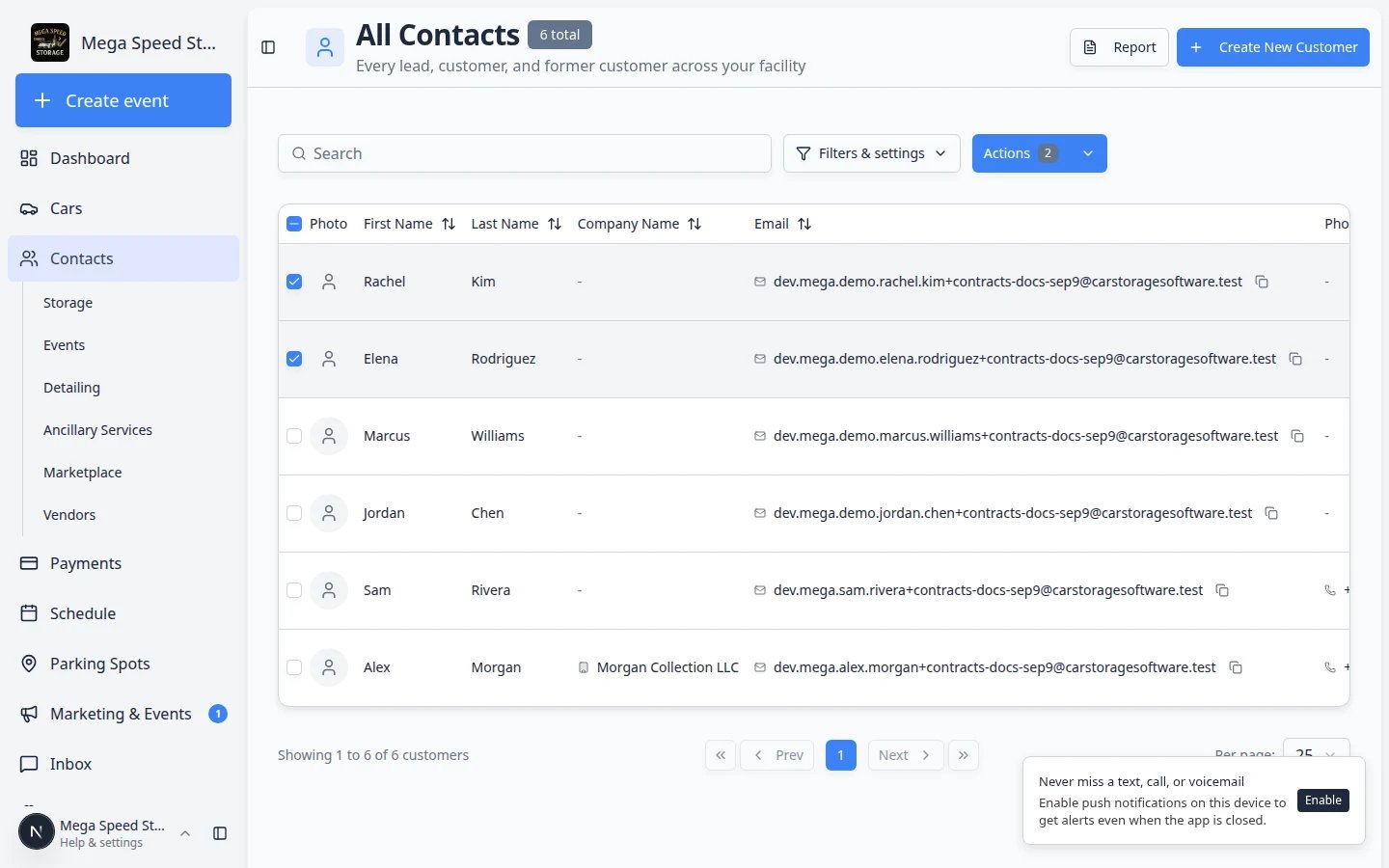 *Select customers with the row checkboxes, then open **Actions**. Choose **Send contract** to start the bulk send wizard.*
**Search and filters first**
Use the search bar or column filters before you select rows. That way you do not accidentally include archived customers or the wrong segment. Archived customers cannot be bulk-selected.
## Step 2: Open Send contract from Actions
Click **Actions** on the right side of the contacts toolbar.
In the menu, click **Send contract**.
**Expected result:** A large window opens titled **Send contract** with a step list: **Template**, **Recipients**, and **Review**.
## Step 3: Pick the template (Template step)
Click the card for the template you need—for example **Car Storage Agreement**.
**Why this matters:** Every contact in this batch receives this same PDF layout and field rules.
Some templates ask for details that apply to **everyone** (facility name, default rate, product and price). Fill those fields on this step when they appear.
If the app shows a yellow or red message, read it carefully—it may list missing facility settings to fix in [Settings](https://www.carstoragesoftware.com/dashboard/settings) before you can continue.
If the template needs your facility to sign **before** customers receive email, draw your signature and initials when the pad appears.
**Why this matters:** You sign **once** here; the same facility signature is applied to each contract in the batch.
Click **Continue** at the bottom when the template step is complete.
**Expected result:** The wizard moves to **Recipients**.
*Select customers with the row checkboxes, then open **Actions**. Choose **Send contract** to start the bulk send wizard.*
**Search and filters first**
Use the search bar or column filters before you select rows. That way you do not accidentally include archived customers or the wrong segment. Archived customers cannot be bulk-selected.
## Step 2: Open Send contract from Actions
Click **Actions** on the right side of the contacts toolbar.
In the menu, click **Send contract**.
**Expected result:** A large window opens titled **Send contract** with a step list: **Template**, **Recipients**, and **Review**.
## Step 3: Pick the template (Template step)
Click the card for the template you need—for example **Car Storage Agreement**.
**Why this matters:** Every contact in this batch receives this same PDF layout and field rules.
Some templates ask for details that apply to **everyone** (facility name, default rate, product and price). Fill those fields on this step when they appear.
If the app shows a yellow or red message, read it carefully—it may list missing facility settings to fix in [Settings](https://www.carstoragesoftware.com/dashboard/settings) before you can continue.
If the template needs your facility to sign **before** customers receive email, draw your signature and initials when the pad appears.
**Why this matters:** You sign **once** here; the same facility signature is applied to each contract in the batch.
Click **Continue** at the bottom when the template step is complete.
**Expected result:** The wizard moves to **Recipients**.
 *On the **Template** step, pick the agreement and any shared fields. Click **Continue** when the step shows a check mark.*
## Step 4: Review each recipient (Recipients step)
This step shows **every contact you selected**. The app marks each row **Ready** or explains what is still missing.
Read each customer name. Rows marked **Ready** can receive email. Rows with warnings need a vehicle, a missing field, or another fix.
If the template uses vehicle fields, choose the correct **car** for each contact from the dropdown. Use **Add car** if the vehicle is not on the record yet.
**Why this matters:** A storage agreement without the right VIN or year/model is hard to enforce later.
Click a row (or **Details**) to fill fields that differ per person—overrides for that contact only.
Turn off the **Include** toggle for contacts who should not be in this batch after you review the list.
When every included row is **Ready**, click **Continue**.
**Expected result:** The wizard opens **Review**.
*On the **Template** step, pick the agreement and any shared fields. Click **Continue** when the step shows a check mark.*
## Step 4: Review each recipient (Recipients step)
This step shows **every contact you selected**. The app marks each row **Ready** or explains what is still missing.
Read each customer name. Rows marked **Ready** can receive email. Rows with warnings need a vehicle, a missing field, or another fix.
If the template uses vehicle fields, choose the correct **car** for each contact from the dropdown. Use **Add car** if the vehicle is not on the record yet.
**Why this matters:** A storage agreement without the right VIN or year/model is hard to enforce later.
Click a row (or **Details**) to fill fields that differ per person—overrides for that contact only.
Turn off the **Include** toggle for contacts who should not be in this batch after you review the list.
When every included row is **Ready**, click **Continue**.
**Expected result:** The wizard opens **Review**.
 *On **Recipients**, confirm each contact is **Ready**. Pick vehicles and fill per-person fields before you continue.*
**Why a row is not Ready**
Common blockers: missing email on the contact, no vehicle when the template requires one, unfilled required fields, or a template that does not support bulk send. Fix the record in [Contacts](https://www.carstoragesoftware.com/dashboard/contacts) or choose a different template.
## Step 5: Confirm and start sending (Review step)
The **Review** step lists how many contracts will be emailed and shows the template name again.
**Expected result:** The count matches the contacts you intend to include—no surprise names.
Click the blue button at the bottom—for example **Send 3 contracts**.
A confirmation asks whether to start sending. Click **Yes, start sending**.
A second window titled **Notify the customer?** asks if you want to send the signing emails. Choose **Yes** to start sending. Choose **No** or close the window to cancel without emailing.
**Why this step exists:** Bulk send emails real customers. The confirmation prevents accidental mass emails.
The wizard closes and your browser opens the **send job** page for this batch.
**Expected result:** You see progress such as **0 / 3** increasing as emails go out.
*On **Recipients**, confirm each contact is **Ready**. Pick vehicles and fill per-person fields before you continue.*
**Why a row is not Ready**
Common blockers: missing email on the contact, no vehicle when the template requires one, unfilled required fields, or a template that does not support bulk send. Fix the record in [Contacts](https://www.carstoragesoftware.com/dashboard/contacts) or choose a different template.
## Step 5: Confirm and start sending (Review step)
The **Review** step lists how many contracts will be emailed and shows the template name again.
**Expected result:** The count matches the contacts you intend to include—no surprise names.
Click the blue button at the bottom—for example **Send 3 contracts**.
A confirmation asks whether to start sending. Click **Yes, start sending**.
A second window titled **Notify the customer?** asks if you want to send the signing emails. Choose **Yes** to start sending. Choose **No** or close the window to cancel without emailing.
**Why this step exists:** Bulk send emails real customers. The confirmation prevents accidental mass emails.
The wizard closes and your browser opens the **send job** page for this batch.
**Expected result:** You see progress such as **0 / 3** increasing as emails go out.
 *On **Review**, confirm the count and template, then click **Send N contracts** and confirm **Yes, start sending**.*
## Step 6: Watch and control the send job
After you start a batch, the app tracks each contact on a **send job** page.
The top of the page shows **Progress**—for example **2 / 5**—and a bar that fills as contacts are processed.
Click **Pause** if you must halt the batch (for example a template mistake discovered mid-send). Click **Resume** to continue where you left off.
**Why this matters:** Pause stops **new** emails without losing track of who already received a link.
If some contacts **Failed**, click **Retry failed** after you fix the underlying issue (bad email, missing car, etc.). The app retries only those rows—not everyone who already succeeded.
**Cancel** ends the job. Contacts already emailed keep their signing links; the app does not automatically email the same person again from this job.
Click **All send jobs** to see past batches, or go to [Contract send jobs](https://www.carstoragesoftware.com/dashboard/contracts/bulk-sends).
*On **Review**, confirm the count and template, then click **Send N contracts** and confirm **Yes, start sending**.*
## Step 6: Watch and control the send job
After you start a batch, the app tracks each contact on a **send job** page.
The top of the page shows **Progress**—for example **2 / 5**—and a bar that fills as contacts are processed.
Click **Pause** if you must halt the batch (for example a template mistake discovered mid-send). Click **Resume** to continue where you left off.
**Why this matters:** Pause stops **new** emails without losing track of who already received a link.
If some contacts **Failed**, click **Retry failed** after you fix the underlying issue (bad email, missing car, etc.). The app retries only those rows—not everyone who already succeeded.
**Cancel** ends the job. Contacts already emailed keep their signing links; the app does not automatically email the same person again from this job.
Click **All send jobs** to see past batches, or go to [Contract send jobs](https://www.carstoragesoftware.com/dashboard/contracts/bulk-sends).
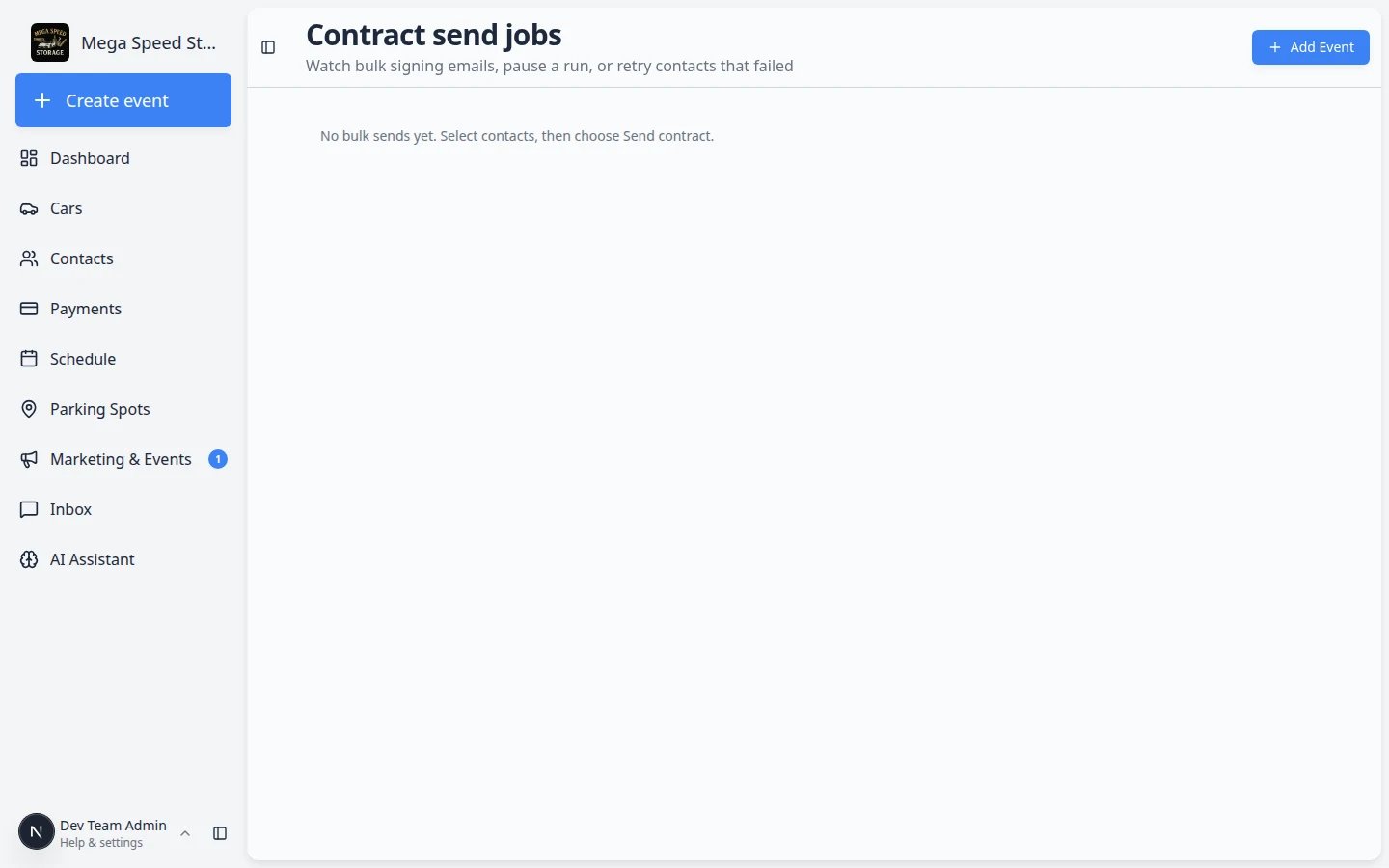 *Open [Contract send jobs](https://www.carstoragesoftware.com/dashboard/contracts/bulk-sends) to see every batch. Click **Open** on a row to return to that job’s detail page.*
On the job detail page you will also see:
* **Emailed** — signing links sent successfully.
* **Signed automatically** — contracts completed without customer action when your template and settings allow (for example after a facility pre-signature).
* **Failed** — rows that need attention before you retry.
Each recipient row shows a status such as **Sent**, **Waiting**, **Failed**, or **Skipped**.
## What customers experience
* Each contact receives **their own** signing email—not one shared link for the whole group.
* The email looks like a normal contract request from your facility (same as a one-off send).
* After signing, the completed PDF appears on **that customer’s** record under **Documents & Contracts**.
Coach stuck customers with [Help customers complete onboarding paperwork](/docs/contracts/help-customers-complete-onboarding-paperwork) or resend from the customer record using [Send a contract for signature](/docs/contracts/send-a-contract-for-signature).
## What success looks like
* The send job shows **Completed** (or all included rows processed).
* Each contact’s record shows a **Sent** or **Completed** contract card.
* No duplicate signing emails for the same contact from the same job.
* Failed rows were retried or handled individually after fixes.
## Troubleshooting
**Actions does not show Send contract**
Confirm you checked at least one customer row and you are not viewing **Archived** customers. If the menu still lacks **Send contract**, ask an admin to confirm your role can send contracts.
**Template says it cannot bulk send**
Use [Send a contract for signature](/docs/contracts/send-a-contract-for-signature) for that template, or ask an admin to review template settings in [Settings > Contracts & Documents](https://www.carstoragesoftware.com/dashboard/settings/contracts-and-documents).
**Customer says they never got email**
Check the email on the contact record. Ask them to search spam. From the customer record, resend with [Send a contract for signature](/docs/contracts/send-a-contract-for-signature) if the bulk job already finished and retry is not available.
**Job stuck on Running**
Refresh the page—the job updates automatically while it runs. If progress stays frozen for several minutes, click **Pause** then **Resume**, or contact support with the job date and template name.
## What to do next
When contracts come back signed, use [Review signed contracts and document history](/docs/contracts/review-signed-contracts-and-documents) to download PDFs.
When you need to change signed terms later, read [Amend a signed contract](/docs/contracts/amend-a-signed-contract) or send a new agreement if policy requires a full replacement.
This documentation is built and hosted on [Mintlify](https://mintlify.com), a developer documentation platform.
*Open [Contract send jobs](https://www.carstoragesoftware.com/dashboard/contracts/bulk-sends) to see every batch. Click **Open** on a row to return to that job’s detail page.*
On the job detail page you will also see:
* **Emailed** — signing links sent successfully.
* **Signed automatically** — contracts completed without customer action when your template and settings allow (for example after a facility pre-signature).
* **Failed** — rows that need attention before you retry.
Each recipient row shows a status such as **Sent**, **Waiting**, **Failed**, or **Skipped**.
## What customers experience
* Each contact receives **their own** signing email—not one shared link for the whole group.
* The email looks like a normal contract request from your facility (same as a one-off send).
* After signing, the completed PDF appears on **that customer’s** record under **Documents & Contracts**.
Coach stuck customers with [Help customers complete onboarding paperwork](/docs/contracts/help-customers-complete-onboarding-paperwork) or resend from the customer record using [Send a contract for signature](/docs/contracts/send-a-contract-for-signature).
## What success looks like
* The send job shows **Completed** (or all included rows processed).
* Each contact’s record shows a **Sent** or **Completed** contract card.
* No duplicate signing emails for the same contact from the same job.
* Failed rows were retried or handled individually after fixes.
## Troubleshooting
**Actions does not show Send contract**
Confirm you checked at least one customer row and you are not viewing **Archived** customers. If the menu still lacks **Send contract**, ask an admin to confirm your role can send contracts.
**Template says it cannot bulk send**
Use [Send a contract for signature](/docs/contracts/send-a-contract-for-signature) for that template, or ask an admin to review template settings in [Settings > Contracts & Documents](https://www.carstoragesoftware.com/dashboard/settings/contracts-and-documents).
**Customer says they never got email**
Check the email on the contact record. Ask them to search spam. From the customer record, resend with [Send a contract for signature](/docs/contracts/send-a-contract-for-signature) if the bulk job already finished and retry is not available.
**Job stuck on Running**
Refresh the page—the job updates automatically while it runs. If progress stays frozen for several minutes, click **Pause** then **Resume**, or contact support with the job date and template name.
## What to do next
When contracts come back signed, use [Review signed contracts and document history](/docs/contracts/review-signed-contracts-and-documents) to download PDFs.
When you need to change signed terms later, read [Amend a signed contract](/docs/contracts/amend-a-signed-contract) or send a new agreement if policy requires a full replacement.
This documentation is built and hosted on [Mintlify](https://mintlify.com), a developer documentation platform.