> ## Documentation Index
> Fetch the complete documentation index at: https://www.carstoragesoftware.com/docs/llms.txt
> Use this file to discover all available pages before exploring further.
# Customize Create event screen layout
> Choose how many columns appear on the Create event home page on desktop and mobile so staff can scan services quickly.
## What you will accomplish
You will choose how many **columns** of event cards appear on the [Create event](https://www.carstoragesoftware.com/dashboard) home page—the large-button screen staff use to start drop-offs, details, pickups, and workflows.
Each team member saves their **own** desktop and mobile layout. Changes save automatically—you do not click a separate Save button.
When the layout fits your screen and role, staff can:
* Find the right service faster with fewer mis-taps.
* See more services at once on wide monitors—or fewer, larger cards on tablets.
* Keep a phone-friendly single-column view without changing what coworkers see on desktop.
## When to adjust the layout
* Your facility has many event types and cards feel crowded on one row.
* Front-desk staff on tablets want fewer, larger cards (**1 column**).
* Wide monitors can show more cards at once (**2** or **3 columns**).
* A new teammate says the buttons are too small or hard to read—let them pick their own layout.
**Create event vs Dashboard (Beta)**
This guide is for **[Create event](https://www.carstoragesoftware.com/dashboard)** at the top of the sidebar—not the customizable widget **[Dashboard](https://www.carstoragesoftware.com/dashboard/v2)** page. See [Customize your Overview dashboard](/docs/basics/customize-your-overview) for widget layouts.
## Before you start
* You can sign in as any staff user (each person sets their own layout).
* Event types exist so the Create event page shows a populated card grid. If the grid is empty, finish [Configure event types](/docs/events/configure-event-types) first.
* Close the **What's New** pop-up if it appears (**Got it**) so it does not cover the layout buttons.
## Open Create event screen layout settings
In the sidebar, open [Settings](https://www.carstoragesoftware.com/dashboard/settings), then click **Services & schedule**. You can also go directly to [Settings > Services & schedule](https://www.carstoragesoftware.com/dashboard/settings/events).
**Expected result:** You see the **Services & event types** table near the top of the page.
Scroll down past **Service plans** until you see **Create event screen layout**.
**Why this matters:** This section only changes how cards **arrange** on screen—not which services exist. Card names still come from your event types.
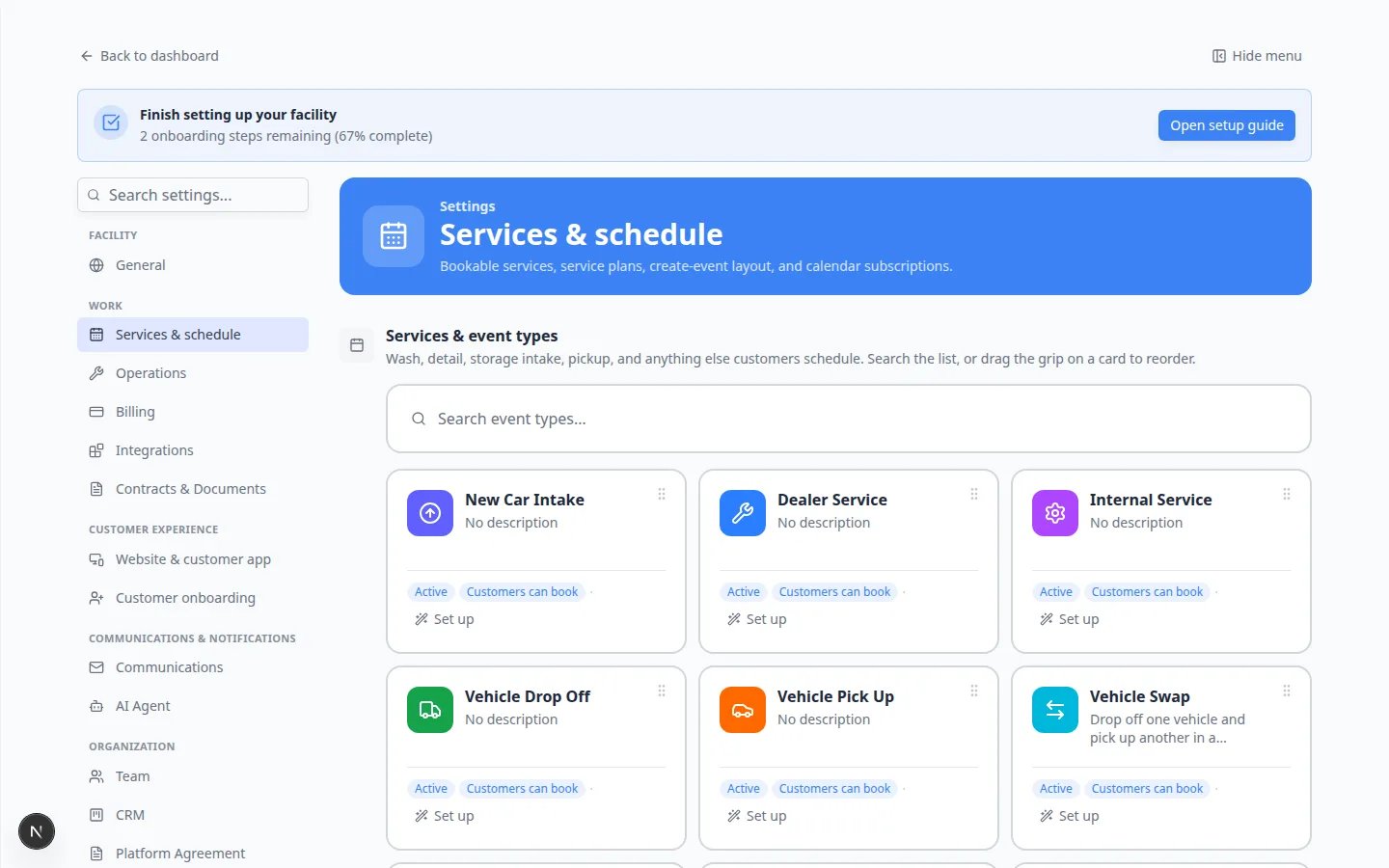 *Open **Create event screen layout** on [Settings > Services & schedule](https://www.carstoragesoftware.com/dashboard/settings/events). Each person picks their own desktop and mobile column counts.*
## Choose desktop columns
Under **Create event screen layout**, find the **Desktop** row. You see three choices: **1 column**, **2 columns**, and **3 columns**. Each shows a small preview grid.
**Expected result:** The option you last chose appears highlighted or selected.
Click the option that matches your monitor and how many services you offer.
* **1 column** — one card per row; best for large text, touch screens, and fewer mis-taps.
* **2 columns** — balanced default for most laptops (see screenshot below).
* **3 columns** — fits more services on wide screens without scrolling.
**Expected result:** **Saved** appears briefly near the section. Your choice applies the next time you open [Create event](https://www.carstoragesoftware.com/dashboard) on a desktop browser.
Click **Create event** in the sidebar (or go to [Create event](https://www.carstoragesoftware.com/dashboard)) and count how many cards appear side by side.
**Why this matters:** Seeing the real page confirms the layout works for your eyes and screen size—not just the small preview in settings.
*Open **Create event screen layout** on [Settings > Services & schedule](https://www.carstoragesoftware.com/dashboard/settings/events). Each person picks their own desktop and mobile column counts.*
## Choose desktop columns
Under **Create event screen layout**, find the **Desktop** row. You see three choices: **1 column**, **2 columns**, and **3 columns**. Each shows a small preview grid.
**Expected result:** The option you last chose appears highlighted or selected.
Click the option that matches your monitor and how many services you offer.
* **1 column** — one card per row; best for large text, touch screens, and fewer mis-taps.
* **2 columns** — balanced default for most laptops (see screenshot below).
* **3 columns** — fits more services on wide screens without scrolling.
**Expected result:** **Saved** appears briefly near the section. Your choice applies the next time you open [Create event](https://www.carstoragesoftware.com/dashboard) on a desktop browser.
Click **Create event** in the sidebar (or go to [Create event](https://www.carstoragesoftware.com/dashboard)) and count how many cards appear side by side.
**Why this matters:** Seeing the real page confirms the layout works for your eyes and screen size—not just the small preview in settings.
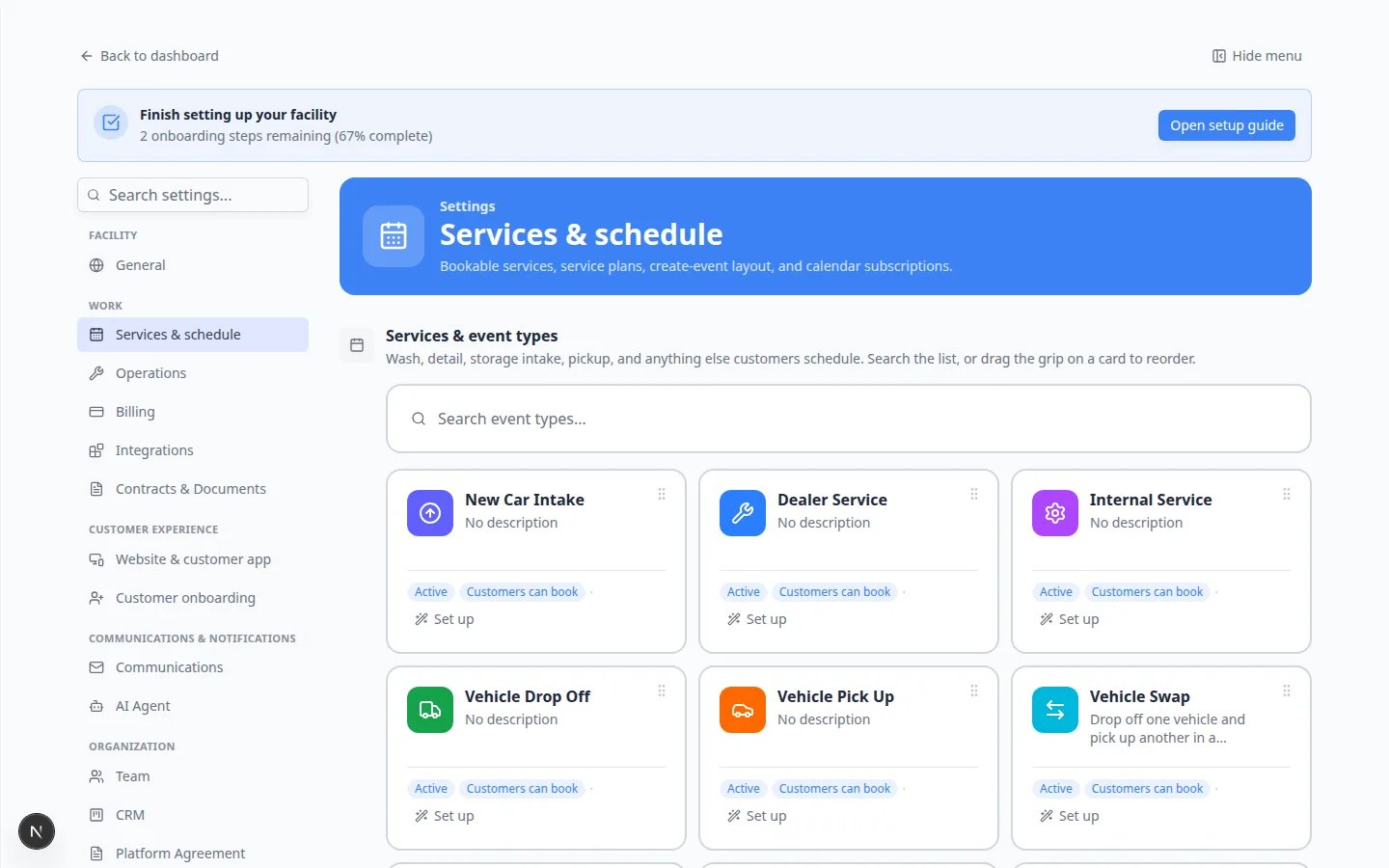 ***2 columns** is a common desktop choice. The selected option is highlighted; wait for **Saved** before leaving the page.*
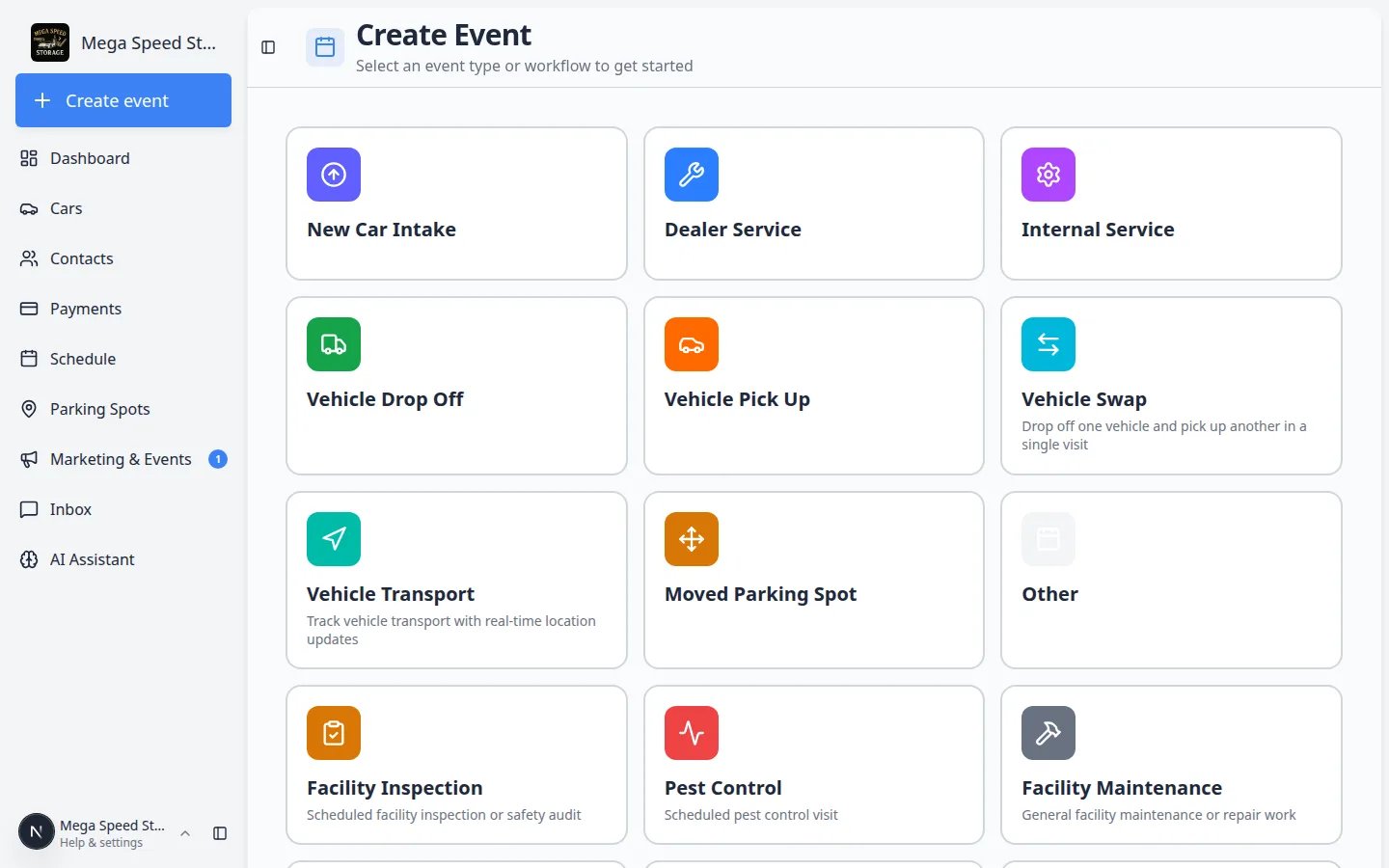
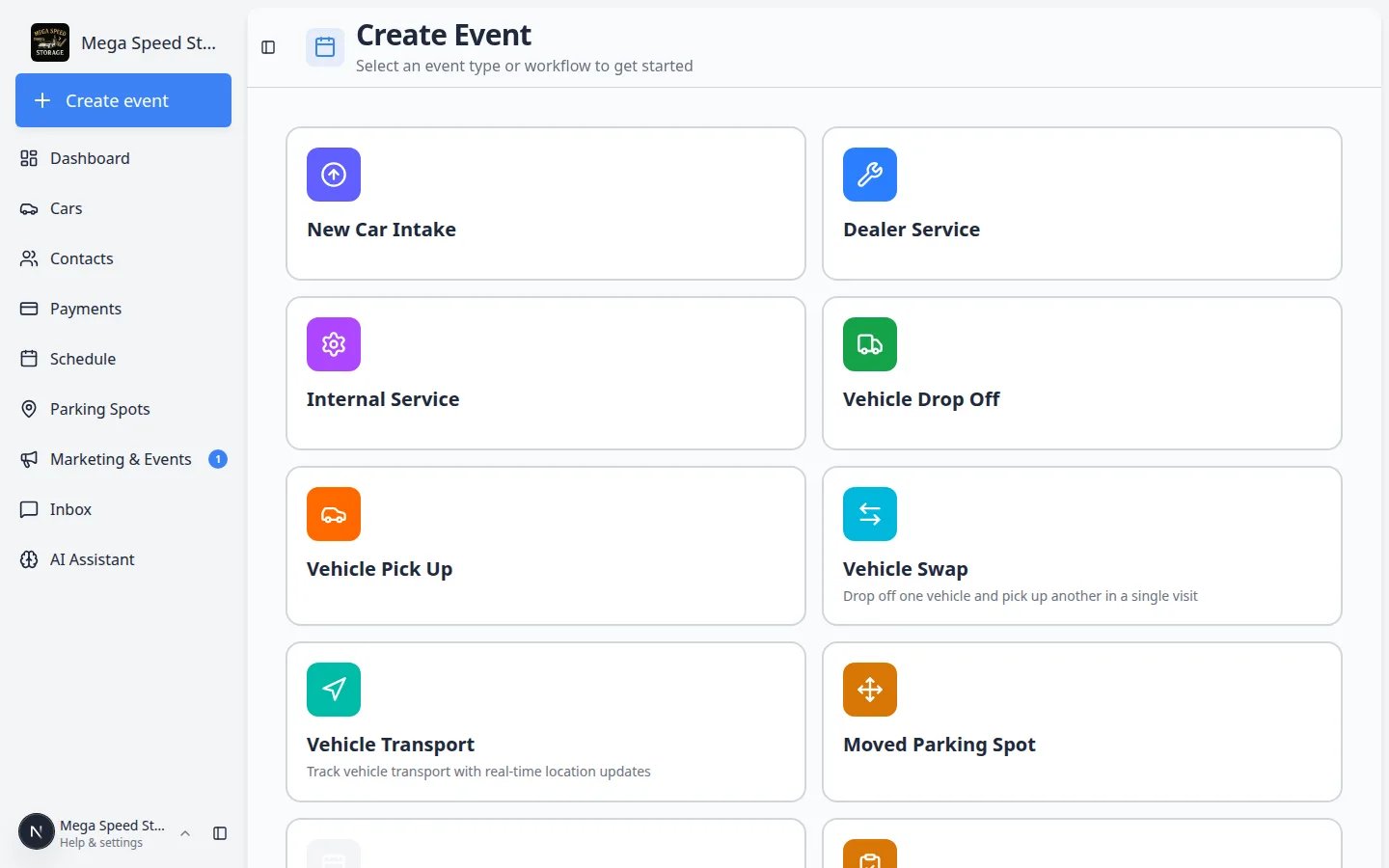 *On [Create event](https://www.carstoragesoftware.com/dashboard), two columns shows a good balance of card size and how many services fit on screen at once.*
## Compare 1 column and 3 columns
Try these if two columns still feels too tight or too spread out.
**1 column** — Best when:
* Staff use a tablet at the front desk.
* You want the largest possible tap targets.
* Your facility has only a handful of daily services.
**3 columns** — Best when:
* Staff work on a large monitor.
* You offer many event types and want less scrolling.
* Card labels are short enough to stay readable in a tighter grid.
*On [Create event](https://www.carstoragesoftware.com/dashboard), two columns shows a good balance of card size and how many services fit on screen at once.*
## Compare 1 column and 3 columns
Try these if two columns still feels too tight or too spread out.
**1 column** — Best when:
* Staff use a tablet at the front desk.
* You want the largest possible tap targets.
* Your facility has only a handful of daily services.
**3 columns** — Best when:
* Staff work on a large monitor.
* You offer many event types and want less scrolling.
* Card labels are short enough to stay readable in a tighter grid.
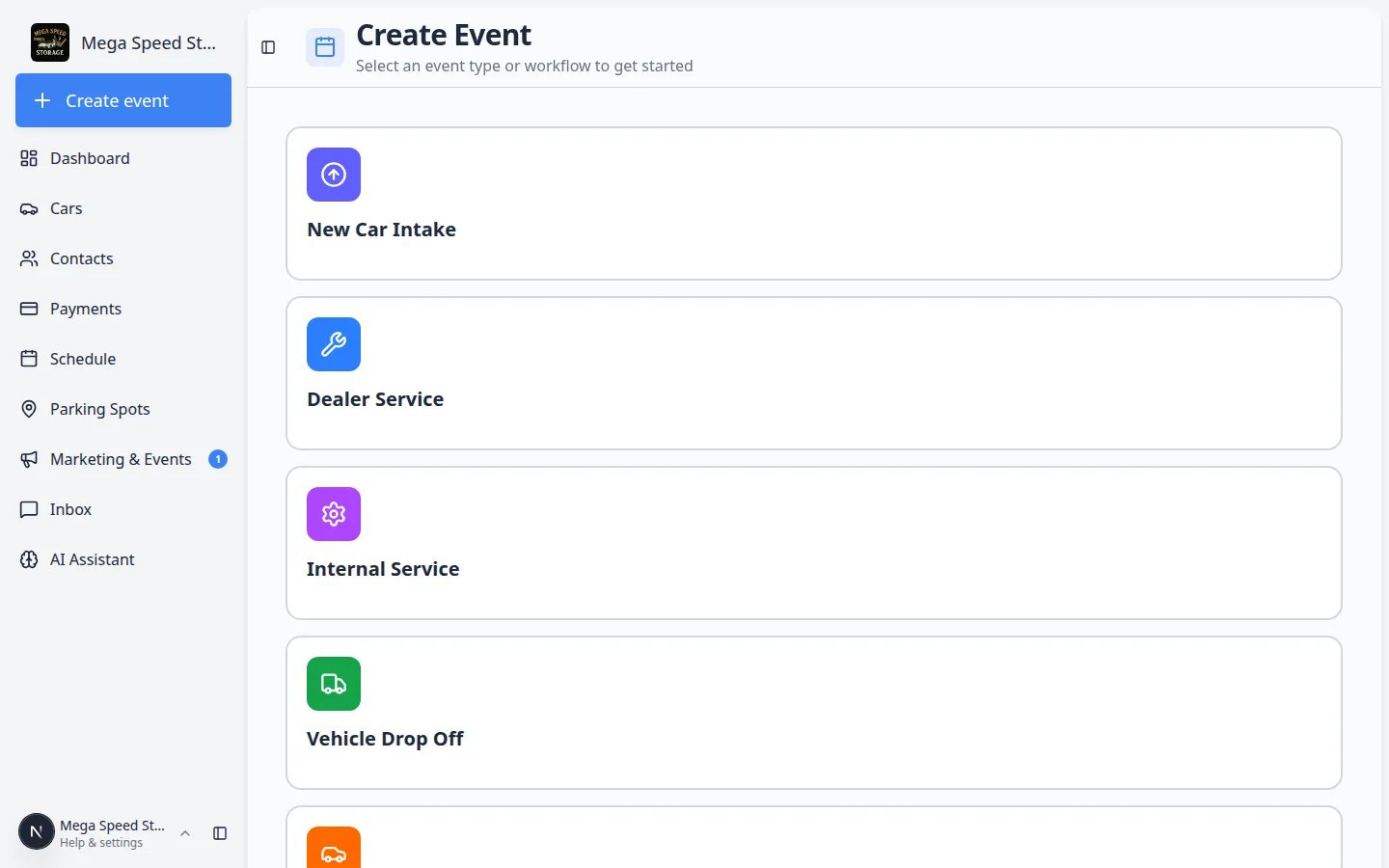 ***1 column** gives each service a full row—helpful on tablets and for staff who prefer larger buttons.*
 ***3 columns** fits more services on wide screens. If labels feel cramped, switch back to **2 columns**.*
## Choose mobile columns
Mobile layout saves **separately** from desktop. A manager can use three columns on a monitor while a porter uses one column on a phone.
On [Settings > Services & schedule](https://www.carstoragesoftware.com/dashboard/settings/events), scroll to **Mobile** under **Create event screen layout** (phone icon).
Most phone users prefer **1 column** or **2 columns** so card labels stay readable.
**Why this matters:** A three-column phone grid can make long service names wrap awkwardly or become hard to tap accurately.
Click your choice and wait for **Saved** near the section.
**Expected result:** Open [Create event](https://www.carstoragesoftware.com/dashboard) on a real phone (or narrow your browser window) to confirm the mobile column count.
***3 columns** fits more services on wide screens. If labels feel cramped, switch back to **2 columns**.*
## Choose mobile columns
Mobile layout saves **separately** from desktop. A manager can use three columns on a monitor while a porter uses one column on a phone.
On [Settings > Services & schedule](https://www.carstoragesoftware.com/dashboard/settings/events), scroll to **Mobile** under **Create event screen layout** (phone icon).
Most phone users prefer **1 column** or **2 columns** so card labels stay readable.
**Why this matters:** A three-column phone grid can make long service names wrap awkwardly or become hard to tap accurately.
Click your choice and wait for **Saved** near the section.
**Expected result:** Open [Create event](https://www.carstoragesoftware.com/dashboard) on a real phone (or narrow your browser window) to confirm the mobile column count.
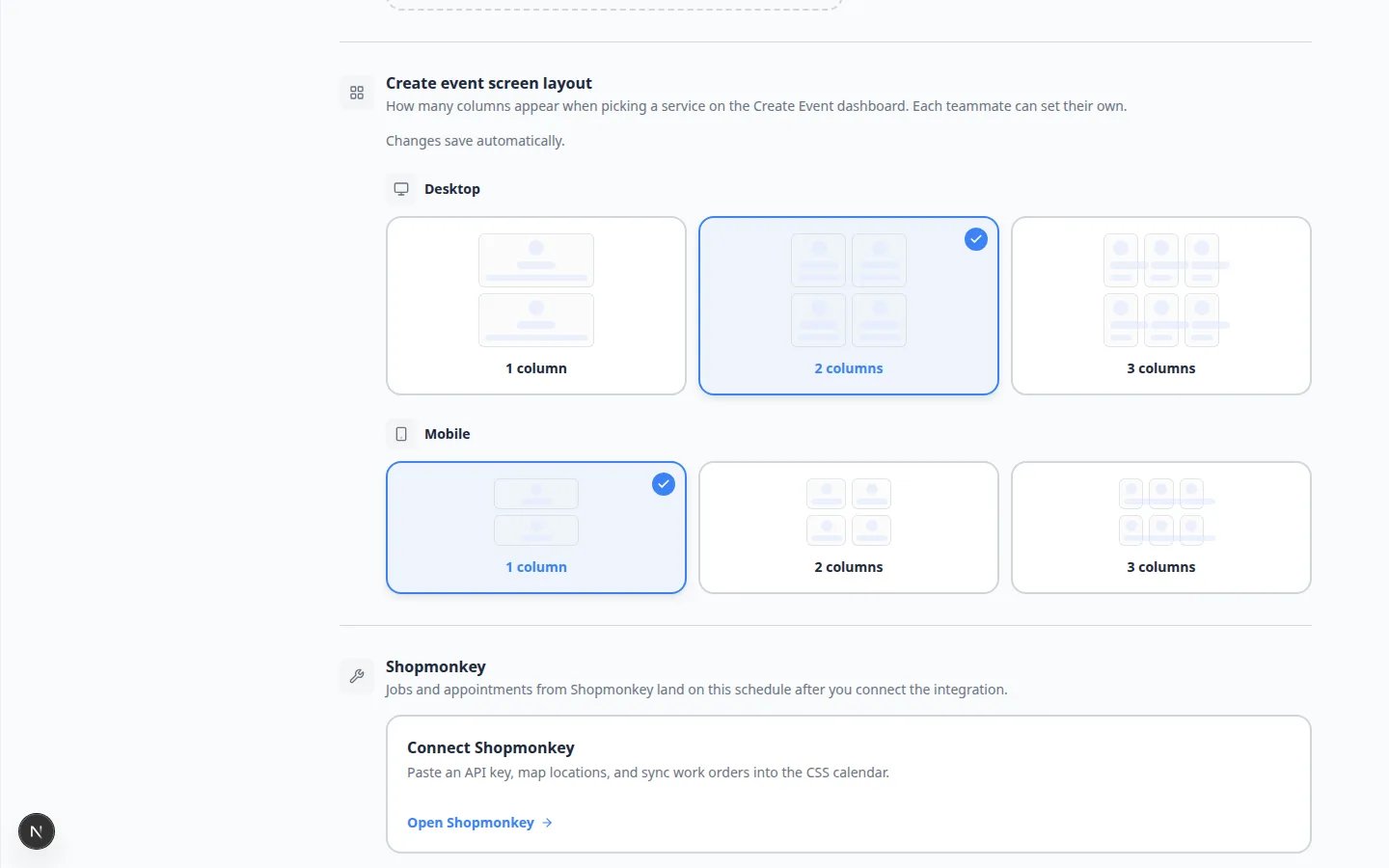 ***Mobile** layout is independent from **Desktop**. Set each device type to what works best for that screen.*
## Important details
**Personal preference** — Your layout does not change other teammates' screens. Each staff member can pick their own desktop and mobile columns.
**Automatic save** — You do not click a Save button at the bottom of the page. Wait for **Saved** before closing the settings tab.
**Cards come from event types** — Layout only changes how cards arrange. Which cards appear still comes from [Configure event types](/docs/events/configure-event-types) and [Create operations workflows](/docs/settings/create-operations-workflows).
**Inactive services are hidden** — If a card is missing, the event type may be turned off. See [Configure event types](/docs/events/configure-event-types).
## Troubleshooting
**The layout did not change**
Refresh the [Create event](https://www.carstoragesoftware.com/dashboard) tab. Desktop and mobile layouts apply separately—resize the window below about 768 pixels wide to preview mobile, or test on a real phone.
**I only see a few cards**
Inactive event types are hidden. Open [Settings > Services & schedule](https://www.carstoragesoftware.com/dashboard/settings/events) and confirm services are **Active**. See [Configure event types](/docs/events/configure-event-types).
**Saved never appeared**
Wait for the page to finish loading and click your column choice again. If **Saved** still does not appear, refresh the browser and sign in again.
**My coworker's screen looks different**
That is normal. Layout is per person, not per facility. Share this guide so each teammate can set their own desktop and mobile columns.
## What to do next
* Train staff with [Use the Create event home page](/docs/basics/use-the-create-event-home).
* Add or rename services in [Configure event types](/docs/events/configure-event-types).
* If a service needs a check-off list during the visit, continue with [Set up event checklists](/docs/events/set-up-event-checklists).
* Return to [Events overview](/docs/events/overview).
This documentation is built and hosted on [Mintlify](https://mintlify.com), a developer documentation platform.
***Mobile** layout is independent from **Desktop**. Set each device type to what works best for that screen.*
## Important details
**Personal preference** — Your layout does not change other teammates' screens. Each staff member can pick their own desktop and mobile columns.
**Automatic save** — You do not click a Save button at the bottom of the page. Wait for **Saved** before closing the settings tab.
**Cards come from event types** — Layout only changes how cards arrange. Which cards appear still comes from [Configure event types](/docs/events/configure-event-types) and [Create operations workflows](/docs/settings/create-operations-workflows).
**Inactive services are hidden** — If a card is missing, the event type may be turned off. See [Configure event types](/docs/events/configure-event-types).
## Troubleshooting
**The layout did not change**
Refresh the [Create event](https://www.carstoragesoftware.com/dashboard) tab. Desktop and mobile layouts apply separately—resize the window below about 768 pixels wide to preview mobile, or test on a real phone.
**I only see a few cards**
Inactive event types are hidden. Open [Settings > Services & schedule](https://www.carstoragesoftware.com/dashboard/settings/events) and confirm services are **Active**. See [Configure event types](/docs/events/configure-event-types).
**Saved never appeared**
Wait for the page to finish loading and click your column choice again. If **Saved** still does not appear, refresh the browser and sign in again.
**My coworker's screen looks different**
That is normal. Layout is per person, not per facility. Share this guide so each teammate can set their own desktop and mobile columns.
## What to do next
* Train staff with [Use the Create event home page](/docs/basics/use-the-create-event-home).
* Add or rename services in [Configure event types](/docs/events/configure-event-types).
* If a service needs a check-off list during the visit, continue with [Set up event checklists](/docs/events/set-up-event-checklists).
* Return to [Events overview](/docs/events/overview).
This documentation is built and hosted on [Mintlify](https://mintlify.com), a developer documentation platform.