> ## Documentation Index
> Fetch the complete documentation index at: https://www.carstoragesoftware.com/docs/llms.txt
> Use this file to discover all available pages before exploring further.
# Handle incoming phone calls
> Answer customer calls from anywhere in the dashboard, open Inbox for context, and follow up in writing when needed.
Use this guide when a customer calls your facility's business number and your team answers inside the app.
You do not have to be on the [Inbox](https://www.carstoragesoftware.com/dashboard/inbox) page to receive a call. A call alert can appear while you are working anywhere in the dashboard.
## What you will accomplish
* Recognize an incoming call alert in the app.
* Answer or decline the call from the alert or call window.
* Open Inbox to see the customer's history after the call.
* Send a short follow-up text or email when a written record helps.
## Before you start
* Calling must be set up for your team. If call buttons are disabled, review [Configure communication settings for Inbox](/docs/inbox/configure-communication-settings).
* Keep your computer or tablet volume on so you hear ring tones when calls arrive.
* Allow browser notifications if your facility wants desktop alerts for incoming calls.
## When a customer calls
When an inbound call reaches your team, you may see two things:
1. A small alert near the **bottom-right corner** of the screen that says **Incoming call** with an **Answer** action
2. A centered call window with **Answer** and **Decline** buttons
The alert may show the customer's phone number and your facility's business number, separated by an arrow (for example, **+1 (555) 555-0111 → +1 (555) 555-0100**).
 *The bottom-right alert appears on top of whatever page you are on. Click **Answer** here or use the larger call window in the center of the screen.*
**Answer from the alert or the call window**
You can click **Answer** on either the small bottom-right alert or the large centered dialog. Both do the same thing.
The call window shows:
* A phone icon at the top
* The title **Incoming call**
* **From** and **To** rows with the phone numbers
* A large blue **Answer** button
* An **Open inbox** button when you want to read the customer's history first
* A red **Decline** button below it
*The bottom-right alert appears on top of whatever page you are on. Click **Answer** here or use the larger call window in the center of the screen.*
**Answer from the alert or the call window**
You can click **Answer** on either the small bottom-right alert or the large centered dialog. Both do the same thing.
The call window shows:
* A phone icon at the top
* The title **Incoming call**
* **From** and **To** rows with the phone numbers
* A large blue **Answer** button
* An **Open inbox** button when you want to read the customer's history first
* A red **Decline** button below it
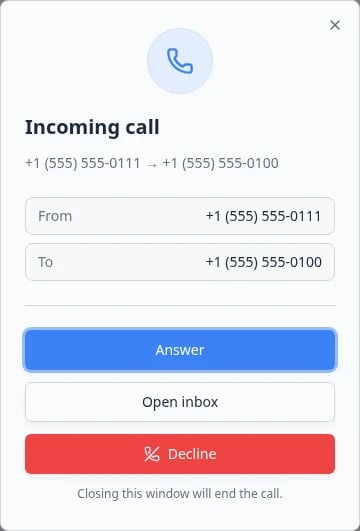 *The incoming call window appears on top of whatever page you are on. Click **Answer** to pick up or **Decline** to send the caller to voicemail or a missed-call log.*
**Why calls can appear outside Inbox**
Phone calls are tied to your whole dashboard session, not just the Inbox page. This lets front-desk staff answer while they are looking at [Schedule](https://www.carstoragesoftware.com/dashboard/schedule), [Cars](https://www.carstoragesoftware.com/dashboard/cars), or another area.
**What the call window looks like**
The incoming call window uses the same simple layout as other phone dialogs in the app. If your team already uses **Quick call** from [Inbox](https://www.carstoragesoftware.com/dashboard/inbox), the incoming window will feel familiar—it shows who is calling and gives you clear **Answer** and **Decline** choices.
## Answer the call
When the **Incoming call** alert appears near the bottom-right of the screen, click **Answer** on that alert.
You can also click the large blue **Answer** button in the centered call window shown above.
**Expected result:** The call connects. You may see a **Call in progress** bar at the top of the screen while you are on the phone.
Introduce your facility and confirm who you are speaking with.
Example: "Thank you for calling Mega Speed Storage. This is Alex. How can I help?"
If the question is detailed, jot down the vehicle name, date, and next step while you talk.
**Why this matters:** A short written follow-up after the call helps the next teammate on shift.
While you are on the phone, a **Call in progress** bar may appear at the top of the dashboard.
**Why this helps:** Other teammates can see you are on a live call and avoid starting a second call on the same account.
Summarize what will happen next before you hang up.
Use **Hang up** on the call bar when you are finished.
**Expected result:** The call ends and a new **INBOUND** entry appears in that customer's Inbox timeline when the number matches a saved customer.
*The incoming call window appears on top of whatever page you are on. Click **Answer** to pick up or **Decline** to send the caller to voicemail or a missed-call log.*
**Why calls can appear outside Inbox**
Phone calls are tied to your whole dashboard session, not just the Inbox page. This lets front-desk staff answer while they are looking at [Schedule](https://www.carstoragesoftware.com/dashboard/schedule), [Cars](https://www.carstoragesoftware.com/dashboard/cars), or another area.
**What the call window looks like**
The incoming call window uses the same simple layout as other phone dialogs in the app. If your team already uses **Quick call** from [Inbox](https://www.carstoragesoftware.com/dashboard/inbox), the incoming window will feel familiar—it shows who is calling and gives you clear **Answer** and **Decline** choices.
## Answer the call
When the **Incoming call** alert appears near the bottom-right of the screen, click **Answer** on that alert.
You can also click the large blue **Answer** button in the centered call window shown above.
**Expected result:** The call connects. You may see a **Call in progress** bar at the top of the screen while you are on the phone.
Introduce your facility and confirm who you are speaking with.
Example: "Thank you for calling Mega Speed Storage. This is Alex. How can I help?"
If the question is detailed, jot down the vehicle name, date, and next step while you talk.
**Why this matters:** A short written follow-up after the call helps the next teammate on shift.
While you are on the phone, a **Call in progress** bar may appear at the top of the dashboard.
**Why this helps:** Other teammates can see you are on a live call and avoid starting a second call on the same account.
Summarize what will happen next before you hang up.
Use **Hang up** on the call bar when you are finished.
**Expected result:** The call ends and a new **INBOUND** entry appears in that customer's Inbox timeline when the number matches a saved customer.
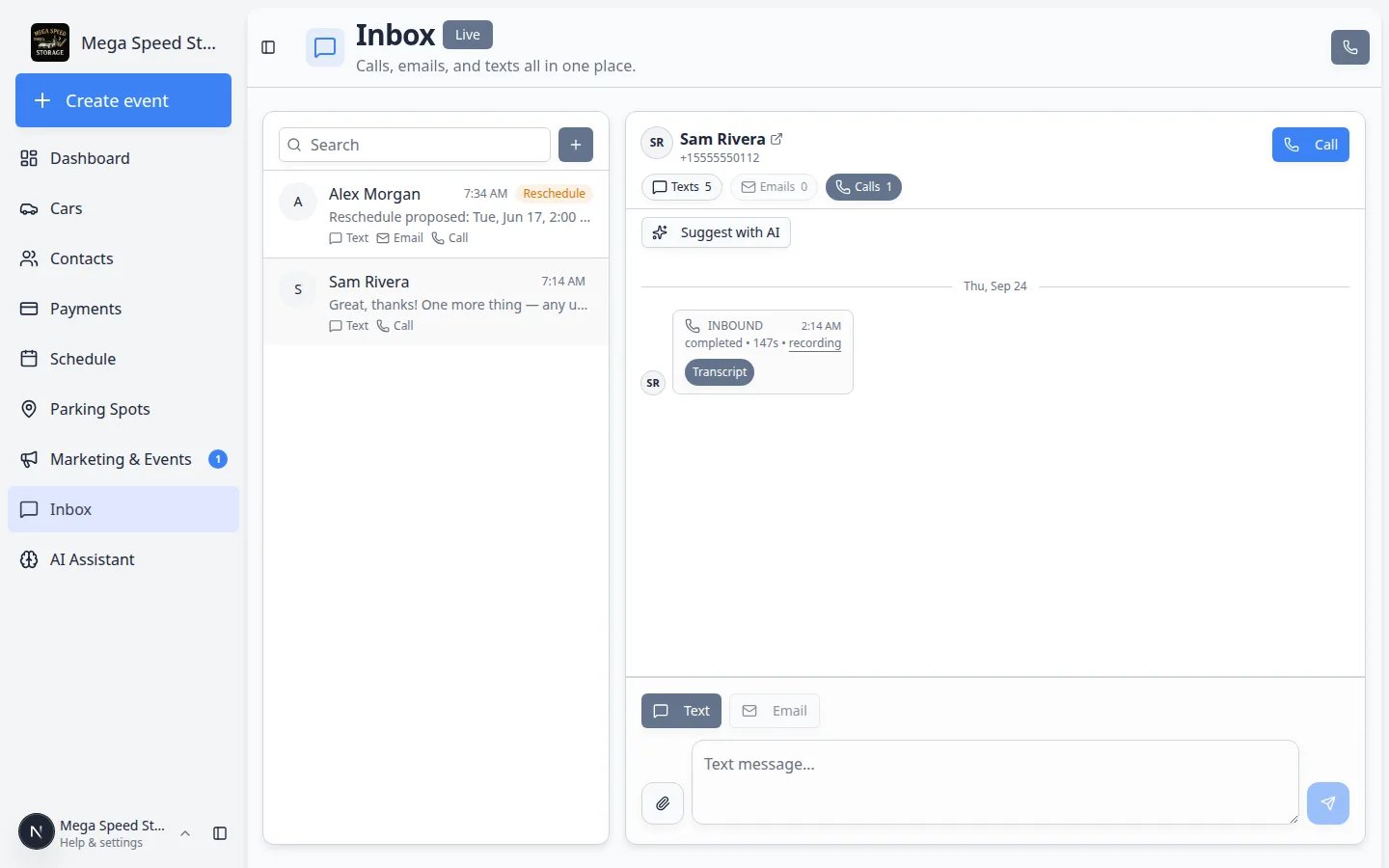 *After a call ends, look for an **INBOUND** or **OUTBOUND** entry in the customer's timeline. Use the **Calls** filter to see phone activity only.*
## During the call
* Confirm who you are speaking with (full name when possible).
* Ask which vehicle they mean when they own more than one car.
* Repeat important dates and times back to the customer.
* Say what will happen next before you hang up.
**Open Inbox while you talk**
If the call window shows **Open inbox**, click it to read recent texts and emails before you promise something that conflicts with an earlier message.
## Decline or miss a call
Use **Decline** when your team cannot answer right now.
Go to [Inbox](https://www.carstoragesoftware.com/dashboard/inbox) and look for the customer or phone number.
A missed call or voicemail may appear in the timeline.
Call back from the customer's conversation, or send a short text that you missed their call.
See [Review calls and transcripts](/docs/inbox/review-calls-and-transcripts) and [Send a text message from Inbox](/docs/inbox/send-a-text-message-from-inbox).
## Open Inbox from a ringing call
If the call window offers **Open inbox**, click it before you answer or right after you decline.
**Why this helps:** You can read recent texts and emails before you call back or send a follow-up message. The customer's name and phone number should already match the conversation in [Inbox](https://www.carstoragesoftware.com/dashboard/inbox).
While the **Incoming call** dialog is on screen, click **Open inbox**.
**Expected result:** [Inbox](https://www.carstoragesoftware.com/dashboard/inbox) opens with that customer's conversation selected (when the number matches a saved customer).
Read the last few texts or emails before you pick up the phone.
**Why this matters:** Customers appreciate when your team already knows why they are calling.
Click **Answer** on the call dialog when you are ready to speak live.
For more on reading call history and transcripts after the call ends, see [Review calls and transcripts](/docs/inbox/review-calls-and-transcripts).
## Follow up in writing after a call
A phone call does not always leave enough detail for the next teammate on shift.
Send a short text or email when:
* The customer asked for a specific time or location
* You promised to check something and report back
* Billing, transport, or service details were discussed
**Example follow-up text**
Hi Sam, thanks for calling. We confirmed your 911 is ready for pickup tomorrow at 10 AM at the front entrance.
## What success looks like
* The call appears in the customer's Inbox timeline.
* The customer knows what happens next.
* Your team has a written follow-up when the details matter.
**Allow sound and notifications**
Incoming calls are easier to catch when your computer volume is on and your browser is allowed to show notifications. Ask your browser for notification permission if your facility wants desktop alerts in addition to the on-screen call window.
## Troubleshooting
**I never see incoming call alerts**
Ask an admin to confirm calling is set up in [Settings > Communications](https://www.carstoragesoftware.com/dashboard/settings/communications). You must be signed in as staff, not as a customer portal user.
**I answered but cannot find the customer in Inbox**
Search Inbox by phone number. If the caller is not saved yet, start a thread with [Start a new Inbox conversation](/docs/inbox/start-a-new-inbox-conversation) and add them to [Contacts](https://www.carstoragesoftware.com/dashboard/contacts) afterward.
**Another teammate is already on a call**
Only one active call per person at a time. Wait for their call to finish, or ask another available teammate to help.
## What to do next
For outbound calls and **Quick call**, see [Call a customer from Inbox](/docs/inbox/call-a-customer-from-inbox). To review a recording or transcript after any call, see [Review calls and transcripts](/docs/inbox/review-calls-and-transcripts).
For team coordination while multiple people use Inbox, see [Coordinate with your team in Inbox](/docs/inbox/coordinate-with-your-team-in-inbox).
This documentation is built and hosted on [Mintlify](https://mintlify.com), a developer documentation platform.
*After a call ends, look for an **INBOUND** or **OUTBOUND** entry in the customer's timeline. Use the **Calls** filter to see phone activity only.*
## During the call
* Confirm who you are speaking with (full name when possible).
* Ask which vehicle they mean when they own more than one car.
* Repeat important dates and times back to the customer.
* Say what will happen next before you hang up.
**Open Inbox while you talk**
If the call window shows **Open inbox**, click it to read recent texts and emails before you promise something that conflicts with an earlier message.
## Decline or miss a call
Use **Decline** when your team cannot answer right now.
Go to [Inbox](https://www.carstoragesoftware.com/dashboard/inbox) and look for the customer or phone number.
A missed call or voicemail may appear in the timeline.
Call back from the customer's conversation, or send a short text that you missed their call.
See [Review calls and transcripts](/docs/inbox/review-calls-and-transcripts) and [Send a text message from Inbox](/docs/inbox/send-a-text-message-from-inbox).
## Open Inbox from a ringing call
If the call window offers **Open inbox**, click it before you answer or right after you decline.
**Why this helps:** You can read recent texts and emails before you call back or send a follow-up message. The customer's name and phone number should already match the conversation in [Inbox](https://www.carstoragesoftware.com/dashboard/inbox).
While the **Incoming call** dialog is on screen, click **Open inbox**.
**Expected result:** [Inbox](https://www.carstoragesoftware.com/dashboard/inbox) opens with that customer's conversation selected (when the number matches a saved customer).
Read the last few texts or emails before you pick up the phone.
**Why this matters:** Customers appreciate when your team already knows why they are calling.
Click **Answer** on the call dialog when you are ready to speak live.
For more on reading call history and transcripts after the call ends, see [Review calls and transcripts](/docs/inbox/review-calls-and-transcripts).
## Follow up in writing after a call
A phone call does not always leave enough detail for the next teammate on shift.
Send a short text or email when:
* The customer asked for a specific time or location
* You promised to check something and report back
* Billing, transport, or service details were discussed
**Example follow-up text**
Hi Sam, thanks for calling. We confirmed your 911 is ready for pickup tomorrow at 10 AM at the front entrance.
## What success looks like
* The call appears in the customer's Inbox timeline.
* The customer knows what happens next.
* Your team has a written follow-up when the details matter.
**Allow sound and notifications**
Incoming calls are easier to catch when your computer volume is on and your browser is allowed to show notifications. Ask your browser for notification permission if your facility wants desktop alerts in addition to the on-screen call window.
## Troubleshooting
**I never see incoming call alerts**
Ask an admin to confirm calling is set up in [Settings > Communications](https://www.carstoragesoftware.com/dashboard/settings/communications). You must be signed in as staff, not as a customer portal user.
**I answered but cannot find the customer in Inbox**
Search Inbox by phone number. If the caller is not saved yet, start a thread with [Start a new Inbox conversation](/docs/inbox/start-a-new-inbox-conversation) and add them to [Contacts](https://www.carstoragesoftware.com/dashboard/contacts) afterward.
**Another teammate is already on a call**
Only one active call per person at a time. Wait for their call to finish, or ask another available teammate to help.
## What to do next
For outbound calls and **Quick call**, see [Call a customer from Inbox](/docs/inbox/call-a-customer-from-inbox). To review a recording or transcript after any call, see [Review calls and transcripts](/docs/inbox/review-calls-and-transcripts).
For team coordination while multiple people use Inbox, see [Coordinate with your team in Inbox](/docs/inbox/coordinate-with-your-team-in-inbox).
This documentation is built and hosted on [Mintlify](https://mintlify.com), a developer documentation platform.