> ## Documentation Index
> Fetch the complete documentation index at: https://www.carstoragesoftware.com/docs/llms.txt
> Use this file to discover all available pages before exploring further.
# Respond to reschedule requests in Inbox
> Find reschedule requests in the Inbox conversation list and help customers change appointment times without losing the full message history.
Use this guide when a customer asks to move an appointment and you see a **Reschedule** label in [Inbox](https://www.carstoragesoftware.com/dashboard/inbox).
Customers often text or email when a time no longer works. Inbox keeps those messages with the rest of the conversation so your team can respond in context.
**Why this matters:** If you change the calendar but forget to confirm in Inbox—or reply in Inbox but forget to update [Schedule](https://www.carstoragesoftware.com/dashboard/schedule)—the customer and your team will see two different times. This guide walks through both sides so the appointment, the message history, and what the customer hears all match.
## What you will accomplish
* Spot conversations that include a reschedule request.
* Read the customer's message before changing anything on the schedule.
* Update the appointment on [Schedule](https://www.carstoragesoftware.com/dashboard/schedule) and confirm the new time with the customer.
## Before you start
* You should have permission to view [Inbox](https://www.carstoragesoftware.com/dashboard/inbox) and [Schedule](https://www.carstoragesoftware.com/dashboard/schedule).
* Know which car and appointment the customer is asking about.
* If you are not sure which event to move, open the customer's record in [Contacts](https://www.carstoragesoftware.com/dashboard/contacts) or search [Schedule](https://www.carstoragesoftware.com/dashboard/schedule) before replying.
## Find a reschedule request in the conversation list
In the conversation list on the left side of [Inbox](https://www.carstoragesoftware.com/dashboard/inbox), some rows show a small orange **Reschedule** badge near the time.
This badge appears when the most recent preview text starts with **Reschedule proposed:**. That usually means the customer (or the system on their behalf) asked to change an appointment time.
You may also see the words **Reschedule proposed:** in the gray preview line under the customer name, even before you open the conversation.
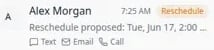 *Look for the orange Reschedule badge on the conversation row. The preview text often starts with Reschedule proposed and shows the old and new times.*
**Why the badge helps**
Your team can scan the list and spot scheduling changes without opening every conversation. This is especially helpful on busy mornings.
## Read the full message first
Go to [Inbox](https://www.carstoragesoftware.com/dashboard/inbox).
Select the customer row that shows the **Reschedule** badge.
Scroll through the recent texts, emails, or calls.
Confirm:
* Which vehicle the customer mentioned
* The old time and the new time they want
* Any special instructions (for example, "after 2 PM only")
**Expected result:** You understand exactly what the customer is asking before you change the calendar.
*Look for the orange Reschedule badge on the conversation row. The preview text often starts with Reschedule proposed and shows the old and new times.*
**Why the badge helps**
Your team can scan the list and spot scheduling changes without opening every conversation. This is especially helpful on busy mornings.
## Read the full message first
Go to [Inbox](https://www.carstoragesoftware.com/dashboard/inbox).
Select the customer row that shows the **Reschedule** badge.
Scroll through the recent texts, emails, or calls.
Confirm:
* Which vehicle the customer mentioned
* The old time and the new time they want
* Any special instructions (for example, "after 2 PM only")
**Expected result:** You understand exactly what the customer is asking before you change the calendar.
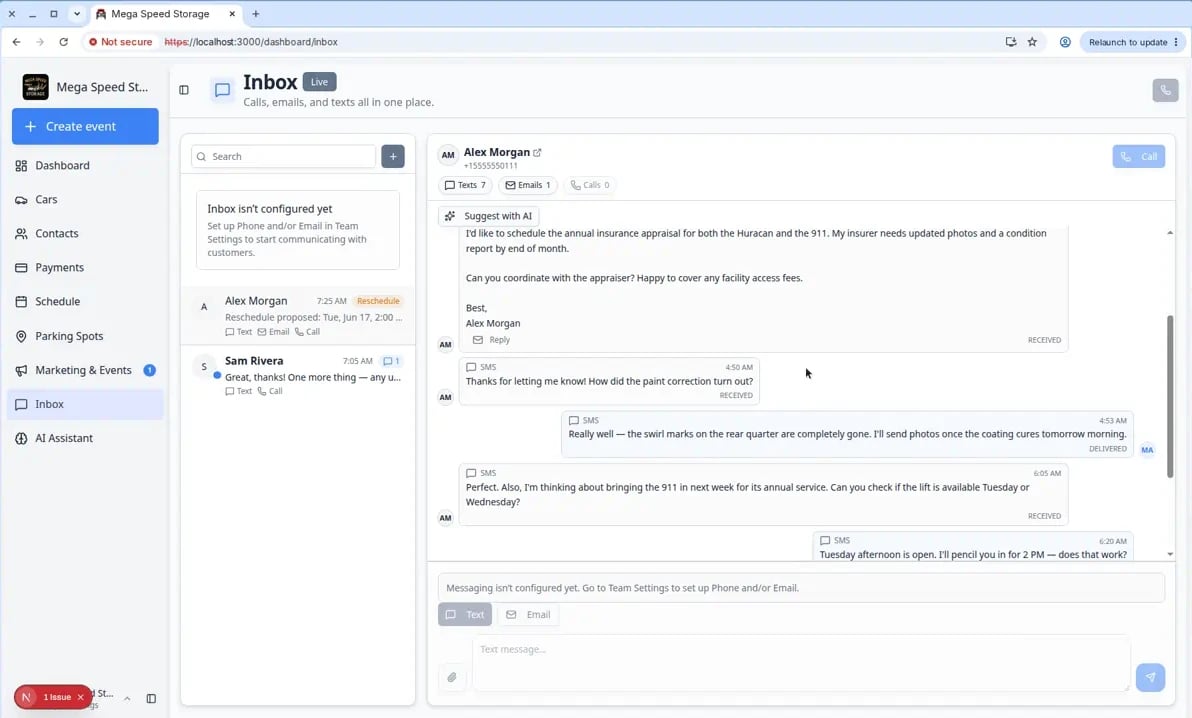 *Read the full **Reschedule proposed** message before you move an appointment on Schedule. It shows the old time and the new time your team suggested.*
## Update the appointment on Schedule
After you understand the request, make the calendar change in [Schedule](https://www.carstoragesoftware.com/dashboard/schedule). Do this **before** you send the final confirmation text or email.
**Keep Inbox open in another tab**
Many staff keep [Inbox](https://www.carstoragesoftware.com/dashboard/inbox) open in one browser tab and [Schedule](https://www.carstoragesoftware.com/dashboard/schedule) in another. That way you can read the customer's exact words while you move the appointment.
Go to [Schedule](https://www.carstoragesoftware.com/dashboard/schedule) from the left sidebar.
**Expected result:** You see your facility calendar with colored appointment blocks.
Use **Search** at the top of Schedule and type the customer name, car name, or event type (for example **Detail** or **Service**).
You can also browse the week view until you find the block at the **old** time shown in the **Reschedule proposed:** message in Inbox.
**Why this matters:** The reschedule message usually shows both the old time and the new time. You need to find the event at the **old** time first, then change it to the **new** time.
Click the appointment block once.
**Expected result:** An event detail panel or dialog opens showing the car, customer, date, time, and event type.
Follow [Update, assign, or reschedule an event](/docs/schedule/update-assign-or-reschedule-an-event) to set the new date and time your team can honor.
Match the time you plan to tell the customer—do not guess.
**Expected result:** The form shows the new date and time before you save.
Click **Save** (or the save button your team uses on the event form).
**Expected result:** The appointment block moves on the calendar to the new day and time.
*Read the full **Reschedule proposed** message before you move an appointment on Schedule. It shows the old time and the new time your team suggested.*
## Update the appointment on Schedule
After you understand the request, make the calendar change in [Schedule](https://www.carstoragesoftware.com/dashboard/schedule). Do this **before** you send the final confirmation text or email.
**Keep Inbox open in another tab**
Many staff keep [Inbox](https://www.carstoragesoftware.com/dashboard/inbox) open in one browser tab and [Schedule](https://www.carstoragesoftware.com/dashboard/schedule) in another. That way you can read the customer's exact words while you move the appointment.
Go to [Schedule](https://www.carstoragesoftware.com/dashboard/schedule) from the left sidebar.
**Expected result:** You see your facility calendar with colored appointment blocks.
Use **Search** at the top of Schedule and type the customer name, car name, or event type (for example **Detail** or **Service**).
You can also browse the week view until you find the block at the **old** time shown in the **Reschedule proposed:** message in Inbox.
**Why this matters:** The reschedule message usually shows both the old time and the new time. You need to find the event at the **old** time first, then change it to the **new** time.
Click the appointment block once.
**Expected result:** An event detail panel or dialog opens showing the car, customer, date, time, and event type.
Follow [Update, assign, or reschedule an event](/docs/schedule/update-assign-or-reschedule-an-event) to set the new date and time your team can honor.
Match the time you plan to tell the customer—do not guess.
**Expected result:** The form shows the new date and time before you save.
Click **Save** (or the save button your team uses on the event form).
**Expected result:** The appointment block moves on the calendar to the new day and time.
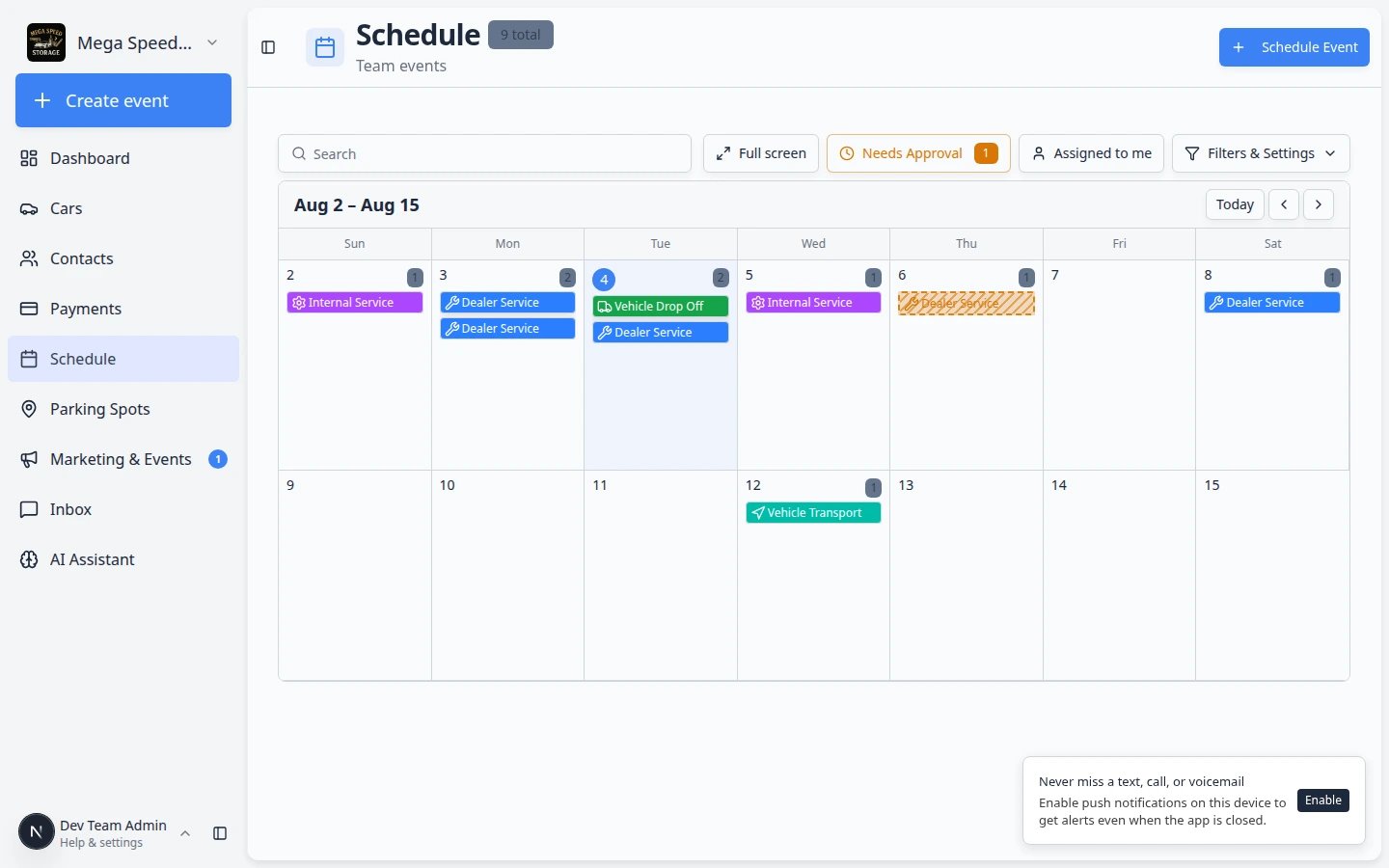 *After you click an appointment on [Schedule](https://www.carstoragesoftware.com/dashboard/schedule), update the date and time here. The customer confirmation in Inbox should match what you save.*
**Expected result:** The appointment on [Schedule](https://www.carstoragesoftware.com/dashboard/schedule) shows the new time your team can honor.
## Confirm the new time with the customer
Return to [Inbox](https://www.carstoragesoftware.com/dashboard/inbox) and send a short confirmation **after** the calendar is correct.
Click the customer row in the conversation list (for example **Alex Morgan**).
**Expected result:** You see the full message history, including the **Reschedule proposed:** line.
Click **Text** for a quick confirmation. Click **Email** if you need to recap several details or attach information.
See [Send a text message from Inbox](/docs/inbox/send-a-text-message-from-inbox) or [Send an email from Inbox](/docs/inbox/send-an-email-from-inbox) for exact composer steps.
Include:
* The vehicle name when the customer has more than one car
* The new **day** and **exact time** (for example **Thursday at 2 PM**)
* What to do if the new time does not work (for example **Reply here**)
**Why this matters:** A vague reply like "we moved it" forces the customer to ask again. A specific time builds trust.
Review once, then send.
**Why this matters:** The customer should hear the same date and time that now appears on your calendar. One clear confirmation closes the loop and reduces "which time is it really?" follow-up texts.
**Expected result:** Your confirmation appears in the timeline. The **Reschedule** badge may clear after newer outbound messages update the preview.
* Include the vehicle name when the customer has more than one car.
* State the new date and exact time (for example, **Thursday at 2 PM**).
* Tell the customer what to do if the new time does not work.
**Example confirmation text**
Hi Alex, we moved the Huracan service to Thursday at 10 AM. Reply here if you need a different time.
**When your team proposed the new time**
Sometimes the **Reschedule proposed:** message came from your facility (for example when a lift conflict forced a move). In that case, ask the customer to confirm the new time: "Does Thursday at 10 AM still work for you?"
## When a customer proposes a new time in writing
Sometimes the customer texts the time they want instead of tapping a reschedule link. You may not see an orange **Reschedule** badge in that case.
Look for phrases such as "Can we move to Thursday?" or "2 PM no longer works."
**Expected result:** You know the day and time the customer is asking for before you change [Schedule](https://www.carstoragesoftware.com/dashboard/schedule).
Follow the steps in [Update the appointment on Schedule](#update-the-appointment-on-schedule) above.
Send a short reply that states the new day and exact time. Include the vehicle name when the customer has more than one car.
**Badge vs plain text**
The orange **Reschedule** badge appears when the latest preview starts with **Reschedule proposed:**. A normal customer text without that wording still needs the same Schedule-then-confirm workflow—just without the badge hint in the list.
## What success looks like
* The appointment on [Schedule](https://www.carstoragesoftware.com/dashboard/schedule) matches what you told the customer.
* The customer received a clear confirmation in Inbox.
* Your team can see the full conversation history if the customer follows up again.
**Reschedule badge clears after you confirm**
After you send a clear confirmation text or email with the new time, the orange **Reschedule** badge may disappear from the list because the preview text updates. The full **Reschedule proposed:** message stays in the timeline for history.
## If the customer proposed a time you cannot offer
Open [Schedule](https://www.carstoragesoftware.com/dashboard/schedule) and confirm the time is actually open.
Example: "Thursday 10 AM is full. We can do Thursday at 2 PM or Friday at 9 AM—which works better?"
**Why this matters:** It is better to offer real times than to agree to a slot your team cannot staff.
## Troubleshooting
**I see Reschedule but cannot find the appointment**
Search [Schedule](https://www.carstoragesoftware.com/dashboard/schedule) by customer name and car. If nothing appears, the request may be for a booking that is still waiting for approval. See [Approve or decline customer booking requests](/docs/schedule/approve-or-decline-customer-booking-requests).
**The Reschedule badge will not go away**
The orange badge follows the **latest preview** in the conversation list. After you send a clear confirmation, newer messages replace the preview. If the badge stays, send a short closing message so the list shows your outbound text instead of the old **Reschedule proposed:** line.
**The customer proposed a time we cannot offer**
Reply with two or three times that do work. It is better to offer real options than to agree to a time your team cannot staff.
**Two staff members already replied with different times**
Send one final message with the correct time after you fix Schedule. See [Coordinate with your team in Inbox](/docs/inbox/coordinate-with-your-team-in-inbox) for habits that prevent conflicting replies.
## What to do next
If the customer needs more schedule help, continue with [Find and filter scheduled work](/docs/schedule/find-and-filter-scheduled-work).
For general Inbox reply habits, see [Respond to a conversation](/docs/inbox/respond-to-a-conversation).
This documentation is built and hosted on [Mintlify](https://mintlify.com), a developer documentation platform.
*After you click an appointment on [Schedule](https://www.carstoragesoftware.com/dashboard/schedule), update the date and time here. The customer confirmation in Inbox should match what you save.*
**Expected result:** The appointment on [Schedule](https://www.carstoragesoftware.com/dashboard/schedule) shows the new time your team can honor.
## Confirm the new time with the customer
Return to [Inbox](https://www.carstoragesoftware.com/dashboard/inbox) and send a short confirmation **after** the calendar is correct.
Click the customer row in the conversation list (for example **Alex Morgan**).
**Expected result:** You see the full message history, including the **Reschedule proposed:** line.
Click **Text** for a quick confirmation. Click **Email** if you need to recap several details or attach information.
See [Send a text message from Inbox](/docs/inbox/send-a-text-message-from-inbox) or [Send an email from Inbox](/docs/inbox/send-an-email-from-inbox) for exact composer steps.
Include:
* The vehicle name when the customer has more than one car
* The new **day** and **exact time** (for example **Thursday at 2 PM**)
* What to do if the new time does not work (for example **Reply here**)
**Why this matters:** A vague reply like "we moved it" forces the customer to ask again. A specific time builds trust.
Review once, then send.
**Why this matters:** The customer should hear the same date and time that now appears on your calendar. One clear confirmation closes the loop and reduces "which time is it really?" follow-up texts.
**Expected result:** Your confirmation appears in the timeline. The **Reschedule** badge may clear after newer outbound messages update the preview.
* Include the vehicle name when the customer has more than one car.
* State the new date and exact time (for example, **Thursday at 2 PM**).
* Tell the customer what to do if the new time does not work.
**Example confirmation text**
Hi Alex, we moved the Huracan service to Thursday at 10 AM. Reply here if you need a different time.
**When your team proposed the new time**
Sometimes the **Reschedule proposed:** message came from your facility (for example when a lift conflict forced a move). In that case, ask the customer to confirm the new time: "Does Thursday at 10 AM still work for you?"
## When a customer proposes a new time in writing
Sometimes the customer texts the time they want instead of tapping a reschedule link. You may not see an orange **Reschedule** badge in that case.
Look for phrases such as "Can we move to Thursday?" or "2 PM no longer works."
**Expected result:** You know the day and time the customer is asking for before you change [Schedule](https://www.carstoragesoftware.com/dashboard/schedule).
Follow the steps in [Update the appointment on Schedule](#update-the-appointment-on-schedule) above.
Send a short reply that states the new day and exact time. Include the vehicle name when the customer has more than one car.
**Badge vs plain text**
The orange **Reschedule** badge appears when the latest preview starts with **Reschedule proposed:**. A normal customer text without that wording still needs the same Schedule-then-confirm workflow—just without the badge hint in the list.
## What success looks like
* The appointment on [Schedule](https://www.carstoragesoftware.com/dashboard/schedule) matches what you told the customer.
* The customer received a clear confirmation in Inbox.
* Your team can see the full conversation history if the customer follows up again.
**Reschedule badge clears after you confirm**
After you send a clear confirmation text or email with the new time, the orange **Reschedule** badge may disappear from the list because the preview text updates. The full **Reschedule proposed:** message stays in the timeline for history.
## If the customer proposed a time you cannot offer
Open [Schedule](https://www.carstoragesoftware.com/dashboard/schedule) and confirm the time is actually open.
Example: "Thursday 10 AM is full. We can do Thursday at 2 PM or Friday at 9 AM—which works better?"
**Why this matters:** It is better to offer real times than to agree to a slot your team cannot staff.
## Troubleshooting
**I see Reschedule but cannot find the appointment**
Search [Schedule](https://www.carstoragesoftware.com/dashboard/schedule) by customer name and car. If nothing appears, the request may be for a booking that is still waiting for approval. See [Approve or decline customer booking requests](/docs/schedule/approve-or-decline-customer-booking-requests).
**The Reschedule badge will not go away**
The orange badge follows the **latest preview** in the conversation list. After you send a clear confirmation, newer messages replace the preview. If the badge stays, send a short closing message so the list shows your outbound text instead of the old **Reschedule proposed:** line.
**The customer proposed a time we cannot offer**
Reply with two or three times that do work. It is better to offer real options than to agree to a time your team cannot staff.
**Two staff members already replied with different times**
Send one final message with the correct time after you fix Schedule. See [Coordinate with your team in Inbox](/docs/inbox/coordinate-with-your-team-in-inbox) for habits that prevent conflicting replies.
## What to do next
If the customer needs more schedule help, continue with [Find and filter scheduled work](/docs/schedule/find-and-filter-scheduled-work).
For general Inbox reply habits, see [Respond to a conversation](/docs/inbox/respond-to-a-conversation).
This documentation is built and hosted on [Mintlify](https://mintlify.com), a developer documentation platform.