> ## Documentation Index
> Fetch the complete documentation index at: https://www.carstoragesoftware.com/docs/llms.txt
> Use this file to discover all available pages before exploring further.
# Create a text, push, or social campaign
> Send a text message, phone notification, or social post to customers—not only email—using the same campaign tools on the marketing calendar.
## What you will accomplish
* Start a **text**, **push**, or **social** campaign from [Marketing & Events](https://www.carstoragesoftware.com/dashboard/marketing).
* Write a short message customers will see on their phone or social feed.
* Choose the right audience and schedule or publish the send.
**Expected result:** Customers receive your update on the channel you chose—not in email.
Use [Create a campaign](/docs/marketing-events/create-a-campaign) first if you are brand new to campaigns. This guide focuses on channels **other than email**.
**Text and push need setup first**
**SMS (text)** campaigns require text messaging setup in [Settings > Communications](https://www.carstoragesoftware.com/dashboard/settings/communications). **Push** campaigns reach customers who use your facility’s mobile app. If those tools are not ready, the app may gray out those options or show an error when you try to send.
## When to use each channel
| Channel | Best for | Example |
| - | - | - |
| **Text (SMS)** | Short, urgent reminders customers read quickly | "Doors open at 9 AM for Cars & Coffee. Reply if you need directions." |
| **Push** | App users who enabled notifications | "Your detail appointment is tomorrow at 10 AM." |
| **Social post** | Announcing an event on Facebook or Instagram | Photo of your facility with open-house date and link |
| **Email** | Longer stories with photos and buttons | Monthly newsletter—see [Create a campaign](/docs/marketing-events/create-a-campaign) |
## Before you start
* You can open [Marketing & Events](https://www.carstoragesoftware.com/dashboard/marketing).
* For **text** campaigns: text messaging is configured in [Settings > Communications](https://www.carstoragesoftware.com/dashboard/settings/communications).
* For **push** campaigns: your customer mobile app is live and customers have installed it.
* For **social** campaigns: your social accounts are connected in [Settings > Communications](https://www.carstoragesoftware.com/dashboard/settings/communications).
* You know what you want to say in one or two short sentences (especially for text).
## Step 1: Start the campaign from Create New
Go to [Marketing & Events](https://www.carstoragesoftware.com/dashboard/marketing).
Click **Create New** in the top-right corner.
**Expected result:** A menu lists campaign and event types.
Choose the type that matches your goal:
* **Text message** (or **SMS**) — for phone texts.
* **Push notification** — for app alerts.
* **Social post** — for Facebook, Instagram, or similar.
**Why this matters:** You cannot switch a campaign from text to email after creation. Pick the right channel now.
Type a name your team will recognize on the calendar—for example **Open House Text Reminder** or **July Instagram Post**.
Click **Create Campaign** (or **Create**).
**Expected result:** You land on the campaign detail page with a **draft** badge.
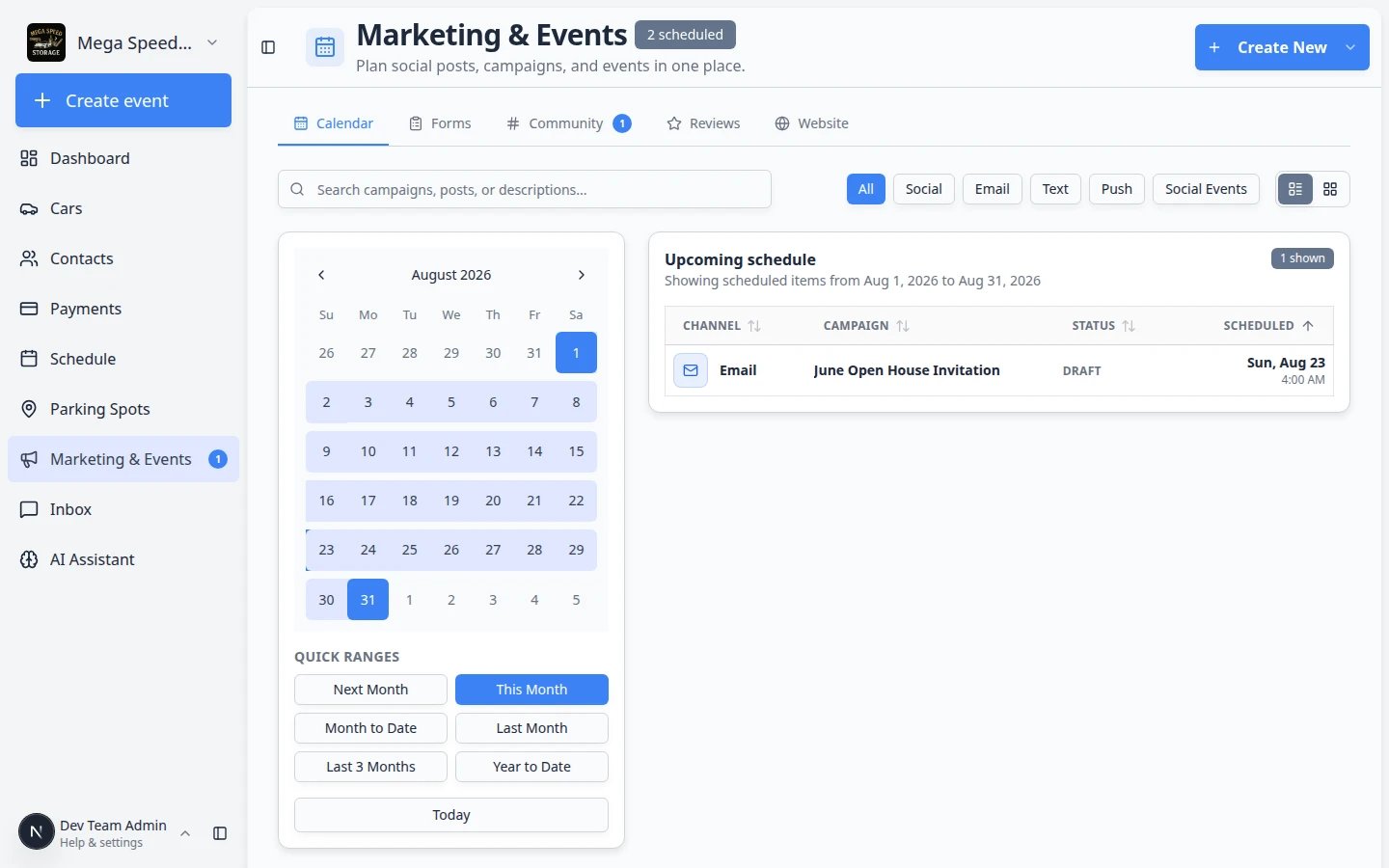 ***Create New** is where you pick text, push, social, or email. This guide covers everything except email.*
## Step 2: Write the message for your channel
After you click **Create Campaign**, the setup wizard opens on **Design**.
**Expected result:** You see a preview area and a large button at the bottom—**Design SMS**, **Design Push**, or **Design Social** depending on your channel.
Click the **Design** button for your channel. A full editor opens.
**Expected result:** For SMS you see one short text box. For push you see a title and message field. For social you can add caption text and attach an image when the editor allows.
* **Text:** Keep it brief. Include date, time, and one link if needed. Avoid long paragraphs—texts truncate on small screens.
* **Push:** Add a short title and message. Tell customers what to tap or do next.
* **Social:** Add caption text and attach an image when the editor allows.
**Why this matters:** Customers skim these messages in seconds. Lead with the most important fact.
Save your work and return to the setup wizard. Click **Continue** to move to **Audience**.
**Expected result:** The **Design** step preview shows what customers will see, with a green checkmark on the step pill.
***Create New** is where you pick text, push, social, or email. This guide covers everything except email.*
## Step 2: Write the message for your channel
After you click **Create Campaign**, the setup wizard opens on **Design**.
**Expected result:** You see a preview area and a large button at the bottom—**Design SMS**, **Design Push**, or **Design Social** depending on your channel.
Click the **Design** button for your channel. A full editor opens.
**Expected result:** For SMS you see one short text box. For push you see a title and message field. For social you can add caption text and attach an image when the editor allows.
* **Text:** Keep it brief. Include date, time, and one link if needed. Avoid long paragraphs—texts truncate on small screens.
* **Push:** Add a short title and message. Tell customers what to tap or do next.
* **Social:** Add caption text and attach an image when the editor allows.
**Why this matters:** Customers skim these messages in seconds. Lead with the most important fact.
Save your work and return to the setup wizard. Click **Continue** to move to **Audience**.
**Expected result:** The **Design** step preview shows what customers will see, with a green checkmark on the step pill.
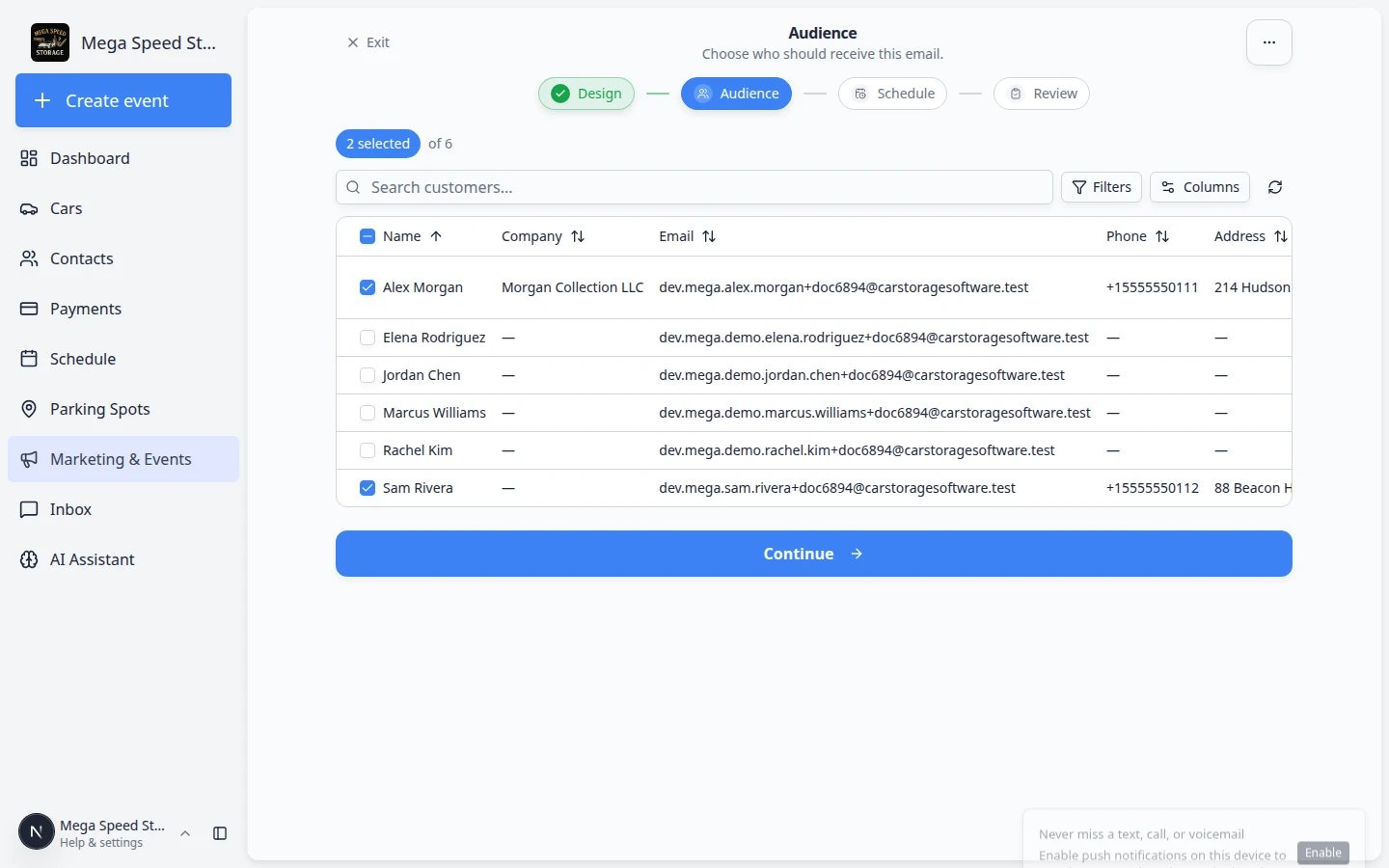 *On **Design**, click **Design SMS** (or **Design Push** / **Design Social**). Keep SMS messages short—lead with the date and time.*
**Text length matters**
Most phones show only the first line or two before a customer taps to read more. Put the most important fact first—for example, **"Doors open 9 AM Saturday for Cars & Coffee."**
## Step 3: Choose who receives the message
Follow the **Audience** step in [Add campaign message, audience, and publish](/docs/marketing-events/add-campaign-message-audience-and-publish).
* On the **Audience** wizard step, search and check the customers who should receive this message.
* For texts, confirm each customer has a valid mobile number on their contact record.
* Read the **selected of** counter before you click **Continue**—texts to the wrong group are hard to take back.
*On **Design**, click **Design SMS** (or **Design Push** / **Design Social**). Keep SMS messages short—lead with the date and time.*
**Text length matters**
Most phones show only the first line or two before a customer taps to read more. Put the most important fact first—for example, **"Doors open 9 AM Saturday for Cars & Coffee."**
## Step 3: Choose who receives the message
Follow the **Audience** step in [Add campaign message, audience, and publish](/docs/marketing-events/add-campaign-message-audience-and-publish).
* On the **Audience** wizard step, search and check the customers who should receive this message.
* For texts, confirm each customer has a valid mobile number on their contact record.
* Read the **selected of** counter before you click **Continue**—texts to the wrong group are hard to take back.
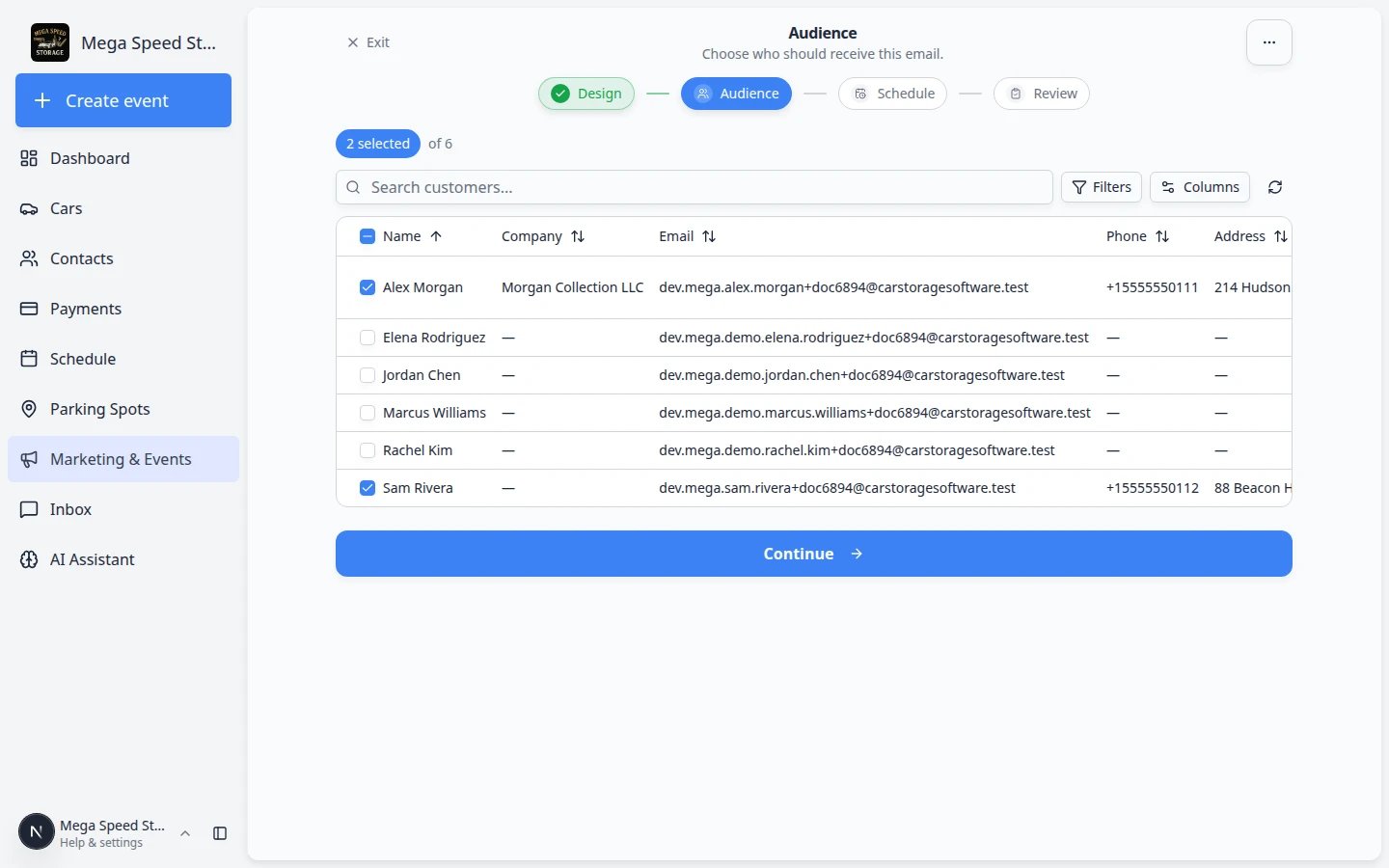 *Double-check the **selected of** count on the **Audience** step before you schedule a text or push. One wrong click can message hundreds of customers.*
## Step 4: Schedule and start the campaign
On the **Schedule** step, pick **Send date** and **Send time**. Read the preview line (for example **Will send Tuesday, Sep 15, 2026 at 9:00 AM**) before you click **Continue**.
**Why this matters:** Scheduling lets you write reminders during the day but send them the morning of your event.
On the **Review** step, confirm the channel, recipient count, send time, and message preview. Click **Start campaign** (the button may show the count, such as **Start campaign (2)**).
**Expected result:** The campaign status changes from **draft** to **scheduled** or **active**. It appears on the [Marketing & Events](https://www.carstoragesoftware.com/dashboard/marketing) calendar.
*Double-check the **selected of** count on the **Audience** step before you schedule a text or push. One wrong click can message hundreds of customers.*
## Step 4: Schedule and start the campaign
On the **Schedule** step, pick **Send date** and **Send time**. Read the preview line (for example **Will send Tuesday, Sep 15, 2026 at 9:00 AM**) before you click **Continue**.
**Why this matters:** Scheduling lets you write reminders during the day but send them the morning of your event.
On the **Review** step, confirm the channel, recipient count, send time, and message preview. Click **Start campaign** (the button may show the count, such as **Start campaign (2)**).
**Expected result:** The campaign status changes from **draft** to **scheduled** or **active**. It appears on the [Marketing & Events](https://www.carstoragesoftware.com/dashboard/marketing) calendar.
 *On **Schedule**, confirm the date and time zone make sense for your facility before you move to **Review**.*
## What success looks like
* The campaign shows on the marketing calendar with the correct channel label (Text, Push, or Social).
* Test customers (or your own phone) receive the message at the expected time.
* Your team knows which channel was used so they can answer customer replies in [Inbox](/docs/inbox/overview).
## Troubleshooting
**Text message is grayed out**
Finish text messaging setup in [Settings > Communications](https://www.carstoragesoftware.com/dashboard/settings/communications). Until texting is active, only email or social options may be available.
**Push did not arrive on my phone**
Confirm the customer installed your facility app and allowed notifications. Push does not reach customers who only use email or the web portal.
**Social post failed to publish**
Reconnect the social account in [Settings > Communications](https://www.carstoragesoftware.com/dashboard/settings/communications). Token expirations are common—reconnecting usually fixes failed posts.
## What to do next
1. [Add campaign message, audience, and publish](/docs/marketing-events/add-campaign-message-audience-and-publish) — full publish checklist for any channel.
2. [Create a social event](/docs/marketing-events/create-a-social-event) — when customers need RSVP and check-in, not just a text blast.
3. [Marketing & Events overview](/docs/marketing-events/overview) — see how campaigns fit with forms, community, reviews, and website traffic.
This documentation is built and hosted on [Mintlify](https://mintlify.com), a developer documentation platform.
*On **Schedule**, confirm the date and time zone make sense for your facility before you move to **Review**.*
## What success looks like
* The campaign shows on the marketing calendar with the correct channel label (Text, Push, or Social).
* Test customers (or your own phone) receive the message at the expected time.
* Your team knows which channel was used so they can answer customer replies in [Inbox](/docs/inbox/overview).
## Troubleshooting
**Text message is grayed out**
Finish text messaging setup in [Settings > Communications](https://www.carstoragesoftware.com/dashboard/settings/communications). Until texting is active, only email or social options may be available.
**Push did not arrive on my phone**
Confirm the customer installed your facility app and allowed notifications. Push does not reach customers who only use email or the web portal.
**Social post failed to publish**
Reconnect the social account in [Settings > Communications](https://www.carstoragesoftware.com/dashboard/settings/communications). Token expirations are common—reconnecting usually fixes failed posts.
## What to do next
1. [Add campaign message, audience, and publish](/docs/marketing-events/add-campaign-message-audience-and-publish) — full publish checklist for any channel.
2. [Create a social event](/docs/marketing-events/create-a-social-event) — when customers need RSVP and check-in, not just a text blast.
3. [Marketing & Events overview](/docs/marketing-events/overview) — see how campaigns fit with forms, community, reviews, and website traffic.
This documentation is built and hosted on [Mintlify](https://mintlify.com), a developer documentation platform.