> ## Documentation Index
> Fetch the complete documentation index at: https://www.carstoragesoftware.com/docs/llms.txt
> Use this file to discover all available pages before exploring further.
# Review form responses and export
> Read answers from your custom forms, spot trends in charts, and download a spreadsheet for follow-up.
Use this guide when customers have started answering a form you shared—an open house survey, detail waitlist, or feedback page—and your team needs to read the answers, spot trends, or download a spreadsheet.
You will open the **Results** page for a custom form, read what customers submitted, use simple charts to spot patterns, and download a **CSV file** (spreadsheet) when your team needs to sort or share answers outside the app.
This guide assumes you already created and published a form. If not, start with [Create and share a custom form](/docs/marketing-events/create-and-share-a-custom-form).
## What you will accomplish
* Open the **Results** page for any custom form and read individual answers.
* Use summary charts to see which multiple-choice answers are most popular.
* Download a **CSV** spreadsheet to share with your team or import into another tool.
* Know when to close a form that has enough responses.
**Expected result:** You can answer questions like "How many people want to attend Cars & Coffee?" without asking customers to resend their answers.
## When to use this guide
* Responses are coming in and you need to read them or count how many people answered.
* You want to see which multiple-choice options are most popular.
* You need a spreadsheet for a manager, mail merge, or follow-up calls.
* You are deciding whether to close a form that reached its response goal.
## Before you start
* The form exists on [Marketing & Events > Forms](https://www.carstoragesoftware.com/dashboard/forms).
* At least one person has submitted the form (use a test submission if you are still setting up).
* You know which form you need—the **Forms** list shows the response count in the **Responses** column.
## Step 1: Open the Forms list
Go to [Marketing & Events](https://www.carstoragesoftware.com/dashboard/marketing).
Click the **Forms** tab, or open [Marketing & Events > Forms](https://www.carstoragesoftware.com/dashboard/forms) directly.
**Expected result:** You see each form’s name, **Status** (Draft, Published, or Closed), and **Responses** count.
Look at the **Responses** column to see which forms have answers waiting.
**Why this matters:** A published form with **0** responses may need a reminder email or a corrected share link—not a results review yet.
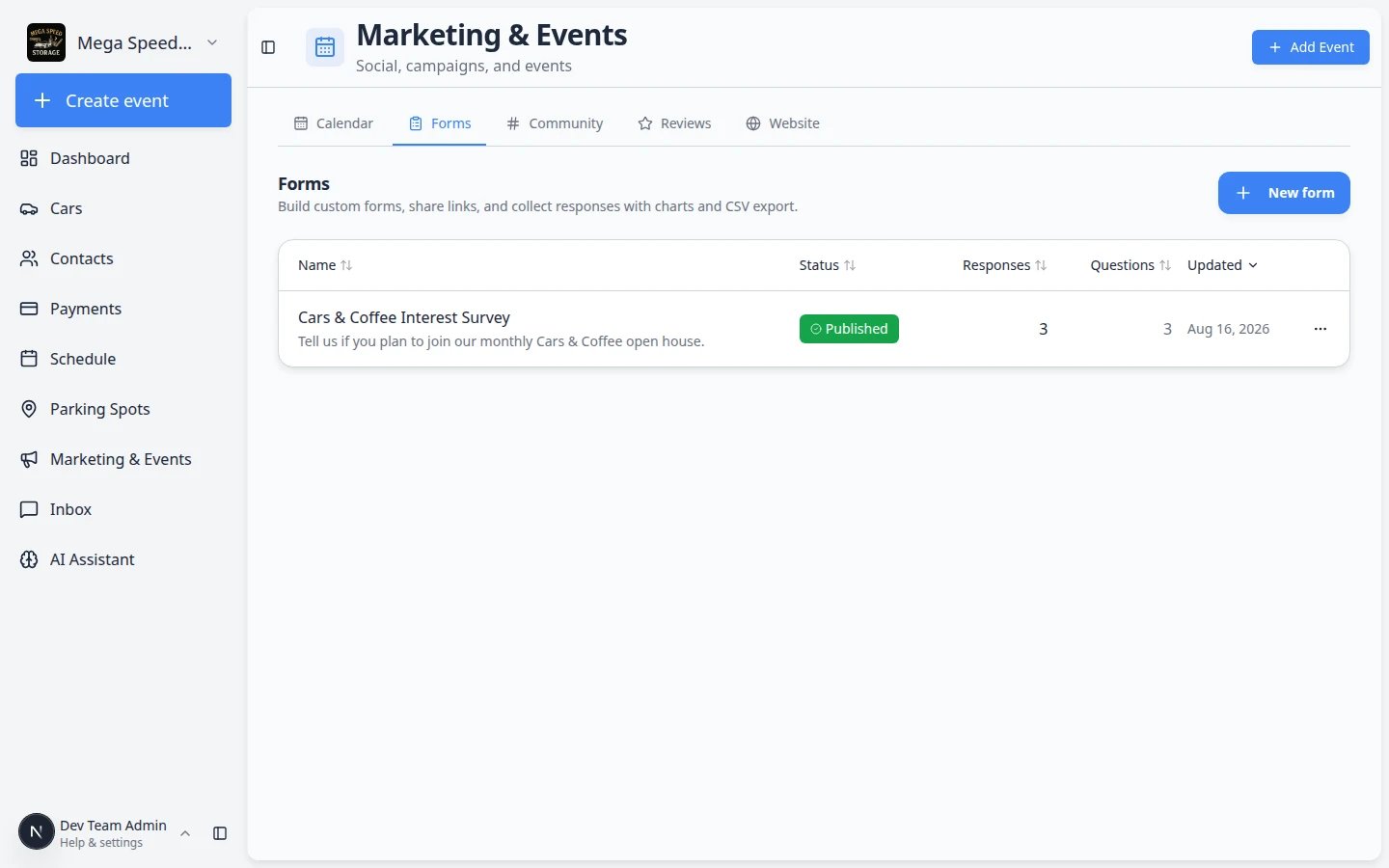 *The Responses column tells you how many people submitted each form. Click a row to open the editor, or use the menu to jump to Results.*
## Step 2: Open Results
You can reach **Results** in two ways—pick whichever is easier:
On the **Forms** list, find the form row you need. On the far right of that row, click the three-dot menu button (it may show as **⋯** or **Form actions** when you hover).
In the menu, click **Results** (it has a small chart icon next to it).
**Why this matters:** This is the fastest path when you are on the Forms list and just need answers—not the question editor.
*The Responses column tells you how many people submitted each form. Click a row to open the editor, or use the menu to jump to Results.*
## Step 2: Open Results
You can reach **Results** in two ways—pick whichever is easier:
On the **Forms** list, find the form row you need. On the far right of that row, click the three-dot menu button (it may show as **⋯** or **Form actions** when you hover).
In the menu, click **Results** (it has a small chart icon next to it).
**Why this matters:** This is the fastest path when you are on the Forms list and just need answers—not the question editor.
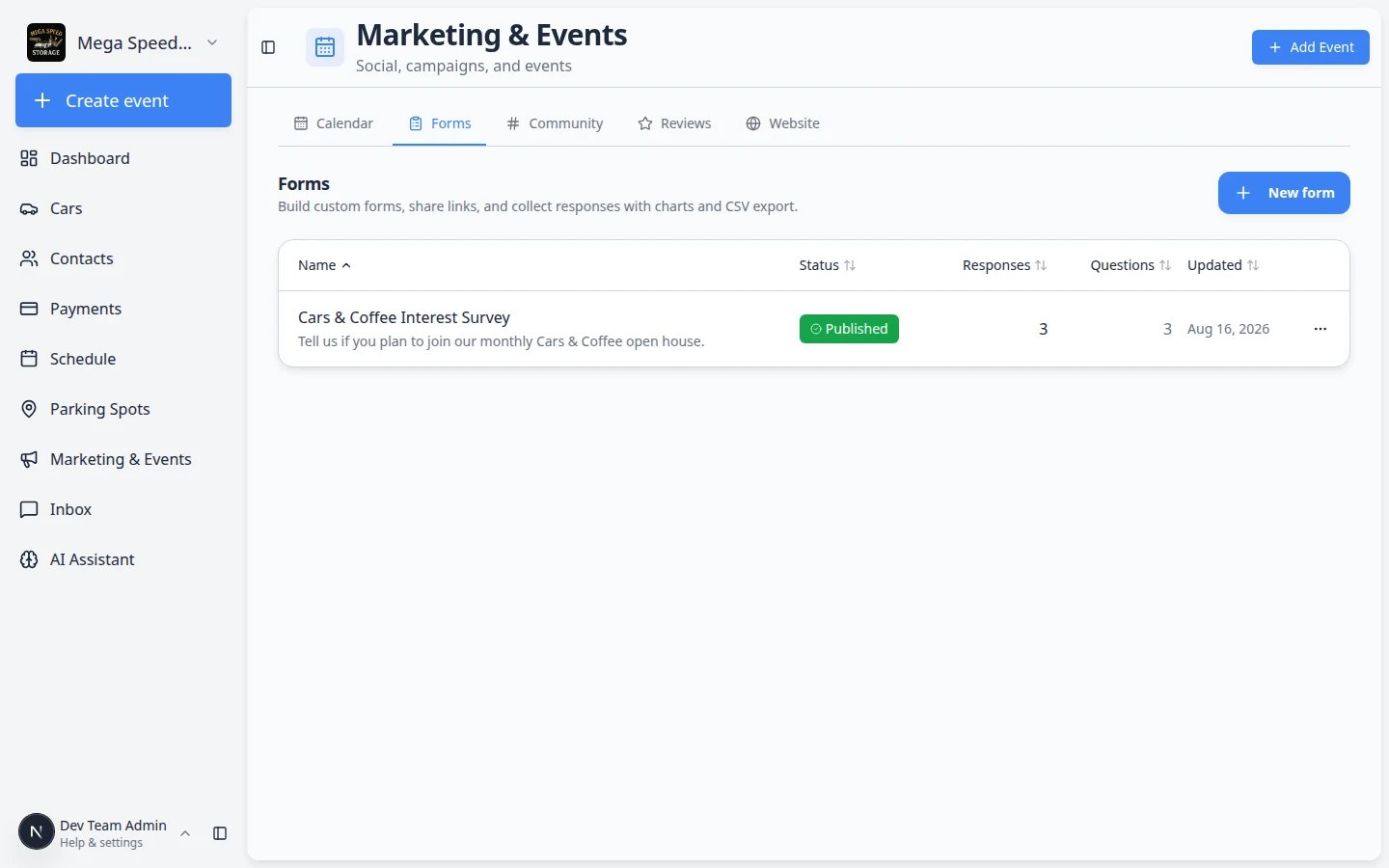 *Use the **⋯** menu on each form row to jump straight to **Results** without opening the editor first.*
**Expected result:** You land on a page titled with the form name followed by **Results**.
Open the form from the list (click the form name), then click **Results** near the top-right of the editor (next to the **Published** switch).
**Expected result:** Same **Results** page with charts and a response table.
*Use the **⋯** menu on each form row to jump straight to **Results** without opening the editor first.*
**Expected result:** You land on a page titled with the form name followed by **Results**.
Open the form from the list (click the form name), then click **Results** near the top-right of the editor (next to the **Published** switch).
**Expected result:** Same **Results** page with charts and a response table.
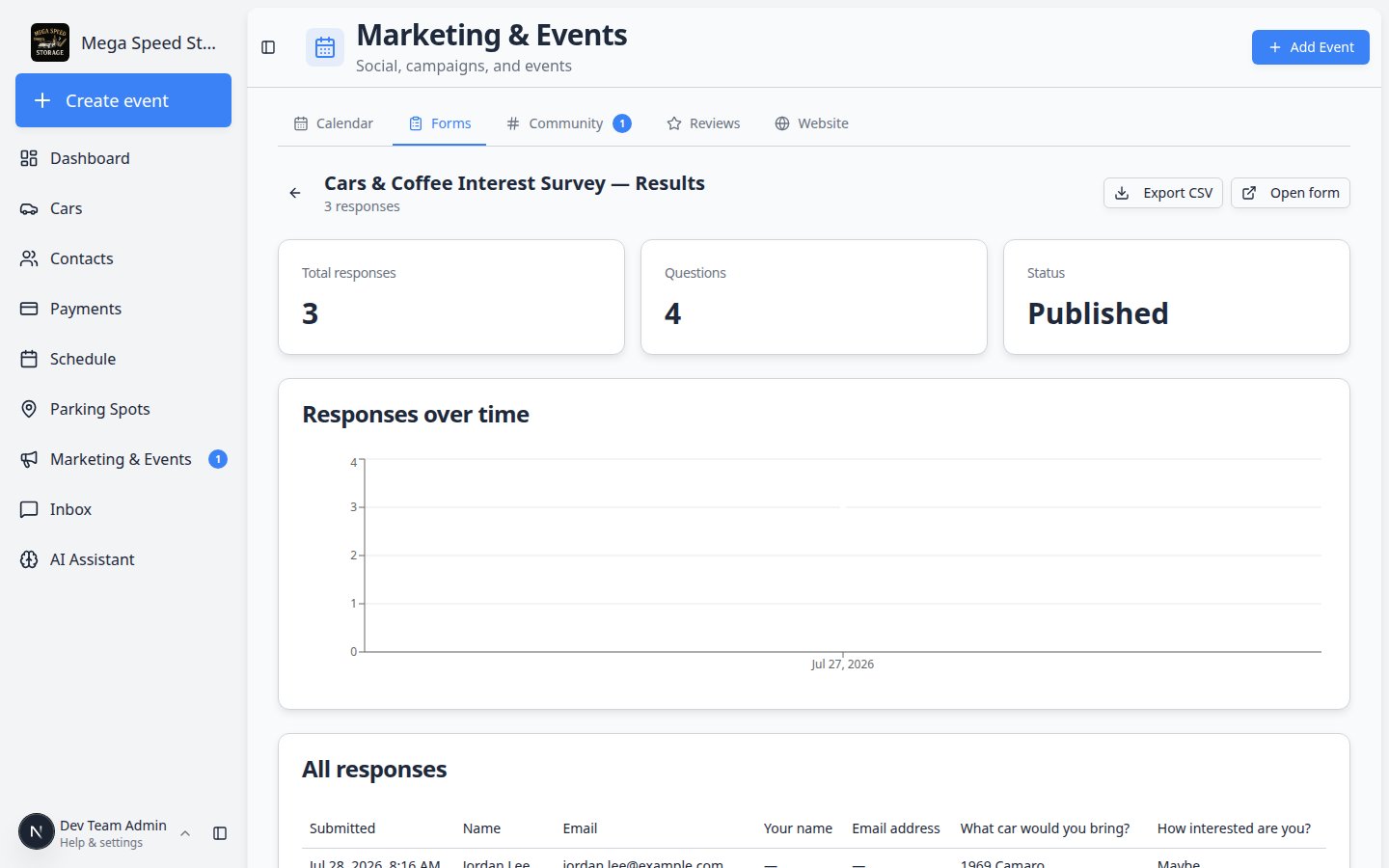 *Results shows how many people responded, charts for choice questions, and a row for each submission.*
## Step 3: Read the summary and charts
The top of the **Results** page answers two questions fast: **how many people responded** and **what did they choose most often**.
Under the form name, read how many responses you have. The count should match the **Responses** column on the [Forms](https://www.carstoragesoftware.com/dashboard/forms) list.
**Expected result:** You can tell a manager "we have 12 answers so far" without opening a spreadsheet.
For **single choice** and **multiple choice** questions, bar charts show which answers were picked most often.
**Why this matters:** A quick glance tells you whether customers prefer Saturday events, detail services, or another option—without reading every row.
**Tip:** If one bar is much taller than the rest, that option is a strong signal for your next event theme or service offering.
*Results shows how many people responded, charts for choice questions, and a row for each submission.*
## Step 3: Read the summary and charts
The top of the **Results** page answers two questions fast: **how many people responded** and **what did they choose most often**.
Under the form name, read how many responses you have. The count should match the **Responses** column on the [Forms](https://www.carstoragesoftware.com/dashboard/forms) list.
**Expected result:** You can tell a manager "we have 12 answers so far" without opening a spreadsheet.
For **single choice** and **multiple choice** questions, bar charts show which answers were picked most often.
**Why this matters:** A quick glance tells you whether customers prefer Saturday events, detail services, or another option—without reading every row.
**Tip:** If one bar is much taller than the rest, that option is a strong signal for your next event theme or service offering.
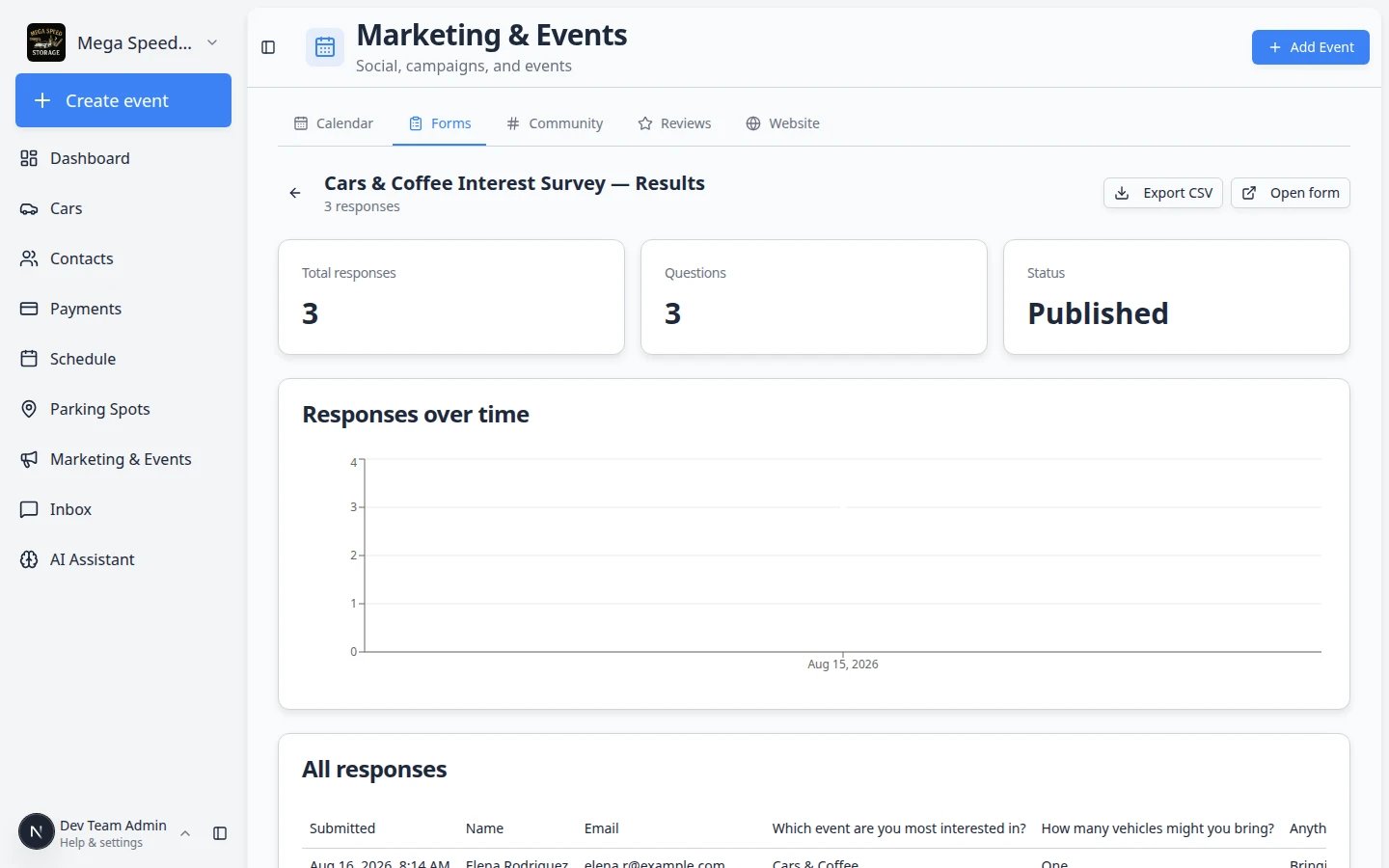 *Choice questions show bar charts at the top of Results. Use them to spot popular answers before you read every row.*
When you have more than one response, a line chart shows **when** submissions arrived.
**Expected result:** You can see if interest spiked right after an email blast, an open house, or a social post.
**Why this matters:** A flat line after a big send may mean customers did not see the link—time to resend the form in a [campaign](/docs/marketing-events/create-a-campaign).
**Text answers do not appear in charts**
**Short text** and **long text** questions show up in the response table below the charts—not in bar graphs. Scroll down to read those answers row by row.
## Step 4: Read individual responses
The response table is where you read what each person actually wrote. Charts summarize patterns; the table holds the details.
Below the charts, find the table with one row per submission. Each row is one person who filled out the form.
Each question becomes a column. The **Submitted** column shows when the person sent their answers. If the form collected **Name** or **Email**, those appear in their own columns too.
**Expected result:** You can scan names, emails (when collected), and each answer in one place—without opening one response at a time.
A blank cell usually means the question was optional and the person skipped it. If a **required** question is blank, the form may have changed after they submitted, or they used an older link.
**Why this matters:** Do not assume a blank answer means the customer refused to answer—check whether the question was required when they submitted.
Use the name or email from a row when your team needs to follow up. Phone numbers appear in the CSV export when the form collected them. There is no **Reply** button on this page—use [Inbox](/docs/inbox/overview) or your normal email when you need a conversation.
**Why this matters:** Forms collect information; **Inbox** is for back-and-forth messages.
After you read the table, decide what happens next:
* **Event interest survey** — invite **Going** respondents with [Create a social event](/docs/marketing-events/create-a-social-event) or email them with [Create a campaign](/docs/marketing-events/create-a-campaign).
* **Waitlist** — call or text the first few rows in the order they submitted (sort by **Submitted** column).
* **Feedback** — share a short summary with your manager using **Export CSV**, then close the form when the survey period ends (see Step 6 below).
**Expected result:** Responses lead to a clear next step—not a spreadsheet that sits unread.
*Choice questions show bar charts at the top of Results. Use them to spot popular answers before you read every row.*
When you have more than one response, a line chart shows **when** submissions arrived.
**Expected result:** You can see if interest spiked right after an email blast, an open house, or a social post.
**Why this matters:** A flat line after a big send may mean customers did not see the link—time to resend the form in a [campaign](/docs/marketing-events/create-a-campaign).
**Text answers do not appear in charts**
**Short text** and **long text** questions show up in the response table below the charts—not in bar graphs. Scroll down to read those answers row by row.
## Step 4: Read individual responses
The response table is where you read what each person actually wrote. Charts summarize patterns; the table holds the details.
Below the charts, find the table with one row per submission. Each row is one person who filled out the form.
Each question becomes a column. The **Submitted** column shows when the person sent their answers. If the form collected **Name** or **Email**, those appear in their own columns too.
**Expected result:** You can scan names, emails (when collected), and each answer in one place—without opening one response at a time.
A blank cell usually means the question was optional and the person skipped it. If a **required** question is blank, the form may have changed after they submitted, or they used an older link.
**Why this matters:** Do not assume a blank answer means the customer refused to answer—check whether the question was required when they submitted.
Use the name or email from a row when your team needs to follow up. Phone numbers appear in the CSV export when the form collected them. There is no **Reply** button on this page—use [Inbox](/docs/inbox/overview) or your normal email when you need a conversation.
**Why this matters:** Forms collect information; **Inbox** is for back-and-forth messages.
After you read the table, decide what happens next:
* **Event interest survey** — invite **Going** respondents with [Create a social event](/docs/marketing-events/create-a-social-event) or email them with [Create a campaign](/docs/marketing-events/create-a-campaign).
* **Waitlist** — call or text the first few rows in the order they submitted (sort by **Submitted** column).
* **Feedback** — share a short summary with your manager using **Export CSV**, then close the form when the survey period ends (see Step 6 below).
**Expected result:** Responses lead to a clear next step—not a spreadsheet that sits unread.
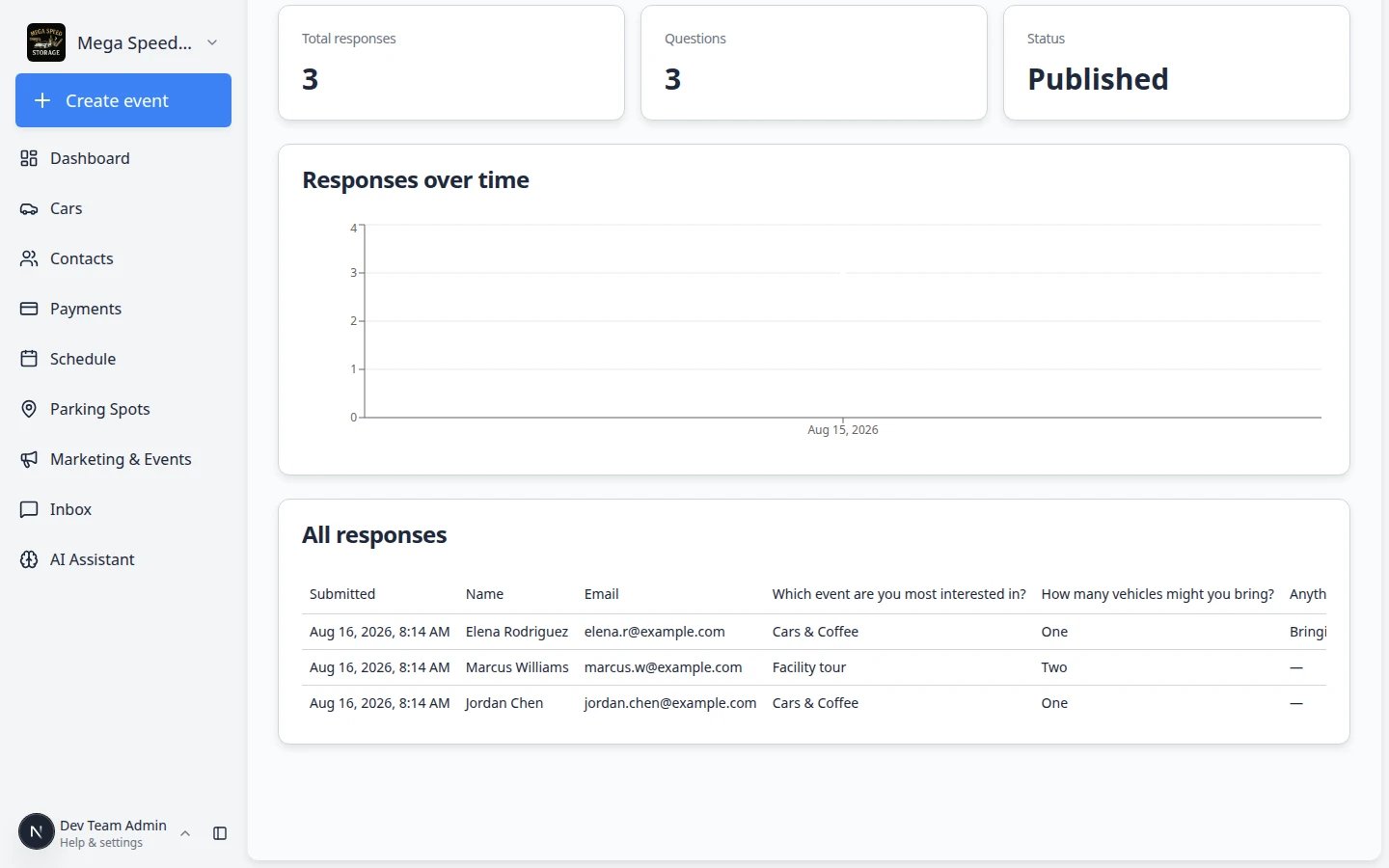 *Scroll below the charts to read each person's answers. The Submitted column shows when they filled out the form.*
## Step 5: Export a CSV spreadsheet
A **CSV** file is a simple spreadsheet your team can open in Excel, Google Sheets, or Numbers. Use it when a manager wants a sortable list, when you need to mail-merge names, or when you want to share answers outside the app.
*Scroll below the charts to read each person's answers. The Submitted column shows when they filled out the form.*
## Step 5: Export a CSV spreadsheet
A **CSV** file is a simple spreadsheet your team can open in Excel, Google Sheets, or Numbers. Use it when a manager wants a sortable list, when you need to mail-merge names, or when you want to share answers outside the app.
 *Export CSV sits near the top of the Results page, next to Open form when the form is published.*
Near the top of the **Results** page, click **Export CSV** (it has a small download icon).
**Expected result:** Your browser downloads a file named for the form.
Open the CSV in Excel, Google Sheets, or Numbers. Each row is one submission; each column is one question.
**Why this matters:** Managers and vendors often want a spreadsheet they can sort, filter, or print.
Run **Export CSV** whenever you need an up-to-date copy. The download always reflects the latest submissions.
**Expected result:** New rows appear for answers that arrived after your last export.
*Click **Export CSV** when you need a spreadsheet copy for your manager or for follow-up calls.*
**Keep customer information private**
CSV files may include names and email addresses. Store exports securely and share them only with staff who need the information for follow-up.
## Step 6: Stop accepting new responses (optional)
When a waitlist is full or an event survey period ends, close the form so new answers do not arrive.
From **Results**, click the back arrow, or open the form from the **Forms** list.
Either flip **Published** off to save as **Draft**, or open **Settings > Advanced** and turn on **Close form** to mark it **Closed**.
**Expected result:** The public link stops accepting new submissions. Existing responses remain on **Results**.
## Common mistakes to avoid
* Do not open **Results** on a **Draft** form and expect customer answers—only **Published** forms collect responses.
* Do not email a CSV export to customers without checking privacy rules at your facility.
* Do not delete a form just to stop responses—use **Close form** or turn off **Published** so history stays on **Results**.
* Do not assume a blank table cell means the customer refused—optional questions can be left empty.
## What success looks like
* Your team can open **Results** and explain what customers chose without guessing.
* Choice-question charts match what you heard from customers on the phone.
* You can export a CSV when a manager asks for the list.
* Closed forms no longer accept submissions but keep their history.
## Troubleshooting
**Results show zero responses but someone submitted**
Confirm you are viewing the correct form on the **Forms** list. Ask the customer which link they used—an old draft link or a different form will not show up here. Refresh the **Results** page.
**A column is blank for some rows**
That question may have been optional, or the person skipped it. Required questions should always have a value unless the form changed after they submitted.
**Export CSV does nothing**
Check your browser’s download folder and pop-up blocker. Try again in Chrome or Edge if your browser blocks the file.
**I submitted a test response but do not see it**
Refresh the **Results** page. Confirm you used the **Published** share link—not a preview link from the form editor. Test submissions count like any other response.
## What to do next
1. [Create a campaign](/docs/marketing-events/create-a-campaign) — email customers who have not filled out the form yet.
2. [Add a customer in Contacts](/docs/contacts/add-a-customer) — then follow up by phone or [Inbox](/docs/inbox/overview) using names from the response table.
3. [Create and share a custom form](/docs/marketing-events/create-and-share-a-custom-form) — build another form for a different event or service.
4. [Marketing & Events overview](/docs/marketing-events/overview) — return to the full list of marketing guides.
This documentation is built and hosted on [Mintlify](https://mintlify.com), a developer documentation platform.
*Export CSV sits near the top of the Results page, next to Open form when the form is published.*
Near the top of the **Results** page, click **Export CSV** (it has a small download icon).
**Expected result:** Your browser downloads a file named for the form.
Open the CSV in Excel, Google Sheets, or Numbers. Each row is one submission; each column is one question.
**Why this matters:** Managers and vendors often want a spreadsheet they can sort, filter, or print.
Run **Export CSV** whenever you need an up-to-date copy. The download always reflects the latest submissions.
**Expected result:** New rows appear for answers that arrived after your last export.
*Click **Export CSV** when you need a spreadsheet copy for your manager or for follow-up calls.*
**Keep customer information private**
CSV files may include names and email addresses. Store exports securely and share them only with staff who need the information for follow-up.
## Step 6: Stop accepting new responses (optional)
When a waitlist is full or an event survey period ends, close the form so new answers do not arrive.
From **Results**, click the back arrow, or open the form from the **Forms** list.
Either flip **Published** off to save as **Draft**, or open **Settings > Advanced** and turn on **Close form** to mark it **Closed**.
**Expected result:** The public link stops accepting new submissions. Existing responses remain on **Results**.
## Common mistakes to avoid
* Do not open **Results** on a **Draft** form and expect customer answers—only **Published** forms collect responses.
* Do not email a CSV export to customers without checking privacy rules at your facility.
* Do not delete a form just to stop responses—use **Close form** or turn off **Published** so history stays on **Results**.
* Do not assume a blank table cell means the customer refused—optional questions can be left empty.
## What success looks like
* Your team can open **Results** and explain what customers chose without guessing.
* Choice-question charts match what you heard from customers on the phone.
* You can export a CSV when a manager asks for the list.
* Closed forms no longer accept submissions but keep their history.
## Troubleshooting
**Results show zero responses but someone submitted**
Confirm you are viewing the correct form on the **Forms** list. Ask the customer which link they used—an old draft link or a different form will not show up here. Refresh the **Results** page.
**A column is blank for some rows**
That question may have been optional, or the person skipped it. Required questions should always have a value unless the form changed after they submitted.
**Export CSV does nothing**
Check your browser’s download folder and pop-up blocker. Try again in Chrome or Edge if your browser blocks the file.
**I submitted a test response but do not see it**
Refresh the **Results** page. Confirm you used the **Published** share link—not a preview link from the form editor. Test submissions count like any other response.
## What to do next
1. [Create a campaign](/docs/marketing-events/create-a-campaign) — email customers who have not filled out the form yet.
2. [Add a customer in Contacts](/docs/contacts/add-a-customer) — then follow up by phone or [Inbox](/docs/inbox/overview) using names from the response table.
3. [Create and share a custom form](/docs/marketing-events/create-and-share-a-custom-form) — build another form for a different event or service.
4. [Marketing & Events overview](/docs/marketing-events/overview) — return to the full list of marketing guides.
This documentation is built and hosted on [Mintlify](https://mintlify.com), a developer documentation platform.