> ## Documentation Index
> Fetch the complete documentation index at: https://www.carstoragesoftware.com/docs/llms.txt
> Use this file to discover all available pages before exploring further.
# Review website traffic on your public pages
> See how many people visit your facility website, which pages they open, and whether traffic is growing—without leaving Marketing & Events.
## What you will accomplish
You will open the **Website** tab in [Marketing & Events](https://www.carstoragesoftware.com/dashboard/marketing) and understand who is visiting your public facility pages. When Google Analytics is connected, you can see page views, visitors, popular pages, and whether traffic is up or down compared to last month.
This guide is for **facility owners and managers** who want a simple traffic report—not a full marketing dashboard.
**This is not the same as Google Reviews**
The **Website** tab measures **visits to your public web pages**. The **Reviews** tab is for **Google star ratings and review replies**. Both live under Marketing & Events, but they answer different questions.
## When to use this guide
* You launched a new public facility page and want to know if anyone is finding it.
* You added your registration link to your main website and want to see if clicks increased.
* You are deciding whether to invest more in online ads, open houses, or email campaigns.
* You need a quick answer to "Are more people visiting us online this month?"
## Before you start
* **Public Facility Pages** are turned on in [Settings > Website & customer app](https://www.carstoragesoftware.com/dashboard/settings/website).
* You can open [Marketing & Events](https://www.carstoragesoftware.com/dashboard/marketing) from the dashboard sidebar.
* For full traffic charts, you have (or can add) a **Google Analytics** measurement ID—explained in Step 3 below.
**Without Google Analytics:** You can still open the Website tab and confirm which public address is being measured. Charts stay empty until you save a valid Google Analytics ID.
**With Google Analytics:** Visits to your public pages are counted automatically after you paste your measurement ID (it usually starts with **G-**).
## Step 1: Open the Website tab
From the dashboard sidebar, click **Marketing & Events**. You can also go directly to [Marketing & Events](https://www.carstoragesoftware.com/dashboard/marketing).
**Expected result:** You see the **Calendar** tab selected by default.
Near the top of the page, click the **Website** tab—the one with the globe icon. You can also open [Marketing & Events > Website](https://www.carstoragesoftware.com/dashboard/marketing/website) directly.
**Why this matters:** Website traffic is separate from campaigns, forms, community, and reviews. The Website tab keeps traffic in one place.
Under the tabs, read the line that starts with **Traffic on**. It shows your public facility address (for example `carstoragesoftware.com/facility/your-facility-name` or your custom domain).
**Expected result:** The address matches the link you share with customers—not a `/dashboard` staff link.
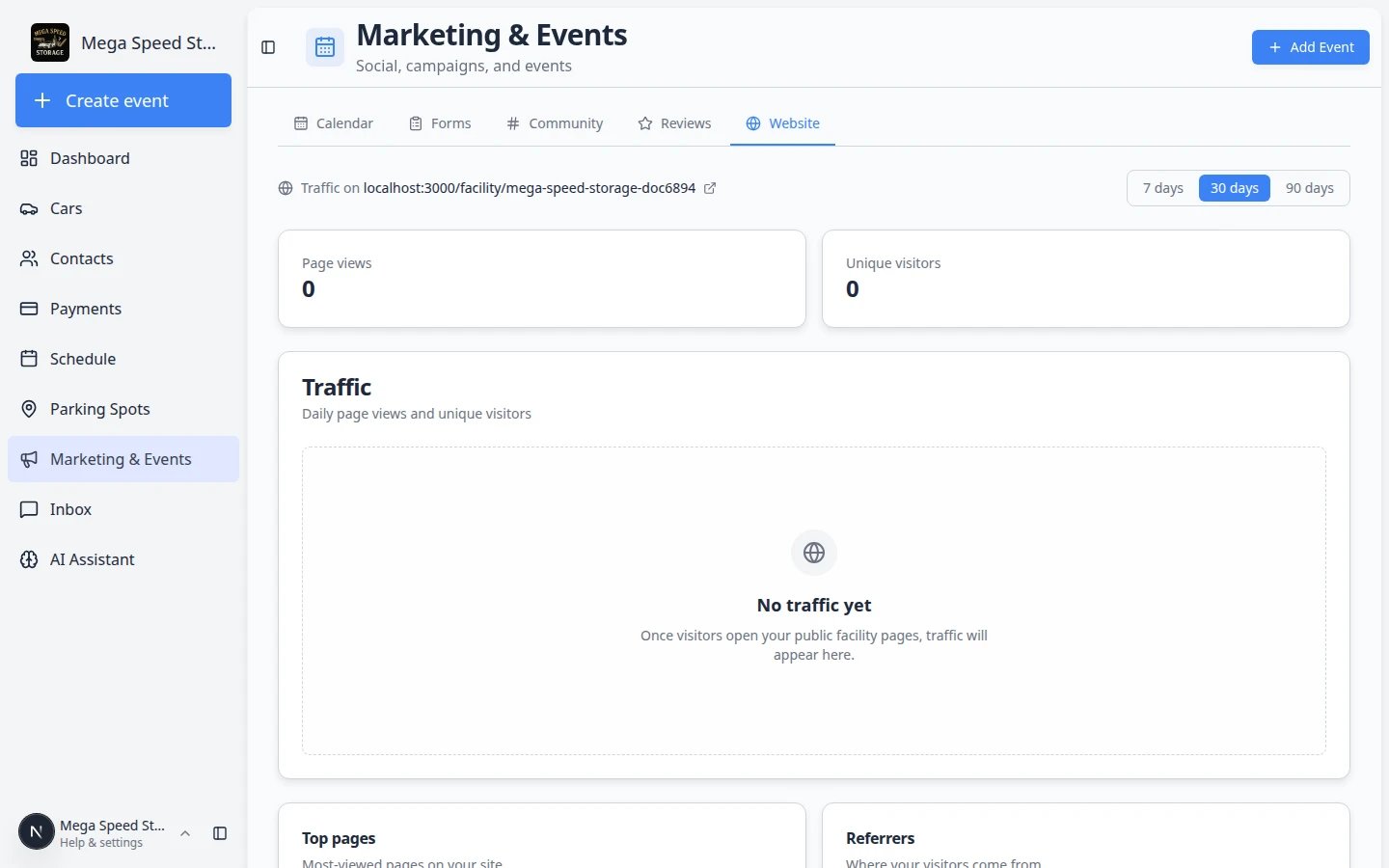 *Click **Website** (globe icon) to open traffic reports. Marketing & Events has five tabs—Calendar, Forms, Community, Reviews, and Website.*
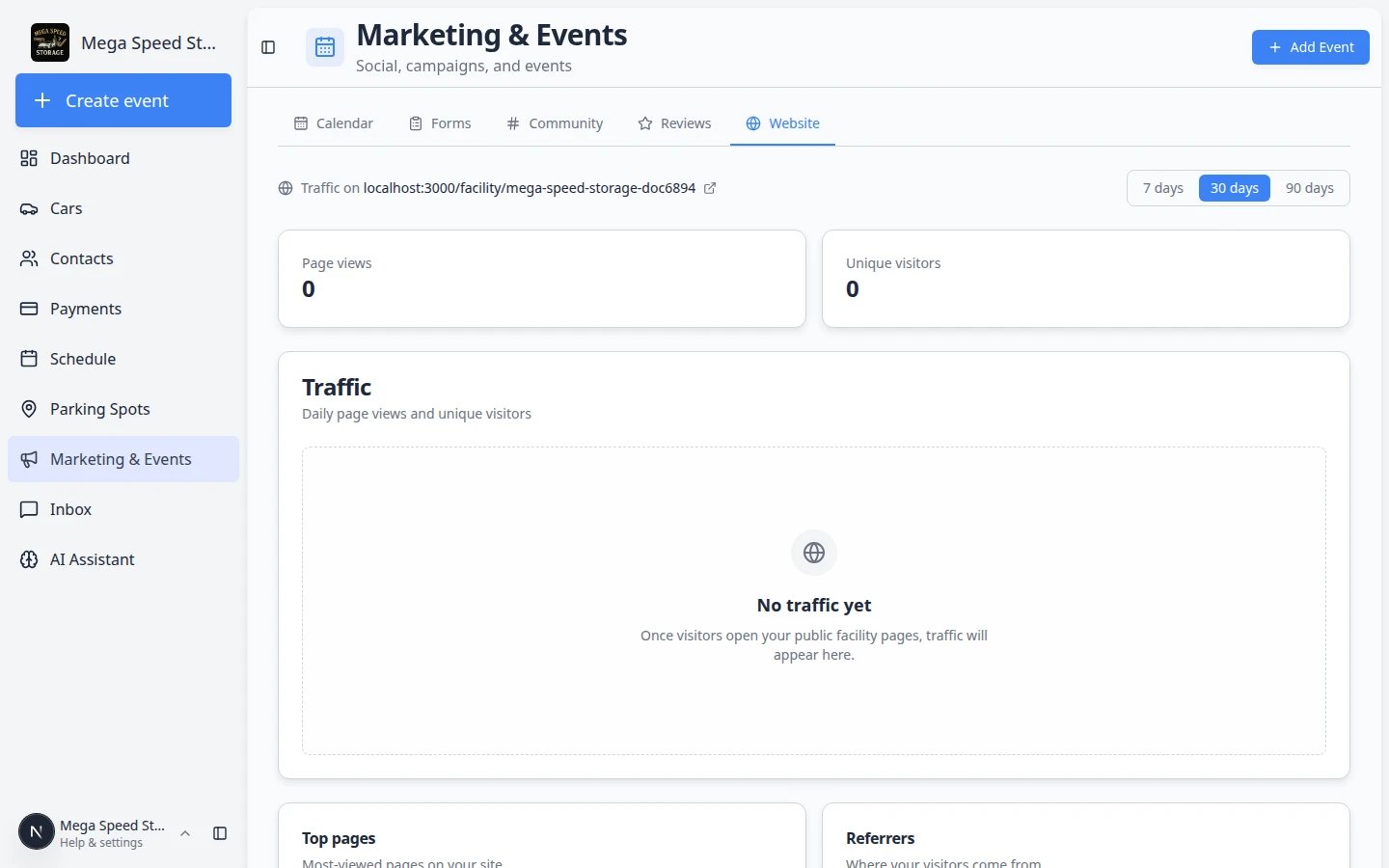 *The **Website** tab shows how many people visited your public pages. Use the **7 days**, **30 days**, and **90 days** buttons to change the time range.*
## Step 2: Read the traffic summary
In the top-right area, click **7 days**, **30 days**, or **90 days**.
**Why this matters:** A busy open-house week looks different from a full quarter. Match the range to the question you are trying to answer.
**Page views** counts how many times pages were opened (one person can open several pages). **Visitors** counts unique people.
Under each number, you may see a note such as **+12% vs previous period** or **-5% vs previous period**. That compares this range to the same-length period just before it.
**Expected result:** You can tell whether traffic is growing, flat, or slowing down.
The line chart shows daily page views and visitors across the range you picked.
**Why this matters:** Spikes often line up with emails, social posts, or events. A flat line may mean your public link is hard to find.
## Step 3: Connect Google Analytics (first-time setup)
Skip this section if charts already show numbers and you only need to read them.
In your Google Analytics account, find the **Measurement ID** for your website property. It usually looks like **G-XXXXXXXXXX**.
If you do not have Google Analytics yet, create a free property for your facility website in Google’s tools, then copy the ID.
**Why this matters:** Car Storage Software uses this ID to pull visit counts into the Website tab. Without it, charts stay empty even when people visit your pages.
On [Marketing & Events > Website](https://www.carstoragesoftware.com/dashboard/marketing/website), scroll to the **Google Analytics** card. Paste your measurement ID into the box.
**Expected result:** The ID appears in the field exactly as Google shows it (including the **G-** prefix).
Click **Save** on the Google Analytics card.
**Expected result:** A short confirmation appears. Traffic may take a few hours to show the first time—Google needs time to collect visits.
Open your public facility page in a private browser window once to generate a test visit. Return to the Website tab the next day and click your time range again.
**Why this matters:** Analytics is not instant. Give it at least a few hours before you worry that setup failed.
*The **Website** tab shows how many people visited your public pages. Use the **7 days**, **30 days**, and **90 days** buttons to change the time range.*
## Step 2: Read the traffic summary
In the top-right area, click **7 days**, **30 days**, or **90 days**.
**Why this matters:** A busy open-house week looks different from a full quarter. Match the range to the question you are trying to answer.
**Page views** counts how many times pages were opened (one person can open several pages). **Visitors** counts unique people.
Under each number, you may see a note such as **+12% vs previous period** or **-5% vs previous period**. That compares this range to the same-length period just before it.
**Expected result:** You can tell whether traffic is growing, flat, or slowing down.
The line chart shows daily page views and visitors across the range you picked.
**Why this matters:** Spikes often line up with emails, social posts, or events. A flat line may mean your public link is hard to find.
## Step 3: Connect Google Analytics (first-time setup)
Skip this section if charts already show numbers and you only need to read them.
In your Google Analytics account, find the **Measurement ID** for your website property. It usually looks like **G-XXXXXXXXXX**.
If you do not have Google Analytics yet, create a free property for your facility website in Google’s tools, then copy the ID.
**Why this matters:** Car Storage Software uses this ID to pull visit counts into the Website tab. Without it, charts stay empty even when people visit your pages.
On [Marketing & Events > Website](https://www.carstoragesoftware.com/dashboard/marketing/website), scroll to the **Google Analytics** card. Paste your measurement ID into the box.
**Expected result:** The ID appears in the field exactly as Google shows it (including the **G-** prefix).
Click **Save** on the Google Analytics card.
**Expected result:** A short confirmation appears. Traffic may take a few hours to show the first time—Google needs time to collect visits.
Open your public facility page in a private browser window once to generate a test visit. Return to the Website tab the next day and click your time range again.
**Why this matters:** Analytics is not instant. Give it at least a few hours before you worry that setup failed.
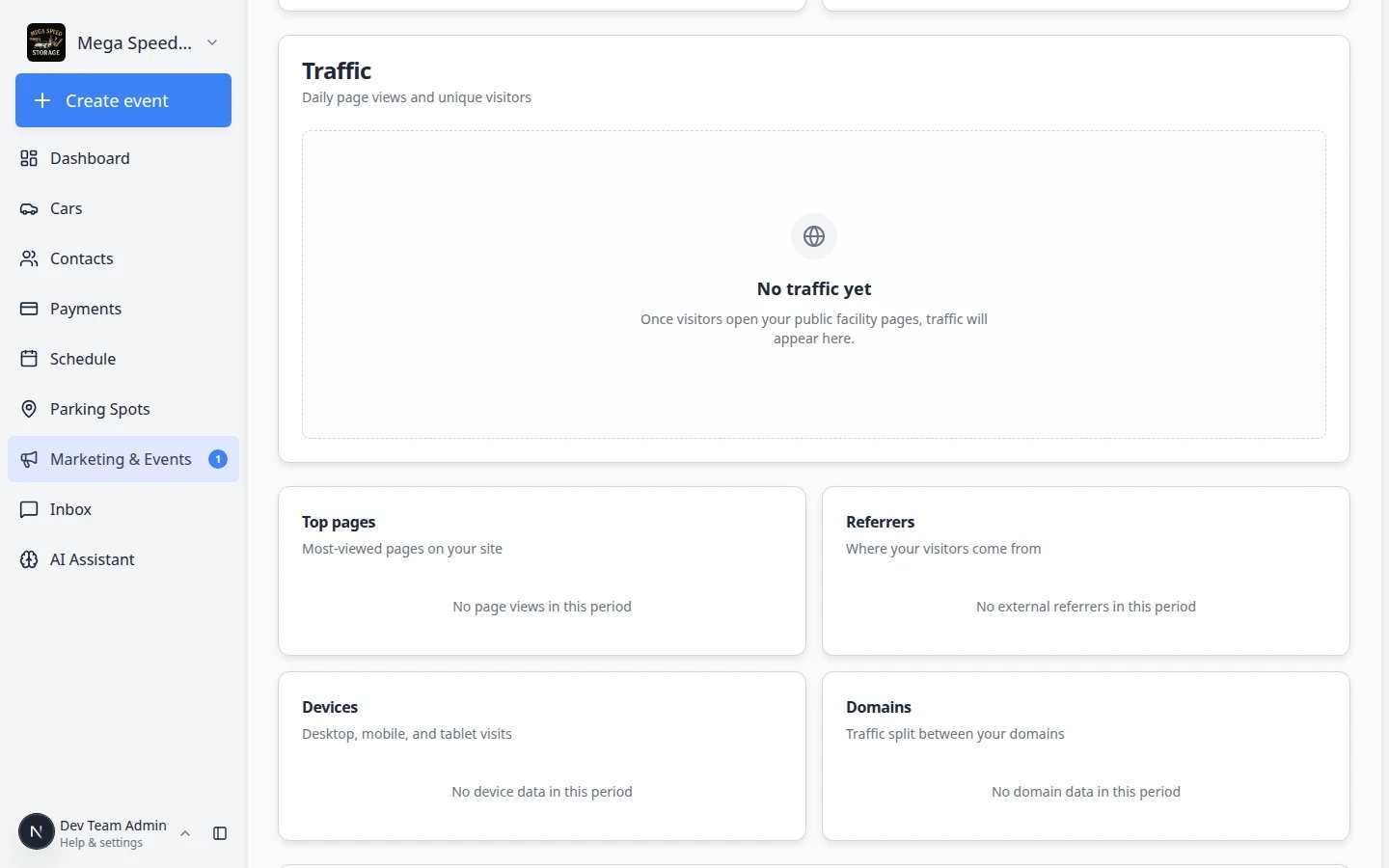 *Paste your **G-** measurement ID here once. After you save, visit counts appear on this tab when Google has data to share.*
## Step 4: Use top pages, referrers, and devices
Scroll to **Top pages**. This list shows which public paths customers opened most often (for example your main facility page or registration form).
**Why this matters:** If registration gets few views but your main page gets many, you may need a clearer button on your website.
**Top referrers** shows which websites sent people to you (search engines, social networks, your main business site).
**Expected result:** You learn whether customers find you from Google, Instagram, email links, or direct typing.
**Devices** splits traffic into **desktop**, **mobile**, and **tablet**.
**Why this matters:** If most visits are mobile, preview every public page on a phone before you share it widely. See [Go live checklist for public pages](/docs/facility-web-pages/go-live-checklist-for-public-pages).
*Paste your **G-** measurement ID here once. After you save, visit counts appear on this tab when Google has data to share.*
## Step 4: Use top pages, referrers, and devices
Scroll to **Top pages**. This list shows which public paths customers opened most often (for example your main facility page or registration form).
**Why this matters:** If registration gets few views but your main page gets many, you may need a clearer button on your website.
**Top referrers** shows which websites sent people to you (search engines, social networks, your main business site).
**Expected result:** You learn whether customers find you from Google, Instagram, email links, or direct typing.
**Devices** splits traffic into **desktop**, **mobile**, and **tablet**.
**Why this matters:** If most visits are mobile, preview every public page on a phone before you share it widely. See [Go live checklist for public pages](/docs/facility-web-pages/go-live-checklist-for-public-pages).
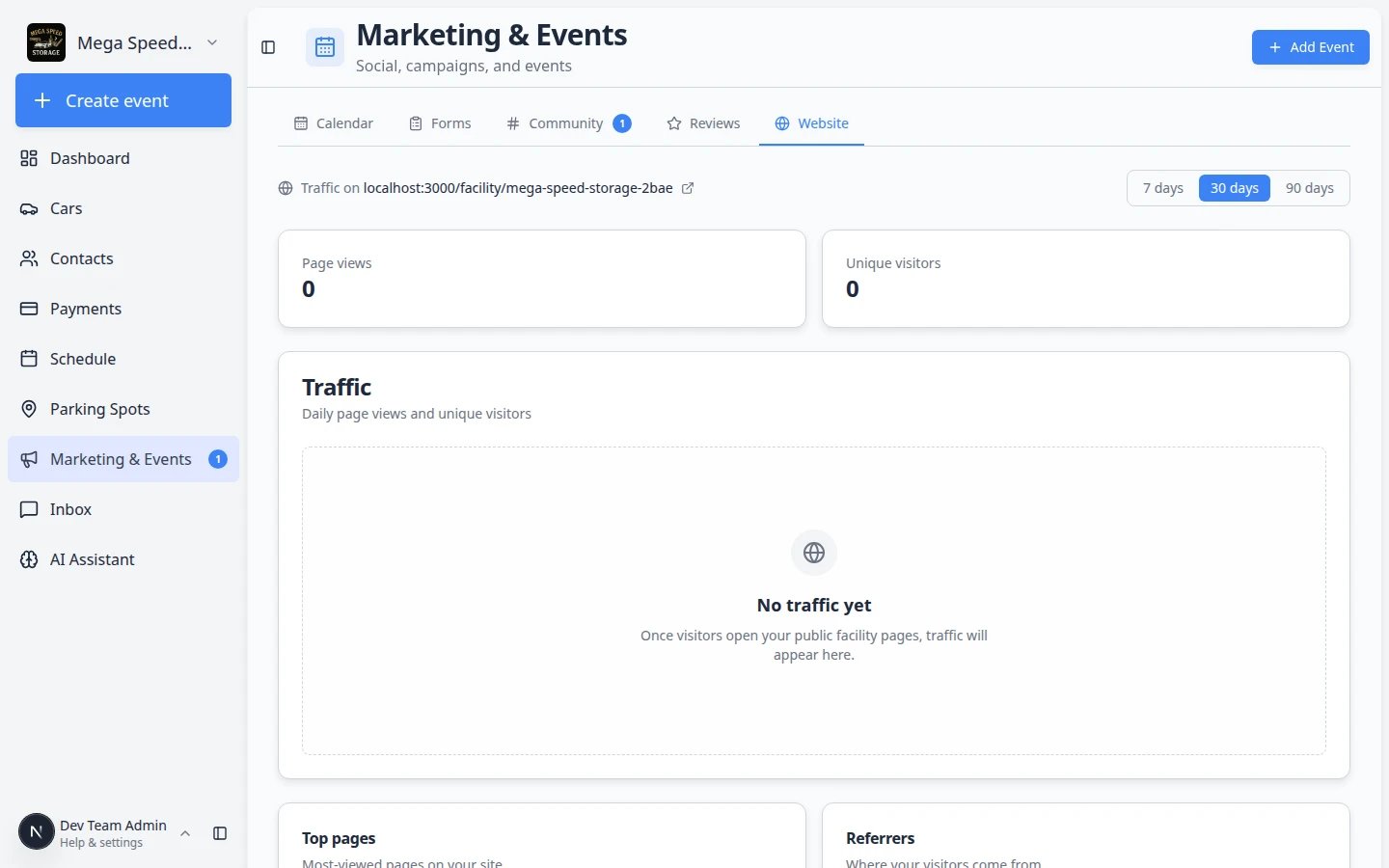 *Scroll below the traffic chart to see **Top pages**, **Top referrers**, and **Devices**. These lists tell you which public link deserves more promotion.*
## What success looks like
* You can open the Website tab and name the public address being measured.
* Google Analytics is saved (if your facility uses it) and charts show real visit counts.
* You know whether traffic went up or down compared to the previous period.
* You can point to the most-viewed public page and plan improvements there.
## Troubleshooting
**Charts are empty but my page is live**
Confirm **Public Facility Pages** is on in [Settings > Website & customer app](https://www.carstoragesoftware.com/dashboard/settings/website). Confirm you saved a valid **G-** measurement ID on the Website tab. New setups can take several hours to show the first visits.
**Traffic dropped suddenly**
Check whether you changed your facility slug, custom domain, or main website link. Broken links stop visits. Test every shareable link from [Settings > Website & customer app](https://www.carstoragesoftware.com/dashboard/settings/website).
**I do not see the Website tab**
Ask a facility owner to confirm your staff role includes marketing access in [Settings > Team](https://www.carstoragesoftware.com/dashboard/settings/team).
## What to do next
1. [Go live checklist for public pages](/docs/facility-web-pages/go-live-checklist-for-public-pages) — test links before you promote them.
2. [Create a campaign](/docs/marketing-events/create-a-campaign) — email customers when you want to drive more visits to a specific page.
3. [Embed a custom form on your website](/docs/marketing-events/embed-a-custom-form-on-your-website) — add a survey directly on your public facility page.
4. [Marketing & Events overview](/docs/marketing-events/overview) — return to the full list of marketing guides.
This documentation is built and hosted on [Mintlify](https://mintlify.com), a developer documentation platform.
*Scroll below the traffic chart to see **Top pages**, **Top referrers**, and **Devices**. These lists tell you which public link deserves more promotion.*
## What success looks like
* You can open the Website tab and name the public address being measured.
* Google Analytics is saved (if your facility uses it) and charts show real visit counts.
* You know whether traffic went up or down compared to the previous period.
* You can point to the most-viewed public page and plan improvements there.
## Troubleshooting
**Charts are empty but my page is live**
Confirm **Public Facility Pages** is on in [Settings > Website & customer app](https://www.carstoragesoftware.com/dashboard/settings/website). Confirm you saved a valid **G-** measurement ID on the Website tab. New setups can take several hours to show the first visits.
**Traffic dropped suddenly**
Check whether you changed your facility slug, custom domain, or main website link. Broken links stop visits. Test every shareable link from [Settings > Website & customer app](https://www.carstoragesoftware.com/dashboard/settings/website).
**I do not see the Website tab**
Ask a facility owner to confirm your staff role includes marketing access in [Settings > Team](https://www.carstoragesoftware.com/dashboard/settings/team).
## What to do next
1. [Go live checklist for public pages](/docs/facility-web-pages/go-live-checklist-for-public-pages) — test links before you promote them.
2. [Create a campaign](/docs/marketing-events/create-a-campaign) — email customers when you want to drive more visits to a specific page.
3. [Embed a custom form on your website](/docs/marketing-events/embed-a-custom-form-on-your-website) — add a survey directly on your public facility page.
4. [Marketing & Events overview](/docs/marketing-events/overview) — return to the full list of marketing guides.
This documentation is built and hosted on [Mintlify](https://mintlify.com), a developer documentation platform.