> ## Documentation Index
> Fetch the complete documentation index at: https://www.carstoragesoftware.com/docs/llms.txt
> Use this file to discover all available pages before exploring further.
# Work with zones on the map
> Click a zone on the parking map to see capacity, add cars, or move vehicles inside flexible parking areas.
## What you will accomplish
You will use a **zone** on the [Parking Spots](https://www.carstoragesoftware.com/dashboard/parking-spots) map to see how many cars are inside a flexible area, add a vehicle to that area, or move a car out—without picking an exact numbered spot like **A1** or **B4**.
When you finish, your team can answer questions like “Is there still room in the outdoor lot?” and “Which cars are in overflow right now?” without walking the building first.
## When to use a zone (and when to use a numbered spot)
* **Use a numbered spot** when staff need an exact location for retrieval, customer updates, or billing tied to a specific space.
* **Use a zone** when cars can park anywhere inside a larger area and an exact box number is not required.
* **Use both on the same map** — numbered spots inside a zone show exact spaces; the colored zone background shows the flexible overflow area around them.
**Why zones matter**
Outdoor lots and overflow lanes change often. A zone lets your team record “this car is in the outdoor lot” without arguing about which row it sits in today. Numbered spots are better when every space has a sign your staff relies on.
## Before you start
* Your facility map should already include at least one zone. If not, an admin can add zones in [Set up parking spots and zones](/docs/parking-spots/set-up-parking-spots-and-zones).
* The car should exist in [Cars](https://www.carstoragesoftware.com/dashboard/cars) before you add it to a zone.
* Know whether the car needs an exact spot or only a general area.
* If clicking a zone shows an error about the floor plan, ask an admin to open [Settings > Floor Plan](https://www.carstoragesoftware.com/dashboard/settings/floor-plan) and click **Save Floor Plan** once, then refresh [Parking Spots](https://www.carstoragesoftware.com/dashboard/parking-spots).
**Zones must be saved on the floor plan first**
If a zone says it **has not been saved yet**, staff cannot assign cars to it from the map. This is not a bug—it means an admin needs to open [Settings > Floor Plan](https://www.carstoragesoftware.com/dashboard/settings/floor-plan), confirm the colored zone is on the canvas, and click **Save Floor Plan**. After that, refresh [Parking Spots](https://www.carstoragesoftware.com/dashboard/parking-spots) and click the zone again.
**Expected result after save:** Clicking the colored **Outdoor Lot** or **Indoor Bay** area opens a zone window with capacity numbers—not an error message.
## How zones look on the map
On [Parking Spots](https://www.carstoragesoftware.com/dashboard/parking-spots) in **Map** view:
* **Colored background areas** (for example a green **Outdoor Lot** or blue **Indoor Bay**) are zones.
* **Labeled boxes** on top (for example **A1**, **B3**, **Lift 1**) are numbered spots or lifts.
* Click the **open colored area** between or around spots to open the zone—not a numbered box.
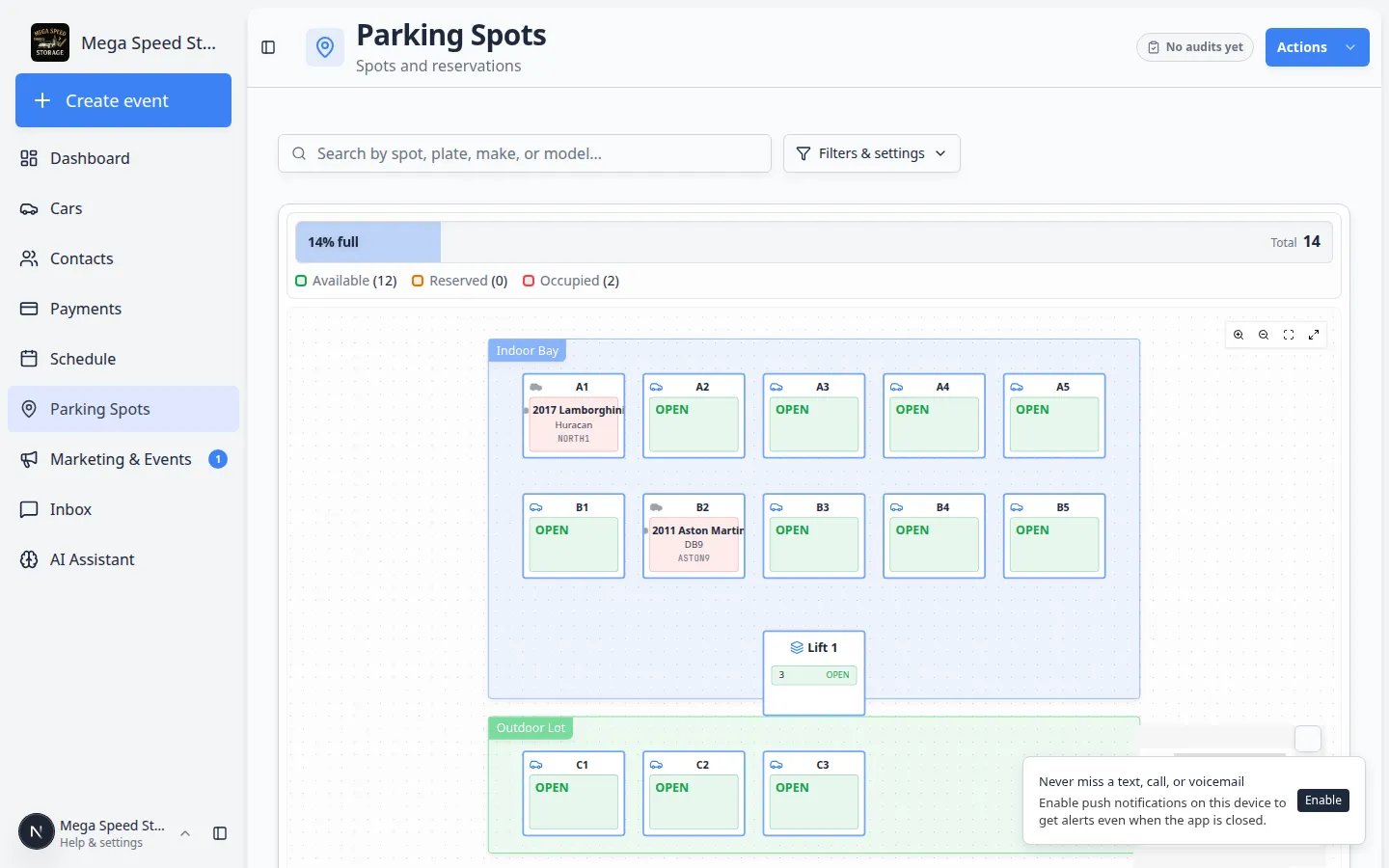 *Zones appear as colored backgrounds behind spots. Click the colored area (not a numbered box) to open the zone window.*
## Open a zone from the map
Go to [Parking Spots](https://www.carstoragesoftware.com/dashboard/parking-spots) from the left sidebar.
**Expected result:** You see the facility map in **Map** view. Colored background areas are zones. Labeled boxes on top are numbered spots and lifts.
Click inside a colored zone (for example the green **Outdoor Lot** area). Do not click a numbered spot box unless you want that exact space.
**Tip:** If your screen is zoomed in, scroll or zoom out until you see open colored space between spot boxes. Click that open area—not the label on a spot like **C1**.
**Why this matters:** Clicking **C1** opens the spot dialog for **C1** only. Clicking the green area around those spots opens the whole **Outdoor Lot** zone.
**Expected result:** A window opens with the zone name at the top (for example **Outdoor Lot**) and a capacity summary such as **1/4**.
Near the top of the window, look for how many cars are in the zone and how many spaces remain (for example **1/4**).
**Why this matters:** Before you promise overflow parking, you can see whether the zone still has room.
*Zones appear as colored backgrounds behind spots. Click the colored area (not a numbered box) to open the zone window.*
## Open a zone from the map
Go to [Parking Spots](https://www.carstoragesoftware.com/dashboard/parking-spots) from the left sidebar.
**Expected result:** You see the facility map in **Map** view. Colored background areas are zones. Labeled boxes on top are numbered spots and lifts.
Click inside a colored zone (for example the green **Outdoor Lot** area). Do not click a numbered spot box unless you want that exact space.
**Tip:** If your screen is zoomed in, scroll or zoom out until you see open colored space between spot boxes. Click that open area—not the label on a spot like **C1**.
**Why this matters:** Clicking **C1** opens the spot dialog for **C1** only. Clicking the green area around those spots opens the whole **Outdoor Lot** zone.
**Expected result:** A window opens with the zone name at the top (for example **Outdoor Lot**) and a capacity summary such as **1/4**.
Near the top of the window, look for how many cars are in the zone and how many spaces remain (for example **1/4**).
**Why this matters:** Before you promise overflow parking, you can see whether the zone still has room.
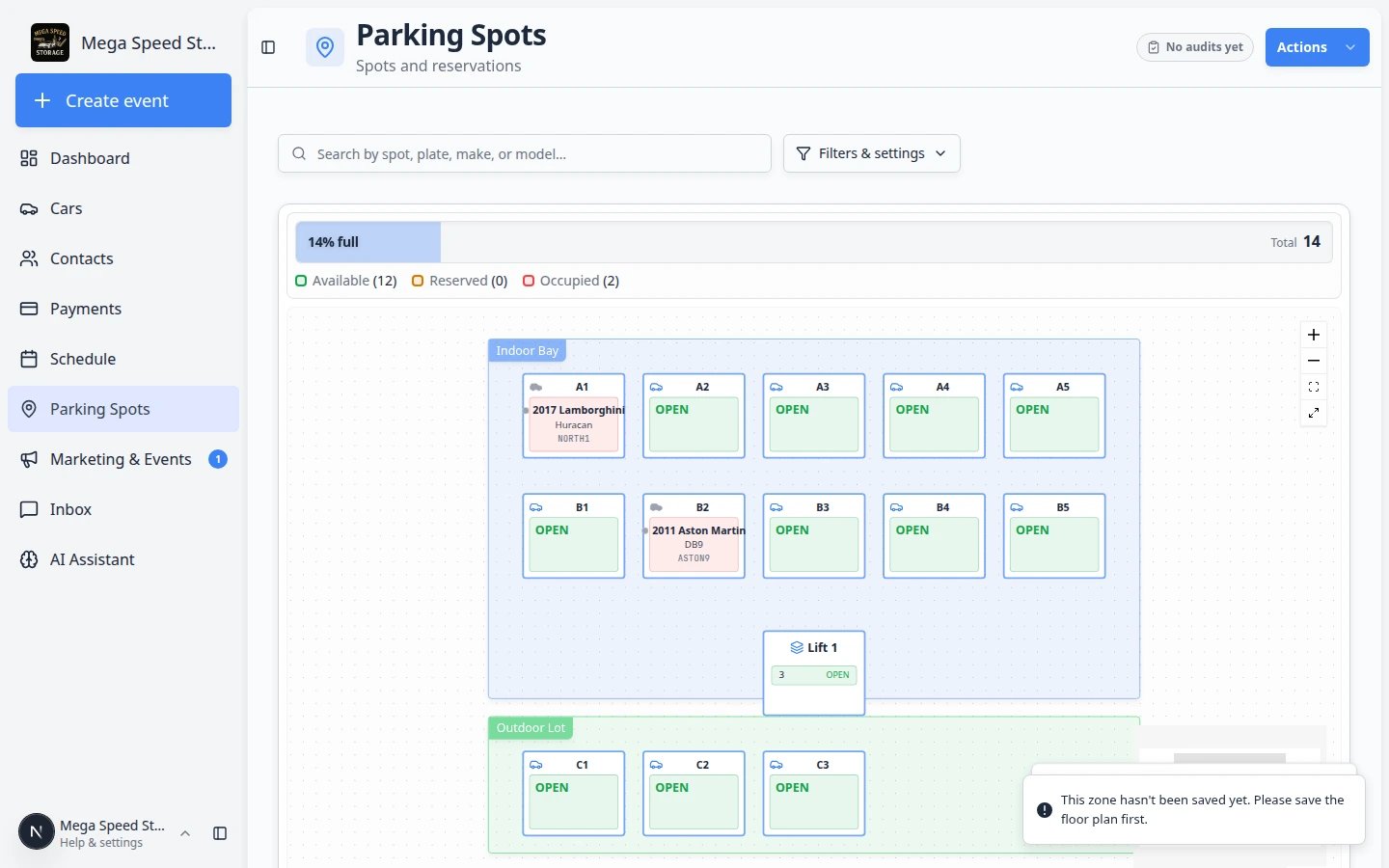 *Click a colored zone on the map to open its window. You see capacity, cars inside the zone, and buttons to add or move vehicles.*
## Add a car to a zone
Use this when a vehicle is physically in the zone but does not need a numbered spot.
Click the zone on the [Parking Spots](https://www.carstoragesoftware.com/dashboard/parking-spots) map as described above.
**Expected result:** The zone window shows the zone name and capacity at the top.
Use the car search field in the zone window. Type the customer name, license plate, VIN, make, or model.
**Expected result:** Matching vehicles appear in the list below the search box.
If the customer owns more than one car, read the year, make, model, and plate carefully before you continue.
**Why this matters:** Picking the wrong vehicle is one of the most common parking mistakes—and it is hard to fix during a busy drop-off.
Click the button to add the car to the zone (the label may say **Add to zone** or **Move Car Here**).
**Expected result:** The car appears in the zone’s car list. The map shows the car inside the colored zone area.
Open the vehicle in [Cars](https://www.carstoragesoftware.com/dashboard/cars). Near the top, the parking button should show **Zone:** and the zone name (for example **Zone: Outdoor Lot**).
**Why this matters:** Staff who start on the car page—not the map—still see the correct location.
*Click a colored zone on the map to open its window. You see capacity, cars inside the zone, and buttons to add or move vehicles.*
## Add a car to a zone
Use this when a vehicle is physically in the zone but does not need a numbered spot.
Click the zone on the [Parking Spots](https://www.carstoragesoftware.com/dashboard/parking-spots) map as described above.
**Expected result:** The zone window shows the zone name and capacity at the top.
Use the car search field in the zone window. Type the customer name, license plate, VIN, make, or model.
**Expected result:** Matching vehicles appear in the list below the search box.
If the customer owns more than one car, read the year, make, model, and plate carefully before you continue.
**Why this matters:** Picking the wrong vehicle is one of the most common parking mistakes—and it is hard to fix during a busy drop-off.
Click the button to add the car to the zone (the label may say **Add to zone** or **Move Car Here**).
**Expected result:** The car appears in the zone’s car list. The map shows the car inside the colored zone area.
Open the vehicle in [Cars](https://www.carstoragesoftware.com/dashboard/cars). Near the top, the parking button should show **Zone:** and the zone name (for example **Zone: Outdoor Lot**).
**Why this matters:** Staff who start on the car page—not the map—still see the correct location.
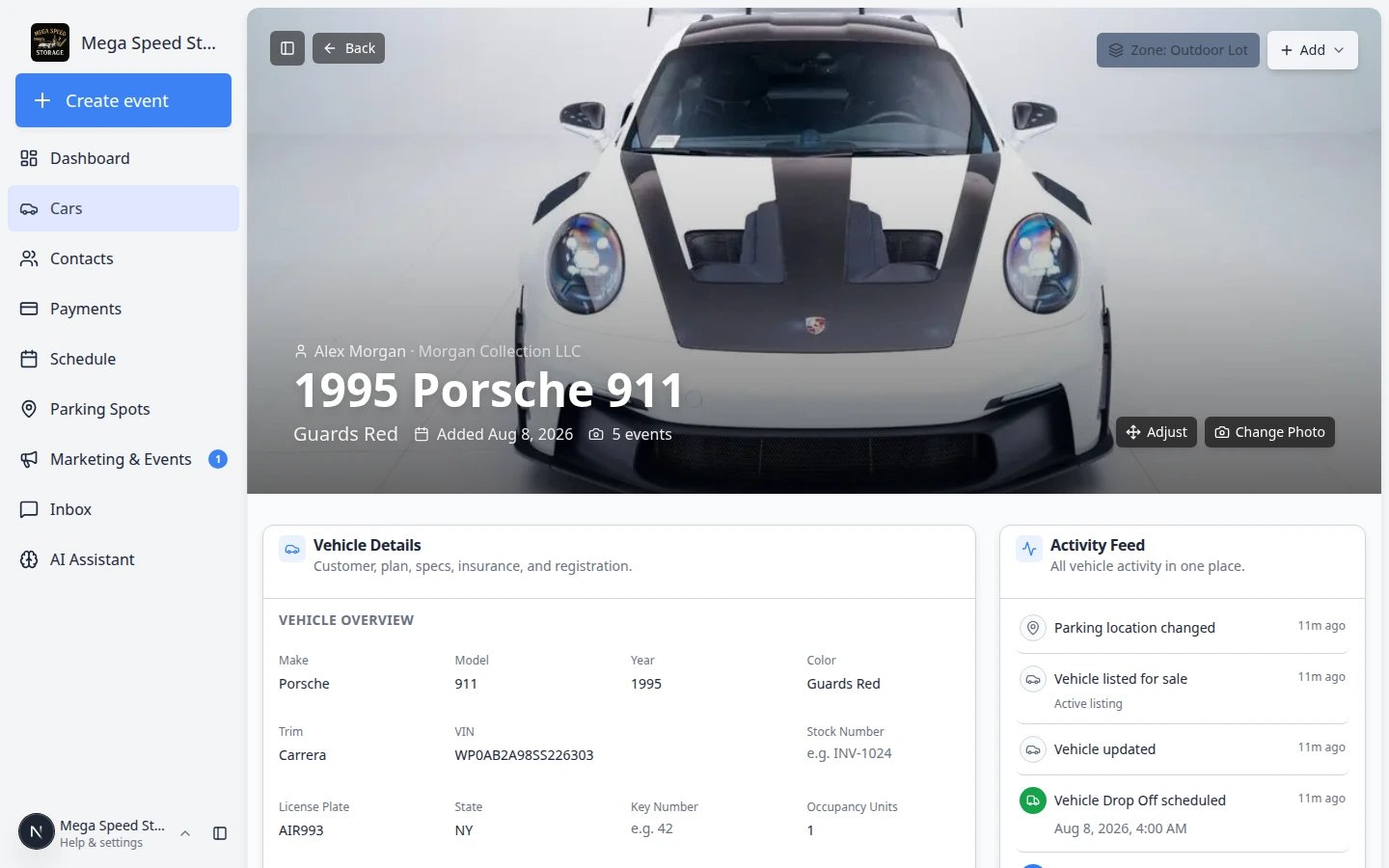 *After you assign a car to a zone, the car record shows **Zone: Outdoor Lot** (or your zone name)—not **Spot: A1**.*
**Expected result**
The car appears inside the colored zone on the map. On the car record, the parking button shows **Zone: Outdoor Lot** (or your zone name) instead of **Spot: A1**.
## Move a car into a zone from a numbered spot
Many teams park cars in **A1** first, then move them to overflow when the indoor row fills up. You can move a car to a zone without opening the zone window first.
On the map, click the numbered spot that currently holds the vehicle (for example **A1**).
**Expected result:** A spot dialog opens showing the car that is **Present** there and a **Move Vehicle** or **Move Car** button.
Click **Move Vehicle** or use the **Select spot, zone, or vendor…** search field.
**Expected result:** A search box appears where you can pick a new destination. You may see sections labeled **Zones** and **Spots**.
Type part of the zone name (for example **Out** for **Outdoor Lot**). Under **Zones**, pick the zone and read the capacity numbers (for example **Outdoor Lot 1/4**).
**Why this matters:** The fraction tells you how full the zone is before you save the move. **1/4** means one car is assigned and three more can fit.
If the car is going off-site—not to another zone inside your lot—scroll to **Vendors** in the same picker and choose the outside company.
**Why this matters:** A **zone** means the car is still on your property in a flexible area. A **vendor** means the car left entirely. See [Send a car to an outside vendor](/docs/parking-spots/send-a-car-to-an-outside-vendor).
Click **Move** (or **Move Car**). Read any message about capacity before you confirm.
**Expected result:** The old spot shows **Available** or open. The car appears in the zone list and on the car record as **Zone: Outdoor Lot**.
*After you assign a car to a zone, the car record shows **Zone: Outdoor Lot** (or your zone name)—not **Spot: A1**.*
**Expected result**
The car appears inside the colored zone on the map. On the car record, the parking button shows **Zone: Outdoor Lot** (or your zone name) instead of **Spot: A1**.
## Move a car into a zone from a numbered spot
Many teams park cars in **A1** first, then move them to overflow when the indoor row fills up. You can move a car to a zone without opening the zone window first.
On the map, click the numbered spot that currently holds the vehicle (for example **A1**).
**Expected result:** A spot dialog opens showing the car that is **Present** there and a **Move Vehicle** or **Move Car** button.
Click **Move Vehicle** or use the **Select spot, zone, or vendor…** search field.
**Expected result:** A search box appears where you can pick a new destination. You may see sections labeled **Zones** and **Spots**.
Type part of the zone name (for example **Out** for **Outdoor Lot**). Under **Zones**, pick the zone and read the capacity numbers (for example **Outdoor Lot 1/4**).
**Why this matters:** The fraction tells you how full the zone is before you save the move. **1/4** means one car is assigned and three more can fit.
If the car is going off-site—not to another zone inside your lot—scroll to **Vendors** in the same picker and choose the outside company.
**Why this matters:** A **zone** means the car is still on your property in a flexible area. A **vendor** means the car left entirely. See [Send a car to an outside vendor](/docs/parking-spots/send-a-car-to-an-outside-vendor).
Click **Move** (or **Move Car**). Read any message about capacity before you confirm.
**Expected result:** The old spot shows **Available** or open. The car appears in the zone list and on the car record as **Zone: Outdoor Lot**.
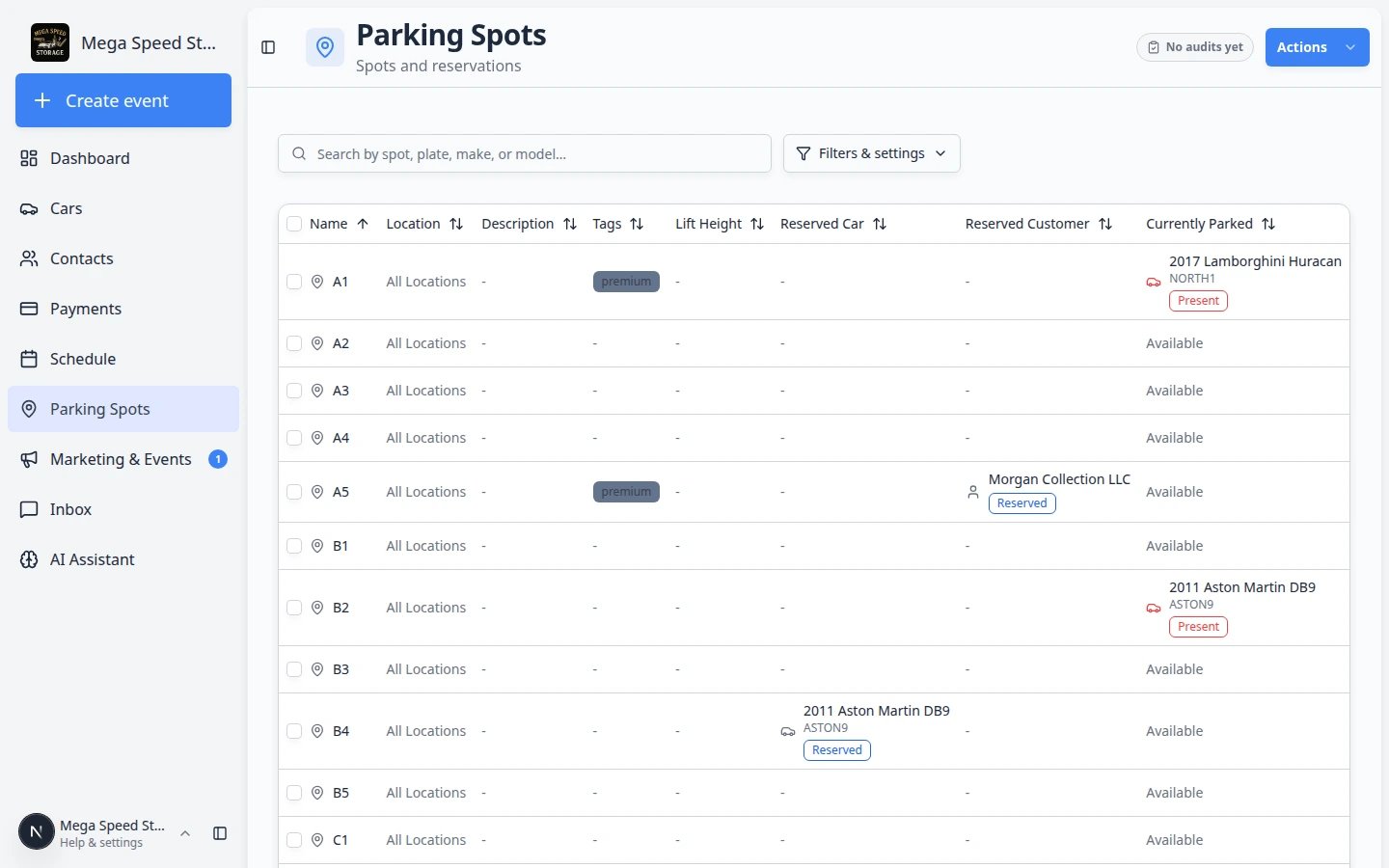 *From a numbered spot, use **Move Car** or the destination picker to send the vehicle to a zone or another spot.*
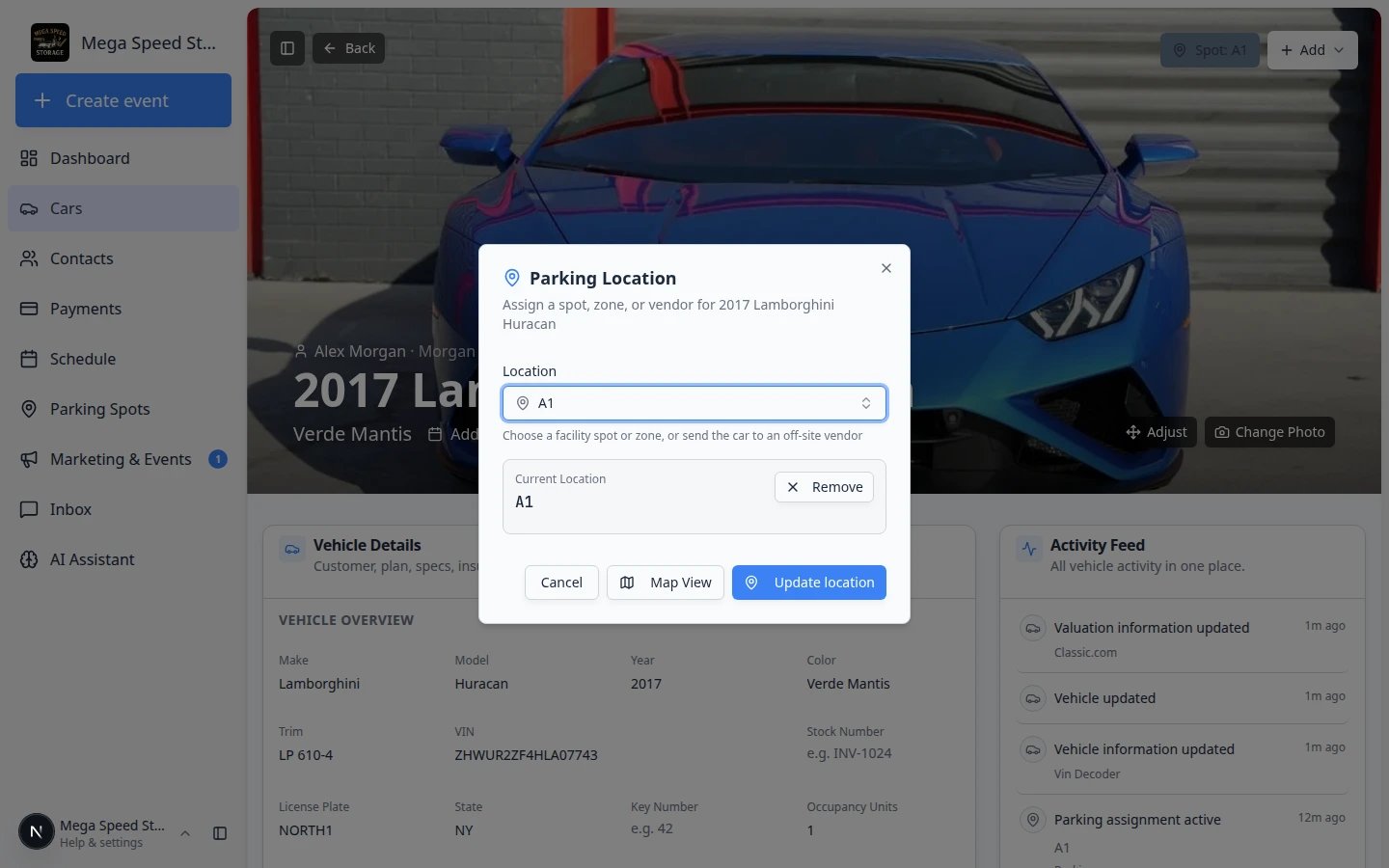 *When you move a car, search under **Zones** to pick a flexible area. Capacity numbers like **1/4** show how full each zone is.*
**If you see Insufficient capacity**
The zone may be full. Check the real lot, move another car out, or ask a manager whether **Additional Capacity** should be increased in [Settings > Floor Plan](https://www.carstoragesoftware.com/dashboard/settings/floor-plan). Do not ignore this message—saving anyway can confuse the next teammate.
## When a zone is full but cars are still outside
Count how many cars are physically in the overflow area. The app only knows about cars your team recorded.
If **B3** or another indoor spot is now open, use **Move Vehicle** to pull a car from the zone into that spot. See [Assign a parking spot](/docs/parking-spots/assign-a-parking-spot).
If the real lot still has room but the app says the zone is full, a manager can review **Additional Capacity** in [Set up parking spots and zones](/docs/parking-spots/set-up-parking-spots-and-zones).
## Move or remove a car from a zone
Click the zone on the map, or search for the car on [Parking Spots](https://www.carstoragesoftware.com/dashboard/parking-spots) and follow the map to its zone.
Scroll through the cars listed in the zone window. Each row shows the vehicle and owner.
Use **Move** (or **Move Vehicle**) to send the car to a numbered spot or a different zone. Pick the destination from the search list.
**Why this matters:** Moving the record when the physical car moves keeps the map trustworthy for the next teammate.
If the vehicle is no longer on your property, remove it from the zone or update the car record so it no longer shows a parking location.
You can also start from the car record: open [Cars](https://www.carstoragesoftware.com/dashboard/cars), click the **Zone:** or **Spot:** button near the top, and pick a numbered spot or a different zone. See [Assign a parking spot](/docs/parking-spots/assign-a-parking-spot) for the full car-record path.
*Cars assigned to a zone show **Zone: Outdoor Lot** (or your zone name) on the car record—not **Spot: A1**.*
## Zone capacity in plain English
**Spot capacity** counts numbered spots drawn inside the zone on the floor plan.
**Additional capacity** (set in [Settings > Floor Plan](https://www.carstoragesoftware.com/dashboard/settings/floor-plan)) is extra room for cars assigned directly to the zone without a numbered spot.
**Total capacity** is both added together. **Available** is what is left before the zone is full.
**Example:** **Outdoor Lot 1/4** means one car is assigned to the zone and three more can fit before the zone is full.
**When the zone looks full**
If **Available** is zero, do not add another car to the zone without checking the real lot. Either move a car out, assign a numbered spot elsewhere, or ask a manager whether additional capacity should be increased in the floor plan.
## How zones look in Table view
Zones also appear on the [Parking Spots](https://www.carstoragesoftware.com/dashboard/parking-spots) table:
* The **Location** column may show a zone name for spots that sit inside a zone.
* Cars assigned only to a zone (no numbered spot) may not appear on a single spot row—they appear when you open the zone on the map or on the car record.
Open **Filters & Settings** and click **Table**.
**Expected result:** You see rows for each numbered spot with columns such as **Name**, **Currently Parked**, and **Reserved Customer**.
Type **Outdoor** or your zone name in the **Search** box. Rows tied to that area may appear in the results.
**Why this matters:** Table view is faster than the map when you need a sortable list during a busy afternoon.
If a car has **Zone: Outdoor Lot** on its [Cars](https://www.carstoragesoftware.com/dashboard/cars) record but no spot row, that is normal—the car is tracked at the zone level, not on **C1** or **C2**.
For help reading **Currently Parked** vs **Status** in the table, see [Find parking spots and available spaces](/docs/parking-spots/find-parking-spots-and-available-spaces).
## Common mistakes to avoid
* Do not click a numbered spot when you mean to use the whole zone—the spot dialog is for exact spaces only.
* Do not assign a car to a zone when your process requires an exact spot number for retrieval.
* Do not forget to update the zone when the car physically moves to a numbered spot inside the same lot.
* Do not promise a customer a zone spot when capacity shows **0** available—check the real lot first.
## Troubleshooting
**I clicked the map but only see a spot dialog**
You may have clicked a numbered spot box instead of the colored zone background. Click the open colored area between or around the spots, or zoom out slightly and try again.
**The zone says it has not been saved yet**
An admin needs to open [Settings > Floor Plan](https://www.carstoragesoftware.com/dashboard/settings/floor-plan), confirm the zone is on the map, and click **Save Floor Plan**. Then refresh [Parking Spots](https://www.carstoragesoftware.com/dashboard/parking-spots) and try again.
**The zone says it is full but cars are not visible**
Refresh [Parking Spots](https://www.carstoragesoftware.com/dashboard/parking-spots). If counts still look wrong, open each car listed in the zone window and confirm they are still physically there.
**The car record still shows Spot instead of Zone**
Open the car in [Cars](https://www.carstoragesoftware.com/dashboard/cars) and click the parking button. Pick the zone again and save. If it keeps reverting, assign from the zone window on the map so both views update together.
## What success looks like
* Staff can name which cars are in **Outdoor Lot** (or your zone) without walking the lot.
* Zone capacity numbers on the map match what managers expect before promising overflow space.
* Car records show **Zone:** for flexible parking and **Spot:** for exact spaces—never the wrong one.
* Moves between numbered spots and zones are saved when the physical car moves, not hours later.
## What to do next
* Need an exact space? Use [Assign a parking spot](/docs/parking-spots/assign-a-parking-spot).
* Need to hold a spot before arrival? Use [Reserve a parking spot](/docs/parking-spots/reserve-a-parking-spot).
* Setting up zones for the first time? See [Set up parking spots and zones](/docs/parking-spots/set-up-parking-spots-and-zones).
* Return to the [Parking Spots overview](/docs/parking-spots/overview).
This documentation is built and hosted on [Mintlify](https://mintlify.com), a developer documentation platform.
*When you move a car, search under **Zones** to pick a flexible area. Capacity numbers like **1/4** show how full each zone is.*
**If you see Insufficient capacity**
The zone may be full. Check the real lot, move another car out, or ask a manager whether **Additional Capacity** should be increased in [Settings > Floor Plan](https://www.carstoragesoftware.com/dashboard/settings/floor-plan). Do not ignore this message—saving anyway can confuse the next teammate.
## When a zone is full but cars are still outside
Count how many cars are physically in the overflow area. The app only knows about cars your team recorded.
If **B3** or another indoor spot is now open, use **Move Vehicle** to pull a car from the zone into that spot. See [Assign a parking spot](/docs/parking-spots/assign-a-parking-spot).
If the real lot still has room but the app says the zone is full, a manager can review **Additional Capacity** in [Set up parking spots and zones](/docs/parking-spots/set-up-parking-spots-and-zones).
## Move or remove a car from a zone
Click the zone on the map, or search for the car on [Parking Spots](https://www.carstoragesoftware.com/dashboard/parking-spots) and follow the map to its zone.
Scroll through the cars listed in the zone window. Each row shows the vehicle and owner.
Use **Move** (or **Move Vehicle**) to send the car to a numbered spot or a different zone. Pick the destination from the search list.
**Why this matters:** Moving the record when the physical car moves keeps the map trustworthy for the next teammate.
If the vehicle is no longer on your property, remove it from the zone or update the car record so it no longer shows a parking location.
You can also start from the car record: open [Cars](https://www.carstoragesoftware.com/dashboard/cars), click the **Zone:** or **Spot:** button near the top, and pick a numbered spot or a different zone. See [Assign a parking spot](/docs/parking-spots/assign-a-parking-spot) for the full car-record path.
*Cars assigned to a zone show **Zone: Outdoor Lot** (or your zone name) on the car record—not **Spot: A1**.*
## Zone capacity in plain English
**Spot capacity** counts numbered spots drawn inside the zone on the floor plan.
**Additional capacity** (set in [Settings > Floor Plan](https://www.carstoragesoftware.com/dashboard/settings/floor-plan)) is extra room for cars assigned directly to the zone without a numbered spot.
**Total capacity** is both added together. **Available** is what is left before the zone is full.
**Example:** **Outdoor Lot 1/4** means one car is assigned to the zone and three more can fit before the zone is full.
**When the zone looks full**
If **Available** is zero, do not add another car to the zone without checking the real lot. Either move a car out, assign a numbered spot elsewhere, or ask a manager whether additional capacity should be increased in the floor plan.
## How zones look in Table view
Zones also appear on the [Parking Spots](https://www.carstoragesoftware.com/dashboard/parking-spots) table:
* The **Location** column may show a zone name for spots that sit inside a zone.
* Cars assigned only to a zone (no numbered spot) may not appear on a single spot row—they appear when you open the zone on the map or on the car record.
Open **Filters & Settings** and click **Table**.
**Expected result:** You see rows for each numbered spot with columns such as **Name**, **Currently Parked**, and **Reserved Customer**.
Type **Outdoor** or your zone name in the **Search** box. Rows tied to that area may appear in the results.
**Why this matters:** Table view is faster than the map when you need a sortable list during a busy afternoon.
If a car has **Zone: Outdoor Lot** on its [Cars](https://www.carstoragesoftware.com/dashboard/cars) record but no spot row, that is normal—the car is tracked at the zone level, not on **C1** or **C2**.
For help reading **Currently Parked** vs **Status** in the table, see [Find parking spots and available spaces](/docs/parking-spots/find-parking-spots-and-available-spaces).
## Common mistakes to avoid
* Do not click a numbered spot when you mean to use the whole zone—the spot dialog is for exact spaces only.
* Do not assign a car to a zone when your process requires an exact spot number for retrieval.
* Do not forget to update the zone when the car physically moves to a numbered spot inside the same lot.
* Do not promise a customer a zone spot when capacity shows **0** available—check the real lot first.
## Troubleshooting
**I clicked the map but only see a spot dialog**
You may have clicked a numbered spot box instead of the colored zone background. Click the open colored area between or around the spots, or zoom out slightly and try again.
**The zone says it has not been saved yet**
An admin needs to open [Settings > Floor Plan](https://www.carstoragesoftware.com/dashboard/settings/floor-plan), confirm the zone is on the map, and click **Save Floor Plan**. Then refresh [Parking Spots](https://www.carstoragesoftware.com/dashboard/parking-spots) and try again.
**The zone says it is full but cars are not visible**
Refresh [Parking Spots](https://www.carstoragesoftware.com/dashboard/parking-spots). If counts still look wrong, open each car listed in the zone window and confirm they are still physically there.
**The car record still shows Spot instead of Zone**
Open the car in [Cars](https://www.carstoragesoftware.com/dashboard/cars) and click the parking button. Pick the zone again and save. If it keeps reverting, assign from the zone window on the map so both views update together.
## What success looks like
* Staff can name which cars are in **Outdoor Lot** (or your zone) without walking the lot.
* Zone capacity numbers on the map match what managers expect before promising overflow space.
* Car records show **Zone:** for flexible parking and **Spot:** for exact spaces—never the wrong one.
* Moves between numbered spots and zones are saved when the physical car moves, not hours later.
## What to do next
* Need an exact space? Use [Assign a parking spot](/docs/parking-spots/assign-a-parking-spot).
* Need to hold a spot before arrival? Use [Reserve a parking spot](/docs/parking-spots/reserve-a-parking-spot).
* Setting up zones for the first time? See [Set up parking spots and zones](/docs/parking-spots/set-up-parking-spots-and-zones).
* Return to the [Parking Spots overview](/docs/parking-spots/overview).
This documentation is built and hosted on [Mintlify](https://mintlify.com), a developer documentation platform.