> ## Documentation Index
> Fetch the complete documentation index at: https://www.carstoragesoftware.com/docs/llms.txt
> Use this file to discover all available pages before exploring further.
# Review the Invoices Report
> See customer and vendor invoices in one place, filter by date, and export billing history for your team or accountant.
## What you will accomplish
You will open the **Invoices Report**, choose a date range, read the summary cards, and export invoice history when your owner, bookkeeper, or manager needs a spreadsheet.
Use this guide when someone asks:
* How much did we bill last month?
* How much did customers actually pay in a date range?
* Which vendor bills came in during a period?
* Can we export invoices for the accountant?
The report lives at [Payments > Invoices > Report](https://www.carstoragesoftware.com/dashboard/payments/invoices/report). It is for **review and export**—not for creating new invoices.
**Report vs everyday invoice list**
Use [Payments > Invoices](https://www.carstoragesoftware.com/dashboard/payments/invoices) when you need to **send, collect, or fix one bill**.
Use the **Invoices Report** when you need a **date-range view** of many invoices and optional **Excel export**.
## Before you start
* You can open [Payments > Invoices](https://www.carstoragesoftware.com/dashboard/payments/invoices).
* You know the date range you care about (for example **This month** or a custom start and end date).
* Ask your manager whether customer invoices, vendor invoices, or both should be included in your export.
## Open the Invoices Report
In the dashboard sidebar, click **Payments**, then **Invoices**. You can also open [Payments > Invoices](https://www.carstoragesoftware.com/dashboard/payments/invoices) directly.
**Expected result:** You see the **Invoices** page with tabs such as **All**, **Customer**, and **Vendor**.
Near the top-right of the page, click **Report**.
On a phone, look for the small document icon button next to **Create invoice**—it opens the same report.
**Why this matters:** The report button is on the Invoices page so you can jump from daily work to month-end review in one click.
The next page title should read **Invoices Report** with the subtitle **Customer and vendor invoices**.
**Expected result:** You see date controls, summary cards, and a table (or an empty state if no invoices exist in the range yet).
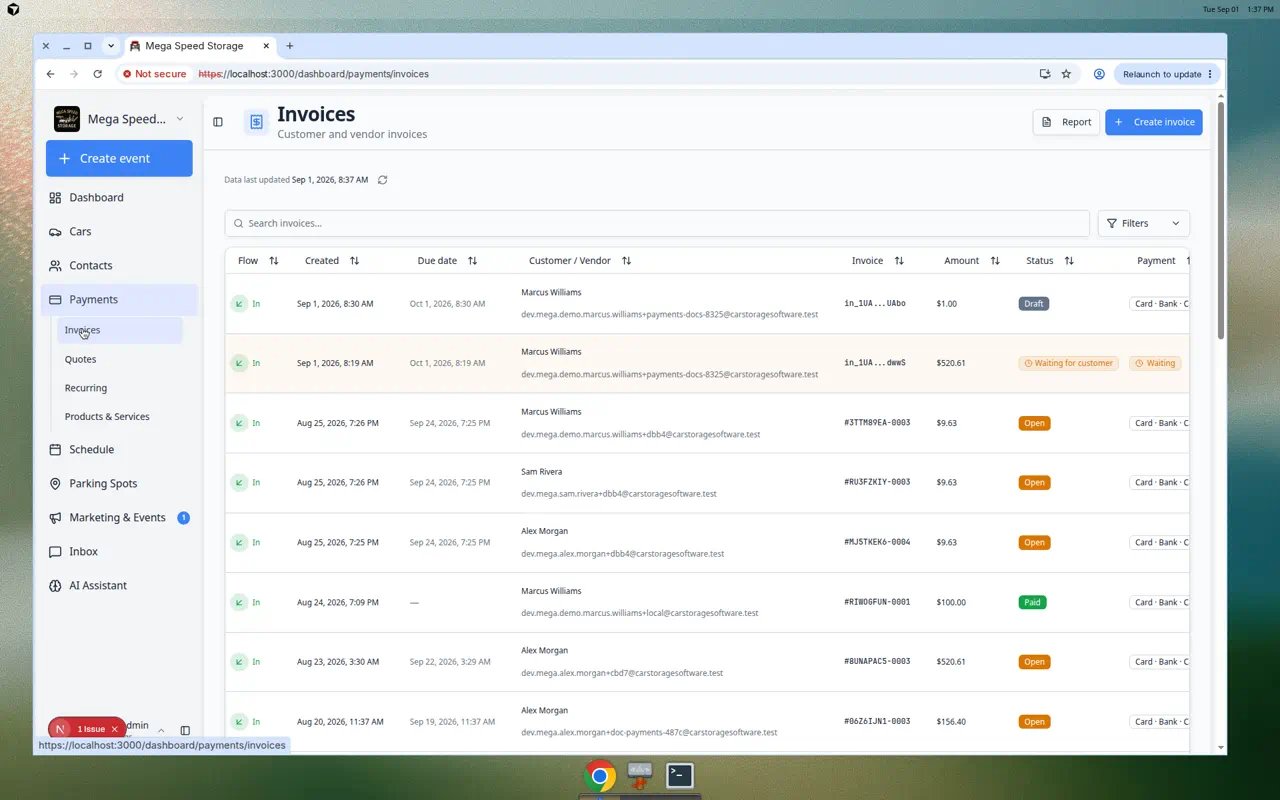 *Click **Report** next to **Create invoice** on the Invoices page. You can open the report from any filter state.*
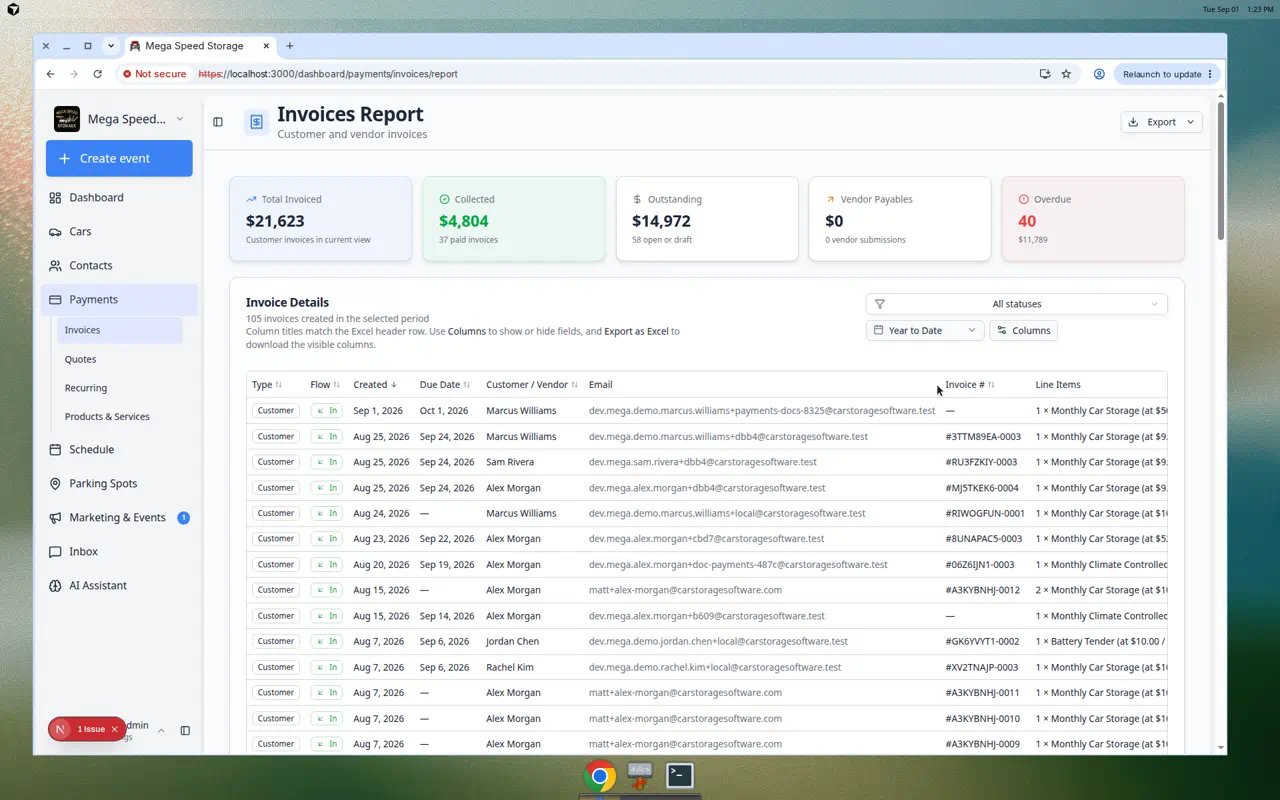 *The Invoices Report combines customer and vendor invoices for the dates you choose. Summary cards give a quick picture before you scroll the table.*
## Choose a date range
The report only shows invoices **created** inside the dates you pick.
Near the top of the report, click the date range control (it may show **This month** or two calendar dates).
**Expected result:** A calendar or preset list opens.
Common choices include **This month**, **Last month**, **Year to date**, or a **Custom** start and end date.
**Why this matters:** Owners often want month-to-month comparisons. Accountants may ask for an exact quarter.
After you choose dates, the summary cards and table reload.
**Expected result:** Dollar amounts on the cards update, and the invoice rows match the new range.
*The Invoices Report combines customer and vendor invoices for the dates you choose. Summary cards give a quick picture before you scroll the table.*
## Choose a date range
The report only shows invoices **created** inside the dates you pick.
Near the top of the report, click the date range control (it may show **This month** or two calendar dates).
**Expected result:** A calendar or preset list opens.
Common choices include **This month**, **Last month**, **Year to date**, or a **Custom** start and end date.
**Why this matters:** Owners often want month-to-month comparisons. Accountants may ask for an exact quarter.
After you choose dates, the summary cards and table reload.
**Expected result:** Dollar amounts on the cards update, and the invoice rows match the new range.
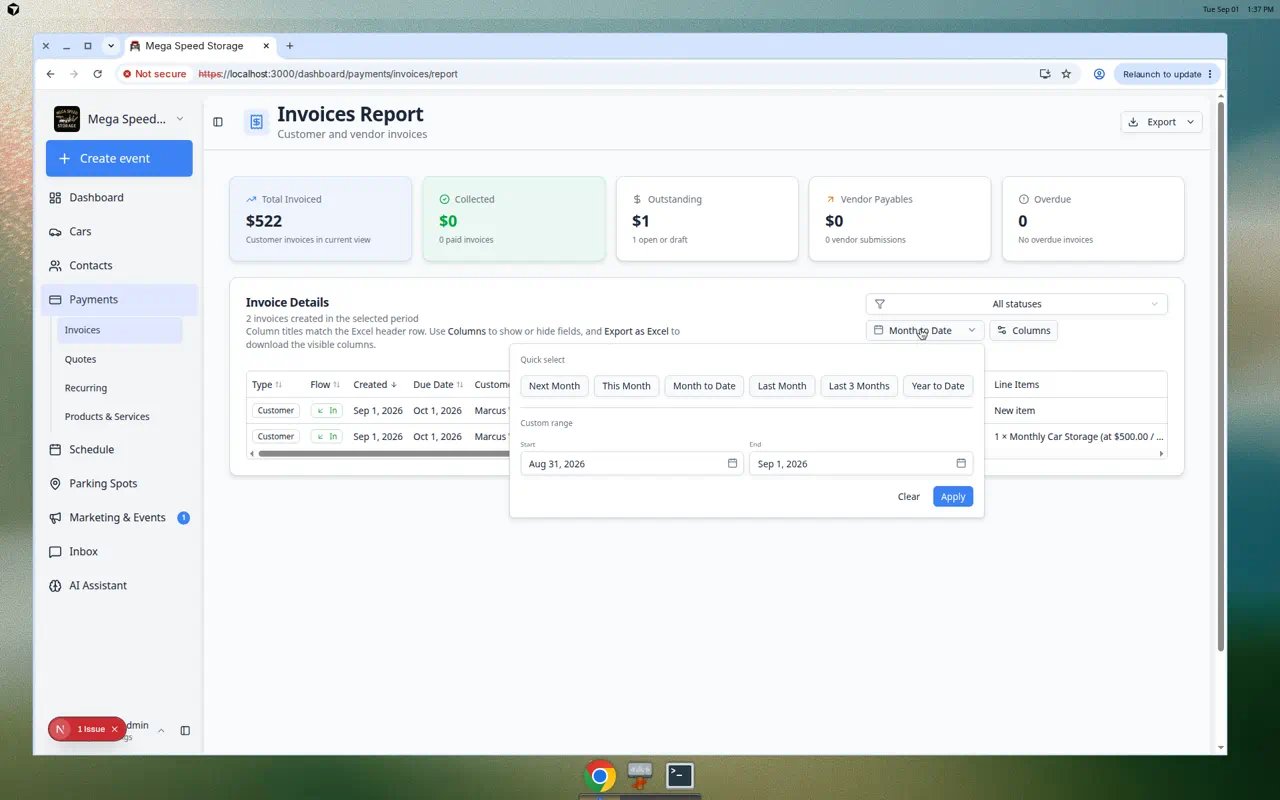 *Pick a preset such as **This month**, or choose custom **Start** and **End** dates. The table and summary cards refresh after you apply the range.*
Large facilities may have hundreds of rows. Wait until **Loading...** disappears from the summary cards before you share numbers with a customer or manager.
## Read the summary cards
At the top of the report, five cards help you answer money questions quickly:
**Total Invoiced** — Customer invoices **created** in the date range (money you asked for).
**Collected** — Customer invoice money **paid** in the range.
**Outstanding** — Customer invoice amounts still **open** (not paid yet) for invoices created in the range.
**Vendor Invoiced** — Vendor bills **received** in the range (money outside providers asked from your facility).
**Vendor Paid** — Vendor bills your team **marked paid** in the range.
**Customer money in vs vendor money out**
Customer cards are about **money coming in**. Vendor cards are about **money going out**. They are shown together so managers see both sides without switching pages.
## Use the invoice table
Below the cards, each row is one invoice. Useful columns include:
* **Type** — Customer invoice or vendor invoice.
* **Flow** — **In** for customer bills you send; **Out** for vendor bills you receive.
* **Customer / Vendor** — Who the invoice is with.
* **Status** — Such as **Open**, **Paid**, **Draft**, or vendor review statuses.
* **Amount** — Total for that invoice.
* **Due date** — When payment is due (customer invoices).
Click a column heading such as **Created**, **Amount**, or **Status** to sort ascending or descending.
**Expected result:** The arrow icon on the column shows which way the list is sorted.
Click a row to open that invoice's detail page—customer or vendor, depending on the row type.
**Why this matters:** The report is for scanning many invoices. The detail page is where you resend, collect, or mark paid.
If you see a **Columns** control, use it to hide fields you do not need on screen. Your choices are saved for next time you open the report.
**Expected result:** The table fits your role—for example hiding **Payment method** if you only care about totals.
*Pick a preset such as **This month**, or choose custom **Start** and **End** dates. The table and summary cards refresh after you apply the range.*
Large facilities may have hundreds of rows. Wait until **Loading...** disappears from the summary cards before you share numbers with a customer or manager.
## Read the summary cards
At the top of the report, five cards help you answer money questions quickly:
**Total Invoiced** — Customer invoices **created** in the date range (money you asked for).
**Collected** — Customer invoice money **paid** in the range.
**Outstanding** — Customer invoice amounts still **open** (not paid yet) for invoices created in the range.
**Vendor Invoiced** — Vendor bills **received** in the range (money outside providers asked from your facility).
**Vendor Paid** — Vendor bills your team **marked paid** in the range.
**Customer money in vs vendor money out**
Customer cards are about **money coming in**. Vendor cards are about **money going out**. They are shown together so managers see both sides without switching pages.
## Use the invoice table
Below the cards, each row is one invoice. Useful columns include:
* **Type** — Customer invoice or vendor invoice.
* **Flow** — **In** for customer bills you send; **Out** for vendor bills you receive.
* **Customer / Vendor** — Who the invoice is with.
* **Status** — Such as **Open**, **Paid**, **Draft**, or vendor review statuses.
* **Amount** — Total for that invoice.
* **Due date** — When payment is due (customer invoices).
Click a column heading such as **Created**, **Amount**, or **Status** to sort ascending or descending.
**Expected result:** The arrow icon on the column shows which way the list is sorted.
Click a row to open that invoice's detail page—customer or vendor, depending on the row type.
**Why this matters:** The report is for scanning many invoices. The detail page is where you resend, collect, or mark paid.
If you see a **Columns** control, use it to hide fields you do not need on screen. Your choices are saved for next time you open the report.
**Expected result:** The table fits your role—for example hiding **Payment method** if you only care about totals.
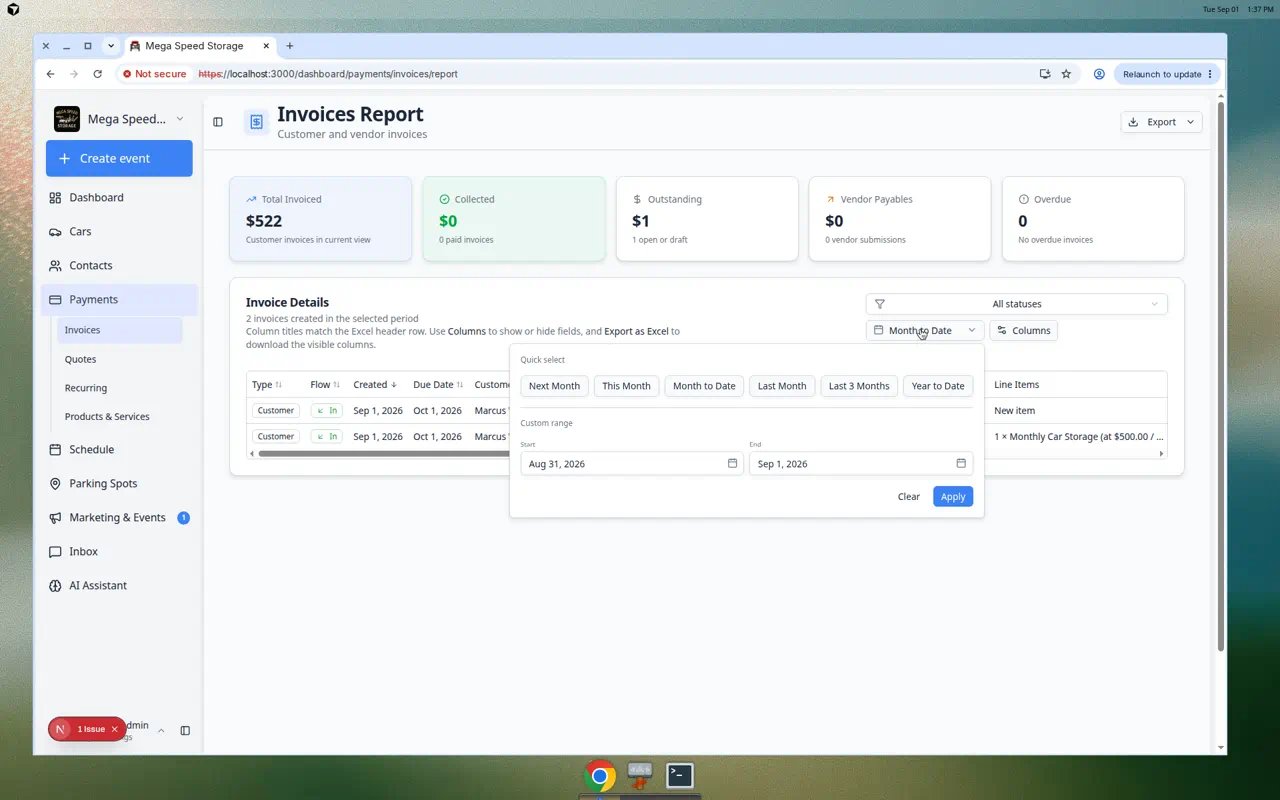 *Each row is one invoice. Click a row to open that invoice's detail page when you need to resend, collect, or mark paid.*
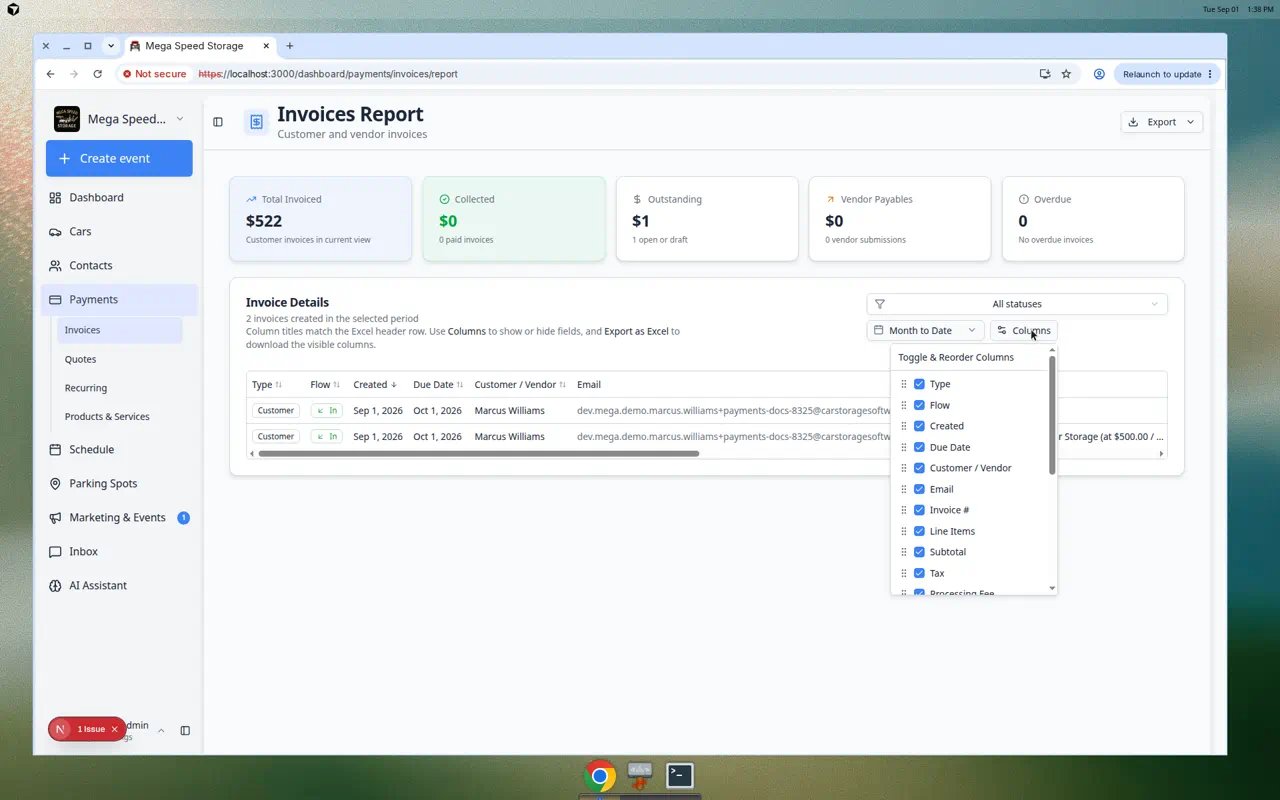 *Use **Columns** to hide fields you do not need or reorder them for your role. Your choices are saved for next time.*
## Export to Excel
When your bookkeeper or owner needs a file:
Confirm the summary cards and table show the period you intend to export.
**Why this matters:** The Excel file uses the same dates shown on screen.
In the top-right area of the report, click **Export**, then **Export as Excel**.
**Expected result:** Your browser downloads a file named with the start and end dates, such as `invoices-report-2026-07-01-to-2026-07-31.xlsx`.
Open the spreadsheet and confirm row counts look reasonable before you email it outside your facility.
**Expected result:** Rows match the on-screen table for the same date range.
*Use **Columns** to hide fields you do not need or reorder them for your role. Your choices are saved for next time.*
## Export to Excel
When your bookkeeper or owner needs a file:
Confirm the summary cards and table show the period you intend to export.
**Why this matters:** The Excel file uses the same dates shown on screen.
In the top-right area of the report, click **Export**, then **Export as Excel**.
**Expected result:** Your browser downloads a file named with the start and end dates, such as `invoices-report-2026-07-01-to-2026-07-31.xlsx`.
Open the spreadsheet and confirm row counts look reasonable before you email it outside your facility.
**Expected result:** Rows match the on-screen table for the same date range.
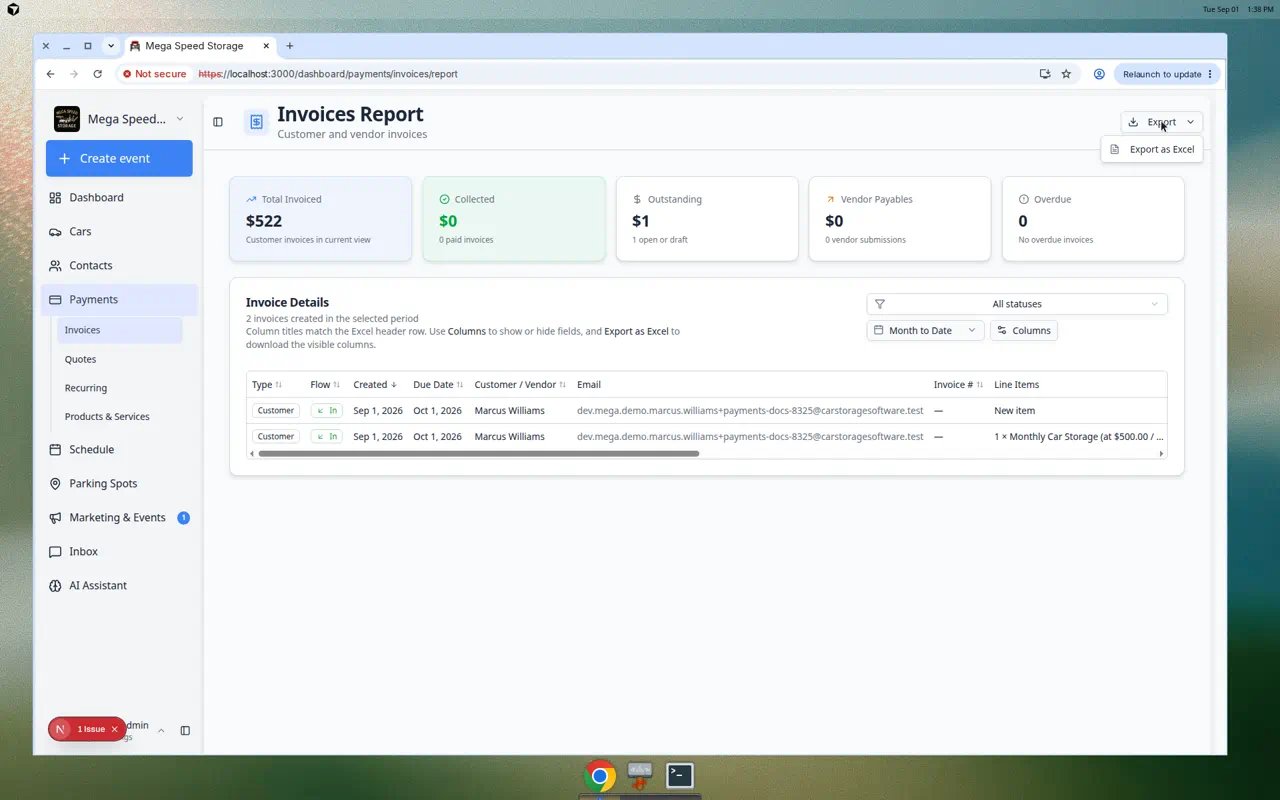 *Click **Export**, then **Export as Excel**. The file uses the same date range shown on screen.*
**Export is disabled when the table is empty**
If no invoices exist in the date range, **Export** stays grayed out. Widen the date range or confirm invoices were created during that period.
## When to use this report
* **Month-end review** — Compare **Total Invoiced** vs **Collected** before a team meeting.
* **Follow up on open bills** — Sort by **Status** or **Outstanding** to see who still owes money.
* **Vendor bill tracking** — Filter mentally by **Flow Out** or vendor name to see outside provider spend.
* **Accountant handoff** — Export Excel for tax prep or external bookkeeping.
## Troubleshooting
**The report is empty**
Try a wider date range. New facilities may not have invoices yet—create a test invoice with [Create an invoice](/docs/payments/create-an-invoice) after payment setup is complete, then return to the report.
**Numbers do not match my bank account**
**Collected** follows invoice payment dates in Car Storage Software. Bank deposits may land on different days because of card processing or checks. Use [Review a customer invoice](/docs/payments/review-a-customer-invoice) to trace a single payment.
**I only want customer invoices**
Use the **Type** or **Flow** column in the table, or export and filter in Excel. For day-to-day customer work, use **Filters → Type → Customer** on [Invoices](https://www.carstoragesoftware.com/dashboard/payments/invoices).
## What to do next
* Need to act on one unpaid customer bill → [Send and collect customer payments](/docs/payments/send-and-collect-customer-payments)
* Need recurring income summary → open **Report** from [Payments > Recurring](https://www.carstoragesoftware.com/dashboard/payments/recurring) and see [Manage recurring billing](/docs/payments/manage-recurring-billing)
* New to Payments → start with the [Payments overview](/docs/payments/overview)
This documentation is built and hosted on [Mintlify](https://mintlify.com), a developer documentation platform.
*Click **Export**, then **Export as Excel**. The file uses the same date range shown on screen.*
**Export is disabled when the table is empty**
If no invoices exist in the date range, **Export** stays grayed out. Widen the date range or confirm invoices were created during that period.
## When to use this report
* **Month-end review** — Compare **Total Invoiced** vs **Collected** before a team meeting.
* **Follow up on open bills** — Sort by **Status** or **Outstanding** to see who still owes money.
* **Vendor bill tracking** — Filter mentally by **Flow Out** or vendor name to see outside provider spend.
* **Accountant handoff** — Export Excel for tax prep or external bookkeeping.
## Troubleshooting
**The report is empty**
Try a wider date range. New facilities may not have invoices yet—create a test invoice with [Create an invoice](/docs/payments/create-an-invoice) after payment setup is complete, then return to the report.
**Numbers do not match my bank account**
**Collected** follows invoice payment dates in Car Storage Software. Bank deposits may land on different days because of card processing or checks. Use [Review a customer invoice](/docs/payments/review-a-customer-invoice) to trace a single payment.
**I only want customer invoices**
Use the **Type** or **Flow** column in the table, or export and filter in Excel. For day-to-day customer work, use **Filters → Type → Customer** on [Invoices](https://www.carstoragesoftware.com/dashboard/payments/invoices).
## What to do next
* Need to act on one unpaid customer bill → [Send and collect customer payments](/docs/payments/send-and-collect-customer-payments)
* Need recurring income summary → open **Report** from [Payments > Recurring](https://www.carstoragesoftware.com/dashboard/payments/recurring) and see [Manage recurring billing](/docs/payments/manage-recurring-billing)
* New to Payments → start with the [Payments overview](/docs/payments/overview)
This documentation is built and hosted on [Mintlify](https://mintlify.com), a developer documentation platform.