> ## Documentation Index
> Fetch the complete documentation index at: https://www.carstoragesoftware.com/docs/llms.txt
> Use this file to discover all available pages before exploring further.
# Read calendar icons and badges
> Learn what the small symbols on Schedule events mean—recurring visits, billing, approvals, damage flags, and grouped busy slots.
## What you will accomplish
You will read the [Schedule](https://www.carstoragesoftware.com/dashboard/schedule) calendar at a glance—without opening every event—by understanding the small icons and colored badges on event blocks.
**Expected outcome:** Front-desk staff spot online bookings waiting for approval, managers see invoice status, and technicians notice damage flags before walking to the bay.
## When this guide helps
* A calendar block looks “striped” or different from normal colored events.
* You see a **\$** symbol, repeat arrow, warning triangle, or number badge on an event.
* Several visits stack in one hour and the calendar shows **3 events** instead of three separate colors.
* A customer asks “Is my appointment confirmed?” and you need to know if it still needs approval.
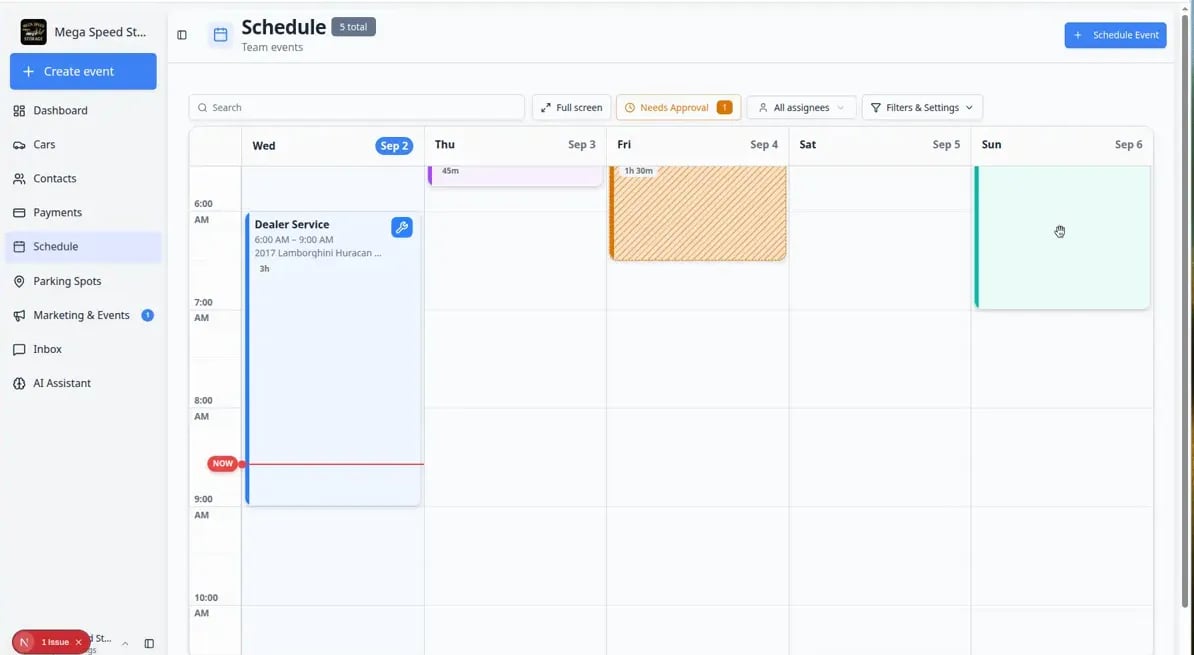 *Icons and badges sit on top of the normal event color. They add meaning without opening each visit.*
## Event colors (the big picture)
Each **event type** has its own color—**Vehicle Drop Off**, **Dealer Service**, **Detail & Wash**, and so on.
The color answers: **What kind of work is this?**
Icons and badges answer follow-up questions: **Is it confirmed? Paid for? Repeating? Flagged?**
## Icon and badge guide
**Repeat arrow (↻)** — The event is part of a **recurring series** (weekly storage check-in, monthly battery service). Changing one date may ask whether you mean *only this visit* or *the whole series*. See [Create recurring appointments](/docs/schedule/create-recurring-appointments).
**Dollar sign (\$)** — Billing is linked to this event. Colors often mean:
* **Green** — invoice paid.
* **Yellow** — invoice open or draft.
* **Red** — payment failed or needs attention.
Open the event and scroll to the billing section, or use the **Billing** column in **Table** view. Related guide: [Review a customer invoice](/docs/payments/review-a-customer-invoice).
**Striped or “tentative” styling** — The visit is **not fully confirmed** yet. Common causes:
* A customer booked online and the event is in **Needs Approval**.
* A **service plan** generated a future visit that is still tentative.
Use [Approve or decline a customer booking request](/docs/schedule/approve-or-decline-customer-booking-requests) or [Understand tentative and service plan events](/docs/schedule/understand-tentative-and-service-plan-events).
**Warning / alert badge** — Often means **needs approval** when several events overlap. Click the grouped block to see which visit is waiting.
**Triangle / damage count** — At least one **damage photo** was marked on linked intake or workflow photos. Open the event and use **Open Event** to review images before telling a customer “no issues found.”
**Needs completion indicator** — Work was started but checklists or photos are not finished. The event may still show **In Progress** on the **Progress** board.
**Green check mark** — The event is **complete**. Completed events keep their event type color, and the event icon turns into a solid green check so you can scan the day without opening each block. To reopen one, click it and change the status.
*Icons and badges sit on top of the normal event color. They add meaning without opening each visit.*
## Event colors (the big picture)
Each **event type** has its own color—**Vehicle Drop Off**, **Dealer Service**, **Detail & Wash**, and so on.
The color answers: **What kind of work is this?**
Icons and badges answer follow-up questions: **Is it confirmed? Paid for? Repeating? Flagged?**
## Icon and badge guide
**Repeat arrow (↻)** — The event is part of a **recurring series** (weekly storage check-in, monthly battery service). Changing one date may ask whether you mean *only this visit* or *the whole series*. See [Create recurring appointments](/docs/schedule/create-recurring-appointments).
**Dollar sign (\$)** — Billing is linked to this event. Colors often mean:
* **Green** — invoice paid.
* **Yellow** — invoice open or draft.
* **Red** — payment failed or needs attention.
Open the event and scroll to the billing section, or use the **Billing** column in **Table** view. Related guide: [Review a customer invoice](/docs/payments/review-a-customer-invoice).
**Striped or “tentative” styling** — The visit is **not fully confirmed** yet. Common causes:
* A customer booked online and the event is in **Needs Approval**.
* A **service plan** generated a future visit that is still tentative.
Use [Approve or decline a customer booking request](/docs/schedule/approve-or-decline-customer-booking-requests) or [Understand tentative and service plan events](/docs/schedule/understand-tentative-and-service-plan-events).
**Warning / alert badge** — Often means **needs approval** when several events overlap. Click the grouped block to see which visit is waiting.
**Triangle / damage count** — At least one **damage photo** was marked on linked intake or workflow photos. Open the event and use **Open Event** to review images before telling a customer “no issues found.”
**Needs completion indicator** — Work was started but checklists or photos are not finished. The event may still show **In Progress** on the **Progress** board.
**Green check mark** — The event is **complete**. Completed events keep their event type color, and the event icon turns into a solid green check so you can scan the day without opening each block. To reopen one, click it and change the status.
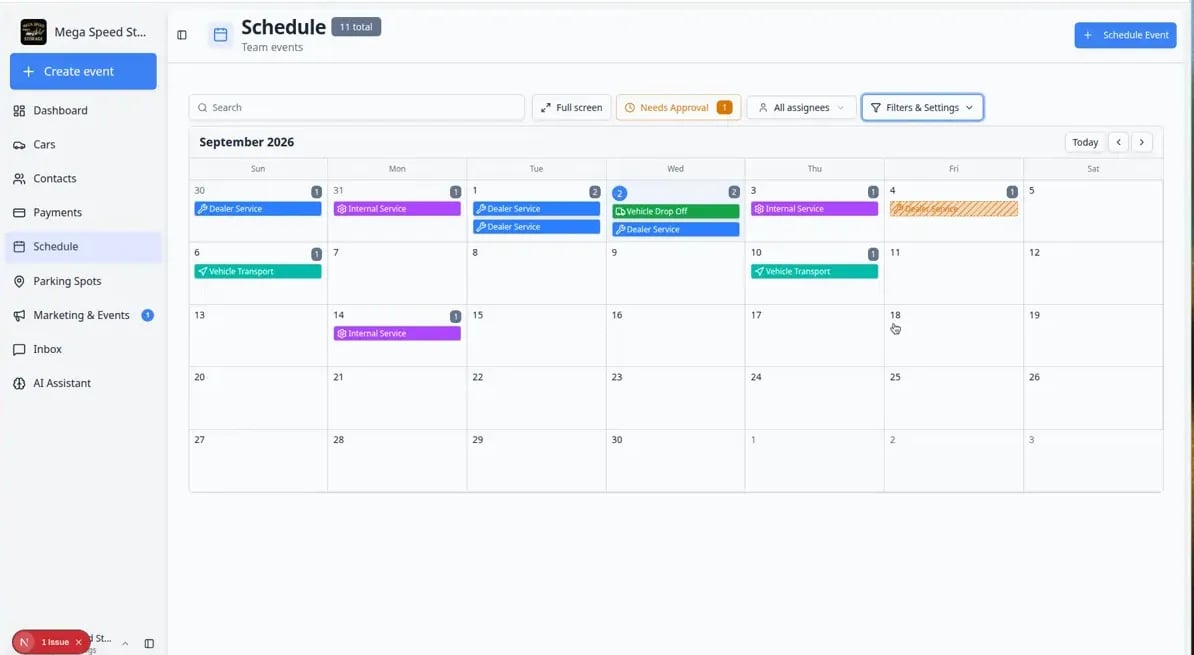 *Look at the corner of each block for small icons. A **\$** badge means billing is tied to that visit—open the event before you tell a customer their balance is clear.*
## Grouped events (busy time slots)
When two or more events share the same hour, the calendar may show one dashed block labeled **2 events**, **3 events**, and so on.
**Why this happens:** The calendar keeps busy hours readable. A single block does not mean only one visit—it means “open this to see the list.”
**Expected result:** A list opens showing each visit in that slot.
Rows may show their own approval, billing, or damage indicators.
Click the row you need. The normal detail panel opens.
Full steps: [Find and filter scheduled work](/docs/schedule/find-and-filter-scheduled-work) (section *When several events share the same time slot*).
*Look at the corner of each block for small icons. A **\$** badge means billing is tied to that visit—open the event before you tell a customer their balance is clear.*
## Grouped events (busy time slots)
When two or more events share the same hour, the calendar may show one dashed block labeled **2 events**, **3 events**, and so on.
**Why this happens:** The calendar keeps busy hours readable. A single block does not mean only one visit—it means “open this to see the list.”
**Expected result:** A list opens showing each visit in that slot.
Rows may show their own approval, billing, or damage indicators.
Click the row you need. The normal detail panel opens.
Full steps: [Find and filter scheduled work](/docs/schedule/find-and-filter-scheduled-work) (section *When several events share the same time slot*).
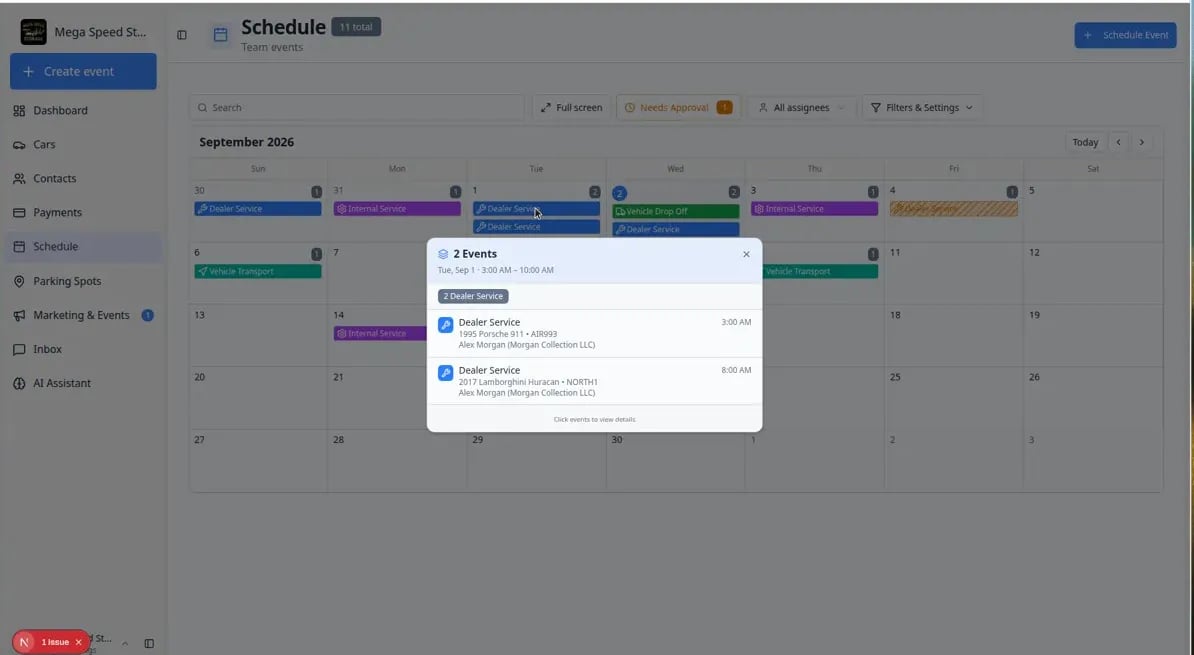 *Grouped blocks protect readability on busy days. Click the count (for example **2 Events**) to expand the list—never assume it is only one visit.*
## Needs Approval at a glance
Online bookings waiting for your team may show:
* A **Needs Approval** filter button with a number badge at the top of [Schedule](https://www.carstoragesoftware.com/dashboard/schedule).
* Striped or tentative styling on the calendar block itself.
Go to [Schedule](https://www.carstoragesoftware.com/dashboard/schedule).
Click **Needs Approval** when the button shows a number (for example **Needs Approval 2**).
**Expected result:** Only portal requests waiting for staff action remain on the calendar or table.
Click a striped event, read the customer request, then approve, decline, or suggest a new time.
**Why this matters:** Customers often think booking online means they are confirmed. Your team must approve before you promise the slot.
*Grouped blocks protect readability on busy days. Click the count (for example **2 Events**) to expand the list—never assume it is only one visit.*
## Needs Approval at a glance
Online bookings waiting for your team may show:
* A **Needs Approval** filter button with a number badge at the top of [Schedule](https://www.carstoragesoftware.com/dashboard/schedule).
* Striped or tentative styling on the calendar block itself.
Go to [Schedule](https://www.carstoragesoftware.com/dashboard/schedule).
Click **Needs Approval** when the button shows a number (for example **Needs Approval 2**).
**Expected result:** Only portal requests waiting for staff action remain on the calendar or table.
Click a striped event, read the customer request, then approve, decline, or suggest a new time.
**Why this matters:** Customers often think booking online means they are confirmed. Your team must approve before you promise the slot.
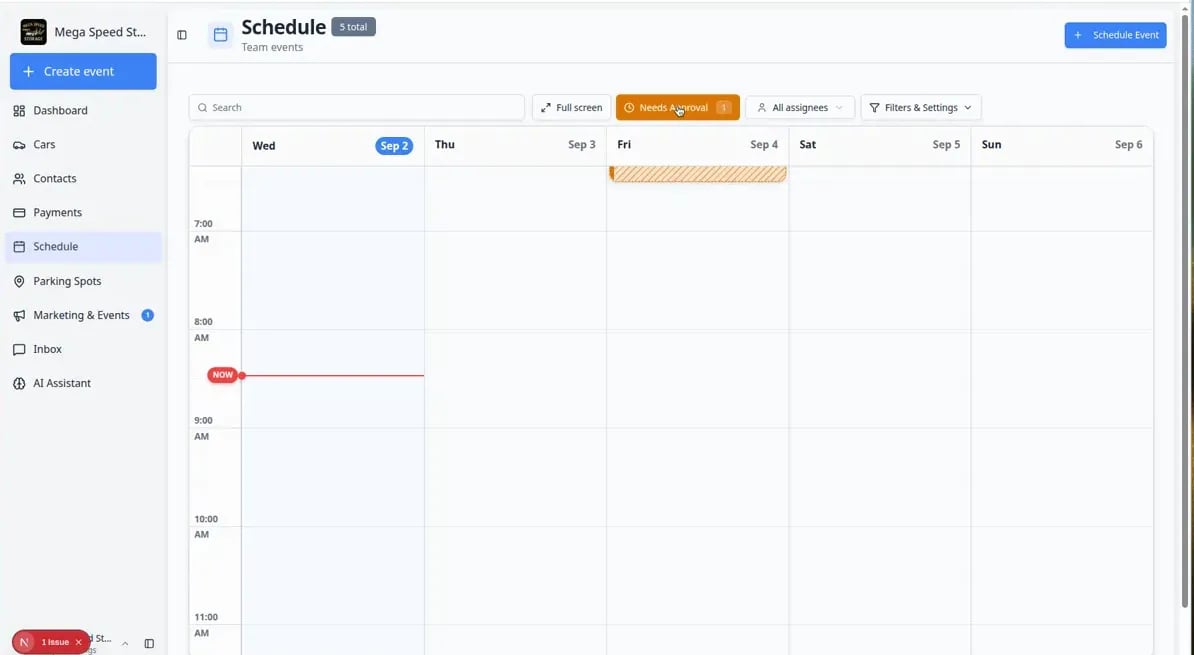 *Turn on **Needs Approval** to focus on visits that are not confirmed yet. Approve or decline promptly so customers are not left waiting.*
**Do not tell a customer “you are confirmed” while striped**
If an event still needs approval, treat it as **pending** until a manager approves it. See [Approve or decline a customer booking request](/docs/schedule/approve-or-decline-customer-booking-requests).
## Table view shows the same signals in columns
When icons feel crowded on the calendar, switch to **Table** view. You can turn on columns such as **Status** and **Billing** for a scannable list.
On [Schedule](https://www.carstoragesoftware.com/dashboard/schedule), click **Filters & Settings**.
Under **View Mode**, click **Table**.
In the column picker, enable **Status**, **Billing**, and **Assigned to** when you need a manager's morning checklist.
**Expected result:** Each row shows the same signals as the calendar—without squinting at tiny icons.
Guide: [Use Table view on Schedule](/docs/schedule/use-table-view-on-schedule).
## Quick reference card
| What you see | What it usually means | What to do |
| - | - | - |
| Solid color block | Confirmed scheduled visit | Open for details or run workflow |
| Green check mark | Completed event | Already done; open to review or reopen |
| Striped block | Needs approval or service-plan tentative | Check status; see [Understand tentative and service plan events](/docs/schedule/understand-tentative-and-service-plan-events) |
| ↻ repeat icon | Recurring series | Read “only this event” prompts before dragging |
| \$ badge | Linked invoice | Open billing section or [Review a customer invoice](/docs/payments/review-a-customer-invoice) |
| **3 events** dashed block | Busy hour | Click to expand the list |
| Damage triangle | Flagged photos | **Open Event** and review images |
## Common mistakes to avoid
* Do not ignore a **\$** badge when a customer asks about payment—the invoice may still be open.
* Do not drag a recurring event without reading the **Only this event** vs **All events** prompt.
* Do not assume a grouped block is only one visit—always click when the count is greater than one.
* Do not promise a customer their online booking is confirmed while **Needs Approval** still shows a count.
## What to do next
* Filter to pending bookings: [Approve or decline a customer booking request](/docs/schedule/approve-or-decline-customer-booking-requests)
* Plan with wider date ranges: [Use the 2-week view and day detail panel](/docs/schedule/use-two-week-view-and-day-detail-panel)
* Service-plan visits: [Understand tentative and service plan events](/docs/schedule/understand-tentative-and-service-plan-events)
This documentation is built and hosted on [Mintlify](https://mintlify.com), a developer documentation platform.
*Turn on **Needs Approval** to focus on visits that are not confirmed yet. Approve or decline promptly so customers are not left waiting.*
**Do not tell a customer “you are confirmed” while striped**
If an event still needs approval, treat it as **pending** until a manager approves it. See [Approve or decline a customer booking request](/docs/schedule/approve-or-decline-customer-booking-requests).
## Table view shows the same signals in columns
When icons feel crowded on the calendar, switch to **Table** view. You can turn on columns such as **Status** and **Billing** for a scannable list.
On [Schedule](https://www.carstoragesoftware.com/dashboard/schedule), click **Filters & Settings**.
Under **View Mode**, click **Table**.
In the column picker, enable **Status**, **Billing**, and **Assigned to** when you need a manager's morning checklist.
**Expected result:** Each row shows the same signals as the calendar—without squinting at tiny icons.
Guide: [Use Table view on Schedule](/docs/schedule/use-table-view-on-schedule).
## Quick reference card
| What you see | What it usually means | What to do |
| - | - | - |
| Solid color block | Confirmed scheduled visit | Open for details or run workflow |
| Green check mark | Completed event | Already done; open to review or reopen |
| Striped block | Needs approval or service-plan tentative | Check status; see [Understand tentative and service plan events](/docs/schedule/understand-tentative-and-service-plan-events) |
| ↻ repeat icon | Recurring series | Read “only this event” prompts before dragging |
| \$ badge | Linked invoice | Open billing section or [Review a customer invoice](/docs/payments/review-a-customer-invoice) |
| **3 events** dashed block | Busy hour | Click to expand the list |
| Damage triangle | Flagged photos | **Open Event** and review images |
## Common mistakes to avoid
* Do not ignore a **\$** badge when a customer asks about payment—the invoice may still be open.
* Do not drag a recurring event without reading the **Only this event** vs **All events** prompt.
* Do not assume a grouped block is only one visit—always click when the count is greater than one.
* Do not promise a customer their online booking is confirmed while **Needs Approval** still shows a count.
## What to do next
* Filter to pending bookings: [Approve or decline a customer booking request](/docs/schedule/approve-or-decline-customer-booking-requests)
* Plan with wider date ranges: [Use the 2-week view and day detail panel](/docs/schedule/use-two-week-view-and-day-detail-panel)
* Service-plan visits: [Understand tentative and service plan events](/docs/schedule/understand-tentative-and-service-plan-events)
This documentation is built and hosted on [Mintlify](https://mintlify.com), a developer documentation platform.