> ## Documentation Index
> Fetch the complete documentation index at: https://www.carstoragesoftware.com/docs/llms.txt
> Use this file to discover all available pages before exploring further.
# Understand tentative and service plan events
> Learn why some Schedule events look striped or tentative, what service plans create automatically, and what your team can change.
## What you will accomplish
You will understand events on [Schedule](https://www.carstoragesoftware.com/dashboard/schedule) that look **different from normal confirmed visits**—often with striped styling or a **tentative** label—and know what your team is allowed to change.
**Expected outcome:** You stop second-guessing whether a visit is confirmed, avoid editing system-generated plan work the wrong way, and route customers to the right next step.
## When this guide helps
* A calendar block has diagonal stripes instead of a solid color.
* A customer asks “Am I confirmed?” and you are not sure from the calendar alone.
* Future visits appeared on the calendar that no one on staff booked by phone.
* You try to edit an event and some fields (assignee or status) seem locked.
## Two common reasons an event looks tentative
**Online booking needs your approval** — A customer requested a time on your website. The event waits in **Needs Approval** until staff approve, decline, or suggest a new time. Guide: [Approve or decline a customer booking request](/docs/schedule/approve-or-decline-customer-booking-requests).
**Service plan generated the visit** — Your facility uses **vehicle service plans** (battery checks, fluid top-offs, seasonal inspections). The app can place future visits on the calendar automatically so nothing is forgotten. Setup: [Set up vehicle service plans](/docs/settings/set-up-vehicle-service-plans). Some of those reminders are **All day** (no clock time). They sit in the **ALL DAY** row. See [Create an all-day event](/docs/schedule/create-an-all-day-event).
| What you see | What it usually means | What to do first |
| - | - | - |
| Striped block + **Needs Approval** filter shows the event | Customer booked online; not confirmed yet | [Approve or decline](/docs/schedule/approve-or-decline-customer-booking-requests) before you promise the time |
| Striped block but **not** in **Needs Approval** | Often a **service plan** placeholder | Open the event; confirm with the customer if needed |
| Solid color block, status **Scheduled** | Normal confirmed visit | Run or reschedule like any other appointment |
| Status **Tentative** in the detail panel | Plan-generated or not yet confirmed | Read notes; check the vehicle’s service plan on the car record |
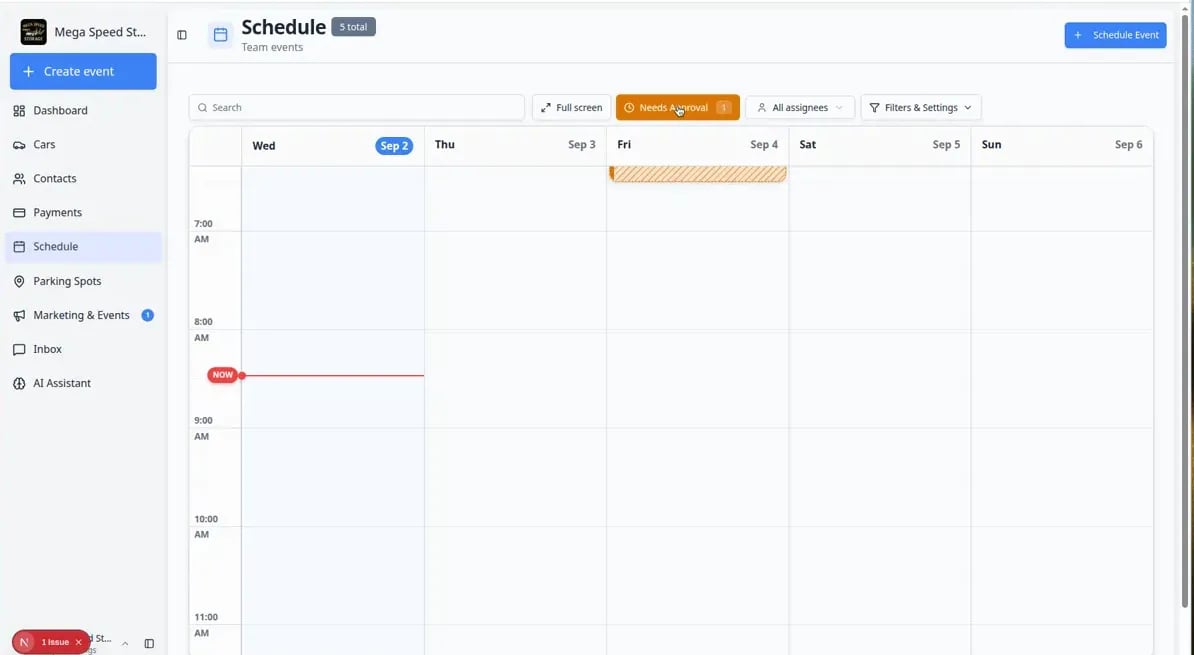 *Striped events often mean the visit is **not fully confirmed** yet. Turn on **Needs Approval** at the top of [Schedule](https://www.carstoragesoftware.com/dashboard/schedule) to focus on portal requests.*
 *When **Needs Approval** is active (orange highlight with a count), you are viewing only online booking requests. Clear this queue before you tell customers they are confirmed.*
## How to tell which type you are looking at
Click the striped block on [Schedule](https://www.carstoragesoftware.com/dashboard/schedule).
**Expected result:** A detail panel opens on the right with the event name, time, vehicle, and status.
Look for words such as **Needs Approval**, **Tentative**, or **Scheduled**.
* **Needs Approval** — a customer booked online and staff have not approved yet.
* **Tentative** — often a **service plan** placeholder (maintenance due soon).
* **Scheduled** — a normal confirmed visit (solid color on the calendar).
At the top of [Schedule](https://www.carstoragesoftware.com/dashboard/schedule), look for **Needs Approval**. If it shows a number badge, click it.
**Expected result:** Only pending portal requests remain visible. If your event appears here, follow the approval guide before you promise the time to a customer.
From the event panel, open the linked car in [Cars](https://www.carstoragesoftware.com/dashboard/cars). Review **Service** or service-plan sections when you are not sure why the visit exists.
**Why this matters:** Service-plan visits are reminders for your team—they are not always a promise to the customer until your process says they are.
*When **Needs Approval** is active (orange highlight with a count), you are viewing only online booking requests. Clear this queue before you tell customers they are confirmed.*
## How to tell which type you are looking at
Click the striped block on [Schedule](https://www.carstoragesoftware.com/dashboard/schedule).
**Expected result:** A detail panel opens on the right with the event name, time, vehicle, and status.
Look for words such as **Needs Approval**, **Tentative**, or **Scheduled**.
* **Needs Approval** — a customer booked online and staff have not approved yet.
* **Tentative** — often a **service plan** placeholder (maintenance due soon).
* **Scheduled** — a normal confirmed visit (solid color on the calendar).
At the top of [Schedule](https://www.carstoragesoftware.com/dashboard/schedule), look for **Needs Approval**. If it shows a number badge, click it.
**Expected result:** Only pending portal requests remain visible. If your event appears here, follow the approval guide before you promise the time to a customer.
From the event panel, open the linked car in [Cars](https://www.carstoragesoftware.com/dashboard/cars). Review **Service** or service-plan sections when you are not sure why the visit exists.
**Why this matters:** Service-plan visits are reminders for your team—they are not always a promise to the customer until your process says they are.
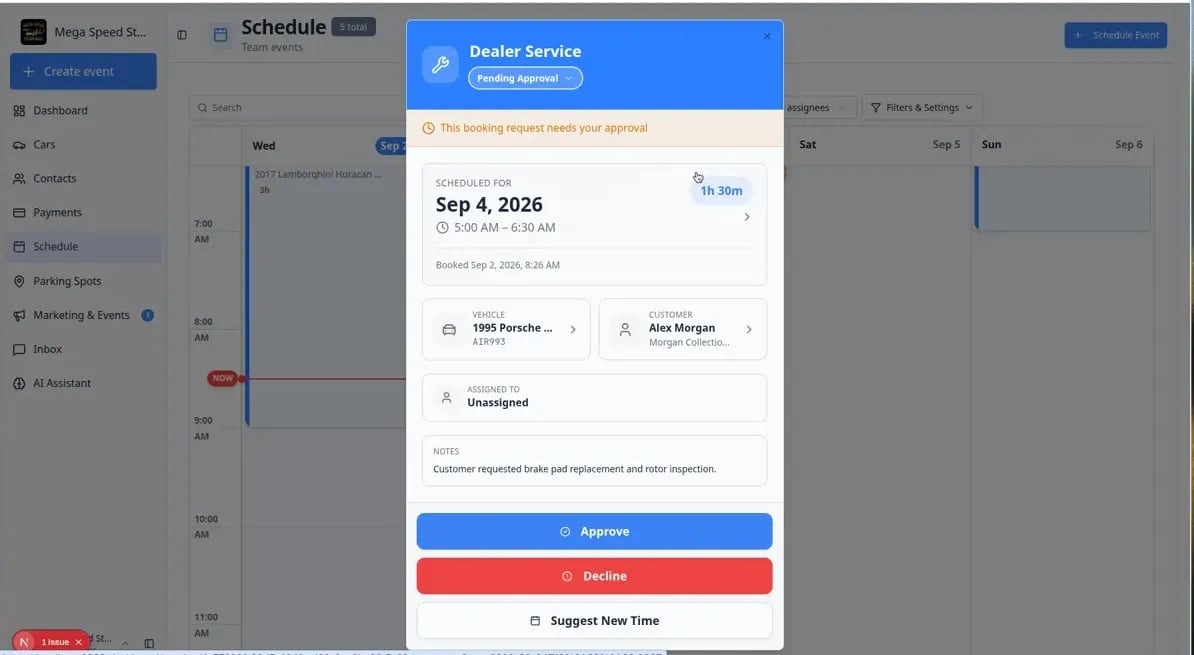 *When a customer booked online, the detail panel shows **Approve**, **Decline**, or **Suggest new time**. Use these buttons before you tell the customer they are confirmed.*
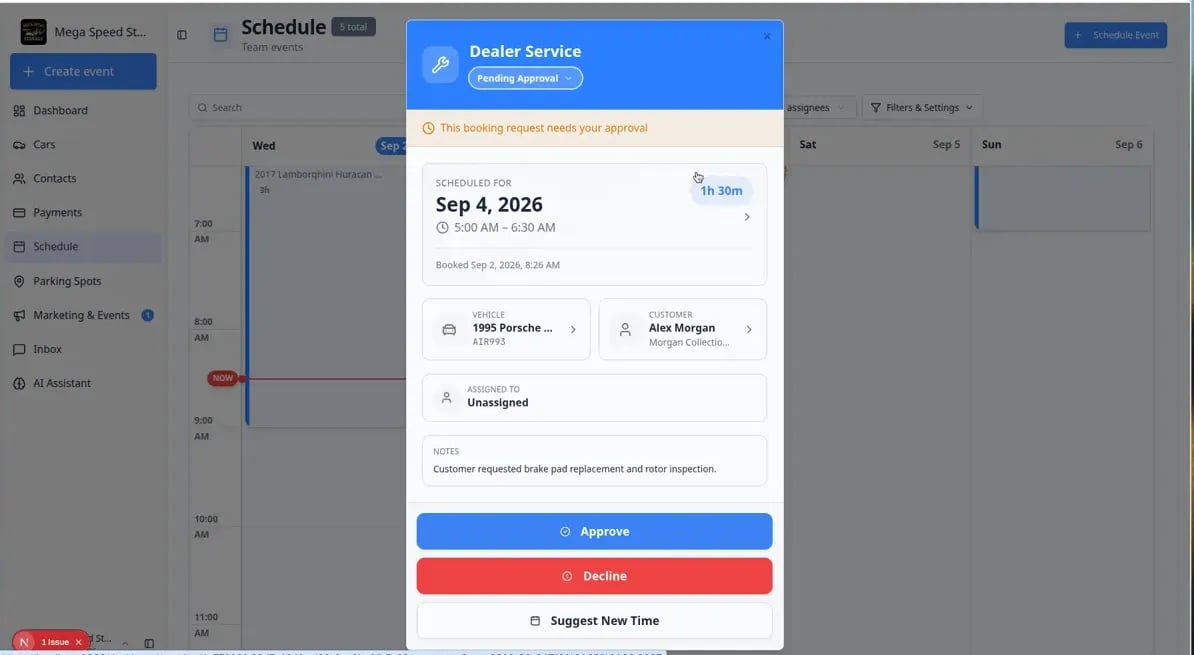 *The detail panel shows the status in plain language. Service-plan visits remind your team that maintenance is due—they are helpful placeholders, not always a promise to the customer until your process says so.*
## How service plan events behave
Service plan visits are **helpful placeholders**. They remind your team that maintenance is due—they are not always a promise to the customer until your process says so.
* They often appear **ahead of time** on the calendar so managers can staff the week.
* They may look **tentative** (striped styling) compared with a phone booking you entered yourself.
* Some fields may be **restricted**—for example assignee or status—because the plan still owns the schedule logic.
* Completing the real work still happens through **Open Event** (photos, checklists) when your team is on the floor.
**Why the app generates plan events**
Storage facilities lose money and trust when battery tenders fail or fluids go unchecked. Automatic calendar placeholders turn “we should check that car next month” into visible work on [Schedule](https://www.carstoragesoftware.com/dashboard/schedule).
## What staff can usually do
| Situation | What to do |
| - | - |
| Customer confirms they want the visit | Treat it like any appointment—assign staff, add notes, communicate the time. See [Assign team members and vendors to events](/docs/schedule/assign-team-members-and-vendors). |
| Visit should move to another day | Use **Edit Event** if allowed, or reschedule following [Update, assign, or reschedule an event](/docs/schedule/update-assign-or-reschedule-an-event). Read any warning before you save. |
| Work is not needed this cycle | Ask a manager whether to cancel this occurrence or adjust the service plan on the car record. |
| Customer never booked online but event is striped | Check **Needs Approval** first—it may still be a portal request. |
## What to tell customers (plain language)
**For a service-plan visit:** “We have your battery check on the calendar for next Tuesday—we will confirm the exact time the day before.”
**For an unapproved portal request:** “We received your request and will confirm shortly once our team reviews the schedule.”
**Never say “you are confirmed”** while the event still shows **Needs Approval** or striped tentative styling.
## What to check before calling a customer
Open the event and read the status near the title (**Scheduled**, **Tentative**, **Needs Approval**, and so on).
On [Schedule](https://www.carstoragesoftware.com/dashboard/schedule), click **Needs Approval** if the button shows a number badge.
**Expected result:** If the event appears here, follow [Approve or decline a customer booking request](/docs/schedule/approve-or-decline-customer-booking-requests) before you promise the time.
Open the linked car in [Cars](https://www.carstoragesoftware.com/dashboard/cars) and review **Service** / plan sections when you are unsure why the visit exists.
For plan visits say: “We have your battery check on the calendar for next Tuesday—we will confirm the exact time the day before.” For unapproved portal requests say: “We received your request and will confirm shortly.”
## Icons that often appear together
Striped **tentative** styling may sit beside other badges (repeat arrow, dollar sign, damage flag). For a full legend, read [Read calendar icons and badges](/docs/schedule/read-calendar-icons-and-badges).
## Common mistakes to avoid
**Do not delete plan visits without checking the car record**
Removing a calendar block may not turn off future plan work. A manager may need to update the **service plan** on the vehicle so the same visit is not recreated.
**Do not mark complete without doing the work**
Tentative events still need real inspection or service. Use **Open Event** and finish photos or checklists before **Complete**.
**Do not confuse tentative with cancelled**
**Cancelled** events are crossed out or faded and should not be treated as upcoming work. Striped **tentative** events are still on the plan—they just need confirmation or completion.
## Troubleshooting
**I cannot edit assignee or status**
The event may still be tied to a service plan or approval workflow. Note the event name and time, then ask a manager or admin to review the plan settings on the car or in [Settings > Events & schedule](https://www.carstoragesoftware.com/dashboard/settings/events).
**The calendar suddenly filled with future visits**
A batch of plan-generated events usually means service plans were enabled or updated for many cars. Filter by date range in [Find and filter scheduled work](/docs/schedule/find-and-filter-scheduled-work) and review week by week instead of deleting at random.
**I approved a booking but it still looks striped**
Refresh [Schedule](https://www.carstoragesoftware.com/dashboard/schedule) or click away and back to the event. If the status still says **Needs Approval**, open the event and confirm **Approve** saved. See [Approve or decline a customer booking request](/docs/schedule/approve-or-decline-customer-booking-requests).
## What to do next
* Approve portal bookings: [Approve or decline a customer booking request](/docs/schedule/approve-or-decline-customer-booking-requests)
* Configure plans: [Set up vehicle service plans](/docs/settings/set-up-vehicle-service-plans)
* Run the visit: [Run event workflow from Schedule](/docs/schedule/run-event-workflow-from-schedule)
* Learn calendar symbols: [Read calendar icons and badges](/docs/schedule/read-calendar-icons-and-badges)
This documentation is built and hosted on [Mintlify](https://mintlify.com), a developer documentation platform.
*The detail panel shows the status in plain language. Service-plan visits remind your team that maintenance is due—they are helpful placeholders, not always a promise to the customer until your process says so.*
## How service plan events behave
Service plan visits are **helpful placeholders**. They remind your team that maintenance is due—they are not always a promise to the customer until your process says so.
* They often appear **ahead of time** on the calendar so managers can staff the week.
* They may look **tentative** (striped styling) compared with a phone booking you entered yourself.
* Some fields may be **restricted**—for example assignee or status—because the plan still owns the schedule logic.
* Completing the real work still happens through **Open Event** (photos, checklists) when your team is on the floor.
**Why the app generates plan events**
Storage facilities lose money and trust when battery tenders fail or fluids go unchecked. Automatic calendar placeholders turn “we should check that car next month” into visible work on [Schedule](https://www.carstoragesoftware.com/dashboard/schedule).
## What staff can usually do
| Situation | What to do |
| - | - |
| Customer confirms they want the visit | Treat it like any appointment—assign staff, add notes, communicate the time. See [Assign team members and vendors to events](/docs/schedule/assign-team-members-and-vendors). |
| Visit should move to another day | Use **Edit Event** if allowed, or reschedule following [Update, assign, or reschedule an event](/docs/schedule/update-assign-or-reschedule-an-event). Read any warning before you save. |
| Work is not needed this cycle | Ask a manager whether to cancel this occurrence or adjust the service plan on the car record. |
| Customer never booked online but event is striped | Check **Needs Approval** first—it may still be a portal request. |
## What to tell customers (plain language)
**For a service-plan visit:** “We have your battery check on the calendar for next Tuesday—we will confirm the exact time the day before.”
**For an unapproved portal request:** “We received your request and will confirm shortly once our team reviews the schedule.”
**Never say “you are confirmed”** while the event still shows **Needs Approval** or striped tentative styling.
## What to check before calling a customer
Open the event and read the status near the title (**Scheduled**, **Tentative**, **Needs Approval**, and so on).
On [Schedule](https://www.carstoragesoftware.com/dashboard/schedule), click **Needs Approval** if the button shows a number badge.
**Expected result:** If the event appears here, follow [Approve or decline a customer booking request](/docs/schedule/approve-or-decline-customer-booking-requests) before you promise the time.
Open the linked car in [Cars](https://www.carstoragesoftware.com/dashboard/cars) and review **Service** / plan sections when you are unsure why the visit exists.
For plan visits say: “We have your battery check on the calendar for next Tuesday—we will confirm the exact time the day before.” For unapproved portal requests say: “We received your request and will confirm shortly.”
## Icons that often appear together
Striped **tentative** styling may sit beside other badges (repeat arrow, dollar sign, damage flag). For a full legend, read [Read calendar icons and badges](/docs/schedule/read-calendar-icons-and-badges).
## Common mistakes to avoid
**Do not delete plan visits without checking the car record**
Removing a calendar block may not turn off future plan work. A manager may need to update the **service plan** on the vehicle so the same visit is not recreated.
**Do not mark complete without doing the work**
Tentative events still need real inspection or service. Use **Open Event** and finish photos or checklists before **Complete**.
**Do not confuse tentative with cancelled**
**Cancelled** events are crossed out or faded and should not be treated as upcoming work. Striped **tentative** events are still on the plan—they just need confirmation or completion.
## Troubleshooting
**I cannot edit assignee or status**
The event may still be tied to a service plan or approval workflow. Note the event name and time, then ask a manager or admin to review the plan settings on the car or in [Settings > Events & schedule](https://www.carstoragesoftware.com/dashboard/settings/events).
**The calendar suddenly filled with future visits**
A batch of plan-generated events usually means service plans were enabled or updated for many cars. Filter by date range in [Find and filter scheduled work](/docs/schedule/find-and-filter-scheduled-work) and review week by week instead of deleting at random.
**I approved a booking but it still looks striped**
Refresh [Schedule](https://www.carstoragesoftware.com/dashboard/schedule) or click away and back to the event. If the status still says **Needs Approval**, open the event and confirm **Approve** saved. See [Approve or decline a customer booking request](/docs/schedule/approve-or-decline-customer-booking-requests).
## What to do next
* Approve portal bookings: [Approve or decline a customer booking request](/docs/schedule/approve-or-decline-customer-booking-requests)
* Configure plans: [Set up vehicle service plans](/docs/settings/set-up-vehicle-service-plans)
* Run the visit: [Run event workflow from Schedule](/docs/schedule/run-event-workflow-from-schedule)
* Learn calendar symbols: [Read calendar icons and badges](/docs/schedule/read-calendar-icons-and-badges)
This documentation is built and hosted on [Mintlify](https://mintlify.com), a developer documentation platform.