> ## Documentation Index
> Fetch the complete documentation index at: https://www.carstoragesoftware.com/docs/llms.txt
> Use this file to discover all available pages before exploring further.
# Configure services and schedule settings
> Set up the services customers can book, recurring service plans, the Create Event screen, and calendar subscriptions.
Use this guide when you need to set up **what customers can book**, **how staff start a new appointment**, and **how teammates subscribe to the calendar**.
The page is now called **Services & schedule**. Open it at [Settings > Services & schedule](https://www.carstoragesoftware.com/dashboard/settings/events).
This page is different from the [Schedule](https://www.carstoragesoftware.com/dashboard/schedule) calendar, where staff place events on specific days.
## What you will accomplish
* Know what each section on [Settings > Services & schedule](https://www.carstoragesoftware.com/dashboard/settings/events) does.
* Add the services your team books every week.
* Create service plans if you sell recurring care.
* Choose how the Create Event screen looks on desktop and phones.
* Copy a calendar subscribe link for Apple, Google, or Outlook.
**Hours and closed days moved**
Facility hours and **Closed days** now live on [Settings > General](https://www.carstoragesoftware.com/dashboard/settings/general). Set those first in [Set up general facility settings](/docs/settings/set-up-general-facility-settings) so customers cannot book when you are closed.
**Services & schedule vs Operations**
**Services & schedule** defines *what can be booked* (service names, plans, Create Event layout, calendar feeds).
**Operations** ([Settings > Operations](https://www.carstoragesoftware.com/dashboard/settings/operations)) defines *bays and rooms*, *odometer units*, *cars for sale*, and *parking audits*.
Set up services first, then return to Operations.
## Before you start
* You should be signed in as a team **admin** or someone with permission to edit schedule settings.
* Confirm [General settings](/docs/settings/set-up-general-facility-settings) so your time zone, hours, and closed days are correct.
* Write down the services customers ask for most (storage intake, detail, pickup, transport, tours).
* Know whether customers will book online or only staff will schedule by phone.
## Open Services & schedule
From the [Dashboard](https://www.carstoragesoftware.com/dashboard), click **Settings** in the left sidebar.
In the Settings list, click **Services & schedule**.
Direct link: [Settings > Services & schedule](https://www.carstoragesoftware.com/dashboard/settings/events).
**Expected result:** The page title is **Services & schedule**. You see **Services & event types** at the top.
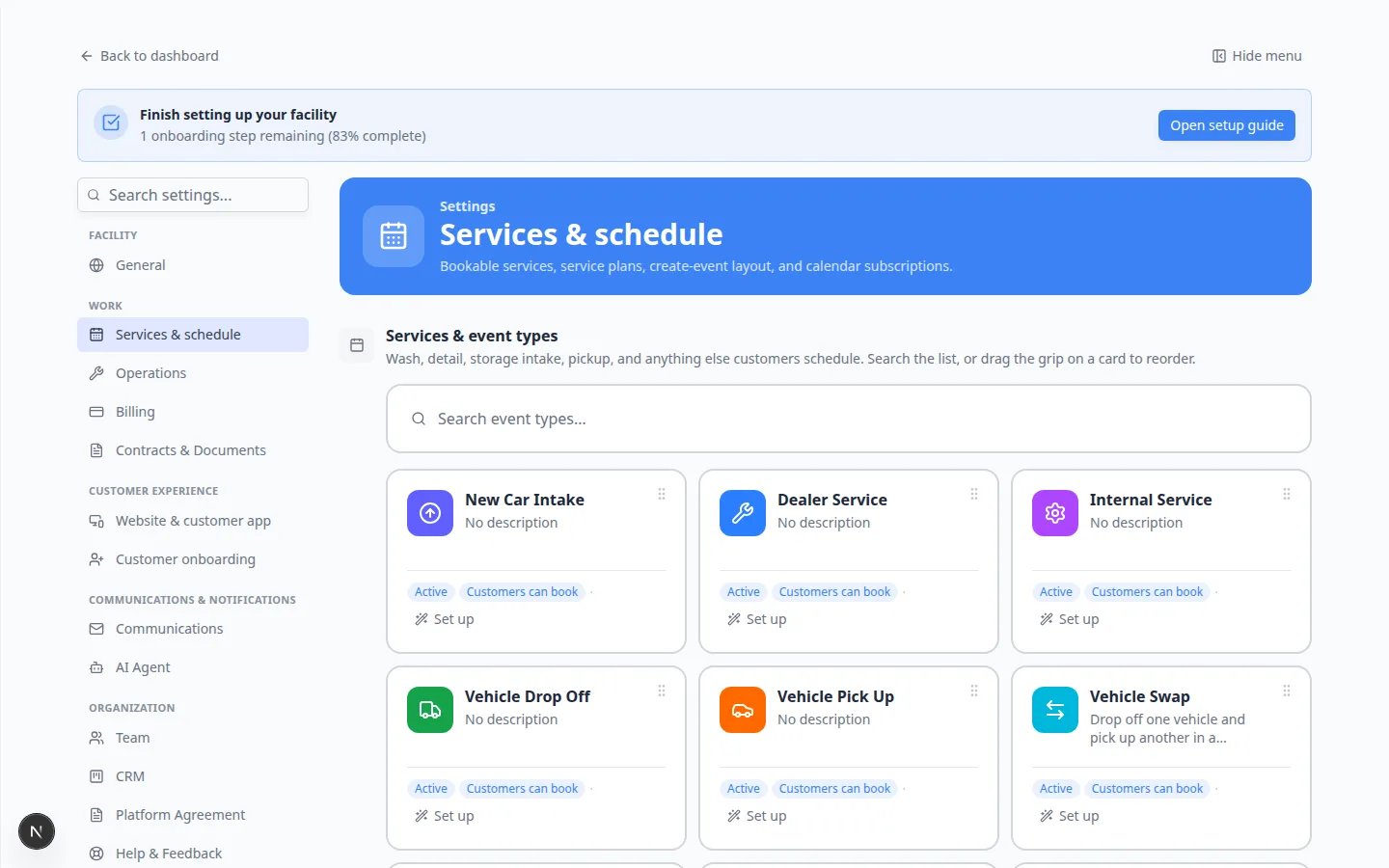 *Each card is one kind of work your team can schedule. Click **Set up** on a card to change that service.*
## Set up Services & schedule in the best order
In **Services & event types**, add the appointments your team books every week.
Click **Add a service**, or click **Set up** on an existing card.
Use clear names such as **Vehicle Drop Off**, **Detail Appointment**, or **New Car Intake**.
**Why this matters:** Staff cannot schedule work until at least one service exists. Customer booking also depends on types you mark as customer-facing.
Follow [Configure event types](/docs/events/configure-event-types) for full steps.
Scroll to **Service plans** and click **Add a service plan**.
Create bundles such as monthly wash or quarterly inspection tiers.
**Why this matters:** Plans tie recurring work to vehicles so the calendar can create future appointments automatically.
Follow [Set up vehicle service plans](/docs/settings/set-up-vehicle-service-plans).
Scroll to **Create event screen layout**.
Choose how many columns appear on **Desktop** when staff open [Create event](https://www.carstoragesoftware.com/dashboard). Most facilities use **2 columns** on a computer so buttons stay easy to tap.
Changes save automatically — there is no **Save** button on this section.
**Expected result:** Each teammate can pick their own layout.
For a full walkthrough, read [Customize Create event screen layout](/docs/events/customize-create-event-screen-layout).
Scroll to **Subscribe to your schedule**.
Click **Copy subscribe URL** to paste into Google Calendar or Outlook, or **Open in calendar app** on a Mac or iPhone.
**Why this matters:** Each staff member gets their own read-only feed. The calendar refreshes on its own — your team does not need to export PDFs every week.
Follow [Subscribe to the team calendar](/docs/schedule/subscribe-to-the-team-calendar).
*Each card is one kind of work your team can schedule. Click **Set up** on a card to change that service.*
## Set up Services & schedule in the best order
In **Services & event types**, add the appointments your team books every week.
Click **Add a service**, or click **Set up** on an existing card.
Use clear names such as **Vehicle Drop Off**, **Detail Appointment**, or **New Car Intake**.
**Why this matters:** Staff cannot schedule work until at least one service exists. Customer booking also depends on types you mark as customer-facing.
Follow [Configure event types](/docs/events/configure-event-types) for full steps.
Scroll to **Service plans** and click **Add a service plan**.
Create bundles such as monthly wash or quarterly inspection tiers.
**Why this matters:** Plans tie recurring work to vehicles so the calendar can create future appointments automatically.
Follow [Set up vehicle service plans](/docs/settings/set-up-vehicle-service-plans).
Scroll to **Create event screen layout**.
Choose how many columns appear on **Desktop** when staff open [Create event](https://www.carstoragesoftware.com/dashboard). Most facilities use **2 columns** on a computer so buttons stay easy to tap.
Changes save automatically — there is no **Save** button on this section.
**Expected result:** Each teammate can pick their own layout.
For a full walkthrough, read [Customize Create event screen layout](/docs/events/customize-create-event-screen-layout).
Scroll to **Subscribe to your schedule**.
Click **Copy subscribe URL** to paste into Google Calendar or Outlook, or **Open in calendar app** on a Mac or iPhone.
**Why this matters:** Each staff member gets their own read-only feed. The calendar refreshes on its own — your team does not need to export PDFs every week.
Follow [Subscribe to the team calendar](/docs/schedule/subscribe-to-the-team-calendar).
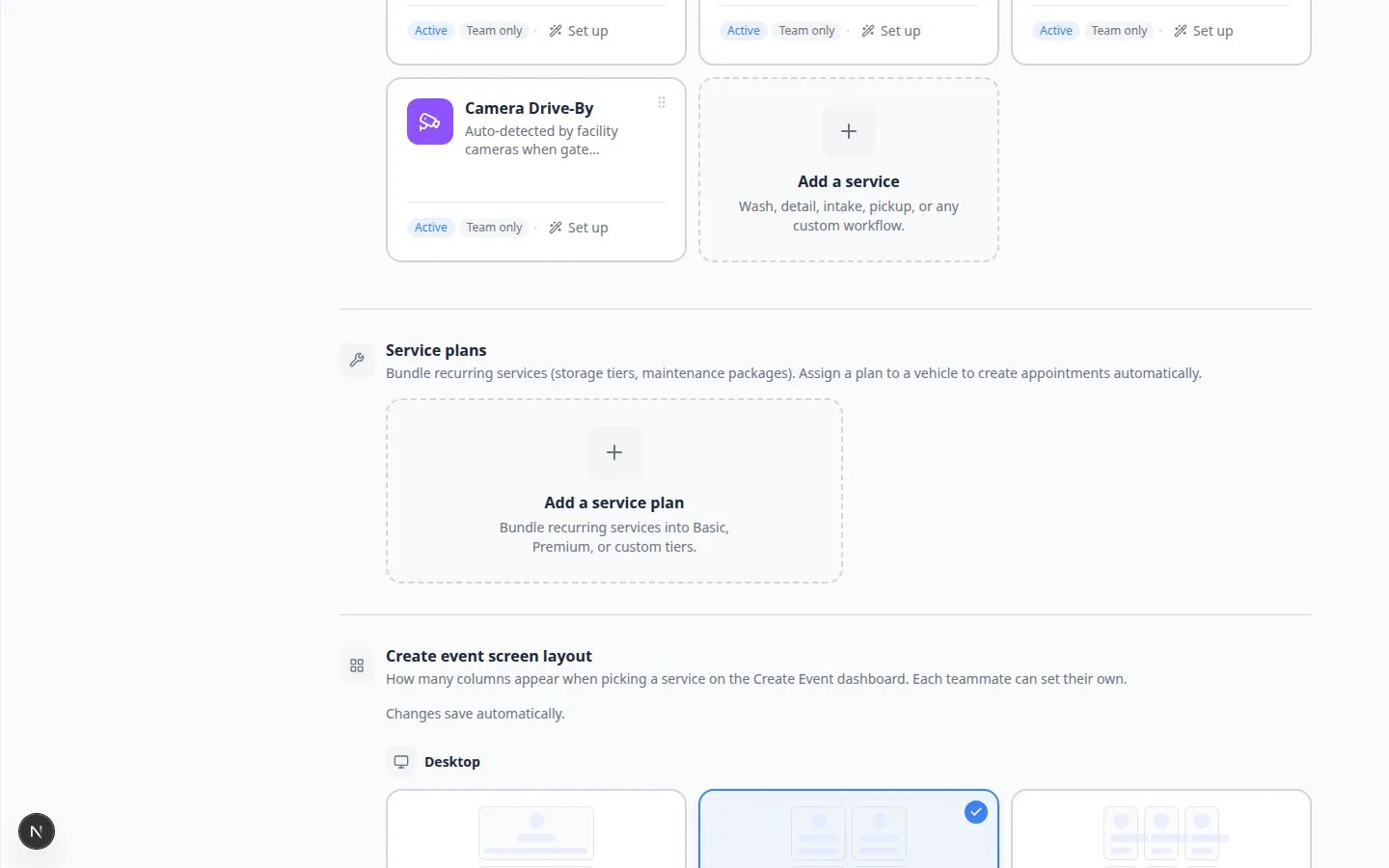 ***Service plans** and **Create event screen layout** sit below the service cards. Add a plan only after the services it includes already exist.*
## What each section on this page does
**Services & event types** — The master list of schedulable work. Search the list, drag a card to reorder, or click **Set up** to edit one service.
**Service plans** — Recurring care packages (storage tiers, maintenance bundles) linked to vehicles.
**Create event screen layout** — Column layout for the staff **Create Event** picker. Each teammate can set their own.
**Subscribe to your schedule** — Personal calendar feed links for staff.
**Per-service settings live inside each card**
Hours, customer booking rules, photos, and reminders for **one** service are edited by clicking **Set up** on that card. The page-level sections here are shared tools — not a replacement for per-service setup.
Read [Configure scheduling and booking options](/docs/events/configure-scheduling-and-booking-options) when you turn on customer self-booking.
## Test before customers book online
Open [Schedule](https://www.carstoragesoftware.com/dashboard/schedule) and book a test event using a new service.
**Expected result:** The event appears at the correct time in your facility time zone.
If customers can self-book, open your booking widget or portal and try one test reservation.
Follow [Test an event setup](/docs/events/test-an-event-setup).
Open a vehicle on [Cars](https://www.carstoragesoftware.com/dashboard/cars), scroll to **Service Plans**, and assign the plan you created.
**Expected result:** The car record shows the plan name and start date. See [Assign service plans on a vehicle](/docs/cars/assign-service-plans-on-a-vehicle).
## Common mistakes to avoid
* Do not turn on customer self-booking before hours and closed days are set on [General](https://www.carstoragesoftware.com/dashboard/settings/general).
* Do not create service plans before the underlying services exist — plans need real services to schedule.
* Do not skip the facility time zone in [General settings](/docs/settings/set-up-general-facility-settings). Schedule always uses that clock.
* Do not edit only the page-level layout when one service needs different rules — open that card with **Set up**.
## Troubleshooting
**I do not see Services & schedule in Settings**
Your account may not have permission to edit schedule settings. Ask a team admin to review your access in [Settings > Team](https://www.carstoragesoftware.com/dashboard/settings/team).
**Customers cannot book a service online**
Open that service with **Set up** and confirm customer booking is turned on, hours are set, and the day is not a facility closed day. See [Configure scheduling and booking options](/docs/events/configure-scheduling-and-booking-options).
**Appointments show the wrong time**
Fix the facility time zone first in [Set up general facility settings](/docs/settings/set-up-general-facility-settings). Schedule always uses that time zone.
**Service plans do not create future appointments**
Confirm the plan is **Active**, linked services exist, and the vehicle has the plan assigned on its car record. See [Set up vehicle service plans](/docs/settings/set-up-vehicle-service-plans).
**I still see Events & schedule in an old bookmark**
The page was renamed to **Services & schedule**. The same link still works: [Settings > Services & schedule](https://www.carstoragesoftware.com/dashboard/settings/events).
## What to do next
* Set up bays and parking audits in [Configure operations settings](/docs/settings/configure-operations-settings).
* Train staff on daily scheduling in [Schedule overview](/docs/schedule/overview).
* Return to [Settings overview](/docs/settings/overview) for the full first-week setup path.
This documentation is built and hosted on [Mintlify](https://mintlify.com), a developer documentation platform.
***Service plans** and **Create event screen layout** sit below the service cards. Add a plan only after the services it includes already exist.*
## What each section on this page does
**Services & event types** — The master list of schedulable work. Search the list, drag a card to reorder, or click **Set up** to edit one service.
**Service plans** — Recurring care packages (storage tiers, maintenance bundles) linked to vehicles.
**Create event screen layout** — Column layout for the staff **Create Event** picker. Each teammate can set their own.
**Subscribe to your schedule** — Personal calendar feed links for staff.
**Per-service settings live inside each card**
Hours, customer booking rules, photos, and reminders for **one** service are edited by clicking **Set up** on that card. The page-level sections here are shared tools — not a replacement for per-service setup.
Read [Configure scheduling and booking options](/docs/events/configure-scheduling-and-booking-options) when you turn on customer self-booking.
## Test before customers book online
Open [Schedule](https://www.carstoragesoftware.com/dashboard/schedule) and book a test event using a new service.
**Expected result:** The event appears at the correct time in your facility time zone.
If customers can self-book, open your booking widget or portal and try one test reservation.
Follow [Test an event setup](/docs/events/test-an-event-setup).
Open a vehicle on [Cars](https://www.carstoragesoftware.com/dashboard/cars), scroll to **Service Plans**, and assign the plan you created.
**Expected result:** The car record shows the plan name and start date. See [Assign service plans on a vehicle](/docs/cars/assign-service-plans-on-a-vehicle).
## Common mistakes to avoid
* Do not turn on customer self-booking before hours and closed days are set on [General](https://www.carstoragesoftware.com/dashboard/settings/general).
* Do not create service plans before the underlying services exist — plans need real services to schedule.
* Do not skip the facility time zone in [General settings](/docs/settings/set-up-general-facility-settings). Schedule always uses that clock.
* Do not edit only the page-level layout when one service needs different rules — open that card with **Set up**.
## Troubleshooting
**I do not see Services & schedule in Settings**
Your account may not have permission to edit schedule settings. Ask a team admin to review your access in [Settings > Team](https://www.carstoragesoftware.com/dashboard/settings/team).
**Customers cannot book a service online**
Open that service with **Set up** and confirm customer booking is turned on, hours are set, and the day is not a facility closed day. See [Configure scheduling and booking options](/docs/events/configure-scheduling-and-booking-options).
**Appointments show the wrong time**
Fix the facility time zone first in [Set up general facility settings](/docs/settings/set-up-general-facility-settings). Schedule always uses that time zone.
**Service plans do not create future appointments**
Confirm the plan is **Active**, linked services exist, and the vehicle has the plan assigned on its car record. See [Set up vehicle service plans](/docs/settings/set-up-vehicle-service-plans).
**I still see Events & schedule in an old bookmark**
The page was renamed to **Services & schedule**. The same link still works: [Settings > Services & schedule](https://www.carstoragesoftware.com/dashboard/settings/events).
## What to do next
* Set up bays and parking audits in [Configure operations settings](/docs/settings/configure-operations-settings).
* Train staff on daily scheduling in [Schedule overview](/docs/schedule/overview).
* Return to [Settings overview](/docs/settings/overview) for the full first-week setup path.
This documentation is built and hosted on [Mintlify](https://mintlify.com), a developer documentation platform.