> ## Documentation Index
> Fetch the complete documentation index at: https://www.carstoragesoftware.com/docs/llms.txt
> Use this file to discover all available pages before exploring further.
# Connect the API
> Turn on team API keys so a trusted website, inventory tool, or integration can read and write facility data through /api/v1.
The API lets a trusted system talk to your facility over `/api/v1` with a team-scoped key. You turn the integration on, create a named key, pick only the scopes that tool needs, and hand the secret to the person building the integration.
Keys are **not** all-or-nothing. Each key can mix read and write scopes (cars, customers, contacts, locations, parking, marketing under `/api/v1/marketing/*` — campaigns, templates, social posts, forms, social events, assets, communications, appointments). A read-only website inventory key is still the safest default until a workflow truly needs writes.
The **full list of endpoints, fields, and request bodies is autogenerated** from the same Zod schemas that validate the API. Your webmaster should use the [API reference](/docs/api-reference/introduction) (also linked from **API docs** in the integration window) — not a separate hand-written endpoint list.
This lives under [Settings > Integrations](https://www.carstoragesoftware.com/dashboard/settings/integrations). After it is on, the same keys also stay on [Settings > Team](https://www.carstoragesoftware.com/dashboard/settings/team).
## What you will accomplish
* Turn on **API** from Settings → Integrations.
* Create a named key such as **Website inventory feed**.
* Choose only the scopes that tool needs (start with **Read Cars** / **Read Customers** unless writes are required).
* Copy the secret once and give it to your webmaster — not in email if you can avoid it.
## When to use the API
Use this when another trusted system needs live facility data — for example a public inventory page, an insurance export, or a custom ops integration.
Skip this if nobody outside Car Storage Software needs to call your records.
**You do not need to be a programmer**
You create the key. Your webmaster (or the company that built your website) uses it. If you do not have that person yet, wait to create a key.
## Before you start
* You must be a team **admin** to turn the API on and to create or revoke keys.
* You need Schedule permission to open [Settings > Integrations](https://www.carstoragesoftware.com/dashboard/settings/integrations).
* Know what the key is for so you can name it clearly, such as **Website inventory feed** or **Insurance export**.
## Turn the API on and create a key
Go to [Settings > Integrations](https://www.carstoragesoftware.com/dashboard/settings/integrations) and click **API**.
Turn on **Enable this integration** so the switch says **Enabled**.
**Expected result:** The same window shows **API docs**, **Create API key**, and a table of keys.
Click **Create API key**. A smaller window opens.
In **Name**, type a plain label such as **Website inventory feed**.
For a look-up-only website, leave **Read Cars** and **Read Customers** checked and leave write scopes off. Add other read or write scopes only when the tool needs them (contacts, locations, parking, campaigns, templates, forms, social events, marketing assets, communications, appointments).
**Expiration (optional)** can stay empty unless your webmaster asked for a date.
Click **Create Key**.
**Expected result:** You see **Copy your new API key now** and a long secret. Copy it immediately. The full secret is shown only once. The table then lists the name, a short masked preview, the scopes you chose, and **active**.
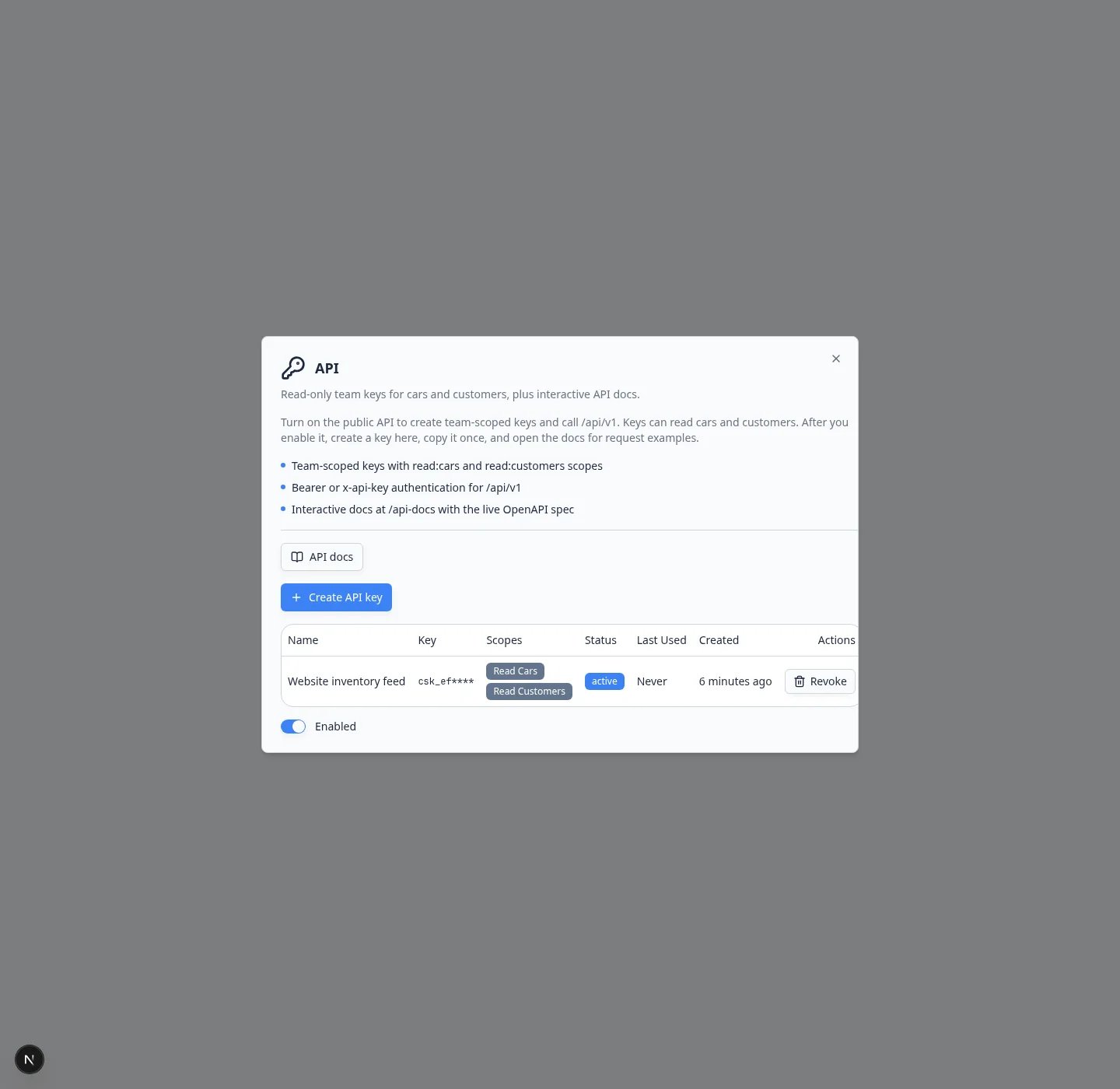 *After the API is Enabled, create a named key. The card shows Connected once an active key exists.*
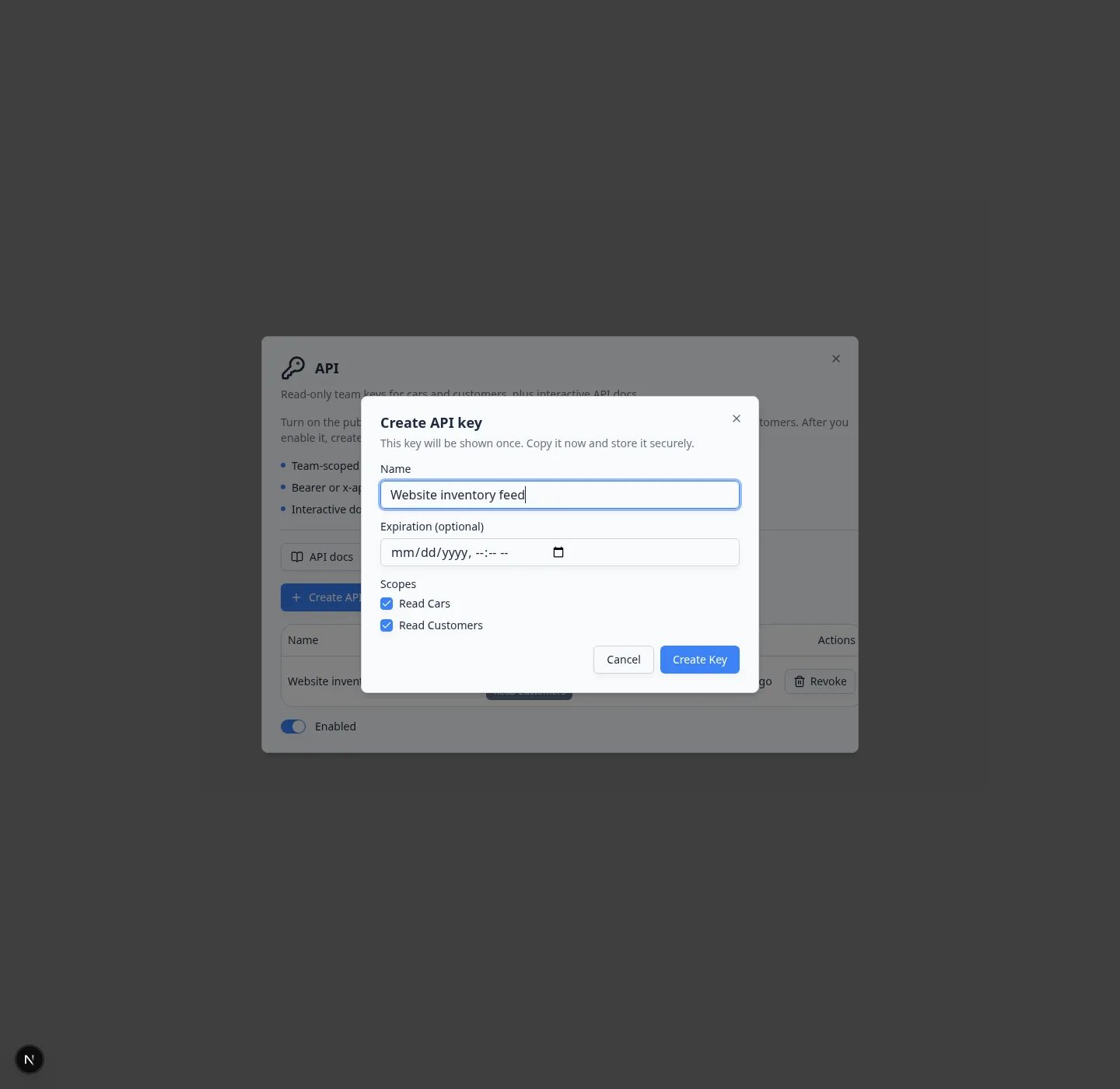 *Name the key after the tool that will use it. Start with the fewest scopes that tool needs.*
The API card shows **On** after you enable it, and **Connected** after at least one active key exists.
## Give the key to your webmaster
Send the secret through a password tool or a private message, not a group email if you can help it.
In the API window, click **API docs**. That opens the live Swagger UI for `/api/v1` (generated from the code — paths, scopes, and body schemas stay in sync automatically). You do not need to fill it in yourself.
Ask your webmaster to load a test list (for example cars or customers). They should only see this facility’s records, and writes should fail unless you granted the matching `write:*` scope.
**If you lose the secret**
You cannot view the full key again. Click **Revoke** on the old row, then create a new key with the same name. Give the new secret to your webmaster before you revoke the old one if you want the website to stay up.
## Confirm it worked
* The API card shows **Connected**.
* The keys table shows your named key as **active**.
* Your webmaster confirms the tool can see (and, if intended, update) only this facility’s records.
## Troubleshooting
**I cannot turn the API on**
Only team admins can enable the API or create keys. Ask an owner to turn it on, or to update your role in [Settings > Team](https://www.carstoragesoftware.com/dashboard/settings/team).
**The website stopped loading cars**
The key may be revoked or past its expiration date. Create a new key, update the website, then revoke the old one.
**The webmaster says access is denied**
If the API card is **Off**, even a good key is blocked. Turn the API on again. If the key is missing the scope they need (for example **Read Cars** or a write scope), create a new key that includes it — existing keys keep only the scopes they were created with.
## Claude and other AI helpers
If you want Claude or Cursor to look up cars and customers, do **not** create an API key. Open the separate **AI agents (MCP)** card at [Settings > Integrations](https://www.carstoragesoftware.com/dashboard/settings/integrations?integration=mcp). Full steps: [Connect Claude or another AI helper](/docs/settings/connect-ai-agents-mcp).
## What to do next
Return to [Browse the Integrations catalog](/docs/settings/browse-the-integrations-catalog) if you still need HubSpot, Shopmonkey, or accounting. Keep this key only as long as the website needs it, and revoke it if that project ends.
This documentation is built and hosted on [Mintlify](https://mintlify.com), a developer documentation platform.
*Name the key after the tool that will use it. Start with the fewest scopes that tool needs.*
The API card shows **On** after you enable it, and **Connected** after at least one active key exists.
## Give the key to your webmaster
Send the secret through a password tool or a private message, not a group email if you can help it.
In the API window, click **API docs**. That opens the live Swagger UI for `/api/v1` (generated from the code — paths, scopes, and body schemas stay in sync automatically). You do not need to fill it in yourself.
Ask your webmaster to load a test list (for example cars or customers). They should only see this facility’s records, and writes should fail unless you granted the matching `write:*` scope.
**If you lose the secret**
You cannot view the full key again. Click **Revoke** on the old row, then create a new key with the same name. Give the new secret to your webmaster before you revoke the old one if you want the website to stay up.
## Confirm it worked
* The API card shows **Connected**.
* The keys table shows your named key as **active**.
* Your webmaster confirms the tool can see (and, if intended, update) only this facility’s records.
## Troubleshooting
**I cannot turn the API on**
Only team admins can enable the API or create keys. Ask an owner to turn it on, or to update your role in [Settings > Team](https://www.carstoragesoftware.com/dashboard/settings/team).
**The website stopped loading cars**
The key may be revoked or past its expiration date. Create a new key, update the website, then revoke the old one.
**The webmaster says access is denied**
If the API card is **Off**, even a good key is blocked. Turn the API on again. If the key is missing the scope they need (for example **Read Cars** or a write scope), create a new key that includes it — existing keys keep only the scopes they were created with.
## Claude and other AI helpers
If you want Claude or Cursor to look up cars and customers, do **not** create an API key. Open the separate **AI agents (MCP)** card at [Settings > Integrations](https://www.carstoragesoftware.com/dashboard/settings/integrations?integration=mcp). Full steps: [Connect Claude or another AI helper](/docs/settings/connect-ai-agents-mcp).
## What to do next
Return to [Browse the Integrations catalog](/docs/settings/browse-the-integrations-catalog) if you still need HubSpot, Shopmonkey, or accounting. Keep this key only as long as the website needs it, and revoke it if that project ends.
This documentation is built and hosted on [Mintlify](https://mintlify.com), a developer documentation platform.