

What you will accomplish
You will connect your facility’s AI Assistant to a team iMessage group chat so staff can ask questions by text—without opening the dashboard on a computer. When setup is complete:- Verified teammates can text the assistant from their own phone.
- Your group chat can look up customers, cars, schedule, and parking.
- Admins can pause, resume, or unlink the group from Settings > AI Agent.
Web assistant vs iMessageThe dashboard AI Assistant page and iMessage use the same brain, but they look different.
- Web shows proposal cards and Confirm All before saving new records.
- iMessage replies in short text messages. There are no on-screen cards to review.
Before you start
- You can sign in as a facility admin (or someone with AI Assistant settings access).
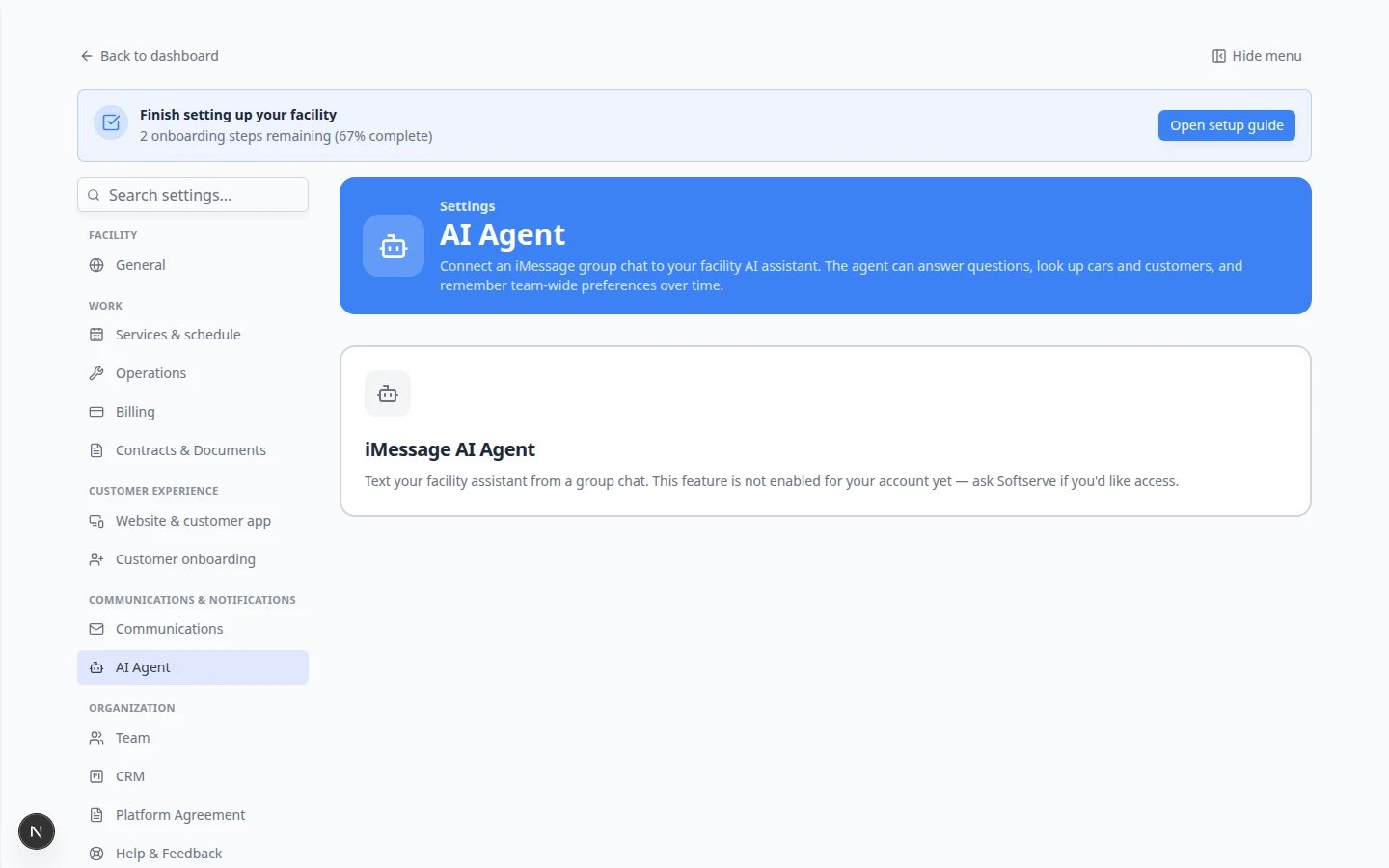
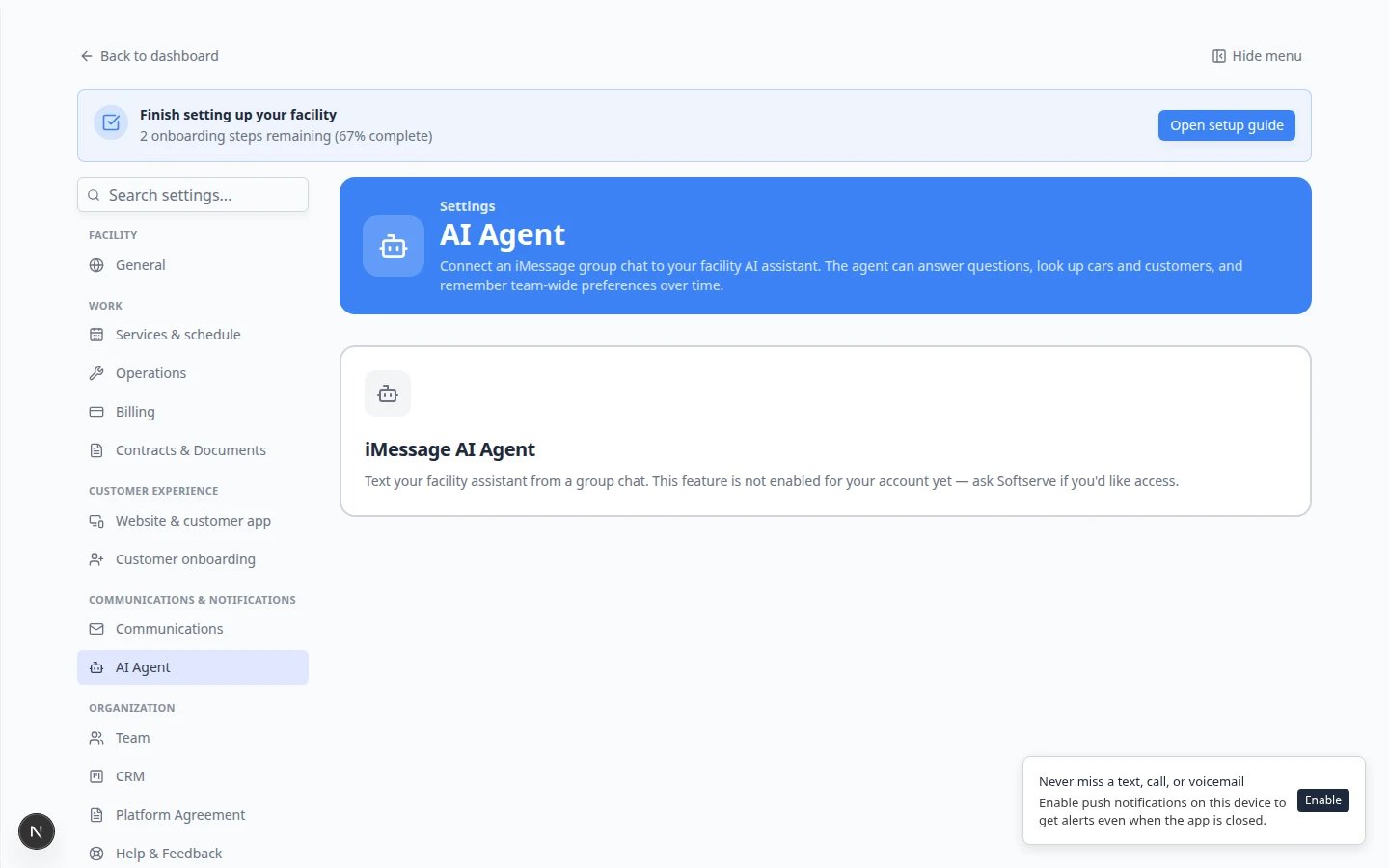
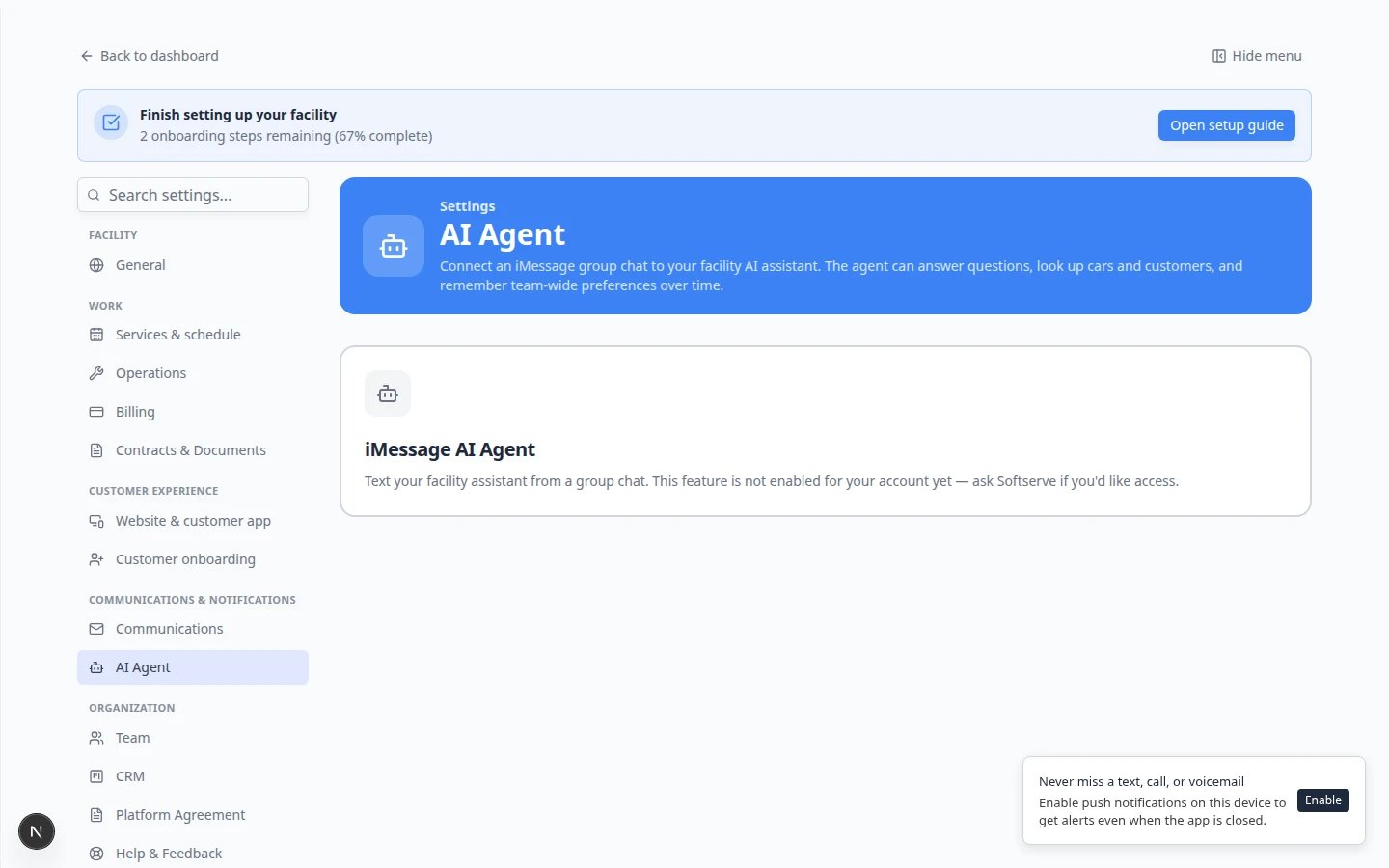
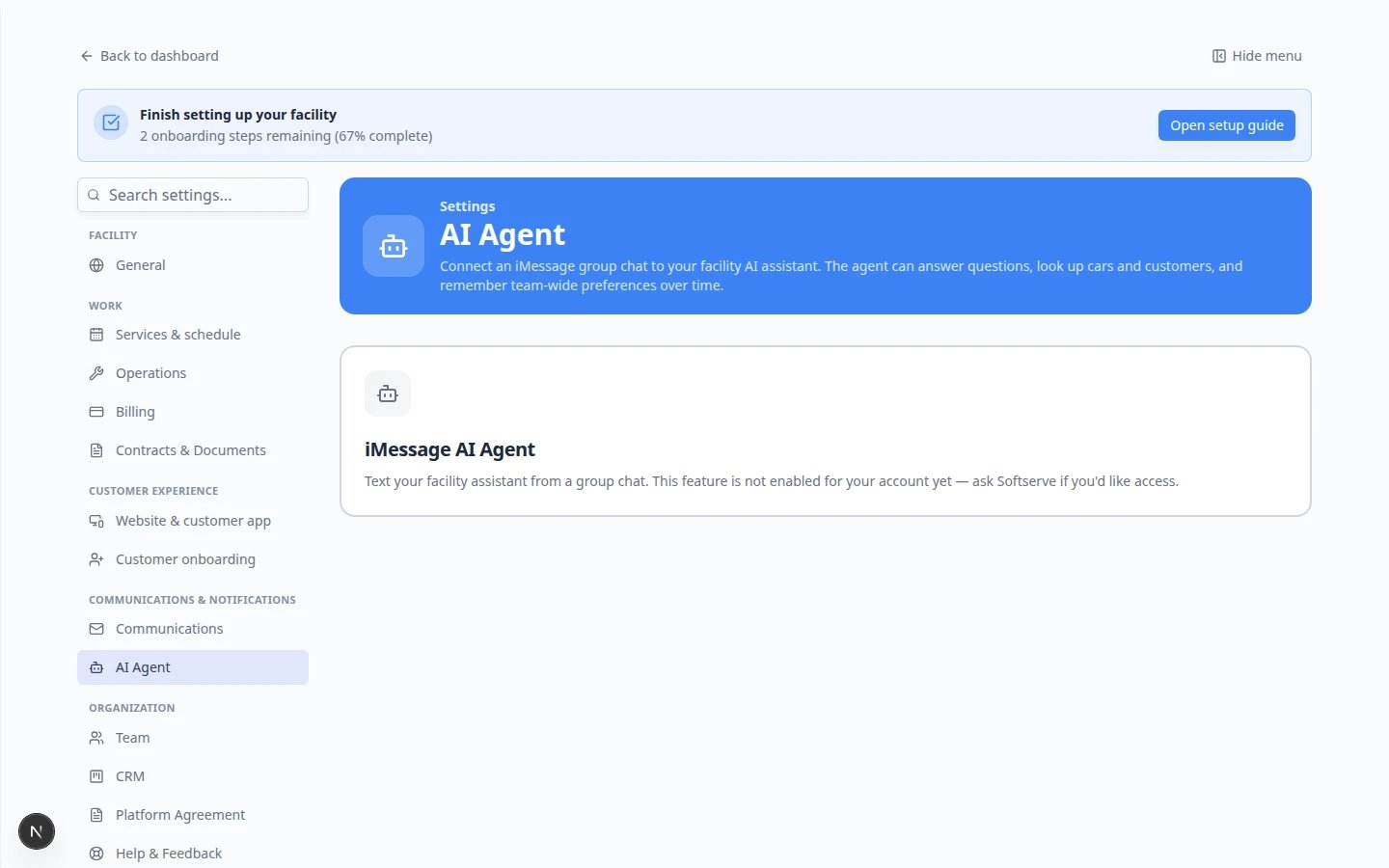
- Your facility has iMessage AI Agent turned on by Car Storage Software support. If Settings > AI Agent says This feature is not enabled for your account yet, contact support before you follow the steps below—there is nothing to configure until it is turned on.
- Each teammate who will text the assistant has an iPhone or Mac with Messages and a mobile number saved on their user profile in Settings > Team.
- You have (or will create) a group chat in Messages for your operations team—not a chat with customers.
Step 1: Open AI Agent settings
1
Go to Settings
In the dashboard sidebar, click Settings.Why this matters: iMessage linking is a one-time facility setup. It lives with other admin tools—not on the daily AI Assistant chat page.
2
Click AI Agent
Open Settings > AI Agent.Expected result: You see three numbered sections: 1 · Your agent’s number, 2 · Text the robot, and 3 · Group chat.
Step 2: Save the agent phone number
Every teammate needs this number in their phone contacts before texting or starting a group chat.1
Find 1 · Your agent's number
Scroll to the first section on the page. You will see a large phone number labeled AGENT CONTACT.Expected result: A blue Copy number button appears below the number.
2
Click Copy number
Click Copy number and save the contact in your phone as something your team will recognize, such as Mega Speed Assistant.Why this matters: Verification and group linking only work when texts come from phones that have messaged this exact number.
Step 3: Verify teammate phones (Text the robot)
Each person who will use the group chat must verify their mobile number.1
Scroll to 2 · Text the robot
This section lists teammates who already have a phone number on their profile in Settings > Team.Expected result: You see a card for each person. Cards may show Invite, Pending, or a green checkmark when Verified.
2
Add a phone number if someone is missing
If a teammate appears under hidden — no phone number on record, click their row and enter their mobile number in the window that opens.Why this matters: The assistant cannot verify a phone that is not on file.
3
Tap Invite on a teammate card
For anyone who is not verified yet, click their card. The card shows Invite.Expected result: They receive an email with instructions to text a verification code to the agent number from step 2.
4
Wait for Verified status
After the teammate sends the text from their phone, refresh the page. Their card should show a green checkmark and say Verified.Why this matters: Only Verified phones can be included in the group chat in step 4.
5
Select teammates for the group chat
Tap each Verified card you want in the operations group. Selected cards turn green and say included in the group chat below.Expected result: At least one verified teammate (usually yourself) is selected before you continue.
Step 4: Open the group chat in Messages
The software can open Messages for you with the right people and a link code ready to send.1
Scroll to 3 · Group chat
Read the description: one tap opens Messages with your selected verified teammates, the agent number, and a link code.Expected result: A card titled Open in Messages shows how many teammates you selected in step 2.
2
Verify your own phone first
If you see orange text saying Invite yourself in step 2, complete verification for your own card before continuing.Why this matters: The Open group chat & send code button stays disabled until at least one phone is verified—including yours if you are the admin setting this up.
3
Click Open group chat & send code
Click the blue Open group chat & send code button.Expected result: Messages opens on your phone or Mac with a pre-filled group including the selected teammates and the agent number, plus a LINK command ready to send.
4
Send the message in Messages
On your phone, tap Send in the group chat.Why this matters: The link code ties that specific group chat to your facility. Send it only in your trusted staff group.
5
Confirm the group is linked
Return to Settings > AI Agent and refresh. Under Linked chats inside step 3, your group should appear with a green active badge.Expected result: Your team can now ask questions in that group chat and receive replies from the assistant.
Pause, resume, or unlink a group
After a group is linked, admins see Pause, Resume, and Unlink buttons on each row under Linked chats.
Expected result after Unlink: The group no longer appears as active. You can link a different group by repeating step 4.
No Linked chats section yet?Before you send the link code, step 3 only shows Open in Messages with a Not linked badge. That is normal. Complete step 4 first—the Linked chats list appears after the agent joins your group.
Troubleshooting
Open group chat & send code is grayed out
Your phone is not Verified yet, or no verified teammate is selected in step 2. Complete the invite flow and select at least one green Verified card.The group never shows as linked
- Confirm you tapped Send in Messages after the app opened the group.
- Confirm the sender’s phone is Verified in step 2.
- Click Open group chat & send code again if the previous link code expired.
A teammate cannot get Verified
Check that their mobile number is correct in Settings > Team. They must text from the same phone listed on their profile.I linked the wrong group
Click Unlink on that row under Linked chats, then repeat step 4 with the correct group.What to do next
- Use the AI Assistant in iMessage — teach your team what to ask and how replies work.
- Manage team memory for the AI Assistant — help the assistant remember facility rules.
- Manage team permissions — turn on AI Assistant for staff who need the web page or settings.
- AI Assistant overview — compare web and iMessage workflows.