

What you will accomplish
You will use the AI Assistant during a live phone call to answer common questions—whose cars are stored, what is scheduled this week, where a vehicle is parked—while the customer stays on the line. The goal is to sound prepared and give accurate answers without clicking through five dashboard pages while someone waits.When to use this guide
Use this guide when:- A customer calls and asks, “Which of my cars do you have?” or “When is my detail appointment?”
- You need parking or schedule information before you promise a time on the phone.
- You want to confirm a name or vehicle spelling before you open a full record.
What this guide is not forDo not void invoices, change contracts, or delete records during a call through the assistant. Open the normal Payments or record pages for sensitive changes—or tell the customer you will call back after a manager reviews.
Before you start
- Sign in to the staff dashboard on a computer near your phone (or use a second monitor).
- Confirm you have AI Assistant, Contacts, and Cars permissions. See Who can use the AI Assistant.
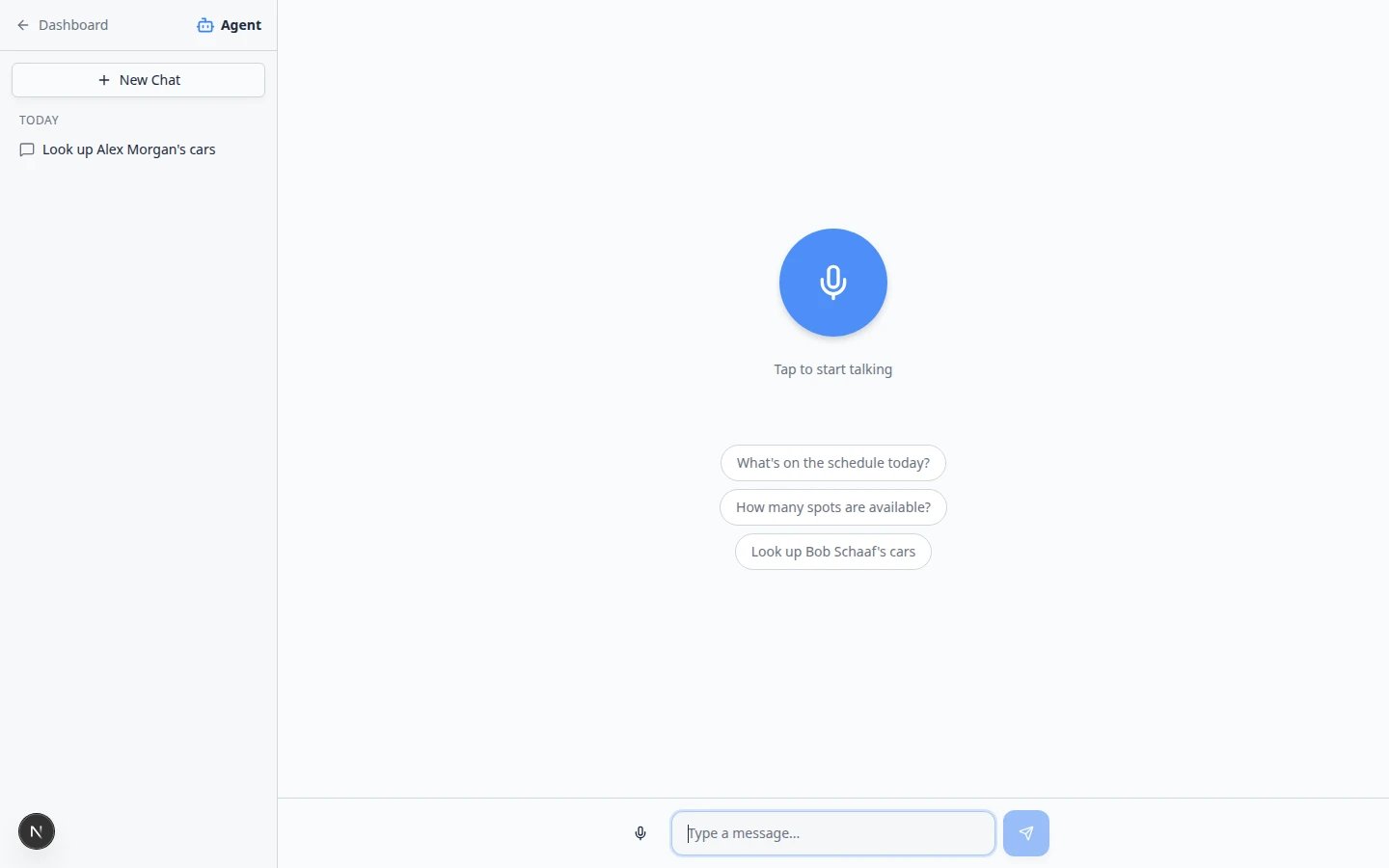
- Click + New Chat so this call does not mix with another customer’s thread.
- Type in Type a message… for names and spellings—the customer can hear you typing, which is normal and accurate.
Recommended call workflow
1
Start New Chat
Open AI Assistant. Click + New Chat in the left sidebar.Why this matters: Each caller deserves a fresh thread. Mixing two customers in one chat causes wrong answers.
2
Ask one combined question
Type a clear question that names the customer and what you need.Example: I have Alex Morgan on the phone. What cars are in storage and is anything scheduled this week?Press Enter and wait for the answer to finish (you may see Thinking… briefly).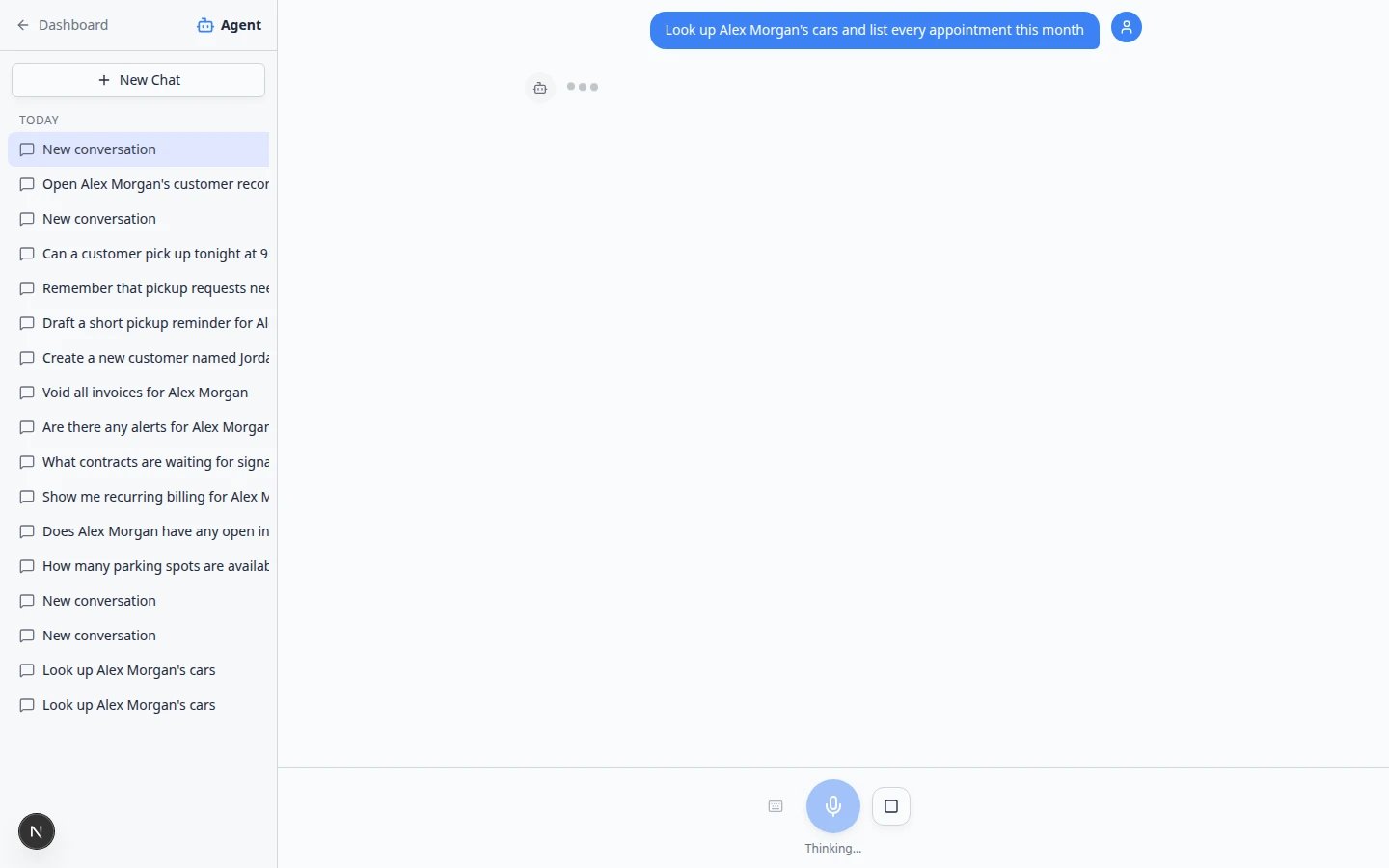
3
Read the answer to yourself first
Check customer name, vehicle list, dates, and times before you speak out loud.Expected result: You can summarize accurately: “I see your 2017 Lamborghini and your Aston Martin on file, and you have dealer service scheduled Thursday at 10.”
4
Open the record if the customer asks for details
If they want documents, billing, or photos, click Go now when the assistant offers a dashboard link—or open Contacts yourself.
5
Start New Chat for the next person
When you hang up, click New Chat before helping the next person.Tip: Your chat list groups today’s conversations under Today so you can find this caller again later if needed. See Manage your assistant chats.
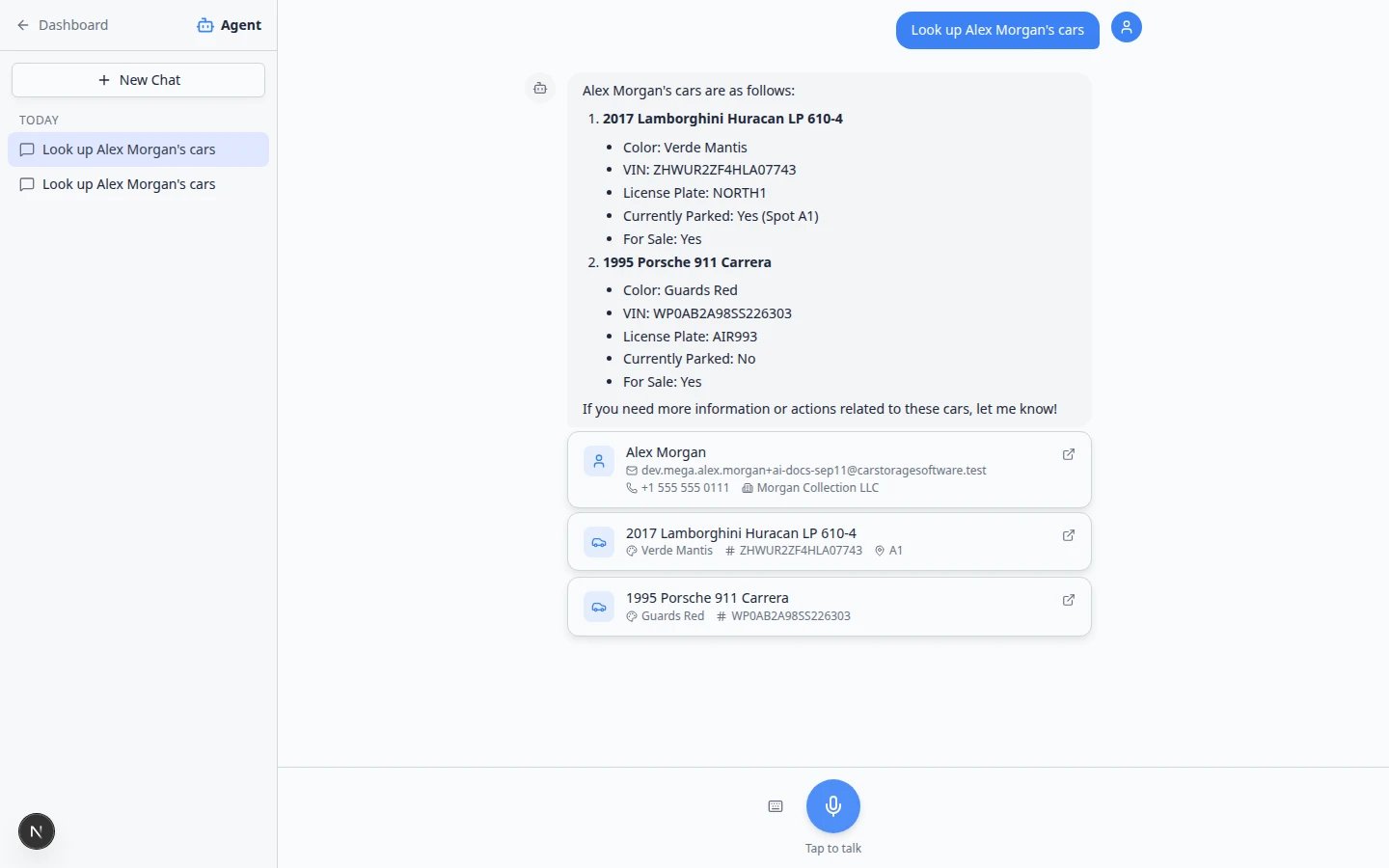
What you will see in a good lookup answer
After you ask about a customer on a call, the assistant often shows cards you can scan quickly:Example questions that work well on calls
Copy and adapt these patterns. Replace the name with your caller’s real name from Contacts.Stored vehicles
- Look up Alex Morgan’s cars.
- What vehicles do we have stored for Sam Rivera?
- What appointments does Alex Morgan have this week?
- What’s on the schedule today for pick-ups?
- Where is the 2017 Lamborghini Huracan parked?
- How many parking spots are available right now?
- Look up customer Jordan Lee — email jordan.lee@example.com — and list their cars.
What to say to the customer while you search
You do not need to hide that you are looking up their record. Simple phrases keep the call calm:- “Let me pull that up for you—one moment.”
- “I’m checking your vehicles in our system now.”
- “I want to confirm the exact date before I tell you.”
If the answer looks wrong
1
Do not guess
Tell the customer: “Let me double-check that in your full record.”
2
Rephrase with more detail
Add email, phone, or VIN: Look up Alex Morgan, phone 555-010-4421, and list stored cars.
3
Open Contacts manually
Search Contacts while they wait. Compare to the assistant answer.
Parking and schedule questions during a call
Many callers ask where a car is parked or when their next appointment is. You can include those details in the same typed question as the customer lookup.1
Combine parking or schedule into one message
Examples:
- I have Alex Morgan on the phone. What cars are stored, where are they parked, and what is scheduled this week?
- Where is the 2017 Lamborghini Huracan parked right now?
2
Read vehicle and appointment cards carefully
Vehicle cards may show a storage location such as @ A1. Appointment cards show date, time, and status.Expected result: You can answer parking and schedule questions without opening three separate dashboard pages.
3
Confirm same-day promises on Schedule
If the caller wants to book a new time—not just hear an existing appointment—open Schedule before you guarantee an opening.See Ask about schedule, parking, and records for more example questions.
Parking counts change quicklyHow many spots are available? is a great assistant question between calls. On a live call, still confirm on Parking Spots if the caller wants to reserve a specific spot today.
Prepare follow-up work after the call
If the caller asked you to schedule something new—not just look it up—switch guides:- Prepare work with the AI Assistant to draft a new appointment.
- Review AI proposals before you select Confirm All.
- From AI draft to customer message if you need to send a confirmation text or email.
Common mistakes on phone calls
Troubleshooting
The customer hears me typing
That is expected when you type in Type a message…. You can say, “I’m looking that up in our system.”The assistant is too slow for this call
Open Contacts directly and search by name. Use the assistant on the next call when you have a few extra seconds.I cannot find AI Assistant while on the phone
Ask a manager to confirm your permissions. See Who can use the AI Assistant.What to do next
- Ask about schedule, parking, and records — more example questions.
- Fix voice and microphone problems — if you prefer voice but the mic is blocked.
- Respond to a conversation — when the follow-up moves to text or email in Inbox.