

What you will accomplish
You will open a car record, choose one or more service plans, set a start date for each, and save so the plan appears on the vehicle and in the Service column on the Cars list. Expected outcome: The Service Plans section on the car shows the plan name, start date, and a red/green list of checks (last done and next due). The Cars list can show On track, due, or scheduled when you turn on the Service column.When to assign a service plan
- A customer signs up for monthly or quarterly care on a stored vehicle.
- You need the schedule to auto-generate future service events from a package your manager already built.
- You want staff to see at a glance whether plan work is overdue before calling the customer.
Plans must exist in Settings firstIf no plans appear in the dropdown, an admin needs to create them under Settings > Operations. See Set up vehicle service plans.
Before you start
- The car record exists on Cars.
- At least one service plan is active in Settings > Operations.
- You know the date care should start (often the storage start date or intake date).
Step 1: Open the car record
1
Find the vehicle
Go to Cars and open the car. Use Find and filter cars if you need help searching.
2
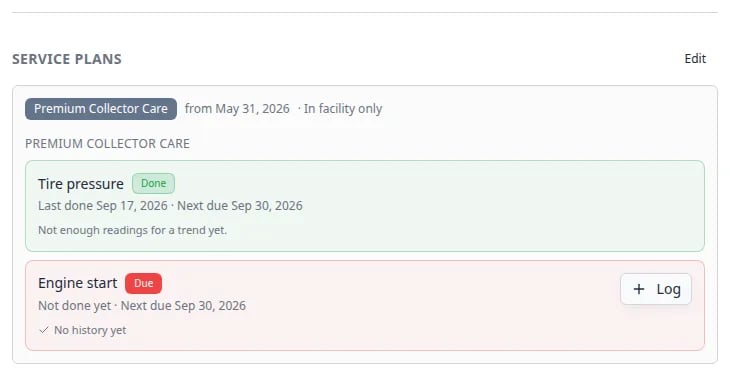
Scroll to Service Plans
In the Vehicle Details card on the left, scroll to the Service Plans heading.Expected result: You see either assigned plans, “No service plans assigned,” or an Edit button on the right.
Step 2: Enter edit mode
1
Click Edit
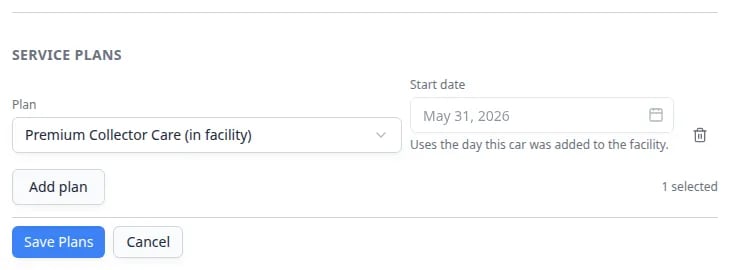
Click Edit in the top-right corner of the Service Plans section.Expected result: The section shows dropdowns for Plan, Start date, and buttons to add or remove rows.
Step 3: Choose a plan and start date
1
Select a plan
Open the Plan dropdown and choose the care package for this vehicle—for example Premium Care or Basic Storage Maintenance.Why this matters: Each plan includes a list of recurring checks (engine start, tire pressure, event types, or custom work) and how often they are due. Event-type checks also schedule calendar visits. Picking the wrong plan tracks the wrong work. After you save, some checks show a Log button so staff can mark work done without opening a full event.
2
Set the start date
Choose Start date—usually the day storage or care begins.If the plan is marked Only while the car is in the facility, the start date is filled from the day the car was added to a spot or zone and cannot be edited here.Expected result: Future service events calculate from this date forward. Facility-only plans stay paused when the car is off-site.
3
Add another plan if needed
Click Add plan to assign a second package. Remove a row with the trash icon if you added one by mistake.Tip: Most vehicles use one plan. Only add a second when your facility sells stacked packages.
Step 4: Save and verify
1
Click Save Plans
Click Save Plans, then Cancel or click outside the section to leave edit mode.Expected result: The plan name, start date, and due/not-due checks appear in read-only view. Reading checks can show a small history graph. Staff can log a boolean check or start the mapped event type.
2
Check the Cars list (optional)
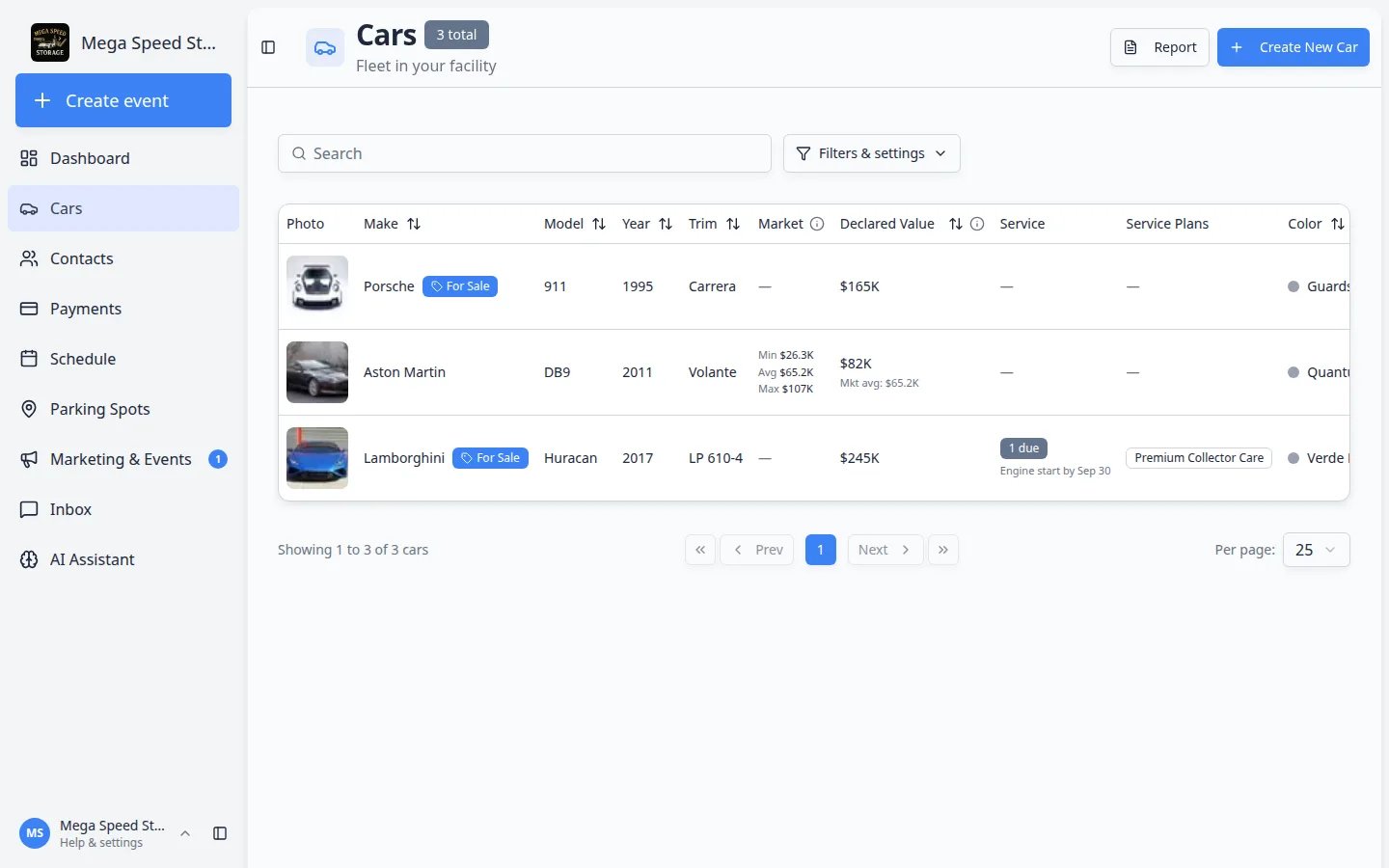
Return to Cars. Open Columns and turn on Service if it is hidden.Expected result: The row shows On track, a due count, or a scheduled count for this vehicle.
3
Check Schedule (optional)
Open Schedule and look for upcoming events generated from the plan.Why this matters: Confirms the plan is creating real appointments your shop can see.
See plan health from the Cars list
You do not have to open every car record to learn which vehicles need plan work.1
Open the Cars list
Go to Cars.
2
Turn on the Service column
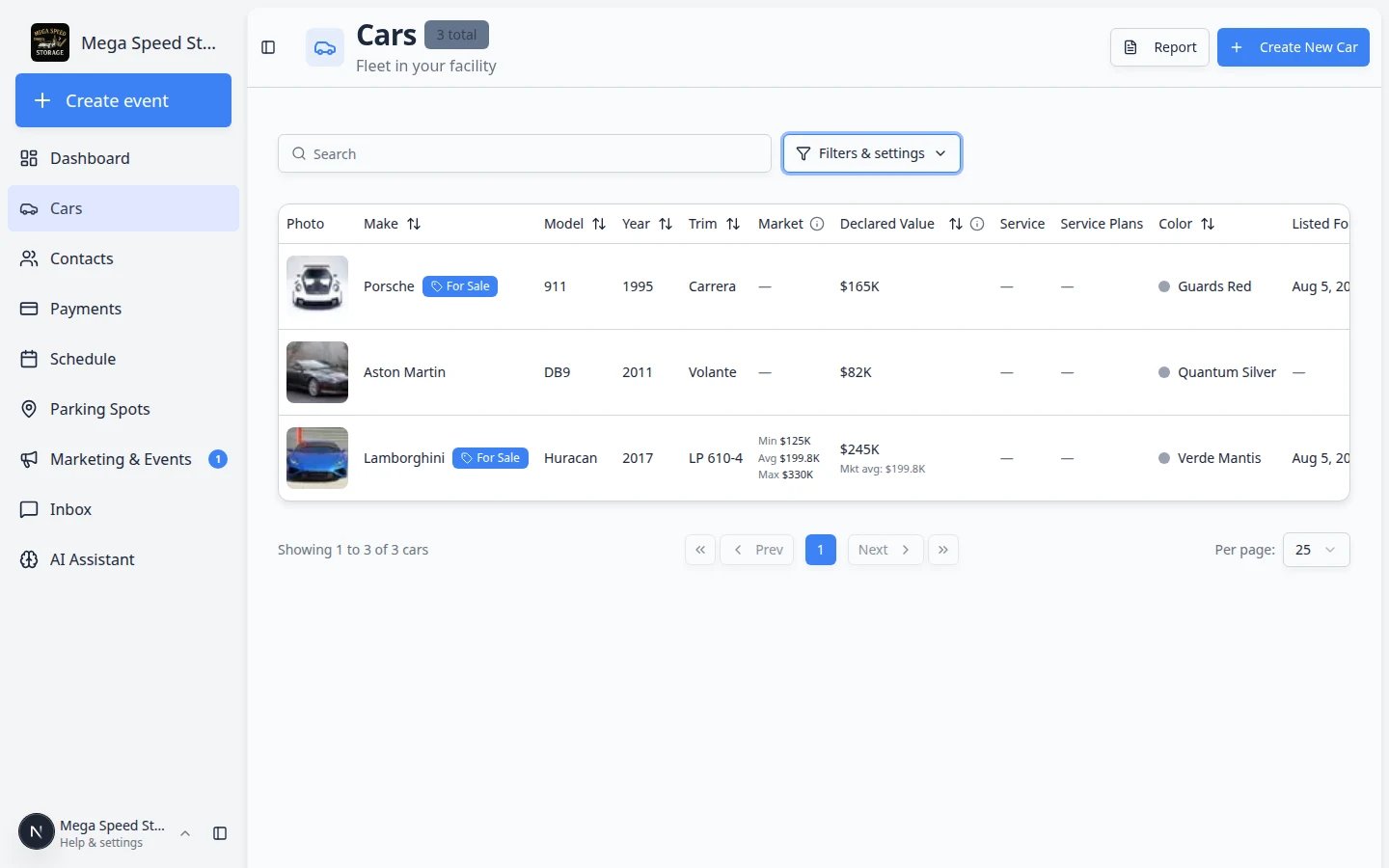
Click Filters & settings, open Columns, and turn on Service.Expected result: Each row can show On track, a due count, or a scheduled count.
3
Scan for due work before calling customers
Look for due badges (for example 2 due · Engine start by Sep 20). Open that car’s record to see which check is due.Why this matters: Front desk staff can spot overdue care during a quick morning scan of the list.
Common mistakes to avoid
- Do not assign a plan before the car record and customer link are correct—billing and messages use those records.
- Do not forget the Start date. Without it, the system may show “start date not set.”
- Do not assign the same plan twice on one car. The dropdown prevents duplicate plans in edit mode.
Troubleshooting
I need to stop care on this vehicleEdit the Service Plans section, remove the plan row, and click Save Plans. Past completed work stays in the Activity Feed.
What to do next
- When plan work is due, log the check on the car or run Start a car session.
- Keep tire and mileage numbers current with Record battery care and vehicle readings.
- Filter the Cars list by Service plan to find vehicles with or without plans—see Find and filter cars.
- If monthly storage is separate from care plans, link recurring billing with Link recurring billing to a vehicle.