

What you will accomplish
You will find what already happened with a customer—messages, notes, invoices, contracts, and schedule changes—without opening Inbox, Payments, and Schedule separately. Use this guide when:- A customer calls and asks, “Did you send that invoice?”
- A teammate needs context before returning a call.
- You want to confirm a contract was sent or a car was moved last week.
Activity vs InboxInbox is where you reply to messages. Activity is where you look up what already happened for one customer. Start on the customer record when someone calls about their own account.
Before you start
- Open the correct customer on All Contacts.
- Know roughly what you are looking for (a message, invoice, contract, or event change).
Customer Notes vs Activity Feed
These two areas answer different questions: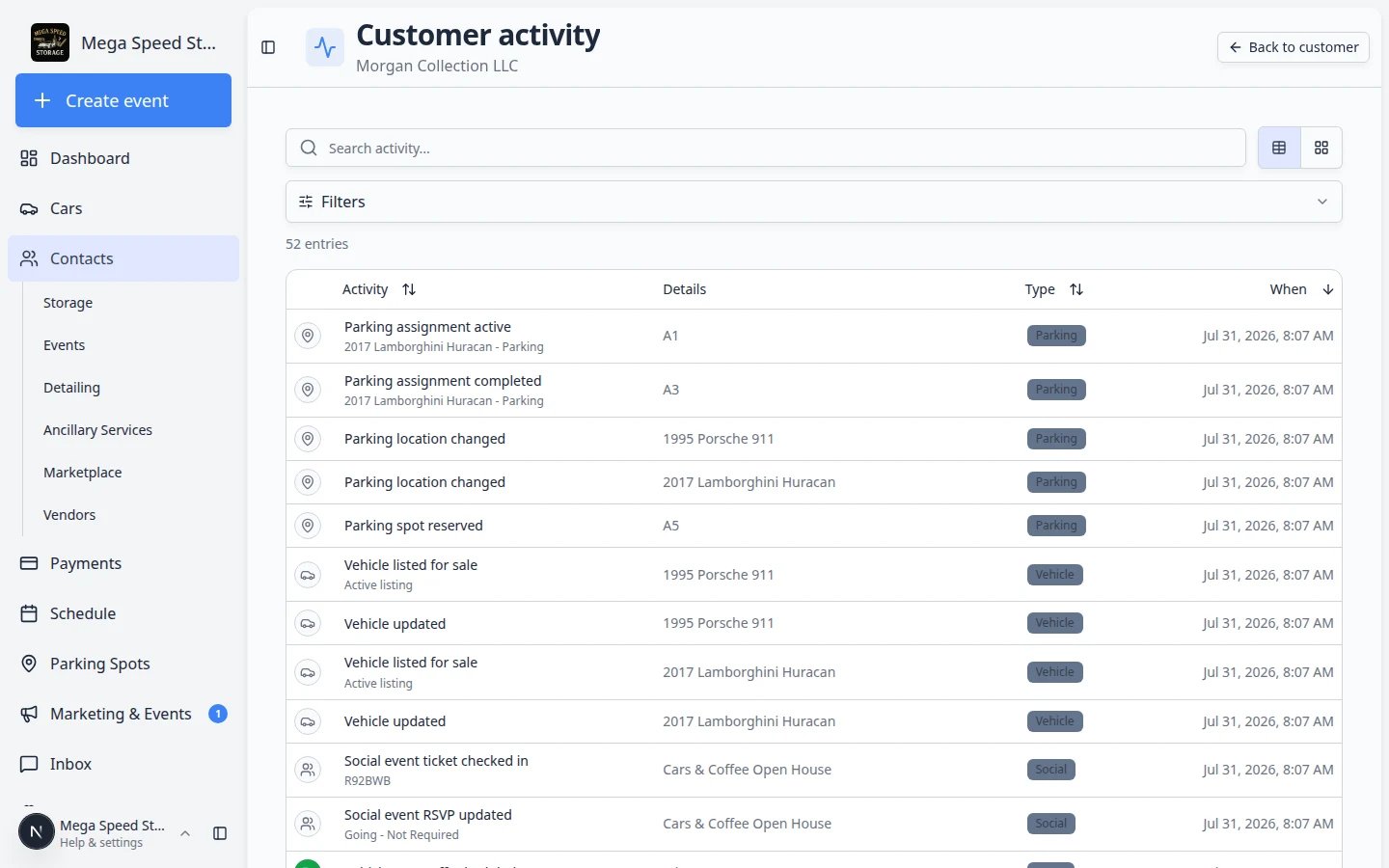
Open the Activity Feed on the customer record
1
Open the customer
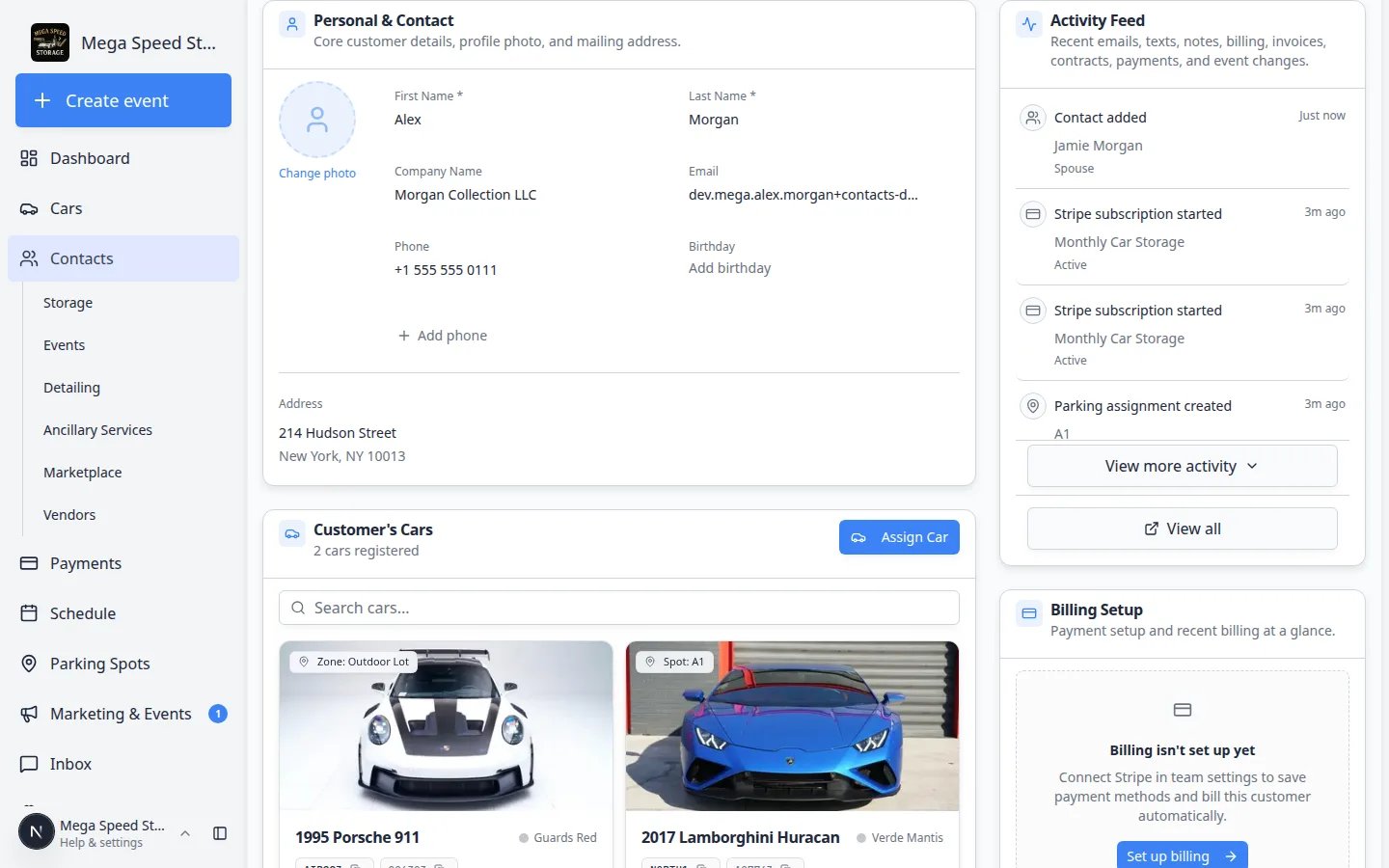
From All Contacts, search for the customer and open their detail page.Expected result: You see sections such as Personal & Contact, Cars, and Activity Feed.
2
Find Activity Feed
Scroll to the Activity Feed section on the right side of the page (on wide screens) or below the cars area (on smaller screens).Why this matters: This feed only shows activity tied to this customer. It is faster than searching all of Inbox when you already know who you are helping.
3
Scan recent items
Each line shows what happened and when—for example an email sent, a text received, an invoice created, or a stage change.Expected result: The newest items appear at the top. You can often answer a customer’s question in seconds.Tip: Check Last Communication in CRM Information on the same page for a one-line summary of the most recent message.
Open the full Activity page
When the feed is not enough—long history, many event types, or you need more room to read:1
Click View all on the feed
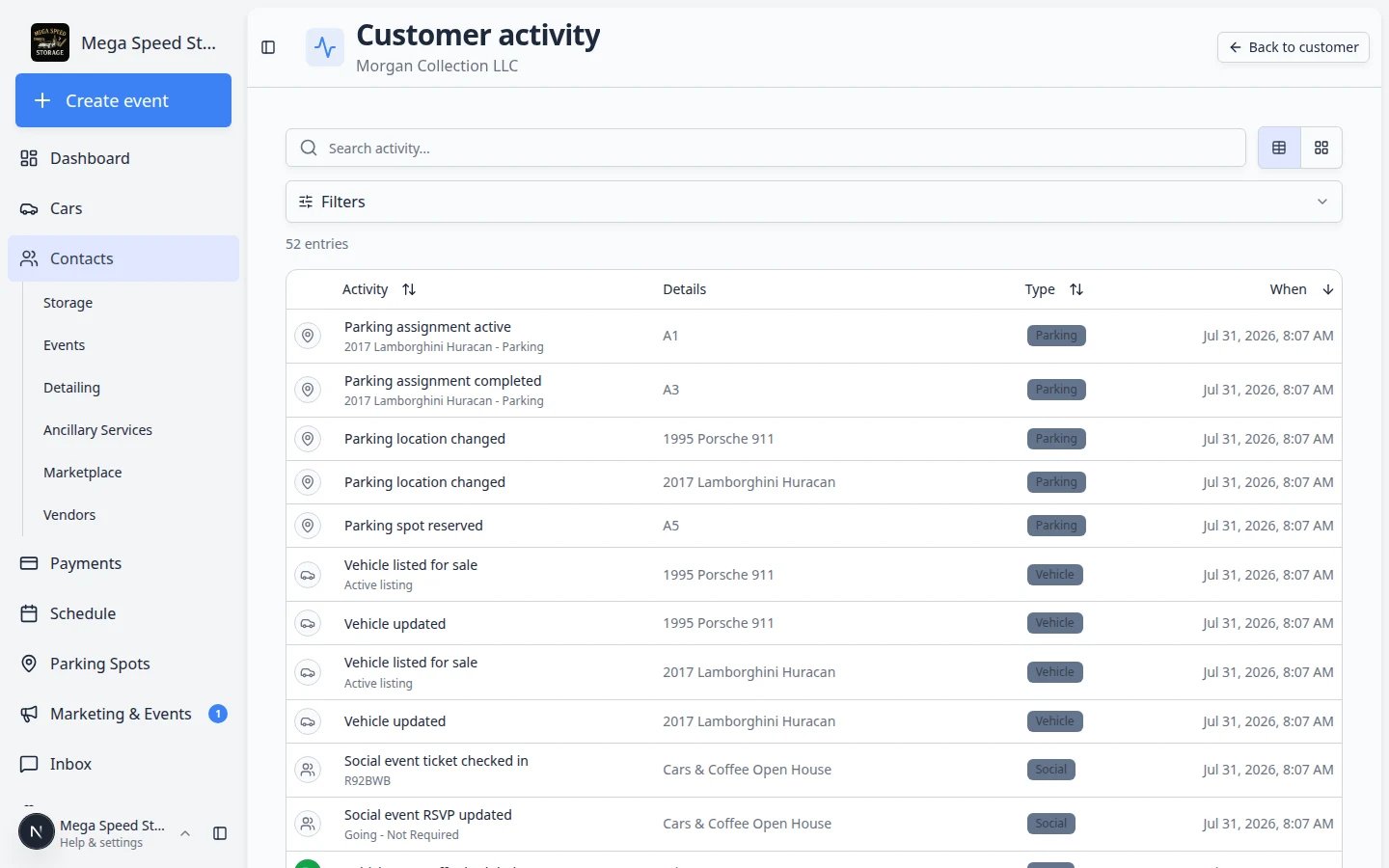
In the Activity Feed section, click View all (or the expand arrow near the section title).Expected result: A dedicated Customer activity page opens with a larger timeline. The page title at the top says Customer activity and shows the customer’s name.
2
Use Back to customer when you are done
Click Back to customer in the top-right corner to return to the customer detail page.Why this matters: You do not need to remember a web address—the button always takes you back to the same record you started from.
Search and filter on the full Activity page
On the full Customer activity page, you can narrow a long timeline:1
Open Filters
Click Filters near the top of the activity list.Expected result: Options appear to filter by category, date range, or search text.
2
Pick a category (optional)
Use quick category buttons—such as Messages, Billing, or Schedule—to show only that type of activity.Why this matters: When a customer asks specifically about an invoice, filtering to Billing hides unrelated messages so you can find the answer faster.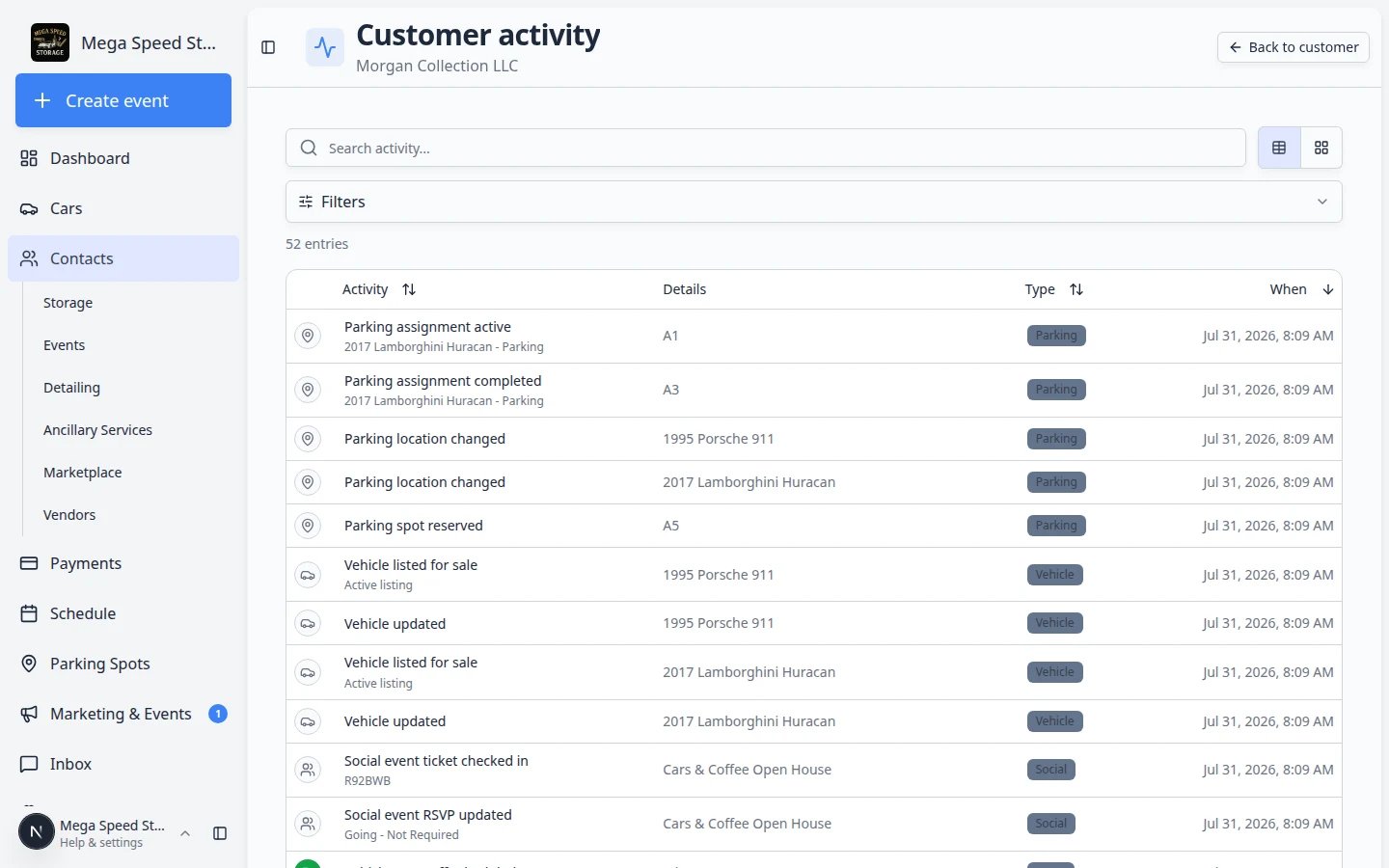
3
Search by keyword (optional)
Type in the search box to find words like “invoice”, a car name, or a teammate’s note.Expected result: The list shrinks to matching items. A count near the top shows how many entries match (for example, “3 of 24 entries”).Why this matters: Long-time storage customers may have hundreds of lines. Filters keep you from scrolling for several minutes on a phone call.
4
Clear filters when finished
Click Clear filters to return to the full timeline.Expected result: All activity types appear again.
Click through to the original record
Many activity lines are clickable. When you see an item you need to act on:1
2
Take action on that page
Reply to the message, resend the invoice, or review the contract from the page that opened.Why this matters: Activity is your map. The linked page is where you do the work.
3
Return to the customer record
Use your browser back button or open All Contacts again if you need more context on the same customer.
What appears in activity
Activity pulls together work your team already did in other parts of the app. Typical items include:- Emails and texts sent or received through Inbox
- Notes added on the customer or car record (see Add and manage customer notes)
- Invoices and payments when billing is enabled
- Contracts and documents sent or signed
- Market interests added or updated when a customer shares a buy-want
- Schedule changes such as new appointments or completed work
- CRM updates such as stage changes (also shown under Last Communication in CRM Information)
- Car changes such as parking moves or session updates when linked to this customer’s vehicles
Tips for front-desk staff
Before you call a customer back: Open their record and scan the Activity Feed. You may see that a teammate already sent the invoice or texted an update.When a customer says “I never got it”: Look for an email or text line with a timestamp. If nothing appears, the message may not have been sent yet—check Inbox or resend from the right page.When onboarding stalls: Look for contract or portal-related items. Pair activity with Invite a customer to the portal.When two teammates worked the same account: Activity shows who did what and when—helpful for handoffs at the start of a shift.
Troubleshooting
What to do next
- Send or review messages: Respond to a conversation
- Add context for the team: Add and manage customer notes
- Update customer details after a call: Edit customer details
- Leave context for the next shift: Add and manage customer notes
- Export a roster for managers: Export and use the customer report