

What you will accomplish
You will clean up customer records when the same person appears twice, a record was created by mistake, or you need to bring back a deleted customer. Getting this right protects billing history, cars, and portal access.Before you start
- Search All Contacts by email and phone to confirm you have duplicates—not just similar names.
- Decide which record should stay (keep) and which should go (remove).
- Check cars, invoices, and documents on both records before deleting anything.
Choose the right fix
Migrate a duplicate to an additional contact
Use this when the “extra” customer is really the same household or the same person who should live under another account (for example a spouse who got their own record by accident).1
Open the duplicate record
On All Contacts, open the customer you want to remove as a standalone record.
2
Scroll to Danger Zone
Scroll to the bottom of the page and find the Danger Zone section.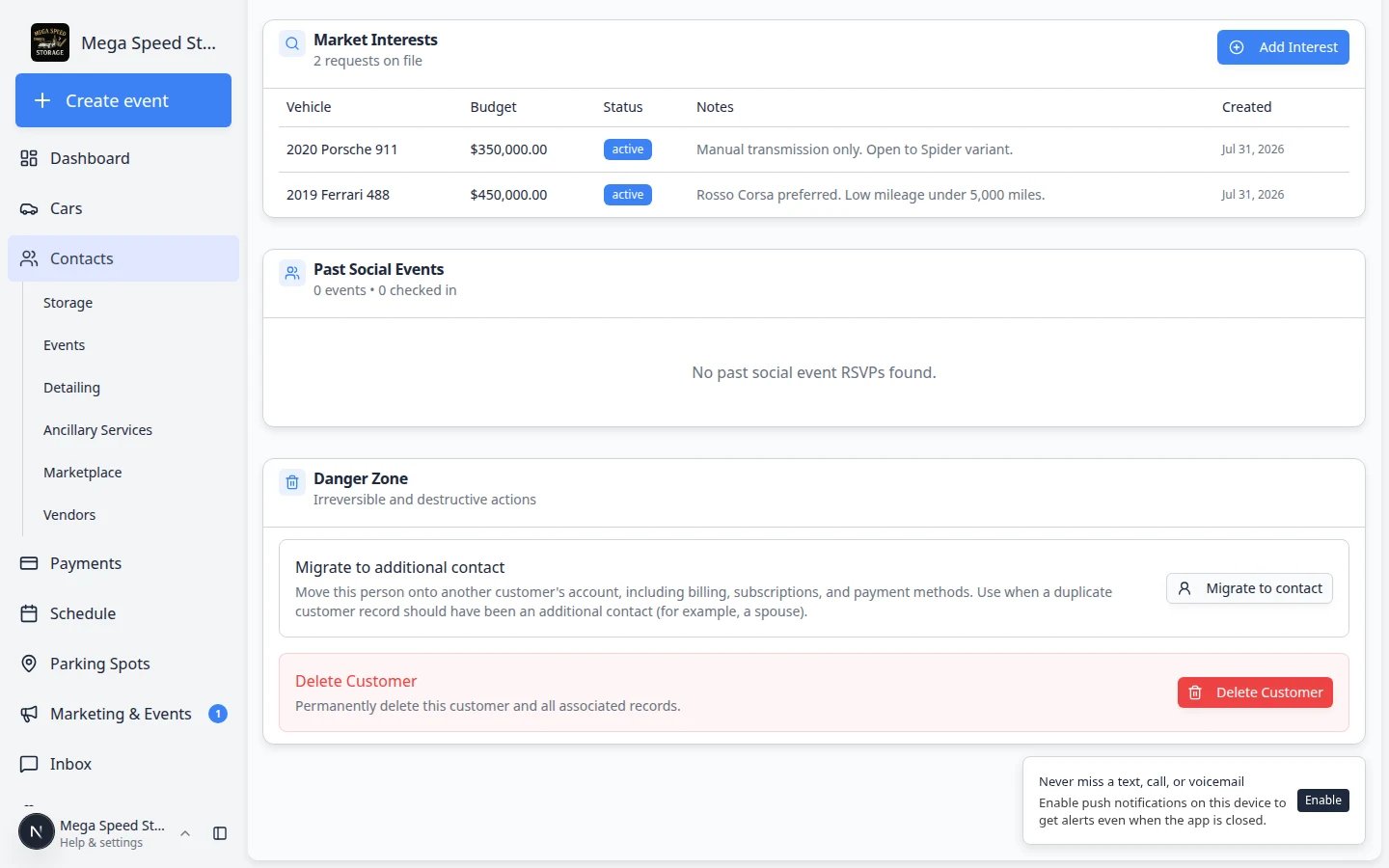
3
Click Migrate to contact
Click Migrate to contact. A window opens asking you to choose the target customer—the account that should keep the history.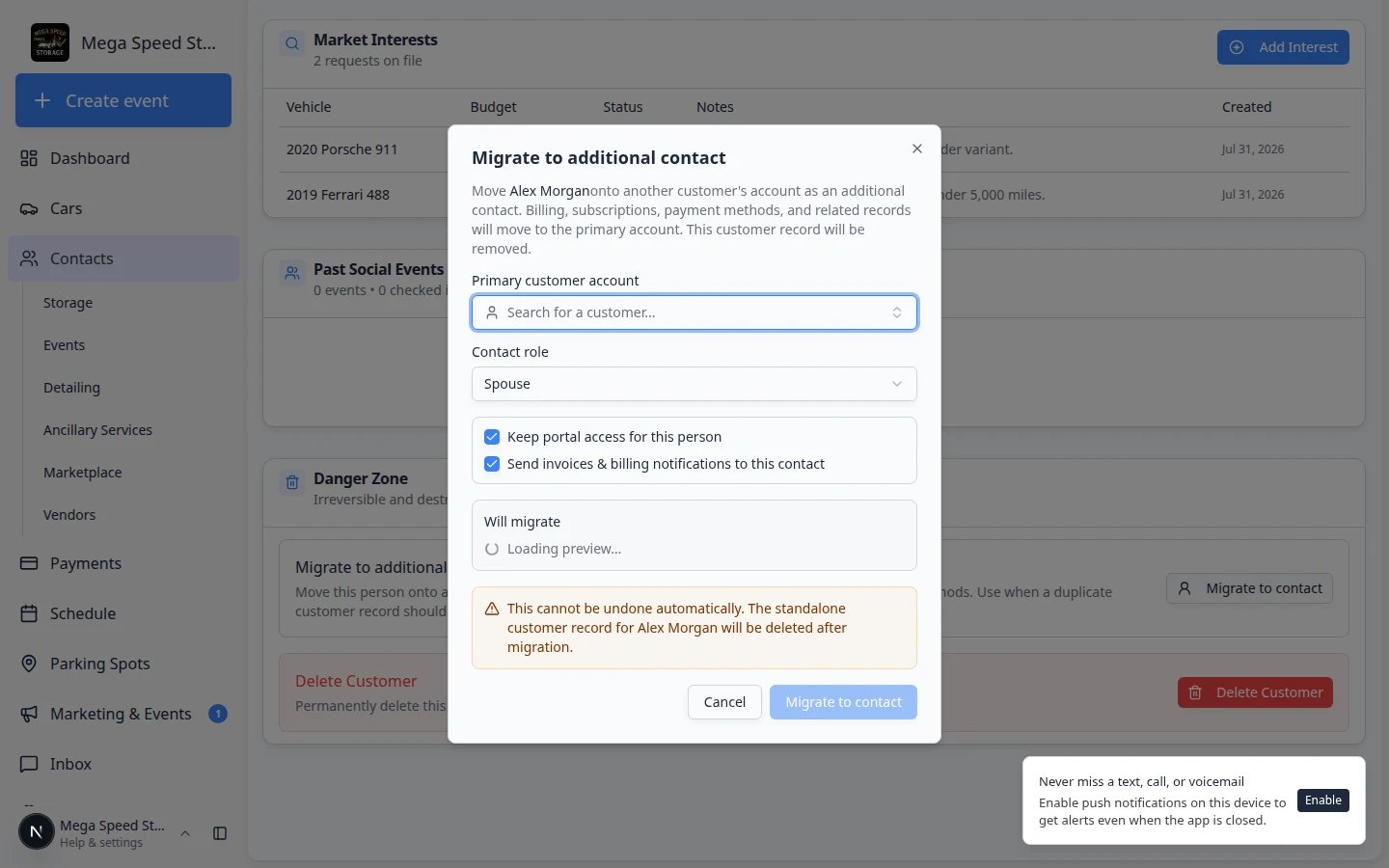
4
Confirm and review
Follow the prompts to complete the migration. Billing, subscriptions, and payment methods can move to the target account.Expected result: The duplicate standalone record is gone. The person appears under Contacts on the target customer’s page. Refresh All Contacts to confirm the extra row disappeared.
Mark a customer inactive
When someone pauses storage but you want to keep their history—and they are not a duplicate:1
Open CRM Information
On the customer detail page, scroll to CRM Information → Current Stage.
2
Turn off Active
Use the Active / Inactive switch next to the stage area.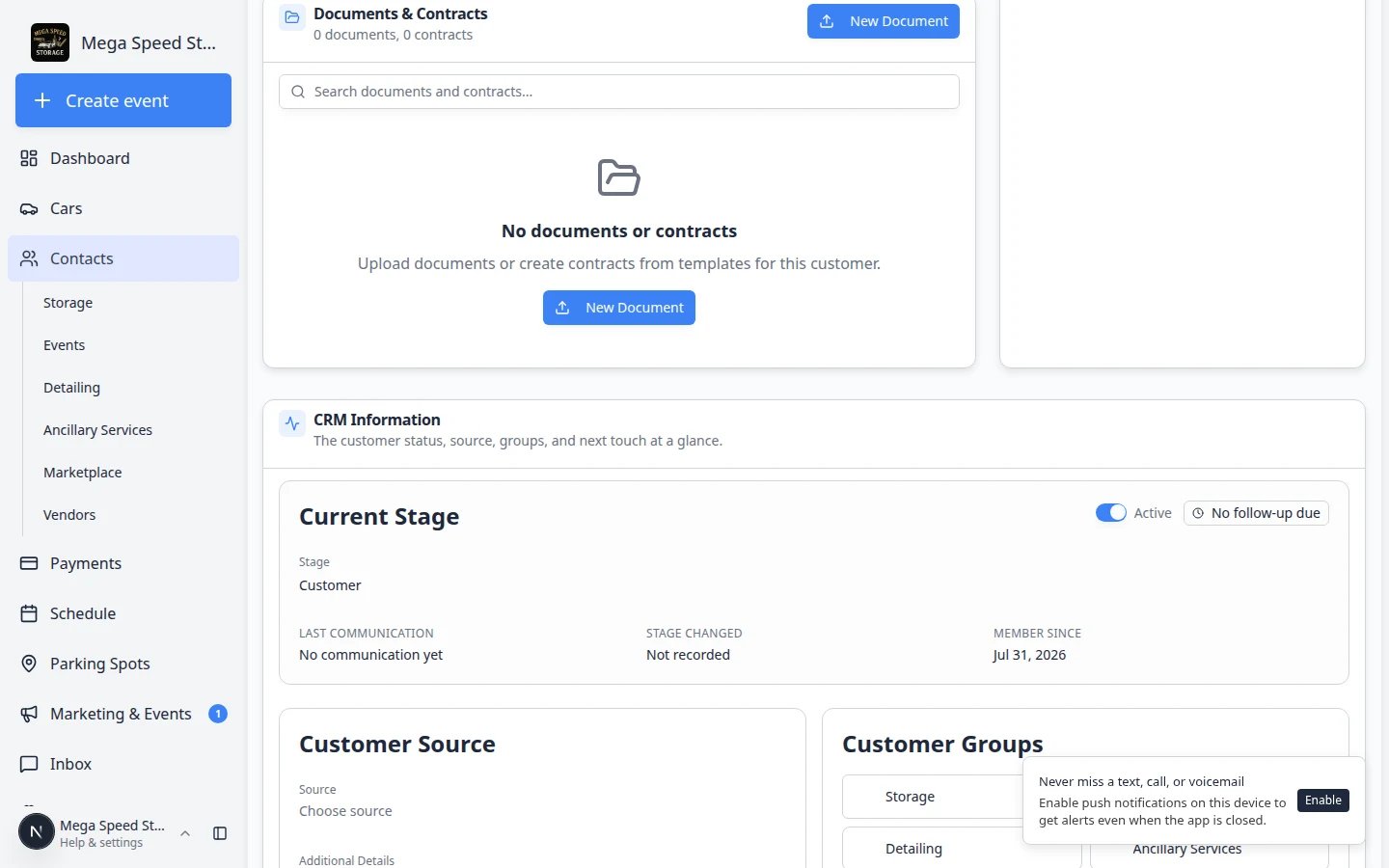
Inactive is not the same as deleteInactive hides a customer from day-to-day lists but keeps their cars, billing history, and documents. Delete is for records that should be removed from normal use entirely.
Delete a mistaken record
1
Confirm nothing important is linked
Check Cars, Documents, open invoices, and portal access. Move anything needed to the correct customer first.Why this matters: Deleting does not automatically move cars to another person—you must reassign them first.
2
Open Danger Zone
On the mistaken record, scroll to Danger Zone at the bottom of the page.
3
Click Delete Customer
Click Delete Customer and read the confirmation message carefully. Confirm when you are sure.Expected result: The customer disappears from normal lists. They are not permanently erased immediately—your team can still restore when policy allows.
Restore a deleted customer
1
Show deleted customers on the list
On All Contacts, open Filters & settings and set Status to Deleted.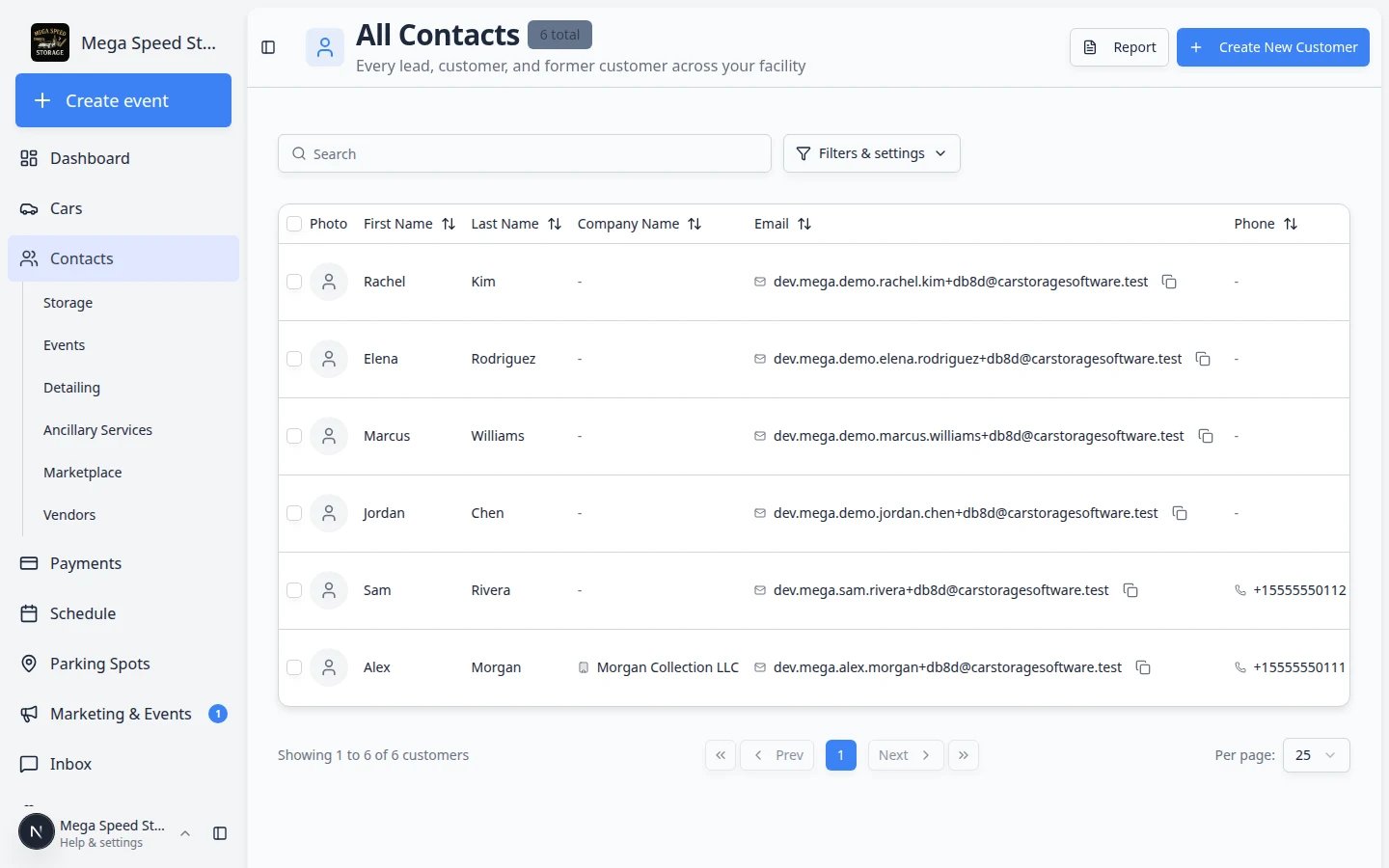
2
Open the deleted customer
Click the deleted customer’s name to open their detail page.Expected result: The page may look similar to a normal record, with a Restore option available.
3
Click Restore Customer
Use the Restore Customer action on the page and confirm in the window that appears.Read the confirmation message before you click Restore. You are bringing the record back to normal active lists—not creating a brand-new customer.Expected result: The customer returns to normal lists with their history. Change Filters & settings → Status back to Active to see them on the default list again.
Prevent duplicates next time
- Search first before Create New Customer—see Find and filter contacts.
- Use Import customers, cars, events, and photos with care; review the preview step for duplicate emails.
- Train staff to check email and phone, not just first name.
- When a spouse or assistant calls, add them under Contacts on the main account instead of creating a second customer record.
Troubleshooting
What to do next
- Link remaining cars correctly: Link cars and documents to a customer
- Resend portal access if needed: Invite a customer to the portal
- Verify billing after a merge: Manage billing on a customer record