

What you will accomplish
You will list a vehicle on your facility’s public marketplace so collectors and buyers can view photos, read the description, and start checkout or inquiry flows your team configured. This guide starts on the car record in your dashboard. For website-wide setup (landing page, custom domain, go-live checks), see Facility Web Pages. Expected outcome: The car shows Listed in the Sale status section on its record, appears when you filter Cars by For sale, and is visible on your public marketplace URL.When to list a car
- A consignment or owned inventory vehicle is ready for marketing photos and pricing.
- A storage customer asked you to sell their car and you have permission to publish it.
- You finished intake photos and want the listing live on your website marketplace.
Listing on the marketplace is a marketing step. It is separate from monthly storage billing. If the vehicle is still on a storage plan, keep recurring billing accurate with Payments while the car is listed for sale.
Before you start
- The vehicle record exists in Cars with correct year, make, model, and customer link.
- The car has at least one strong photo on the record (intake or gallery photos work best).
- You know the asking price and a short customer-facing description.
- Cars for Sale is enabled for your facility (see step 1 below if it is not).
- Your public marketplace page is configured—see Publish marketplace listings and Go live checklist for public pages.
Step 1: Confirm Cars for Sale is enabled
1
Open a car that should be sellable
Go to Cars and open any vehicle record.
2
Scroll to Sale status
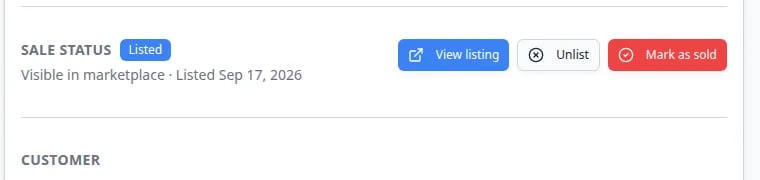
In Vehicle Details, find SALE STATUS.If you see a message that the feature is not enabled, continue to the next sub-step. If you see List for sale, View listing, Unlist, or Mark as sold, skip to Step 2.Expected result: You know whether your facility still needs to turn the feature on.
3
Enable Cars for Sale when you have permission
If an Enable link appears and you have admin access, click Enable on the spot.If you do not see Enable, ask an owner or admin to open Settings > Operations and turn on Cars for Sale.Expected result: The Sale status section shows listing buttons instead of a disabled message.
Step 2: List the vehicle from its car record
1
Open the vehicle you want to sell
From Cars, click View on the correct car.Double-check the VIN or customer name in the banner so you do not list the wrong vehicle.
2
Click List for sale
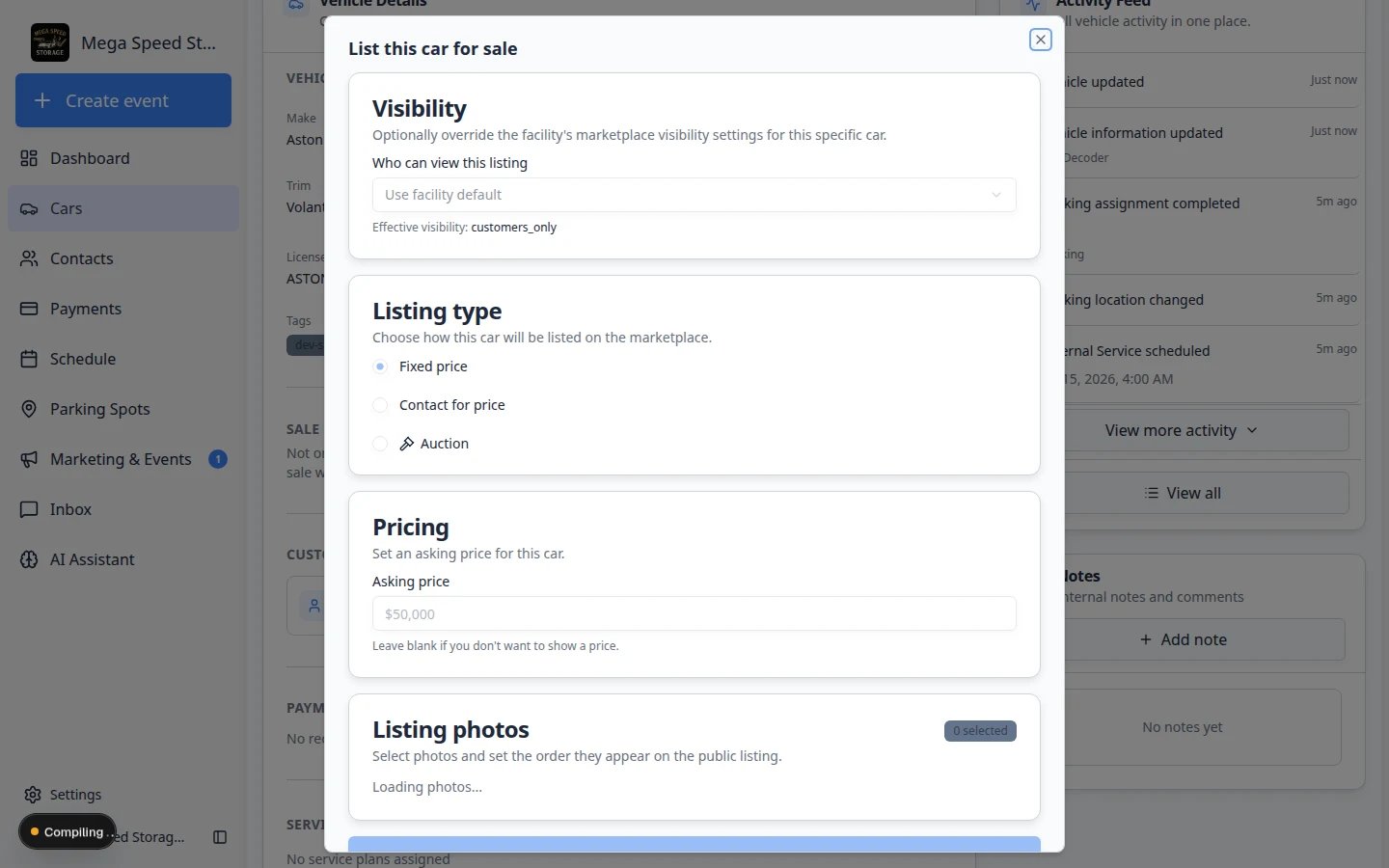
In the Sale status section, click List for sale.If the car is already listed, you will see View listing, Unlist, and Mark as sold instead.Expected result: A window titled List this car for sale opens.
3
Enter price and description
In the listing form:
- Enter the asking price buyers should see.
- Write a short description that highlights mileage, service history, storage care, and notable options.
- Review photos pulled from the car record. Add or replace photos if the form allows.
4
Publish the listing
Click the button to save and publish (for example List for sale or Publish).Expected result: Sale status shows a Listed badge and the text Visible in marketplace with the date it went live. The Activity Feed on the right may log a listed-for-sale event.
Step 3: Confirm on the Cars list and public page
1
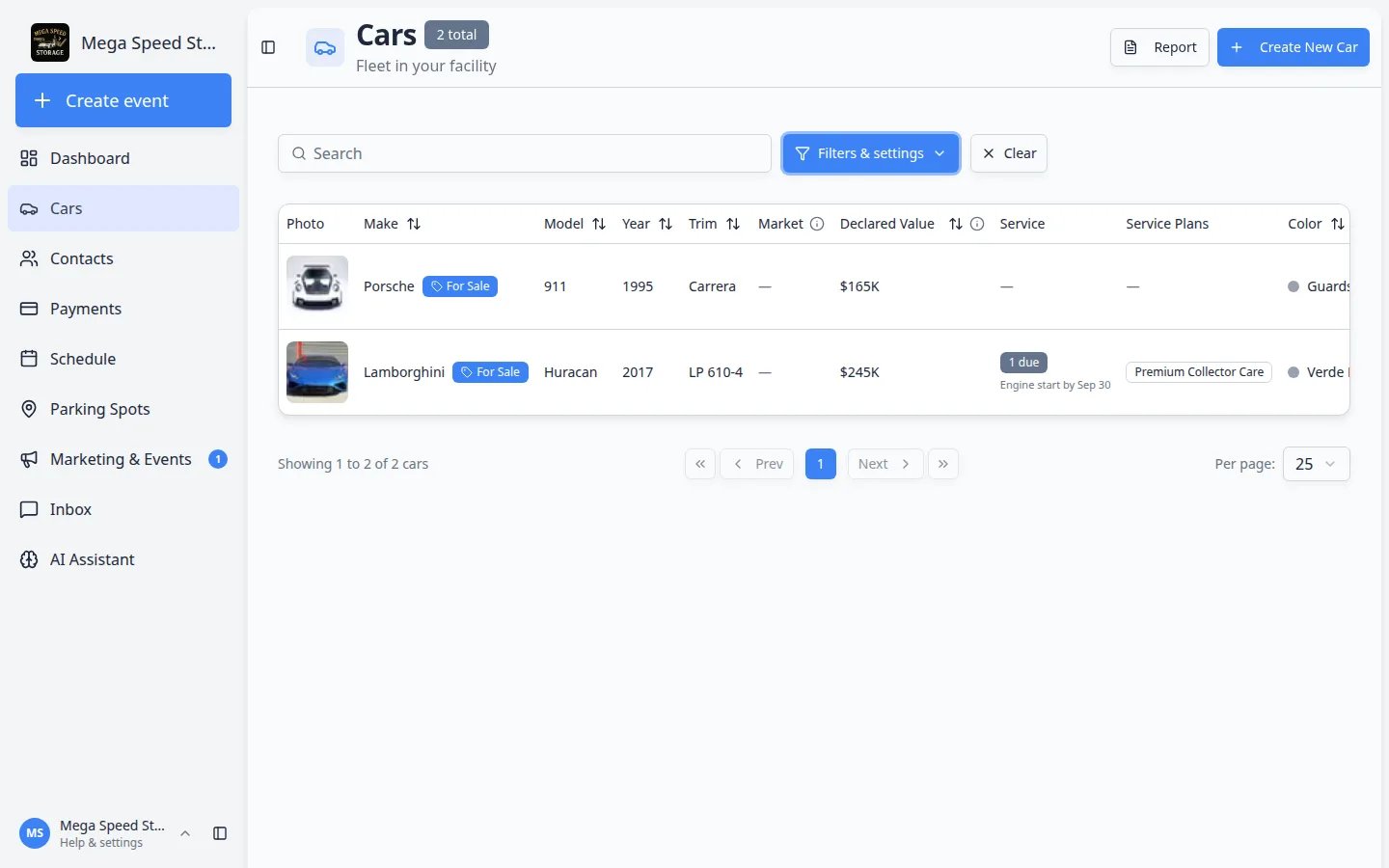
Filter the Cars list
Go to Cars, click Filters & settings, and set For sale to For sale (the other choices are All and Not for sale).Expected result: Only listed cars remain. A For Sale badge appears on those rows.
2
Open your public marketplace
Open your facility marketplace page. You can find the link in Settings > Website or your Facility Web Pages overview.Example path shape:
/facility/your-facility-name/marketExpected result: The vehicle card shows photo, price, and description you entered.3
Share the listing when ready
Copy the listing URL from the marketplace or use your facility’s share tools. Send it to the owner for approval if your process requires it.Why this matters: Consignment sellers often want to approve marketing before you post on social media.

Update, unlist, or mark sold
1
Change price or description
Open the car record → Sale status → click View listing to update details.Expected result: The marketplace page shows the new information after it refreshes.
2
Temporarily remove a listing
Click Unlist when marketing should pause but the sale is not final.Expected result: The car disappears from the public marketplace but stays in your Cars inventory.
3
Mark sold when the deal is done
Click Mark as sold after the vehicle leaves your care or the transaction completes.Expected result: The timeline records the sale and the listing no longer markets the car as available.
Troubleshooting
What to do next
- Group inventory with Organize vehicles with tags (for example tag consignment cars).
- Finish public website setup in Facility Web Pages.
- Return to the Cars overview.