

What you will accomplish
You will use the Billing Setup area on a customer’s detail page to prepare them for invoices and recurring charges—without hunting through multiple settings screens. Use this guide when you need to:- Add a customer to payment processing so you can charge or save a card on file.
- See whether they already have a payment method saved.
- Review invoice and fee settings tied to that customer.
Before you start
- The customer exists in Contacts.
- Payment processing is connected for your facility in Settings > Billing (an admin task).
- The customer’s email is correct if they will add a payment method through the portal or a payment link.
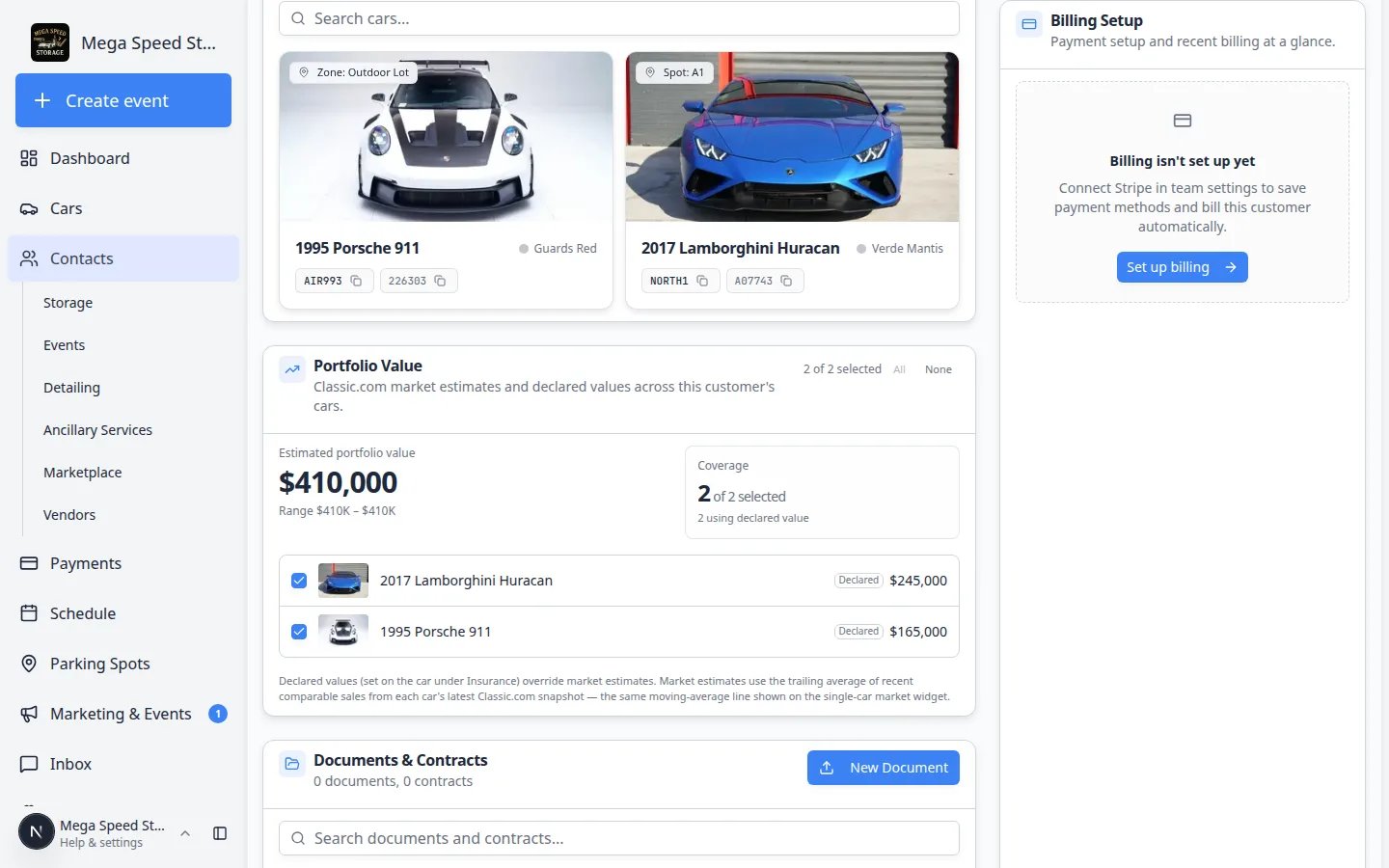
If billing is not set up for your facilityYou may see a message that billing is not set up yet, with a link to Settings > Billing. An admin must connect payment processing before customer-level billing tools appear. You can still create customer records and send manual invoices outside the app until then.Until payment processing is connected, Billing Setup may show Billing isn’t set up yet instead of Add to Stripe. The screenshot below shows a customer record when billing tools are available—your screen may look slightly different until an admin finishes setup.
Open Billing Setup on the customer page
1
Open the customer record
Go to All Contacts, find the customer, and open their detail page.Expected result: You see sections such as Personal & Contact, Cars, and Activity Feed.
2
Find Billing Setup
Scroll to the Billing Setup section on the right side of the page (below Activity Feed on wide screens).Why this matters: Keeping billing next to the customer record helps your team confirm “payment on file” while you are already talking to that person on the phone.
3
Read the status at a glance
The top line in Billing Setup tells you whether this customer is ready for online payments. Look for phrases like Customer not in Stripe, a saved payment method, or Billing isn’t set up yet.Expected result: You know in one glance whether you can invoice this customer online today or need an admin to finish facility setup first.
What you might see in Billing Setup
The section changes depending on your facility setup and this customer’s status:If your facility is still setting up paymentsUntil an admin connects payment processing in Settings > Billing, Billing Setup may show Billing isn’t set up yet with a Set up billing link instead of Add to Stripe. You can still create customer records and prepare their email address—you will return here after facility setup is complete.
Add the customer to payment processing
If the section says the customer is not in Stripe (or payment processing):1
Click Add to Stripe
In Billing Setup, click Add to Stripe.Expected result: The button may show Adding… for a few seconds while the system creates a billing profile for this customer.
2
Confirm the section updates
After success, the section should show payment method tools instead of the empty state.Why this matters: Invoices and recurring charges need this link before the customer can pay online or save a card on file.
3
Check the customer list shortcut (optional)
You can also review customers from the All Contacts table when payments are enabled—look for Add to Stripe on a row. Both paths do the same thing.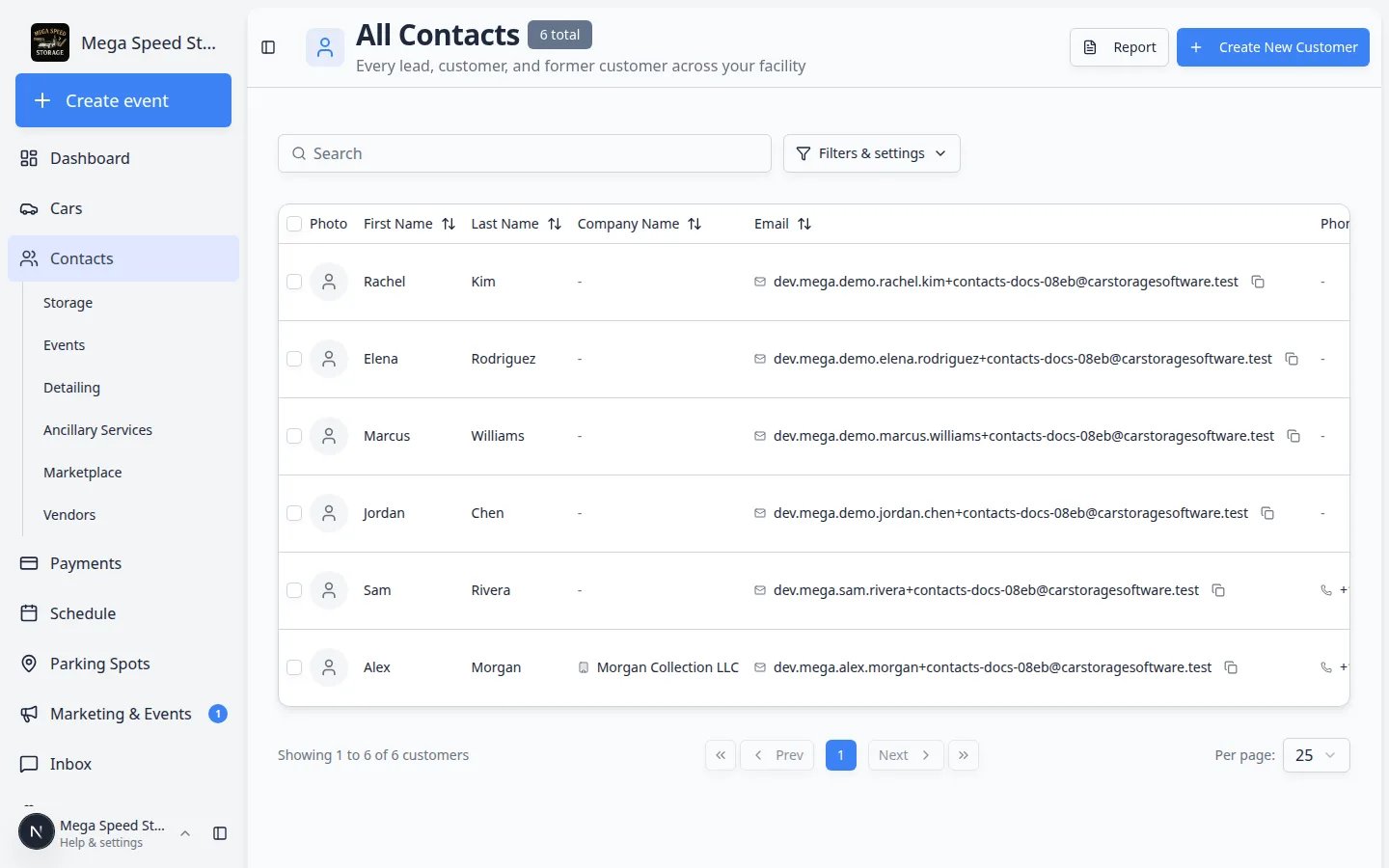
How payment methods get saved
Once the customer is linked to payment processing, a payment method can be added in three common ways. Your facility may use one or all of them:1
Customer adds a card in the portal
Invite the customer to the portal (see Invite a customer to the portal). When billing is turned on for the customer app, they can add a card or bank account under Billing in the portal.Why this matters: The customer enters their own payment details securely—you do not need to handle card numbers over the phone.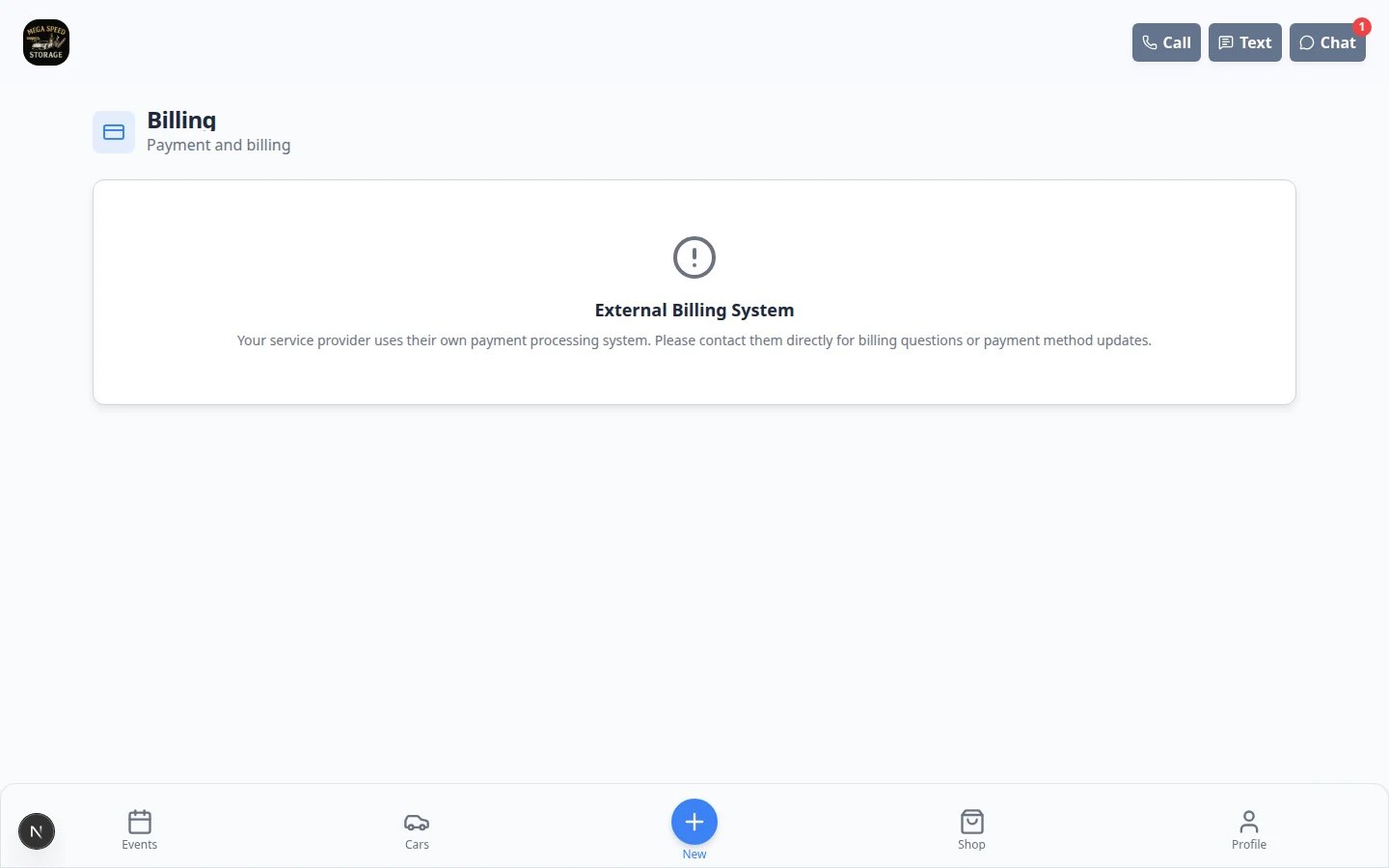
2
Customer pays an invoice link
When you send an invoice with Send and collect customer payments, the customer can pay through the link. They may choose to save their payment method for next time.Expected result: The payment appears in Payments history on the customer record and in Payments.
3
Staff records payment in person (if enabled)
If your facility uses Tap to Pay or similar in-person tools, a team member with permission can save a payment method while the customer is on site.Expected result: The saved method appears in Billing Setup on the customer page.
Invoice billing and fee settings
Below Billing Setup, you may see additional sections when payments are enabled for your facility:Creating the invoice itselfThis guide prepares the customer for billing. To build the invoice line items, open Create an invoice.
Quick check before month-end billing
Use this short checklist when your manager asks who is ready to be charged:- Customer has a correct email on their record.
- Billing Setup shows they are linked to payment processing (not “Customer not in Stripe”).
- A payment method is saved, or you plan to send a payment link with the invoice.
- Cars and recurring charges are linked to the right customer—see Manage recurring billing.
Troubleshooting
What to do next
- Create their first invoice: Create an invoice
- Set up monthly storage: Manage recurring billing
- Review who still needs payment on file: Export and use the customer report
- Let the customer pay in the portal: Invite a customer to the portal
- If Billing Setup is missing on the page, turn the block back on in Customize the contact page.